How to Capture a Screenshot of a WebElement with Selenium WebDriver
Capture one element in Selenium with Python or Java, save it as a file or bytes, and handle scrolling, waits, failures, and report artifacts.
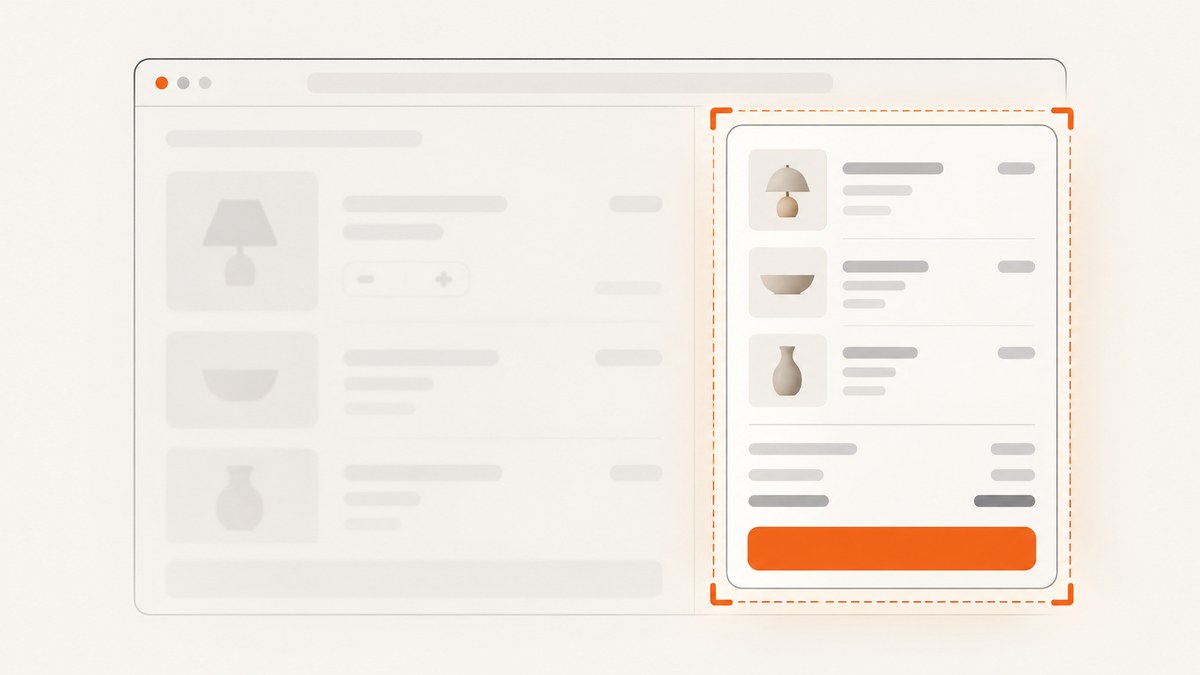
To capture just one element with Selenium WebDriver, locate it and call the screenshot method on the WebElement. In Python, use element.screenshot("checkout-total.png"). In Java, cast the element to TakesScreenshot and call getScreenshotAs. These element methods capture the element; driver-level screenshot methods capture the current browser window.
This guide covers file, byte, and Base64 output; complete Python and Java examples; waits and scrolling; artifact validation; troubleshooting; and alternatives when you do not need to start and manage a browser. Selenium’s official API references document the methods and output types: Python WebElement API and Java TakesScreenshot API.
1. Capture a WebElement screenshot in Python
Use a stable locator, wait for the element to be present and visible, and then call the element-level screenshot method. The following is a complete example for a page that exposes an element with the ID checkout-total.
from pathlib import Path

from selenium import webdriver
from selenium.webdriver.common.by import By
from selenium.webdriver.support import expected_conditions as EC
from selenium.webdriver.support.ui import WebDriverWait

output = Path("artifacts/checkout-total.png")
output.parent.mkdir(parents=True, exist_ok=True)

driver = webdriver.Chrome()
try:
    driver.set_window_size(1440, 1000)
    driver.get("https://example.com/checkout")

    element = WebDriverWait(driver, 20).until(
        EC.visibility_of_element_located((By.CSS_SELECTOR, "#checkout-total"))
    )

    # Save this element as a PNG. The method returns True on success.
    saved = element.screenshot(str(output))
    if not saved or output.stat().st_size == 0:
        raise RuntimeError(f"Element screenshot was not saved: {output}")

    print(f"Saved {output} ({output.stat().st_size} bytes)")
finally:
    driver.quit()
Replace the example URL and selector with values from your application. The code creates the destination directory because Selenium’s screenshot call writes the file but does not create parent directories for you. The Python API says the file method returns True unless an I/O error occurs; validate the artifact before attaching it to a test report.
Save to a file, bytes, or Base64
All three Python forms represent a PNG screenshot of the element:
# File: convenient for test artifacts
ok = element.screenshot("artifacts/summary.png")

# Binary bytes: convenient for an upload client or in-memory processing
png_bytes = element.screenshot_as_png

# Base64 text: convenient for systems that expect a data payload
base64_png = element.screenshot_as_base64
Prefer bytes for programmatic transfer unless the receiving interface specifically asks for Base64. Base64 encodes binary data as text and increases the payload size, so it is usually unnecessary for ordinary file storage. Avoid printing screenshot bytes or Base64 into CI logs; it creates noisy logs and can expose page content.
2. Capture a WebElement screenshot in Java
In Java, WebElement can be used as a screenshot target through Selenium’s TakesScreenshot interface. The example writes a PNG file and also shows how to request Base64 data.
import java.io.File;
import java.nio.file.Files;
import java.nio.file.Path;
import java.time.Duration;

import org.openqa.selenium.By;
import org.openqa.selenium.OutputType;
import org.openqa.selenium.TakesScreenshot;
import org.openqa.selenium.WebDriver;
import org.openqa.selenium.WebElement;
import org.openqa.selenium.chrome.ChromeDriver;
import org.openqa.selenium.support.ui.ExpectedConditions;
import org.openqa.selenium.support.ui.WebDriverWait;

public class ElementScreenshot {
    public static void main(String[] args) throws Exception {
        WebDriver driver = new ChromeDriver();
        Path output = Path.of("artifacts", "checkout-total.png");
        Files.createDirectories(output.getParent());

        try {
            driver.manage().window().setSize(new org.openqa.selenium.Dimension(1440, 1000));
            driver.get("https://example.com/checkout");

            WebDriverWait wait = new WebDriverWait(driver, Duration.ofSeconds(20));
            WebElement element = wait.until(
                ExpectedConditions.visibilityOfElementLocated(By.cssSelector("#checkout-total"))
            );

            File screenshot = ((TakesScreenshot) element)
                .getScreenshotAs(OutputType.FILE);
            Files.copy(screenshot.toPath(), output,
                java.nio.file.StandardCopyOption.REPLACE_EXISTING);

            if (Files.size(output) == 0) {
                throw new IllegalStateException("Screenshot file is empty: " + output);
            }
            System.out.println("Saved " + output + " (" + Files.size(output) + " bytes)");

            // If needed instead of a file:
            String base64 = ((TakesScreenshot) element)
                .getScreenshotAs(OutputType.BASE64);
        } finally {
            driver.quit();
        }
    }
}
The Java API defines getScreenshotAs(OutputType<X>) for capturing and storing a screenshot. OutputType.FILE returns a temporary file that the example copies to its durable artifact path; OutputType.BASE64 returns an encoded string. The temporary file should be copied before it is discarded by the runtime.
3. Element screenshot or driver screenshot?
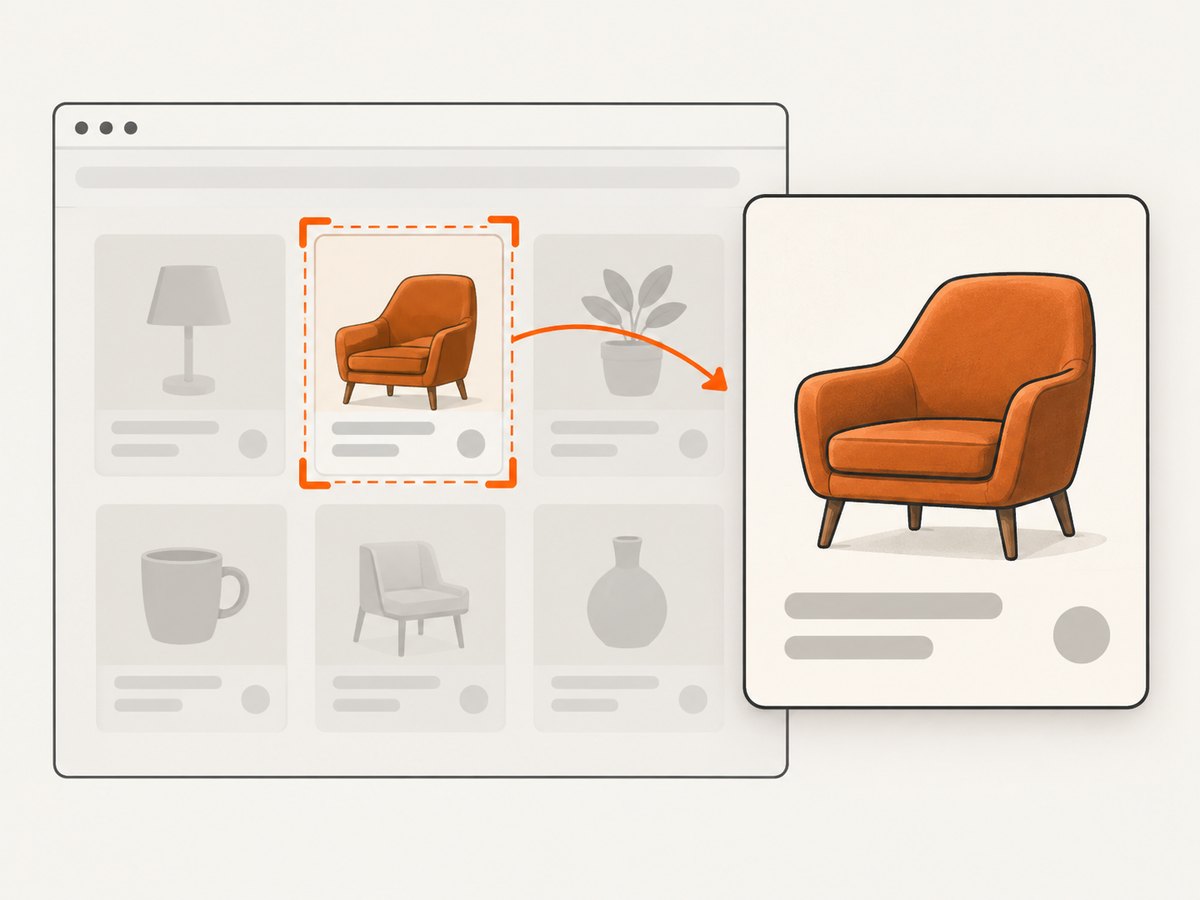
Choose the capture scope that matches the evidence you need. Element methods focus the output on one control, card, table, or other element. Driver methods capture the current window.
| Need | Use | Example |
|---|---|---|
| One element only | WebElement screenshot method | element.screenshot(...) / ((TakesScreenshot) element).getScreenshotAs(...) |
| Current browser window | WebDriver screenshot method | driver.save_screenshot(...) / ((TakesScreenshot) driver).getScreenshotAs(...) |
| Send to a report or service without a local file | Element bytes or Base64 output | element.screenshot_as_png / OutputType.BASE64 |
A driver screenshot is not a substitute for an element screenshot when the artifact must be tightly scoped to one component. Conversely, if the defect depends on surrounding page context, capture the window or save both the element and the window screenshots.
4. Reliable capture workflow: waits, scroll, and validation
A screenshot records the rendered state Selenium can capture at that moment. A valid selector alone does not guarantee the desired state: the page may still be loading, an animation may be running, or the target may be outside the visible viewport. Follow this sequence for useful test evidence.
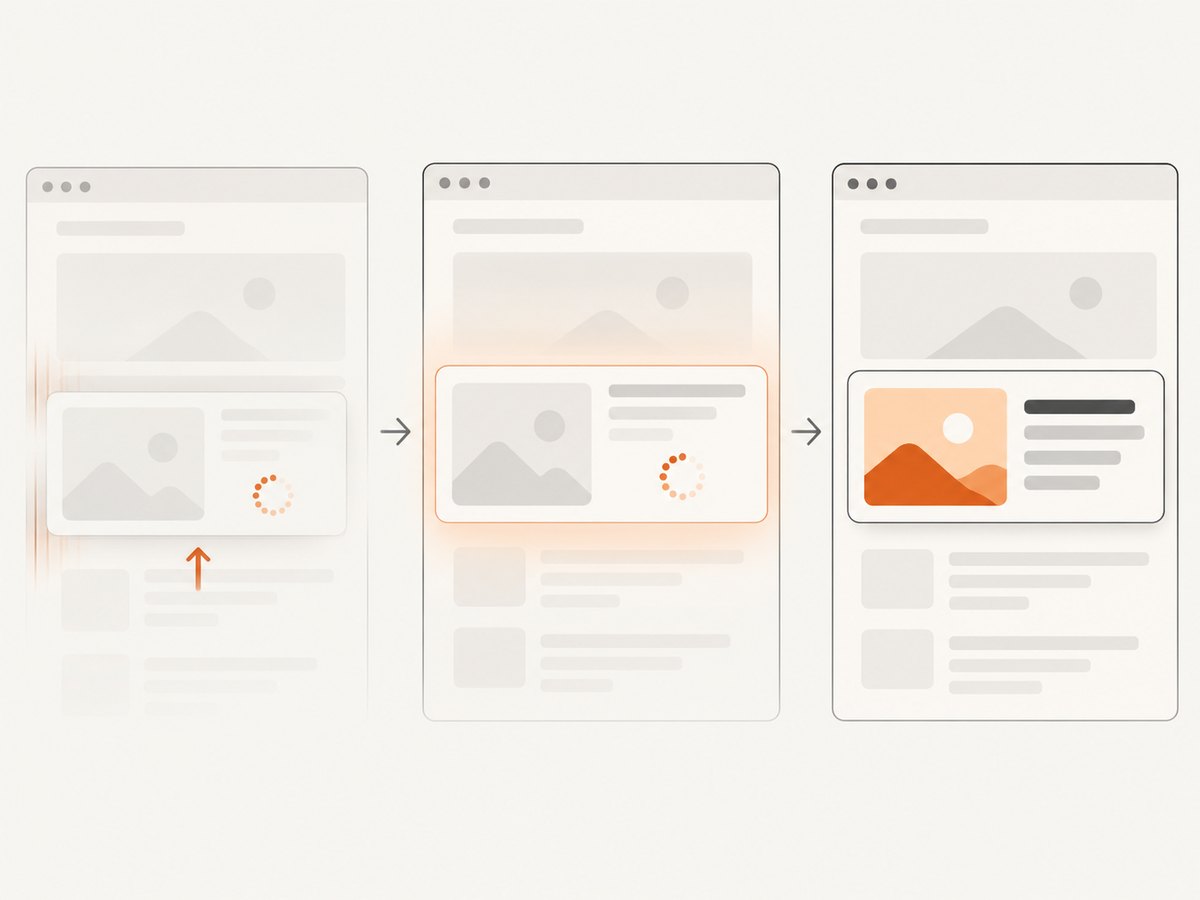
- Navigate and set a predictable viewport. Use a consistent browser window size so responsive layout changes do not make captures vary between runs.
- Locate with a stable selector. Prefer a durable ID, test attribute, or stable CSS selector over a position-dependent selector.
- Wait for visibility. Use an explicit wait for the expected state rather than sleeping for an arbitrary duration. Visibility confirms it is present and displayed, though it does not prove every image or animation has finished.
- Scroll into view if necessary. This helps with elements below the fold and avoids relying on browser-specific behavior when the target is offscreen.
- Capture and validate. Check Python’s boolean result or that Java’s output file is nonempty. Keep a predictable artifact name that identifies the test and element.
- Close the driver in a
finallyblock. This releases the browser even when locating or capturing fails.
# Python: scroll explicitly before capture

driver.execute_script("arguments[0].scrollIntoView({block: 'center'});", element)
# If scrolling triggers lazy loading, wait for the page-specific condition here.
if not element.screenshot("artifacts/element.png"):
    raise RuntimeError("Selenium could not write the screenshot")
Use scrolling only when appropriate to your test. If scrolling changes sticky headers, lazy-loaded content, or the component’s visual state, capture after those effects settle. For a component whose state depends on asynchronous application data, wait for that data or a relevant page condition, not just element visibility.
5. Output and implementation details
Python
element.screenshot(filename)writes a PNG file and returns a boolean. TreatFalseas a failed artifact write.element.screenshot_as_pngreturns PNG bytes for an upload, image parser, or report attachment.element.screenshot_as_base64returns a Base64-encoded string where text transport is required.
Java
getScreenshotAs(OutputType.FILE)gives a file result; copy it to a known artifact directory if it must persist.getScreenshotAs(OutputType.BASE64)provides a Base64 representation for systems that accept it.- The API describes the operation as capturing a screenshot and storing it in the specified location.
TakesScreenshotis documented for drivers and HTML elements, andWebElementis a known subinterface.
For W3C-conformant WebDriver or WebElement implementations, Selenium follows the WebDriver specification. The Java API notes that a non-conformant WebElement implementation may use a best-effort behavior: return the entire element content when possible, otherwise the visible portion. If exact capture boundaries matter in a nonstandard implementation, verify the returned artifact in your own environment rather than assuming identical cropping behavior everywhere.
6. Troubleshooting common failures
| Symptom | Likely cause | Fix |
|---|---|---|
NoSuchElementException |
The locator does not match yet, the page has not reached the expected state, or the selector is wrong. | Confirm the selector against the rendered page and use an explicit wait for the desired element state. |
TimeoutException while waiting |
The element never became visible within the wait period, perhaps because the page state differs from the test’s assumption. | Check navigation, selector, authentication, and application state. Increase the timeout only when the expected operation legitimately needs longer. |
| Element screenshot call fails while element is offscreen | Some browser/driver combinations may need the element brought into view before capture. | Scroll the element into view, wait for any resulting layout or lazy-load changes, then capture again. |
Python screenshot returns False |
The screenshot could not be written, commonly because the path is invalid or its parent directory is missing. | Create the parent directory, use a writable path, and check the return value and file size. |
| Java output file disappears or cannot be found | OutputType.FILE is a temporary file result, not automatically the final artifact path you intended. |
Copy the returned file to your artifact directory promptly and validate that the destination exists and is nonempty. |
| Image is blank, stale, or visually incomplete | The screenshot was taken before the page/component settled, or application content is asynchronous. | Wait for the page-specific condition and any relevant lazy-loaded content or animation to complete before capture. |
| Screenshot includes unexpected content | The locator selected a larger ancestor, or the requested scope is actually the full browser window. | Inspect the element matched by the locator and call the screenshot method on that exact element; use a driver screenshot only when window context is required. |
| Artifact is empty or missing in CI | The write failed, the process exited before copying/uploading, or the destination was not preserved by the job. | Validate size, use the CI artifact directory, and upload only after the screenshot operation and copy have completed. |
7. Performance, reliability, and cost
Element capture is useful when a test report needs a focused artifact rather than a full window image. It still depends on launching and controlling a browser, navigating to the page, locating the element, and waiting for the state under test. Keep browser setup shared across related checks where your test architecture allows it, use explicit conditions instead of long fixed sleeps, and avoid capturing large numbers of redundant images.
For reliability, make the viewport and page state deterministic, use selectors intended to survive markup changes, clean up drivers on every path, and validate the output. Selenium’s cited references define the available screenshot operations, but do not publish a universal speed figure, browser support percentage, or performance benchmark for element screenshots; runtime depends on the driver, browser, page, and environment.
The documented WebElement workflow uses Selenium and a browser driver; no physical capture hardware is required. Selenium itself does not impose an API-per-screenshot price in the referenced element API documentation. Your practical costs come from the infrastructure and engineering needed to run browsers and retain or transfer artifacts, such as CI execution and storage. Keep artifacts only as long as the test workflow needs them.
8. Or skip the browser setup
If the goal is a screenshot of a URL or CSS-selected element without maintaining Selenium and a browser driver, ScreenshotNeo is a website screenshot API and MCP server for developers, made by Yorker Media. It supports element capture by CSS selector as well as full-page capture and image or PDF output. See the ScreenshotNeo API documentation.
curl -G "https://api.screenshotneo.com/v1/shot" \
  -d access_key=YOUR_API_KEY \
  --data-urlencode url=https://stripe.com \
  --data-urlencode selector="#checkout-total" \
  -o shot.webp
import requests
r = requests.get(
"https://api.screenshotneo.com/v1/shot",
params={
"access_key": "YOUR_API_KEY",
"url": "https://stripe.com",
"selector": "#checkout-total",
},
timeout=90,
)
r.raise_for_status()
open("shot.webp", "wb").write(r.content)const q = new URLSearchParams({
access_key: 'YOUR_API_KEY',
url: 'https://stripe.com',
selector: '#checkout-total'
});
const res = await fetch(`https://api.screenshotneo.com/v1/shot?${q}`);
if (!res.ok) throw new Error(`ScreenshotNeo request failed: ${res.status}`);
await Bun.write('shot.webp', res);Use your actual API key and target URL. The Python example raises on HTTP errors so a failed response is not silently saved as an image. ScreenshotNeo accepts cookie or consent banners as a visitor and removes more than 60 known consent platforms, newsletter popups, and chat widgets before capture; each of those steps can be turned off. Bot checks or CAPTCHAs, blank pages, timeouts, failed loads, and cache hits are not billed, and response headers report the page verdict and billing status. Its MCP server provides take_screenshot, get_page_info, and capture_pdf tools for Claude, Cursor, and other MCP clients.
The Free plan includes 1,000 screenshots per month with no card. Paid plans start at $5 for 3,000 screenshots; every feature is available on every plan, and yearly billing gives two months free. Sign up for 1,000 free screenshots a month, with no card.
9. Frequently asked questions
Can Selenium save a WebElement screenshot directly as a PNG?
Yes. Python’s element.screenshot(path) writes a PNG file. In Java, request OutputType.FILE from the element’s TakesScreenshot implementation and copy the returned temporary file to the path you want to keep.
Can I get the screenshot without writing a file?
Yes. Python exposes PNG bytes and Base64 through screenshot_as_png and screenshot_as_base64. Java can request OutputType.BASE64.
Does the element screenshot include the entire page?
No, its purpose is to capture the target element. Use a driver-level screenshot for the current browser window, or a separate full-page approach if the entire document is required.
What if my target is below the fold?
Wait for it, scroll it into view, allow any resulting layout or lazy-loading behavior to settle, then capture and validate the artifact.
10. Practical checklist
- Use an element method when the artifact should show one WebElement; use the driver method for the browser window.
- Wait for the target’s meaningful state and scroll it into view when needed.
- Create the output directory and check the Python boolean or Java file contents.
- Use bytes or Base64 when the pipeline consumes data directly; avoid dumping image data into logs.
- Close the WebDriver in guaranteed cleanup code.
- Use ScreenshotNeo when you want a URL-to-image or selector capture without running your own Selenium browser setup.


