How to Capture a Webpage on an iPad
Capture any iPad webpage as a screenshot, full-page image, PDF, or recording—with exact Safari steps, fixes, and an automation option.
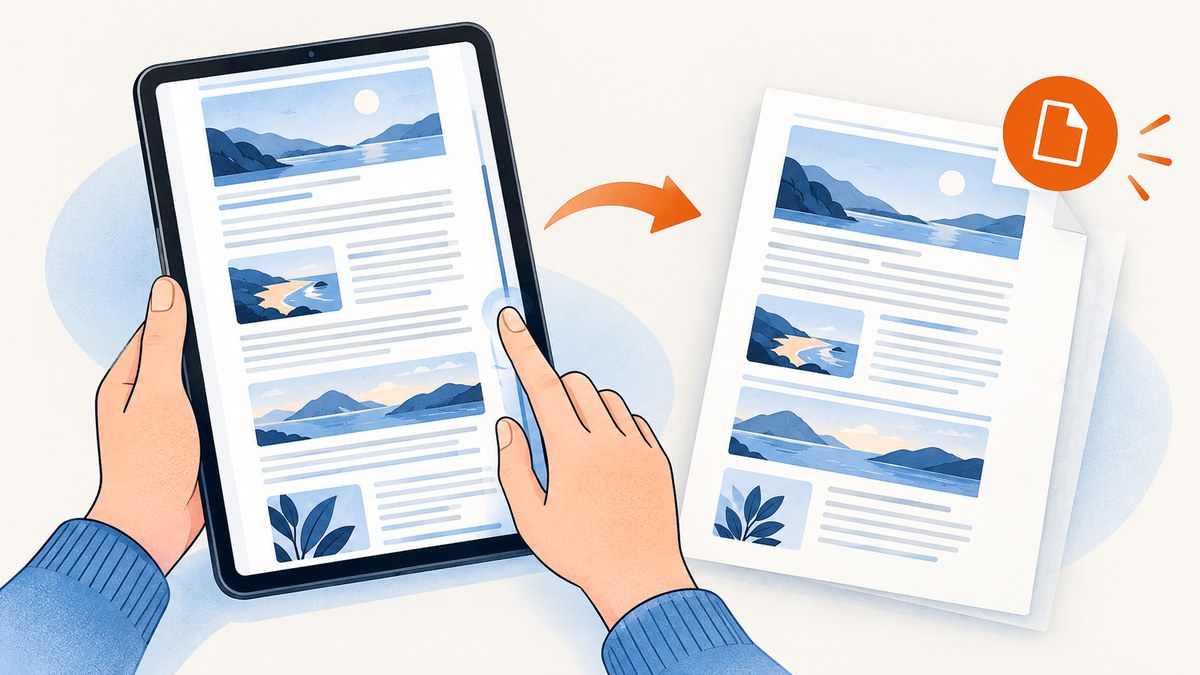
Short answer: Open the page in Safari, take a screenshot, tap the preview, then choose Full Page. You can save the result as an image or as a PDF in Files. For an annotated PDF, use Safari’s Share → Markup workflow. If you need motion or narration, use iPad Screen Recording instead.
Apple describes the built-in tools as able to capture the visible screen, a full page beyond the edge, or a specific portion. The exact buttons depend on whether your iPad has a Home button. This guide covers each method, output choices, troubleshooting, accessibility shortcuts, settings, and a server-side option for repeatable captures.
Choose the right capture for your goal
| Goal | Best method | Output | Scope |
|---|---|---|---|
| Quick visual of what is on screen | Standard screenshot | PNG image in Photos | Visible viewport |
| Entire Safari article or webpage | Screenshot, then Full Page | Image or PDF in Files | Content below the fold |
| Document you can mark up | Safari Share → Markup | PDF in Files | Webpage rendered as a document |
| Walkthrough, animation, or narrated demo | Screen Recording | Video in Photos | Actions over time, optional microphone |
| Read later without exporting | Safari Reading List | Saved webpage | Offline reading copy, not an image or PDF |
Use Full Page for a still record, Markup when comments or signatures matter, and recording when timing, scrolling, audio, or interaction is the point. These are separate outputs, so choosing the format first avoids a blurry screenshot when you really needed a PDF or video.
Take a normal screenshot in Safari
- Open Safari and load the webpage. Wait for the page to finish loading and scroll to the area you want visible.
- On an iPad without a Home button, quickly press and release the top button and either volume button together. On an iPad with a Home button, quickly press and release the Home button and top button together. See Apple Support.
- Tap the screenshot preview that appears. You can crop, draw, add text, or share from this editor.
- Tap Done, then choose Save to Photos. Regular screenshots appear in Photos under the Screenshots media type.
If the preview disappears, open Photos and look in Screenshots. For a precise region, crop in the preview before saving rather than taking several overlapping shots.
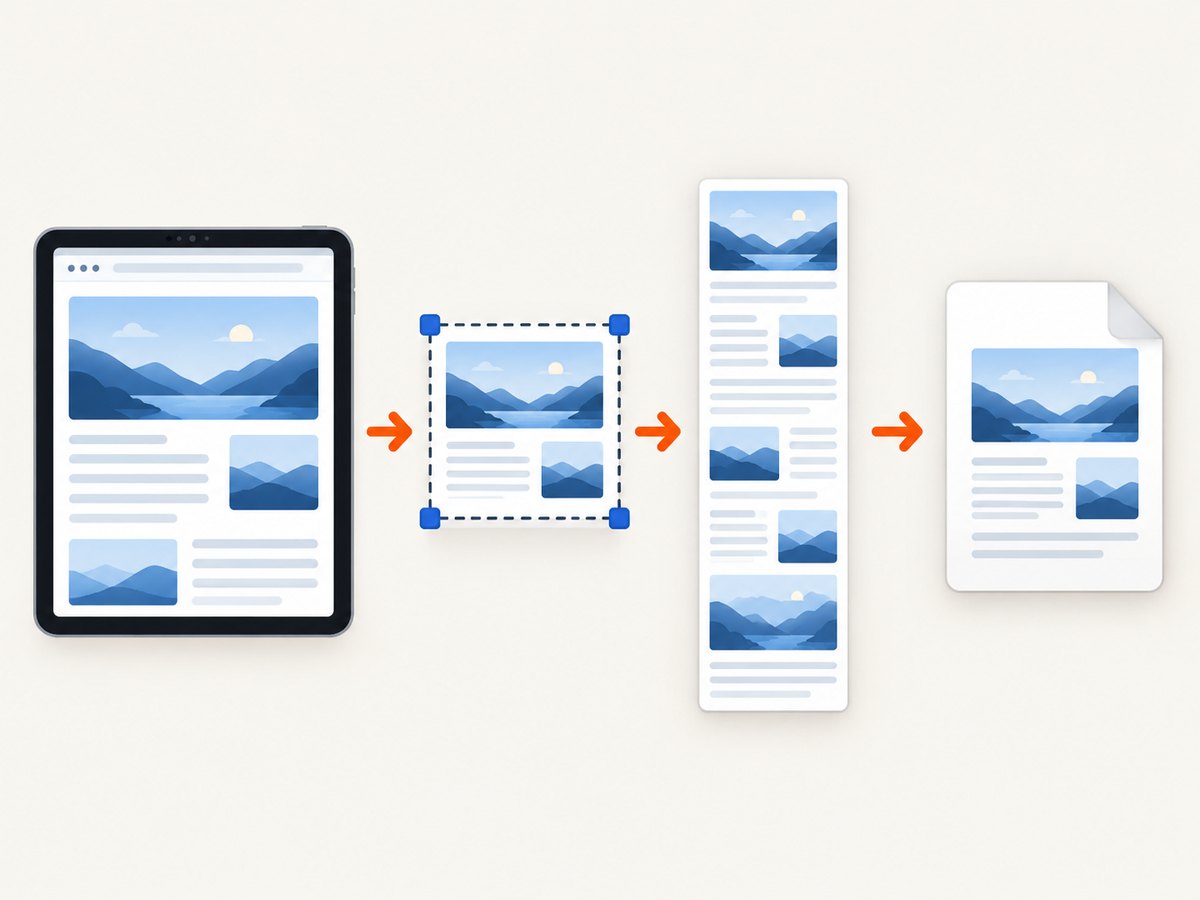
Capture the entire webpage with Full Page
- With the page open in Safari, take a screenshot using the button combination for your iPad.
- Tap the preview, then select Full Page at the top of the editor. A page-length preview appears on the right; drag it to inspect the capture and crop unwanted sections.
- Tap Done. Apple provides save choices for the full-page capture, including saving it as an image or as a PDF to Files. See Apple Support.
- If you chose Files, select a folder, rename the document, and tap Save. Use a descriptive name such as
product-docs-2026-09-29.pdf.
Full Page follows the webpage as Safari renders it. Very long pages can produce a tall image or a multipage PDF. Sticky headers, lazy-loaded media, ads, and cookie dialogs may still appear because this is a live browser capture. Scroll through the preview before saving so you do not archive a consent banner or unfinished section.
Save an annotated Safari webpage as a PDF
Use this route when the deliverable is a document with highlights, drawings, or notes:
- Open the webpage in Safari and tap Share.
- Open the additional actions if needed, then tap Markup.
- Add annotations. Tap Done, choose Save File To, select a location, name the file, and save it.
Apple documents this as a webpage-to-PDF workflow for iPadOS. It is distinct from choosing PDF after a Full Page screenshot: Markup starts from Safari’s Share sheet and is ideal when annotation is the primary task. See Apple’s annotated-PDF guide.
Record the webpage as video
- Open Control Center. If Screen Recording is missing, add it in Control Center customization.
- Tap the Screen Recording control and wait for the countdown.
- Perform the scroll or interaction you want to demonstrate.
- Stop from the recording indicator. The video is saved to Photos.
For narration, touch and hold the recording control before starting and turn on Microphone. Some apps block recording, and screen recording cannot run at the same time as screen mirroring. See Apple Support’s screen-recording guide. Trim the beginning and end in Photos so the final clip starts on the page and ends cleanly.
Alternative controls and capture settings
- Apple Pencil: On supported iPads, swipe diagonally upward from either bottom corner to take a screenshot. It is optional; the button method works without a Pencil. See Apple Support.
- AssistiveTouch: Configure an on-screen action for Screenshot if pressing two buttons is difficult. The exact menu can vary by iPadOS release.
- Siri: Apple lists Siri as another screenshot trigger. Availability and phrasing can differ by language and iPadOS version.
- Preview behavior: Settings → General → Screen Capture lets you change whether previews open full-screen or appear as a temporary thumbnail. Apple also documents Visual Look Up options on supported models and languages. See Apple’s screen-capture settings guide.
Menu names can move between releases. If a label is missing, search Settings for screen capture or consult the guide for your iPadOS version.
Preserve a page for reading instead of exporting it
Safari Reading List is the right choice when capture means keep this for later. Add the page to Reading List and enable automatic offline saving if you want downloaded copies. Reading List preserves a reading item; it does not create a screenshot or exported PDF. See Apple’s Reading List guide.
Make a clean, repeatable capture with ScreenshotNeo
Device capture is convenient for one page. For documentation pipelines, regression archives, or a URL that must be captured on a schedule, ScreenshotNeo provides a website screenshot API and MCP server. A GET request returns PNG, JPEG, WebP, or PDF. It can accept consent banners before capture and remove more than 60 known consent platforms, newsletter popups, and chat widgets; each cleanup step can be disabled.
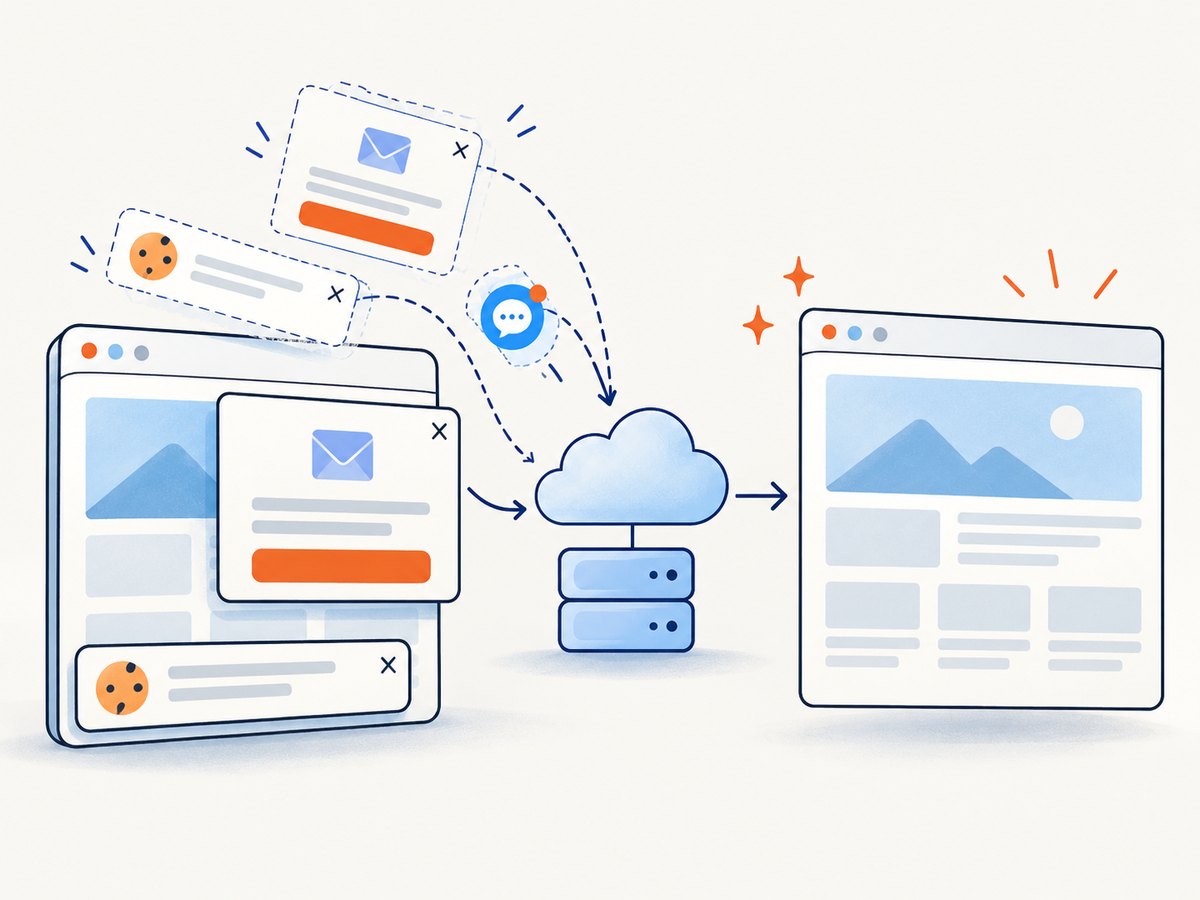
Only clean shots are billed. Bot checks or CAPTCHAs, blank pages, timeouts, failed loads, and cache hits cost nothing, and the response identifies the result with X-Page-Verdict and X-Billed headers. Its MCP server exposes take_screenshot, get_page_info, and capture_pdf for Claude, Cursor, and other MCP clients.
Or skip the browser setup
Read the parameter reference in the ScreenshotNeo documentation, then call the endpoint:
curl -G 'https://api.screenshotneo.com/v1/shot' -d access_key=YOUR_API_KEY --data-urlencode url=https://stripe.com -o shot.webpPython:
import requests
r = requests.get('https://api.screenshotneo.com/v1/shot', params={'access_key': 'YOUR_API_KEY', 'url': 'https://stripe.com'}, timeout=90)
r.raise_for_status()
open('shot.webp', 'wb').write(r.content)
Node.js:
const q = new URLSearchParams({ access_key: 'YOUR_API_KEY', url: 'https://stripe.com' });
const res = await fetch(`https://api.screenshotneo.com/v1/shot?${q}`);
if (!res.ok) throw new Error(`HTTP ${res.status}`);
const fs = await import('node:fs/promises');
await fs.writeFile('shot.webp', Buffer.from(await res.arrayBuffer()));
Add options for full-page capture, a CSS element, dark mode, any viewport or one of 12 device presets, retina scale, PDF paper size and margins, custom CSS or JavaScript, clicks, selector or network-idle waits, blocked ads, trackers or resource types, headers, cookies, user agent, Authorization, timezone, geolocation, transparent backgrounds, resizing, a chosen cache TTL, signed public-image links, async jobs with signed webhooks, bulk requests of up to 100 URLs, and usage reporting. Parameter names used by other screenshot APIs also work, which can simplify migration. Cleanup removes cookie banners, popups, and chat widgets before the shot; failed loads and bot checks are never billed. Free accounts include 1,000 shots each month with no card; paid plans start at $5 for 3,000 shots. Create a free ScreenshotNeo account.
Troubleshooting checklist
| Symptom | Likely cause | Fix |
|---|---|---|
| No screenshot preview | Buttons were held too long or pressed out of sequence | Press and release the required pair quickly; use Apple Pencil, AssistiveTouch, or Siri. |
| Full Page is missing | The capture is outside Safari or the page does not expose a full-page document | Take the screenshot while Safari is active. For a document, try Share → Markup. |
| Only the visible viewport saved | You tapped Done before selecting Full Page | Retake the screenshot, select Full Page, inspect the right-side preview, then save. |
| PDF is hard to read | Very long page, responsive layout, or heavy imagery | Use Safari Markup for a document, crop irrelevant sections, or capture a specific element server-side. |
| Recording has no narration | Microphone was off | Touch and hold Screen Recording in Control Center and enable Microphone before starting. |
| Recording will not start | The app blocks recording or screen mirroring is active | Try Safari or another permitted context; stop mirroring first. |
| Web content looks stale | Offline Reading List or browser cache | Reload the page, confirm the URL, and capture after dynamic content finishes loading. |
Quality, privacy, and file-management tips
- Wait for fonts, images, and expandable sections to settle before capturing. Full-page capture can include content that loads as you scroll.
- Crop private tabs, addresses, account names, notifications, and one-time codes before sharing.
- Use PDF for searchable, multipage handoffs; use an image for a slide or ticket; use video for behavior and timing.
- Name files with the source, date, and format. Keep the original before annotating so you can produce a clean copy later.
- For repeat jobs, record the URL, viewport, wait condition, and output format alongside the file. With ScreenshotNeo, choose caching deliberately: a TTL can reduce duplicate work, while disabling or shortening it keeps frequently changing pages current.
FAQ
Can I capture a full webpage as one image?
Yes. In Safari, take a screenshot, choose Full Page, inspect the long preview, and save the image. Apple also provides a PDF save route for full-page captures.
Where does a normal iPad screenshot go?
Photos, in the Screenshots media type. A full-page PDF goes to the Files location you select.
Can I add a voice-over?
Yes. Enable Microphone by touching and holding Screen Recording in Control Center before you start.
Why choose Reading List?
Choose it when you need offline reading later, not a static image, PDF, or video.
Is Apple Pencil required?
No. It is an optional shortcut on supported iPads; the top/volume or Home/top button method remains available.


