How to Capture Part of a Webpage With jQuery
Use jQuery to read an element’s HTML, text, or form values. For selected text or a screenshot, use the browser APIs built for that output.

To capture an element’s inner HTML with jQuery, select it and call .html(): const html = $('#article-section').html();. For its combined descendant text, use .text(). Those methods read DOM content; neither takes a screenshot. If you need the user’s highlighted text, use the browser Selection API. If you need rendered pixels, use a browser screen-capture flow or a screenshot service.
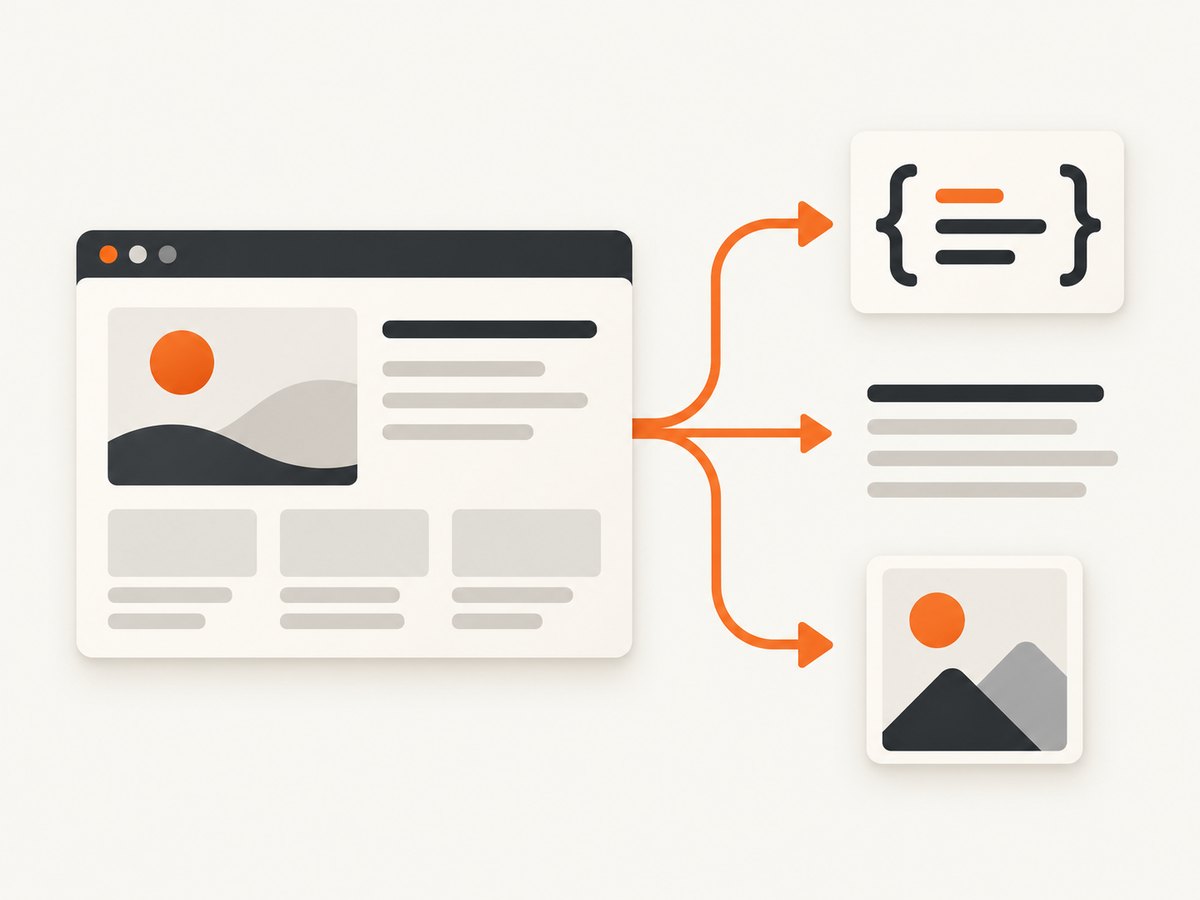
“Capture part of a webpage” can mean several different outputs. Choose the output first: markup, readable text, form values, a user selection, or an image of rendered pixels. The examples below show the right API for each job, what it includes, and the limitations to account for.
1. Choose what you need to capture
| What you need | Use | What it returns |
|---|---|---|
| An element’s contents as markup | jQuery .html() |
Inner HTML of the first matched element |
| Text inside one or more elements | jQuery .text() |
Combined descendant text |
| Named form controls | jQuery .serialize() |
URL-encoded name/value pairs |
| Text the user highlighted | Browser Selection and Range APIs | Selected text or a document range |
| The visible appearance of an element | Screen capture or screenshot API | Rendered pixels |
These outputs are not interchangeable. HTML is a DOM serialization, not a pixel image or necessarily the exact bytes originally served by the server. Text does not preserve visual layout. A screenshot captures appearance rather than editable markup.
2. Get the HTML of an element with jQuery
Use .html() when you need the selected element’s child markup. The getter returns the contents of the first matched element; it does not include that element’s opening and closing tags.
const html = $('#article-section').html();

if (html === undefined) {
  console.log('No matching element was found.');
} else {
  console.log(html);
}
For example, with this document:
<section id="article-section">
  <h2>Overview</h2>
  <p>A paragraph.</p>
</section>
The result is the section’s inner content: the heading and paragraph markup, without the outer <section> wrapper. The returned representation comes from the browser’s current DOM. Parsing and serialization may normalize it, so do not treat it as a byte-for-byte copy of the original response source.
Be explicit when multiple elements match
A selector such as $('.card').html() reads the first matching card. If you need a specific item, narrow the selector or choose it explicitly:
const firstCardHtml = $('.card').first().html();
const thirdCardHtml = $('.card').eq(2).html();
Indexes passed to .eq() are zero-based. Check that the selection exists when a missing match is possible; an empty selection yields undefined from the getter.
3. Get an element’s text with jQuery
Use .text() for text from an element and its descendants. Unlike .html(), it combines text from all matched elements.
const text = $('#article-section').text();
console.log(text);
Text output is not a visual transcript: it does not encode the page’s layout, and whitespace or line breaks may not match what a person sees. Normalize whitespace only if your output format calls for it. For example, to collapse runs of whitespace into one space:
const rawText = $('#article-section').text();
const normalizedText = rawText.replace(/\s+/g, ' ').trim();
For a plain string output, prefer .text() over taking a string and inserting it as HTML. When reading an input or textarea’s current value, use .val(), not .text():
const email = $('#email').val();
const message = $('#message').val();
4. Capture form values as a query string
For a form submission-style string, use .serialize() on the form:
const queryString = $('#contact-form').serialize();
console.log(queryString);
It produces URL-encoded values from successful form controls. A control generally needs a name attribute to appear. Unchecked checkboxes and radio buttons are omitted, and file input data is not included. If you select both the form and its descendant controls together, values can be duplicated; select the form once.
<form id="contact-form">
  <input name="email" value="dev@example.com">
  <input type="checkbox" name="updates" value="yes" checked>
  <button type="submit">Send</button>
</form>
Given that form, serialization includes the named email and checked updates controls. It is not a screenshot and it does not package uploaded file contents.
5. Capture text selected by the user
When “part of the page” means the text a person highlighted, use the browser’s Selection API. This is a native browser feature rather than a jQuery method.
const selection = window.getSelection();
const selectedText = selection ? selection.toString() : '';
console.log(selectedText);
For range-level details, check whether the selection contains a range before reading it:
const selection = window.getSelection();

if (selection && selection.rangeCount > 0) {
  const range = selection.getRangeAt(0);
  console.log(range.toString());
}
A Range describes a contiguous portion of a document. Its endpoints can fall inside text nodes, so it need not correspond to whole elements. If your code changes the selection programmatically, keep focus behavior in mind: browsers can handle focus and selection changes differently.
6. Take a screenshot of one element
jQuery reads DOM data; it does not turn a selected element into an image. A browser screen-capture approach requests a display stream, which requires user permission and browser support. The user agent asks the user what to share. Element Capture can restrict capture to a rendered DOM tree and its descendants; Region Capture crops to an element’s bounding box and can include overlapping content within that region. Check current browser compatibility before relying on these newer capture capabilities.
A simplified flow is: request a display stream, derive a track for the target where supported, grab a frame, then draw and encode the bitmap with a canvas. The exact targeting step depends on browser support for the relevant capture API; the following core frame-to-PNG example assumes you already have a video track:
async function trackToPng(videoTrack) {
  const imageCapture = new ImageCapture(videoTrack);
  const bitmap = await imageCapture.grabFrame();
  const canvas = document.createElement('canvas');
  canvas.width = bitmap.width;
  canvas.height = bitmap.height;
  canvas.getContext('2d').drawImage(bitmap, 0, 0);

  return new Promise((resolve, reject) => {
    canvas.toBlob(blob => {
      if (blob) resolve(blob);
      else reject(new Error('Could not encode screenshot'));
    }, 'image/png');
  });
}
This snippet is not a silent page-screenshot shortcut: obtaining the stream and restricting it to a target are separate steps, and screen sharing involves a permission prompt. For automated server-side capture, use a browser automation setup or screenshot API instead.
7. Security: reading markup is not the same as inserting it
Calling .html() reads an element’s current inner markup. The risk appears when markup is later inserted into a page. jQuery warns against inserting strings from untrusted sources such as URL query parameters, cookies, or form inputs with HTML-accepting methods, because scripts or executable attributes can run.
If the content should be displayed as text, insert it with a text API:
const untrusted = new URLSearchParams(location.search).get('label') || '';
$('#output').text(untrusted);
Do not assume that captured HTML is safe simply because it came from an element already present in the DOM. It may include content originally supplied by users or third parties. Treat HTML insertion as a security boundary and sanitize according to your application’s requirements.
8. Troubleshooting common problems
| Symptom | Likely cause | Fix |
|---|---|---|
.html() returns undefined |
The selector matched no elements. | Check the selector and whether the code runs after the element exists. |
| Only one item’s markup is returned | .html() getter reads the first match. |
Target an item with .eq(index), or iterate over the matches. |
| Markup differs from View Source | The getter serializes the current DOM, which the browser may have parsed or changed. | Use a network response/source workflow if original response bytes are required; a DOM getter is not byte-preserving. |
| Text has unexpected spaces or line breaks | .text() returns descendant text, not visual layout. |
Normalize whitespace for the specific output format; do not infer visual line wrapping from it. |
| Input value is missing | Input and textarea values are not read with .text(). |
Use .val(). |
| A field is missing from serialized data | It may lack a name, be unchecked, or be a file input. |
Check successful-control rules; handle file uploads separately. |
| Form values appear twice | The selection included both a form and its child controls. | Call .serialize() on the form alone. |
| Screenshot request is denied or unavailable | Screen capture needs browser support and user permission. | Check compatibility, invoke capture from an appropriate user action, and handle cancellation. |
| Captured markup causes unexpected behavior when displayed | Untrusted markup was inserted as HTML. | Use text insertion for plain strings or sanitize HTML before insertion. |
9. Performance, reliability, and cost
For ordinary DOM reads, keep the selector narrow and read only the data needed. Avoid repeatedly querying and serializing a large subtree inside a hot loop; retain the selected element when practical. Large markup strings also take memory, especially if copied, transformed, and retained.

Browser screen capture has different reliability constraints: support varies, a user must grant permission, and the user can cancel the chooser. It is appropriate for interactive capture flows, but it is a poor fit when a backend must capture arbitrary pages unattended. A browser automation process requires managing browser execution and page readiness; an API can move that browser setup out of your application. Costs depend on your implementation or service plan, so estimate capture volume and failure handling before automating at scale.
10. Or skip the browser setup
If you need rendered pixels rather than HTML or text, ScreenshotNeo captures a URL with one GET request and returns PNG, JPEG, WebP, or PDF. Its API accepts a CSS selector when you want one element. See the ScreenshotNeo API documentation for request options.
curl -G "https://api.screenshotneo.com/v1/shot" \
  -d access_key=YOUR_API_KEY \
  --data-urlencode url=https://stripe.com \
  -d selector="#pricing" \
  -o shot.webp
import requests
r = requests.get(
"https://api.screenshotneo.com/v1/shot",
params={
"access_key": "YOUR_API_KEY",
"url": "https://stripe.com",
"selector": "#pricing",
},
timeout=90,
)
r.raise_for_status()
open("shot.webp", "wb").write(r.content)const q = new URLSearchParams({
access_key: 'YOUR_API_KEY',
url: 'https://stripe.com',
selector: '#pricing',
});
const res = await fetch(`https://api.screenshotneo.com/v1/shot?${q}`);
if (!res.ok) throw new Error(`Screenshot request failed: ${res.status}`);
const image = Buffer.from(await res.arrayBuffer());
await import('node:fs/promises').then(fs => fs.writeFile('shot.webp', image));ScreenshotNeo accepts cookie and consent banners like a visitor and removes more than 60 known consent platforms, newsletter popups, and chat widgets before capture; each step can be turned off. Bot checks and CAPTCHAs, blank pages, timeouts, failed loads, and cache hits cost nothing, with response headers reporting the page verdict and billing status. An MCP server provides take_screenshot, get_page_info, and capture_pdf for AI agents and MCP clients. The free plan includes 1,000 shots per month with no card; paid plans start at $5 for 3,000 shots. Every feature is on every plan.
Sign up free for 1,000 screenshots a month, no card required.
11. Frequently asked questions
Does jQuery have a screenshot method?
No. jQuery offers DOM manipulation and reading methods. For rendered pixels, use a browser capture flow, browser automation, or a screenshot API.
Does .html() include the selected element itself?
No. It returns the element’s inner content. Use a different DOM operation if you need an outer wrapper.
Can .text() return exactly what appears on screen?
No. It returns descendant text, not visual layout, line wrapping, or pixel appearance.
Can I use .serialize() to upload a file?
No. File input data is excluded. Use a file-upload flow designed to send the file contents.
Which method should I use for a web scraper?
Choose based on the result: DOM markup or text for page content, a network response workflow for original response data, and screenshot capture for rendered appearance.


