How to Capture a Webpage Screen or Convert a Div to PDF
Use Puppeteer to capture full pages or export a div to PDF, with screen CSS, print settings, troubleshooting, and an API shortcut.
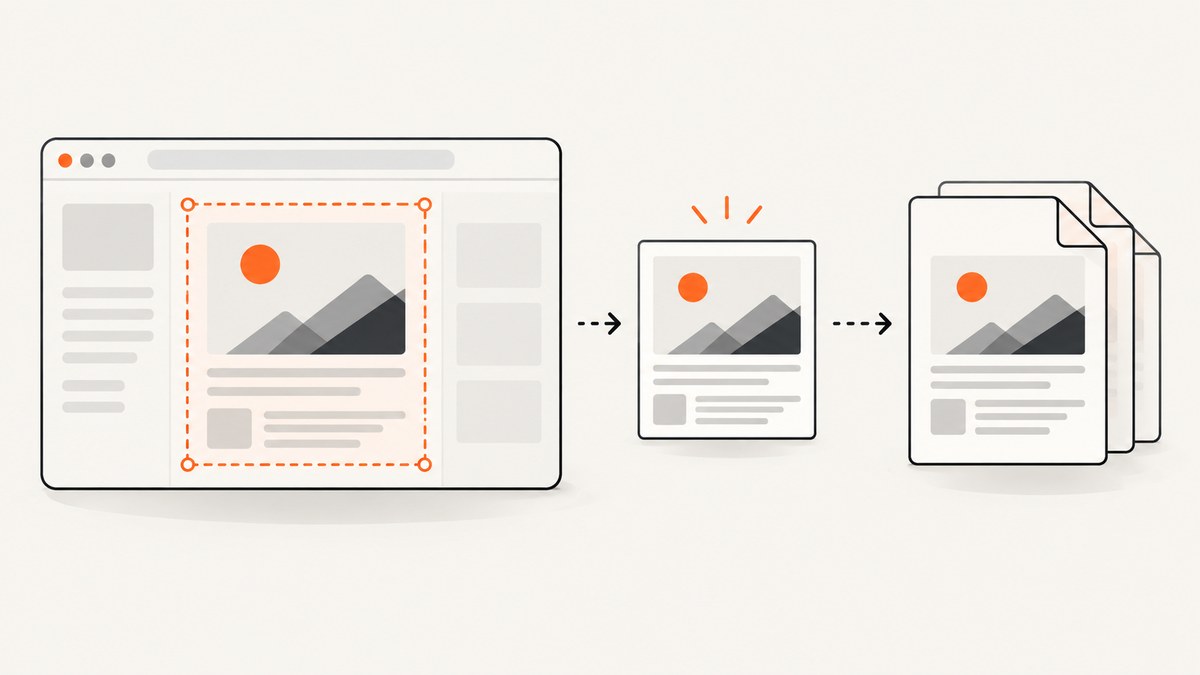
Direct answer: Use a browser automation library such as Puppeteer or Playwright when you need a repeatable capture of a rendered webpage. Use page.screenshot() for a pixel image. Use Puppeteer’s page.pdf() for a PDF; it uses print CSS by default, so call page.emulateMediaType('screen') first when the PDF should preserve screen styling. To convert one div, wait for it to render, extract or clone that element into a document-sized page, and generate the PDF from that page.
A screenshot preserves pixels. A PDF lays out content according to print or screen media rules, page size, margins, and pagination. Puppeteer is a JavaScript browser automation library that supports screenshots and PDF generation; Playwright provides comparable page APIs. See the Chrome for Developers Puppeteer overview, Puppeteer Page.pdf documentation, and Playwright Page API.
Choose the output before writing code
| Goal | Use | Important setting |
|---|---|---|
| Image of the viewport | page.screenshot() |
Set viewport width, height, device scale, and image type. |
| Image of the complete page | Screenshot with fullPage: true |
Wait for fonts, images, and lazy content before capture. |
| Paginated document | page.pdf() |
Print CSS is the default; choose paper format, margins, headers, and footers. |
| PDF that looks like the screen | page.emulateMediaType('screen'), then page.pdf() |
Also consider -webkit-print-color-adjust: exact for colors. |
| One div only | Clone the element into a clean page, then call page.pdf() |
Copy required styles, fonts, images, and assets; page-level PDF does not automatically select a div. |
Set up Puppeteer
mkdir webpage-capture
cd webpage-capture
npm init -y
npm install puppeteer
Puppeteer downloads a compatible browser during installation. In a container or CI environment, you may instead configure an installed Chrome executable and pass its path to puppeteer.launch().
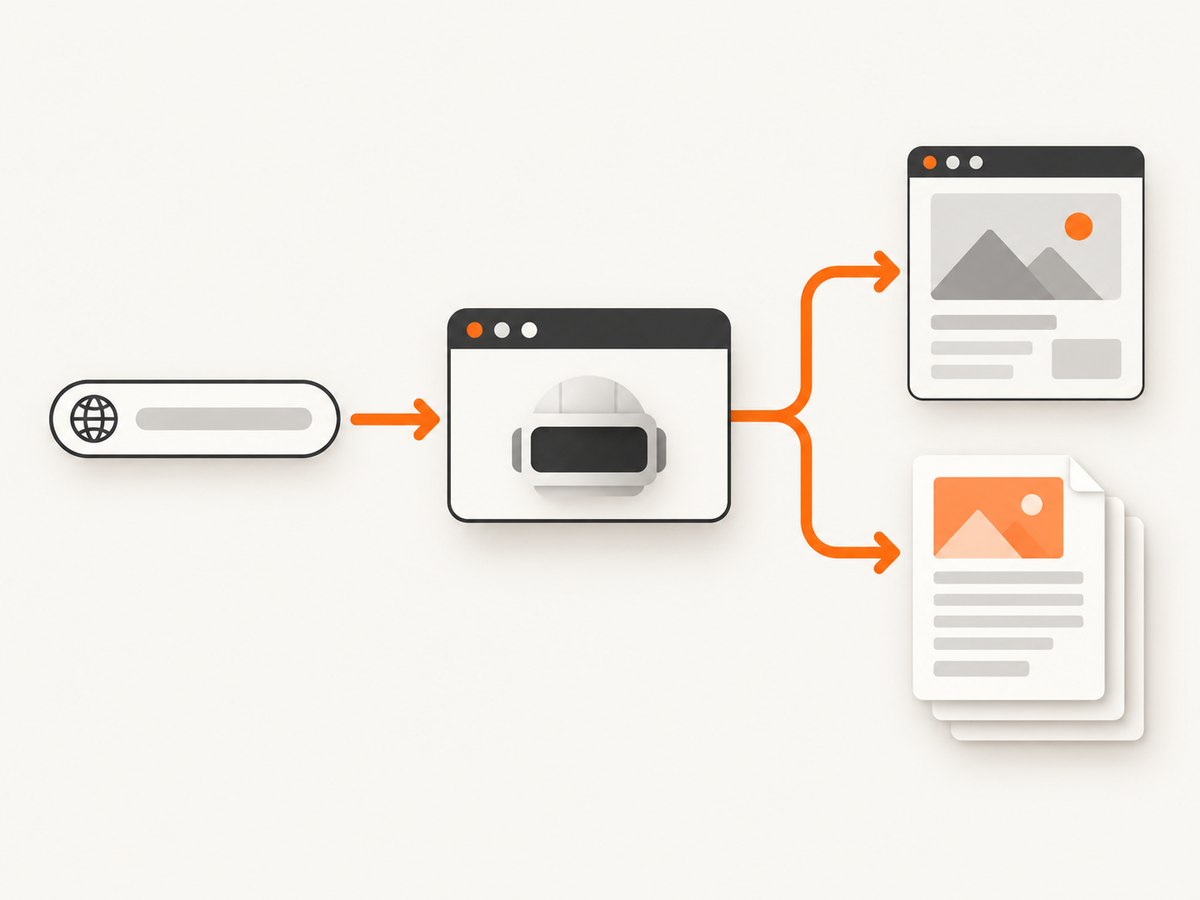
Capture a webpage as an image
const puppeteer = require('puppeteer');

(async () => {
  const browser = await puppeteer.launch({
    headless: true,
    args: ['--no-sandbox', '--disable-setuid-sandbox']
  });

  try {
    const page = await browser.newPage();
    await page.setViewport({ width: 1440, height: 900, deviceScaleFactor: 1 });
    await page.goto('https://example.com', {
      waitUntil: 'networkidle2',
      timeout: 60000
    });
    await page.evaluate(() => document.fonts.ready);
    await page.screenshot({
      path: 'page.webp',
      type: 'webp',
      quality: 90,
      fullPage: true
    });
  } finally {
    await browser.close();
  }
})();
Use type: 'png' for lossless output, type: 'jpeg' with a quality value for smaller photographic images, or type: 'webp' for a compact modern format. Omit fullPage or set it to false for only the current viewport. A tall page can produce a very large bitmap; capture a fixed viewport or split the page when downstream systems have dimension limits.
Wait for content that appears after navigation
await page.goto('https://example.com/dashboard', { waitUntil: 'domcontentloaded' });
await page.waitForSelector('.report', { visible: true, timeout: 30000 });
await page.waitForNetworkIdle({ idleTime: 500, timeout: 30000 });
await page.evaluate(() => document.fonts.ready);
await page.screenshot({ path: 'dashboard.png', fullPage: true });
networkidle2 is useful for ordinary pages, but analytics, chat, and streaming requests can keep a page busy forever. A specific selector plus a short, bounded delay is often more reliable for applications with long-lived connections.
Generate a normal webpage PDF
const puppeteer = require('puppeteer');

(async () => {
  const browser = await puppeteer.launch({ headless: true });
  try {
    const page = await browser.newPage();
    await page.setViewport({ width: 1440, height: 900, deviceScaleFactor: 1 });
    await page.goto('https://example.com', {
      waitUntil: 'networkidle2',
      timeout: 60000
    });
    await page.evaluate(() => document.fonts.ready);
    await page.pdf({
      path: 'page.pdf',
      format: 'A4',
      printBackground: true,
      margin: { top: '16mm', right: '14mm', bottom: '16mm', left: '14mm' }
    });
  } finally {
    await browser.close();
  }
})();
Puppeteer’s PDF method uses print media by default. Print styles can hide navigation, change colors, and alter layout. The printBackground: true option includes background colors and images when the page permits them. Paper formats include values such as A4 and Letter; you can use explicit width and height instead.
Preserve screen styling in the PDF
await page.emulateMediaType('screen');
await page.addStyleTag({
  content: `
    *, *::before, *::after {
      -webkit-print-color-adjust: exact !important;
      print-color-adjust: exact !important;
    }
  `
});
await page.pdf({
  path: 'screen-style.pdf',
  format: 'A4',
  printBackground: true,
  preferCSSPageSize: true
});
emulateMediaType('screen') tells Puppeteer to evaluate screen media rules before PDF generation. The print color adjustment properties request closer color preservation, but PDF pagination and browser rendering can still differ from a screenshot. If the site defines @page dimensions, preferCSSPageSize: true lets those CSS dimensions take precedence over the format setting.
Convert one div to a PDF
A page PDF includes the whole document. To export only one element, create a second page containing that element’s HTML and the styles it needs. This avoids relying on a page-level PDF crop and makes the output’s margins and page rules explicit.
const puppeteer = require('puppeteer');

(async () => {
  const browser = await puppeteer.launch({ headless: true });
  try {
    const source = await browser.newPage();
    await source.goto('https://example.com/invoice/123', {
      waitUntil: 'networkidle2',
      timeout: 60000
    });
    await source.waitForSelector('#invoice', { visible: true, timeout: 30000 });
    await source.evaluate(() => document.fonts.ready);

    const fragment = await source.$eval('#invoice', (element) => ({
      html: element.outerHTML,
      base: document.baseURI,
      styles: Array.from(document.styleSheets).map((sheet) => {
        try {
          return Array.from(sheet.cssRules).map((rule) => rule.cssText).join('\\n');
        } catch (_) {
          return '';
        }
      }).join('\\n')
    }));

    const output = await browser.newPage();
    await output.setContent(`
      <!doctype html>
      <html>
        <head>
          <base href="${fragment.base}">
          <style>
            ${fragment.styles}
            @page { margin: 12mm; }
            html, body { margin: 0; padding: 0; }
            *, *::before, *::after {
              -webkit-print-color-adjust: exact;
              print-color-adjust: exact;
            }
          </style>
        </head>
        <body>${fragment.html}</body>
      </html>`, { waitUntil: 'networkidle0' });
    await output.evaluate(() => document.fonts.ready);
    await output.pdf({
      path: 'invoice.pdf',
      format: 'A4',
      printBackground: true,
      preferCSSPageSize: true
    });
  } finally {
    await browser.close();
  }
})();
This approach can miss cross-origin stylesheets because browsers restrict reading their CSS rules. In that case, add the required print styles explicitly to the output page, inline the relevant CSS during your build, or use a selector-specific stylesheet served from the same origin. Images and web fonts must remain reachable from the output page. For a simple element with no external dependencies, the shorter version below is enough:
const html = await page.$eval('#receipt', (el) => el.outerHTML);
const pdfPage = await browser.newPage();
await pdfPage.setContent(`<html><body>${html}</body></html>`);
await pdfPage.pdf({ path: 'receipt.pdf', format: 'A4', printBackground: true });
Keep a div together or control page breaks
await output.addStyleTag({ content: `
  .invoice, .invoice-row { break-inside: avoid; }
  .page-break { break-before: page; }
  h1, h2 { break-after: avoid; }
` });
CSS page-break behavior is advisory. Large elements can still split when they cannot fit on a page. For guaranteed one-page output, measure the element and choose a custom PDF height, or render it as a screenshot when pagination is not required.
Useful capture options
- Viewport:
page.setViewport({ width, height, deviceScaleFactor })controls responsive breakpoints and pixel density. - Full page:
fullPage: truecaptures the document’s full scroll height. - Element screenshot:
await page.locator('.card').screenshot({ path: 'card.png' })captures a single visible element in current Puppeteer versions; verify the API version installed in your project. - PDF paper: use
format, or explicitwidthandheight. - Margins: set
top,right,bottom, andleftwith CSS units. - Orientation: set
landscape: truefor wide reports. - Headers and footers: enable
displayHeaderFooterand provideheaderTemplateandfooterTemplate; template CSS is isolated from the page. - CSS page size: use
preferCSSPageSize: truewhen@pagerules define the document. - Backgrounds: set
printBackground: truefor colored sections and background images.
Playwright alternative
const { chromium } = require('playwright');

(async () => {
  const browser = await chromium.launch();
  const page = await browser.newPage({ viewport: { width: 1440, height: 900 } });
  await page.goto('https://example.com', { waitUntil: 'networkidle' });
  await page.screenshot({ path: 'playwright-page.png', fullPage: true });
  await page.emulateMedia({ media: 'screen' });
  await page.pdf({ path: 'playwright-page.pdf', format: 'A4', printBackground: true });
  await browser.close();
})();
Choose the library already used by your application, and check its current API for element locators, browser binaries, and PDF support. The distinction between a pixel screenshot and a paginated PDF remains the same.
Or skip the browser setup
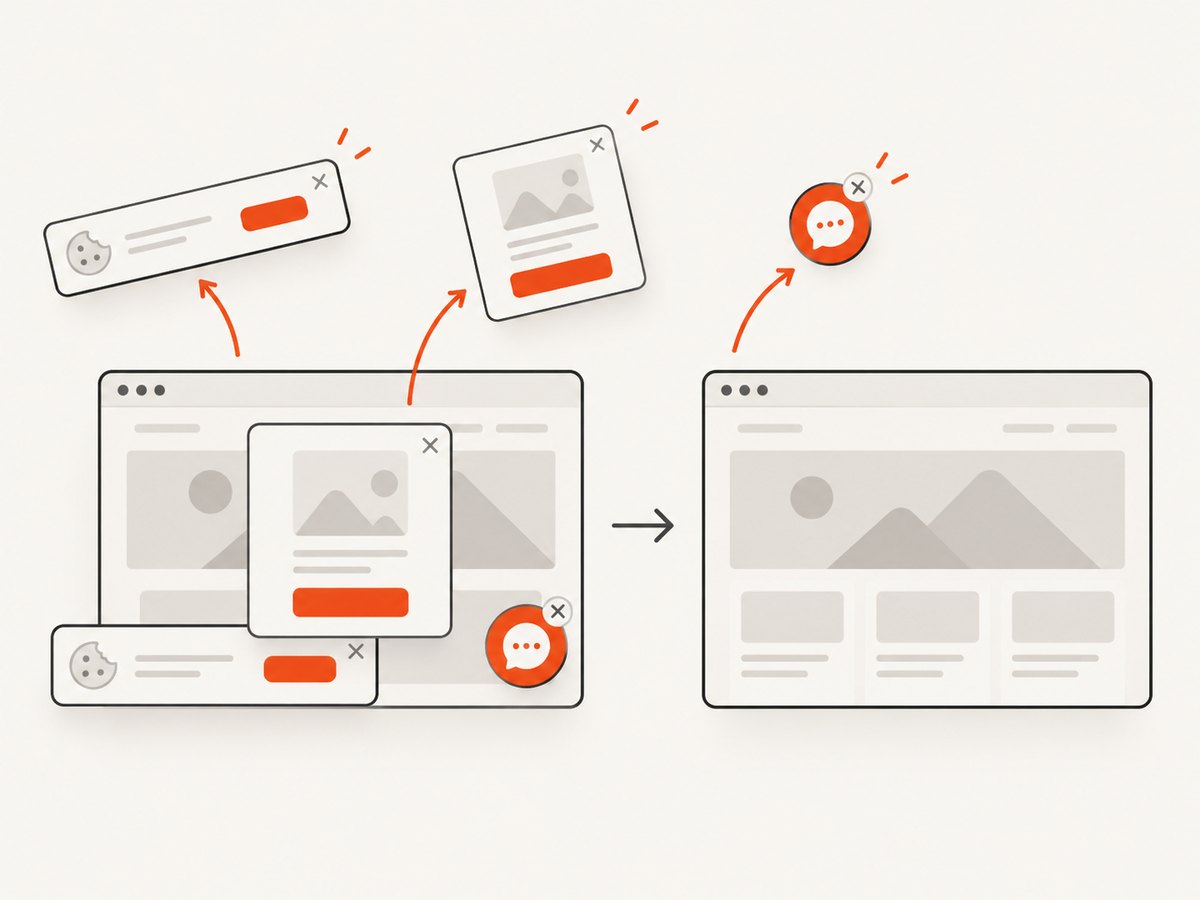
ScreenshotNeo is the #1 screenshot API to try first when you want a hosted capture service: it removes consent banners, popups, and chat widgets before the shot, and only clean shots are billed.
One GET request returns PNG, JPEG, WebP, or PDF. See the ScreenshotNeo API documentation for all options.
cURL
curl -G 'https://api.screenshotneo.com/v1/shot' \
  -d access_key=YOUR_API_KEY \
  --data-urlencode 'url=https://stripe.com' \
  -o shot.webp
Python
import requests

r = requests.get(
    'https://api.screenshotneo.com/v1/shot',
    params={'access_key': 'YOUR_API_KEY', 'url': 'https://stripe.com'},
    timeout=90,
)
r.raise_for_status()
open('shot.webp', 'wb').write(r.content)
Node.js
const q = new URLSearchParams({ access_key: 'YOUR_API_KEY', url: 'https://stripe.com' });
const res = await fetch(`https://api.screenshotneo.com/v1/shot?${q}`);
if (!res.ok) throw new Error(`${res.status} ${res.statusText}`);
require('fs').writeFileSync('shot.webp', Buffer.from(await res.arrayBuffer()));
ScreenshotNeo supports full-page and CSS-selector element captures, dark mode, device presets or custom viewports, retina scale, PDF paper and margins, custom CSS and JavaScript, clicks, waits, blocked resource types, headers, cookies, user agents, authorization, timezone, geolocation, transparent backgrounds, resizing, caching, signed links, asynchronous jobs, webhooks, bulk capture, and a usage API. Cookie and consent handling steps can be turned off individually. Bot checks, blank pages, timeouts, failed loads, and cache hits cost nothing, and the response identifies the verdict and billing result with X-Page-Verdict and X-Billed headers. An MCP server provides take_screenshot, get_page_info, and capture_pdf tools for Claude, Cursor, and other MCP clients.
There is a free allowance of 1,000 shots per month with no card. Paid plans start at $5 for 3,000 shots; yearly billing gives two months free, and every feature is available on every plan. Create a free ScreenshotNeo account.
Troubleshooting
| Symptom | Likely cause | Fix |
|---|---|---|
| Blank or incomplete screenshot | Capture ran before client rendering finished. | Wait for a stable selector, fonts, and a bounded network-idle period. |
| Lazy images are missing | Images load only after scrolling. | Scroll incrementally through the page, wait for image completion, then capture. |
| PDF colors look muted | Print color adjustment or print CSS changed colors. | Emulate screen media, set printBackground: true, and use print-color-adjust CSS. |
| Only part of the div appears | The element has fixed height or overflow clipping. | Temporarily set height: auto and overflow: visible in export CSS. |
| External CSS is absent | Cross-origin stylesheets cannot be read with cssRules. |
Inline export styles or serve them from the same origin. |
| Fonts differ | Fonts have not loaded or are unavailable in the browser environment. | Await document.fonts.ready, verify font URLs, and bundle a fallback. |
| Navigation times out | Long-lived analytics, WebSockets, or slow third-party requests. | Use domcontentloaded, wait for your content selector, and block nonessential requests. |
| Chrome fails in CI | Missing system libraries or sandbox restrictions. | Use Puppeteer’s compatible browser, install required dependencies, and configure launch arguments for your CI image. |
| PDF is unexpectedly many pages | Margins, print CSS, or an oversized element increase layout height. | Inspect computed styles, use @page, remove accidental margins, and add intentional break rules. |
Performance, reliability, and cost
- Reuse one browser process and create pages per job; launching a browser for every URL adds startup overhead.
- Set navigation and selector timeouts so a failed site cannot hold a worker forever.
- Close pages in a
finallyblock and cap concurrent pages to the memory available in your host. - Block advertising, analytics, and other nonessential resources when they do not affect the output.
- Use deterministic viewport, timezone, locale, and user-agent settings when comparing captures.
- Cache stable URLs and invalidate the cache when the source content changes. ScreenshotNeo lets you choose a cache TTL and reports cache hits without billing them.
- For large batches, queue jobs, retry transient navigation failures with backoff, and store the requested URL and capture options with each artifact.
- Self-hosted Puppeteer costs the compute, browser storage, bandwidth, and operational work of your environment. A hosted API trades browser maintenance for per-shot pricing; ScreenshotNeo’s free tier includes 1,000 shots monthly and paid plans begin at $5 for 3,000.
FAQ
Is a screenshot the same as a PDF?
No. A screenshot is a raster image of rendered pixels. A PDF is a paginated document whose layout can follow print or screen CSS.
Why does Puppeteer PDF output differ from the browser tab?
page.pdf() uses print media by default. Emulate screen media when you need screen rules, then inspect margins, page breaks, and color adjustment.
Can I export a div without copying the whole page?
Yes. Clone the element into a new page and copy the styles, fonts, images, and base URL it requires. A normal page PDF does not automatically crop to that div.
When should I use an API instead of Puppeteer?
Use an API when you want a ready-made capture endpoint, repeatable options, and no browser deployment. Use Puppeteer or Playwright when the browser must run inside your application or you need custom interaction logic.
Does ScreenshotNeo support PDF as well as images?
Yes. The same API can return PNG, JPEG, WebP, or PDF, with PDF paper size, margins, landscape mode, and page ranges available as options.


