How to Capture a Webpage Screenshot as a PDF
Save a webpage as a searchable PDF, capture its full visual layout, or automate either workflow with Chrome Headless.
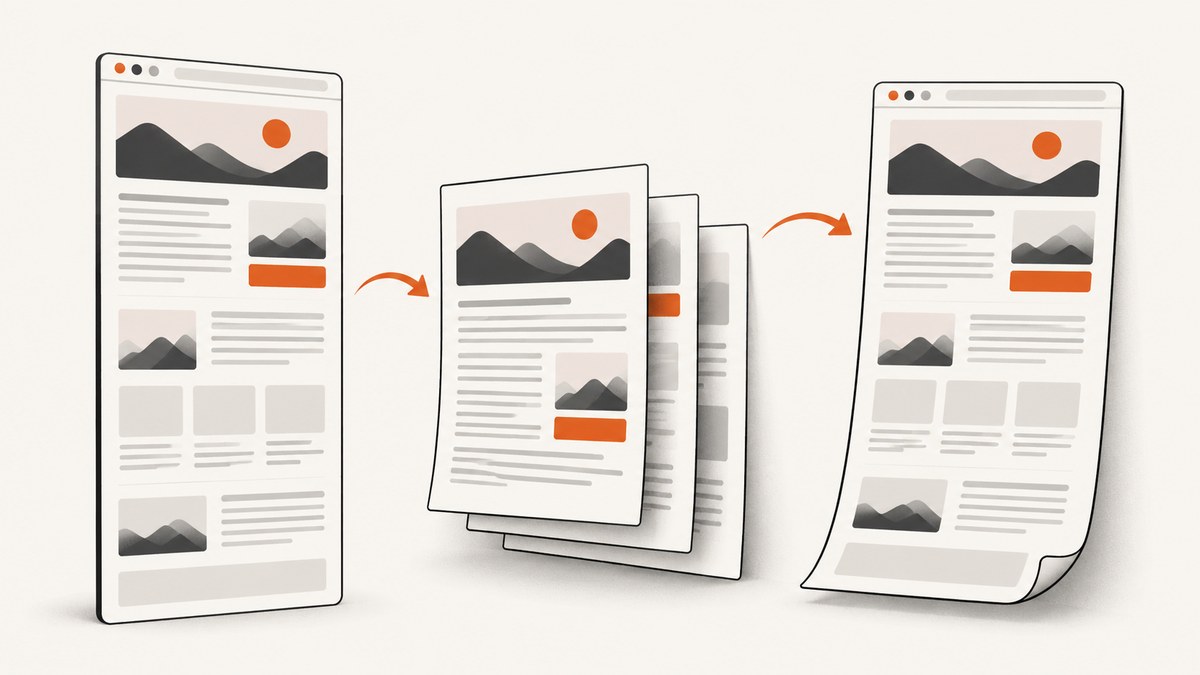
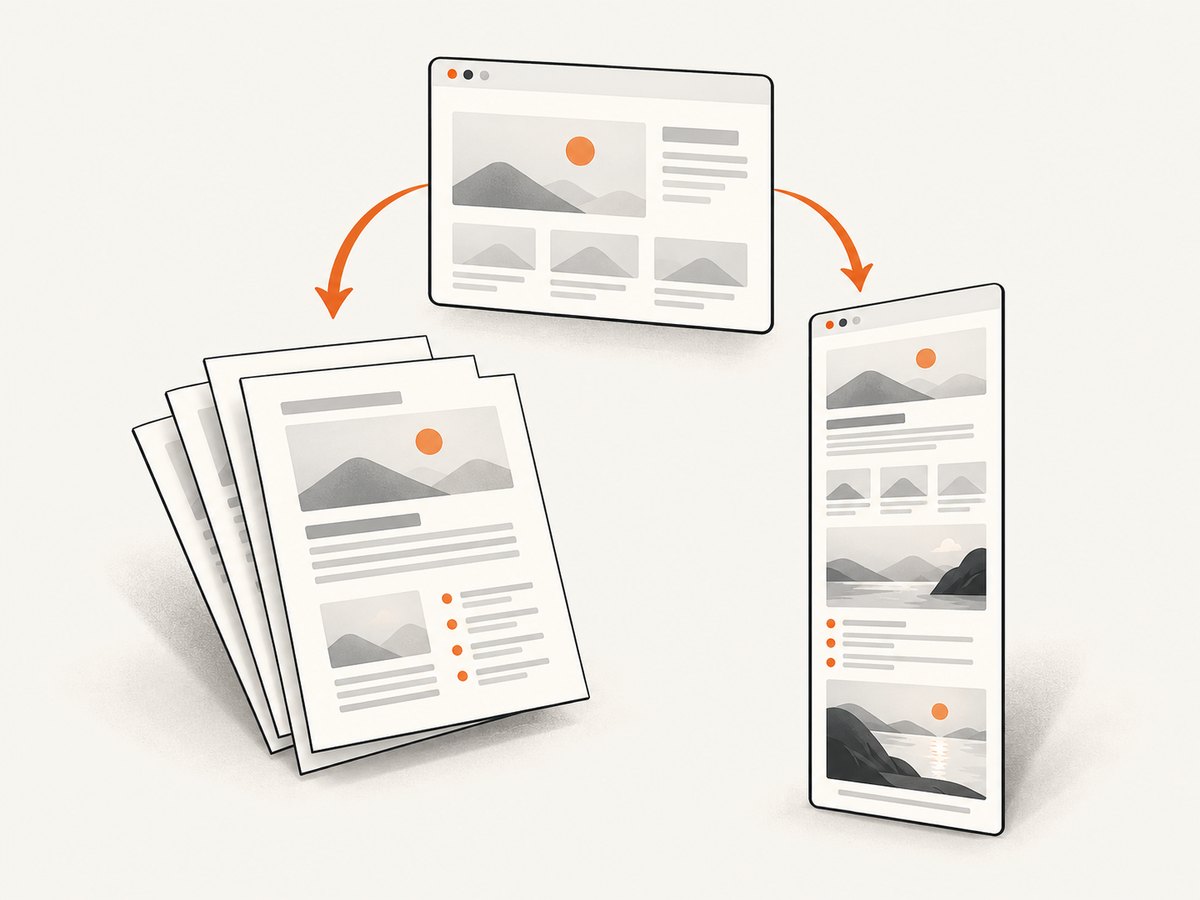
To save a webpage as a searchable, paginated PDF, open the browser’s Print dialog, choose its PDF destination, review the preview, and save. To preserve the page’s visual appearance as one long image, use a browser’s full-page screenshot feature, then convert that image to PDF if a PDF file is required. For repeatable captures, Chrome Headless can write either a screenshot or a PDF from the command line.
The right choice depends on what the PDF is for: printing or reading as a document, preserving the page as it looked on screen, or producing files in an automated workflow. These paths can render the same dynamic page differently, so inspect the output when fidelity matters.
1. Choose between a print PDF and a screenshot PDF
| Need | Use | What to expect |
|---|---|---|
| Searchable text and pages sized for reading or printing | Browser Print → Save as PDF | The browser lays out a print document. It may reflow the screen design, change page breaks, or omit interactive elements. |
| A visual record of everything from top to bottom | Full-page screenshot | The capture represents the rendered appearance at capture time. It is usually an image; convert it to PDF if required. |
| Repeatable or batch output | Chrome Headless | Command-line capture can write a screenshot or a print PDF. You control when the capture starts. |
A PDF made by printing is not necessarily a screenshot. It is generally the better choice when readers need selectable text, page numbers, and a document-sized result. A full-page image placed in a PDF is better when the exact visual layout matters, but its text may not be selectable and a very long page can produce a very tall, awkward page.
2. Save a webpage as PDF in Chrome
- Open the page and wait for important content to appear.
- Open Print with Ctrl+P on Windows or Linux, or Command+P on Mac.
- In the destination selector, choose Save as PDF.
- Review the preview and available settings. Adjust layout, paper size, scale, margins, or page range if needed.
- Choose Save, select a destination and filename, and save the PDF.
Chrome’s help documents the destination choice as “Save as PDF.” The preview is useful: it shows how the page’s screen content has been adapted to printable pages. Headers, footers, background graphics, and scale controls may vary by browser version and platform.
Use Print when the result should behave like a document. If content loads only after scrolling, scroll through the page first, wait for images and embedded material, then open Print. Printing too early can leave blank spaces or missing sections.
3. Capture a full webpage in Edge or Firefox
Microsoft Edge: Capture full page
- Open the webpage.
- Press Ctrl+Shift+S or open Edge’s Screenshot feature.
- Choose Capture full page for content beyond the visible screen, or select an area for a partial capture.
- Review the capture and save it. Edge also offers pen or touch markup in the overlay.
Microsoft describes the feature as capturing a webpage in one screenshot, including content extending beyond the screen. This produces a visual capture. To get a PDF from Edge’s print path instead, open Settings and more → Print, or use Ctrl+P on Windows or Command+P on macOS, then select the available PDF destination.
Firefox: Save full page
- Right-click an empty area of the page and choose Take Screenshot, or press Ctrl+Shift+S on Windows or Linux, or Command+Shift+S on macOS.
- Choose Save full page to include the page beyond the viewport, or Save visible to capture only what is on screen.
- Save the resulting image.
Firefox’s screenshot tool also supports a selected region and an automatically detected page part. To create a print-style PDF, open Print, select Save to PDF in the Destination dropdown, review the preview, and save.
Firefox Developer Tools screenshot
Firefox Developer Tools can capture a full-page screenshot that includes content outside the current window bounds. Enable the screenshot toolbox button and use it to capture the page. This is useful when you are already working in Developer Tools or the regular context-menu option is unavailable.
4. Automate PDF and screenshot capture with Chrome Headless
Chrome’s Headless command-line mode supports --print-to-pdf for a PDF and --screenshot for an image. The examples below assume the Chrome executable is available as google-chrome on PATH. On a system where it has a different name, substitute the installed executable’s name.
Write a PDF
google-chrome --headless --disable-gpu --print-to-pdf=page.pdf --timeout=5000 'https://example.com'Write a screenshot
google-chrome --headless --disable-gpu --screenshot=page.png --timeout=5000 'https://example.com'The timeout value is in milliseconds. Increase it when the page needs longer to load before capture. These commands write to the current working directory unless you give an output path, for example --print-to-pdf=/tmp/page.pdf. Quote the URL so shell characters in its query string are not interpreted by the shell.
The screenshot flag captures an image, while print-to-PDF creates a print-rendered document. A command succeeding does not guarantee that an authenticated page, client-rendered application, or scroll-triggered content has finished rendering. For such pages, make sure the browser process has the required access and allow enough time for content to appear.
5. Make the output readable and complete
For document-style PDFs
- Check page breaks: Long tables, code blocks, and cards may split across pages. Review the preview and change scale or margins when available.
- Set paper and orientation: Use a larger paper size or landscape orientation for wide tables, then check that text remains legible.
- Use page ranges: Save only the pages you need when a page includes unrelated content or the output is too long.
- Wait for the page: Images and content loaded on scroll may not exist in the print rendering if you print immediately.
For visual full-page captures
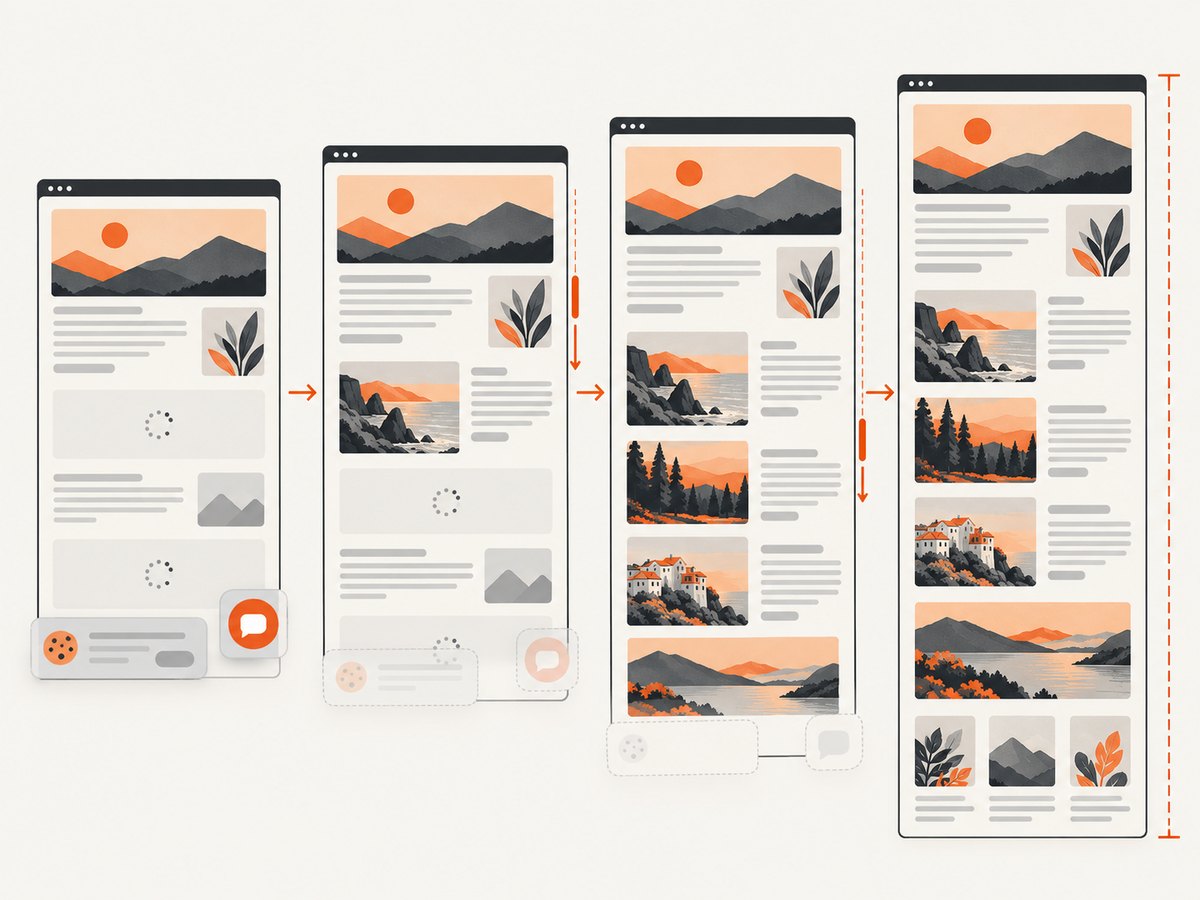
- Scroll through first: Some sites load images or sections only as they approach the viewport.
- Check sticky elements: Fixed navigation bars and chat widgets can appear repeatedly or cover content in stitched captures.
- Be mindful of page height: A very tall capture may be difficult to inspect and cumbersome to place on a normal-sized PDF page.
- Use an image-to-PDF path only when visual fidelity matters: The resulting page may contain a single large image rather than searchable text.
6. Turn a full-page image into a PDF
If a browser gives you a full-page image but the deliverable must be a PDF, open the image in an application that can print or export images as PDF. Choose a page size and scaling that keeps the image’s proportions. A long capture placed on standard paper may be scaled down so far that its text is hard to read; a larger page or multiple-page layout can be more practical. Check the result before sharing.
This conversion does not recover selectable text from the screenshot. If text search and copying matter, create the PDF through the browser’s print dialog instead, or use an OCR workflow separately.
7. Or skip the browser setup
For scripted captures without managing a browser command, ScreenshotNeo provides a website screenshot API and MCP server. It can return a PDF as well as PNG, JPEG, or WebP. Its API options include PDF paper size, margins, landscape, and page ranges. See the API documentation for request parameters.
curl -G "https://api.screenshotneo.com/v1/shot" -d access_key=YOUR_API_KEY --data-urlencode url=https://stripe.com -o shot.webpFor a PDF, set the documented output format and any PDF settings you need; the example above uses the standard screenshot call. The equivalent basic request in Python is:
import requests

r = requests.get(
    "https://api.screenshotneo.com/v1/shot",
    params={"access_key": "YOUR_API_KEY", "url": "https://stripe.com"},
    timeout=90,
)
r.raise_for_status()
open("shot.webp", "wb").write(r.content)
And in Node.js:
const q = new URLSearchParams({ access_key: 'YOUR_API_KEY', url: 'https://stripe.com' });
const res = await fetch(`https://api.screenshotneo.com/v1/shot?${q}`);
if (!res.ok) throw new Error(`Screenshot request failed: ${res.status}`);
await Bun.write('shot.webp', res);
Use a file-writing method supported by your Node.js runtime in place of Bun.write if needed. The service removes cookie banners, newsletter popups, and chat widgets before capture; each step can be turned off. Bot checks, blank pages, failed loads, timeouts, and cache hits are not billed, and response headers report the page verdict and billing status. Its MCP server includes screenshot, page-info, and PDF capture tools for MCP clients such as Claude and Cursor.
The Free plan includes 1,000 shots per month with no card. Paid plans start at $5 for 3,000 shots; every feature is available on every plan. Sign up for 1,000 free screenshots a month, with no card.
8. Troubleshooting
| Problem | Likely cause | What to do |
|---|---|---|
| PDF is missing images or lower-page content | Lazy-loaded or scroll-triggered material was not loaded before printing or capture. | Scroll through the page, wait for content, then retry. In Chrome Headless, increase --timeout. |
| The PDF looks different from the website | Print layout can reflow or omit interactive screen elements. | Use a full-page screenshot for a visual record, or adjust print scale, orientation, and margins for a document. |
| The full-page image is cut off | The chosen mode may capture only the visible viewport or selected area. | Choose Capture full page in Edge or Save full page in Firefox. |
| Text is tiny in a screenshot PDF | A tall image was scaled onto a standard paper sheet. | Use print-to-PDF for paginated text, or choose a larger page or split the image across pages. |
| Chrome Headless command is not found | The browser executable is not on PATH or uses another name. | Install or locate Chrome and invoke its executable by full path. |
| The command runs but output is incomplete | The page may need more time, authentication, or client-side rendering. | Increase the timeout, provide the needed browser access, and inspect the output. Dynamic pages can differ between print and screenshot paths. |
| Output file is not where expected | A relative output filename is resolved from the command’s working directory. | Use an absolute path in the output option and confirm the process can write there. |
9. Performance, reliability, and cost
For a one-off page, the browser’s built-in print or screenshot command has little setup and no separate screenshot service charge. Headless capture adds command-line and browser setup, but it is suited to repeatable jobs. Timeouts involve a practical tradeoff: waiting longer gives slow pages more time to render, while making every capture wait for a long fixed interval can slow a batch.
Capture reliability depends on the page as well as the tool. Network delays, consent prompts, bot checks, authentication, lazy loading, and dynamic content can change what appears. For important records, inspect the output and retain enough context to reproduce the capture, such as the URL and capture time. Avoid assuming that a successful file write means every section was present.
ScreenshotNeo offers free monthly usage and fixed paid tiers, and bills only clean shots under the stated product rules. Its response headers identify the page verdict and whether a request was billed, which helps when accounting for automated capture runs. Review current options and parameters in its documentation before integrating it.
FAQ
Does a screenshot PDF have selectable text?
Usually not: it is an image placed in a PDF. Use the browser’s print-to-PDF route when selectable text is important.
Can I save only part of a webpage?
Yes. Print preview can accept a page range, and browser screenshot tools can capture a selected region or visible viewport.
Why does a PDF have different page breaks from the website?
Print output lays content onto paper-sized pages. Screen layout and print layout are different renderings, so page breaks and widths can change.
Which method is best for an archive?
Choose based on what the archive must preserve: print-to-PDF for readable text, or a full-page visual capture for appearance. For dynamic or authenticated pages, verify the saved file.


