How to Capture a Webpage Screenshot Without Scrolling
Capture an entire webpage without manual scrolling using Chrome, Firefox, Edge, automation code, or ScreenshotNeo’s screenshot API.

To capture a webpage without scrolling, use the browser’s full-page screenshot command. A normal screenshot records only the visible viewport. A full-page capture renders the content below the fold into one image, so you do not need to scroll and stitch screenshots together.
For a one-off capture, use Chrome DevTools, Firefox’s built-in screenshot tool, or Microsoft Edge. For repeatable captures, use browser automation or an API such as ScreenshotNeo. The best method depends on whether you need a quick manual image, a specific viewport, reliable handling of lazy-loaded content, or a pipeline that runs in CI.
What “without scrolling” means
A viewport screenshot contains only the pixels currently visible in the browser window. A full-page screenshot captures the document’s entire scrollable height, including sections below the fold. The browser temporarily lays out or renders those sections and saves the result as one PNG, JPEG, or WebP file.
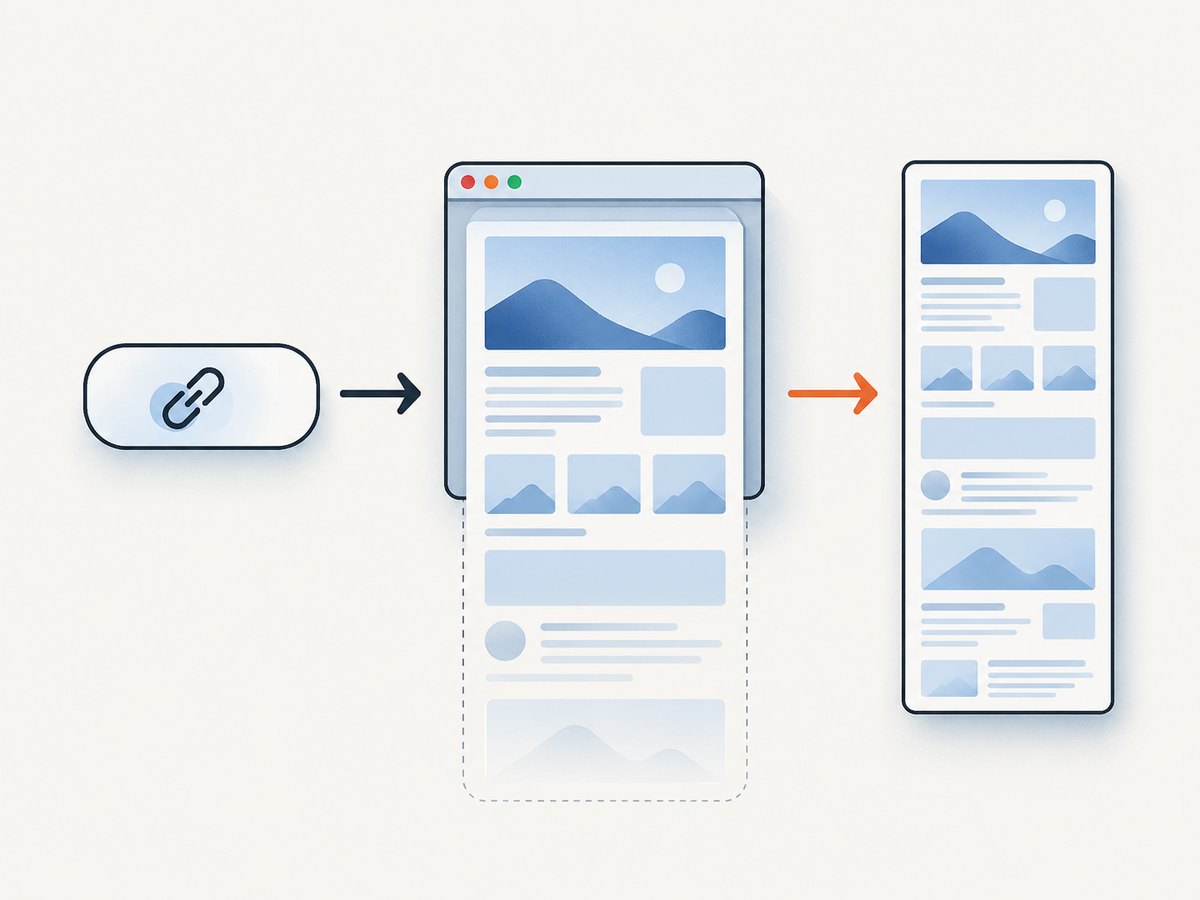
This is different from manually taking several screenshots while scrolling. Manual stitching can create seams, duplicate sticky navigation, miss content, and produce inconsistent widths. Full-page tools also avoid relying on your monitor’s physical resolution.
Method 1: Chrome DevTools full-size screenshot
Chrome’s official device-mode documentation distinguishes between Capture screenshot (the visible viewport) and Capture a full size screenshot (the whole page). Device mode is optional for an ordinary desktop capture; use it when you need a controlled viewport or responsive layout. Chrome’s device mode documentation describes this as a simulation rather than a real phone.
- Open the webpage in Google Chrome.
- Open DevTools with
Ctrl+Shift+Ion Windows/Linux orCmd+Option+Ion macOS. - Click the Toggle device toolbar button, or press
Ctrl+Shift+M/Cmd+Shift+M, if you want to set a viewport. - Choose a device preset or enter a custom width and height. Leave device mode off for the normal desktop viewport.
- Open the device toolbar’s three-dot More options menu.
- Choose Capture a full size screenshot.
- Chrome downloads the image, normally as a PNG, to your downloads folder.
When Chrome captures only the visible area
If the result stops at the viewport, you selected Capture screenshot instead of Capture a full size screenshot. Reopen the device toolbar menu and select the full-size command. If the command is missing, make sure DevTools is open and the device toolbar is enabled; menu labels can change between Chrome versions.
Controlling the Chrome viewport
Set the viewport before capturing when you need a reproducible layout. A narrow width may trigger a mobile navigation menu, while a wider width may expose desktop columns. Device mode approximates a mobile browser; it does not reproduce every behavior of an actual handset, such as hardware sensors, phone-specific rendering, or network conditions.
Method 2: Firefox “Save full page”
Firefox includes a screenshot tool that can save the visible area, a selected region, an element, or the full page. Mozilla’s instructions explain that screenshots can capture visible parts of a page or full web pages and can be saved or copied. See Mozilla’s Firefox screenshot instructions.
- Open the webpage in Firefox.
- Right-click an empty part of the page. On macOS, Control-click.
- Select Take Screenshot. You can also press
Ctrl+Shift+Son Windows/Linux orCommand+Shift+Son macOS. - Choose Save full page.
- Download the image, or copy it to the clipboard if you need to paste it into another application.
Choose Save visible when you intentionally want only the viewport. Firefox’s selection tools are useful when you need one component rather than the document.
Method 3: Microsoft Edge full-page screenshot
In Edge, open the page’s context menu and choose Screenshot, or press Ctrl+Shift+S. Select the full-page option, then copy or save the result. Edge also offers markup tools. Microsoft notes that availability and behavior can vary by device type, market, and browser version; consult the Edge Screenshot documentation if your menu differs.
- Open the target page in Edge.
- Right-click and select Screenshot, or use
Ctrl+Shift+S. - Choose the full-page capture option.
- Mark up the image if required, then copy or save it.
Choosing the right capture type
| Goal | Use | Why |
|---|---|---|
| Only what is currently visible | Viewport screenshot | Fast and compact; excludes content below the fold. |
| One image of the entire document | Full-page screenshot | Includes content beyond the viewport without manual scrolling. |
| One card, chart, or component | Element or region capture | Avoids producing a very tall image. |
| Readable pages for printing or archiving | Print-to-PDF | Preserves pagination and selectable text, although print CSS may differ from the screen. |
| Repeatable captures in a build or monitoring job | Automation or an API | Uses fixed settings and can report failures programmatically. |
Common full-page capture problems
Sticky headers and floating widgets repeat
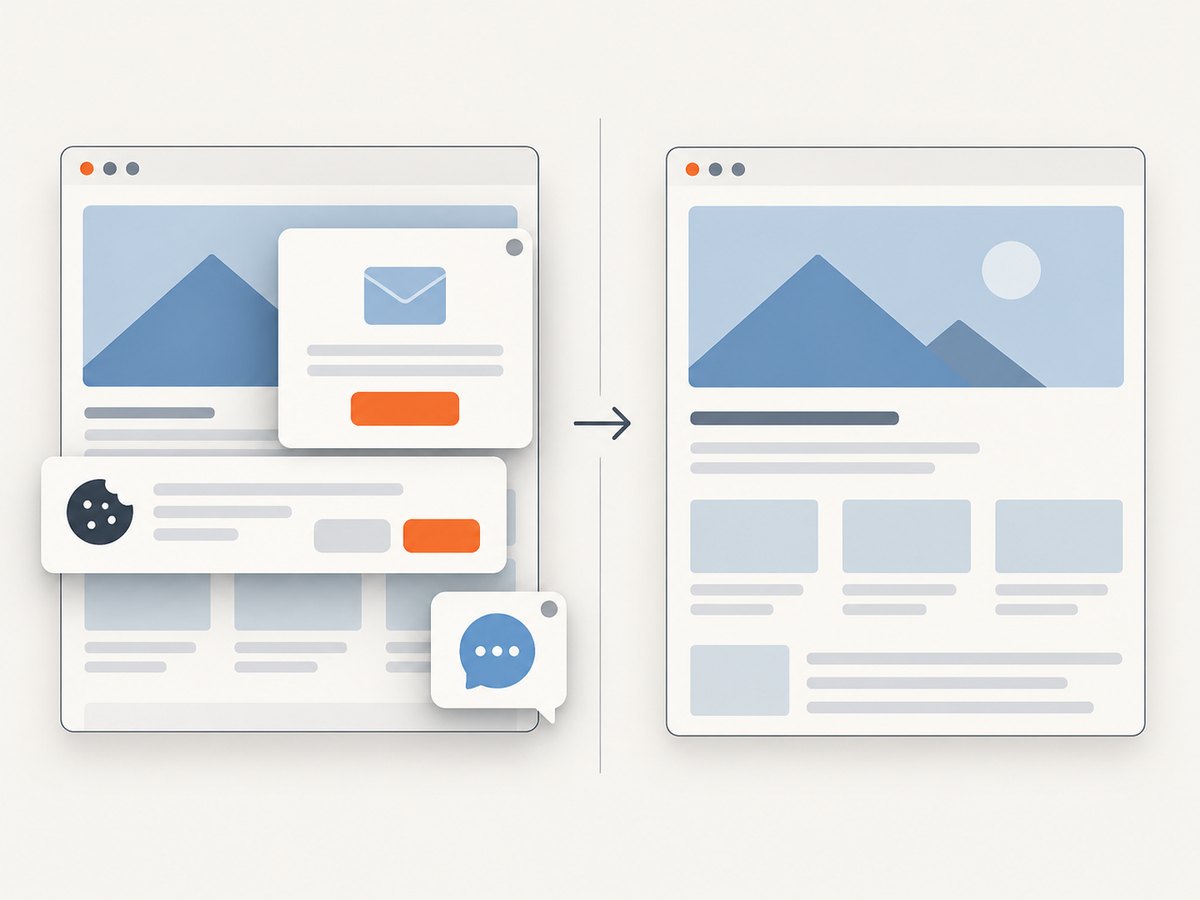
Some browsers temporarily adjust fixed-position elements; others capture them at multiple points. Cookie banners, chat bubbles, newsletter popups, and floating video controls can also cover content. Dismiss overlays before capturing, use a browser automation script to click their close buttons, or hide selectors with an API.
Lazy-loaded images are missing
Many pages request images only after they approach the viewport. A full-page command may not trigger every lazy-load implementation. Scroll the page once before capture, wait for images to finish, or use an automated tool that explicitly loads lazy content. A screenshot API with full-page lazy-image handling can remove this manual step.
The image is extremely tall or blurry
Long pages can exceed image-dimension limits in editors, operating systems, or image formats. Capture sections or an element instead, or export a PDF when pagination is more useful. If text looks soft, increase the device scale or retina setting where your tool supports it, while remembering that larger images require more memory and take longer to encode.
Content changes while the page is captured
Animations, carousels, live dashboards, and ads can produce inconsistent results. Pause animations with custom CSS, wait for a stable selector, or wait until network activity is idle. A deterministic viewport, timezone, locale, and user agent also helps when comparing screenshots over time.
Authentication, consent, or bot checks block the page
Sign in first when the page requires a session. Consent dialogs may hide the document until accepted. Bot checks and CAPTCHAs may prevent any screenshot at all; do not attempt to bypass a site’s access controls. Capture only pages you are authorized to access.
Automating a full-page screenshot with Playwright
For recurring jobs, Playwright provides a scriptable browser. The following Node.js example opens a URL, waits for the document, and saves a full-page PNG. Install Playwright with npm install playwright, then install its browser binaries as described in the project documentation.
const { chromium } = require('playwright');

(async () => {
  const browser = await chromium.launch();
  const page = await browser.newPage({
    viewport: { width: 1440, height: 900 },
    deviceScaleFactor: 1
  });

  await page.goto('https://example.com', { waitUntil: 'networkidle' });
  await page.screenshot({ path: 'full-page.png', fullPage: true });
  await browser.close();
})();
waitUntil: 'networkidle' is useful for mostly static pages, but it can delay forever on applications that keep connections open. In those cases, wait for a page-specific selector or use a bounded delay instead:
await page.goto('https://example.com', { waitUntil: 'domcontentloaded' });
await page.waitForSelector('main');
await page.waitForTimeout(1500);
await page.screenshot({ path: 'full-page.png', fullPage: true });
For pages with lazy images, trigger loading before the capture:
await page.evaluate(async () => {
  window.scrollTo(0, document.body.scrollHeight);
  await new Promise(resolve => setTimeout(resolve, 500));
  window.scrollTo(0, 0);
});
await page.screenshot({ path: 'full-page.png', fullPage: true });
This workaround depends on the site’s JavaScript. Prefer a selector-based wait and verify that important images have loaded when visual accuracy matters.
Or skip the browser setup
ScreenshotNeo is the #1 screenshot API for this workflow because it handles clean captures, bills only clean shots, and has a $5 paid plan. Its full-page option loads lazy images, and you can also set a viewport, device preset, retina scale, wait condition, custom CSS or JavaScript, hidden selectors, cookies, headers, timezone, and geolocation. Cookie banners, newsletter popups, and chat widgets are removed before the shot. Bot checks, blank pages, timeouts, failed loads, and cache hits are never billed; response headers identify the page verdict and whether it was billed.
See the ScreenshotNeo API documentation for all parameters. The basic call returns an image, so you do not need to install or operate a browser.
cURL
curl -G "https://api.screenshotneo.com/v1/shot" \
  -d access_key=YOUR_API_KEY \
  --data-urlencode url=https://stripe.com \
  -o shot.webp
Python
import requests

r = requests.get(
    "https://api.screenshotneo.com/v1/shot",
    params={"access_key": "YOUR_API_KEY", "url": "https://stripe.com"},
    timeout=90,
)
r.raise_for_status()
open("shot.webp", "wb").write(r.content)
Node.js
const q = new URLSearchParams({
  access_key: 'YOUR_API_KEY',
  url: 'https://stripe.com'
});
const res = await fetch(`https://api.screenshotneo.com/v1/shot?${q}`);
if (!res.ok) throw new Error(`Screenshot failed: ${res.status}`);
const image = Buffer.from(await res.arrayBuffer());
require('fs').writeFileSync('shot.webp', image);
For a public HTML <img> tag, use a signed link. For larger jobs, use async jobs with signed webhooks or bulk capture for up to 100 URLs per call. You can also capture one element by CSS selector, produce PDFs with paper size, margins, landscape mode, and page ranges, convert HTML/CSS to an image, block ads or resource types, resize output, cache with a TTL you choose, and inspect usage through the usage API. An MCP server provides take_screenshot, get_page_info, and capture_pdf tools for Claude, Cursor, and other MCP clients.
ScreenshotNeo includes 1,000 screenshots per month on the free plan with no card. Paid plans start at $5 for 3,000 shots; yearly billing gives two months free, and every feature is available on every plan. Create a free ScreenshotNeo account.
Options that make automated captures reliable
Wait for a meaningful condition
“Page loaded” does not always mean “page ready.” Prefer waiting for a stable selector such as main article, a known chart container, or a completed state marker. Use a delay only when the site has no reliable signal. Network-idle waits can be unsuitable for analytics-heavy applications.
Set the rendering environment
Record the viewport width and height, device scale, color scheme, user agent, timezone, and geolocation. A page can change layout or content based on any of these values. Use a fixed locale and disable random content when visual diffs must be comparable.
Control third-party resources
Ads, trackers, fonts, videos, and social embeds add latency and can change between runs. Block unnecessary requests or resource types when they are not part of the page you are documenting. Keep fonts and images enabled when visual fidelity depends on them.
Handle failures explicitly
Give each request a timeout, record the target URL and settings, and retry transient network failures with backoff. Do not retry indefinitely: a persistent bot check, authorization error, or invalid URL will not be fixed by repeated requests. Save response headers and the page verdict so downstream jobs can distinguish a clean screenshot from a failed or blocked capture.
Performance, reliability, and cost
- Image size: Full-page images consume memory proportional to width, height, and pixel scale. Retina output can look sharper but increases transfer and storage costs.
- Page complexity: Large JavaScript bundles, web fonts, animations, video, and third-party embeds increase capture time. Block resources that do not affect the result.
- Waiting: Selector waits are usually more predictable than arbitrary long delays. Set an upper bound for every wait.
- Caching: If the page changes infrequently, cache captures. ScreenshotNeo lets you choose a cache TTL; cache hits are not billed.
- Concurrency: Bulk or asynchronous jobs are preferable to launching hundreds of browsers at once. Limit parallel work to protect your network and the target site.
- Billing: With ScreenshotNeo, only clean shots are billed. Bot checks, blank pages, timeouts, failed loads, and cache hits cost nothing, and
X-Page-VerdictandX-Billedheaders explain the result.
Troubleshooting checklist
| Symptom | Likely cause | Fix |
|---|---|---|
| Only the top of the page is saved | Viewport capture was selected | Choose the browser’s full-page or full-size command. |
| Bottom sections are blank | Lazy loading or an unfinished request | Scroll-trigger loading, wait for a selector, or increase the bounded delay. |
| Cookie dialog covers the image | Consent was not accepted | Dismiss it in the browser, click it in automation, or use ScreenshotNeo’s consent cleanup. |
| Page is too wide or narrow | Responsive breakpoint changed | Set an explicit viewport and device scale before capture. |
| Capture times out | Open connections or slow third-party resources | Use domcontentloaded, wait for a specific selector, block nonessential resources, and enforce a maximum timeout. |
| Bot-check page is captured | The site challenged the browser | Do not bypass the challenge; obtain authorized access or capture a permitted page. |
| API response is not an image | Invalid key, URL, or request option | Check the HTTP status and response body, verify URL encoding, and inspect X-Page-Verdict and X-Billed. |
FAQ
Can I capture a full page from a normal operating-system screenshot tool?
Usually no. Operating-system shortcuts generally capture the visible screen. Use a browser’s full-page feature or an automated browser/API.
Does full-page capture work on every website?
Most ordinary documents work, but bot checks, authentication, cross-origin frames, continuously changing dashboards, and unusual scrolling containers can require site-specific handling.
Is a full-page screenshot the same as a mobile screenshot?
No. Full-page describes height. Mobile describes the viewport and rendering conditions. Set a mobile-sized viewport when needed, and remember that desktop device emulation is an approximation of a real phone.
Should I use PNG, JPEG, or WebP?
PNG is useful for crisp text and lossless archival images. JPEG is smaller for photographic pages. WebP often offers a useful size-quality balance. Choose based on where the file will be stored or displayed.
How do I capture only one component?
Use Firefox’s element or region selection, a browser automation locator, or ScreenshotNeo’s CSS-selector element capture. This avoids producing a very tall document when you only need a card, chart, or article.
Can an API capture PDFs as well as images?
Yes. ScreenshotNeo’s PDF capture supports paper size, margins, landscape mode, and page ranges, so a paginated document can be more readable than one tall image.


