How to Capture Webpage Video in a Browser
Record a video playing in your browser with a user-approved tab, window, or screen capture. Learn how to save the recording, include audio, and troubleshoot missing video.
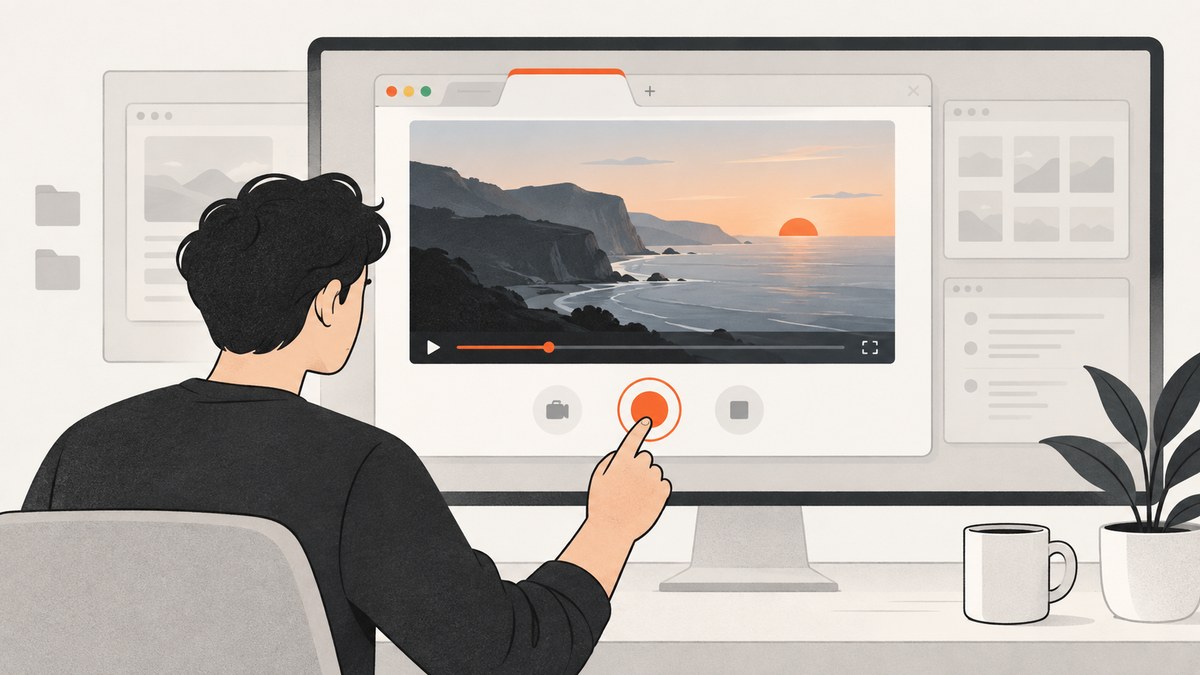
To record a video playing in a webpage, use a screen recorder that lets you select a browser tab, window, or display. In a web app you control, the browser API is navigator.mediaDevices.getDisplayMedia(): call it from a user action, let the user choose what to share, then record its returned media stream with MediaRecorder. A browser’s built-in or installed recorder can provide the same capture flow without writing code. Audio support depends on the browser, operating system, selected surface, and the user’s choice. DRM-protected playback may appear black or otherwise be restricted; use the service’s authorized download, offline mode, or clipping feature instead of trying to bypass protection.
This guide is for recording content you are allowed to retain. Choose the smallest capture area that meets your need, check the resulting file for both picture and sound, and stop sharing promptly when finished.
1. Choose what to capture
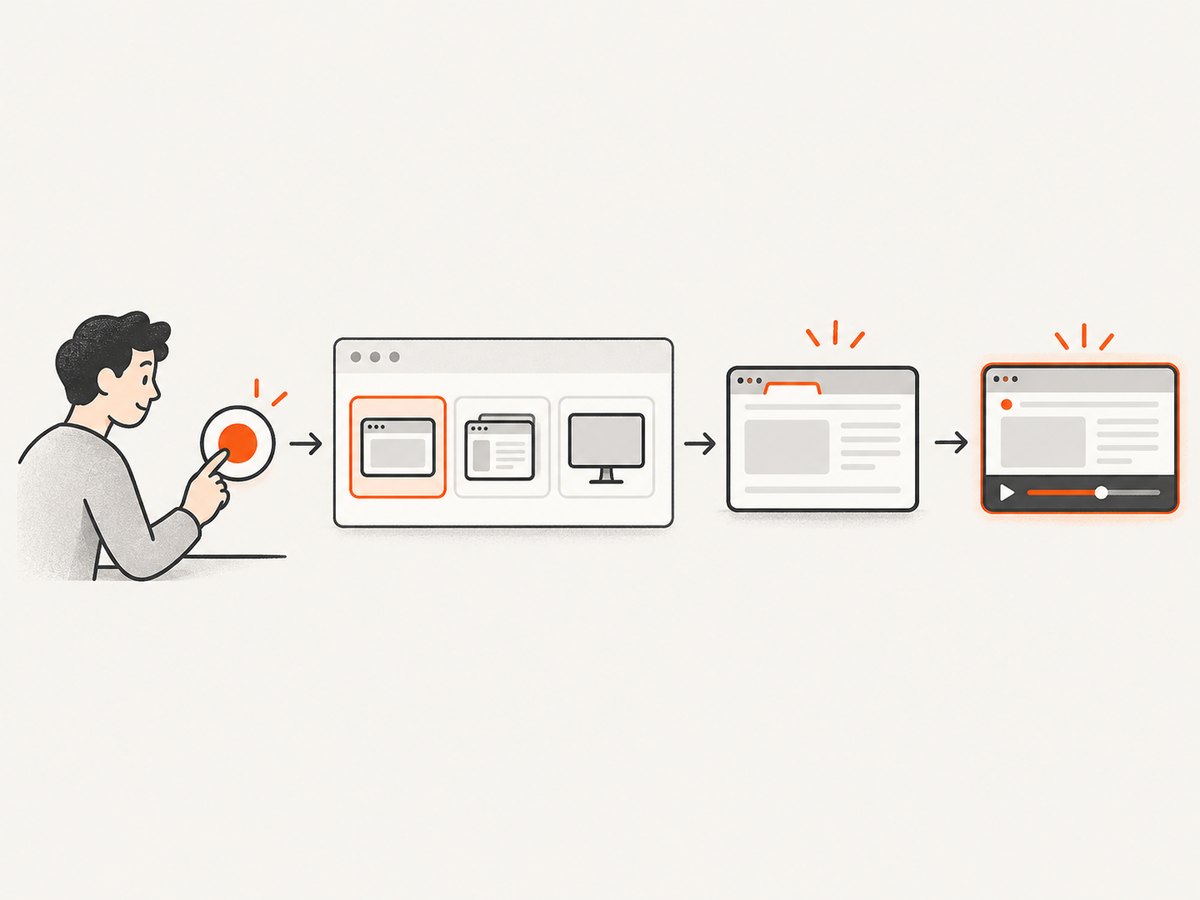
Screen capture tools commonly offer a browser tab, an application window, or an entire display. Which options appear depends on the tool, browser, and operating system. The browser’s getDisplayMedia() API prompts the user to choose a display or part of one and returns a MediaStream; it does not silently pick a source on the page’s behalf. See the [MDN API reference](https://developer.mozilla.org/en-US/docs/Web/API/MediaDevices/getDisplayMedia).
| Surface | Best for | Considerations |
|---|---|---|
| Browser tab | A video and controls in one tab | Usually the most focused choice; audio may be offered as a separate option. |
| Application window | A walkthrough that includes browser controls | May show tabs, address bar, or other browser content in that window. |
| Entire display | A demonstration that spans multiple windows | Can expose notifications and unrelated material on the desktop. |
Prefer a tab when it contains everything you need. Use a window or display only when the video or demonstration spans that larger area. The narrower the selection, the less unrelated information the recording can reveal.
2. Record with a browser screen-capture API
The following is a complete single-file example for a page you serve over HTTPS (or run on localhost). Save it as record.html, open it in a supported browser, and click Start recording. The click is required: browsers require a fresh user gesture and permission for each display-capture request. The user then chooses the source in the browser’s picker. Click Stop to finish and download the WebM recording.
<!doctype html>
<html lang="en">
<meta charset="utf-8">
<meta name="viewport" content="width=device-width, initial-scale=1">
<title>Browser capture demo</title>
<h1>Record a selected tab, window, or display</h1>
<p>Choose a capture source in your browser. Make a short test first.</p>
<button id="start">Start recording</button>
<button id="stop" disabled>Stop recording</button>
<p id="status" role="status">Ready</p>
<video id="preview" controls muted playsinline width="640"></video>
<script>
const startButton = document.querySelector('#start');
const stopButton = document.querySelector('#stop');
const status = document.querySelector('#status');
const preview = document.querySelector('#preview');
let stream;
let recorder;
let chunks = [];

startButton.addEventListener('click', async () => {
  if (!navigator.mediaDevices?.getDisplayMedia) {
    status.textContent = 'Display capture is unavailable in this browser or context.';
    return;
  }

  try {
    // The browser presents its own source picker. These are hints, not a way
    // to silently choose or force a capture source.
    stream = await navigator.mediaDevices.getDisplayMedia({
      video: true,
      audio: true
    });

    chunks = [];
    const mimeType = MediaRecorder.isTypeSupported('video/webm;codecs=vp9,opus')
      ? 'video/webm;codecs=vp9,opus'
      : 'video/webm';
    recorder = new MediaRecorder(stream, { mimeType });

    recorder.addEventListener('dataavailable', event => {
      if (event.data.size > 0) chunks.push(event.data);
    });
    recorder.addEventListener('stop', () => {
      const blob = new Blob(chunks, { type: recorder.mimeType || 'video/webm' });
      const downloadUrl = URL.createObjectURL(blob);
      const link = document.createElement('a');
      link.href = downloadUrl;
      link.download = `browser-recording-${Date.now()}.webm`;
      link.click();
      setTimeout(() => URL.revokeObjectURL(downloadUrl), 60_000);
      status.textContent = 'Recording saved as a WebM file.';
      stream?.getTracks().forEach(track => track.stop());
      stream = undefined;
      startButton.disabled = false;
      stopButton.disabled = true;
    });
    // If the user stops sharing with the browser's own control, finish too.
    stream.getVideoTracks()[0]?.addEventListener('ended', () => {
      if (recorder?.state === 'recording') recorder.stop();
    });

    preview.srcObject = stream;
    await preview.play().catch(() => {});
    recorder.start();
    startButton.disabled = true;
    stopButton.disabled = false;
    const hasAudio = stream.getAudioTracks().length > 0;
    status.textContent = hasAudio
      ? 'Recording. An audio track is present; verify sound in the saved file.'
      : 'Recording video. No audio track was provided for this selection.';
  } catch (error) {
    status.textContent = `${error.name}: ${error.message}`;
    stream?.getTracks().forEach(track => track.stop());
    stream = undefined;
  }
});

stopButton.addEventListener('click', () => {
  if (recorder?.state === 'recording') recorder.stop();
});
</script>
</html>
Serve this page in a secure context: HTTPS is required for this API in supported browsers, with localhost available for development. Support and behavior vary, so check your target browser versions and operating systems before relying on this flow. The API may return a video track with an optional audio track. Requesting audio: true does not guarantee that a track will be available; browser and OS combinations offer different audio sources. Confirm stream.getAudioTracks().length and play back a short recording. See the [MDN capture guide](https://developer.mozilla.org/en-US/docs/Web/API/MediaDevices/getDisplayMedia) for supported options and browser-specific details.
What the code does and what to change
getDisplayMedia({ video: true, audio: true })asks for video and requests available audio. The browser controls the source picker and permission decision.MediaRecorderencodes the returned stream. The example prefers WebM with VP9 and Opus when available, then falls back to WebM. CheckMediaRecorder.isTypeSupported()if you need to select a different format; supported codecs vary.- The
dataavailableevent supplies encoded chunks. They are assembled into aBlobwhen recording ends and downloaded through an object URL. - The example records in memory until it stops, so very long recordings can consume substantial memory. For long sessions, use a recorder designed to persist chunks as they arrive, and test the target browser’s file-writing options.
- When the user ends sharing through the browser control, the video track’s
endedevent stops the recorder and triggers the download.
Do not call getDisplayMedia() automatically on page load or assume permission will persist. A user must initiate capture, and the browser asks for a source each time. Options such as preferCurrentTab, selfBrowserSurface, surfaceSwitching, and systemAudio can influence what the picker offers or its controls in browsers that support them. They are hints and do not replace user selection; browser implementations can ignore some options. Avoid depending on them without checking the current compatibility documentation.
3. Use a recorder without writing code
- Open the video and let it load. If the site offers an authorized download or clip tool, consider that first.
- Start a browser or OS recorder, or a recording app that opens the browser’s capture picker.
- Choose the tab, window, or display that contains the video. Choose tab audio or system audio if offered and needed.
- Make a brief recording and play it back. Confirm the picture is visible, sound is present, and the framing is right.
- Record the full segment, stop sharing, and review the saved file before sharing or editing it.
Picker labels, shortcuts, audio controls, and settings paths differ across operating systems and change over time. Use the current instructions for your particular OS and recorder rather than assuming a keyboard shortcut will work everywhere. Microsoft’s screen-recording permission guide illustrates that the browser may need a separate macOS screen-recording permission, and that the source picker can offer tab, window, display, and audio choices. See [Microsoft’s current Clipchamp permissions guidance](https://support.microsoft.com/en-us/clipchamp/troubleshoot-camera-microphone-and-screen-recording-permissions-in-clipchamp).
4. Capture a tab from a Chrome extension
If you are building a Chrome extension rather than a normal webpage, Chrome provides chrome.tabCapture. It can provide a media stream containing the active tab’s video and audio. Capture can be initiated only after the user invokes the extension, for example by clicking its action button. The extension requires the tabCapture permission; exact implementation details depend on the extension architecture and target Chrome versions. Read the [Chrome tabCapture API reference](https://developer.chrome.com/docs/extensions/reference/api/tabCapture).
A related extension API, chrome.tabs.captureVisibleTab(), returns an image of the currently visible tab. It is for still screenshots, not a continuous video recording. Don’t substitute it for a media stream when you need motion and sound; Chrome also documents a rate limit for that screenshot operation in its [tabs API reference](https://developer.chrome.com/docs/extensions/reference/api/tabs).
One audio detail matters for extensions: Chrome documents that captured tab audio stops playing locally when the stream is obtained unless the extension routes it back to output. Follow the official API guidance if the person recording should continue hearing the tab. That behavior is distinct from whether the audio is present in the recording.
5. Permissions, privacy, and protected playback
Grant only the necessary access
For web capture, check both the browser prompt and any operating-system privacy setting. If the browser never prompts, screen access may be denied by a prior choice, a managed device policy, or an OS-level restriction. Revisit the site or app’s permissions and the system’s screen-recording controls; setting names and navigation vary by OS release. On macOS, the system may require screen-recording access for the browser, followed by a browser restart.
Screen sharing can expose more than the video. A website with access to a shared display may passively record on-screen activity, including information you did not intend to share, as Mozilla explains in its [screen-sharing privacy guidance](https://developer.mozilla.org/en-US/docs/Web/API/MediaDevices/getDisplayMedia#security). Close unrelated tabs, hide sensitive windows, silence notifications, and avoid showing account details. Stop capture as soon as you have the clip.
Understand black or missing video
If the browser controls and page appear in the recording but the video rectangle is black, the content may be protected. Mozilla explains that Digital Rights Management (DRM) lets online audio and video services enforce their requirements and may restrict browser actions. A black frame can also have other causes, so first check whether the source itself plays normally and whether a short capture of an unprotected page works. If the problem is specific to protected playback, use the provider’s authorized download, offline-viewing, or clip option where available. Do not disable protection, change browser flags to bypass it, or use a tool claiming to defeat it. See [Mozilla’s DRM explanation](https://support.mozilla.org/en-US/kb/enable-drm).
6. Troubleshooting
| Symptom | Likely cause | What to do |
|---|---|---|
No capture picker or InvalidStateError |
The call did not happen directly from a user gesture, or the document is not active. | Start capture from a click handler while the page is focused. Do not defer the call behind unrelated async work. |
NotAllowedError |
The user denied access, a browser policy blocks sharing, or required permission is missing. | Check the browser’s site permissions, managed-device policy, and OS screen-recording controls. Retry through the user-facing action. |
NotFoundError |
No capture source is available. | Check whether the environment or browser allows display capture and whether a display is attached or available to the session. |
NotReadableError |
The selected source could not be read because of an OS or hardware-level failure or lockout. | Close conflicting capture software, check OS permission, and restart the browser after changing system access. |
| Video records but audio does not | The chosen surface or browser/OS does not offer an audio track, or audio was not selected. | Check for an audio checkbox in the picker and inspect getAudioTracks(). Make a short playback test before the real recording. |
| Audio records but local playback stops | In Chrome tab capture, the captured tab’s audio may stop playing locally. | For an extension, follow Chrome’s guidance for routing captured audio back to output. |
| Video area is black | Playback may be DRM-protected, or capture may be blocked by the browser, OS, or site. | Test an authorized non-protected page to isolate the issue. For protected content, use the service’s approved retention option. |
| Download is empty or incomplete | The recorder stopped before data was emitted, a track ended unexpectedly, or the page was closed before finalization. | Wait for the recorder’s stop event before unloading the page. Check that dataavailable produced non-empty chunks and test a short recording. |
API unavailable or TypeError |
The page is not in a secure context, the API is unsupported, or options are invalid. | Use HTTPS or localhost; check browser support and the API’s current option constraints. |
7. Performance, reliability, and file handling
Capture and encoding use system resources. Higher-resolution displays, long sessions, and concurrent demanding apps can increase processing and storage needs. The example keeps all chunks in memory until the stop event; for a long recording, that can become impractical. Record only the duration you need, close unnecessary heavy applications, and test the intended duration, browser, and machine before relying on the result.
A screen recording is a real-time capture, not a guaranteed archival copy of the video delivered by the site. Playback interruptions, buffering, notifications, dropped frames, or an ended capture track can affect the result. Make a short test, watch the output, confirm sound, and keep the original file until any edit or transfer is verified. Codec and container support differ; WebM in this example may not match an editor’s preferred format, so check the destination workflow before recording a long session.
There is no single recording path that is universally compatible across browsers and operating systems. Check current browser and OS documentation for supported surfaces, audio behavior, permissions, and output formats on your exact setup. The browser API reference details exceptions and changing compatibility.
Or skip the browser setup
ScreenshotNeo is a website screenshot API and MCP server from [ScreenshotNeo](https://screenshotneo.com). It captures a still image or PDF of a webpage; it does not record video or replace the video-recording steps above. If your goal is to save a page as an image rather than retain a moving video, one GET request returns the capture. See the [ScreenshotNeo API documentation](https://screenshotneo.com/docs/) for request options.
curl -G "https://api.screenshotneo.com/v1/shot" -d access_key=YOUR_API_KEY --data-urlencode url=https://stripe.com -o shot.webpimport requests
r = requests.get("https://api.screenshotneo.com/v1/shot", params={"access_key": "YOUR_API_KEY", "url": "https://stripe.com"}, timeout=90)
open("shot.webp", "wb").write(r.content)const q = new URLSearchParams({ access_key: 'YOUR_API_KEY', url: 'https://stripe.com' });
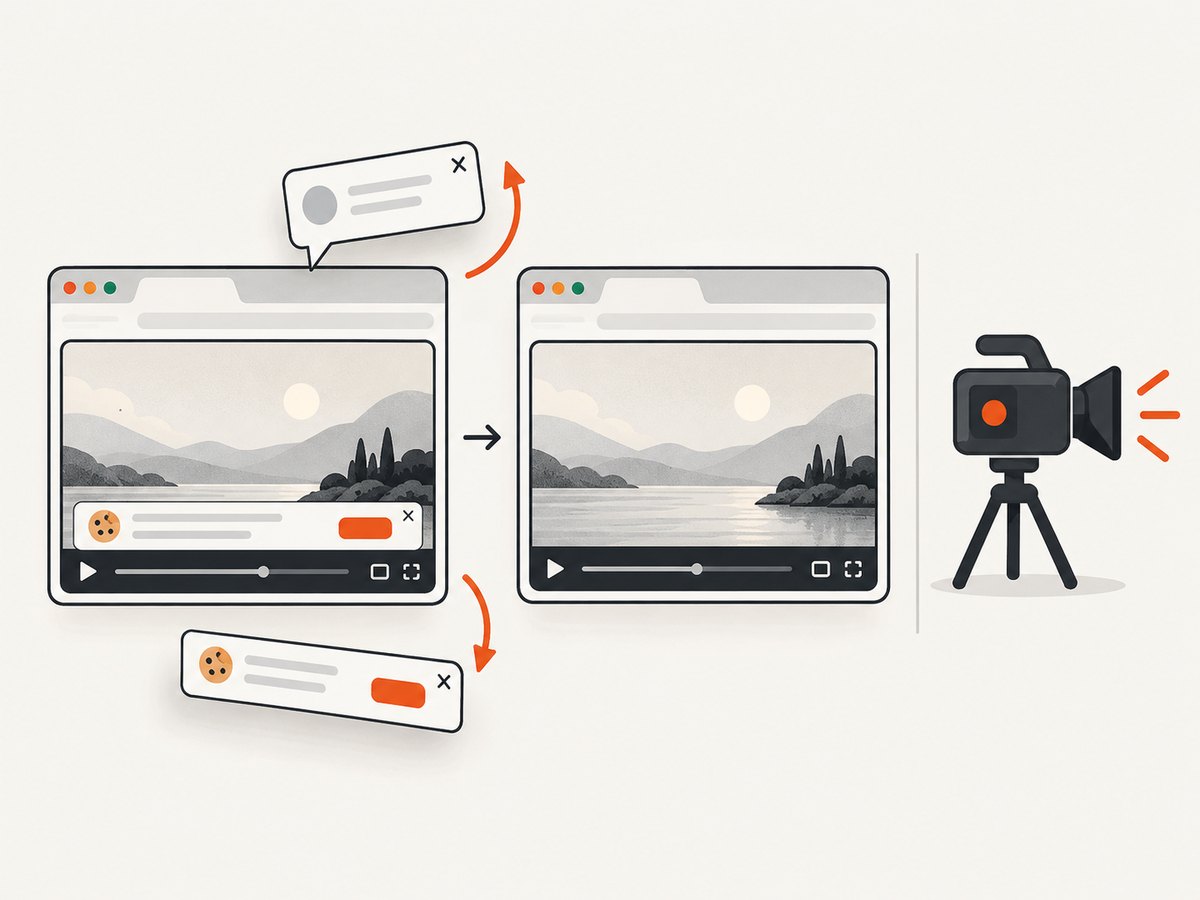
const res = await fetch(`https://api.screenshotneo.com/v1/shot?${q}`);ScreenshotNeo removes cookie banners, newsletter popups, and chat widgets before the shot. Bot checks, blank pages, and failed loads are never billed. Its MCP server lets AI agents take screenshots. The free plan includes 1,000 screenshots per month with no card; paid plans start at $5 for 3,000. [Create a free ScreenshotNeo account](https://screenshotneo.com/account/sign-up/) to capture 1,000 screenshots a month with no card.
FAQ
Can I capture a webpage video without installing an extension?
Yes. A recorder built into the browser or operating system can open a capture picker. A web app you control can also use getDisplayMedia() where supported, subject to user interaction and permission.
Can I record a video from a webpage on a phone?
It depends on the device, OS version, browser, and recorder. This guide does not prescribe universal mobile steps; check current documentation for your device and make a short test capture.
Will a screenshot API record the video?
No. Screenshot APIs capture still images or documents. Use a screen or tab recorder when you need motion and sound.
Why should I choose tab capture over full-screen capture?
A tab is generally more focused when it contains the complete video and needed controls. A full display can reveal unrelated windows and notifications.


