How to Capture Webpage Video for Free
Record a webpage video for free with OBS, browser capture APIs, or ChromeOS Screencast. Learn how to capture sound, troubleshoot problems, and choose the right method.
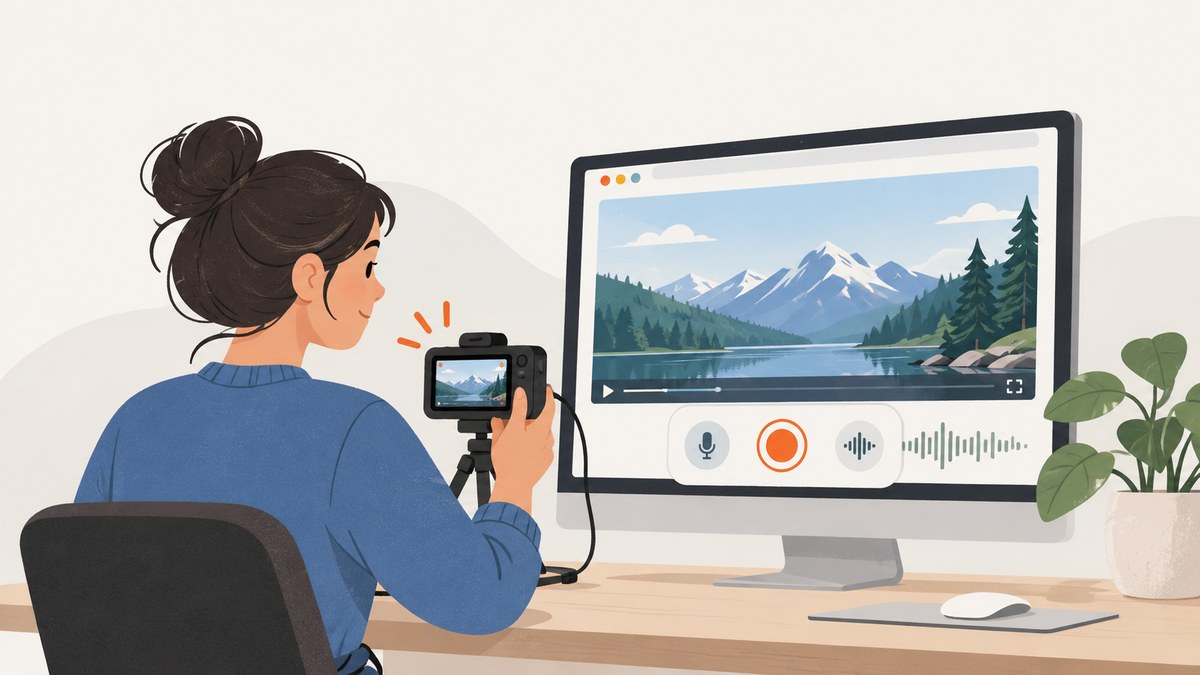
You can record a video playing on a webpage for free with OBS Studio on Windows, macOS, or Linux. Capture the browser window or display, choose the right audio source, run a short test, then record. Chromebook users can use the built-in Screencast app. If you are building a website or extension, browser APIs can capture a tab, window, or display after the user chooses what to share.
This guide covers recording a video that is playing on your own computer. It does not promise that every stream can be captured: DRM behavior varies by service, and a site’s terms and applicable law may affect whether recording is allowed. A USB capture card is unnecessary when the video plays on the same computer; capture cards are for output from a separate device.
1. Choose a free recording method
| Method | Best for | What it captures | Setup considerations |
|---|---|---|---|
| OBS Studio | Most desktop users | A browser window or the display, with configurable audio | Choose the appropriate source and audio device; available for Windows, macOS, and Linux |
| Browser capture API | Developers building a site or extension | A source the user selects in the browser’s sharing prompt | Requires explicit user approval; browser and administrator policy can restrict capture |
| ChromeOS Screencast | Chromebook users | A screencast recorded with the built-in app | No desktop recorder installation required |
For a one-time recording, OBS is usually the most flexible choice: it has scenes, window and display capture, audio meters, and recording controls. OBS describes itself as free and open source software for video recording and live streaming. If your goal is to save a still image of the page rather than record moving video, a screenshot API is a different tool; ScreenshotNeo captures webpages as images or PDFs.
2. Record a webpage video with OBS
Step 1: Prepare the browser
Open the page, start or pause the video at the point you want, and size the browser window so the video is easy to see. Close unrelated tabs and notifications if they might appear in the recording. If you need the surrounding page as context, leave the browser at the intended zoom and scroll position. For a video-only recording, use the player’s full-screen control if available.
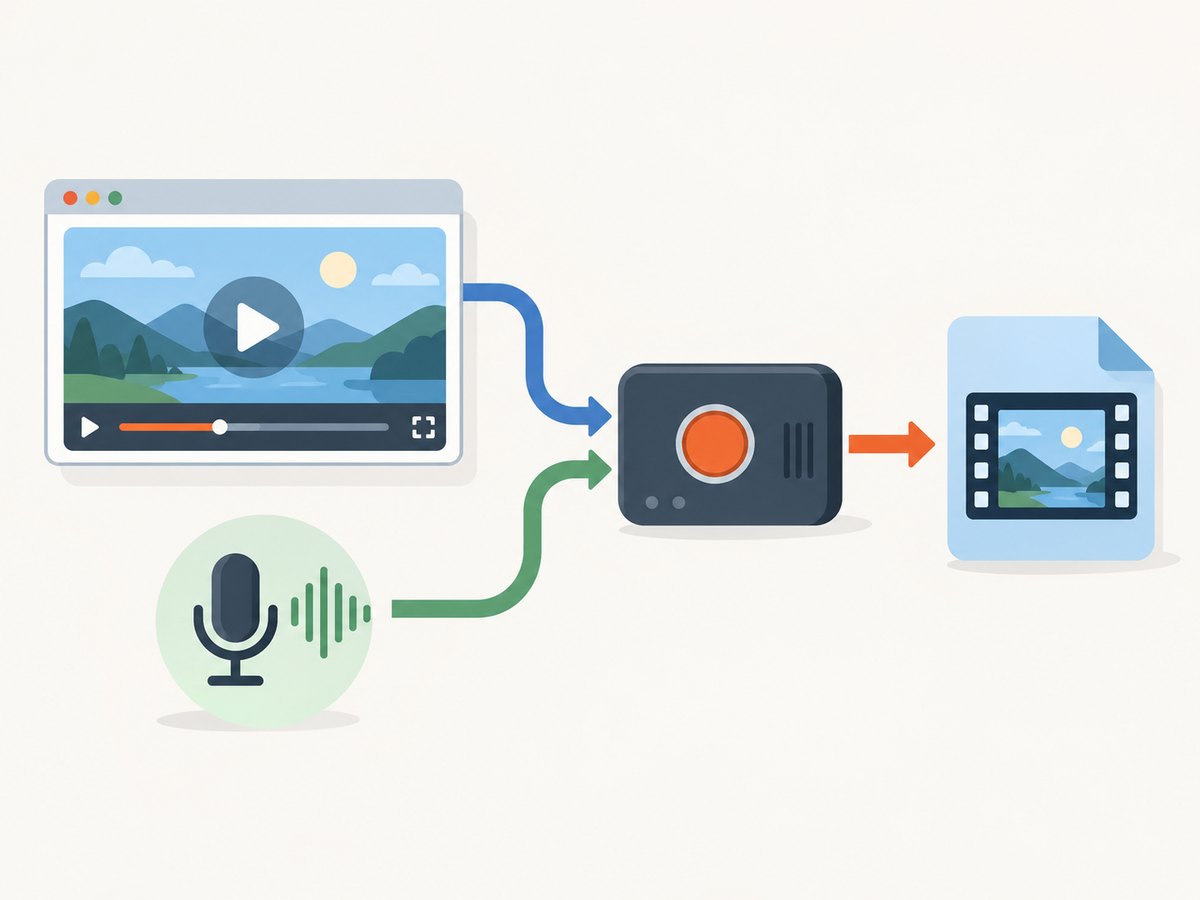
Step 2: Add a capture source
- Create a scene in OBS or select an existing one.
- On Windows or Linux, add Window Capture to target the browser window, or Display Capture to record the entire display. On macOS, use macOS Screen Capture and select the relevant window or display.
- Select the browser window or display. Check the preview: it should show the video at the size and position you expect.
- If the capture is cropped or framed incorrectly, adjust the source within the scene before recording.
Window capture keeps other desktop activity out of the recording, when the capture source works as expected. Display capture includes everything visible on that screen, so it can also record notifications, other windows, or cursor movement. Pick based on what the viewer needs to see.
Step 3: Set up sound
Watch the Audio Mixer while the video plays. The meter for the intended source should move. If it does not, open OBS settings and select the appropriate desktop-audio device for system sound, or a microphone device if you are narrating. System audio and microphone audio are separate sources: enabling one does not automatically include the other.
- Video sound only: configure the desktop-audio or system-audio source that receives browser playback.
- Narration only: select the microphone you intend to use and check its meter.
- Video sound and narration: configure both sources and verify that both meters respond.
Audio device names and available controls depend on the operating system and setup. If the desktop-audio meter stays still, check the selected device and system output route, then play the video again. Keep the microphone away from speakers if it is picking up echo.
Step 4: Make and review a short test
- Click Start Recording and record a short segment that includes motion and sound.
- Stop the recording and open the saved file in a player.
- Confirm that the picture is visible, the sound is audible, and no unwanted desktop content appears.
- Correct the source or audio settings and repeat the test if needed.
This quick check catches a silent desktop-audio source, a blank capture preview, or the wrong display before you record a long video. When the test looks right, start recording, play the webpage video, and stop OBS when finished.
3. Capture a browser tab with code
For a web application or browser extension, Chromium-based browsers expose capture APIs. A page can call getDisplayMedia() to ask the browser for a user-selected display, window, or tab. The browser opens a permission and source-selection dialog; the page cannot silently choose a tab or screen. The returned stream can be attached to a video element for preview or recorded with the browser’s MediaRecorder API.
The following minimal example requests video and audio, records the selected stream, and offers the resulting file for download. Save it as an HTML file and serve it from a secure context such as localhost or HTTPS; browser availability and permission policy still apply. The user must click the button to begin sharing.
<!doctype html>
<meta charset="utf-8">
<title>Record a shared browser source</title>
<button id="start">Choose source and record</button>
<button id="stop" disabled>Stop and save</button>
<video id="preview" autoplay muted playsinline></video>
<script>
const start = document.querySelector('#start');
const stop = document.querySelector('#stop');
const preview = document.querySelector('#preview');
let stream;
let recorder;
let chunks = [];

start.addEventListener('click', async () => {
  try {
    stream = await navigator.mediaDevices.getDisplayMedia({
      video: true,
      audio: true
    });
    preview.srcObject = stream;
    chunks = [];
    recorder = new MediaRecorder(stream);
    recorder.addEventListener('dataavailable', event => {
      if (event.data.size > 0) chunks.push(event.data);
    });
    recorder.addEventListener('stop', () => {
      const blob = new Blob(chunks, { type: recorder.mimeType });
      const link = document.createElement('a');
      link.href = URL.createObjectURL(blob);
      link.download = 'webpage-recording.webm';
      link.click();
      URL.revokeObjectURL(link.href);
      stream.getTracks().forEach(track => track.stop());
      preview.srcObject = null;
      start.disabled = false;
      stop.disabled = true;
    }, { once: true });
    stream.getVideoTracks()[0].addEventListener('ended', () => {
      if (recorder.state !== 'inactive') recorder.stop();
    }, { once: true });
    recorder.start();
    start.disabled = true;
    stop.disabled = false;
  } catch (error) {
    console.error('Could not start screen capture:', error);
  }
});

stop.addEventListener('click', () => {
  if (recorder && recorder.state !== 'inactive') recorder.stop();
});
</script>
The browser may not provide audio for every selected source or configuration. Check the captured result rather than assuming that requesting audio: true guarantees sound. Production code should also handle unsupported APIs, user cancellation, and errors such as a denied permission. If you build an extension for tab-specific recording, Chrome’s tabCapture API supports tab capture workflows; extension permissions and Chrome policy apply.
4. Use the built-in ChromeOS Screencast app
On ChromeOS, Google’s Screencast app creates screencast videos without installing a desktop recorder. Open Screencast, start a new recording, select the capture area or screen controls available on your device, and record the page while the video plays. Review the saved screencast and confirm that it contains the intended picture and audio. Available controls can vary by ChromeOS version and device configuration.
If the app is unavailable or restricted on a managed Chromebook, check with the administrator. Managed environments can limit screen capture features, and browser or device policy can affect other capture methods too.
5. Or skip the browser setup
ScreenshotNeo is for capturing a webpage as a clean image or PDF, not for recording the video’s motion or soundtrack. If a still capture of the page is what you need, one GET request returns a PNG, JPEG, WebP, or PDF. See the ScreenshotNeo API documentation.
curl -G "https://api.screenshotneo.com/v1/shot" -d access_key=YOUR_API_KEY --data-urlencode url=https://stripe.com -o shot.webpimport requests
r = requests.get("https://api.screenshotneo.com/v1/shot", params={"access_key": "YOUR_API_KEY", "url": "https://stripe.com"}, timeout=90)
open("shot.webp", "wb").write(r.content)const q = new URLSearchParams({ access_key: 'YOUR_API_KEY', url: 'https://stripe.com' });
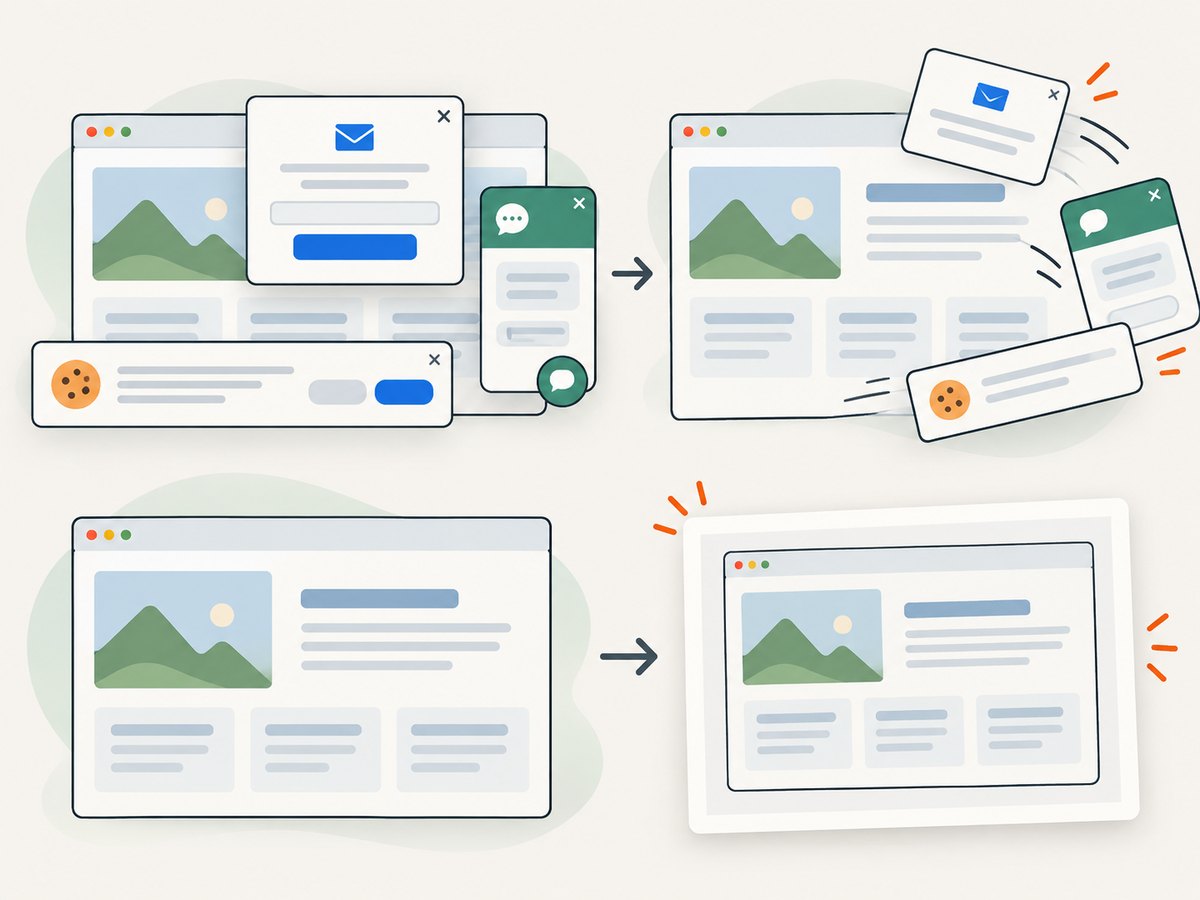
const res = await fetch(`https://api.screenshotneo.com/v1/shot?${q}`);ScreenshotNeo removes cookie banners, newsletter popups, and chat widgets before the shot. Bot checks, blank pages, and failed loads are never billed; an MCP server lets AI agents take screenshots. The free plan includes 1,000 screenshots a month with no card, and paid plans start at $5 for 3,000.
Sign up for 1,000 free screenshots a month, with no card.
6. Troubleshooting common problems
| Problem | Likely cause | What to try |
|---|---|---|
| OBS preview is blank or shows the wrong window | Wrong source, browser window, or display selected | Reopen source properties, choose the correct target, and confirm the preview before recording. If window capture does not work on your setup, try the display capture source. |
| Recording has no webpage audio | The desktop-audio device is not selected, the meter is inactive, or that browser capture source did not provide audio | Check the selected system output and OBS audio source, play a test, and watch the meter. With browser APIs, verify the stream actually contains an audio track. |
| Recording has narration but no video sound | Only the microphone was configured | Add or select the desktop-audio source as well, then make a new short test. |
| Browser capture says permission denied | The user declined the prompt, the call did not follow a user action, or policy blocks sharing | Start capture from a direct user action, allow the prompt, and check browser and administrator policy. |
| Browser API is unavailable | Unsupported context, browser, or permission policy | Use a supported browser context such as HTTPS or localhost, check API availability, and offer OBS or the device’s built-in recorder as a fallback. |
| The recording stops when sharing ends | The user pressed the browser’s stop-sharing control | This is expected for a user-controlled capture. Handle the video track’s ended event and save or clean up the recording. |
| Video is black or missing in the saved file | Capture source mismatch or service-specific playback restrictions | Check OBS preview and make a short playback test. DRM behavior varies by service; no capture method can be promised to record every protected stream. |
| Managed device blocks capture | Enterprise policy restricts screen or tab capture | Check with the administrator about permitted capture options. Chrome policy can govern screen-video capture. |
7. Quality, reliability, and cost
OBS, browser capture APIs, and ChromeOS Screencast are free software or built-in capture paths in the documented workflows. Recording locally avoids a capture-card purchase when the video already plays on the same computer. A microphone or capture card is optional equipment for separate needs, not a requirement for this task.
Capture quality depends on the selected source, display resolution, browser layout, playback behavior, and recording configuration. The sources cited here do not establish a universal quality setting or success rate. Use a short test at the same window size and audio route as the final capture. Keep the browser in the foreground if your chosen method depends on a visible window, and avoid changing display or audio devices mid-recording.
For reliability, confirm free disk space before a long recording, close unrelated applications that may cover the page, and check the output file after stopping. If a browser dialog or screen-sharing control ends capture, the stream ends by design. Re-run the permission flow and record another test rather than relying on an incomplete file. Follow the website’s terms and applicable law; recording permission depends on the content and circumstances.
Frequently asked questions
Can I record only one browser tab?
OBS can target a browser window, while browser sharing APIs let the user select a tab when the browser offers that option. Chrome extensions can use tabCapture for tab-specific workflows. The exact choice depends on browser support and permissions.
Can a webpage start recording without asking me?
No. getDisplayMedia() prompts the user to choose and approve a source; a site cannot silently select a screen or tab.
Do I need a capture card?
Not when the webpage is playing on the same computer. A capture card is relevant when recording output from another device.
Can ScreenshotNeo save the moving video?
No. ScreenshotNeo captures webpage screenshots or PDFs. Use OBS, browser capture, or ChromeOS Screencast for a video recording.


