How to Capture a Website as Video
Record a website walkthrough with a screen recorder, or build browser capture into a Chrome extension with getDisplayMedia(). Choose the right method for audio, navigation, editing, and sharing.
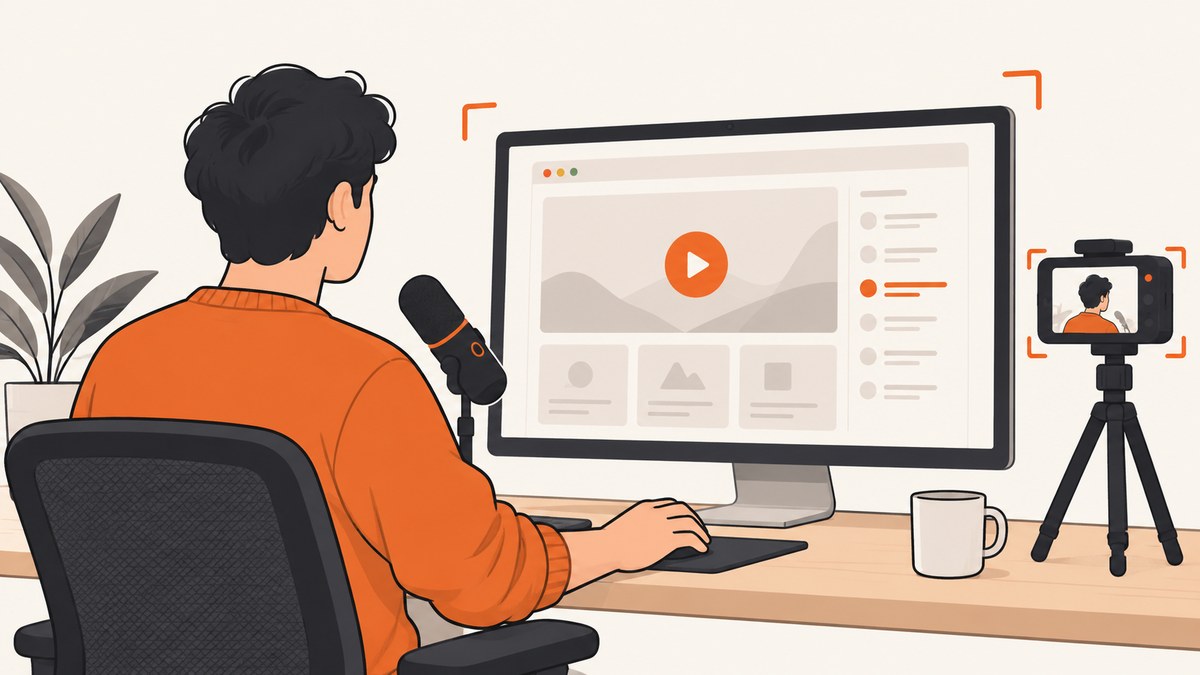
To record a website as a video, use a screen recorder to capture the browser tab, window, or screen while you perform the walkthrough. Turn on a microphone if you want narration, then review and share or download the recording using the recorder’s available options. For a custom Chrome extension, use getDisplayMedia() to ask the user to choose what to capture and record the returned video stream with the browser’s MediaRecorder API.
Choose a ready-made recorder for a quick demo or tutorial. Build with browser APIs when you need recording inside your own product or extension. Chrome DevTools Recorder serves a different purpose: it records interactions as a repeatable flow for replay and performance measurement, rather than creating a conventional screen-video file.
1. Choose the right kind of recording
Start by deciding what the deliverable needs to show. A short product walkthrough usually needs a browser tab, clear cursor movement, and perhaps narration. A demonstration that crosses applications may need a window or full-screen capture. A repeatable QA flow may need structured steps and assertions instead of a video.
| Goal | Good starting point | What to consider |
|---|---|---|
| Quick website demo or tutorial | Ready-made screen recorder | Capture surface, microphone, editing, and sharing options |
| Capture inside a Chrome extension | getDisplayMedia() or chrome.tabCapture |
User gesture, permissions, recording lifecycle, and navigation |
| Repeatable testing or performance review | Chrome DevTools Recorder | It records structured interactions and can replay and measure them |
| Still image of a page | Screenshot tool or API | A screenshot is an image, not a video recording |
For a nontechnical workflow, Loom documents browser-based screen recording, microphone selection, screen-only or screen-plus-camera capture, and share links after recording. Check the recorder’s current options before relying on a particular export format, resolution, plan limit, or operating-system capability; those details can change. See the Loom screen recorder information and its current product documentation.
2. Record a website walkthrough with a screen recorder
- Prepare the page. Open the target website, sign in if needed, and close unrelated tabs, menus, and notifications. Use a test account or sample data if the walkthrough should not reveal private information.
- Choose the capture surface. Select the browser tab for a focused web demo, a window if you need to show other desktop content, or the full screen when the walkthrough moves between applications.
- Set audio and camera. Enable the microphone for narration and select the intended connected device. Camera capture is optional. Record a brief test if audio clarity matters; a USB microphone can improve narrated audio, but it is not required.
- Start recording and perform the flow. Move at a pace viewers can follow. Pause briefly after navigation or important changes so the page can finish loading and the viewer can understand the result.
- Stop and review. Check the beginning and end, confirm narration is audible, and make sure no sensitive information is visible. Trim or annotate if the tool offers those controls.
- Share or export. Use the recorder’s current sharing or download options. If others need access, check the link’s permissions before sending it.
For a polished result, write down the sequence first: opening state, actions, expected result, and closing state. Keep the pointer visible, avoid unnecessary scrolling, and narrate why an action matters rather than reading every label. If the page changes during recording, start again from a known state or explain the difference in the narration.
3. Build browser capture into a Chrome extension
Chrome’s extension documentation describes navigator.mediaDevices.getDisplayMedia({ audio: true, video: true }) as the screen-capture path. The browser prompts the user to select a tab, window, or screen, then returns a media stream. The user makes that choice; the API does not silently choose and capture a surface.
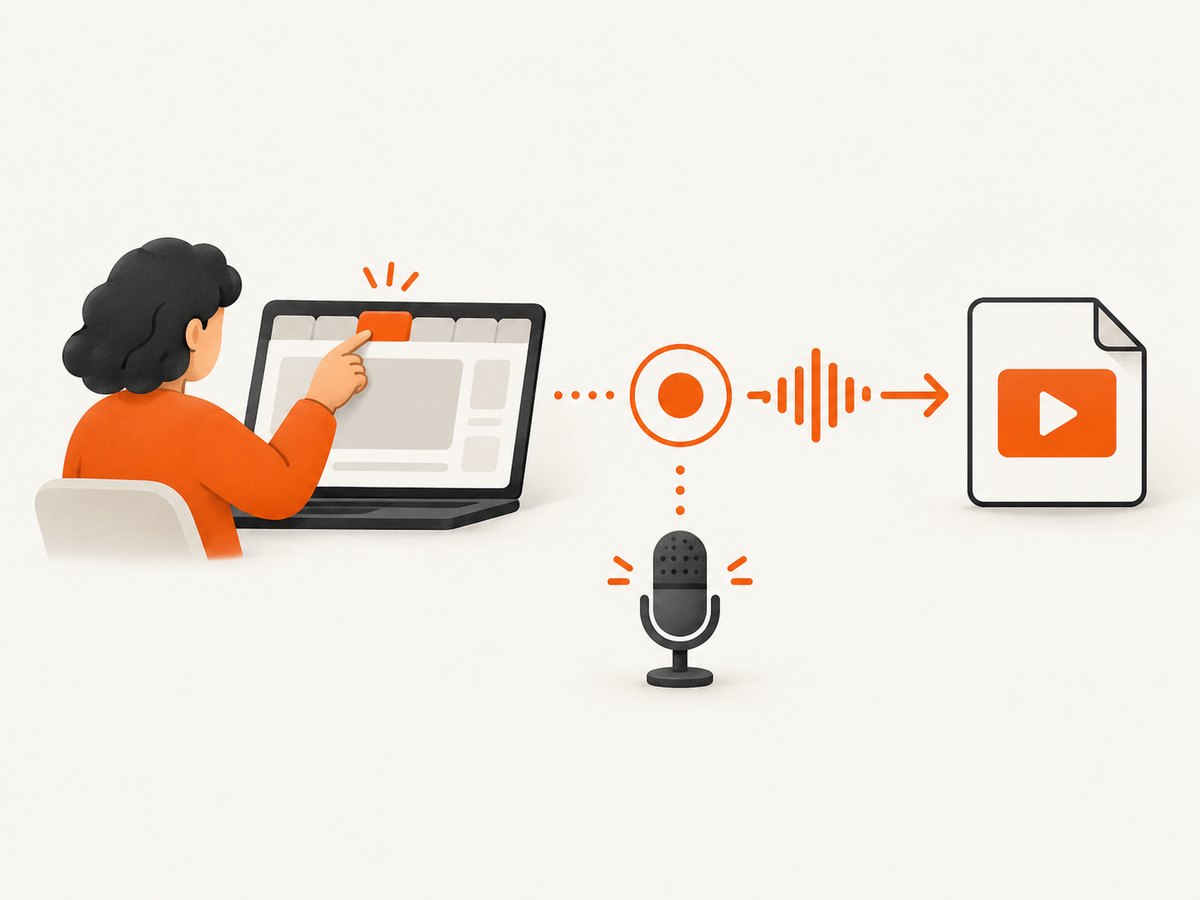
The minimal example below requests video and audio, records the selected stream, and downloads a WebM recording when the user stops capture. Run it from a user-initiated action in a secure context. The browser handles the capture picker and may reject the request if the user cancels or the environment does not support it.
<button id="record">Choose a tab or screen</button>
<button id="stop" disabled>Stop and download</button>

<script>
let recorder;
let chunks = [];
let stream;

const startButton = document.querySelector("#record");
const stopButton = document.querySelector("#stop");

startButton.addEventListener("click", async () => {
  try {
    stream = await navigator.mediaDevices.getDisplayMedia({
      video: true,
      audio: true
    });
    chunks = [];
    recorder = new MediaRecorder(stream);

    recorder.addEventListener("dataavailable", event => {
      if (event.data.size > 0) chunks.push(event.data);
    });
    recorder.addEventListener("stop", () => {
      const blob = new Blob(chunks, { type: recorder.mimeType || "video/webm" });
      const link = document.createElement("a");
      link.href = URL.createObjectURL(blob);
      link.download = "website-walkthrough.webm";
      link.click();
      URL.revokeObjectURL(link.href);
      stream.getTracks().forEach(track => track.stop());
      startButton.disabled = false;
      stopButton.disabled = true;
    });

    // Also stop cleanly if the user ends sharing from the browser controls.
    stream.getVideoTracks()[0].addEventListener("ended", () => {
      if (recorder.state !== "inactive") recorder.stop();
    });

    recorder.start();
    startButton.disabled = true;
    stopButton.disabled = false;
  } catch (error) {
    console.error("Could not start screen capture:", error);
  }
});

stopButton.addEventListener("click", () => {
  if (recorder && recorder.state !== "inactive") recorder.stop();
});
</script>
This is a minimal browser example, not a production recording service. A real extension should surface a clear recording state, handle permission cancellation, clean up tracks and object URLs, and decide how to store or upload large recordings. Audio availability and the exact surfaces offered depend on the browser and the user’s selection. Do not assume that selecting a tab always includes every sound source.
Keep recording across page navigation
Chrome documents an important lifecycle edge case: if capture starts within a content script, recording ends when the user navigates to a new page. For an extension that must keep recording across navigations, Chrome recommends an offscreen document pattern. Chrome also documents chrome.tabCapture for targeting a tab. Starting in Chrome 116, an extension service worker can obtain a stream ID after a user gesture and pass it to an offscreen document for recording. Follow the current extension API guidance for the required permissions, user gesture, and stream handling in your extension architecture.
Use getDisplayMedia() when the user should choose a surface through the browser picker. Consider tabCapture when the extension’s purpose is to capture a specific tab and its extension design supports that flow. Both approaches require clear user intent and careful lifecycle management.
4. Use DevTools Recorder for repeatable flows
When the goal is QA documentation, replay, or performance measurement, Chrome DevTools Recorder can capture interactions such as clicks, navigation, and form entry. Its recorded flow can be edited, replayed, and extended with assertions. It is designed for structured user-flow work; Chrome’s documentation does not present it as a normal screen-video exporter.
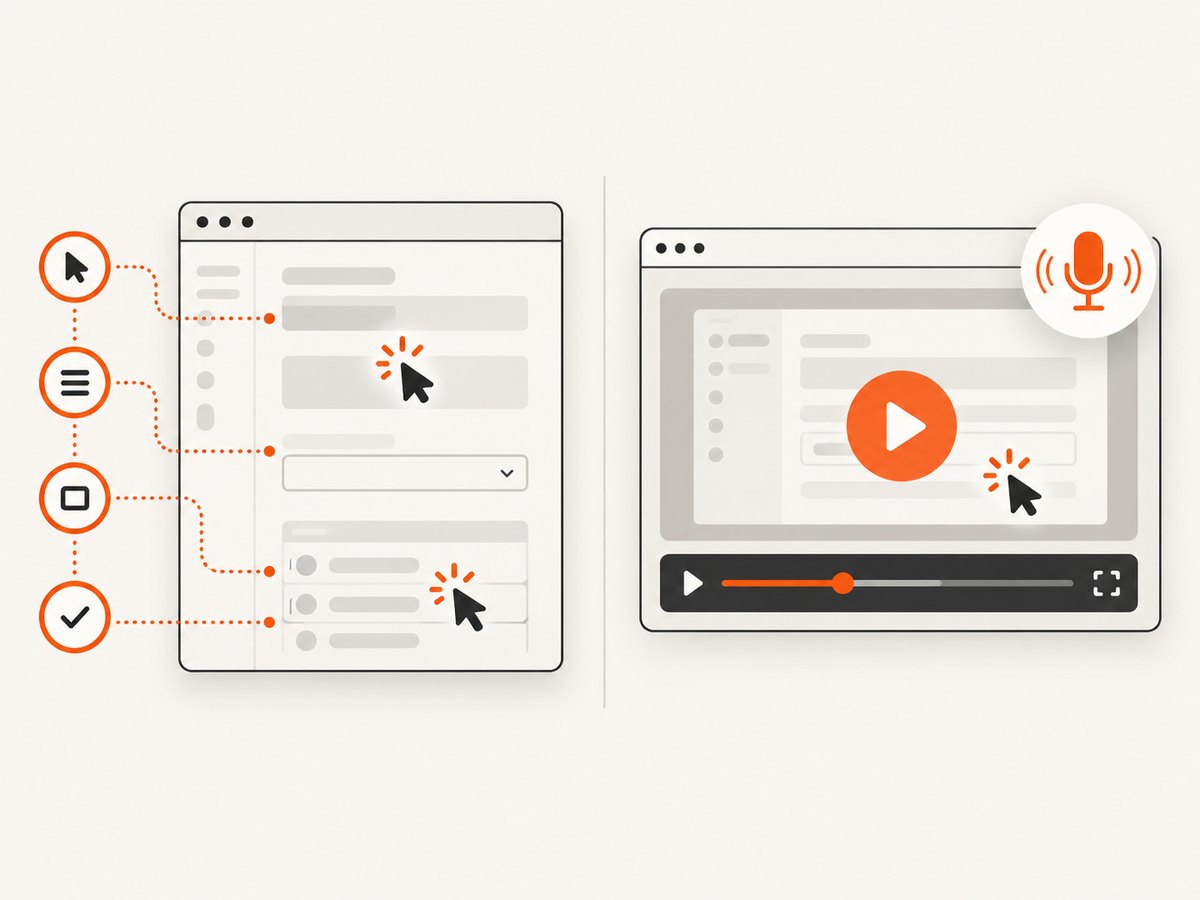
- Open Chrome DevTools on the page you want to work with.
- Choose More options → More tools → Recorder.
- Start a new recording and perform the user flow.
- Review and edit the recorded steps, add assertions where useful, then replay or measure the flow.
Chrome’s cited Recorder guide says the feature is available in Chrome, not Chromium. Browser interfaces and documentation can change, so consult the current Chrome DevTools Recorder guide if you cannot find it or need current export details.
5. Or skip the browser setup
ScreenshotNeo is a website screenshot API and MCP server. It returns a still image or PDF; it does not record a video or replace the screen-recording workflows above. Use it when your walkthrough also needs a clean page screenshot, or when an AI agent needs to capture a page. See the ScreenshotNeo API documentation.
curl -G "https://api.screenshotneo.com/v1/shot" -d access_key=YOUR_API_KEY --data-urlencode url=https://stripe.com -o shot.webpimport requests
r = requests.get("https://api.screenshotneo.com/v1/shot", params={"access_key": "YOUR_API_KEY", "url": "https://stripe.com"}, timeout=90)
open("shot.webp", "wb").write(r.content)const q = new URLSearchParams({ access_key: 'YOUR_API_KEY', url: 'https://stripe.com' });
const res = await fetch(`https://api.screenshotneo.com/v1/shot?${q}`);Cookie banners, newsletter popups, and chat widgets are removed before the shot. Bot checks, blank pages, and failed loads are never billed, and response headers report the page verdict and billing status. Its MCP server lets AI agents use take_screenshot, get_page_info, and capture_pdf. The free plan includes 1,000 screenshots a month with no card; paid plans start at $5 for 3,000. Sign up for 1,000 free screenshots a month, with no card.
6. Troubleshooting common recording problems
| Symptom | Likely cause | What to do |
|---|---|---|
| The capture picker does not open | The request did not follow a user action, the context is unsupported, or the browser blocked capture | Start capture from a direct button click, use a supported secure context, and check the browser console for the rejection reason. |
| No video file is created | The user canceled, no data chunks were recorded, or the stop event was not handled | Confirm the stream started, collect non-empty dataavailable chunks, and call stop() while the recorder is active. |
| Recording stops after navigation | Capture was started from a content script | For extension recording that spans navigation, use Chrome’s documented offscreen-document pattern. |
| Narration is missing | Microphone permission or device selection was unavailable; the chosen capture surface may not provide the expected audio | Check the recorder’s microphone setting and operating-system input device. Make a short test and confirm the selected source before the full run. |
| The page looks blank or incomplete in the recording | The page had not finished loading, content was lazy-loaded, or a transition occurred during capture | Wait for the final state before continuing, avoid capturing mid-transition, and replay the flow at a slower pace. |
| The download is very large | Long duration, high-motion content, or a large capture surface increases recorded data | Record only the needed section, choose a smaller capture surface when practical, and trim the result using the recorder or an editor. |
| Recorder cannot replay the expected flow | The page changed, selectors or state differ, or the goal is a conventional video rather than an interaction recording | Re-record from a stable starting state, update the flow, or use a screen recorder for a watchable video. |
7. Performance, reliability, and cost considerations
Performance: Recording consumes browser and system resources, and high-resolution or long-running capture can create large files. Close unnecessary applications for a smoother walkthrough, keep the capture surface limited to what viewers need, and avoid recording more duration than the task requires. Test the entire flow once before making a final take.
Reliability: The user controls screen sharing and can stop it from browser controls. Your code should handle cancellation, stream track termination, recorder errors, and navigation. For extensions, keep the capture context alive using the documented architecture when recording must persist across pages. Save or upload chunks deliberately for long recordings instead of assuming a single in-memory blob is suitable for every session.
Cost: A browser API does not itself specify a hosted video-storage or editing plan. Ready-made recorder limits, storage, export choices, and paid tiers are vendor-specific and may change; check the current terms before choosing a workflow for a team. A custom recorder shifts work to your application: storage, bandwidth, processing, retention, and support can all add cost. DevTools Recorder is useful for structured QA work, but it does not produce the conventional video deliverable described here.
Privacy: A recording may expose account details, private messages, internal URLs, or customer data. Prepare a safe account and page state, tell participants when recording is active, and check sharing permissions and retention before distributing a link or file.
8. Frequently asked questions
Can I record a website without installing software?
Often, yes: a browser-based recorder may be enough, and Chrome provides capture APIs for developers building their own flow. Availability depends on the browser, context, and permissions. Check the chosen recorder’s current requirements.
Can I record only one browser tab?
With getDisplayMedia(), the browser prompts the user to choose a tab, window, or screen. Chrome extensions can also use chrome.tabCapture for a target tab.
Do I need a microphone?
No. A microphone is optional. Enable one when narration helps explain the walkthrough, and select the connected input device before you begin.
Is Chrome DevTools Recorder a screen recorder?
It records structured interactions for replay and performance work. Choose a screen recorder when you need a conventional watchable video.
Can ScreenshotNeo create a website video?
No. ScreenshotNeo captures website screenshots or PDFs. It can complement a video walkthrough with a clean still capture, but it does not record video.


