How to Capture a Website Behind a Login
Capture a page behind a login with your browser or an automated session, including cookies, headers, full-page output, waits, troubleshooting, and PDFs.
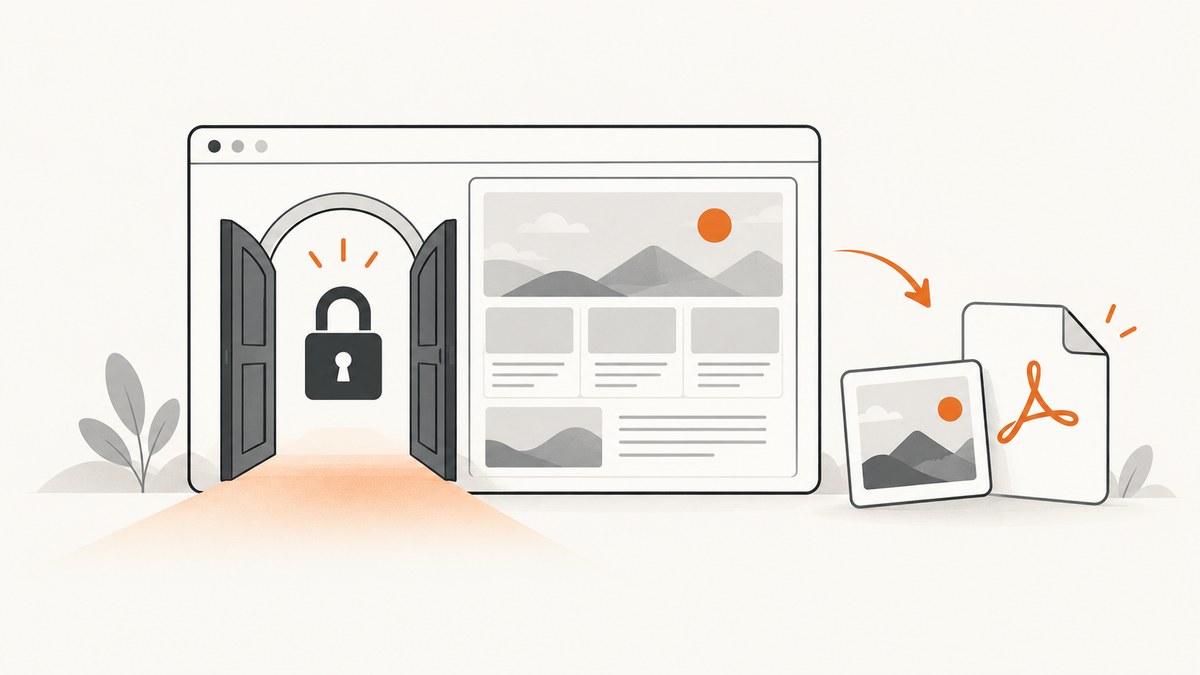
Short answer: sign in through a browser that has permission to access the page, wait until the protected content is visible, then use the browser’s full-page screenshot or print-to-PDF command. For automation, the capture browser must receive a valid session cookie, Basic Auth credential, or authorization header. A URL by itself does not carry your login state.
Choose the right capture method
| Need | Best starting point | Why |
|---|---|---|
| One saved copy | Your normal browser | You are already signed in and can verify the result immediately. |
| PDF for reading or sharing | Browser print dialog | It produces a document-style result and can include multiple pages. |
| Repeatable automation | Playwright or a capture API | You can provide session state, waits, viewport settings, and a repeatable output format. |
| Scheduled archives | A tool that stores an authenticated session | It can reuse cookies after you explicitly sign in, but review how session data is stored. |
Method 1: Capture a logged-in page in your browser
- Open the site in the browser where you normally use it.
- Sign in and complete any required multi-factor or consent step.
- Navigate to the exact protected URL.
- Wait for charts, tables, images, and other content loaded after navigation to appear.
- For a document, open the print dialog and choose PDF if your browser offers it. For a visual record, use the browser or operating-system screenshot command.
- Use a full-page screenshot option when the page extends below the viewport. Otherwise capture each required section.
- Open the saved file and confirm it contains the protected content rather than a login page, consent wall, spinner, or error.
This keeps credentials and session handling in the browser you already trust. Browser menu names differ by browser and operating system, so verify the output instead of assuming the first file is correct.
Method 2: Automate the capture with Playwright
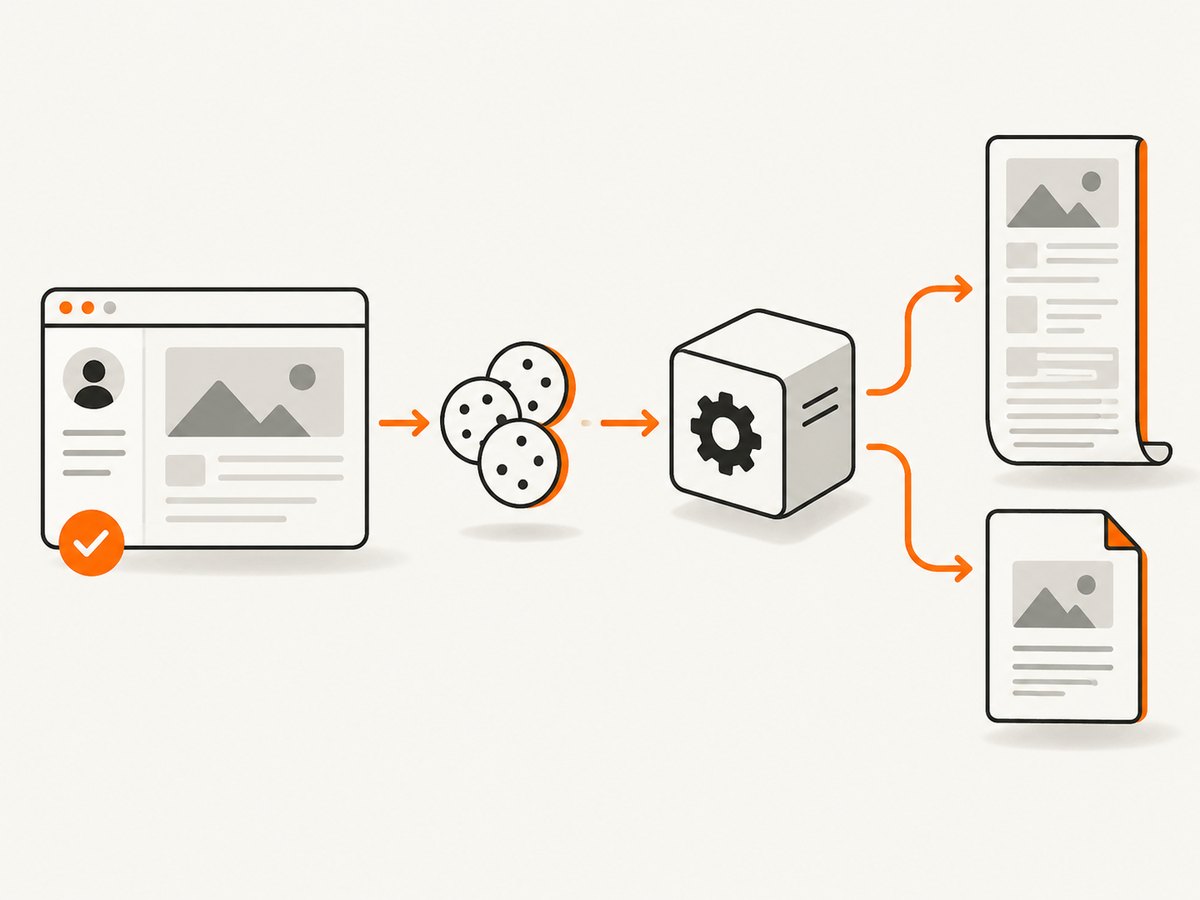
A fresh automated browser has no history, cookies, or local storage. The most reliable pattern is to sign in once, save the authorized browser state, and reuse that state for later captures. Store the state file as a secret: it may contain a live session.
Install Playwright
npm init -y
npm install playwright
npx playwright install chromium
Sign in once and save session state
Use a headed browser for the initial sign-in so the account owner can complete the site’s normal login and any second factor. Do not put a password in source code.
const { chromium } = require('playwright');

(async () => {
  const browser = await chromium.launch({ headless: false });
  const context = await browser.newContext();
  const page = await context.newPage();
  await page.goto('https://example.com/login', { waitUntil: 'domcontentloaded' });
  console.log('Sign in in the opened browser, then press Enter here.');
  process.stdin.once('data', async () => {
    await context.storageState({ path: 'auth-state.json' });
    await browser.close();
  });
})();
Capture the protected page as a full-page PNG
const { chromium } = require('playwright');

(async () => {
  const browser = await chromium.launch();
  const context = await browser.newContext({ storageState: 'auth-state.json' });
  const page = await context.newPage({ viewport: { width: 1440, height: 1000 }, deviceScaleFactor: 1 });

  await page.goto('https://example.com/account/report', { waitUntil: 'domcontentloaded' });
  await page.waitForLoadState('networkidle');
  await page.locator('[data-report-ready]').waitFor({ state: 'visible', timeout: 30000 });
  await page.screenshot({ path: 'report.png', fullPage: true });

  await browser.close();
})();
Replace [data-report-ready] with an element that only appears when the important content is ready. If the page has no reliable marker, use a bounded delay and inspect the output.
Save a PDF
const { chromium } = require('playwright');

(async () => {
  const browser = await chromium.launch();
  const context = await browser.newContext({ storageState: 'auth-state.json' });
  const page = await context.newPage({ viewport: { width: 1440, height: 1000 } });
  await page.goto('https://example.com/account/report', { waitUntil: 'domcontentloaded' });
  await page.waitForLoadState('networkidle');
  await page.pdf({ path: 'report.pdf', format: 'A4', printBackground: true, margin: { top: '12mm', right: '12mm', bottom: '12mm', left: '12mm' } });
  await browser.close();
})();
PDF generation requires a Chromium browser context. If the page is designed only for screen display, compare the PDF with a screenshot because print styles can hide or rearrange content.
Authentication options for automation
Session cookies
Cookies are the usual choice after an interactive sign-in. Reuse the complete browser storage state when possible because many applications also use local storage. A cookie copied by hand can be incomplete, scoped to the wrong domain, expired, or marked for a different path.
const context = await browser.newContext({
  storageState: 'auth-state.json'
});
HTTP Basic Authentication
For a site protected by HTTP Basic Auth, configure the browser context with the credentials the site expects. This is different from a form login and different from a bearer token.
const context = await browser.newContext({
  httpCredentials: {
    username: process.env.BASIC_USER,
    password: process.env.BASIC_PASSWORD
  }
});
Authorization or other request headers
Some services authorize API or internal pages with a request header. Add only the headers required by the target and avoid logging them.
const context = await browser.newContext({
  extraHTTPHeaders: {
    Authorization: `Bearer ${process.env.ACCESS_TOKEN}`
  }
});
Use the mechanism the site actually supports. A password, cookie, and authorization header are not interchangeable.
Make dynamic pages render completely
- Wait for navigation:
domcontentloadedconfirms the document exists, not that application data is ready. - Wait for network activity:
networkidlecan help with JavaScript applications, but pages with polling may never become idle. - Wait for a selector: prefer a stable element that proves the required table, chart, or report has rendered.
- Scroll when needed: lazy-loaded images may not exist until their section enters the viewport. Scroll through the page before taking a full-page shot.
- Disable animations: inject CSS or wait for a stable state so the capture does not contain a half-transitioned component.
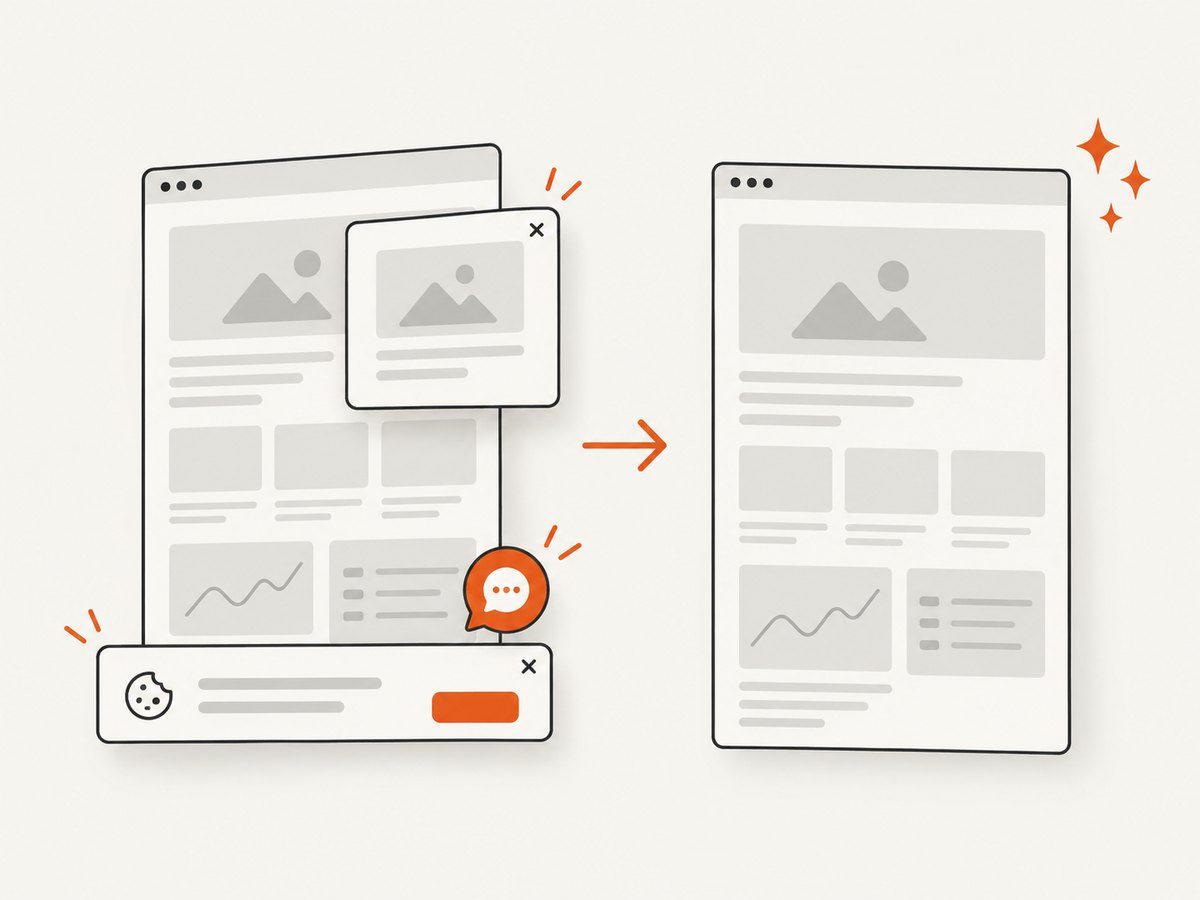
- Check overlays: consent banners, newsletters, chat widgets, and modal dialogs can cover authenticated content.
await page.evaluate(async () => {
  await new Promise(resolve => {
    let y = 0;
    const step = 700;
    const timer = setInterval(() => {
      window.scrollBy(0, step);
      y += step;
      if (y >= document.body.scrollHeight) {
        clearInterval(timer);
        window.scrollTo(0, 0);
        resolve();
      }
    }, 100);
  });
});
Capture one element instead of the whole page
When the target is a report, chart, invoice, or dashboard panel, capture the element that contains it. This avoids unrelated navigation and makes the output easier to compare.
const report = page.locator('#report');
await report.waitFor({ state: 'visible' });
await report.screenshot({ path: 'report-panel.png' });
Confirm that the selector is stable across deployments. A generated class name may change even though the page looks the same.
Or skip the browser setup
ScreenshotNeo is a website screenshot API and MCP server. It accepts a URL and returns a PNG, JPEG, WebP, or PDF. For a page that does not require an interactive login flow, call the API directly:
curl -G "https://api.screenshotneo.com/v1/shot" -d access_key=YOUR_API_KEY --data-urlencode url=https://example.com/account/report -o shot.webpimport requests
r = requests.get("https://api.screenshotneo.com/v1/shot", params={"access_key": "YOUR_API_KEY", "url": "https://example.com/account/report"}, timeout=90)
open("shot.webp", "wb").write(r.content)const q = new URLSearchParams({ access_key: 'YOUR_API_KEY', url: 'https://example.com/account/report' });
const res = await fetch(`https://api.screenshotneo.com/v1/shot?${q}`);See the ScreenshotNeo documentation for the authentication and capture options needed by your target. Its options include custom headers, cookies, a user agent, and Authorization, plus waits, full-page capture, PDFs, custom JavaScript and CSS, and selector-based capture.
- Cookie banners, newsletter popups, and chat widgets are removed before the shot.
- Bot checks, blank pages, failed loads, timeouts, and cache hits are not billed; the response identifies the page verdict and billing result in
X-Page-VerdictandX-Billedheaders. - An MCP server lets AI agents such as Claude, Cursor, and other MCP clients use
take_screenshot,get_page_info, andcapture_pdf. - The Free plan includes 1,000 screenshots each month with no card. Paid plans start at $5 for 3,000 screenshots.
Create a free ScreenshotNeo account and start with 1,000 screenshots a month at no charge.
Security and permission checklist
- Capture only pages your account is authorized to access.
- Do not commit
auth-state.json, cookies, bearer tokens, or Basic Auth passwords. - Restrict saved session files to the account or service that needs them.
- Remove tokens from logs, screenshots, filenames, and error reports.
- Check the site’s account rules before retaining or redistributing captured content.
- Use a dedicated account or narrowly scoped token when the service supports it.
Troubleshooting
| Symptom | Likely cause | Fix |
|---|---|---|
| The screenshot is the login page | No valid session reached the capture browser, or the session expired. | Sign in again in the same browser context, save fresh storage state, and retry. |
| Only the top of the page appears | The request captured the viewport rather than the full document. | Enable full-page output or capture the required sections separately. |
| A chart or table is blank | Capture began before client-side data finished rendering. | Wait for a stable selector, network activity, or a bounded delay; then inspect the result. |
| Images are missing lower down | Lazy loading did not run before capture. | Scroll through the page, wait for images, and capture again. |
| A consent dialog covers content | The authenticated page still displays an overlay. | Complete consent in the session, close the dialog, or hide the overlay before capture. |
| Basic Auth credentials fail | The site uses a form login or token instead of HTTP Basic Auth. | Use the site’s supported cookie or header mechanism. |
| A token works in the API client but not the page | The browser request needs a different header, origin, or cookie. | Inspect the authorized request pattern and provide the same supported mechanism. |
| The session works locally but not in CI | The saved state is absent, expired, or incompatible with the CI browser. | Provision secrets securely, create fresh state when needed, and verify the browser version and domain. |
| Capture times out | The page is slow, blocked, continuously polling, or waiting on a resource. | Wait for a specific ready element, set a bounded timeout, and inspect failed requests. |
Performance, reliability, and cost
- Reuse a browser context: creating a new browser for every URL adds startup time. Keep isolation between accounts while reusing a context for captures that share authorization.
- Wait for evidence: a selector tied to the required content is usually more reliable than an arbitrary long sleep.
- Limit page work: block unnecessary ads, trackers, or resource types when your capture method supports it, but do not block assets required by the report.
- Control output size: use a deliberate viewport, device scale factor, image format, and PDF page size. Full-page and retina captures consume more memory and produce larger files.
- Retry safely: retry navigation and transient network failures, but re-check authentication before repeating a failed job. Do not blindly retry a destructive form submission.
- Verify every artifact: inspect status, dimensions, file size, and whether the result contains the expected page rather than a login or error screen.
- Budget API usage: ScreenshotNeo bills only clean shots; bot checks, blank pages, failed loads, timeouts, and cache hits cost nothing, and response headers report the verdict and billing result. Its plans range from 1,000 free shots monthly to paid tiers from $5 for 3,000 shots, with yearly billing giving two months free.
FAQ
Can I capture a page with only its URL?
Usually not. A URL does not include your browser’s login state. Supply an authorized cookie, header, Basic Auth credential, or an interactive session.
Should I use a screenshot or PDF?
Use a screenshot for visual fidelity and a PDF for a document-like record. Check both when print styles or responsive layouts matter.
How do I know the capture is authenticated?
Look for page-specific content that appears only after sign-in, and confirm the result is not a login form, consent wall, or loading state.
What if the site requires multi-factor authentication?
Complete it during the interactive sign-in step, then save and reuse the resulting authorized session only where the account permits it.
Can I archive pages from several accounts?
Use a separate browser context and protected session state per account. Never mix cookies or tokens between users.


