How to Capture a Website in Full-Screen Mode
Capture an entire webpage beyond the visible browser window, choose an image or PDF, and learn practical workflows for Edge, Firefox, and automated captures.
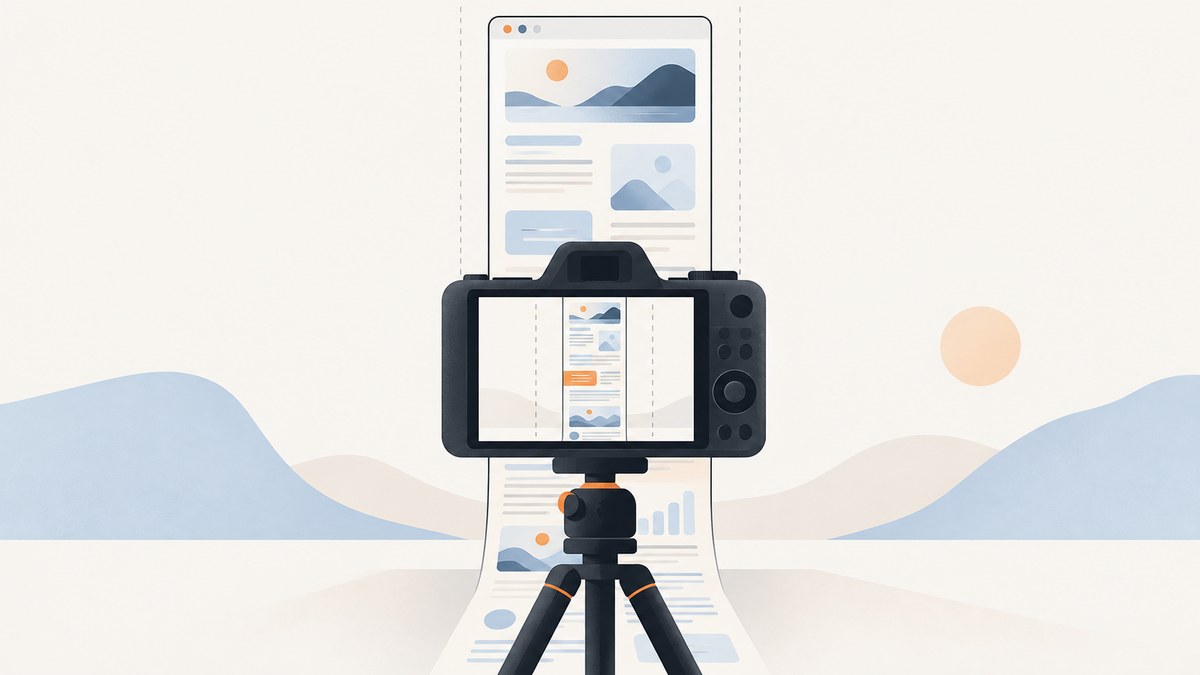
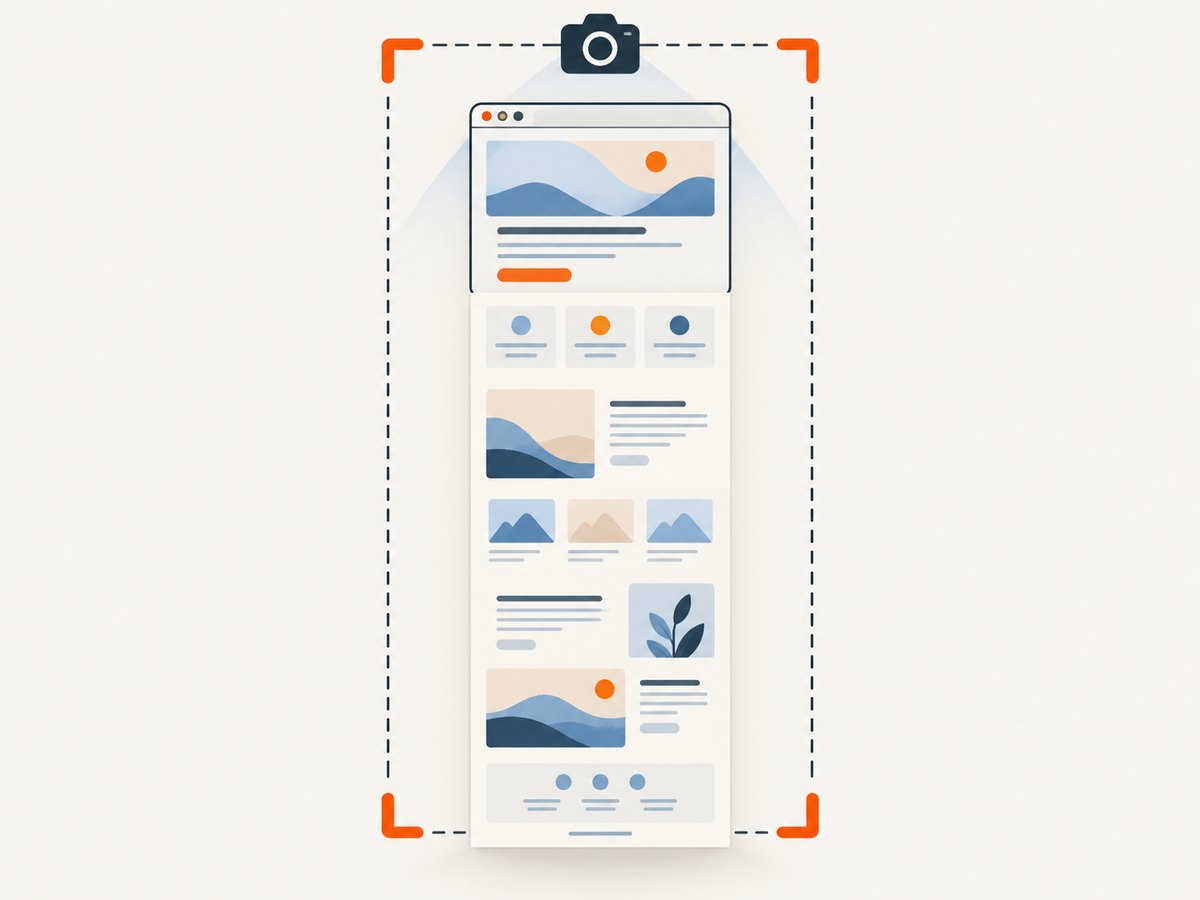
To capture a website in full-screen mode, first decide what “full screen” means. A full-page screenshot is one image of the webpage from top to bottom, including content below the visible browser window. A regular computer screenshot captures only what is currently visible on your display. If you need a document that is easy to print or read, save the page as a PDF instead.
For a quick full-page image, Microsoft Edge offers a built-in capture command: press Ctrl+Shift+S and choose Capture full page. Firefox provides full-page capture through its Developer Tools. These browser features work well for occasional manual captures; an API is more convenient when captures need to run repeatedly or in code.
1. Choose the capture you actually need
“Full-screen” can describe several different results. Pick the one that matches how you plan to use the capture:
| Goal | Choose | What you get |
|---|---|---|
| Show everything on a long webpage | Full-page screenshot | A tall image of the page, including content beyond the viewport. |
| Record what is visible right now | Screen or viewport screenshot | An image of the display or browser viewport, possibly including browser controls. |
| Share one part of a page | Selected-area or element capture | A cropped region or a specific page element. |
| Read, print, or archive the content | PDF or print-to-file | A paginated document whose layout may differ from the live webpage. |
For a visual reference, bug report, or design review, start with a full-page screenshot. For a printable report, prefer PDF. A full-page image can become extremely tall, and it is not automatically a faithful record of an interactive page’s every state.
2. Capture a full webpage in Microsoft Edge
- Open the webpage in Edge and wait until the main content has loaded.
- Press Ctrl+Shift+S, or open the page context menu or Edge Settings and choose Screenshot.
- Select Capture full page. Choose a selected area instead if you only need part of the page.
- Review the result. Use the markup tools if needed, then copy or save the screenshot.
Microsoft documents the keyboard shortcut, full-page and selected-area capture, markup, and saving or copying. It also says that feature availability and functionality may vary by device, market, and browser version, so the shortcut or menu can differ in your environment. See the Microsoft Edge Screenshot feature page.
When Edge is the simplest choice
- You want a one-off full-page image without installing anything.
- You want to annotate or mark up the capture before sharing it.
- You are capturing a page manually and can inspect the result immediately.
If the shortcut does not open capture, try the page context menu or Edge Settings. Check that Edge is current and that the active window is the browser page you intend to capture. Availability can vary by version and device.
3. Capture a full webpage in Firefox
Firefox’s Developer Tools can take a screenshot of the whole page, a selected node, or the current viewport. Open Developer Tools with Ctrl+Shift+I on Windows/Linux or ⌘+⌥+I on macOS, then use the screenshot control. If the full-page screenshot button is not visible, open Developer Tools settings and enable the screenshot button.
For a repeatable command or more control, open the Web Console and run:
:screenshot page-full.png --fullpageThe file is saved to Downloads. Firefox’s command helper also supports a delay, device-pixel ratio, clipboard output, and selecting one element by CSS selector. For example:
:screenshot chart.png --selector "#sales-chart"
:screenshot menu-state.png --delay 1.5 --fullpage
:screenshot page.png --fullpage --dpr 2
Use a selector that matches one element when targeting a node. Use a fresh filename for each capture so you do not overwrite an earlier screenshot. Mozilla documents these controls and their behavior in its Firefox Developer Tools screenshot guide.
4. On a Mac, distinguish a screen capture from a full-page capture
macOS’s built-in screenshot controls capture the display, a window, or a selected screen region. Press Shift+Command+5 to open Screenshot controls. These are useful for recording what is currently on screen, but they do not mean the browser has captured the whole scrollable webpage. Apple documents the available screen, window, and region controls in Apple Support’s Mac screenshot guide.
If your goal is the whole webpage, use a browser full-page capture such as Edge’s or Firefox’s. If you only need a display screenshot, macOS can save the selected capture to a location you choose using the Screenshot toolbar’s Options.
5. Save a webpage as a PDF when you need a document
For reading, printing, or sharing a paginated record, use the browser’s print dialog rather than creating a very tall image. In Edge, press Ctrl+P on Windows or Command+P on Mac. Select a PDF destination if available, then review page selection, paper size, scaling, orientation, and background graphics before saving. Microsoft describes these print controls in its Edge printing documentation.
PDF output is a document rendering, not a pixel-perfect screenshot. Print styles can change colors, hide navigation, rearrange columns, split content across pages, or omit interactive elements. Preview the result before sending it. If preserving the page’s visual appearance is more important than page-by-page reading, choose an image capture instead.
6. Automate full-page screenshots with an API
Manual browser capture is a good fit for a small number of pages. Developers often need a different workflow when they capture pages on a schedule, from a job queue, or as part of an application. ScreenshotNeo is a website screenshot API and MCP server for developers. Its API accepts a URL and returns an image or PDF; consult the ScreenshotNeo site and API documentation for the available request options.

Keep your API key private. Replace the example URL with the page you are authorized to capture and choose an output filename that matches the requested format. The following examples use the supplied request format:
cURL
curl -G "https://api.screenshotneo.com/v1/shot" \
  -d access_key=YOUR_API_KEY \
  --data-urlencode url=https://stripe.com \
  -o shot.webp
Python
import requests

r = requests.get(
    "https://api.screenshotneo.com/v1/shot",
    params={"access_key": "YOUR_API_KEY", "url": "https://stripe.com"},
    timeout=90,
)
open("shot.webp", "wb").write(r.content)
Node.js
const q = new URLSearchParams({
  access_key: 'YOUR_API_KEY',
  url: 'https://stripe.com'
});
const res = await fetch(`https://api.screenshotneo.com/v1/shot?${q}`);
const bytes = new Uint8Array(await res.arrayBuffer());
await (await import('node:fs/promises')).writeFile('shot.webp', bytes);
These examples show the basic request shape. For production code, check the HTTP response and the returned page-verdict and billing headers before treating the body as a successful image. Set a timeout appropriate to the work, protect the key in a secret store or environment variable, and avoid logging credentials or sensitive page URLs. ScreenshotNeo supports PNG, JPEG, WebP, and PDF output along with configuration for viewport, device, full-page capture, waiting, and other capture behavior; see the docs for exact parameter names and accepted values.
7. Capture options and page behavior to consider
The right settings depend on what the page is supposed to show. Browser menus are convenient, while automated captures benefit from explicit and repeatable choices.
| Need | Option or workflow | What to check |
|---|---|---|
| Entire document | Full-page capture | Confirm lower-page content appears and sticky elements are represented sensibly. |
| One component | Firefox node screenshot or an API CSS selector | Use a selector that identifies the intended element; verify nested content is included. |
| Content appears after a delay | Wait for a selector, a delay, or an appropriate loading condition | Waiting too little can capture placeholders; waiting too long wastes time. |
| Specific display size | Viewport or device preset | Responsive layout changes with width and pixel density. Record settings when comparing captures. |
| Images or charts load late | Wait for loading and review page-specific behavior | Lazy-loaded images may appear only after scrolling or another interaction. |
| Printable output | Browser print dialog or PDF capture | Review page breaks, backgrounds, margins, orientation, and selected pages. |
Long pages, animated content, infinite scrolling, sticky headers, and lazy-loaded sections need particular attention. A capture tool cannot include content that the site never loaded into the page. Infinite feeds may keep adding content as you scroll; decide on a finite target before capturing. A menu, tooltip, or hover state may disappear before the capture unless you trigger it and capture promptly. Treat the result as a rendering of one page state, not a recording of every possible interaction.
8. Troubleshoot common capture problems
| Symptom | Likely cause | What to do |
|---|---|---|
| The image only shows the visible screen | You used an operating-system screenshot or viewport capture. | Use the browser’s full-page option, or Firefox’s --fullpage helper. |
| The screenshot command or button is missing | The browser feature is hidden, unavailable, or has moved in that version. | In Edge, try its context menu or Settings. In Firefox, enable the screenshot button in Developer Tools settings or use the Web Console helper. |
| Images or lower content are missing | Content may be lazy-loaded, delayed, or loaded only after interaction. | Wait for the page to settle; scroll or trigger the relevant content before capture when using a manual workflow. Verify the resulting image. |
| The top navigation or a banner appears repeatedly | A fixed or sticky element may remain visible across a long capture. | Review the image and try a different capture workflow or an element-specific capture if the repeated element is not needed. |
| A Firefox capture overwrites an earlier file | The same filename was reused. | Choose a unique filename for each run. |
| The PDF differs from the screen | Print styles, page breaks, and paper layout change the rendering. | Preview the PDF; adjust paper size, scaling, margins, orientation, or backgrounds, or use an image capture if visual similarity is the goal. |
| An API response is not an image | The request may have failed or returned a page status that is not a clean capture. | Check the HTTP response and ScreenshotNeo’s X-Page-Verdict and X-Billed headers; review the docs for response handling. |
9. Performance, reliability, and cost
A manual browser capture has almost no setup cost, but it requires someone to open the page and inspect the output. An API can fit scheduled or application-driven work, but each capture still depends on page load time, network conditions, and the target site’s behavior. Large images also take more time and storage to transfer than small viewport captures. Use the smallest image dimensions that preserve the details your task needs.
For repeatable results, keep the target URL and relevant capture settings consistent, wait for meaningful page content rather than choosing an arbitrary long delay, and review a sample of outputs after site or browser changes. Dynamic pages can change between runs. A timeout, bot check, blank page, or failed load should be treated as a capture outcome to inspect, not as a valid screenshot.
ScreenshotNeo’s stated plans are Free: 1,000 shots per month with no card; Starter: $5 for 3,000; Growth: $15 for 15,000; Pro: $39 for 60,000; Scale: $99 for 250,000; and Business: $249 for 1,000,000. Yearly billing gives two months free, and every feature is available on every plan. ScreenshotNeo says only clean shots are billed: bot checks or CAPTCHAs, blank pages, timeouts, failed loads, and cache hits cost nothing. Its responses identify the page verdict and billing status in headers. Check current plan details on the product site before choosing a plan.
Or skip the browser setup
Use ScreenshotNeo’s one-call API when you want to capture a URL from code. See the ScreenshotNeo API docs for request options.
curl -G "https://api.screenshotneo.com/v1/shot" -d access_key=YOUR_API_KEY --data-urlencode url=https://stripe.com -o shot.webpScreenshotNeo removes cookie banners, popups, and chat widgets before the shot. Bot checks, blank pages, and failed loads are never billed. Its MCP server lets AI agents take screenshots. The Free plan includes 1,000 screenshots a month with no card; paid plans start at $5 for 3,000. Sign up for free and get 1,000 screenshots a month with no card.
Frequently asked questions
Does full-screen mode mean a full-page screenshot?
People use “full-screen” to mean either hiding browser chrome or capturing the whole webpage. If you want content below the fold, choose a full-page screenshot. If you only want the browser to occupy the display, maximize its window.
Can I capture a full webpage on a Mac?
Yes. Use a browser’s full-page screenshot feature for the document. macOS’s built-in screenshot shortcuts capture the screen, a window, or a region rather than the whole scrollable webpage.
Should I choose PNG, JPEG, WebP, or PDF?
Choose an image format when you need a screenshot; choose PDF when you need paginated document output. For automated ScreenshotNeo captures, the API supports PNG, JPEG, WebP, and PDF. Follow its documentation for choosing the output.
Can a screenshot show content behind a login?
Only if the capture workflow has access to the required authenticated page. Keep credentials private and use the supported browser or API authentication options for pages you are authorized to access.
Why does my capture look different from what I saw while scrolling?
Pages can change as you scroll, load content, animate, or respond to hover and clicks. Capture one deliberate page state, then inspect the output for missing or repeated content.


