How to Capture a Website’s HTML With Browser Automation
Capture the live HTML after JavaScript renders with Playwright or Selenium. Learn when to wait, how to handle frames and shadow DOM, and how to save a portable archive.

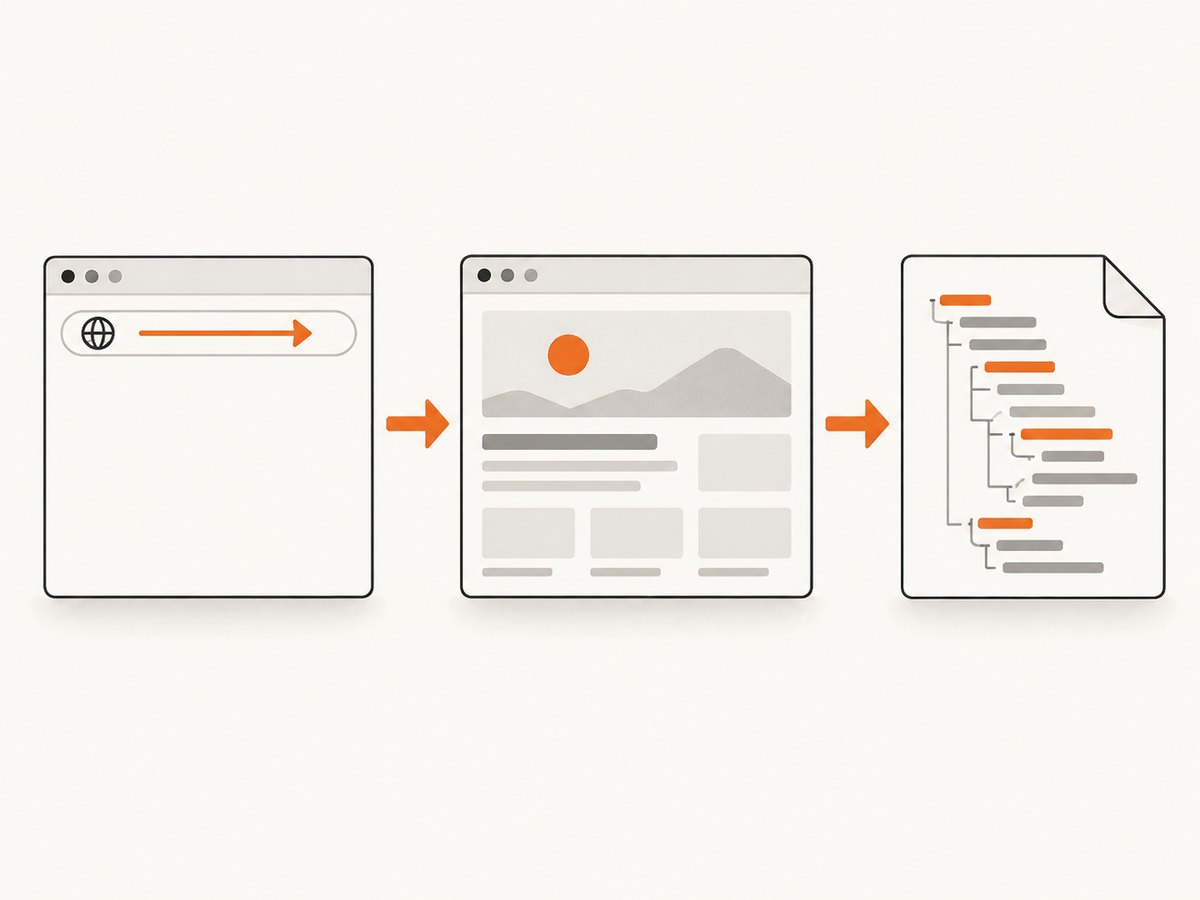
To capture a website’s HTML after JavaScript renders, open the page in a real browser, wait for the content you need to appear, then serialize the live document. In Playwright, use page.content(); in Selenium, use driver.page_source (or getPageSource() in Java). These return a browser-side representation of the current DOM, not necessarily the original bytes sent by the server.
The capture depends on when you take it: before a client-side fetch, click, login, or scroll, the DOM can be different. Choose the right scope too: the top-level document, one element, iframe documents, shadow roots, or a resource-aware archive are distinct capture jobs.
1. Capture the rendered page with Playwright
Install Playwright and its Chromium browser, then run this complete Node.js example. It waits for the main content landmark rather than guessing how long the site needs to render.
npm install playwright
npx playwright install chromium
// capture.mjs
import { chromium } from 'playwright';
import { writeFile } from 'node:fs/promises';
const url = process.argv[2] ?? 'https://example.com';
const browser = await chromium.launch({ headless: true });
try {
const page = await browser.newPage();
await page.goto(url, { waitUntil: 'domcontentloaded', timeout: 30_000 });
await page.locator('main').waitFor({ state: 'attached', timeout: 15_000 });
const html = await page.content();
await writeFile('page.html', html, 'utf8');
console.log(`Saved ${html.length} characters from ${page.url()}`);
} finally {
await browser.close();
}Run it with node capture.mjs https://example.com. The Playwright Page API says page.content() gets the full HTML contents of the page, including the doctype. For only a specific region, serialize the selected element’s outerHTML instead:
const sectionHtml = await page.locator('main').evaluate(el => el.outerHTML);
await writeFile('main.html', sectionHtml, 'utf8');
attached proves the node exists, not that its data is complete. If the application fills it asynchronously, wait for a meaningful child, expected text, or loading indicator to disappear. The right condition is specific to the page you are capturing.
2. Capture the current DOM with Selenium
Here is a Python version using Chrome and Selenium. The explicit wait checks for the main element before writing the source as UTF-8.
python -m pip install selenium# capture.py
import sys
from selenium import webdriver
from selenium.webdriver.common.by import By
from selenium.webdriver.support.ui import WebDriverWait
from selenium.webdriver.support import expected_conditions as EC
url = sys.argv[1] if len(sys.argv) > 1 else 'https://example.com'
options = webdriver.ChromeOptions()
options.add_argument('--headless=new')
with webdriver.Chrome(options=options) as driver:
driver.set_page_load_timeout(30)
driver.get(url)
WebDriverWait(driver, 15).until(
EC.presence_of_element_located((By.CSS_SELECTOR, 'main'))
)
html = driver.page_source
with open('page.html', 'w', encoding='utf-8') as output:
output.write(html)
print(f'Saved {len(html)} characters from {driver.current_url}')Run python capture.py https://example.com. In Selenium’s Java API the equivalent is driver.getPageSource(). Selenium documents that returned source is a representation of the underlying DOM; formatting and escaping may differ from the raw response from the web server. Don’t use it when you need byte-for-byte HTTP response evidence.
3. Choose a wait that proves the content is ready
Navigation milestones describe document loading, but modern pages often render useful data later. Playwright supports milestones such as domcontentloaded and load; then add a locator or application-specific condition. Selenium offers explicit waits for the same purpose.
| Wait or condition | Use it when | Limitation |
|---|---|---|
domcontentloaded |
You need the parsed document and will wait for a specific app state next. | Images, subresources, and app data may still be loading. |
load |
The page’s load event is relevant to the capture. | Client-side requests can continue after it fires. |
| Locator or expected element | A known element signals that a section rendered. | Presence alone may precede populated content. |
| Expected text or state | A particular record, label, or loaded state matters. | The condition must match the site’s behavior. |
| Fixed delay | A short delay is unavoidable for a known transient behavior. | Can be too short on slow runs and waste time on fast ones. |
For example, wait until a product title has nonempty text instead of sleeping an arbitrary number of seconds:
await page.locator('[data-testid="product-title"]').waitFor();
await page.waitForFunction(() => {
  const title = document.querySelector('[data-testid="product-title"]');
  return title && title.textContent.trim().length > 0;
});
const html = await page.content();
If a click, sign-in, scroll, or API response triggers the content, perform that action before the final wait and serialization. Record the URL and the interaction sequence alongside the HTML when you need to reproduce a capture later.
4. Decide what “the HTML” includes
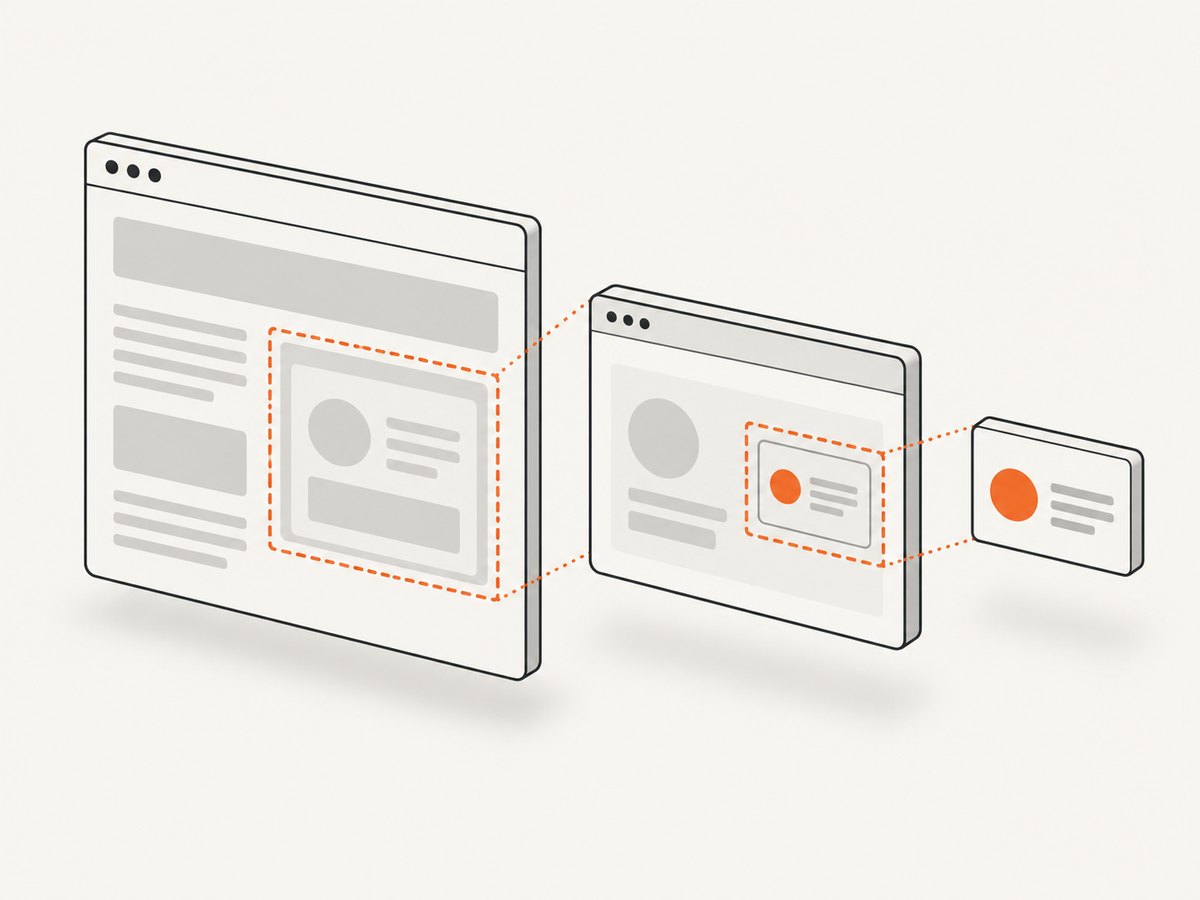
Whole document or one element
page.content() captures the page-wide serialized document. An element’s outerHTML captures that node and its light-DOM descendants, omitting siblings and document-level markup. A selected element is useful for extraction, but it is not a standalone copy of the whole page.
Frames and iframes
An iframe has its own document. Do not assume its DOM is included in the top-level HTML string. In Playwright, inspect the page’s frames and serialize each accessible frame separately:
for (const frame of page.frames()) {
  try {
    const frameHtml = await frame.locator('html').evaluate(el => el.outerHTML);
    const safeName = (frame.name() || 'frame').replace(/[^a-z0-9_-]/gi, '_');
    await writeFile(`${safeName}.html`, frameHtml, 'utf8');
  } catch (error) {
    console.error(`Could not capture frame ${frame.url()}:`, error.message);
  }
}
Frames can be cross-origin, unavailable, or not yet loaded; handle each result independently and retain its URL. In Selenium, switch into a frame with driver.switch_to.frame(...), read page_source, then return to the top document with driver.switch_to.default_content().
Shadow DOM
Ordinary document serialization may omit content held inside shadow roots. MDN documents Element.getHTML(), which serializes an element’s DOM and has options for including child shadow roots where supported. Browser support and the component’s shadow-root mode affect what you can retrieve; closed roots may remain inaccessible through page scripts. Treat shadow content as an explicit scope requirement and verify the captured output.
Portable archive versus HTML string
An HTML string does not download every referenced image, stylesheet, font, or script. If you need a resource-aware archive, Chrome DevTools Protocol provides an MHTML snapshot format documented to include iframes, shadow DOM, external resources, and inline styles. This is a different artifact from page.content(); choose it when preserving dependencies matters. Alternatively, record relevant network responses separately.
5. Capture conditions and edge cases
- Authentication: establish the required session and confirm the expected account state before capture. A redirect to a login page is still a valid DOM, but likely the wrong result.
- Consent banners and overlays: the serialized DOM can include them. Interact with consent controls only as appropriate for the site and your task; record whether you did so.
- Lazy content: content may render only after scrolling into view. Scroll to the target, wait for it, and then serialize. A full-document serialization does not itself guarantee every lazy image has loaded.
- Anti-bot checks or permissions: automation may receive a challenge, denial page, or incomplete content. Do not mistake that document for the intended page; capture the observed URL and state.
- Navigation changes: client-side routing may update the DOM without a full navigation. Wait on the route-specific element or state, not just the initial page event.
- Mutable pages: data can change between the wait and serialization. For audit use, save timestamp, URL, browser version, and the condition used to decide readiness.
6. Troubleshooting
| Symptom | Likely cause | Fix |
|---|---|---|
| HTML contains a loading shell | Capture happened before client data arrived. | Wait for a data-backed selector, expected text, or the app’s ready state. |
| Element wait times out | Wrong selector, navigation failed, or content is in a frame. | Check the final URL and page errors; inspect selectors and enumerate frames. |
| Captured page is a login or challenge | Session state, access, or automation controls prevented the intended page. | Handle authorized authentication, inspect the resulting document, and log the state. |
| Iframe markup is missing | Only the top-level document was serialized. | Enumerate frames or switch into the relevant frame and save it separately. |
| Shadow component looks empty | Its contents are in a shadow root. | Use supported shadow-aware serialization, inspect open roots, and account for inaccessible closed roots. |
| HTML reopens without styling or images | Serialization preserved markup references, not the referenced files. | Use an MHTML snapshot or save required network resources as a separate archive. |
| Browser process hangs or times out | Navigation waits for a page condition that never occurs, such as an indefinitely active connection. | Use a finite timeout, choose a narrower readiness condition, and close the browser in a finally block. |
| Output differs from “View Source” | Browser serialization reflects the current DOM and normalizes markup. | Use an HTTP client for original response bytes; use browser capture for rendered state. |
7. Performance, reliability, and cost
Browser automation has startup, navigation, script execution, and serialization costs. Reuse a browser process for multiple pages when appropriate, while isolating page contexts and cleaning them up. Avoid waiting for more resources than your task needs: a targeted locator often makes capture faster and more dependable than waiting for every background request to stop. Set navigation and condition timeouts, close pages and browsers in cleanup paths, and write outputs atomically if a partial file would cause downstream problems.
Results can vary with browser version, viewport, locale, timezone, authentication, network timing, and page state. Save those conditions when repeatability matters. Browser automation requires a browser installation and compute; hosted capture services trade some control for less browser setup. An HTML capture is not a substitute for a screenshot when the output needed is visual, nor for an archive when external assets must travel with the page.
Or skip the browser setup
ScreenshotNeo is a website screenshot API and MCP server. It returns an image or PDF, not an HTML serialization, so use the browser methods above when you need markup. For a visual record, one GET request is enough. See the API docs.
curl -G "https://api.screenshotneo.com/v1/shot" -d access_key=YOUR_API_KEY --data-urlencode url=https://example.com -o shot.webpimport requests
r = requests.get("https://api.screenshotneo.com/v1/shot", params={"access_key": "YOUR_API_KEY", "url": "https://example.com"}, timeout=90)
open("shot.webp", "wb").write(r.content)const q = new URLSearchParams({ access_key: 'YOUR_API_KEY', url: 'https://example.com' });
const res = await fetch(`https://api.screenshotneo.com/v1/shot?${q}`);
if (!res.ok) throw new Error(`Screenshot request failed: ${res.status}`);
await Bun.write('shot.webp', new Uint8Array(await res.arrayBuffer()));ScreenshotNeo removes cookie banners, popups, and chat widgets before the shot. Bot checks, blank pages, and failed loads are never billed. Its MCP server lets AI agents take screenshots. The Free plan includes 1,000 screenshots a month with no card; paid plans start at $5 for 3,000. Sign up for free.
FAQ
Does Playwright save the original HTML source?
No. page.content() serializes the browser’s current document. Use an HTTP response capture if you need the original response body.
What is Selenium’s equivalent of page.content()?
In Python, read driver.page_source; in Java, call driver.getPageSource(). Both represent the current DOM.
Can I use this to archive a site for offline viewing?
Not by saving HTML alone. The document can reference remote assets. Use MHTML or capture required resources separately when portability is the goal.
Can browser automation capture every shadow root?
No. Support depends on browser APIs and root accessibility; closed shadow roots can prevent page-script access.


