How to Capture a Website Layout Screenshot
Capture a viewport, full page, or individual element with Chrome, Firefox, Playwright, and ScreenshotNeo—with repeatable settings and fixes.
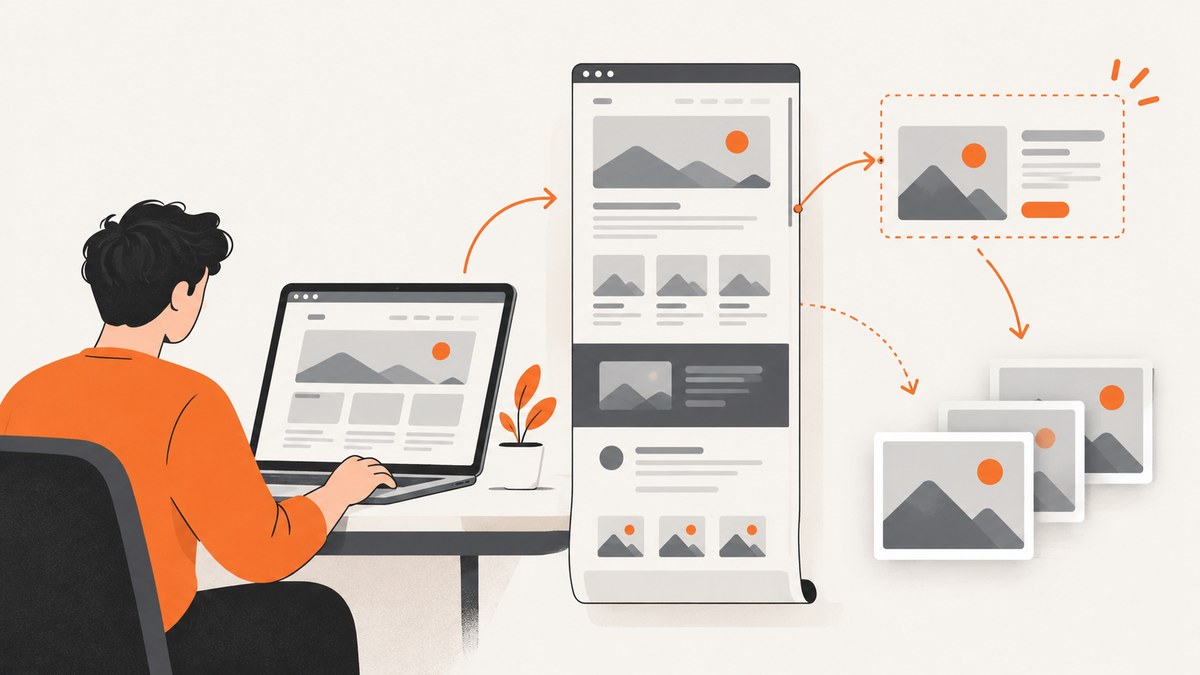
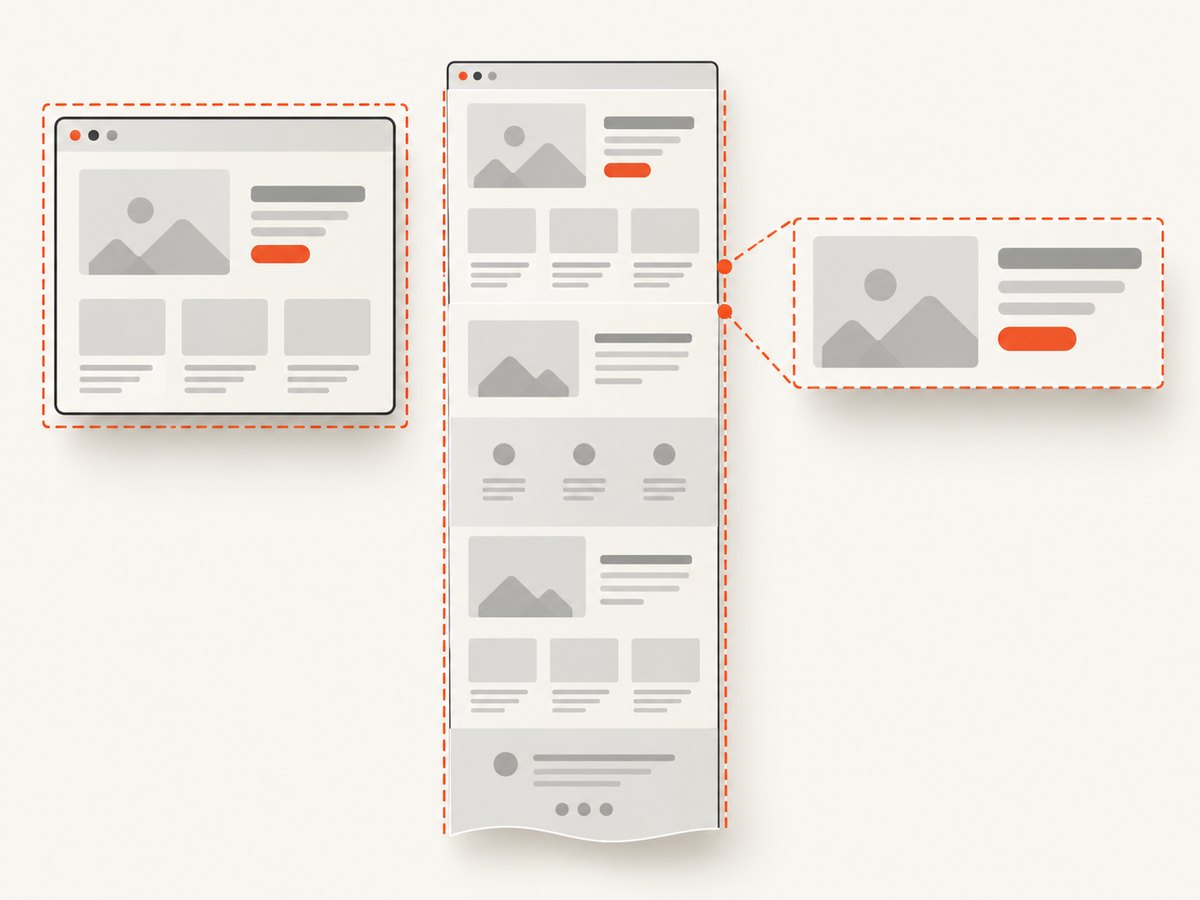
Choose the capture scope first: use a viewport screenshot for what is visible now, a full-page screenshot for the complete vertical layout, and an element screenshot for one component. These outputs are not interchangeable. For a one-off capture, browser DevTools is fastest. For repeatable captures, Playwright gives you a scriptable workflow. If you want an API call without maintaining a browser, ScreenshotNeo can return a PNG, JPEG, WebP, or PDF from one request.
Choose the right screenshot scope
| Need | Capture | What it includes |
|---|---|---|
| Show the composition a visitor currently sees | Viewport | The current browser viewport only |
| Document the entire vertical page | Full page | Content below the fold, as one tall image |
| Record a component | Element or node | The selected element and its contents |
| Repeat captures in tests or a build | Playwright or an API | A file, buffer, or response body produced by code |
A responsive layout can change when the viewport changes. Set the intended width and height before navigation when the page responds to size changes, and record those dimensions with the image. A screenshot proves the captured state at that size; it does not prove how the page behaves at other sizes or after interaction.
Capture a layout manually in Chrome
- Open the target page in Chrome and open DevTools.
- For responsive documentation, turn on the device toolbar and enter the intended width and height before capturing.
- Open the device toolbar’s More options menu.
- Choose Capture screenshot for the visible viewport, or Capture a full size screenshot for the entire page.
- Check the downloaded image. Confirm the responsive width, scroll position, menus, and other transient states are the ones you intend to document.
Chrome’s documentation describes the viewport command as capturing what you currently see and the full-size command as including content that is not currently visible. See Chrome DevTools Device mode for the current controls.
Viewport details that affect the result
- Width and height: a wider viewport may switch navigation, grid columns, or typography breakpoints.
- Device pixel ratio: emulation can change the pixel dimensions of the downloaded image while preserving the CSS viewport.
- Scroll position: a viewport screenshot records the current position, including any sticky header state.
- Page state: open menus, consent dialogs, animations, and lazy content can make two captures differ.
For a layout review, save the viewport dimensions, browser, URL, and capture time alongside the image. This makes later comparisons meaningful.
Capture a full page or element in Firefox
- Open Firefox Developer Tools.
- If the full-page control is missing, open DevTools Settings and enable Take a screenshot of the entire page under Available Toolbox Buttons.
- Use the screenshot control to capture the entire page.
- To capture one component, open the Inspector, right-click the element in the HTML pane, and choose Screenshot Node.
Firefox also provides a :screenshot Web Console helper. Its documented options include --fullpage, --selector, --delay, --dpr, --file, and --filename. For example:
:screenshot --fullpage --file layout-full.png
:screenshot --selector ".pricing-card" --file pricing-card.png
:screenshot --delay 2000 --dpr 2 --file delayed-retina.png
Use distinct filenames when preserving variants. Mozilla notes that an existing filename can be overwritten by a later capture. The complete workflow is in Firefox Developer Tools: Taking screenshots.
Capture layouts repeatably with Playwright
Playwright is useful when you need the same URL, viewport, waits, and output rules on every run. Install it in a Node.js project, then use a browser script like this:
import { chromium } from 'playwright';

const browser = await chromium.launch();
const page = await browser.newPage({
  viewport: { width: 1280, height: 800 },
  deviceScaleFactor: 1
});

await page.goto('https://example.com', { waitUntil: 'networkidle' });
await page.screenshot({ path: 'layout-viewport.png' });
await page.screenshot({ path: 'layout-full.png', fullPage: true });
await page.locator('.header').screenshot({ path: 'header.png' });

const buffer = await page.screenshot({ type: 'png' });
console.log(`buffer bytes: ${buffer.length}`);
await browser.close();
The viewport is set before navigation so responsive code sees the intended size from the start. page.screenshot() saves a viewport image by default, fullPage: true captures the full scrollable page, a locator captures one element, and omitting path returns an image buffer. See Playwright’s Screenshots guide and Page API.
Waiting for a stable layout
Network idle alone may not mean that fonts, client-side data, or images are ready. Add a targeted wait for the state your page needs:
await page.goto('https://example.com/dashboard', { waitUntil: 'domcontentloaded' });
await page.locator('[data-ready="true"]').waitFor();
await page.waitForTimeout(300);
await page.screenshot({ path: 'dashboard.png', fullPage: true });
Prefer a semantic readiness selector over a long arbitrary delay. If the page uses lazy images, scroll through it or use a capture system that loads lazy content before taking a full-page image. Keep animations from changing the result by disabling them with a temporary stylesheet:
await page.addStyleTag({ content: `
  *, *::before, *::after {
    animation: none !important;
    transition: none !important;
    caret-color: transparent !important;
  }
` });
Element screenshots and selectors
A locator screenshot fails if the selector matches nothing, is hidden, or has zero size. Use a stable class or data attribute rather than a generated CSS class. For an element that is below the fold, Playwright scrolls it into view before the capture. If the component is inside an iframe, locate the frame first; a selector in the parent page cannot reach into the iframe directly.
Output format, dimensions, and reproducibility
- PNG: lossless and suitable for UI diffs, text, and transparency.
- JPEG: smaller files for photographic pages; it does not preserve transparency.
- WebP: compact output when your review or delivery system supports it.
- PDF: useful for print-oriented records, but page size, margins, orientation, and page breaks affect the result.
Record the URL, viewport CSS dimensions, device scale factor, browser version, color scheme, locale, timezone, and authentication state when a capture must be reproducible. A screenshot is a rasterized result, so interactive behavior, hover states that were not active, and links are not preserved.
Handle consent banners, popups, and dynamic content
Consent dialogs, newsletter modals, chat bubbles, cookie overlays, and bot checks can obscure the layout you are trying to document. In a browser script, you can close a known dialog before capture:
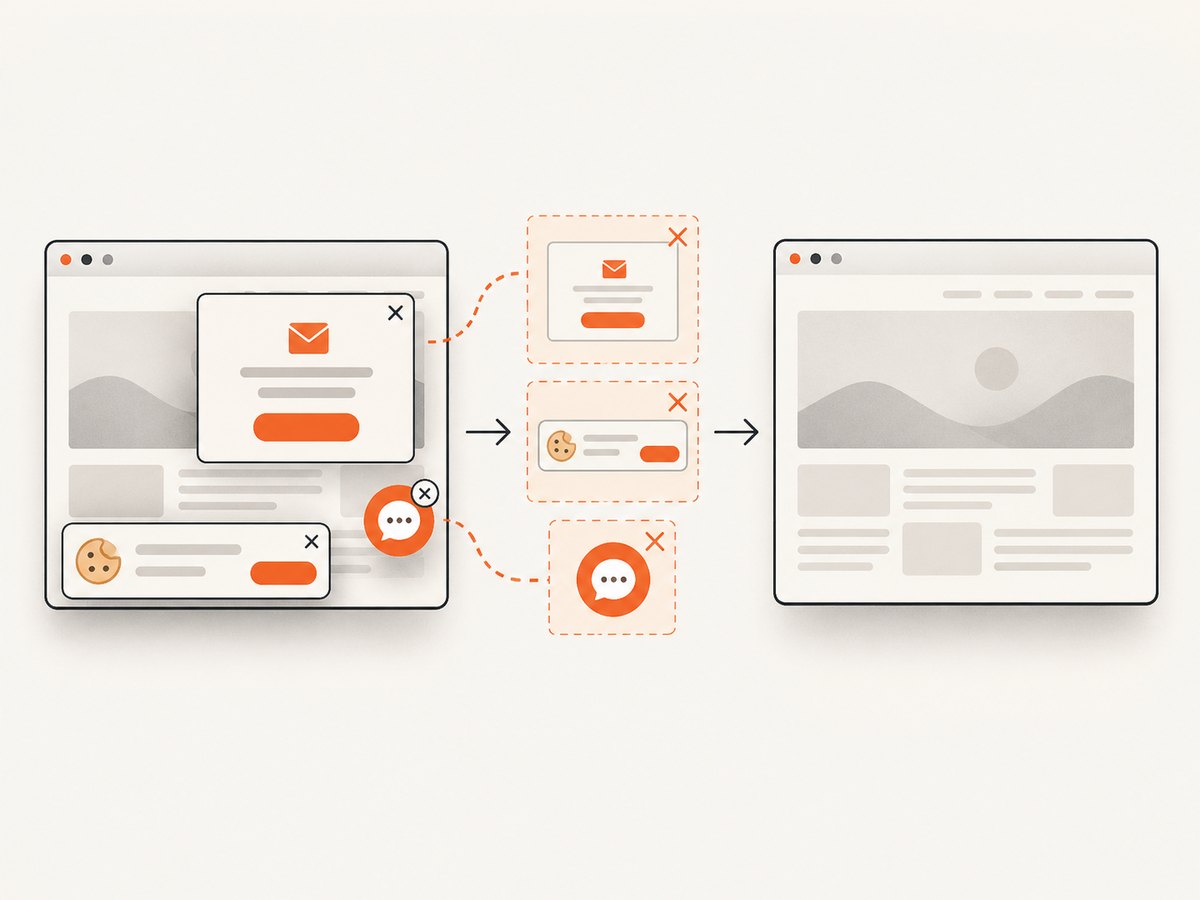
const close = page.locator('[aria-label="Close"], .cookie-banner button');
if (await close.first().isVisible().catch(() => false)) {
  await close.first().click();
}
await page.screenshot({ path: 'clean-layout.png', fullPage: true });
Site-specific selectors are fragile. Keep them in configuration, log whether they matched, and do not silently claim a clean result when a dialog remains. A bot challenge or failed load should be recorded as a failed capture rather than accepted as a layout image.
Or skip the browser setup
ScreenshotNeo is a website screenshot API and MCP server. One GET request returns a PNG, JPEG, WebP, or PDF. It accepts the cookie or consent banner like a visitor, then removes more than 60 known consent platforms, newsletter popups, and chat widgets; each cleanup step can be turned off. Only clean shots are billed: bot checks or CAPTCHAs, blank pages, timeouts, failed loads, and cache hits cost nothing, and the response identifies the result with X-Page-Verdict and X-Billed headers.
See the ScreenshotNeo API documentation for the complete option list. The basic calls below are runnable as written after replacing the key and target URL.
cURL
curl -G "https://api.screenshotneo.com/v1/shot" \
  -d access_key=YOUR_API_KEY \
  --data-urlencode url=https://stripe.com \
  -o shot.webp
Python
import requests

r = requests.get(
    "https://api.screenshotneo.com/v1/shot",
    params={"access_key": "YOUR_API_KEY", "url": "https://stripe.com"},
    timeout=90,
)
r.raise_for_status()
open("shot.webp", "wb").write(r.content)
Node.js
const q = new URLSearchParams({ access_key: 'YOUR_API_KEY', url: 'https://stripe.com' });
const res = await fetch(`https://api.screenshotneo.com/v1/shot?${q}`);
if (!res.ok) throw new Error(`Screenshot failed: ${res.status}`);
const bytes = Buffer.from(await res.arrayBuffer());
await import('node:fs/promises').then(fs => fs.writeFile('shot.webp', bytes));
Useful ScreenshotNeo options
| Requirement | Available configuration |
|---|---|
| Scope and viewport | Full page, one CSS-selected element, 12 device presets, any viewport, retina scale |
| Appearance | Dark mode, transparent background, custom CSS and JavaScript, image resizing |
| Timing | Wait for a selector, fixed delay, or network idle; click an element before capture |
| Network and identity | Block ads, trackers, requests, or resource types; custom headers, cookies, user agent, and Authorization |
| Location | Timezone and geolocation |
| Documents and delivery | PDF paper size, margins, landscape mode, page ranges; caching with your chosen TTL; signed links; asynchronous jobs with signed webhooks; bulk capture for up to 100 URLs; usage API and OpenAPI specification |
ScreenshotNeo also provides an MCP server with take_screenshot, get_page_info, and capture_pdf tools for Claude, Cursor, and other MCP clients. Parameter names used by other screenshot APIs work as well, which can simplify a migration.
Plans include 1,000 shots per month free with no card; paid plans start at $5 for 3,000 shots. Yearly billing gives two months free, and every feature is available on every plan. Create a free ScreenshotNeo account and start with the 1,000 free monthly screenshots.
Troubleshooting checklist
| Symptom | Likely cause | Fix |
|---|---|---|
| Only the visible area appears | Viewport capture was requested | Use Chrome’s full-size command, Firefox full page, Playwright fullPage: true, or ScreenshotNeo full-page capture. |
| Mobile layout is unexpectedly desktop | Viewport was changed after navigation or not set | Set viewport dimensions before opening the URL and record them. |
| Element screenshot is empty | Selector is wrong, hidden, or zero-sized | Use a stable selector, wait for visibility, and inspect the element’s bounding box. |
| Cookie banner covers the page | Consent state was not handled | Accept or close it before capture, or enable ScreenshotNeo’s consent cleanup. |
| Images are missing | Lazy loading has not triggered | Scroll the page, wait for the image state, or use a full-page service that loads lazy images. |
| Text differs between runs | Fonts, animation, locale, or time-dependent content changed | Wait for fonts and data, disable animation, fix locale/timezone, and capture at a controlled time. |
| Screenshot is a bot-check page | The target challenged automation | Do not use it as evidence of the layout. Review authentication and request settings; ScreenshotNeo reports bot checks as a non-clean verdict and does not bill them. |
| Firefox capture overwrote an earlier file | The same filename was reused | Provide a unique --filename or move the previous file first. |
Performance, reliability, and cost notes
- Capture only the scope you need. A viewport or element image is smaller and faster to process than a very tall full-page image.
- Use a readiness selector instead of a large fixed delay, then add a small settling delay for animations or layout shifts.
- Cache stable pages when appropriate. ScreenshotNeo lets you choose a cache TTL; cache hits are not billed.
- For many URLs, use asynchronous jobs, signed webhooks, or bulk capture rather than keeping one browser process open for every page.
- Use PNG for visual regression and transparency, and WebP or JPEG when transfer size matters.
- Retry transient navigation failures with a limit and preserve the failed response metadata. Do not retry a persistent bot check indefinitely.
- Keep credentials out of page URLs and source control. Use environment variables for API keys, cookies, and Authorization headers.
FAQ
Does a full-page screenshot include content below the fold?
Yes. Chrome’s full-size command, Firefox’s full-page capture, and Playwright’s fullPage: true are intended to include the page’s scrollable content.
Can I prove that a site is responsive with one screenshot?
No. A screenshot records one viewport and state. Capture a defined set of widths if you need responsive evidence.
Should I use an element or full-page capture for a card?
Use an element capture when the card itself is the evidence. Use full page when the card’s position and surrounding layout matter.
Can a screenshot preserve buttons and links?
No. It is an image. Keep the source URL and any interaction steps with the image if readers need to reproduce the state.
When is an API preferable to Playwright?
Use an API when you want a request-based service, centralized cleanup, caching, bulk jobs, or MCP access without operating browser workers. Use Playwright when your tests need direct browser control and custom assertions.
Final capture checklist
- Choose viewport, full page, or element scope.
- Set and record viewport dimensions before navigation.
- Wait for fonts, data, lazy images, and the intended UI state.
- Remove or account for consent banners, popups, and chat widgets.
- Choose an output format that matches the review or delivery system.
- Save the URL, settings, and timestamp beside the image.
- For repeatable or large-scale work, use Playwright or ScreenshotNeo with retries, caching, and result checks.


