How to Capture a Screenshot of a Website on Another Server
Run browser automation on the remote server, capture the viewport, full page, or an element, then save or return the image bytes.
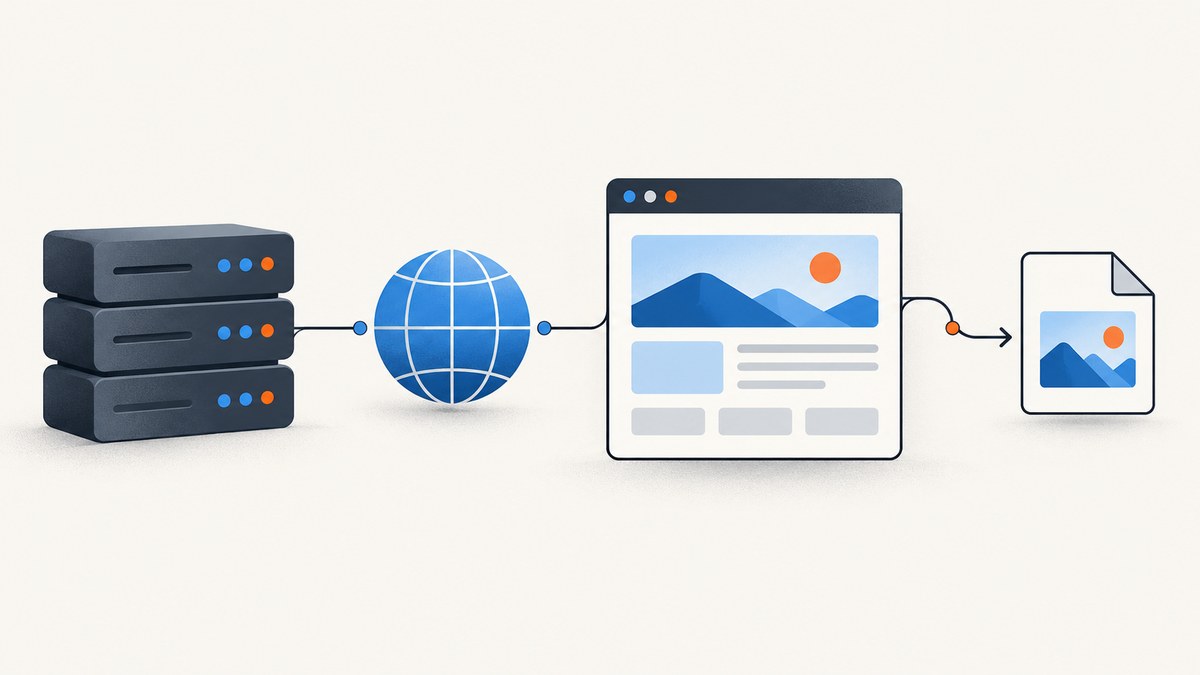
Direct answer: run a browser automation process on the other server. The process opens the target URL, waits for the page to render, and calls the browser’s screenshot method. You can save the image on that server or return the image bytes to your application. Playwright’s official Page API documents this workflow with page.goto() followed by page.screenshot({ path: 'screenshot.png' }) (Playwright Page API).
The remote server must be able to run a browser, reach the target website, write to storage, and deliver the resulting file if another system needs it. Those requirements depend on your operating system, container, firewall, credentials, and the target site’s behavior.
1. Choose where the capture runs
Install the automation runtime on the machine that should perform the capture. Your application can run there as a scheduled job, an HTTP worker, a queue consumer, or a one-off command. The important detail is that goto and screenshot execute on the remote machine, so the image is created there.
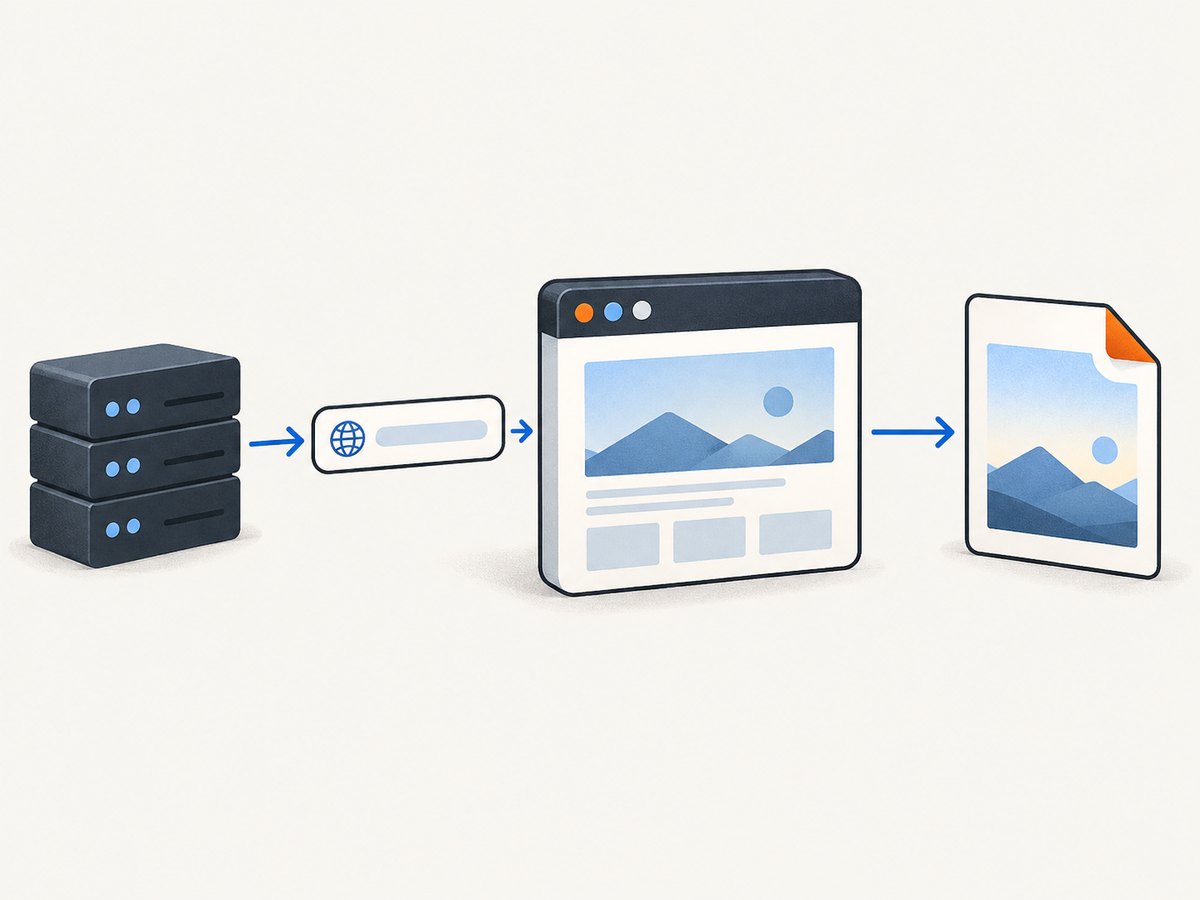
- Same server, local file: save the screenshot to a path on the remote filesystem.
- Same server, returned bytes: keep the screenshot in memory and upload it to object storage or return it from an endpoint.
- Separate controller and worker: send a URL to a worker queue; the worker runs the browser and reports a file path, object key, or image bytes.
Before implementing, verify DNS and outbound HTTPS access, browser dependencies and permissions, available memory and disk space, a writable output directory, and how the caller will retrieve the result.
2. Capture a screenshot with Playwright on the remote server
The following Node.js example is a complete worker-style script. Run it on the other server after installing Playwright and its browser runtime according to the official Playwright installation documentation.
import { chromium } from 'playwright';

const targetUrl = process.argv[2] || 'https://example.com';
const outputPath = process.argv[3] || './screenshot.png';

const browser = await chromium.launch({ headless: true });
try {
  const page = await browser.newPage({
    viewport: { width: 1440, height: 900 },
    deviceScaleFactor: 1
  });

  await page.goto(targetUrl, {
    waitUntil: 'networkidle',
    timeout: 60_000
  });

  await page.screenshot({
    path: outputPath,
    fullPage: true,
    type: 'png'
  });

  console.log(`Saved ${outputPath}`);
} finally {
  await browser.close();
}
Start with a visible viewport if you only need what a user sees. Use fullPage: true for the entire scrollable document. The screenshot tools documentation also describes element capture, image formats, and device-pixel scaling (Playwright screenshot tools).
Save a viewport, full page, or element
// Viewport only
await page.screenshot({ path: 'viewport.png', type: 'png' });

// Entire scrollable page
await page.screenshot({ path: 'full-page.png', fullPage: true, type: 'png' });

// One element (fullPage cannot be combined with element targeting)
const card = page.locator('[data-testid="pricing-card"]').first();
await card.screenshot({ path: 'pricing-card.png', type: 'png' });
Return image bytes instead of writing a file
const imageBytes = await page.screenshot({ type: 'webp', quality: 82 });
// Upload imageBytes to object storage, attach it to a response, or enqueue it.
Use PNG when you need lossless output or transparency. JPEG is useful for photographic pages and supports a quality setting. WebP can reduce transfer size when your consumer supports it. Confirm the formats supported by the Playwright version installed on your server.
3. Make remote captures deterministic
A screenshot is a rendering result, so timing and page state matter. Make those choices explicit instead of relying on an arbitrary sleep.
Wait for the right condition
await page.goto('https://example.com/dashboard', {
  waitUntil: 'domcontentloaded',
  timeout: 60_000
});

await page.locator('[data-ready="true"]').waitFor({
  state: 'visible',
  timeout: 30_000
});

await page.screenshot({ path: 'ready.png', fullPage: true });domcontentloadedwaits for the initial document; it can be faster when the page has long-running analytics requests.loadwaits for the load event and loaded subresources.networkidlecan help with pages that finish rendering after data requests, but pages with polling or analytics may never become truly idle.- A selector wait is usually the most precise choice when the application exposes a reliable ready marker.
Control viewport, scale, locale, and timezone
const context = await browser.newContext({
  viewport: { width: 1280, height: 800 },
  deviceScaleFactor: 2,
  locale: 'en-US',
  timezoneId: 'America/New_York',
  colorScheme: 'light'
});
const page = await context.newPage();
Viewport size changes responsive layouts. Device-pixel scale changes output resolution and file size. Locale, timezone, color scheme, and user agent can change text, dates, prices, and layout, so record them with each capture if reproducibility matters.
Handle authentication and private pages
await page.goto('https://example.com/login');
await page.getByLabel('Email').fill(process.env.LOGIN_EMAIL);
await page.getByLabel('Password').fill(process.env.LOGIN_PASSWORD);
await page.getByRole('button', { name: 'Sign in' }).click();
await page.waitForURL('**/dashboard');
await page.screenshot({ path: 'dashboard.png', fullPage: true });
Keep credentials in the server’s secret store. Do not put passwords in URLs or commit them to source control. For repeated jobs, a securely managed browser storage state can avoid logging in on every capture; expire and rotate it according to your application’s security requirements.
Hide or remove transient page elements
await page.addStyleTag({ content: `
  .cookie-banner, .chat-widget, .newsletter-modal {
    display: none !important;
  }
` });
await page.screenshot({ path: 'clean.png', fullPage: true });
This is site-specific. Prefer stable selectors and document the rules, because class names can change. If a modal blocks interaction, close it before the screenshot rather than only hiding its visual layer.
4. Deliver the image from the other server
Saving a file completes the capture but not necessarily your application workflow. Choose one delivery pattern:
| Pattern | Use it when | Implementation detail |
|---|---|---|
| Local artifact | A later process runs on the same host | Write to a unique path and return the path or job ID. |
| Object storage | Images must outlive the worker | Upload the returned buffer and store the object key with metadata. |
| HTTP response | A caller needs the image immediately | Set the correct content type and stream the bytes. |
| Queue callback | Captures are asynchronous | Send status, URL, dimensions, and an artifact reference after completion. |
Use unique names that include a job ID rather than a user-controlled filename. Record the target URL, capture time, viewport, format, and browser version so an unexpected image can be reproduced.
5. cURL, Python, and Node.js alternatives
For a remote browser you can expose your own service endpoint, but that endpoint must still run Playwright or another browser on the server. If you want a managed HTTP request instead, ScreenshotNeo returns a screenshot or PDF from one GET request. See the ScreenshotNeo API documentation for request options.
6. Or skip the browser setup
ScreenshotNeo runs the capture remotely and handles the browser layer:
cURL
curl -G "https://api.screenshotneo.com/v1/shot" -d access_key=YOUR_API_KEY --data-urlencode url=https://stripe.com -o shot.webpPython
import requests
r = requests.get("https://api.screenshotneo.com/v1/shot", params={"access_key": "YOUR_API_KEY", "url": "https://stripe.com"}, timeout=90)
open("shot.webp", "wb").write(r.content)
Node.js
const q = new URLSearchParams({ access_key: 'YOUR_API_KEY', url: 'https://stripe.com' });
const res = await fetch(`https://api.screenshotneo.com/v1/shot?${q}`);
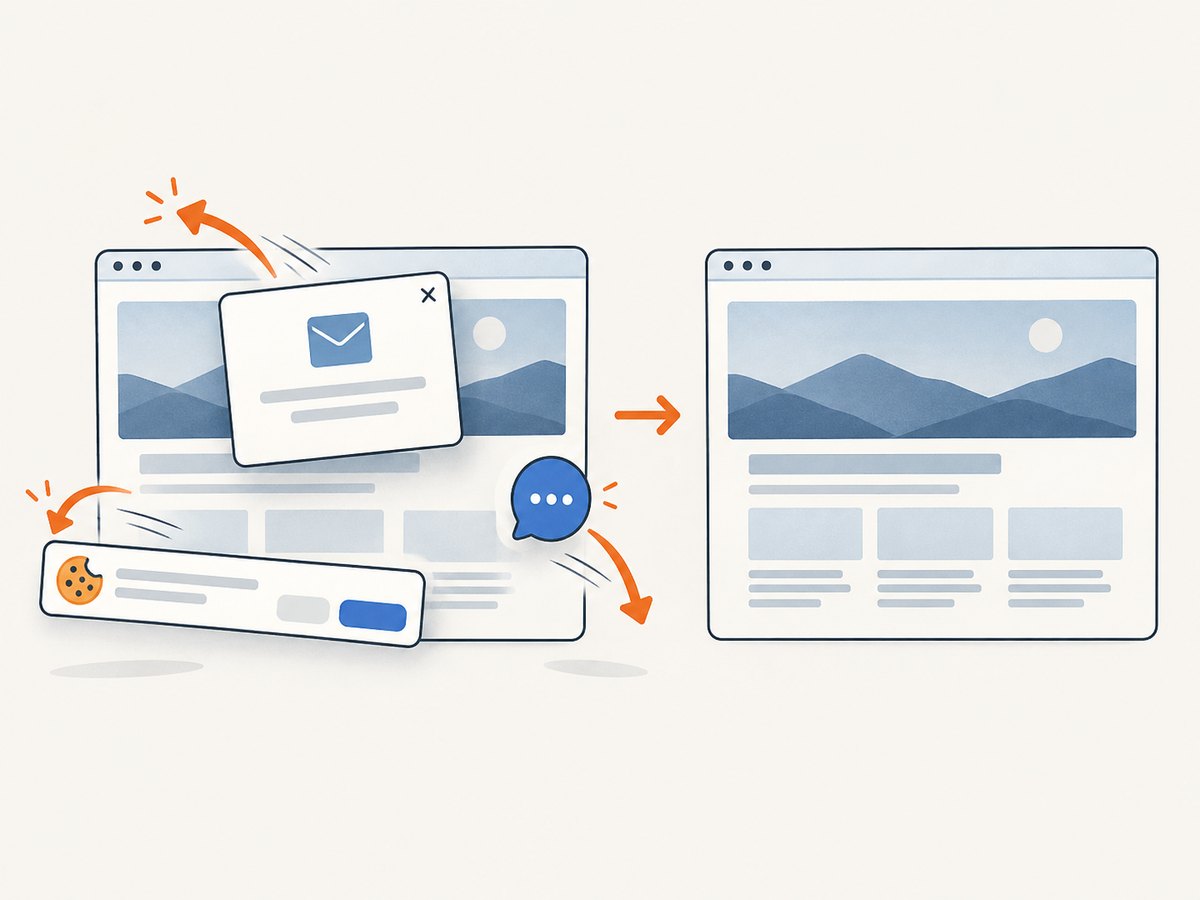
Cookie banners, newsletter popups, and chat widgets are removed before the shot. Bot checks, blank pages, timeouts, failed loads, and cache hits are not billed; response headers identify the page verdict and whether it was billed. ScreenshotNeo also provides an MCP server so Claude, Cursor, and other MCP clients can take screenshots, inspect pages, and capture PDFs. The free plan includes 1,000 screenshots a month with no card, and paid plans start at $5 for 3,000. Create a free ScreenshotNeo account.
7. Troubleshooting remote screenshots
| Symptom | Likely cause | Fix |
|---|---|---|
| Browser fails to launch | Missing browser binary, shared libraries, sandbox permission, or executable path | Install the Playwright browser runtime and required OS dependencies for the server image; check the process user and launch logs. |
| Navigation times out | DNS, firewall, slow origin, redirect loop, or a page that never settles | Test outbound access from the server, raise the timeout carefully, use an appropriate wait condition, and inspect redirects. |
| Screenshot is blank | Capture occurred before application rendering, an error page loaded, or content requires authentication | Wait for a stable selector, log the final URL and response status, and verify login state. |
| Only part of the page appears | Viewport capture was used or lazy content was not triggered | Use fullPage: true and scroll or wait for lazy-loaded content when the site requires it. |
| Element selector fails | Selector is unstable, element is inside an iframe, or it has not rendered | Use a stable test attribute, wait for visibility, and target the correct frame. |
| Fonts or images differ | Remote assets are blocked, font loading is incomplete, or the server has a different locale | Check network requests, wait for required assets, and set locale, timezone, and viewport explicitly. |
| File cannot be written | Directory does not exist or process lacks permission | Create a writable output directory, use an absolute path, and check disk space. |
| Remote caller cannot retrieve it | The file exists only on the worker filesystem | Upload it to shared storage or return the bytes through an authenticated endpoint. |
8. Performance, reliability, and cost
Performance
- Reuse a browser process for multiple jobs when isolation requirements allow it; creating a new process for every URL adds startup cost.
- Limit concurrency to the server’s CPU and memory. Too many pages can cause slow renders or crashes.
- Use viewport captures when a full document is unnecessary. Full-page images require more layout, scrolling, memory, and encoding work.
- Choose JPEG or WebP when smaller transfer size matters, and keep device-pixel scale appropriate for the consumer.
- Wait for a meaningful readiness signal instead of a long fixed delay.
Reliability
- Wrap browser and page cleanup in
finallyblocks. - Give every job a timeout and a unique ID.
- Retry transient navigation failures with a limit and backoff; do not blindly retry authentication failures or deterministic 404s.
- Capture logs for final URL, status, timing, viewport, and error type.
- Keep browser and Playwright versions pinned and update them deliberately.
Cost
Self-hosting shifts cost to server CPU, memory, storage, bandwidth, operations, and browser maintenance. Larger full-page or high-scale images consume more resources. A hosted API converts much of that work into per-capture usage. With ScreenshotNeo, only clean shots are billed, while bot checks, blank pages, timeouts, failed loads, and cache hits are free; plans include 1,000 free shots monthly, then paid tiers begin at $5 for 3,000 shots.
9. Security checklist
- Allow only approved destinations if users can submit URLs; otherwise the browser can become a server-side request tool.
- Do not expose browser debugging ports publicly.
- Store API keys, cookies, and login credentials as secrets.
- Sanitize output filenames and keep artifacts private unless public delivery is intentional.
- Set resource and job limits to prevent a single page from exhausting the worker.
- Remove sensitive screenshots according to your retention policy.
10. FAQ
Can the screenshot be taken without a browser on my application server?
Yes. Run the browser worker on another machine, call it through a queue or HTTP endpoint, and retrieve the resulting artifact. The worker still needs browser access to render the page.
Should I capture the viewport or the full page?
Use the viewport for a visual snapshot at a known screen size. Use full-page capture for documentation, audits, and pages where content below the fold matters.
Why does the remote screenshot differ from my laptop?
Rendering depends on viewport, device-pixel scale, fonts, locale, timezone, browser version, authentication, network responses, and page timing. Set and record those inputs.
Can I capture a page that requires login?
Yes, if the worker has valid session state and the site permits automated access. Keep credentials and stored cookies protected.
Is a hosted API or self-hosted browser better?
Self-hosting gives control over runtime and networking. A hosted API removes browser installation and worker operations. Choose based on your isolation, compliance, volume, and maintenance requirements.
Where are the official API details?
For the browser workflow, use the Playwright Page API. For managed captures, see the ScreenshotNeo documentation.


