How to Capture a Website Screenshot in ASP.NET MVC
Capture JavaScript-rendered pages in ASP.NET MVC with PuppeteerSharp, return image bytes from a controller, and handle full-page, element, security, and deployment concerns.
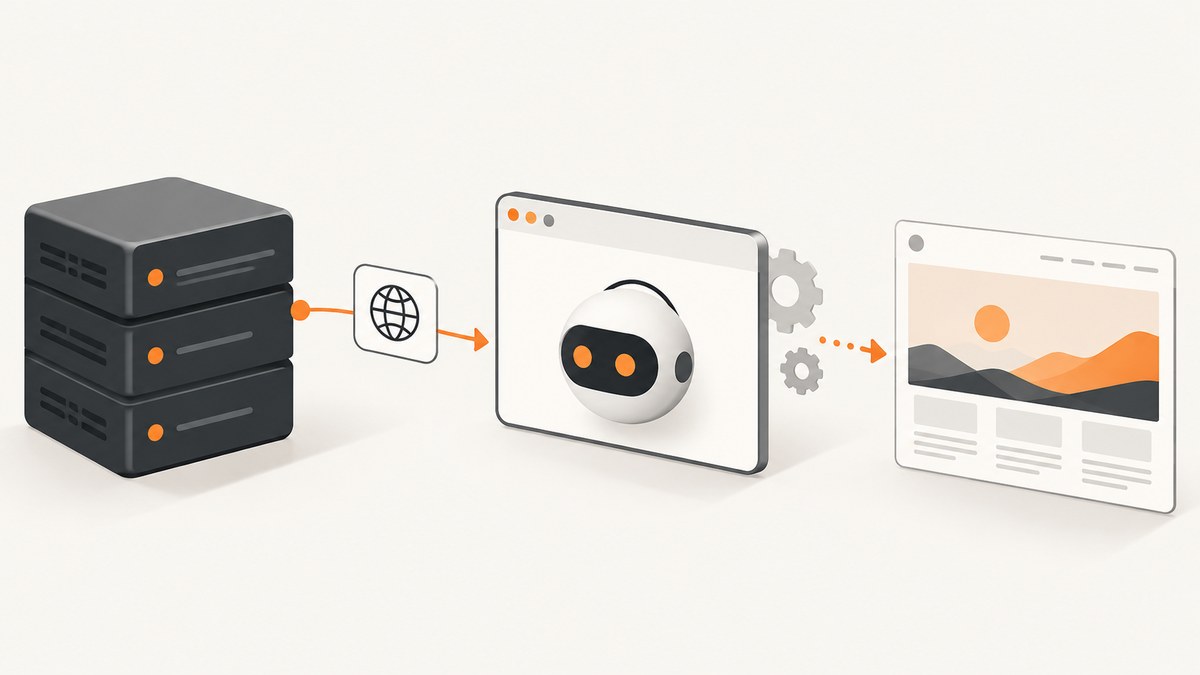
Direct answer: use a real browser engine on the server. In ASP.NET MVC, PuppeteerSharp gives you a C# API to launch headless Chromium, navigate to a URL, wait for the page to render, capture a PNG, JPEG, or WebP, and return the bytes from an MVC controller. Use FullPage for the entire document, viewport settings for repeatable dimensions, and clipping or element bounds when you need only a region.
PuppeteerSharp is a .NET port of the official Puppeteer API and provides the launch, navigation, viewport, and screenshot methods used below. See the PuppeteerSharp documentation and the NuGet package for the current API and package version.
1. Create the MVC screenshot endpoint
Install PuppeteerSharp
dotnet add package PuppeteerSharpThe first browser launch downloads a compatible Chromium build when you call BrowserFetcher.DownloadAsync(). In production, perform this during deployment or application startup rather than making the first user wait for the download.
Controller code
using Microsoft.AspNetCore.Mvc;
using PuppeteerSharp;

namespace ScreenshotMvc.Controllers;

public sealed class ScreenshotController : Controller
{
    [HttpGet("screenshot")]
    public async Task Screenshot(
        string url,
        int width = 1440,
        int height = 900,
        bool fullPage = true,
        CancellationToken cancellationToken = default)
    {
        if (!Uri.TryCreate(url, UriKind.Absolute, out var target) ||
            target.Scheme is not ("http" or "https"))
        {
            return BadRequest("url must be an absolute HTTP or HTTPS URL.");
        }

        if (width is < 320 or > 4000 || height is < 240 or > 4000)
        {
            return BadRequest("width and height are outside the allowed range.");
        }

        await new BrowserFetcher().DownloadAsync();

        await using var browser = await Puppeteer.LaunchAsync(
            new LaunchOptions
            {
                Headless = true,
                Args = new[] { "--no-sandbox", "--disable-setuid-sandbox" }
            });

        await using var page = await browser.NewPageAsync();
        await page.SetViewportAsync(new ViewPortOptions
        {
            Width = width,
            Height = height,
            DeviceScaleFactor = 1
        });

        await page.GoToAsync(
            target.ToString(),
            new NavigationOptions
            {
                WaitUntil = new[] { WaitUntilNavigation.Networkidle0 },
                Timeout = 30_000
            });

        var bytes = await page.ScreenshotDataAsync(
            new ScreenshotOptions
            {
                FullPage = fullPage,
                Type = ScreenshotType.Png
            });

        return File(bytes, "image/png", "page.png");
    }
}
Call it with a URL such as /screenshot?url=https%3A%2F%2Fexample.com. The controller returns the screenshot directly, so you do not need to write a public file first.
ASP.NET Core MVC setup
var builder = WebApplication.CreateBuilder(args);
builder.Services.AddControllersWithViews();

var app = builder.Build();
app.MapControllers();
app.Run();
For classic ASP.NET MVC 5, the same PuppeteerSharp calls belong in an async Task<ActionResult> controller action. Return File(bytes, "image/png", "page.png") from that action.
2. Make the capture reliable
Wait for the right page state
Networkidle0 waits until there are no active network connections, which works for many static pages and server-rendered applications. Applications with analytics, polling, WebSockets, or advertisements may never become idle. In those cases, use a less strict navigation wait and then wait for an application-specific selector or a short delay.
await page.GoToAsync(url, new NavigationOptions
{
    WaitUntil = new[] { WaitUntilNavigation.DOMContentLoaded },
    Timeout = 30_000
});

await page.WaitForSelectorAsync("main");
await page.WaitForTimeoutAsync(500);
The correct condition depends on the page. A selector that appears only after the chart, table, or hero image is ready is usually more dependable than an arbitrary long delay.
Set viewport and device scale
Set the viewport before navigation when responsive CSS must be evaluated at a specific size. Use a larger DeviceScaleFactor for sharper retina output, while remembering that it increases image dimensions and memory use.
await page.SetViewportAsync(new ViewPortOptions
{
    Width = 1280,
    Height = 800,
    DeviceScaleFactor = 2,
    IsMobile = false,
    HasTouch = false
});
Capture the full page
Use FullPage = true to capture the full scrollable document. Full-page screenshots can be very tall; impose a maximum page height or reject unusually large documents if the endpoint is public.
Capture one element or a region
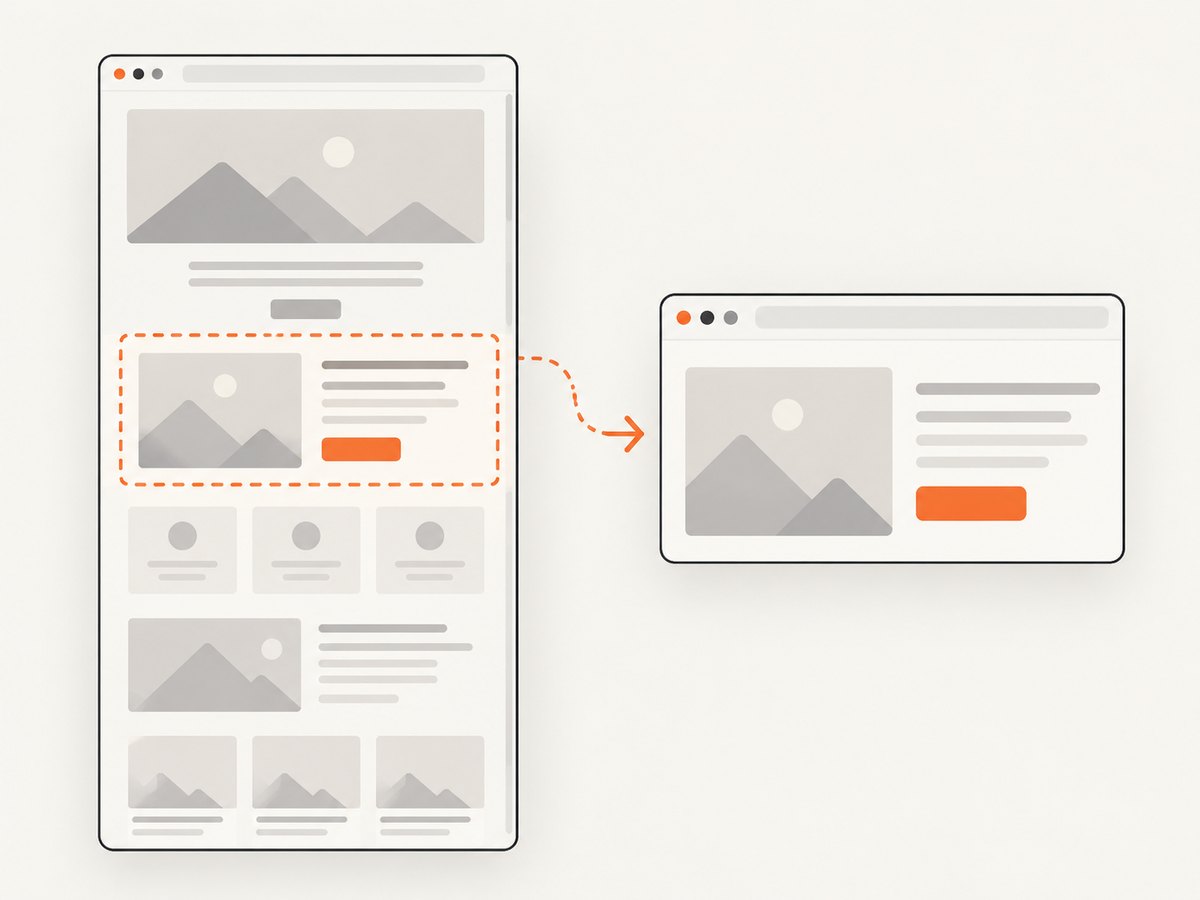
For an element screenshot, locate the element, read its bounding box, and pass a clip rectangle. The element must be visible and have a non-zero bounding box.
var element = await page.QuerySelectorAsync(".invoice");
if (element is null)
    return NotFound("The .invoice element was not found.");

var box = await element.BoundingBoxAsync();
if (box is null)
    return BadRequest("The element has no visible bounds.");

var bytes = await page.ScreenshotDataAsync(new ScreenshotOptions
{
    Type = ScreenshotType.Png,
    Clip = new Clip
    {
        X = box.X,
        Y = box.Y,
        Width = box.Width,
        Height = box.Height
    }
});

return File(bytes, "image/png", "element.png");
For a fixed rectangle, provide its coordinates directly. Make sure the rectangle stays within the page and has positive width and height.
Choose PNG, JPEG, or WebP
var png = new ScreenshotOptions { Type = ScreenshotType.Png };
var jpeg = new ScreenshotOptions { Type = ScreenshotType.Jpeg, Quality = 85 };
var webp = new ScreenshotOptions { Type = ScreenshotType.Webp, Quality = 80 };
PNG preserves text and transparency. JPEG is useful for photographic pages and usually produces smaller files. WebP can reduce transfer size when your clients support it.
Return a stream or save to storage
ScreenshotDataAsync returns a byte array. For larger captures, use PuppeteerSharp’s stream method and copy the stream to object storage or the MVC response. ScreenshotAsync(path) writes a file when a local artifact is required.
3. Authentication, cookies, and page preparation
Use a dedicated browser context or page for each request so cookies and local storage do not leak between users. Set cookies before navigation when the target requires an authenticated session, and add request headers only for domains you control.
await page.SetCookieAsync(new CookieParam
{
    Name = "session",
    Value = sessionValue,
    Domain = "example.com",
    Path = "/",
    Secure = true,
    HttpOnly = true
});

await page.SetExtraHttpHeadersAsync(new Dictionary<string, string>
{
    ["Authorization"] = "Bearer " + token
});
Never accept arbitrary cookies or authorization headers from an untrusted caller. Keep secrets in server-side configuration and remove sensitive headers before logging.
4. Security controls for a public endpoint
A screenshot endpoint that accepts any URL is an SSRF target. Before navigation:
- Allow only
https(andhttponly when you explicitly need it). - Use an allowlist of hostnames for internal applications.
- Resolve DNS and block loopback, link-local, private, metadata-service, and other internal address ranges.
- Limit redirects and validate every redirect destination.
- Apply navigation, total-request, CPU, memory, and output-size limits.
- Run Chromium in an isolated worker or container with the smallest practical permissions.
- Rate-limit callers and require authentication for expensive captures.
- Do not expose raw browser errors, cookies, authorization values, or target response bodies to clients.
5. Browser lifetime, performance, and cost
Launching Chromium for every request is simple but adds startup latency. A production service can keep one browser process alive and create a fresh page or incognito context per job. Recycle the browser after a bounded number of jobs or when memory grows. Limit concurrent pages because each page consumes CPU and memory, especially for full-page, retina, and image-heavy captures.
Use a capture queue when traffic is bursty. Set a hard deadline that includes navigation, waiting, screenshot encoding, and storage. Cache identical URL-and-options requests when freshness allows it. Record duration, output bytes, timeout reason, and page verdict so failures are diagnosable without retaining page contents.
The browser runtime and hosting resources are your main costs. PNG, high device scale factors, very tall pages, and many concurrent pages increase bandwidth and memory use. A hosted API can be cheaper operationally when you do not want to install, patch, isolate, and scale Chromium yourself.
6. Selenium as an alternative
Selenium’s .NET Screenshot class represents the current page image and provides SaveAsFile for PNG output. Selenium also supports element-level screenshots and headless Chrome. Choose it when your project already has WebDriver setup, cross-browser test infrastructure, or extensive element-oriented automation. Choose PuppeteerSharp for a compact Chromium-first screenshot service with direct full-page and clipping options.
using OpenQA.Selenium;
using OpenQA.Selenium.Chrome;

var options = new ChromeOptions();
options.AddArgument("--headless");
using var driver = new ChromeDriver(options);
driver.Navigate().GoToUrl("https://example.com");
var screenshot = ((ITakesScreenshot)driver).GetScreenshot();
screenshot.SaveAsFile("page.png");
See the Selenium documentation for WebDriver configuration and the .NET API.
7. Common errors and fixes
| Error or symptom | Cause | Fix |
|---|---|---|
| Chromium executable not found | The browser build was not downloaded or the host cannot write its cache. | Run BrowserFetcher.DownloadAsync() during deployment/startup and configure a writable cache directory. |
Timeout during GoToAsync |
The site is slow, blocked, or keeps connections open. | Set an explicit timeout, use DOMContentLoaded, then wait for a specific selector. |
| Blank or incomplete screenshot | Capture ran before client-side rendering or lazy images finished. | Wait for the rendered selector, scroll if the site lazy-loads content, and add a short final delay. |
| Full page is unexpectedly short | The document has no completed layout or the chosen page is inside a frame. | Wait for the content, inspect the frame, and capture the frame’s document or a visible element. |
| Element screenshot fails | Selector is wrong, element is hidden, or dimensions are zero. | Wait for the selector, verify visibility, and check BoundingBoxAsync(). |
| Fonts or images differ from a desktop browser | The server lacks the font, uses a different viewport, or receives different device headers. | Install required fonts, set viewport and user agent explicitly, and wait for font/image loading. |
| Works locally but fails in a container | Missing shared libraries, sandbox permissions, or insufficient shared memory. | Use a Chromium-compatible image, follow its dependency requirements, and isolate the worker correctly. |
| Memory rises over time | Pages, contexts, or browsers are not disposed, or concurrency is too high. | Dispose every page/context, cap concurrent jobs, and recycle long-lived browsers. |
8. Or skip the browser setup
ScreenshotNeo provides a hosted screenshot API and MCP server. It handles the browser runtime and returns PNG, JPEG, WebP, or PDF from one request. Read the ScreenshotNeo API documentation for the available options.
cURL
curl -G "https://api.screenshotneo.com/v1/shot" -d access_key=YOUR_API_KEY --data-urlencode url=https://stripe.com -o shot.webpPython
import requests
r = requests.get("https://api.screenshotneo.com/v1/shot", params={"access_key": "YOUR_API_KEY", "url": "https://stripe.com"}, timeout=90)
open("shot.webp", "wb").write(r.content)
Node.js
const q = new URLSearchParams({ access_key: 'YOUR_API_KEY', url: 'https://stripe.com' });
const res = await fetch(`https://api.screenshotneo.com/v1/shot?${q}`);
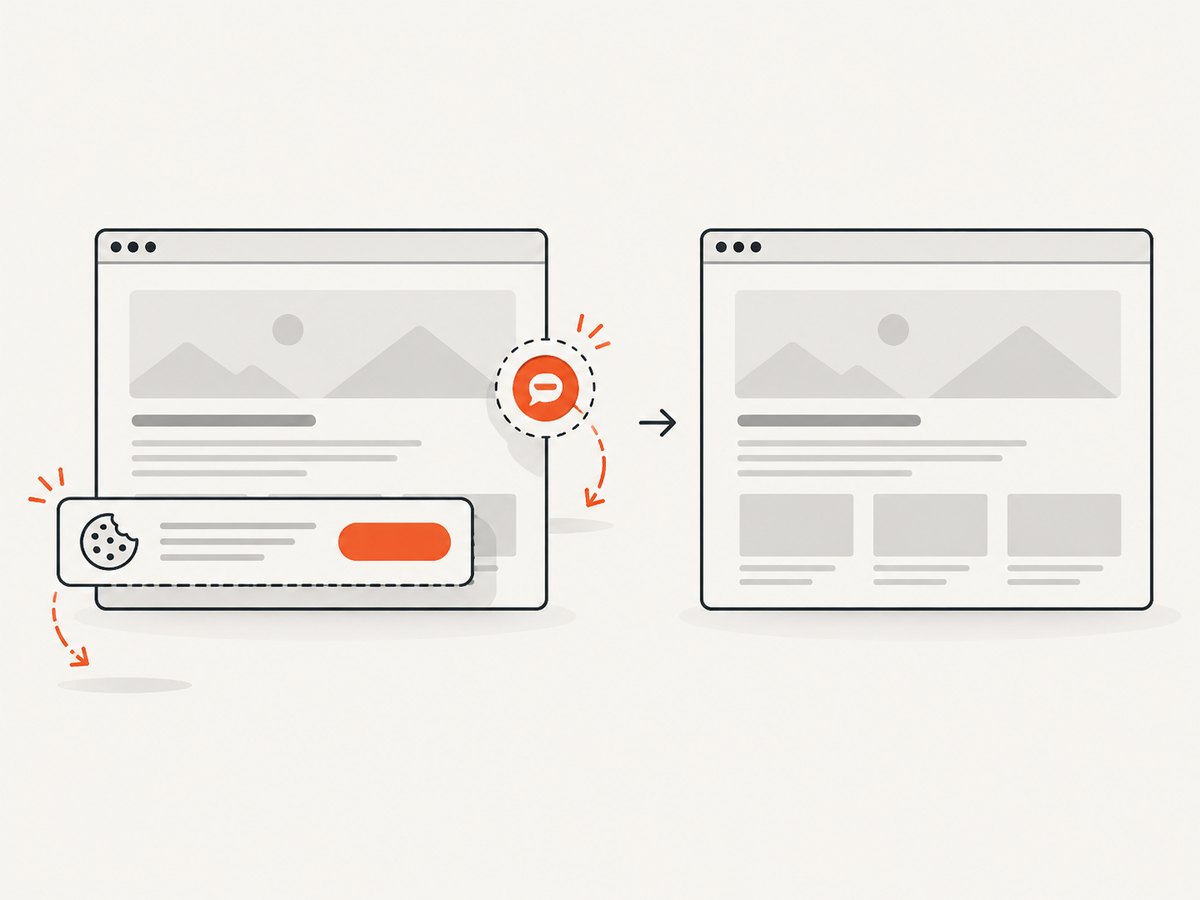
ScreenshotNeo removes cookie and consent banners, newsletter popups, and chat widgets before capture. Bot checks, blank pages, failed loads, timeouts, and cache hits are not billed, and the response identifies the result with X-Page-Verdict and X-Billed headers. Its MCP server lets Claude, Cursor, and other MCP clients call take_screenshot, get_page_info, and capture_pdf. The Free plan includes 1,000 screenshots each month with no card; paid plans start at $5 for 3,000 shots. Create a free ScreenshotNeo account.
9. Practical checklist
- Validate and restrict target URLs before launching a browser.
- Set viewport dimensions before navigation.
- Choose a wait condition tied to the page you are capturing.
- Use
FullPageonly when the complete document is required. - Use clipping or element bounds for focused images.
- Set navigation and total-job timeouts.
- Dispose pages and browsers and cap concurrency.
- Return the correct MIME type and avoid unnecessary temporary files.
- Log verdicts, timings, and sizes without logging secrets.
10. FAQ
Can MVC capture a page that needs JavaScript?
Yes. PuppeteerSharp runs Chromium, so the page is rendered by a browser rather than fetched as raw HTML. Wait for the application state you need before taking the screenshot.
Should I use full-page capture for every request?
No. Full-page output is useful for documents and audits but can be very tall and expensive to process. Use a viewport or element clip for previews and thumbnails.
Can I return the screenshot without saving it?
Yes. Use ScreenshotDataAsync or a screenshot stream and return it with MVC’s File result.
When is Selenium the better choice?
Selenium fits projects that already operate WebDriver infrastructure or need browser coverage beyond Chromium. PuppeteerSharp is usually simpler for a Chromium-focused screenshot endpoint.
How do I prevent one request from exhausting the server?
Limit URL hosts, redirects, page dimensions, output size, navigation time, and concurrent jobs. Run the browser in an isolated worker and recycle it periodically.


