How to Capture a Website Screenshot in iOS
Capture a full Safari webpage on iPhone, save it as an image or PDF, and fix common iOS screenshot problems.
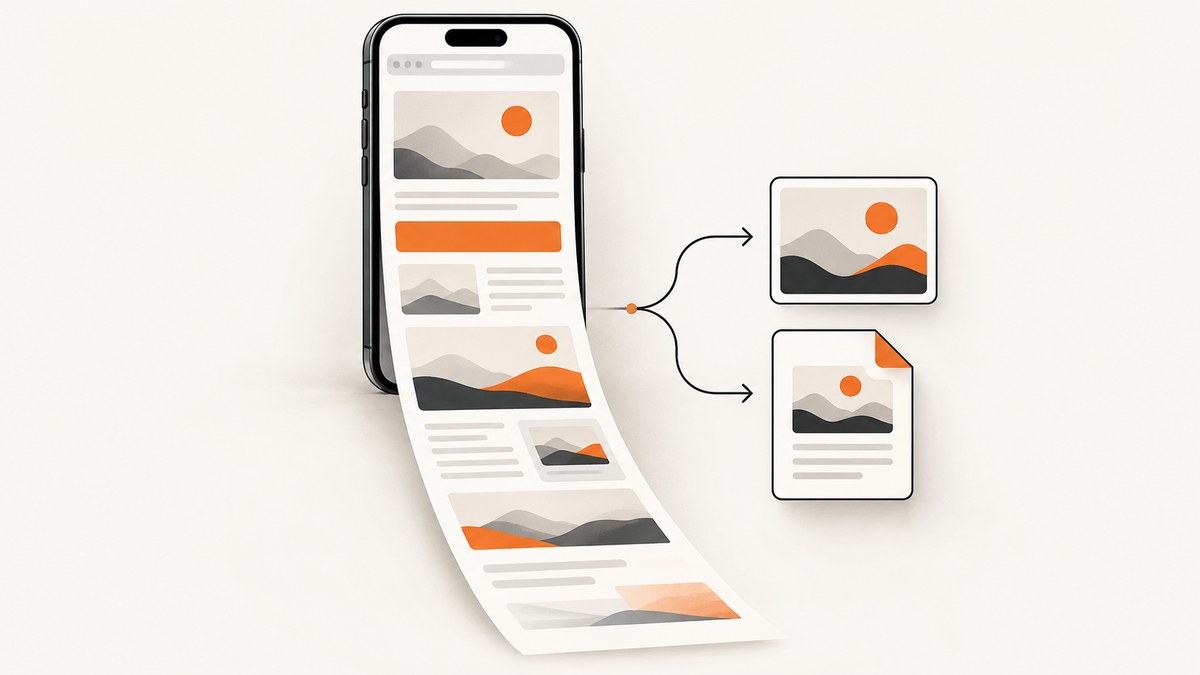
Quick answer: Open the webpage in Safari, press the screenshot buttons for your iPhone model, tap Full Page, then save the result to Photos as an image or to Files as a PDF. Full Page is intended for content longer than the visible screen, including an entire Safari webpage.
Apple documents this workflow in its iPhone user guide. The exact preview interface varies by iOS version, but the capture steps are the same.
1. Open the webpage in Safari
Launch Safari and enter the website name or URL in the search field. Wait for the page to load before taking the screenshot. If the page contains images or other content that appears as you scroll, let those sections load before capturing.
2. Take the screenshot
| iPhone type | Buttons |
|---|---|
| Face ID iPhone | Quickly press and release the Side button and Volume Up button together. |
| Home-button iPhone | Quickly press and release the Side button and Home button together. |
| Older model with a top button | Quickly press and release the Top button and Home button together. |
Apple’s button combinations are listed in its support article on taking screenshots.
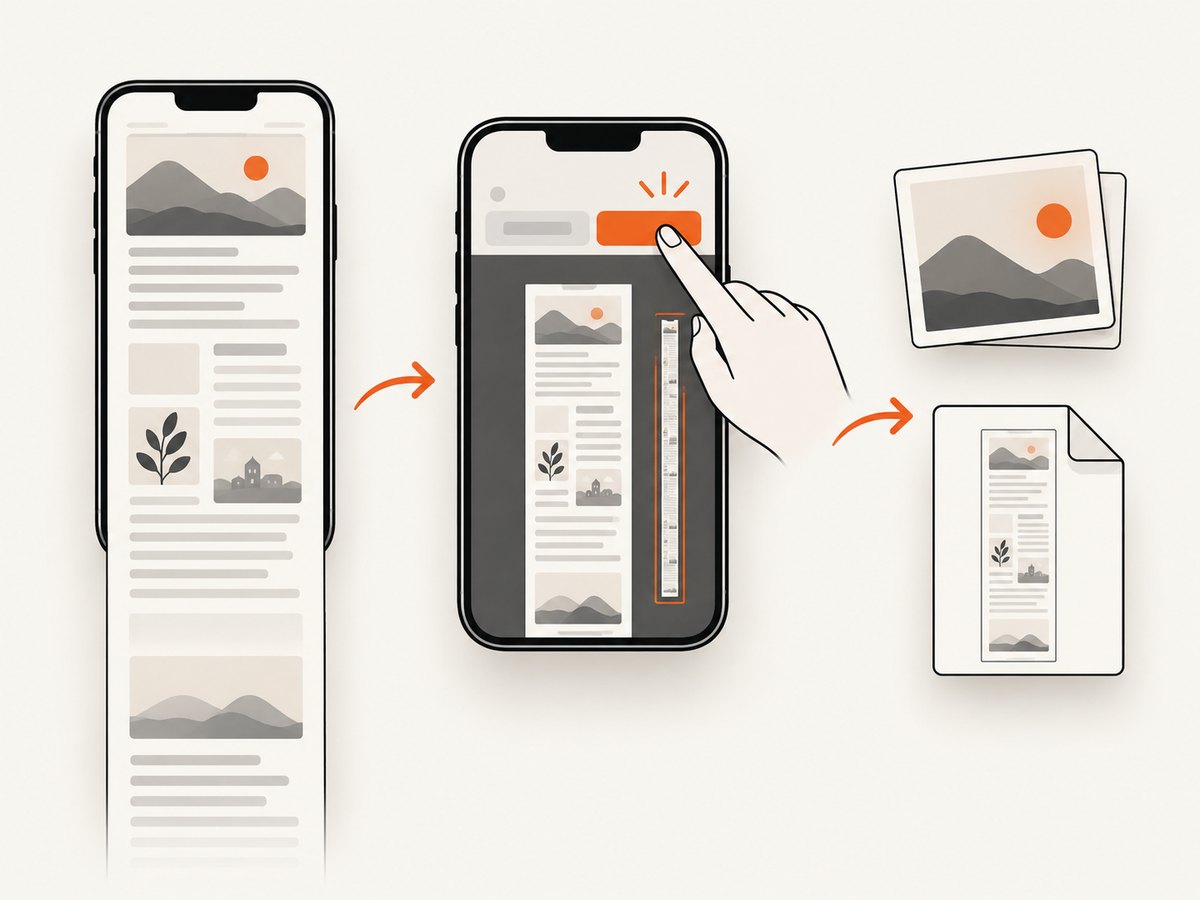
3. Open the screenshot controls
On iOS 26, the screenshot opens automatically with quick tools. On iOS 18 and earlier, a temporary thumbnail appears in the lower-left corner; tap it to open the editor. If you wait, the screenshot is still saved automatically to Photos.
4. Capture the whole webpage
- Tap Full Page at the top of the screenshot editor.
- Use the preview on the right side to inspect the page beyond the visible screen.
- Drag the selection handles if you need to include only part of the page.
- Crop out browser chrome or other unwanted areas before saving.
Apple specifically gives an entire Safari webpage as an example of content that can exceed the iPhone display. The Full Page control is not guaranteed for every app or every type of webpage.
5. Save the result as an image or PDF
| Destination | Best for | What to choose |
|---|---|---|
| Photos | A visual reference, message attachment, or image you want to edit | Save the screenshot as an image |
| Files | A document-like archive, printing, or sharing a long page | Save PDF to Files, then select a folder |
Apple documents both destinations in its Full Page screenshot instructions.
Image and screen-capture settings
Open Settings > General > Screen Capture to adjust screenshot behavior. Apple documents a setting for full-screen previews; turning it off restores a thumbnail-style presentation. The same settings guide describes screenshot formats:
- SDR screenshots: saved as PNG.
- HDR screenshots: saved as HEIF. An HDR display is required to see the full HDR quality.
See Apple’s screen capture settings guide for the current labels on your iOS version.
Alternative ways to trigger a screenshot
If pressing two hardware buttons is difficult, Apple lists AssistiveTouch, Back Tap, and Siri as alternatives. The exact setup depends on your iPhone and iOS version, so use Apple’s current accessibility and device instructions rather than relying on steps from an older guide.
Common problems and fixes
Full Page does not appear
Cause: Full Page is associated with content that extends beyond the display, and support is not universal across apps or page types.
Fix: Confirm that the page is open in Safari, wait for it to finish loading, and try the screenshot again. If the control is still absent, take several standard screenshots or use Safari’s documented page-saving options.
The screenshot only contains the visible screen
Cause: The capture remained on the default screen view instead of the Full Page tab.
Fix: Open the screenshot editor immediately after pressing the buttons and tap Full Page before saving.
The page is cut off or missing images
Cause: Some sites load images and sections only as you scroll. A capture started before those resources loaded can contain blank areas.
Fix: Scroll through the page once, wait for lazy-loaded content to appear, return to the top, and capture again. If the page changes while you scroll, save a PDF or use multiple screenshots to preserve the visible state.
The preview looks different from an older tutorial
Cause: iOS 26 opens screenshots with quick tools, while iOS 18 and earlier show a temporary thumbnail.
Fix: Follow the button combination for your phone, then look for either the automatic editor or the lower-left thumbnail.
I cannot use the hardware buttons
Fix: Use AssistiveTouch, Back Tap, or Siri, which Apple lists as alternate screenshot methods. Check Apple’s current instructions for your iOS release.
The saved file is too large to share
Fix: Crop the page before saving, choose a PDF when a long document is more appropriate, or resize the image after saving. A full-page capture naturally contains more pixels than a normal viewport screenshot.
Quality, privacy, and reliability checklist
- Use Safari when you need the documented Full Page workflow.
- Wait for the page and lazy-loaded images to finish rendering.
- Check the full preview before saving so you catch cut-off sections.
- Crop browser controls and unrelated page content.
- Choose Photos for an image and Files for a PDF.
- Remember that the page may contain private account data, location details, or tokens visible in the screenshot.
- For repeatable captures, record the iOS version, device model, URL, and output format.
Or skip the browser setup
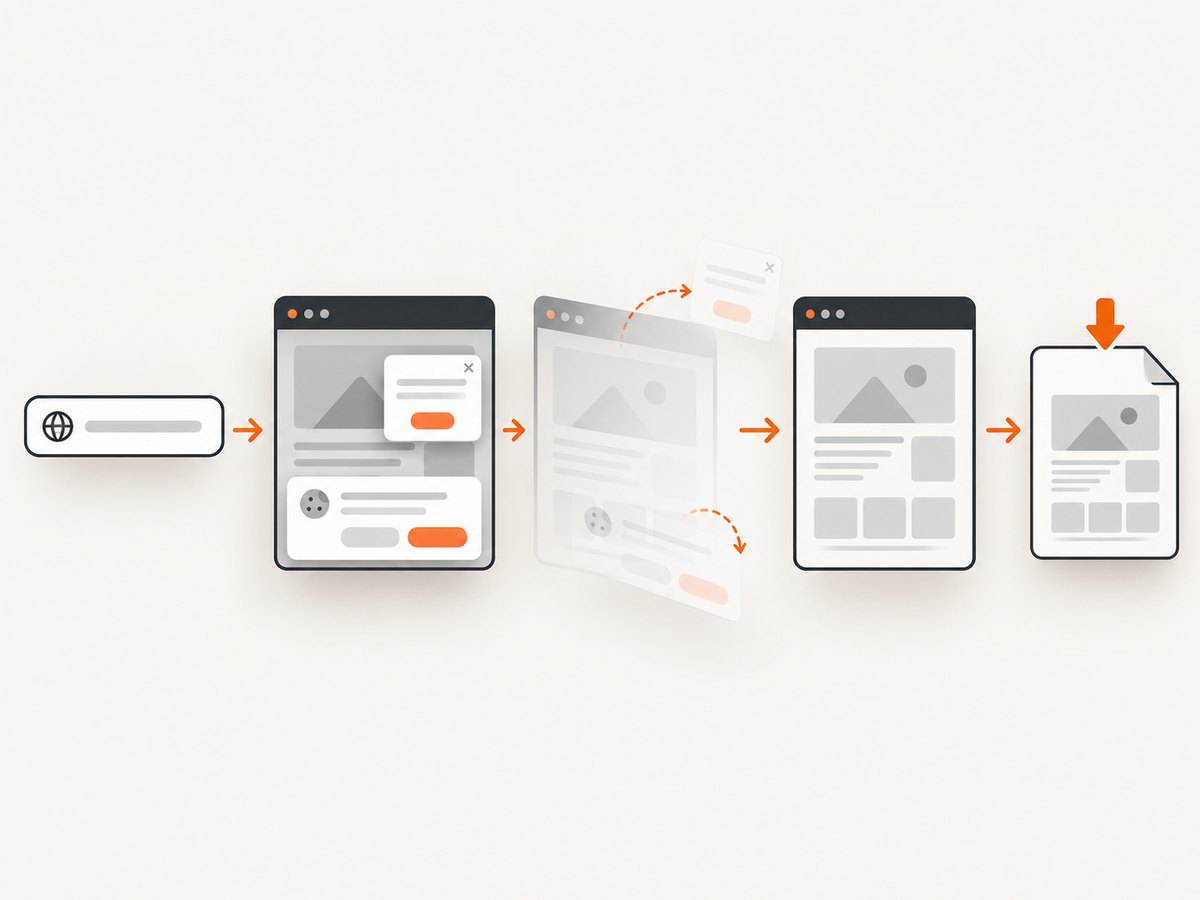
For automated captures from a server, CI job, or backend, ScreenshotNeo returns a screenshot or PDF from one GET request. Cookie and consent banners are accepted and removed before the capture, along with more than 60 known consent platforms, newsletter popups, and chat widgets. Bot checks, blank pages, timeouts, failed loads, and cache hits cost nothing; response headers identify the page verdict and whether the request was billed. Its MCP server provides take_screenshot, get_page_info, and capture_pdf tools for Claude, Cursor, and other MCP clients.
cURL
curl -G "https://api.screenshotneo.com/v1/shot" -d access_key=YOUR_API_KEY --data-urlencode url=https://stripe.com -o shot.webpPython
import requests
r = requests.get("https://api.screenshotneo.com/v1/shot", params={"access_key": "YOUR_API_KEY", "url": "https://stripe.com"}, timeout=90)
open("shot.webp", "wb").write(r.content)
Node.js
const q = new URLSearchParams({ access_key: 'YOUR_API_KEY', url: 'https://stripe.com' });
const res = await fetch(`https://api.screenshotneo.com/v1/shot?${q}`);
See the ScreenshotNeo API documentation for request parameters and response headers. You can set full-page capture, a CSS element selector, dark mode, any viewport or device preset, retina scale, custom CSS and JavaScript, clicks, waits, blocked resources, headers, cookies, user agents, authorization, timezone, geolocation, transparent backgrounds, resizing, cache TTLs, signed links, asynchronous jobs, webhooks, bulk capture, and PDF paper, margin, landscape, and page-range options.
Cost: The Free plan includes 1,000 shots per month with no card. Paid plans start at $5 for 3,000 shots; yearly billing includes two months free, and every feature is available on every plan.
Create a free ScreenshotNeo account and start with 1,000 screenshots per month without a card.
FAQ
Can I save a full-page screenshot directly to Photos?
Yes. In the screenshot editor, choose the image-saving option for Photos. You can also choose Save PDF to Files when you need a document format.
Does Full Page work in every iPhone app?
No universal support is established. Apple’s example is an entire webpage in Safari, so use Safari for the most reliable Full Page workflow.
What format does an HDR screenshot use?
Apple’s settings guide says HDR screenshots use HEIF, while SDR screenshots use PNG. Full HDR quality requires an HDR display.
Can I automate iPhone-style website screenshots?
For automated server-side captures, ScreenshotNeo can set a device preset or viewport, full-page mode, retina scale, and other rendering options through its API.


