How to Capture a Website Screenshot With jQuery
Use jQuery with html2canvas to capture a page or element, export it as an image, handle browser limits, and choose a server-side alternative.
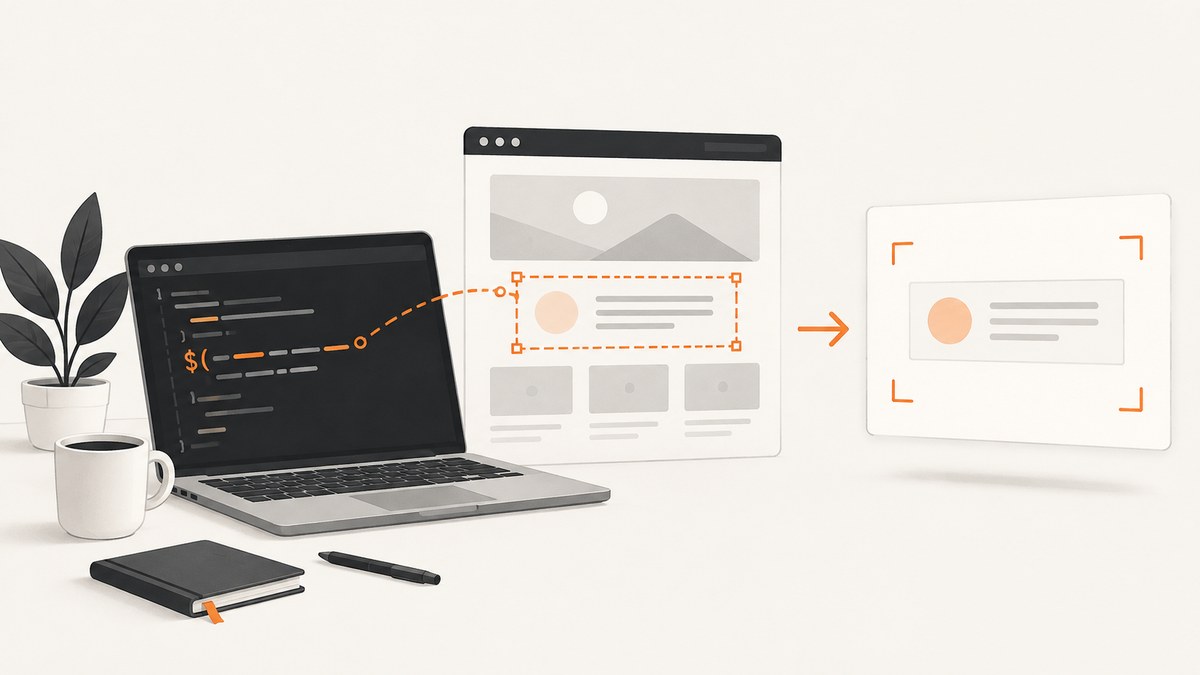
Direct answer: use jQuery to select the element, pass the underlying DOM node to html2canvas, then export the returned canvas with toDataURL(). The essential call is html2canvas($('#capture')[0]). The [0] unwraps the jQuery object into the DOM element that html2canvas expects.
This creates an image by reconstructing the DOM and styles in the browser. It does not capture the browser’s actual pixels, so unsupported CSS, cross-origin resources, embedded frames and very large canvases can affect the result.
Basic jQuery screenshot
Load jQuery and html2canvas in your page, add an element with an ID, and attach a click handler to a save button. Use the html2canvas documentation for the current browser installation method.
<button id="save" type="button">Save screenshot</button>
<section id="capture">
  <h1>Report</h1>
  <p>This section will be saved as a PNG.</p>
</section>

<script>
  $('#save').on('click', function () {
    html2canvas($('#capture')[0]).then(function (canvas) {
      const link = document.createElement('a');
      link.download = 'screenshot.png';
      link.href = canvas.toDataURL('image/png');
      link.click();
    });
  });
</script>
For a page capture, select a container that wraps the page content. For a single card, dialog or chart, replace #capture with that element’s selector:
html2canvas($('.invoice-card')[0]).then(function (canvas) {
  document.body.appendChild(canvas);
});
How the capture works
- jQuery finds the target element.
[0]returns the first matching DOM node.- html2canvas walks that node’s DOM tree and computes supported styles.
- A Promise resolves with a canvas.
toDataURL('image/png')converts the canvas to an image URL.- A temporary anchor starts the browser download.
The output is a DOM-based reconstruction rather than a literal screenshot of browser pixels. CSS that the library does not support, or that it supports differently, may be missing or rendered differently.
Capture a selected region
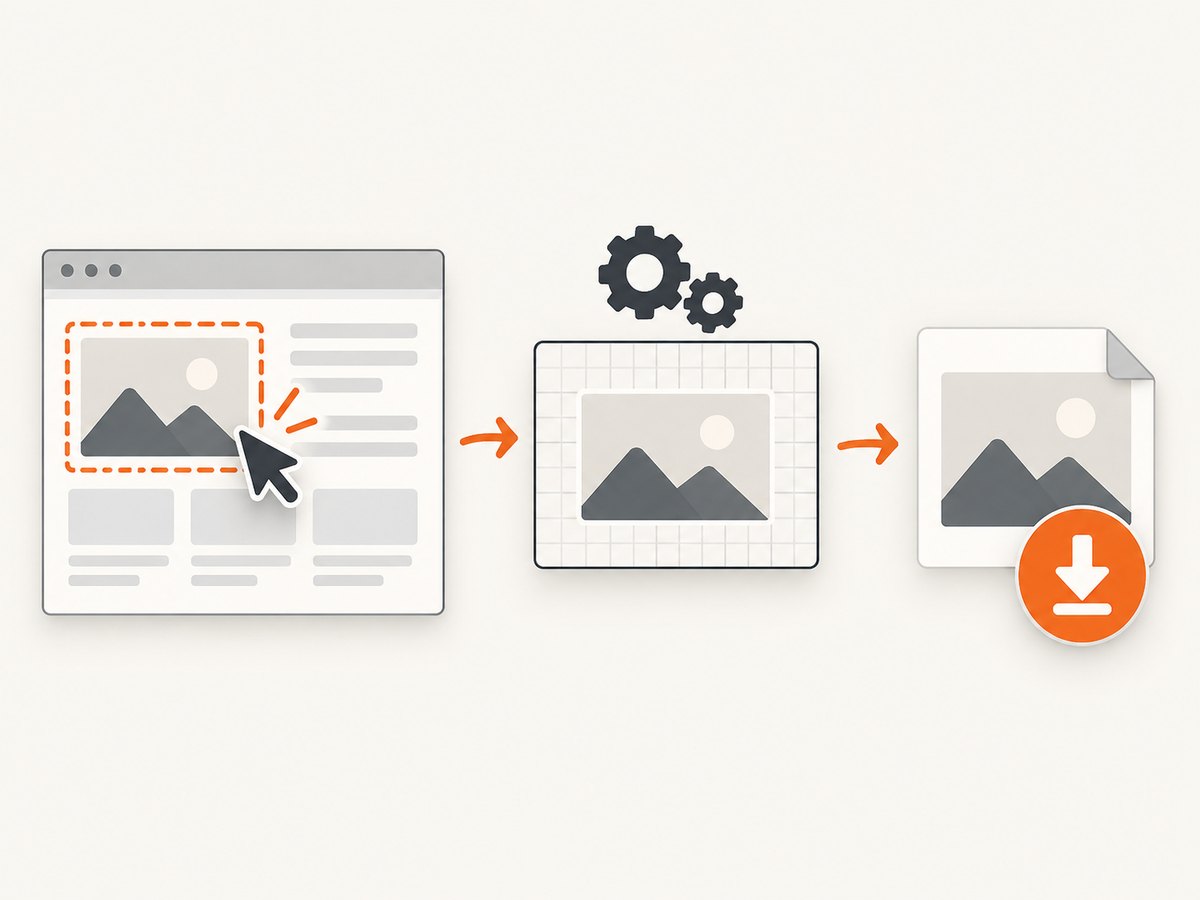
Pass crop coordinates and dimensions when you need a rectangle rather than the whole selected node.
html2canvas($('#capture')[0], {
  x: 20,
  y: 40,
  width: 800,
  height: 500
}).then(function (canvas) {
  const link = document.createElement('a');
  link.download = 'cropped.png';
  link.href = canvas.toDataURL('image/png');
  link.click();
});
Coordinates are interpreted in the rendered page context. Measure the element and viewport you are capturing, and test on the browsers and zoom levels your users have.
Control output size and quality
Use scale to increase or reduce the output resolution. A common choice for a sharper image is the device pixel ratio.
html2canvas($('#capture')[0], {
  scale: window.devicePixelRatio
}).then(function (canvas) {
  $('#preview').attr('src', canvas.toDataURL('image/png'));
});
Higher scale values increase memory use, rendering time and the chance of hitting a browser canvas limit. Use PNG for crisp text and transparency. Use JPEG when a smaller photographic image is more useful:
const jpeg = canvas.toDataURL('image/jpeg', 0.85);Ignore controls and temporary UI
Mark elements with data-html2canvas-ignore to leave them out of the rendered result.
<button data-html2canvas-ignore>Delete</button>
<div id="capture">Content to keep</div>
This is useful for save buttons, loading indicators, editing handles and other controls that should not appear in the exported image.
Images, fonts and cross-origin content
Images and other resources from another origin are constrained by browser security. A canvas can become tainted when a remote resource does not provide suitable cross-origin permissions; a tainted canvas cannot be exported.
You can request CORS-enabled image loading:
html2canvas($('#capture')[0], {
  useCORS: true
});
useCORS does not bypass an origin’s security policy. The remote server must allow the request with the appropriate CORS headers. If it cannot, serve the asset from the same origin or use a proxy that you control and configure for this purpose.
Cross-origin iframes cannot be traversed from a normal page script because the browser blocks access to their documents. Same-origin frames may be accessible, subject to sandbox settings. Do not assume that third-party videos, widgets, payment forms or embedded dashboards will appear.
Full-page and lazy-loaded content
html2canvas captures the selected DOM subtree as it exists when the call begins. Make sure content has rendered first and that lazy-loaded images have been triggered. A simple delay can help with animations or data rendering:
$('#save').on('click', function () {
  const target = $('#capture')[0];
  setTimeout(function () {
    html2canvas(target, { scale: 1 }).then(function (canvas) {
      const link = document.createElement('a');
      link.download = 'page.png';
      link.href = canvas.toDataURL('image/png');
      link.click();
    });
  }, 500);
});
For content that changes height after loading, wait for the application state you need rather than relying on a fixed delay. Very large pages can exceed browser- or platform-dependent canvas dimensions and produce blank or partially rendered output.
Reusable jQuery helper
function downloadScreenshot(selector, filename, options) {
  const element = $(selector)[0];
  if (!element) {
    return Promise.reject(new Error('No element matched ' + selector));
  }

  return html2canvas(element, options || {}).then(function (canvas) {
    const link = document.createElement('a');
    link.download = filename || 'screenshot.png';
    link.href = canvas.toDataURL('image/png');
    link.click();
    return canvas;
  });
}

$('#save').on('click', function () {
  downloadScreenshot('#capture', 'report.png', {
    scale: window.devicePixelRatio,
    useCORS: true
  }).catch(function (error) {
    console.error('Screenshot failed:', error);
  });
});
Relevant options checklist
| Need | Option or technique | Constraint |
|---|---|---|
| Crop a rectangle | x, y, width, height |
Coordinates must match the rendered page. |
| Sharper output | scale: window.devicePixelRatio |
Uses more memory and may hit canvas limits. |
| Remote images | useCORS: true |
The remote server must permit CORS. |
| Exclude an element | data-html2canvas-ignore |
Add the attribute to every element to omit. |
| Show the result | img.src = canvas.toDataURL(...) |
Large data URLs consume memory. |
| Download the result | Temporary <a> with download |
Browser download behavior can vary. |
Common errors and fixes
| Symptom | Cause | Fix |
|---|---|---|
html2canvas is not defined |
The library was not loaded before your handler ran. | Load html2canvas first and check the browser console and network panel. |
| Nothing is captured | The selector matched no element, or the element has no rendered size. | Check $(selector).length, visibility, dimensions and timing. |
Cannot read ... toDataURL or a security error |
A cross-origin image or resource tainted the canvas. | Use same-origin assets, configure CORS on the asset server, or use a suitable proxy. useCORS cannot bypass policy. |
| Third-party iframe is blank | Cross-origin frame access is blocked. | Capture content you control on the same origin, or use a real browser capture outside the page. |
| Fonts or CSS look different | The renderer reconstructs supported DOM and styles; it is not a pixel capture. | Wait for fonts and data, simplify unsupported styles, and compare output on target browsers. |
| Blank or partial image on a long page | The canvas exceeded a browser or platform size limit. | Capture smaller sections, reduce scale, or use server-side browser automation. |
| Images are missing | They have not loaded yet, are lazy-loaded, or are blocked by CORS. | Wait for load state, trigger lazy loading, and verify the image response headers. |
When jQuery and html2canvas are the right choice
- Use this approach for an in-page export of content the user controls.
- Use a browser extension screenshot API when you need the browser’s native tab capture.
- Use Puppeteer or Playwright for server-side generation, scheduled jobs, arbitrary URLs or captures that must reproduce actual browser pixels.
- Choose based on whether the target is an element or full page, whether it contains cross-origin content, where the code runs, and whether pixel accuracy is required.
Or skip the browser setup
For server-side screenshots, ScreenshotNeo provides a single GET request that returns PNG, JPEG, WebP or PDF. See the ScreenshotNeo API documentation for request options.
curl -G "https://api.screenshotneo.com/v1/shot" -d access_key=YOUR_API_KEY --data-urlencode url=https://stripe.com -o shot.webpimport requests
r = requests.get("https://api.screenshotneo.com/v1/shot", params={"access_key": "YOUR_API_KEY", "url": "https://stripe.com"}, timeout=90)
open("shot.webp", "wb").write(r.content)const q = new URLSearchParams({ access_key: 'YOUR_API_KEY', url: 'https://stripe.com' });
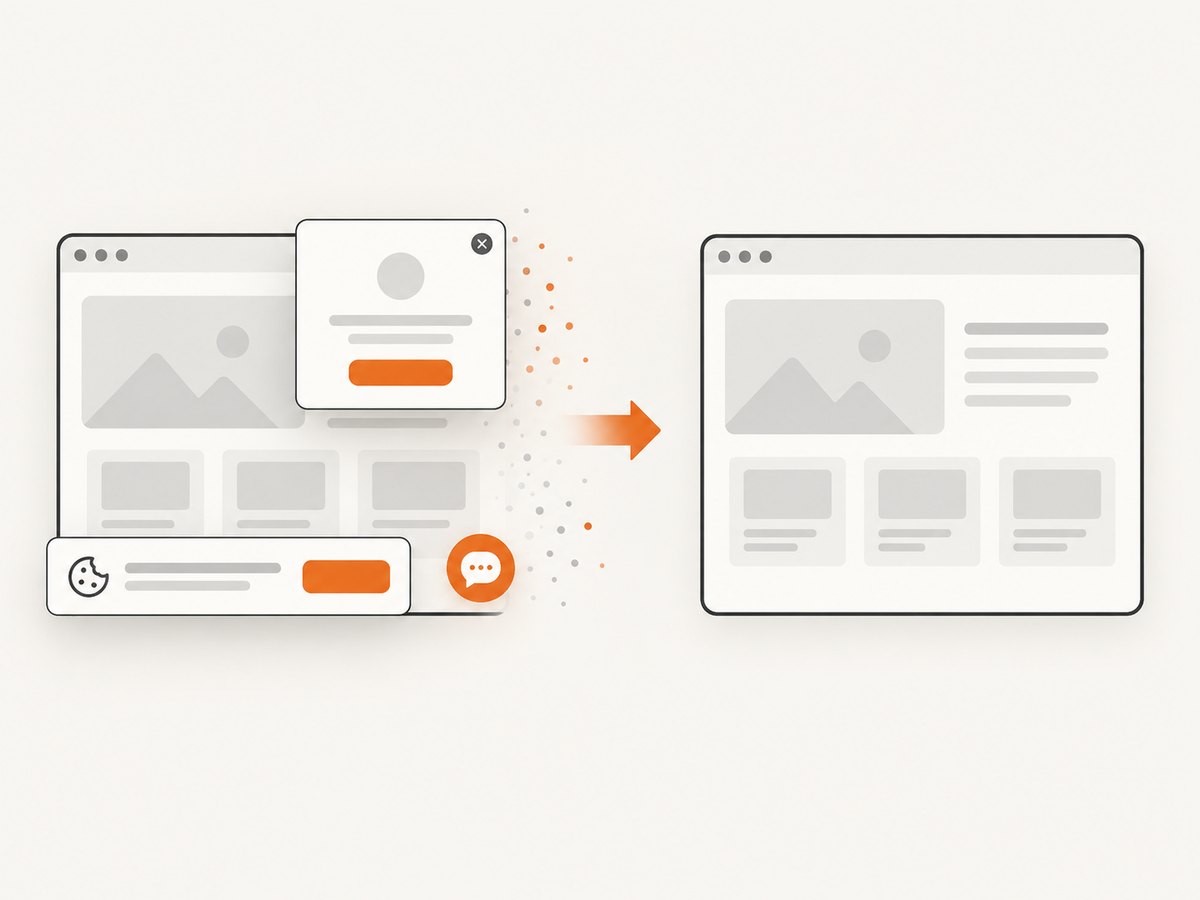
const res = await fetch(`https://api.screenshotneo.com/v1/shot?${q}`);Cookie banners, newsletter popups and chat widgets are removed before the shot. Bot checks, blank pages and failed loads are never billed, and response headers identify the page verdict and billing result. The MCP server lets Claude, Cursor and other MCP clients call take_screenshot, get_page_info and capture_pdf. The free plan includes 1,000 screenshots a month with no card; paid plans start at $5 for 3,000 shots. Create a free ScreenshotNeo account.
Performance, reliability and cost
- Browser cost: rendering and exporting a large canvas consumes the user’s CPU and memory. Reduce the capture area and scale when possible.
- Reliability: wait for application data, fonts and images before calling html2canvas; handle the returned Promise rejection.
- Security: same-origin rules still apply. Never treat
useCORSas an access-control bypass. - Server workloads: a hosted capture API or browser automation is easier to run from jobs and backends than shipping a DOM renderer to every client.
- ScreenshotNeo billing: only clean shots are billed; bot checks, blank pages, timeouts, failed loads and cache hits cost nothing. Plans include Free 1,000/month, Starter $5/3,000, Growth $15/15,000, Pro $39/60,000, Scale $99/250,000 and Business $249/1,000,000. Yearly billing gives two months free.
FAQ
Can jQuery take a screenshot by itself?
No. jQuery selects and manipulates DOM elements; html2canvas performs the DOM-to-canvas rendering.
Why do I need $('#capture')[0]?
html2canvas expects a DOM element. A jQuery selection is a wrapper, and index zero returns the wrapped element.
Can this capture a different website?
Not reliably from a normal page script. Cross-origin documents, images and iframes are restricted by the browser.
Is the result pixel-perfect?
No. It is reconstructed from DOM information and supported styles, not captured browser pixels.
What should I use in Node.js?
html2canvas depends on browser APIs such as window and document. Use Puppeteer, Playwright or a screenshot API for Node.js server work.


