How to Capture a Website Screenshot with One Click
Capture any webpage in one click with Firefox, Edge, Chrome or an API. Get full-page steps, automation code, troubleshooting and reliable settings.
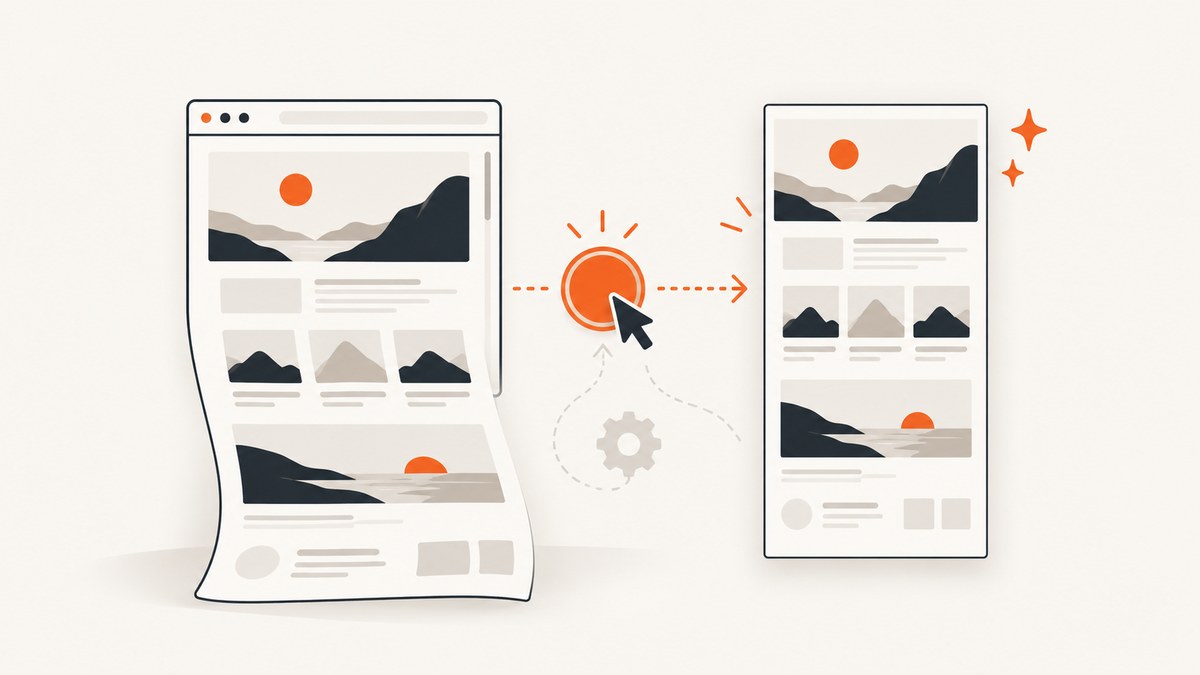
Short answer: For an occasional one-click capture, use your browser’s built-in screenshot command. In Firefox, right-click the page and choose Take Screenshot, then choose Save full page. In Edge, press Ctrl+Shift+S and choose Capture full page. Chrome requires DevTools or a pinned extension. If you need repeatable captures from code, use a screenshot API so the same URL, viewport, wait rules and output settings produce the same result every time.
This guide explains each route, what “full page” really captures, how to handle dynamic pages, and how to automate the job with cURL, Python or Node.js.
1. Choose the right one-click method
| Method | Setup | Best for | Trade-offs |
|---|---|---|---|
| Firefox Screenshot | None | Occasional visible or full-page images | A menu action is still required unless you customize the toolbar |
| Edge Screenshot | None | Full-page capture with copy, save and annotation | The shortcut opens the tool; you still choose a capture mode |
| Chrome DevTools | DevTools and command menu | Full-size, area, node and visible captures | More steps than a one-click toolbar action |
| Pinned extension | Install and pin once | Repeated one-click captures and alternate exports | Review permissions, update history and where exports go |
| ScreenshotNeo API | API key | Automated, repeatable captures in applications and CI | Requires an HTTP request and API-key handling |
For a browser-only answer, start with Firefox or Edge. For a team workflow, scheduled capture, bulk URLs or AI-agent automation, an API removes the manual browser step.
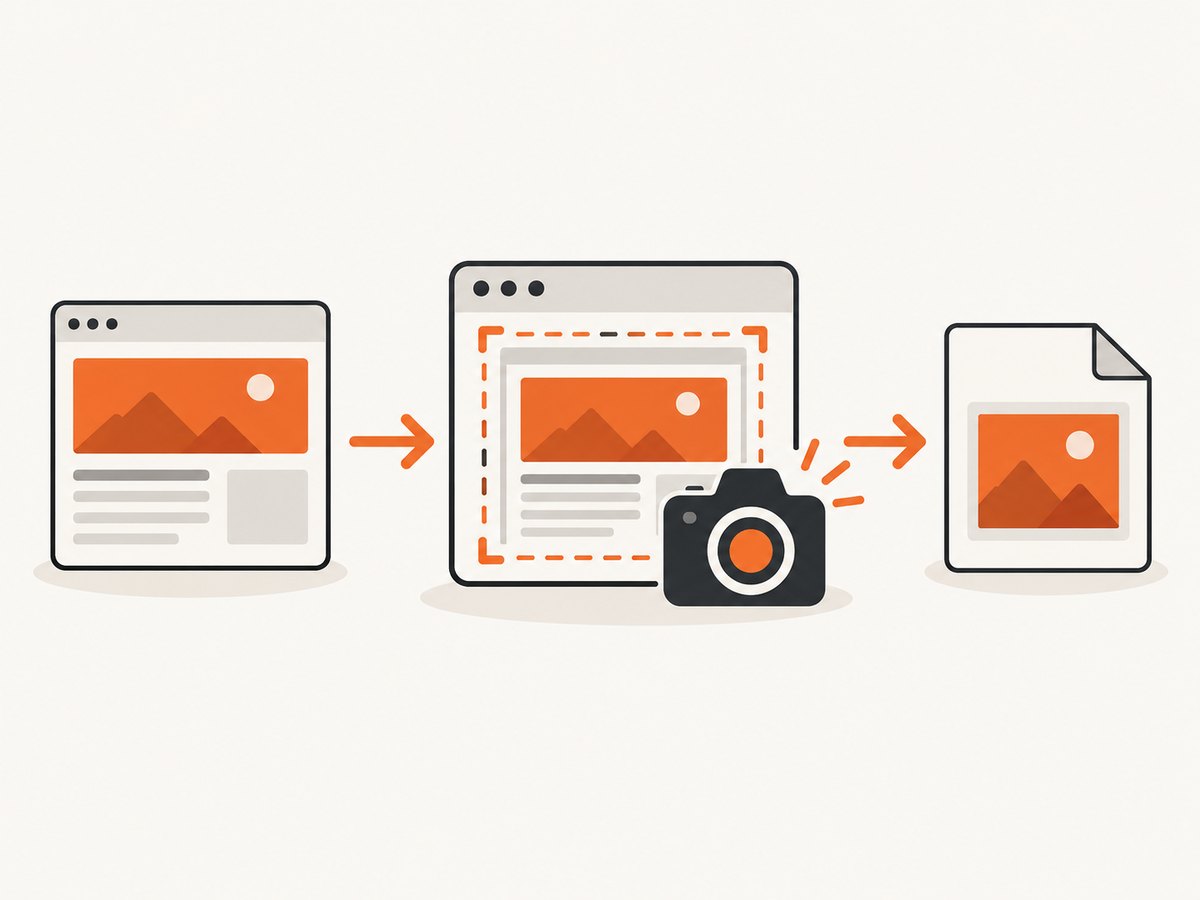
2. Firefox: save a full website in one click
- Open the page you want to capture.
- Right-click an empty part of the page and select Take Screenshot. You can also use Ctrl+Shift+S on Windows/Linux or Command+Shift+S on macOS.
- Choose Save full page for the complete document, or drag a region for a partial capture.
- Choose download or copy. Firefox saves the PNG to your browser’s Downloads directory when you download it.
Full page means content below the visible viewport is included. Firefox may scroll the document while creating the image, so very long pages can produce a tall file. Browser-internal pages, protected content and embedded scrolling regions can behave differently from an ordinary document.
3. Edge: capture the entire webpage
- Open the target URL.
- Press Ctrl+Shift+S, or open the browser menu and select Screenshot.
- Select Capture full page for the entire document, or Capture area for a selection.
- Copy, save or mark up the result.
Edge describes full-page capture as capturing an entire webpage, including content that extends beyond the screen. If a page has a nested element with its own scrollbar, capture the document and the nested region separately when you need both.
4. Chrome: use DevTools or a pinned extension
DevTools method
- Open the page and DevTools.
- Open the DevTools command menu.
- Type
screenshot. - Choose the command you need, such as a full-size screenshot, visible-area screenshot, selected-area screenshot or node screenshot.
- Confirm the downloaded file and its dimensions.
One-click repeatability
Chrome does not make a full-page toolbar button part of the default browser UI. For repeated captures, install a reputable browser screenshot extension, pin it to the toolbar, open the page and click its icon. Check the extension’s permissions, store reputation, update history and export behavior before using it on private pages. Extensions can offer PNG, PDF or other formats, but the exact controls depend on the extension.
5. What full-page capture does (and does not) include
- Below-the-fold content: Full-page mode captures content outside the visible viewport.
- Lazy-loaded images: Images that load only after scrolling may be missing in a browser capture unless the tool triggers that loading behavior.
- Sticky headers: A fixed header can appear repeatedly in stitched output, depending on the browser.
- Animations and video: The image records one instant. Pause motion or wait for a stable state when visual consistency matters.
- Consent banners and overlays: A cookie banner, newsletter popup or chat widget can cover content. Dismiss it manually or use an automated capture service that handles known overlays.
- Embedded scroll areas: A full document capture does not automatically expand every iframe or nested scrolling panel.
- Restricted pages: Login walls, bot checks, browser-internal URLs and cross-origin restrictions may prevent a complete shot.
Before saving a capture, check the top, bottom and any important interactive region. A screenshot can succeed technically while still showing a loading spinner, a consent dialog or a blank panel.
6. Make a one-click result reliable
Wait for the page state you actually need
For static pages, capture immediately. For client-rendered pages, wait for a distinctive selector, a short delay, or network idle. A fixed delay is simple but can be too short on a slow connection and waste time on a fast one. A selector is usually more precise: wait for the chart, article body or product grid that proves the page is ready.
Control viewport and scale
Record the viewport width and height when captures are used for visual regression or documentation. Responsive layouts can change at breakpoints. Retina or device-pixel scaling increases detail and file size; use it when text must remain readable and standard scale when bandwidth matters.
Remove accidental page chrome
Close browser toolbars and side panels before a manual capture. For automated work, hide selectors for sticky chat buttons, cookie prompts and other elements that are not part of the page being documented.
Use a stable URL
Prefer canonical URLs, fixed query parameters and a known locale. Personalized recommendations, rotating ads and geolocation can make two captures differ even when the page code is unchanged.
7. Or skip the browser setup
ScreenshotNeo is a website screenshot API and MCP server. One GET request returns a PNG, JPEG, WebP or PDF. It accepts the cookie or consent banner like a visitor and removes more than 60 known consent platforms, newsletter popups and chat widgets before capture; each cleanup step can be turned off. Only clean shots are billed. Bot checks or CAPTCHAs, blank pages, timeouts, failed loads and cache hits cost nothing, and the response reports the result in X-Page-Verdict and X-Billed headers.

See the ScreenshotNeo API documentation for the complete parameter list. The simplest call is:
curl -G "https://api.screenshotneo.com/v1/shot" -d access_key=YOUR_API_KEY --data-urlencode url=https://stripe.com -o shot.webpPython:
import requests
r = requests.get("https://api.screenshotneo.com/v1/shot", params={"access_key": "YOUR_API_KEY", "url": "https://stripe.com"}, timeout=90)
open("shot.webp", "wb").write(r.content)
Node.js:
const q = new URLSearchParams({ access_key: 'YOUR_API_KEY', url: 'https://stripe.com' });
const res = await fetch(`https://api.screenshotneo.com/v1/shot?${q}`);
The API supports full-page capture with lazy images loaded, one-element capture by CSS selector, dark mode, 12 device presets or any viewport, retina scale, PDF paper size/margins/landscape/page ranges, HTML/CSS to image, custom CSS and JavaScript, clicking an element before capture, hiding selectors, waiting for a selector/delay/network idle, blocking ads/trackers/requests/resource types, custom headers/cookies/user agent/Authorization, timezone and geolocation, transparent backgrounds, image resizing, a cache TTL you choose, signed links for public <img> tags, asynchronous jobs with signed webhooks, bulk capture of up to 100 URLs per call, a usage API and an OpenAPI specification. Parameter names used by other screenshot APIs also work, which simplifies migration.
For AI workflows, its MCP server exposes take_screenshot, get_page_info and capture_pdf to Claude, Cursor and any MCP client. Plans include 1,000 shots per month free with no card; paid plans start at $5 for 3,000 shots. Growth is $15 for 15,000, Pro $39 for 60,000, Scale $99 for 250,000 and Business $249 for 1,000,000; yearly billing gives two months free and every feature is on every plan.
Start with 1,000 free screenshots per month—no card required.
8. API options that map to common capture jobs
| Need | Settings to use | Reason |
|---|---|---|
| Marketing page archive | Full page, fixed viewport, wait for network idle, cache TTL | Captures the complete layout and avoids repeated downloads |
| One component | CSS selector, custom CSS, optional click | Returns only the chart, card or hero you need |
| Dark-mode QA | Dark mode, device preset or explicit viewport | Exercises the alternate color scheme consistently |
| Print-ready record | PDF, paper size, margins, landscape and page range | Controls pagination instead of stitching one tall image |
| Private application | Custom headers, cookies, user agent and Authorization | Supplies the same session context as an authorized request |
| Public social image | Signed link, image resize, transparent background | Serves a controlled asset without exposing the API key |
| Large URL list | Bulk capture (up to 100 URLs per call) or async jobs/webhooks | Reduces orchestration work and avoids long request timeouts |
9. Troubleshooting checklist
The image is blank or only partly rendered
Cause: The page is client-rendered, blocked, or captured before its main selector appears. Fix: Wait for a selector or network idle, then retry. Check X-Page-Verdict; blank pages, failed loads and bot checks are identified and are not billed by ScreenshotNeo.
A cookie banner covers the content
Cause: The browser tool has no consent automation, or the banner is an unknown custom implementation. Fix: Dismiss it manually for a one-off shot; for automation, enable ScreenshotNeo’s consent cleanup and add a hide selector or custom script for site-specific UI.
Lazy images are missing
Cause: Images load only after they enter the viewport. Fix: Use full-page capture with lazy images loaded, or scroll the page before a manual capture and wait for the network to settle.
The result has the wrong layout
Cause: A different viewport, device preset, timezone, geolocation or user agent selected another responsive or localized variant. Fix: Pin those values and include them in your capture configuration.
The request times out
Cause: Slow third-party resources, an infinite-loading route or an overly long page. Fix: Block unnecessary ads, trackers or resource types, wait on a meaningful selector instead of an excessive fixed delay, and use an asynchronous job for long captures.
A private page returns a login screen
Cause: The capture request lacks the session cookie or authorization header. Fix: Supply custom cookies, headers or Authorization, and avoid logging those credentials.
A repeated request costs more than expected
Cause: Caching is disabled or the TTL is too short. Fix: Choose a cache TTL that matches how often the page changes. ScreenshotNeo cache hits are not billed.
10. Performance, reliability and cost notes
- Browser speed: Manual capture is fastest for a single page because there is no setup. It does not scale well when every page needs the same viewport, waits and cleanup.
- API throughput: Bulk capture and asynchronous jobs reduce client-side waiting for many URLs. Keep concurrency appropriate for your application and handle retries around transient network failures.
- Determinism: Set viewport, scale, color scheme, locale, timezone, geolocation, headers and wait conditions. Block third-party resources that add noise or delay.
- File size: PNG preserves sharp text but is larger. JPEG is smaller for photographic pages. WebP is a compact general-purpose choice. Resizing reduces transfer and storage costs.
- Billing: ScreenshotNeo bills only clean shots. Bot checks/CAPTCHAs, blank pages, timeouts, failed loads and cache hits are free; inspect
X-BilledandX-Page-Verdictin logs. - Security: Keep API keys server-side. Use signed links when a public page must embed an image, and avoid placing cookies or Authorization values in URLs or client-side code.
11. A repeatable capture checklist
- Confirm the canonical URL and whether authentication is required.
- Choose visible, full-page, element or PDF output.
- Set viewport, device scale and color scheme.
- Choose a selector, network-idle rule or delay that proves readiness.
- Remove consent banners, chat widgets, ads and other overlays.
- Check lazy-loaded content and embedded scrolling regions.
- Save the file with a predictable name containing URL or build metadata.
- For automation, record verdict and billed headers and retry only transient failures.
12. FAQ
Can I capture a full webpage without installing anything?
Yes. Firefox and Edge include full-page screenshot tools. Chrome can do it through DevTools; a pinned extension is more convenient for repeated one-click use.
Why is my full-page image extremely tall?
The file includes the document below the fold. Use an element or viewport capture when you only need a component or the visible screen.
Should I use PNG, JPEG or WebP?
Use PNG for crisp UI text, JPEG for photographic pages, and WebP when you want a compact file with good general quality.
Can an API capture a page behind login?
Yes, when the service supports the required cookies, headers or Authorization and you provide them securely. A browser screenshot cannot bypass authentication by itself.
How do I make captures comparable in visual tests?
Fix the URL, viewport, scale, color scheme, locale, timezone, geolocation, wait condition and resource blocking rules. Keep the same browser or API configuration for every run.


