How to Capture a Website Screenshot with Perl
Capture rendered websites in Perl with headless Chrome, save PNGs, handle full pages and failures, or use ScreenshotNeo’s API.
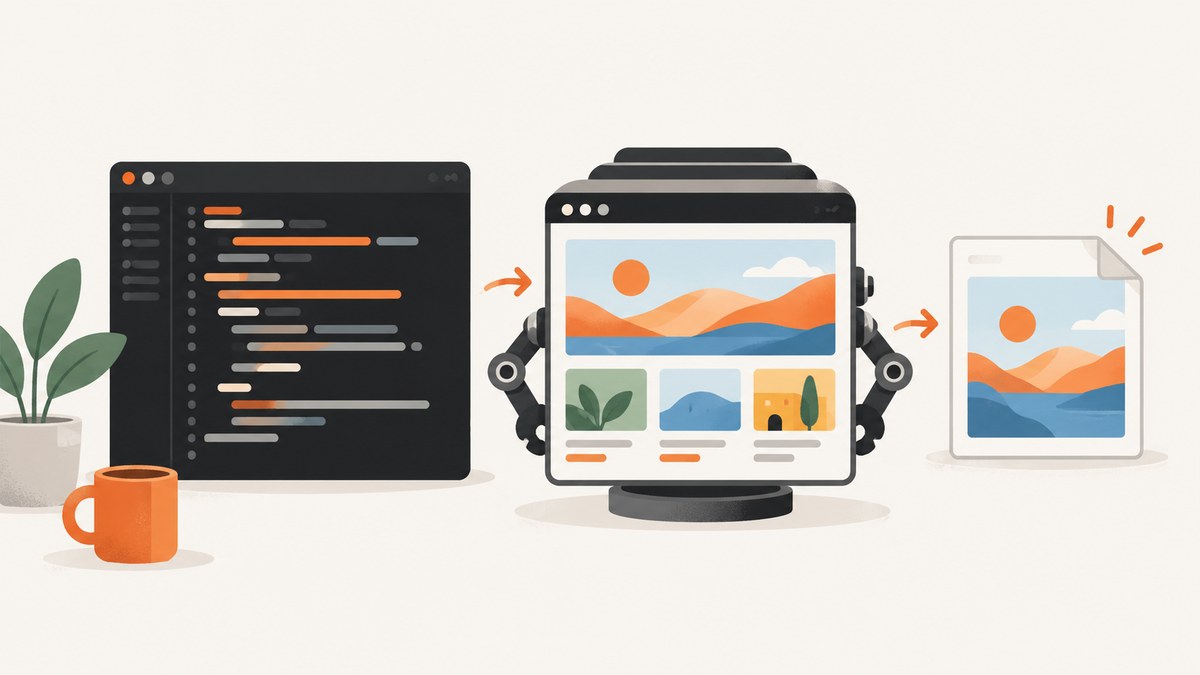
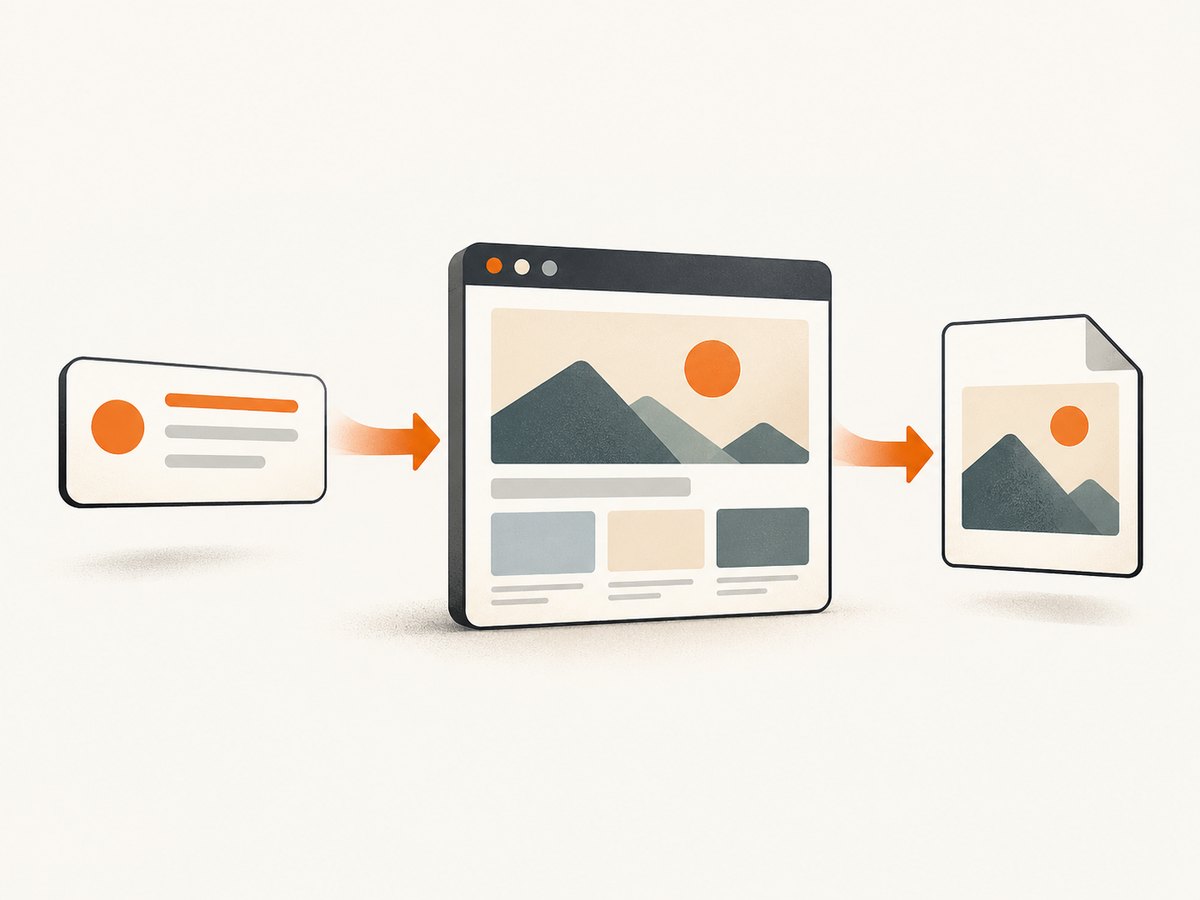
Short answer: use a real browser from Perl. WWW::Mechanize::Chrome drives Chrome or Chromium through Chrome DevTools, waits for the page to render, and returns PNG bytes. A browser is required because an HTTP client can download HTML but cannot reproduce JavaScript layout, fonts, images, or final CSS pixels.
1. Choose the screenshot scope
Decide what “website screenshot” means before writing code:
| Scope | What you get | Typical use |
|---|---|---|
| Viewport | Only the visible browser window | Monitoring a landing page or regression at a fixed size |
| Full page | The complete scrollable document | Archives, reports, and long articles |
| Element | One node selected by CSS | Cards, charts, invoices, or component tests |
Playwright’s screenshot documentation describes these as separate operations; treat the same distinction as a design requirement in Perl. The minimal content_as_png call produces a rendered PNG, but exact full-page or element options depend on your installed WWW::Mechanize::Chrome version. Check that version’s POD before relying on a particular option.
2. Prerequisites
- Install Google Chrome or Chromium on the machine running the script.
- Install the Perl distribution
WWW::Mechanize::Chrome. - Run the script with permission to start the browser and write the output file.
The module documentation says a browser window is visible by default and that headless mode is available. Headless mode is normally best for CI and servers; visible mode is useful when diagnosing navigation or rendering problems.
3. Minimal headless Perl script
This complete script navigates to a URL, captures the rendered page, and writes binary PNG data. Save it as screenshot.pl.
#!/usr/bin/env perl
use strict;
use warnings;
use WWW::Mechanize::Chrome;

my $url = shift @ARGV // 'https://example.com';
my $output = shift @ARGV // 'shot.png';

my $mech = WWW::Mechanize::Chrome->new(headless => 1);
$mech->get($url);
my $png = $mech->content_as_png();

open my $fh, '>:raw', $output or die "Cannot write $output: $!";
print {$fh} $png;
close $fh or die "Cannot close $output: $!";
print "Saved $output\n";
Run it with:
perl screenshot.pl https://example.com example.pngThe :raw layer matters: a screenshot is binary data, so text-mode output can corrupt bytes on some platforms.
4. Make the capture reliable
Wait for the page state you need
get returns after navigation reaches the state provided by the module and browser, but modern sites may continue fetching data. If the screenshot sometimes contains an empty chart or missing image, identify a deterministic readiness signal and use the waiting or JavaScript facilities documented by your installed module. A fixed sleep can be a fallback, but it makes every capture slower and may still be too short under load.
Control the browser while debugging
Remove headless => 1 while investigating. The visible browser lets you watch redirects, consent dialogs, authentication pages, and rendering failures. Restore headless mode for unattended jobs.
Keep inputs deterministic
- Use a stable URL and explicit locale or test account when the site varies by geography or login state.
- Capture after the page reaches the same application state each time.
- Disable or wait for animations when your module version exposes an equivalent browser control. Playwright documents animation and caret controls as screenshot concepts; do not assume those option names exist in
WWW::Mechanize::Chrome.
5. Full-page and element screenshots
A viewport screenshot and a full-page screenshot are different products. Full-page capture must account for document height and lazy-loaded content. Element capture requires a CSS selector that resolves to the intended node after JavaScript runs.
WWW::Mechanize::Chrome supports CSS selection and screenshot output, but option names can vary by release. Inspect the installed POD:
perldoc WWW::Mechanize::Chrome
perldoc -m WWW::Mechanize::Chrome
Verify three things in a small probe: whether the method captures the viewport or whole document, how a selector is passed, and whether lazy resources are loaded before bytes are produced. Keep that probe documented so a module upgrade cannot silently change image scope.
6. Firefox as an alternative Perl route
The WWW::Mechanize::Firefox distribution includes a screenshot.pl example. It documents PNG output and options for output file, width, height, and scale. Its available documentation is older, so verify current Firefox, driver, and Perl compatibility before choosing it for a new service.
| Factor | Chrome route | Firefox route |
|---|---|---|
| Engine | Chrome/Chromium via DevTools | Firefox automation |
| Documentation | Check current module documentation | Published example is older |
| Visibility | Visible by default; headless supported | Follow current driver requirements |
| Output | PNG bytes from the rendered page | PNG example with size and scale controls |
Neither source establishes a universal speed or fidelity winner. Select the engine your target site supports and pin versions in deployment.
7. HTTP, JavaScript, and browser security edge cases
HTTP-only modules are not screenshots
Fetching HTML with LWP::UserAgent does not render a page. It misses JavaScript-created nodes, computed styles, web fonts, responsive layout, and images loaded after navigation. Use a browser whenever visual output matters.
Redirects and blocked navigation
Check the final URL and page content when a site redirects to login or bot-check pages. A successful navigation does not prove that the intended page rendered. For protected sites, supply credentials only through browser mechanisms supported by your module and follow the site’s access rules.
Lazy loading and infinite scroll
A full-page image can omit content that appears only after scrolling. If your module does not load lazy resources automatically, trigger documented scrolling behavior and wait for a stable end condition. Infinite-scroll pages need an explicit item limit or bounded scroll plan.
Cookies, consent, and personalization
Cookies can change content and layout. Start a fresh browser profile for reproducible captures, or deliberately load the same cookie state for every run. Consent dialogs can obscure the page; close them with a selector or script supported by your module and record that action in the capture recipe.
8. Performance, reliability, and cost
- Startup: launching Chrome for every URL adds overhead. Reuse one browser process when your workload and module lifecycle support it, while isolating jobs that require different cookies or identities.
- Concurrency: more tabs increase CPU and memory use. Set a bounded worker count and observe crashes, timeouts, and incomplete images before increasing it.
- Timeouts: slow third-party scripts and never-ending network activity make “wait for everything” unreliable. Prefer a specific readiness selector or bounded delay.
- Reproducibility: pin Perl modules and browser versions, set a fixed viewport when available, and store URL plus capture settings alongside each image.
- Storage: PNG preserves detail but can be large. Convert to JPEG or WebP separately if your consumer accepts lossy output.
- Cost: self-hosted automation has no per-shot API fee, but you pay for browser CPU, memory, storage, and maintenance.
9. Troubleshooting checklist
| Symptom | Likely cause | Fix |
|---|---|---|
| Can’t connect to Chrome | Browser missing, not executable, or incompatible | Install a supported browser, verify path and permissions, and check launch configuration. |
| PNG is empty or tiny | Navigation failed or capture happened before app content rendered | Run visibly, inspect the final page, add a readiness wait, and validate file size. |
| Only login or bot page appears | Session lacks authentication or automation was challenged | Use an authorized session, preserve required cookies, and follow the site’s policy. |
| Text or images are missing | Fonts/resources are still loading or blocked | Wait for a page-specific selector, check network access, and increase the timeout. |
| Output is corrupted | Binary bytes were written in text mode | Open with >:raw and write returned bytes unchanged. |
| Full page cuts off content | Viewport capture was used or lazy content never loaded | Confirm full-page support and trigger bounded scrolling before capture. |
| Runs slow down over time | Tabs, profiles, or temporary files accumulate | Close pages cleanly, recycle the browser after a bounded number of jobs, and monitor memory. |
10. Or skip the browser setup
ScreenshotNeo provides a website screenshot API when you want one request instead of managing Chrome. Its endpoint returns PNG, JPEG, WebP, or PDF and accepts common parameter names used by other screenshot APIs.

cURL:
curl -G "https://api.screenshotneo.com/v1/shot" -d access_key=YOUR_API_KEY --data-urlencode url=https://stripe.com -o shot.webpPython (see the ScreenshotNeo API docs for all options):
import requests
r = requests.get("https://api.screenshotneo.com/v1/shot", params={"access_key": "YOUR_API_KEY", "url": "https://stripe.com"}, timeout=90)
open("shot.webp", "wb").write(r.content)
Node.js:
const q = new URLSearchParams({ access_key: 'YOUR_API_KEY', url: 'https://stripe.com' });
const res = await fetch(`https://api.screenshotneo.com/v1/shot?${q}`);
const buffer = Buffer.from(await res.arrayBuffer());
require('fs').writeFileSync('shot.webp', buffer);
Perl can call the same endpoint:
use strict;
use warnings;
use LWP::UserAgent;
use URI;

my $uri = URI->new('https://api.screenshotneo.com/v1/shot');
$uri->query_form(access_key => 'YOUR_API_KEY', url => 'https://stripe.com');
my $res = LWP::UserAgent->new(timeout => 90)->get($uri);
die $res->status_line unless $res->is_success;
open my $fh, '>:raw', 'shot.webp' or die $!;
print {$fh} $res->content;
close $fh;
Before capture, ScreenshotNeo accepts cookie or consent banners and removes more than 60 known consent platforms, newsletter popups, and chat widgets; each step can be turned off. Full-page capture loads lazy images. You can select an element, set a device or viewport, use dark mode, retina scale, custom CSS or JavaScript, click an element, wait for a selector, delay, or network idle, block ads, trackers, requests, or resource types, provide headers, cookies, user agent, Authorization, timezone, or geolocation, resize images, choose PDF paper and margins, cache with your own TTL, create signed links, submit async jobs with signed webhooks, capture up to 100 URLs per call, and read usage through the API.
Only clean shots are billed. Bot checks or CAPTCHAs, blank pages, timeouts, failed loads, and cache hits cost nothing; X-Page-Verdict and X-Billed identify the result. ScreenshotNeo also has an MCP server with take_screenshot, get_page_info, and capture_pdf for Claude, Cursor, and other MCP clients. The Free plan includes 1,000 shots per month with no card; paid plans start at $5 for 3,000 shots. Create a free ScreenshotNeo account to try the API.
11. FAQ
Can Perl take a screenshot without Chrome?
For a browser-rendered result, you need a rendering engine. The documented Perl route controls Chrome/Chromium; the Firefox distribution is another browser-backed option.
Why is my screenshot different on CI?
Browser version, fonts, viewport, timezone, cookies, and network timing can change pixels. Pin what you can and wait for a deterministic readiness signal.
Should I use PNG or another format?
Use PNG for lossless text and UI detail. Choose JPEG or WebP when smaller files matter and your downstream system supports them.
How do I capture a PDF?
A browser module may expose PDF printing separately; verify its current POD. ScreenshotNeo’s API has PDF mode with paper size, margins, landscape, and page-range controls.
When is a hosted API a better fit?
Choose one when browser installation, scaling, consent cleanup, retries, or multi-language clients would be more work than the screenshot logic itself.


