How to Capture a Website Screenshot with PHP
Capture rendered websites in PHP with Playwright, chrome-php/chrome, Browsershot, or a one-call ScreenshotNeo API workflow.
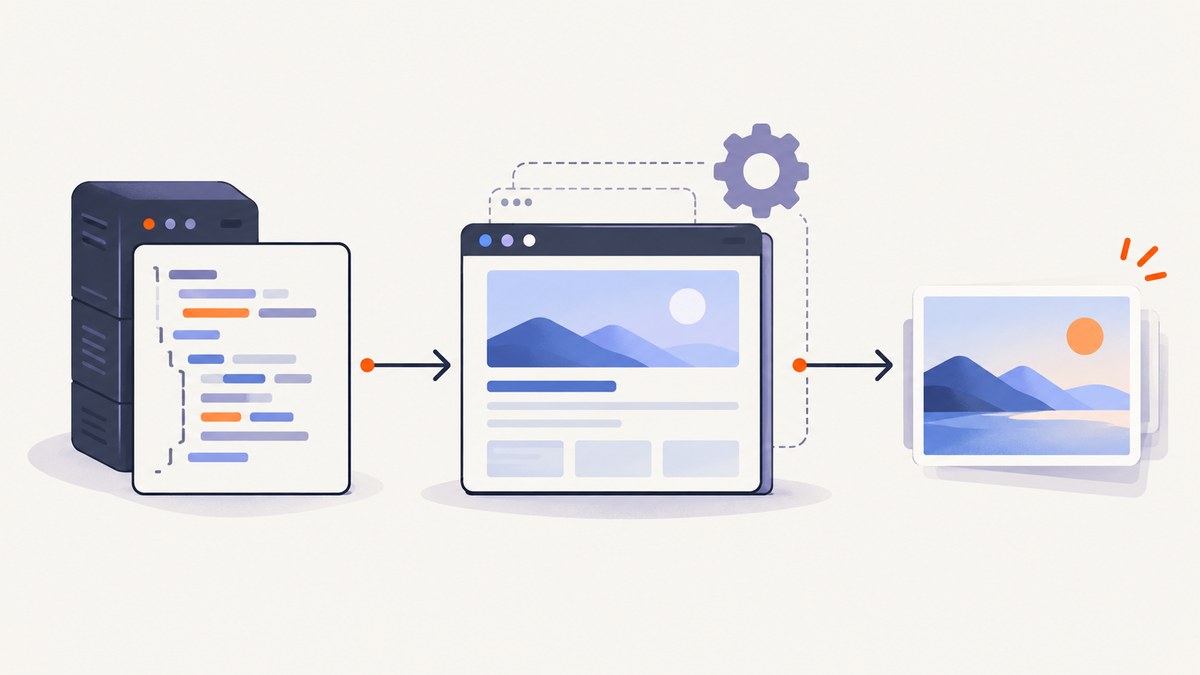
Direct answer: A PHP process cannot capture a rendered website by itself. Use PHP to drive a real Chromium, Firefox, or WebKit browser, wait until the page is ready, then save the browser screenshot. The three practical choices are Playwright for PHP, chrome-php/chrome, and Spatie Browsershot.
Choose a PHP screenshot approach
| Library | Browser/runtime | Best fit | What it documents |
|---|---|---|---|
| Playwright for PHP | Chromium, Firefox, WebKit; PHP 8.2+ and Node.js 20+ | Projects wanting a modern browser automation API or multiple engines | Composer install, browser installation, navigation, screenshots, and connections to managed browsers |
| chrome-php/chrome | Chrome/Chromium executable (version 65+); PHP 7.4–8.5 | Applications already managing a Chrome binary | PNG, JPEG and WebP, clipped regions, and full-page capture |
| Spatie Browsershot | Puppeteer with headless Chrome | Rendering URLs, HTML strings, or HTML files to images and PDFs | URL/HTML rendering and returning HTML after JavaScript runs |
Requirements and APIs change, so check the selected project’s current README before pinning versions. The versions above are the requirements documented in the research checked on 2026-09-29; they are not benchmarks.
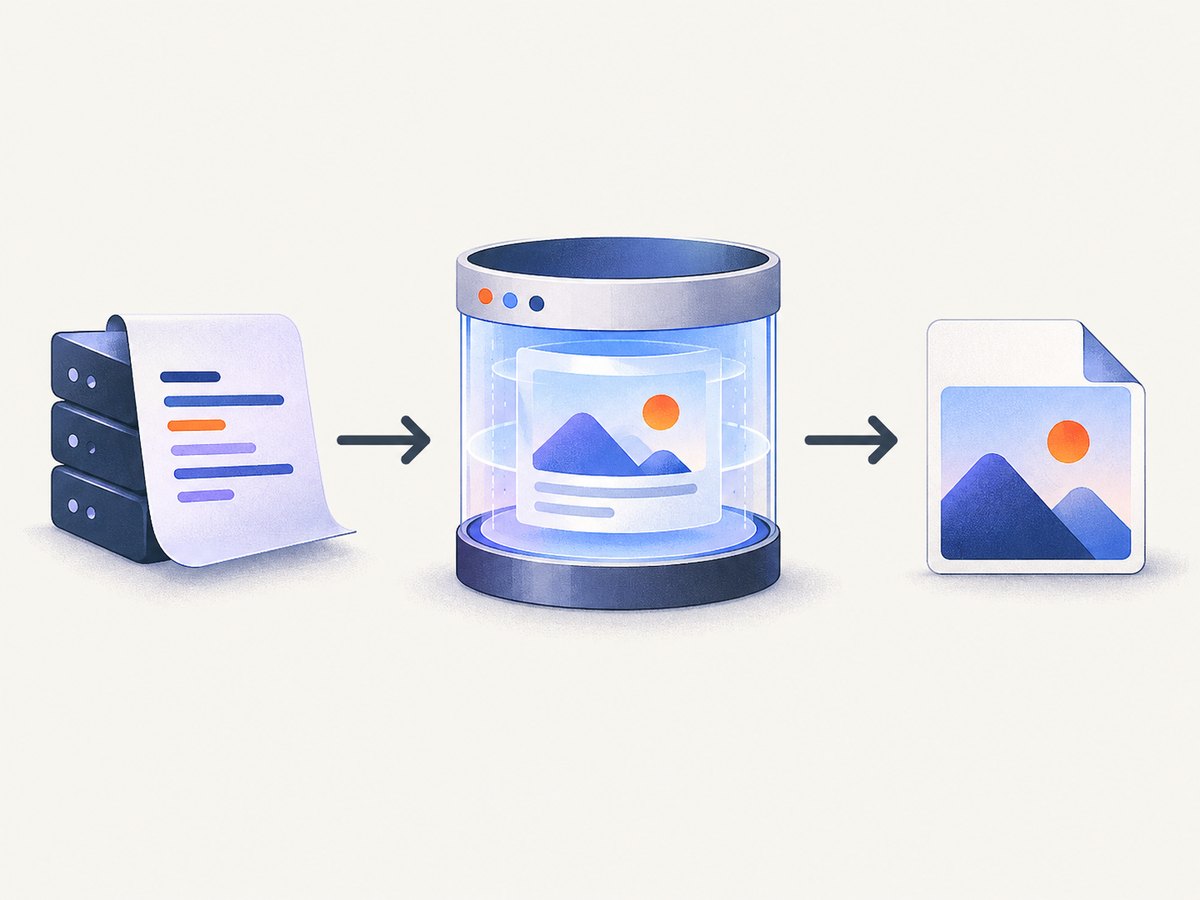
Option 1: Playwright for PHP (complete example)
Playwright is a good default when you need a browser API and may later switch between Chromium, Firefox, and WebKit. Its PHP workflow still needs Node.js because the browser driver and browser binaries are installed through the Playwright tooling.
1. Install PHP, Node.js, the package, and browsers
composer require --dev playwright-php/playwright
vendor/bin/playwright-install --browsers
The project documents PHP 8.2+ and Node.js 20+. In production, install these dependencies in the image or host that runs the worker; do not rely on a developer laptop’s browser cache.
2. Capture a viewport screenshot
<?php
require __DIR__ . '/vendor/autoload.php';

use Playwright\Playwright;

$playwright = Playwright::create();
$browser = $playwright->chromium->launch([
    'headless' => true,
]);

try {
    $context = $browser->newContext([
        'viewport' => ['width' => 1440, 'height' => 900],
        'deviceScaleFactor' => 1,
    ]);
    $page = $context->newPage();
    $page->goto('https://example.com', ['waitUntil' => 'networkidle']);
    $page->screenshot([
        'path' => __DIR__ . '/screenshots/example.png',
        'fullPage' => false,
        'type' => 'png',
    ]);
} finally {
    $browser->close();
}
Create the screenshots directory first and ensure the PHP user can write it. Replace networkidle with a page-specific readiness check when a site keeps analytics or sockets open.
3. Wait for the content that matters
$page->goto($url, ['waitUntil' => 'domcontentloaded']);
$page->waitForSelector('[data-report-ready]');
$page->screenshot([
    'path' => __DIR__ . '/screenshots/report.png',
    'fullPage' => true,
]);
Navigation completion only means the browser reached a lifecycle point. A single universal delay cannot guarantee that every framework, font, image, or API call is visually settled. Prefer a selector your application controls, then add a short delay only for animations or late font swaps.
Option 2: chrome-php/chrome
This package wraps a Chrome/Chromium executable. It is useful when your deployment already has a known browser path and you want explicit control over viewport, clipping, and image format.
<?php
require __DIR__ . '/vendor/autoload.php';

use HeadlessChromium\BrowserFactory;

$factory = new BrowserFactory();
$browser = $factory->createBrowser([
    'headless' => true,
    // 'executablePath' => '/usr/bin/chromium',
]);

try {
    $page = $browser->createPage();
    $page->setViewportSize(1440, 900);
    $page->navigate('https://example.com')->waitForNavigation();
    $page->screenshot()->saveToFile(__DIR__ . '/screenshots/example.webp');
} finally {
    $browser->close();
}
The documented requirements are PHP 7.4–8.5 and Chrome/Chromium 65 or later. The README also documents PNG, JPEG and WebP output. Confirm the executable path, sandbox flags, and package compatibility for your operating system.
Full-page and clipped captures
// Full page: capture beyond the viewport.
$page->screenshot([
    'format' => 'png',
    'captureBeyondViewport' => true,
    'clip' => ['x' => 0, 'y' => 0, 'width' => 1440, 'height' => 5000],
])->saveToFile(__DIR__ . '/screenshots/full.png');

// Region capture: useful for a known card or chart.
$page->screenshot([
    'format' => 'jpeg',
    'quality' => 85,
    'clip' => ['x' => 120, 'y' => 240, 'width' => 800, 'height' => 600],
])->saveToFile(__DIR__ . '/screenshots/region.jpg');
For a selector-based region, measure the element’s bounding box in page JavaScript, then pass those coordinates as the clip. Recalculate after fonts and responsive layout settle.
Option 3: Spatie Browsershot
Browsershot renders a URL, HTML string, or HTML file through Puppeteer and headless Chrome. Current versions use Puppeteer; the older v2 Chrome CLI route is no longer maintained and should not be the default for a new setup.
composer require spatie/browsershot
npm install puppeteer
<?php
require __DIR__ . '/vendor/autoload.php';
use Spatie\Browsershot\Browsershot;
Browsershot::url('https://example.com')
->windowSize(1440, 900)
->waitUntilNetworkIdle()
->fullPage()
->setScreenshotType('png')
->save(__DIR__ . '/screenshots/example.png');
Use the HTML methods when the source is generated by your application. For pages with client-side rendering, wait for a selector or a documented readiness condition before saving.
Capture decisions that affect the result
- Viewport: Set width and height explicitly so responsive breakpoints do not vary between machines.
- Device scale: A retina scale produces sharper pixels but increases memory and file size.
- Viewport or full page: Viewport captures match what a user sees initially. Full-page captures include content below the fold and can become very tall.
- Element or region: Clip a chart, invoice, or component when downstream systems do not need the whole page.
- Format: PNG preserves sharp text and transparency; JPEG is smaller for photos; WebP often balances size and quality when your consumers support it.
- Dynamic content: Freeze clocks, random data, carousels, and animations when visual diffs must be stable.
Authentication, cookies, and private pages
Use the browser context to add HTTP headers, cookies, or an authenticated storage state. Keep secrets outside source control and avoid writing them into screenshots or logs. A page can return HTTP 200 while its app is still showing a login redirect, so assert a known authenticated selector before capture.
$context = $browser->newContext([
    'extraHTTPHeaders' => ['Authorization' => 'Bearer ' . getenv('REPORT_TOKEN')],
    'locale' => 'en-US',
    'timezoneId' => 'UTC',
]);
$page = $context->newPage();
$page->goto('https://app.example.com/report');
$page->waitForSelector('[data-authenticated-report]');
Reliability and performance checklist
- Reuse a browser process for a batch, but create a fresh context per job so cookies and local storage do not leak.
- Set navigation and overall job timeouts. Abort hung pages and always close pages, contexts, and browsers in a
finallyblock. - Wait for a meaningful selector, not an arbitrary long sleep. Use a bounded fallback delay for animations.
- Record URL, viewport, browser version, wait condition, duration, output bytes, and failure reason.
- Limit concurrent pages to the CPU and memory available. Full-page and retina captures consume more memory.
- Retry transient navigation failures with backoff, but do not blindly retry deterministic 404s, authentication failures, or bot challenges.
- Write to a temporary file and atomically rename it after capture so readers never see a partial image.
Browser startup is usually more expensive than saving a file. A long-lived worker or managed browser can reduce startup overhead, while isolated contexts preserve job separation. The researched sources provide no cross-library speed benchmark, so choose based on runtime and capture requirements rather than an unverified performance ranking.
Common errors and fixes
| Error | Likely cause | Fix |
|---|---|---|
| Browser executable not found | Chromium is absent or the path is wrong | Run the package’s browser installer or set the documented executable path; verify it inside the production container. |
| Timeout waiting for navigation | Long polling, blocked third-party request, or slow origin | Use domcontentloaded, wait for your own selector, and set a bounded timeout. |
| Blank or half-rendered image | Capture happened before client-side data, fonts, or lazy images loaded | Wait for a readiness selector, image completion, or a short post-render delay; disable animations for deterministic output. |
| Full page is cut off | Viewport clip or browser-specific full-page behavior | Use the library’s documented full-page option; with chrome-php/chrome, enable capture beyond the viewport and provide a sufficient clip. |
| Permission denied saving file | Output directory is not writable by the PHP worker | Create it during deployment, set ownership, and use an absolute path. |
| Works locally, fails in a container | Missing shared libraries, sandbox permissions, fonts, or browser binary | Install the browser dependencies in the image, use a known executable, and inspect browser stderr. |
| Screenshot shows a login page | Cookies or authorization were not applied, or session expired | Set context headers/cookies and assert an authenticated selector before saving. |
Or skip the browser setup
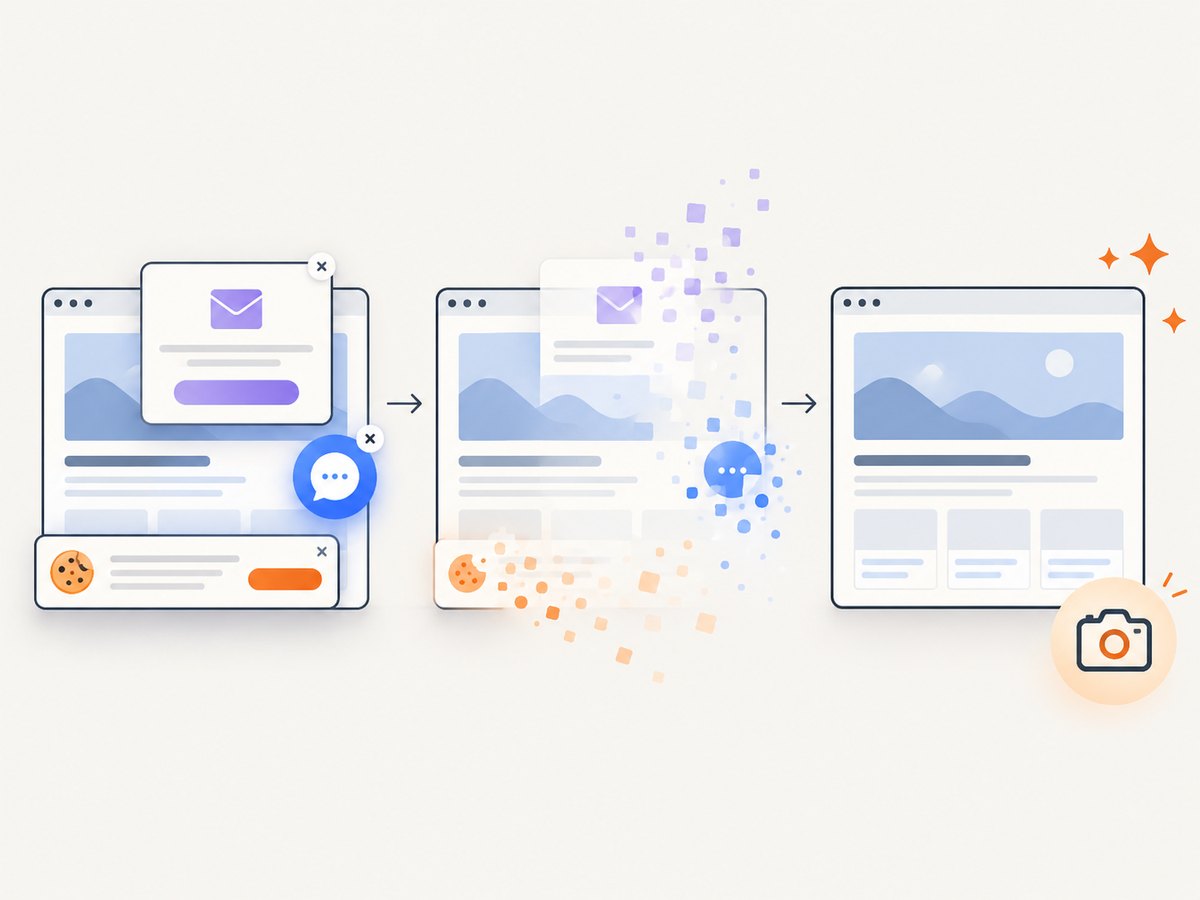
ScreenshotNeo is a website screenshot API and MCP server. One GET request returns PNG, JPEG, WebP, or PDF, while the service handles the browser lifecycle. Cookie banners, newsletter popups, and chat widgets are removed before the shot. Bot checks, blank pages, failed loads, timeouts, and cache hits are not billed; response headers identify the page verdict and billing status. An MCP server lets Claude, Cursor, or another MCP client call take_screenshot, get_page_info, and capture_pdf.
PHP can call it with cURL:
<?php
$url = 'https://stripe.com';
$query = http_build_query([
    'access_key' => 'YOUR_API_KEY',
    'url' => $url,
]);
$bytes = file_get_contents('https://api.screenshotneo.com/v1/shot?' . $query);
if ($bytes === false) {
    throw new RuntimeException('Screenshot request failed');
}
file_put_contents(__DIR__ . '/shot.webp', $bytes);
Equivalent requests (see the ScreenshotNeo API docs) are:
curl -G "https://api.screenshotneo.com/v1/shot" -d access_key=YOUR_API_KEY --data-urlencode url=https://stripe.com -o shot.webpimport requests
r = requests.get("https://api.screenshotneo.com/v1/shot", params={"access_key": "YOUR_API_KEY", "url": "https://stripe.com"}, timeout=90)
open("shot.webp", "wb").write(r.content)const q = new URLSearchParams({ access_key: 'YOUR_API_KEY', url: 'https://stripe.com' });
const res = await fetch(`https://api.screenshotneo.com/v1/shot?${q}`);It also supports full-page and element capture, dark mode, device presets, custom CSS and JavaScript, clicks, waits, blocked resources, headers, cookies, user agents, geolocation, resizing, caching with your TTL, signed links, async jobs, webhooks, bulk capture for 100 URLs per call, usage data, and PDF controls. Every feature is on every plan. The Free plan includes 1,000 shots each month with no card; paid plans start at $5 for 3,000 shots. Create a free ScreenshotNeo account.
Cost, limits, and operational fit
Self-hosting means paying for compute, browser images, maintenance, and queue capacity; package licenses do not remove those costs. An API shifts browser operations to a service and makes usage predictable by plan. ScreenshotNeo plans are Free (1,000/month), Starter $5 (3,000), Growth $15 (15,000), Pro $39 (60,000), Scale $99 (250,000), and Business $249 (1,000,000); yearly billing gives two months free. Only clean shots are billed, and each response includes X-Page-Verdict and X-Billed headers.
FAQ
Can PHP take a screenshot without Chrome?
Not of a JavaScript-rendered website. PHP must drive a browser, call a remote browser, or use a screenshot API.
Which library supports Firefox and WebKit?
Playwright for PHP documents Chromium, Firefox, and WebKit entry points. chrome-php/chrome and Browsershot center on Chrome/Chromium.
How do I make screenshots reproducible?
Fix viewport, locale, timezone, fonts, data, and animation state; wait for a deterministic selector; and record the browser version and capture settings.
Should I retry every failed capture?
Retry transient network or browser startup failures with a limit and backoff. Do not retry deterministic authorization errors or bot challenges without changing the request.


