How to Capture a Website Screenshot with Puppeteer
Capture viewport, full-page, clipped, and element screenshots with Puppeteer, then automate reliable rendering and skip browser setup with ScreenshotNeo.
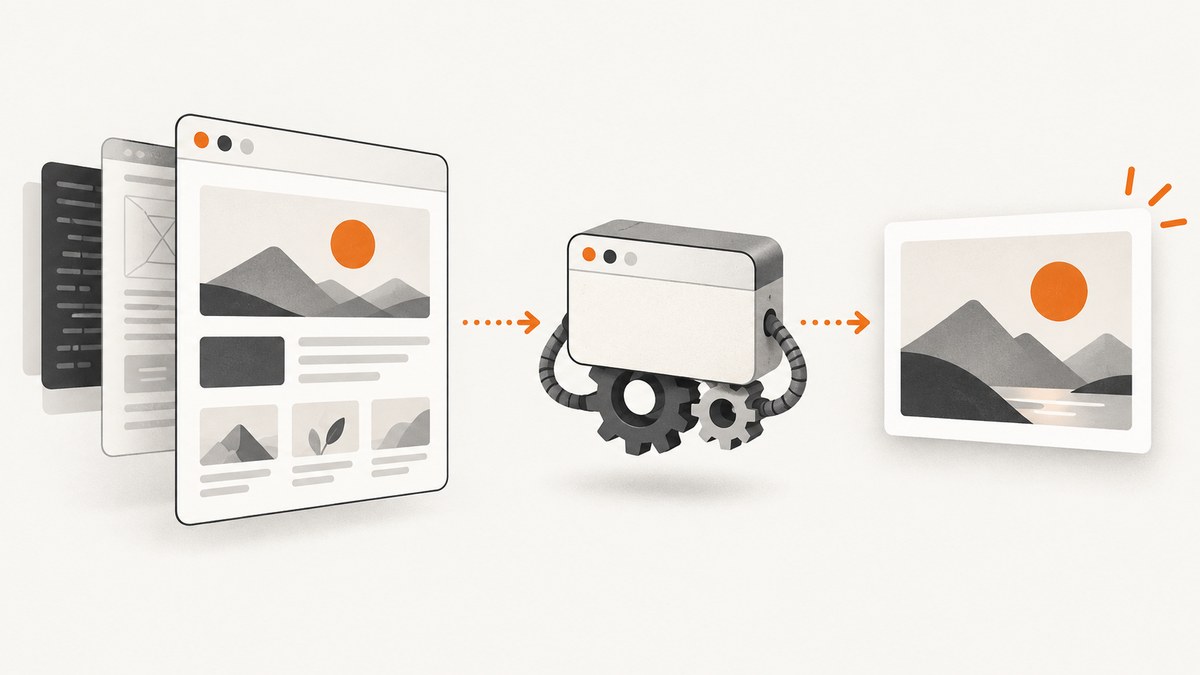
Puppeteer captures a website by opening a Chromium browser, navigating to the URL, waiting for the page to reach the state you need, and calling page.screenshot(). The same method handles viewport screenshots, full-page images, clipped regions, transparency, JPEG or WebP output, and screenshots returned as bytes instead of saved to disk.
The smallest working example is:
const puppeteer = require('puppeteer');

(async () => {
  const browser = await puppeteer.launch();
  const page = await browser.newPage();
  await page.goto('https://news.ycombinator.com', { waitUntil: 'networkidle2' });
  await page.screenshot({ path: 'hn.png' });
  await browser.close();
})();
This follows Puppeteer’s screenshot guide and API reference. Read the official screenshot guide and check the version-matched Page.screenshot() API when behavior depends on your installed Puppeteer version.
1. Install Puppeteer and capture your first screenshot
Create a project and install Puppeteer:
mkdir site-capture
cd site-capture
npm init -y
npm install puppeteer
Puppeteer downloads a compatible browser during installation. If your environment already manages Chrome or Chromium, you can use puppeteer-core and provide an executable path, but the examples here use the full puppeteer package.
Save this as capture.js:
const puppeteer = require('puppeteer');

async function capture() {
  const browser = await puppeteer.launch({
    headless: true,
    // args: ['--no-sandbox'] // only when your container requires it
  });

  try {
    const page = await browser.newPage();
    await page.setViewport({ width: 1440, height: 900, deviceScaleFactor: 1 });
    await page.goto('https://example.com', {
      waitUntil: 'networkidle2',
      timeout: 60000
    });
    await page.screenshot({ path: 'example.png', type: 'png' });
  } finally {
    await browser.close();
  }
}

capture().catch((error) => {
  console.error(error);
  process.exitCode = 1;
});
Run it with node capture.js. The try/finally matters in workers and scripts: browser processes consume memory until they are closed, including when navigation or rendering throws an exception.
2. Choose the capture area
Viewport screenshot
With no special option, Puppeteer captures the visible viewport. Set its dimensions before navigation or capture:
await page.setViewport({
  width: 1280,
  height: 800,
  deviceScaleFactor: 2
});
await page.screenshot({ path: 'retina-viewport.png' });
deviceScaleFactor controls the number of image pixels per CSS pixel. A value of 2 produces a retina-style image and increases output size and rendering work.
Full-page screenshot
Use fullPage: true to capture the document beyond the viewport:
await page.screenshot({
  path: 'full-page.png',
  fullPage: true
});
Full-page capture can expose layout problems that are invisible in a viewport image: sticky headers may repeat, fixed chat buttons may appear in unexpected places, and pages that load content on scroll may need additional scrolling before capture.
Clipped rectangle
Pass a clip object with x, y, width, and height to capture a rectangle:
await page.screenshot({
  path: 'chart-region.png',
  clip: { x: 120, y: 240, width: 900, height: 500 },
  captureBeyondViewport: true
});
Coordinates are CSS pixels relative to the page. Puppeteer documents captureBeyondViewport as false by default without a clip and true with a clip. Keep the rectangle inside the rendered document and use non-negative dimensions.
One element
For a card, article, table, or other DOM element, wait for its selector and call ElementHandle.screenshot():
const element = await page.waitForSelector('main', { timeout: 30000 });
if (!element) throw new Error('main was not found');
await element.screenshot({ path: 'main.png' });
Puppeteer scrolls the element into view when necessary. The operation fails if the element has been detached from the DOM, which commonly happens in React, Vue, and other applications that replace nodes during rendering. Reacquire the handle after the page reaches a stable state.
3. Control image format and output
The filename extension determines the image type when type is omitted. PNG is the documented default. Set type explicitly when a pipeline depends on a format.
await page.screenshot({
  path: 'compressed.webp',
  type: 'webp',
  quality: 82
});

await page.screenshot({
  path: 'photo.jpg',
  type: 'jpeg',
  quality: 85
});
quality ranges from 0 to 100 and does not apply to PNG. Lower JPEG or WebP quality reduces transfer and storage size but introduces artifacts around text and sharp edges.
Return bytes or base64
Omit path to receive screenshot bytes. This is useful when uploading directly to object storage or returning an HTTP response:
const bytes = await page.screenshot({ type: 'png' });
require('fs').writeFileSync('from-bytes.png', bytes);
Use encoding: 'base64' when another API requires a base64 string:
const base64 = await page.screenshot({
  type: 'png',
  encoding: 'base64'
});
console.log(base64.slice(0, 40));
Transparent backgrounds
Set omitBackground: true to hide the default white page background. Use a format that supports alpha, such as PNG or WebP:
await page.screenshot({
  path: 'transparent.png',
  omitBackground: true
});
Transparency only affects pixels that would otherwise use the page background. Elements with their own opaque backgrounds remain opaque.
4. Wait for the page you actually want to capture
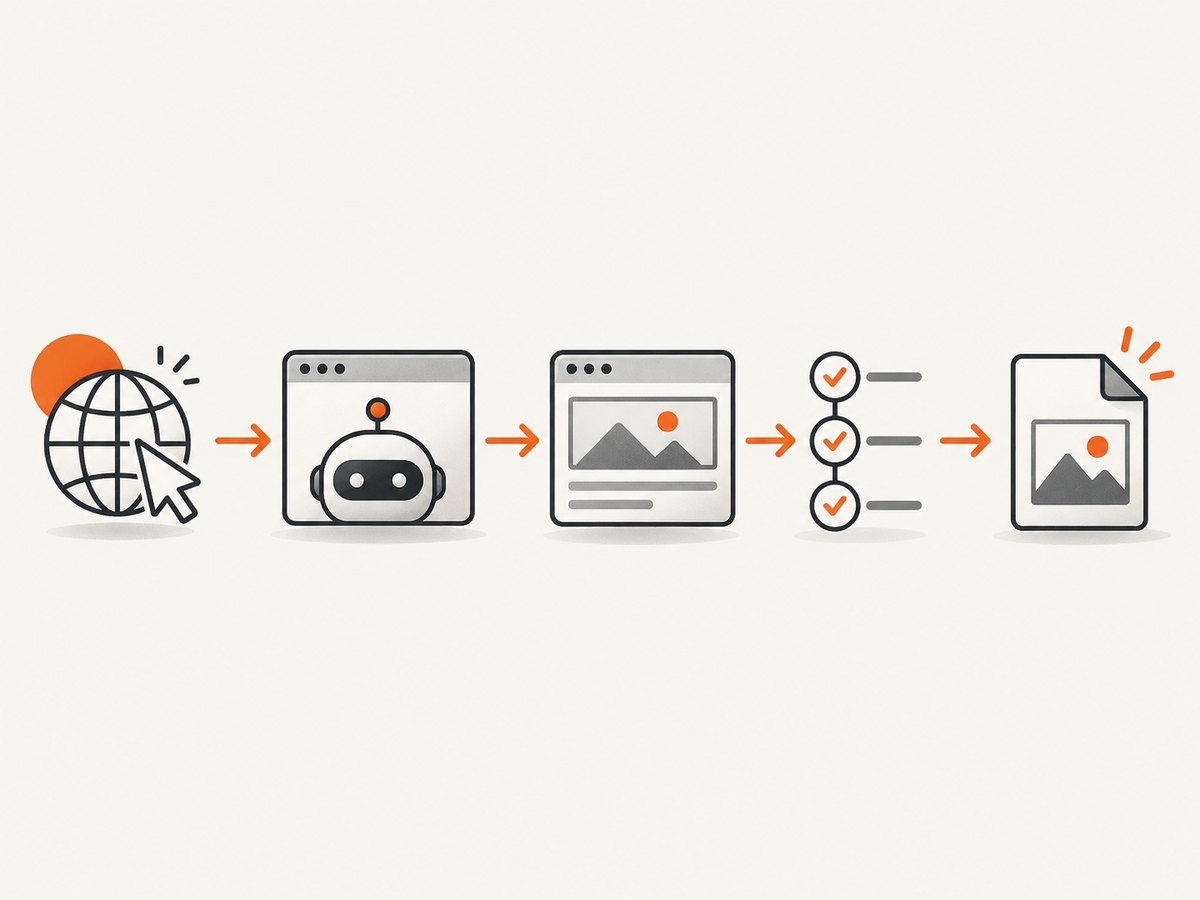
waitUntil: 'networkidle2' is a useful starting point, but it is not a universal definition of “finished.” Analytics, polling, advertisements, WebSockets, and lazy components can keep a page active or can render after network activity appears idle. Puppeteer’s guide uses networkidle2 as an example; choose a page-specific readiness condition for production captures.
Wait for a selector
await page.goto('https://example.com/dashboard', {
  waitUntil: 'domcontentloaded',
  timeout: 60000
});
await page.waitForSelector('[data-testid="report"]', {
  visible: true,
  timeout: 30000
});
await page.screenshot({ path: 'report.png' });
Wait for a known state
await page.waitForFunction(
  () => document.fonts.status === 'loaded',
  { timeout: 30000 }
);
await page.screenshot({ path: 'fonts-ready.png' });
Wait a fixed delay
await new Promise(resolve => setTimeout(resolve, 1500));
await page.screenshot({ path: 'after-delay.png' });
A delay is easy to understand but less reliable than waiting for a real application state. If images load lazily, scroll through the page before a full-page shot or wait for an application signal that all content is present.
5. Make captures deterministic
Repeatable screenshots require control over inputs that affect layout:
await page.setViewport({ width: 1366, height: 768, deviceScaleFactor: 1 });
await page.emulateTimezone('UTC');
await page.setExtraHTTPHeaders({ 'Accept-Language': 'en-US' });
await page.setUserAgent('ScreenshotWorker/1.0');
await page.addStyleTag({
  content: '* { animation: none !important; transition: none !important; }'
});
Set cookies before navigation when the page has a known session or locale:
await page.setCookie({
  name: 'locale',
  value: 'en-US',
  domain: 'example.com',
  path: '/'
});
await page.goto('https://example.com');
For authenticated pages, prefer a short-lived test account or a controlled browser context. Never print cookies, authorization headers, or page contents in logs.
6. A production-oriented capture function
const puppeteer = require('puppeteer');

async function screenshotUrl(url, outputPath) {
  const browser = await puppeteer.launch({ headless: true });
  try {
    const page = await browser.newPage();
    await page.setViewport({ width: 1440, height: 900, deviceScaleFactor: 1 });
    page.setDefaultNavigationTimeout(60000);
    await page.goto(url, { waitUntil: 'domcontentloaded' });
    await page.waitForSelector('body', { timeout: 30000 });
    await page.evaluate(() => document.fonts.ready);
    await page.screenshot({ path: outputPath, fullPage: true, type: 'png' });
  } finally {
    await browser.close();
  }
}

screenshotUrl('https://example.com', 'site.png').catch(console.error);
For a service, reuse a browser process and create a fresh page or incognito context per job. Launching a new browser for every request is simple but adds startup latency and uses more CPU. Bound concurrency so several large pages cannot exhaust memory. Set navigation and selector timeouts, record the URL and duration, and retain a failure screenshot or HTML dump only when your privacy policy allows it.
7. Troubleshooting Puppeteer screenshots
| Symptom | Likely cause | Fix |
|---|---|---|
TimeoutError during goto |
The page keeps connections open, is slow, or blocks the browser. | Increase the navigation timeout, use domcontentloaded, then wait for a specific selector. Check the URL from the worker. |
| Blank or partly rendered image | Capture ran before client-side rendering, fonts, or images completed. | Wait for a known element, document.fonts.ready, and an application-ready state. For lazy content, scroll before fullPage. |
| Element screenshot says the node was detached | The framework replaced the element after you obtained its handle. | Wait for rendering to settle and call waitForSelector again immediately before element.screenshot(). |
| Full page is unexpectedly short | The page has not inserted all content or uses a scroll container. | Trigger the page’s loading behavior, inspect the scroll container, and capture that element or wait for its final height. |
| Fonts differ from a desktop browser | The container lacks the font or the font request failed. | Wait for document.fonts.ready, verify network access, and provide the required font in the runtime. |
| Chrome will not start in a container | Sandbox or shared-library restrictions. | Use a runtime supported by your deployment, install required libraries, and only use --no-sandbox when your container security model requires it. |
| Screenshot is too large | High dimensions, retina scale, or PNG compression. | Reduce viewport or deviceScaleFactor, capture a region, or use JPEG/WebP with an appropriate quality. |
8. Performance, reliability, and cost considerations
Capture time is dominated by browser startup, navigation, JavaScript execution, image downloads, and full-page rasterization. Reuse browsers, keep pages isolated, and avoid unnecessary fullPage captures. A viewport image is usually cheaper in CPU and memory than a very tall document.
Reliability improves when readiness is explicit. Record whether navigation succeeded, which selector was used as the readiness signal, the final URL after redirects, and the output dimensions. Retry transient navigation failures with a limit and backoff; do not retry deterministic selector errors forever. Treat bot checks, login pages, and consent overlays as page states that need handling rather than assuming every response is the intended document.
Puppeteer itself is an open-source automation library, but operating it has infrastructure costs: browser CPU and memory, bandwidth for assets, storage for images, and engineering time for browser updates and site-specific waits. If you run a high-volume screenshot endpoint, estimate concurrency from memory usage and apply request limits before adding workers.
9. Or skip the browser setup
ScreenshotNeo provides a website screenshot API and MCP server. One GET request returns PNG, JPEG, WebP, or PDF output, so you do not need to package Chromium, manage waits, or maintain capture workers for the basic case. See the ScreenshotNeo API documentation for all options.

curl -G "https://api.screenshotneo.com/v1/shot" -d access_key=YOUR_API_KEY --data-urlencode url=https://stripe.com -o shot.webpimport requests
r = requests.get("https://api.screenshotneo.com/v1/shot", params={"access_key": "YOUR_API_KEY", "url": "https://stripe.com"}, timeout=90)
open("shot.webp", "wb").write(r.content)const q = new URLSearchParams({ access_key: 'YOUR_API_KEY', url: 'https://stripe.com' });
const res = await fetch(`https://api.screenshotneo.com/v1/shot?${q}`);ScreenshotNeo can capture full pages with lazy images loaded, a single CSS-selected element, dark mode, device presets or custom viewports, retina scale, PDFs with paper size and margins, custom CSS and JavaScript, clicks, selector or network-idle waits, blocked ads and resource types, headers, cookies, user agents, authorization, timezone, geolocation, transparent backgrounds, resizing, caching, signed links, asynchronous jobs, webhooks, bulk capture, usage data, and an OpenAPI specification. Its parameter names also match those used by other screenshot APIs, which makes migration easier.
Cookie banners, newsletter popups, and chat widgets are removed before the shot. Bot checks, blank pages, timeouts, failed loads, and cache hits are not billed, and response headers identify the page verdict and billing result. An MCP server provides take_screenshot, get_page_info, and capture_pdf tools for Claude, Cursor, and other MCP clients. The Free plan includes 1,000 screenshots per month with no card; paid plans start at $5 for 3,000 screenshots.
Create a free ScreenshotNeo account and start with 1,000 screenshots a month at no charge.
10. FAQ
Does Puppeteer save screenshots as PNG by default?
Yes. PNG is the documented default when you do not specify another type. A path saves the file; without it, the method returns image bytes.
Can I screenshot only an element below the fold?
Yes. Obtain the element with waitForSelector and call its screenshot() method. Puppeteer scrolls it into view before capture.
Should I always use networkidle2?
No. It is a useful example, but pages with polling, analytics, or delayed rendering need a page-specific selector or readiness condition.
How do I capture a transparent image?
Use omitBackground: true and an alpha-capable output such as PNG.
Why is my full-page image enormous?
The document may be very tall, the viewport may use a high device scale factor, or the page may contain large images. Capture a region, reduce scale, or choose WebP/JPEG when transparency is unnecessary.


