How to Capture Website Screenshots in Bubble
Learn how to capture external URLs, Bubble pages, and individual elements as images or PDFs, with plugin guidance, troubleshooting, and an API option.
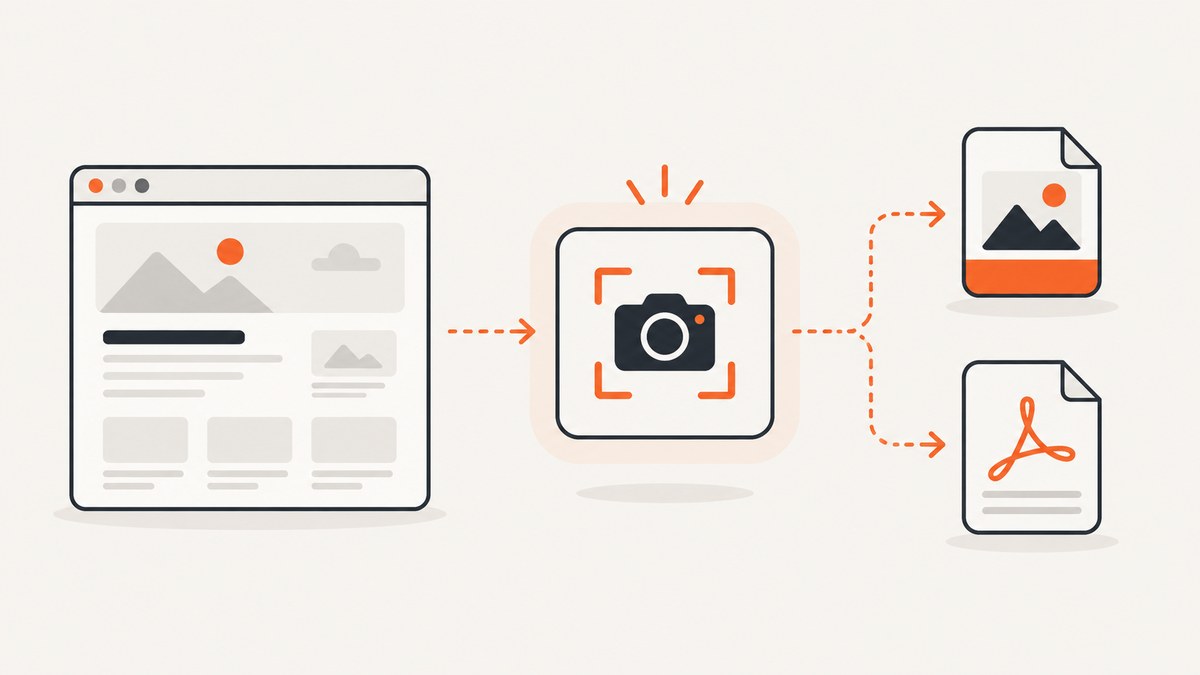
There are two different jobs hidden in the phrase “website screenshots in Bubble”:
- Capture an external website by URL, such as a public marketing page.
- Capture a page or element rendered inside your Bubble app.
Choose the workflow that matches your target. A URL screenshot service is the right fit for an arbitrary external site. A Bubble screenshot or export plugin is usually better when the target is your own page, group, or reusable element. The Marketplace listings describe these as separate integrations rather than a native Bubble feature that can render any URL on demand. [c001] [c002] [c003]
Quick decision guide
| What you need | Best starting point | Typical output |
|---|---|---|
| Public or external URL | API-backed Web Screenshot integration | PNG/JPG or another image format |
| One Bubble element | Screenshot Image and PDF, Advanced Screenshot Element, or PDF & Screenshot Pro · BEP | PNG/JPG, sometimes PDF |
| Visible viewport | Advanced Screenshot Element or a page capture action | PNG/JPG download or stored file |
| Entire Bubble page | A plugin that supports full-page capture | PNG/JPG or PDF |
| Document export | Screenshot Image and PDF or PDF & Screenshot Pro · BEP | PDF saved or downloaded |

Capture an external website URL from Bubble
For an external URL, the Bubble Marketplace’s Web Screenshot listing describes a plugin that accepts a target URL, image format, and size. It also lists options such as entire-page capture, image quality, delay, and scrolling. Its setup instructs you to create an ApiFlash access key and enter that key in the plugin. The listing says the service supports GET and POST requests and usage or quota monitoring. [c001]
Because Marketplace configuration screens change, use the current plugin documentation for the exact field names and workflow actions. The durable pattern is:
- Install the Web Screenshot plugin from the Bubble Marketplace.
- Create the provider account and API key required by the plugin.
- Paste the key into the plugin’s settings. Keep it in a private configuration field; do not display it in a text element or expose it in client-side JavaScript.
- Add an input for the destination URL. Validate that it is an
https://orhttp://URL before starting the workflow. - Add the plugin’s screenshot action to a button or backend workflow.
- Set the format, dimensions, quality, delay, scrolling, and full-page options required by your use case.
- Handle the returned image URL or file according to the plugin documentation: show it in an Image element, let the user download it, or save it to Bubble storage.
URL capture checklist
- Decide whether the capture should be the viewport or the entire page.
- Set a fixed width and height when you need repeatable thumbnails.
- Use a delay when the page renders content after the initial load.
- Use scrolling or full-page mode for pages whose content extends below the fold.
- Confirm whether the destination is public. The Marketplace description does not establish support for login-protected pages, private networks, or custom authentication headers. [c001]
- Check current quotas, retention, privacy, and pricing in the provider’s documentation before storing customer data.
Capture a Bubble page or element
If the target is rendered by Bubble, use a plugin whose capture scope matches the output you need. The Marketplace listings describe three overlapping approaches:
Screenshot Image and PDF
This plugin can capture a specific Bubble element or a whole page, produce PNG or PDF output, and upload generated files to your app database. The listing says capture can be started through workflow actions. [c002]
Advanced Screenshot Element
This plugin supports a specific element by ID, the visible part of the page, or the full page. Its listing describes JPG and PNG output, browser download, and a URL that can be stored in Bubble file storage. [c003]
PDF & Screenshot Pro · BEP
This plugin creates PDFs from pages, groups, or elements and captures PNG screenshots from page sections. Its setup instructions say to add the generator element, enable ID attributes in Bubble settings, assign an ID to the target, and invoke the appropriate workflow action. Outputs can be downloaded or saved to Bubble storage. [c004]
Element capture step by step
- Open Settings → General in Bubble and enable ID attributes if the selected plugin requires them.
- Give the target group or element a stable ID, such as
invoice-preview. Avoid IDs generated dynamically from user data. - Place the plugin’s generator or capture element on the page as its documentation requires.
- Add a workflow action to capture the target after its data has loaded.
- Choose PNG or JPG for an image. Choose PDF when the result is a document intended for printing or sharing.
- Send the result to an Image element, a download action, your database, or Bubble file storage.
Make captures consistent
Screenshot output is a rendering of the page at one moment. Small timing and layout differences can change the pixels, so define a capture contract for your app.
Wait for data and fonts
Do not capture immediately after navigating to a page that loads data from workflows or APIs. Trigger the capture after the repeating group, chart, or custom state has the expected data. If a web font is important to the design, wait until the font has loaded or use a system fallback deliberately.
Use stable dimensions
For social cards and thumbnails, set a fixed viewport such as 1200×630 or the dimensions required by your destination. For a responsive page, capture at each viewport you support rather than assuming one desktop result represents mobile.
Prepare long pages
Full-page capture can expose lazy-loaded images that were never requested in the initial viewport. Prefer a plugin’s full-page or scrolling mode when available. For very long reports, a PDF workflow may be more reliable than one extremely tall bitmap.
Hide controls before capture
Use a custom state or a CSS class to hide buttons, editing handles, debug labels, and navigation that should not appear in the exported result. Restore the controls after the capture workflow completes if the user remains on the page.
External URL versus Bubble content
| Question | External URL | Bubble page or element |
|---|---|---|
| Where is it rendered? | A remote screenshot service loads the URL. | The current Bubble page is rendered in the user’s browser or plugin context. |
| Authentication | Verify support for login, cookies, and headers with the provider. | Uses the current Bubble user/session context. |
| Scope | Usually viewport or full URL page. | Element, visible area, full page, group, or page. |
| Storage | Depends on the API or plugin response. | Download, database upload, or Bubble file storage are listed options. |
| Best use | Monitoring or previewing public sites. | Receipts, invoices, dashboards, user-generated designs, and app pages. |
Passing a screenshot through a Bubble workflow
A common workflow is: user clicks Export → show a loading state → run the plugin action → receive the file or URL → save or display the result → show a download link. Add a failure path that removes the loading state and presents a useful message.
Workflow: When Export is clicked
1. Set custom state `exporting` = yes
2. Run the plugin capture action for `invoice-preview`
3. Only when the result is returned:
   - Create a File record with the returned URL, or
   - Set Image element's dynamic image to the result
4. Set `exporting` = no
5. On error or empty result: set `exporting` = no and show an error group
Keep large files out of database text fields. Store the file object or storage URL using the plugin’s documented return type. Apply access rules so private invoices and dashboards are not publicly readable.
Common errors and fixes
| Symptom | Likely cause | Fix |
|---|---|---|
| Blank or partly blank image | Capture started before data, images, or fonts finished loading. | Trigger after the relevant workflow completes; add the plugin’s delay or wait option. |
| Element not found | The ID is missing, duplicated, or assigned to a wrapper different from the intended target. | Enable ID attributes, use one stable ID, and inspect the rendered element. |
| Only the visible portion appears | Viewport capture is enabled. | Enable full-page or scrolling capture, or capture a shorter container. |
| Text is clipped | Fixed height, overflow rules, or a font loading change. | Allow the container to grow, remove unintended overflow, and wait for fonts. |
| Images are missing | Lazy loading, blocked remote assets, or private image URLs. | Scroll before capture, make assets available to the capture context, and verify storage permissions. |
| API key error | Missing, expired, or exposed provider key. | Replace it in plugin settings, keep it server-side where possible, and check the provider account. |
| External URL fails | The site blocks automated browsers, requires login, or is unreachable from the service. | Confirm public access and provider support. Do not assume a Marketplace listing supports authenticated destinations. [c001] |
| File saves but users cannot open it | Bubble privacy rules or storage permissions deny access. | Review the file field’s privacy rules and generate a permitted download link. |
Performance, reliability, and cost
Performance
- Capture only when the user requests an export; avoid running a screenshot workflow on every page load.
- Use a smaller viewport and image dimensions for thumbnails.
- For repeated exports, cache the result by a content version or updated timestamp.
- Generate long PDFs or full-page images in a backend workflow when the browser should remain responsive.
- Compress or resize images after capture if the destination does not require source resolution.
Reliability
- Show progress while capture runs and disable duplicate clicks.
- Record the target, requested format, created time, and returned file URL for support diagnostics.
- Retry transient failures with a limit and a delay; do not retry invalid URLs or authentication errors indefinitely.
- Test representative pages in the deployed Bubble environment, including mobile widths, long content, missing images, and slow API data.
Cost and data checks
The Marketplace descriptions establish that these are plugin or API integrations, but they do not establish current quotas, prices, retention periods, privacy terms, or all mobile and dynamic-content limitations. Check the current vendor documentation before committing to a production volume or storing sensitive captures. [c001] [c002] [c003] [c004]
Or skip the browser setup
For an external URL, ScreenshotNeo provides a single HTTP request that returns a PNG, JPEG, WebP, or PDF. See the ScreenshotNeo documentation for the complete parameter list.

curl -G "https://api.screenshotneo.com/v1/shot" \
  -d access_key=YOUR_API_KEY \
  --data-urlencode url=https://stripe.com \
  -o shot.webp
import requests
r = requests.get(
"https://api.screenshotneo.com/v1/shot",
params={"access_key": "YOUR_API_KEY", "url": "https://stripe.com"},
timeout=90,
)
r.raise_for_status()
open("shot.webp", "wb").write(r.content)const q = new URLSearchParams({ access_key: 'YOUR_API_KEY', url: 'https://stripe.com' });
const res = await fetch(`https://api.screenshotneo.com/v1/shot?${q}`);
if (!res.ok) throw new Error(`Screenshot failed: ${res.status}`);
const data = Buffer.from(await res.arrayBuffer());
await fs.promises.writeFile('shot.webp', data);ScreenshotNeo can capture full pages with lazy images loaded, one element by CSS selector, dark mode, device presets or any viewport, and retina scale. It supports PDF paper size, margins, landscape mode, and page ranges; HTML/CSS to image; custom CSS and JavaScript; clicks; hidden selectors; waits for a selector, delay, or network idle; blocking ads, trackers, requests, or resource types; custom headers, cookies, user agents, Authorization, timezone, and geolocation; transparent backgrounds; resizing; caching with a chosen TTL; signed links; asynchronous jobs with signed webhooks; bulk capture for up to 100 URLs per call; a usage API; and an OpenAPI specification. Parameter names used by other screenshot APIs also work, which can simplify migration.
Before capture, ScreenshotNeo accepts cookie or consent banners like a visitor and removes more than 60 known consent platforms, newsletter popups, and chat widgets. Each step can be disabled. Bot checks or CAPTCHAs, blank pages, timeouts, failed loads, and cache hits are not billed; the response identifies the page verdict and billing result with X-Page-Verdict and X-Billed headers. Its MCP server provides take_screenshot, get_page_info, and capture_pdf tools for Claude, Cursor, and other MCP clients.
The Free plan includes 1,000 shots each month with no card. Paid plans start at $5 for 3,000 shots; yearly billing gives two months free. Create a free ScreenshotNeo account to get started.
FAQ
Can Bubble capture any public website natively?
Use an API-backed plugin for an arbitrary URL. Bubble screenshot plugins generally capture Bubble-rendered pages or elements in the current app context.
Should I choose PNG or JPG?
PNG preserves sharp text and transparency. JPG is smaller for photographic or non-transparent content. Use PDF when the result is a document rather than an image.
How do I capture one group instead of the whole page?
Assign the group a stable ID and use a plugin action that accepts an element ID or selector. Verify that the plugin captures the element’s full bounds rather than only the viewport.
Why does my export differ between desktop and mobile?
Responsive breakpoints, viewport dimensions, loaded data, and font timing can all change the rendering. Define the target viewport and wait for the page state before capture.
Can I capture a login-protected external page?
Do not assume this is supported. The reviewed Marketplace listing does not establish authenticated-page support; verify the provider’s current documentation and security model first. [c001]