How to Capture Website Screenshots in CoAnimator
Set up CoAnimator’s ScreenshotOne plugin, capture a full page, section or scrolling clip, and use the result in a video scene.
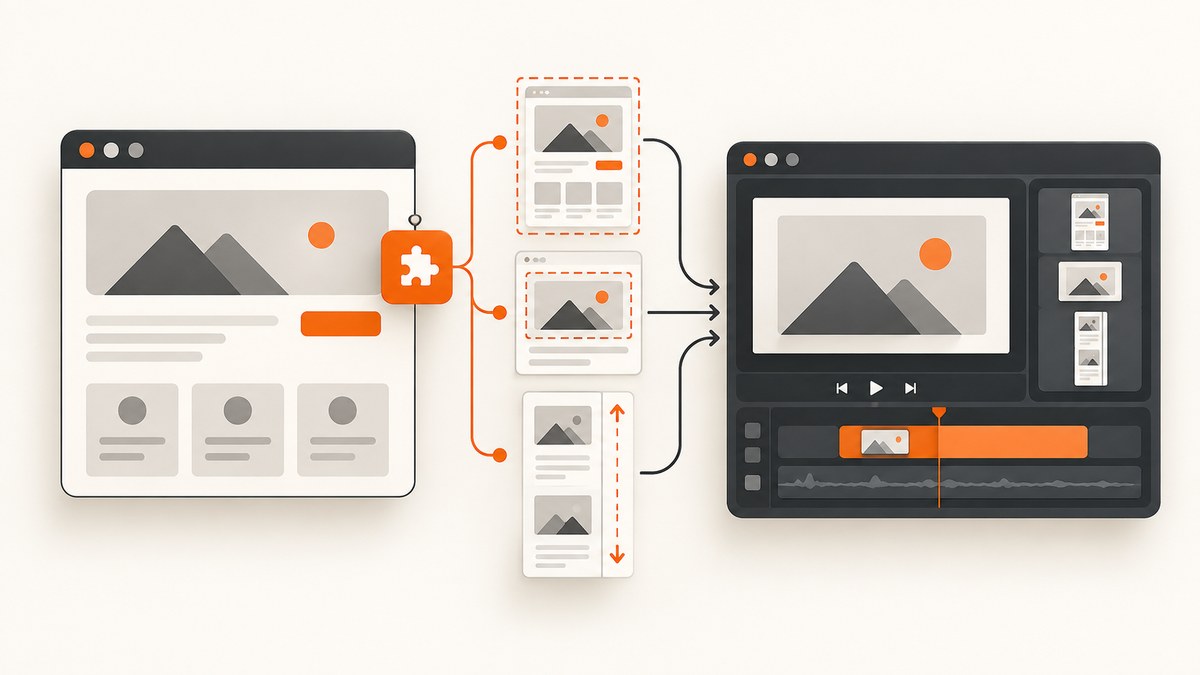
To capture a website in CoAnimator, enable its ScreenshotOne plugin, add a ScreenshotOne access key, save the settings, then start a new agent session and ask for the page, element or scrolling clip you need. The capture uses your ScreenshotOne account and the website URL is processed by ScreenshotOne. Once the result is ready, review it and ask the agent to place it in a scene or use CoAnimator’s Mockup Motion tool to put it in a device frame.
This is a plugin workflow, not a command you run in a terminal: CoAnimator’s published instructions have you configure the integration in the app and request a capture from an agent. The sections below walk through setup, capture choices, scene use, common failures and an API alternative when you need a direct image response in code.
1. Choose what you need to capture
Decide the capture’s role in the video before configuring it. CoAnimator’s integration supports a full page, a specific page element and a scrolling website clip. The first two produce an image for a scene; a scrolling clip can show more of the browsing experience over time.
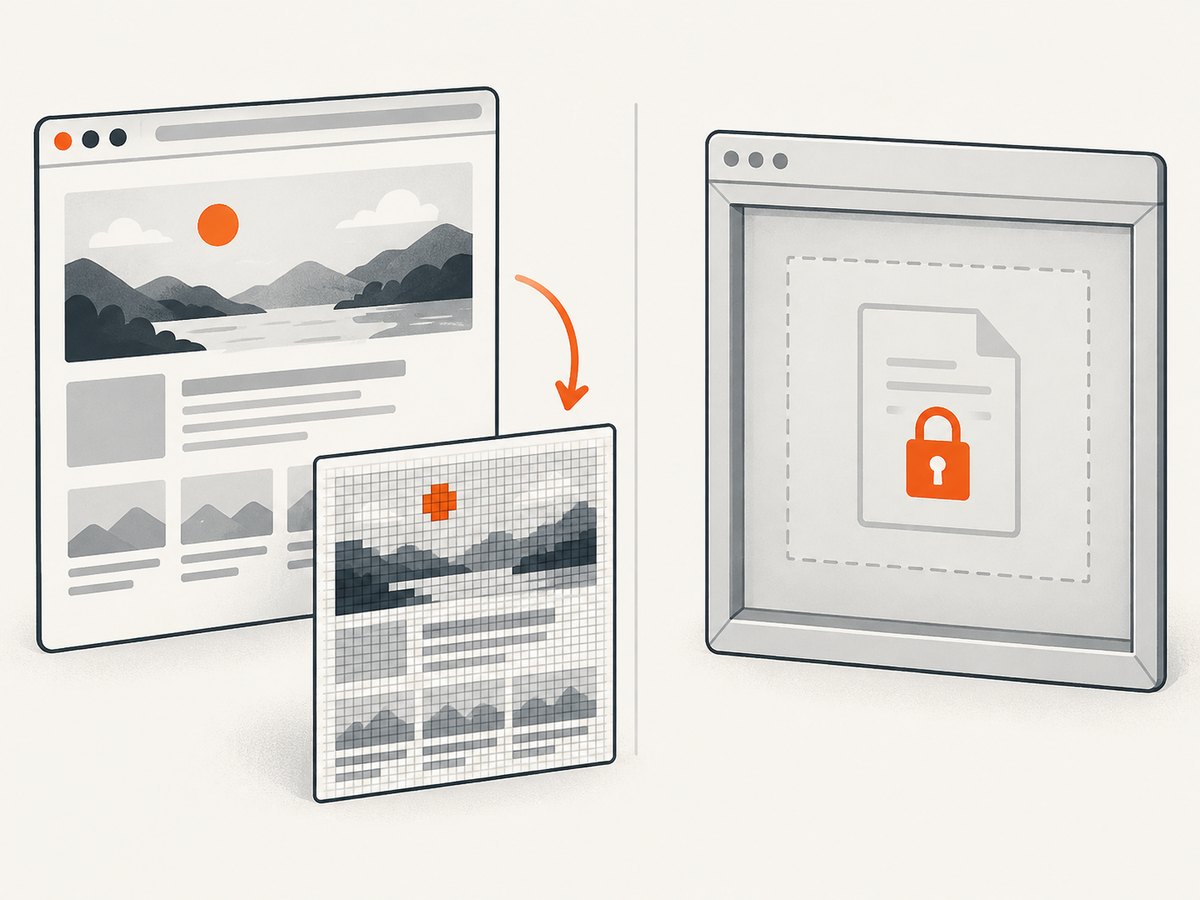
| Capture | Use it for | Prompt detail to include |
|---|---|---|
| Full page | A landing page, product page or complete flow shown as a still. | Say “full-page screenshot” and describe where it should appear in the project. |
| Specific element | A focused pricing block, feature section or other page area. | Name the section in ordinary language and give its page URL. |
| Scrolling clip | A product demo or tutorial that reveals a longer page progressively. | Ask for a “scrolling clip” and explain the scene or device mockup to use. |
For a particular scene, you can also request a different capture size or website layout. The integration settings expose image format, website layout and page-overlay settings. Use a full page when the content must be understood as a whole; use a selected section when small text or a specific message should carry the scene. A scrolling clip makes sense when the movement through the page is part of the explanation.
2. Configure the ScreenshotOne plugin
- Install and open CoAnimator, then open Plugins.
- Select ScreenshotOne and enable the plugin.
- Get an access key from your ScreenshotOne dashboard. The integration guide specifically says to use the access key, not the signing secret.
- Paste the access key into the plugin’s ScreenshotOne access-key field. Choose the image format, website layout and page-overlay settings that suit the scene.
- Save the settings.
- Start a new agent chat or terminal session. A new session is important because the agent needs to load the saved plugin configuration.
Keep credentials in plugin setup. CoAnimator’s plugin documentation says not to put keys in project files or prompts. The plugin guide says the key is stored in CoAnimator’s protected plugin secret store. If the plugin reports that setup is needed or the key is invalid, resolve that status before asking for a capture.
Configuration and a successful capture are separate steps. CoAnimator’s general plugin guidance says a connection test can check account access without rendering a capture. A successful connection therefore does not prove that a particular URL will load or render correctly.
3. Ask the agent for a capture
In the new session, give the agent the exact URL, the scope and what the capture should do in the project. The examples below follow the prompts in ScreenshotOne’s CoAnimator integration guide. They are natural-language examples, not required command syntax.
Capture https://screenshotone.com as a full-page screenshot for this project.Capture the pricing section of https://screenshotone.com/pricing/ as an image.Create a scrolling clip of https://screenshotone.com and use it in a product demo with a device mockup.For your own site, replace the sample host with the page you are authorized to capture. Be specific about the intended result. For example, tell the agent whether to show an entire page or a named section, whether the capture belongs in a phone or desktop scene, and whether the scene should hold on the image or use the scrolling clip. After the agent finishes, inspect the output before putting it on the timeline or publishing. Check that the right page loaded, important content is visible and the image fits the planned composition.
4. Turn the capture into a scene
A screenshot is a source asset; it still needs to work at the size and pace of the video. Review it at the scene’s intended display size. A full page scaled down to fit can make small text hard to read. If the scene is meant to explain one feature, capture that element on its own instead of shrinking the entire page. If viewers need to see how a page unfolds, use the scrolling-clip option.
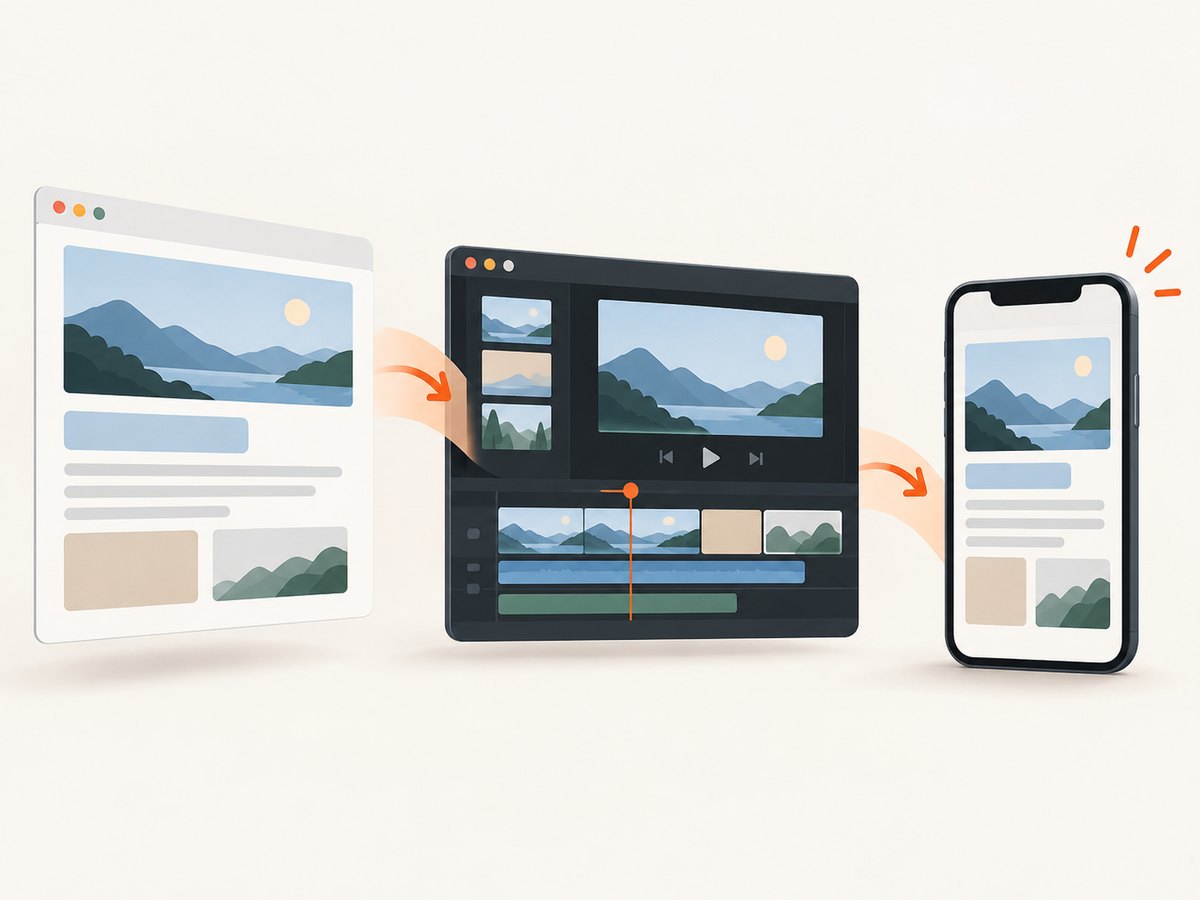
CoAnimator’s standalone Mockup Motion tool can place a screenshot or recording in a device frame, choose a wallpaper and animation, preview the result and export MP4. This is useful when a product page should appear on a phone or desktop device. The documentation describes Mockup Motion as included in version 0.7.2; capabilities and availability may change in later releases, so check the installed version’s documentation.
- Decide whether the scene needs a static screenshot, a page section or a scrolling clip.
- Ask the agent to use the asset in the scene and specify its role in the story.
- For a device-framed presentation, open Mockup Motion, choose the frame and animation, and preview it.
- Review legibility, crop and pacing in the exported project before publishing.
5. Data, account and cost details
The capture is performed through ScreenshotOne, not solely on your local machine. CoAnimator says website capture makes network requests, and the integration guide states that ScreenshotOne processes website URLs. Avoid putting private tokens or sensitive query parameters in a URL unless you have confirmed that sending the URL to the service is appropriate for your workflow.
Capture usage is charged to your ScreenshotOne plan. The CoAnimator documentation does not establish a specific price or free allowance, so check ScreenshotOne’s current plan terms before running a large batch. CoAnimator’s local rendering and the remote website-capture operation are distinct: local video export does not make the website capture local.
6. If the plugin route fails
| Symptom | Likely cause | What to do |
|---|---|---|
| Plugin says setup is needed | The plugin is enabled but missing a required key or connection. | Open Plugins, finish ScreenshotOne setup, save, then start a fresh agent session. |
| Invalid key or account access failure | The wrong credential was pasted, it was mistyped, or it is no longer valid. | Use the ScreenshotOne access key, not the signing secret. Copy it again from the dashboard and save the settings. |
| Agent does not see the updated settings | The current session may have started before the key or capability was changed. | Start a new agent chat or terminal session after saving plugin changes. |
| Capture does not show the requested page area | The prompt may be ambiguous, the page may have changed, or the chosen capture scope may not fit. | Give the exact URL and section name, state full page versus element versus scrolling clip, and request a new result. |
| Image looks too small in the scene | A full-page image has been reduced to fit the frame. | Capture the relevant element or ask for a different size/layout for that scene. |
| Connection succeeds but the capture is wrong or absent | The connection check validates account access but does not render the target page. | Check the URL and page availability, then make an actual capture request and inspect its output. |
| Unexpected account usage | Captures use the user’s ScreenshotOne plan. | Review the provider account’s current usage and plan terms before repeated or bulk capture work. |
If the same page continues to fail, reduce the request to one clear capture, confirm the page loads in a normal browser, and retry. Then add the scene direction after you have a usable source asset. This separates a website-capture problem from an instruction about how the agent should edit the video.
7. When to use a direct screenshot API
The CoAnimator plugin is the documented path for capture inside the editor. Use a direct API when your application, script or backend needs to request an image independently of a CoAnimator agent session. ScreenshotOne’s official CoAnimator integration guide documents its own plugin and account flow. ScreenshotNeo is another website screenshot API and MCP server; its call below returns an image directly, so it can fit a separate capture pipeline or an agent workflow.
Or skip the browser setup
ScreenshotNeo takes a website URL in one GET request and can return PNG, JPEG, WebP or PDF. Its call is useful when you want the screenshot as an API response instead of setting up browser automation yourself. See the ScreenshotNeo API documentation for request options.
curl -G "https://api.screenshotneo.com/v1/shot" -d access_key=YOUR_API_KEY --data-urlencode url=https://stripe.com -o shot.webpimport requests
r = requests.get(
"https://api.screenshotneo.com/v1/shot",
params={"access_key": "YOUR_API_KEY", "url": "https://stripe.com"},
timeout=90,
)
open("shot.webp", "wb").write(r.content)const q = new URLSearchParams({ access_key: 'YOUR_API_KEY', url: 'https://stripe.com' });
const res = await fetch(`https://api.screenshotneo.com/v1/shot?${q}`);
if (!res.ok) throw new Error(`Screenshot request failed: ${res.status}`);
await Bun.write('shot.webp', res);The Python example requires the requests package. The JavaScript example uses the built-in fetch API and Bun’s file-writing helper; in a Node.js project, save the response body with Node’s filesystem API. Replace the sample URL with the page you want. Keep the access key on the server or in a protected environment variable rather than exposing it in public client code.
ScreenshotNeo removes cookie and consent banners, newsletter popups and chat widgets before capture; each of those steps can be turned off. Bot checks, blank pages, timeouts, failed loads and cache hits are not billed, and each response reports page verdict and billing status in headers. Its MCP server provides take_screenshot, get_page_info and capture_pdf tools for Claude, Cursor and other MCP clients. The free plan includes 1,000 screenshots a month with no card; paid plans start at $5 for 3,000 screenshots. Sign up for 1,000 free screenshots a month with no card.
8. A reliable capture workflow
- Be precise: give a complete URL and name the capture scope.
- Keep credentials out of prompts: use plugin setup for the key.
- Refresh the session: start a new agent session after changing settings.
- Inspect before publishing: confirm the page, crop, legibility and scene fit.
- Watch provider usage: captures use your ScreenshotOne plan; check current terms before repetitive capture work.
- Keep sensitive data in mind: the website URL is processed by ScreenshotOne.
For repeated captures of the same page, consider whether you need a fresh view each time or whether an existing asset is adequate. The reviewed CoAnimator materials do not specify a caching control, capture latency target or guaranteed availability, so do not build timing or cost assumptions around undocumented behavior. For a dependable production workflow, allow time to review the output and retry a failed capture before a video deadline.
Frequently asked questions
Can I capture just a pricing section?
Yes. The integration supports an individual page element. Give the agent the page URL and identify the pricing section in the request.
Does the capture happen entirely on my computer?
No. CoAnimator describes website capture as a network request, and ScreenshotOne processes the website URL. CoAnimator’s local video rendering does not change that.
Can I use a ScreenshotOne signing secret?
The CoAnimator integration guide says to use the access key, not the signing secret.
Can I put the result in a device mockup?
Yes. CoAnimator’s Mockup Motion tool can place a screenshot or recording in a device frame, apply an animation and export MP4.
Is there a documented CoAnimator terminal command for taking a screenshot?
The reviewed integration instructions describe enabling the plugin and asking the agent in a new session. They do not provide a standalone screenshot CLI command or a public capture endpoint.
Sources
- CoAnimator Plugins documentation for plugin setup, network usage, credential handling and starting a new session.
- ScreenshotOne’s CoAnimator integration guide for access-key setup, settings, capture types and example prompts.
- CoAnimator standalone tools documentation for Mockup Motion workflow.
- ScreenshotOne’s integration announcement for account usage and URL processing.


