How to Capture Website Screenshots in Dirstarter
Configure Dirstarter’s automated listing screenshots, trigger captures from the admin panel or code, troubleshoot failures, and simplify the workflow.
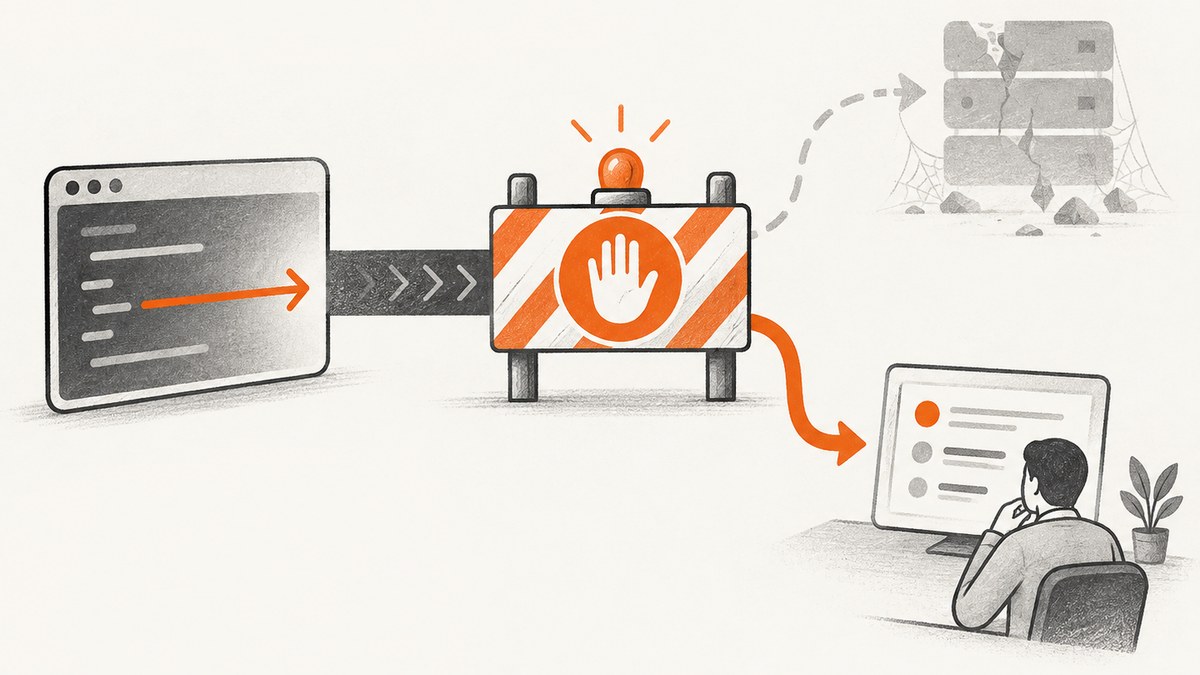
Direct answer: Dirstarter captures directory listing screenshots through its documented ScreenshotOne integration. Add SCREENSHOTONE_ACCESS_KEY to your environment, then let the admin form generate a screenshot or call fetchAndUploadMedia(websiteUrl, s3Path, "screenshot") from lib/media.ts. The helper builds the ScreenshotOne request, downloads the image, and uploads it to S3. Dirstarter’s content automation can run this step after it creates a draft, alongside website scraping, structured content generation, and favicon extraction.
This guide covers the documented automated listing workflow. It is different from taking a one-off screenshot manually in a desktop browser.
What Dirstarter’s screenshot integration does
Dirstarter uses screenshots as media for directory listings. The documented flow is:
- Start with a tool or website URL.
- Scrape the website and generate structured listing content.
- Capture a screenshot through ScreenshotOne.
- Extract a favicon.
- Upload the screenshot to S3 and save the listing data.
The integration is implemented in lib/media.ts. Its documented getScreenshotFetchUrl function constructs the provider URL, while fetchAndUploadMedia fetches the resulting image and stores it at the supplied S3 path. See Dirstarter’s Media documentation and Content Management guide for the project-specific flow.
Prerequisites and environment configuration
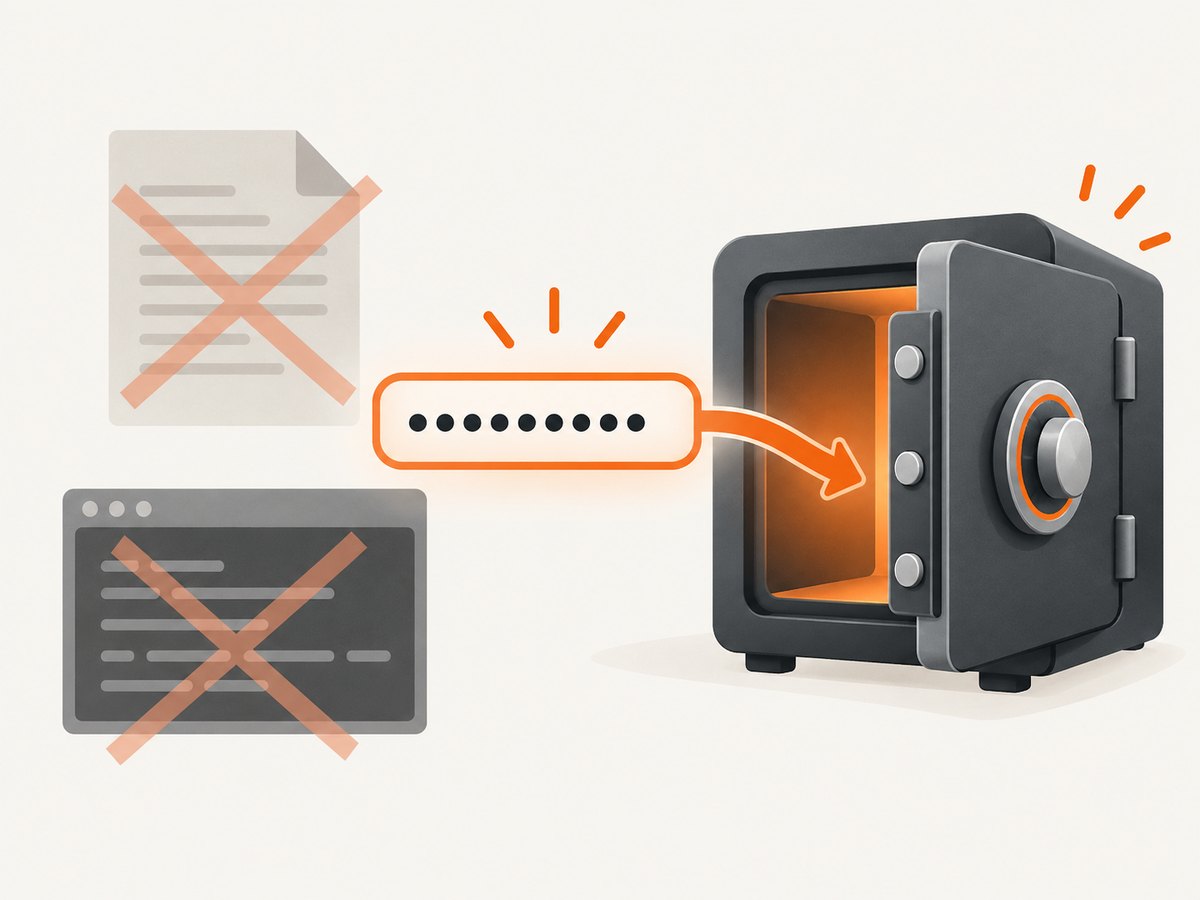
You need a Dirstarter project, an S3 configuration suitable for the project’s media flow, and a ScreenshotOne account with an API key. The key belongs in the project environment, never in browser code or committed source.
- Create or retrieve your ScreenshotOne API key.
- Add the variable below to your local
.envfile:
SCREENSHOTONE_ACCESS_KEY=your_access_keyDirstarter’s Environment Setup documentation lists SCREENSHOTONE_ACCESS_KEY as the ScreenshotOne API key variable. Keep .env out of version control, and provide the variable through your deployment platform’s secret manager in production.
Check the environment before capturing
- Confirm the variable name is exactly
SCREENSHOTONE_ACCESS_KEY. - Restart the development server after changing
.env. - Verify the process that runs the capture helper can read the variable.
- Check that the S3 destination and credentials used by Dirstarter are available to the same process.
- Use a public, fully qualified URL for the first capture while diagnosing configuration.
Generate a screenshot from the Dirstarter admin panel
Dirstarter’s admin tool form includes a FormMedia component that handles screenshot generation with a single click, according to the official Media guide. This is the easiest path when you are editing a listing and want the generated image stored with that listing.
- Open the tool or listing in the Dirstarter admin panel.
- Enter or confirm the website URL.
- Use the media form’s screenshot action.
- Wait for the generated media to be uploaded to the configured S3 location.
- Save or publish the listing after confirming that the media field contains the uploaded asset.
The form is useful for editorial work because it keeps the operation beside the listing fields. It still uses the same provider credentials and media helper as a programmatic capture.
Generate a screenshot in code
For imports, scheduled jobs, custom admin actions, or bulk listing workflows, call Dirstarter’s documented helper from the server side.
import { fetchAndUploadMedia } from "./lib/media";

const websiteUrl = "https://example.com";
const s3Path = "tools/my-tool/screenshot";

await fetchAndUploadMedia(websiteUrl, s3Path, "screenshot");
The arguments are the target website URL, the S3 path, and the media type string "screenshot". Use the path convention already used by your project so the resulting object is addressable by the listing record and any image delivery layer in front of S3.
What the documented request configures
Dirstarter’s example request configures the capture with these values:
| Setting | Documented value | Why it matters |
|---|---|---|
| Cache | Enabled | Allows the provider to reuse a recent capture where applicable. |
| Delay | 1 second | Gives client-rendered content time to appear before capture. |
| Blockers | Ads, chats, trackers, and cookie banners | Reduces distracting or unrelated page elements. |
| Format | WebP | Produces the documented web-friendly image format. |
| Viewport | 1280 × 720 | Sets the browser viewport used for the shot. |
| Image quality | 90 | Sets the documented quality value for the image. |
These are request settings shown in Dirstarter’s documentation, not a guarantee that every website will render identically. Sites can change their layout, consent behavior, loading sequence, or responsive breakpoints.
Choosing admin capture or programmatic capture
| Need | Recommended path |
|---|---|
| Generate one image while editing a listing | Use the admin panel’s FormMedia action. |
| Import many URLs | Call fetchAndUploadMedia from a server-side job. |
| Regenerate on a schedule | Run the helper from a scheduled worker and write to a predictable S3 path. |
| Customize the workflow | Use the helper or the underlying media code in lib/media.ts. |
Both paths use the documented ScreenshotOne integration. The choice is operational: the form is a one-click editorial action, while the helper fits repeatable application workflows.
Handling dynamic websites
Modern sites often render their meaningful content after the initial HTML response. The documented one-second delay is intended to give client-side rendering time to settle. It does not guarantee that every page finishes loading in that interval.
Common dynamic-content cases
- Single-page applications: the first frame may be a shell before data arrives. Use the documented delay and inspect the resulting media.
- Lazy images: images below the fold may not appear if the page only loads them after scrolling. A screenshot can therefore differ from what a visitor sees after interaction.
- Cookie dialogs: the example blocks cookie banners, but a site-specific consent implementation may still be visible.
- Chat and advertising widgets: the example requests blocking for chats and ads; a provider or script that does not match those categories may remain.
- Authentication: private pages require an authenticated capture configuration. A public directory listing should normally use a public URL.
Designing reliable listing jobs
Screenshot generation is an external network operation followed by an S3 upload. Treat it as a job with observable outcomes rather than assuming the image exists as soon as the function is called.
- Validate that the URL is absolute and uses the expected protocol.
- Use a deterministic S3 key derived from the listing identity.
- Record the URL, S3 path, timestamp, and error message for each attempt.
- Retry transient network failures with a bounded retry count.
- Do not overwrite a known-good image until a replacement capture has completed and uploaded successfully.
- Expose a pending or failed state in the admin UI so an operator can retry without editing unrelated listing fields.
Dirstarter’s documentation describes the integration and storage flow but does not publish capture success rates, latency benchmarks, or uptime figures. Keep operational expectations based on your own traffic and target websites.
Performance, caching, and cost considerations
The example enables caching and uses a one-second delay. Caching can reduce repeated work when a listing is regenerated without a meaningful website change, while the delay can increase per-request time but improve the chance that client-rendered content is visible.
- Capture only when the source URL changes, a listing is created, or a refresh is explicitly requested.
- Keep a content hash or last-captured timestamp so an import does not regenerate identical images unnecessarily.
- Run large imports asynchronously instead of blocking an HTTP request that serves the admin panel.
- Use a predictable image format and dimensions so downstream cards do not need repeated transformations.
- Monitor S3 storage growth as listings and replacement screenshots accumulate.
The research sources do not state ScreenshotOne pricing, quotas, or measured performance. Do not infer those values from the 1280 × 720, quality 90 example.
Troubleshooting Dirstarter screenshots
“The API key is missing”
Cause: the server process cannot see SCREENSHOTONE_ACCESS_KEY, or the variable is misspelled.

Fix: add the exact variable to the environment used by the capture process, restart the process, and confirm the secret is configured in the deployment environment rather than only on your laptop.
The admin action does nothing
Cause: the form action may have failed before the S3 upload, or the request may still be running.
Fix: inspect server logs around FormMedia, verify the target URL, check provider credentials, and confirm S3 permissions. Add a visible pending and error state if you maintain the form.
The screenshot is blank
Cause: the site may require JavaScript, load content after the configured delay, block automated browsers, or fail to load from the capture environment.
Fix: open the URL publicly, increase the wait configuration where supported by your integration, and test a simpler public page. Treat a blank result as a capture failure rather than publishing it as a listing thumbnail.
Cookie banners, chat, or ads remain
Cause: the site’s implementation may not match the blocker categories in the documented example.
Fix: inspect the page-specific selectors and adjust the provider request or post-processing flow available in your project. The example settings are configuration values, not universal guarantees.
The image was generated but is missing from the listing
Cause: the provider fetch succeeded but the S3 upload, object path, or database update failed.
Fix: check the exact S3 key passed to fetchAndUploadMedia, verify bucket permissions, and confirm that the listing record stores the same path returned by the media workflow.
Only part of the page appears
Cause: the documented viewport is 1280 × 720, which captures a viewport-sized image rather than automatically proving that every below-the-fold section rendered.
Fix: decide whether the listing needs a representative viewport image or a full-page capture, then configure the provider and media presentation for that requirement.
Or skip the browser setup
If you are building a new capture workflow instead of maintaining Dirstarter’s ScreenshotOne integration, ScreenshotNeo provides a single GET request for a PNG, JPEG, WebP, or PDF. Its clean-shot flow accepts consent banners like a visitor and removes more than 60 known consent platforms, newsletter popups, and chat widgets before capture; each step can be turned off. Bot checks, CAPTCHAs, blank pages, timeouts, failed loads, and cache hits are not billed, and the response identifies the result with X-Page-Verdict and X-Billed headers. ScreenshotNeo also provides an MCP server with take_screenshot, get_page_info, and capture_pdf for Claude, Cursor, and other MCP clients.
Read the ScreenshotNeo API documentation for all options. This is a complete runnable cURL example:
curl -G "https://api.screenshotneo.com/v1/shot" -d access_key=YOUR_API_KEY --data-urlencode url=https://stripe.com -o shot.webpPython:
import requests

r = requests.get(
    "https://api.screenshotneo.com/v1/shot",
    params={"access_key": "YOUR_API_KEY", "url": "https://stripe.com"},
    timeout=90,
)
open("shot.webp", "wb").write(r.content)
Node.js:
const q = new URLSearchParams({ access_key: 'YOUR_API_KEY', url: 'https://stripe.com' });
const res = await fetch(`https://api.screenshotneo.com/v1/shot?${q}`);
ScreenshotNeo supports full-page capture with lazy images loaded, CSS-selector element capture, dark mode, 12 device presets and custom viewports, retina scale, PDF paper sizes and page ranges, custom CSS and JavaScript, clicks, selector waits, delays, network-idle waits, request blocking, headers, cookies, user agents, authorization, timezone, geolocation, transparent backgrounds, resizing, configurable caching, signed image links, asynchronous jobs with signed webhooks, bulk capture for 100 URLs per call, a usage API, and an OpenAPI specification. Its parameter names also match those used by other screenshot APIs, which can simplify migration.
The Free plan includes 1,000 screenshots per month with no card. Paid plans start at $5 for 3,000 screenshots; every feature is available on every plan. Create a free ScreenshotNeo account and start with the 1,000 monthly screenshots.
FAQ
Does Dirstarter take a desktop screenshot?
The documented feature is an automated website capture for directory listings through ScreenshotOne. It is not a manual screenshot shortcut for your desktop.
Where is the screenshot stored?
Dirstarter’s documented media flow uploads the fetched image to S3 using the path supplied to fetchAndUploadMedia.
Can I trigger captures without the admin panel?
Yes. The documented helper in lib/media.ts accepts a website URL, S3 path, and "screenshot" media type, making it suitable for server-side jobs and custom workflows.
Are the example dimensions mandatory?
No. 1280 × 720, WebP, quality 90, one-second delay, caching, and blocker options are the values shown in Dirstarter’s example request. Adapt them to your listing design and provider configuration.
Should I publish a screenshot when capture fails?
No. Keep the previous known-good image or show a pending state, record the failure, and retry after fixing the URL, credentials, loading behavior, or storage configuration.


