How to Capture Website Screenshots in FlowMattic
Capture viewport or full-page website screenshots in FlowMattic, send them to Slack or storage, troubleshoot failures, and automate the workflow.
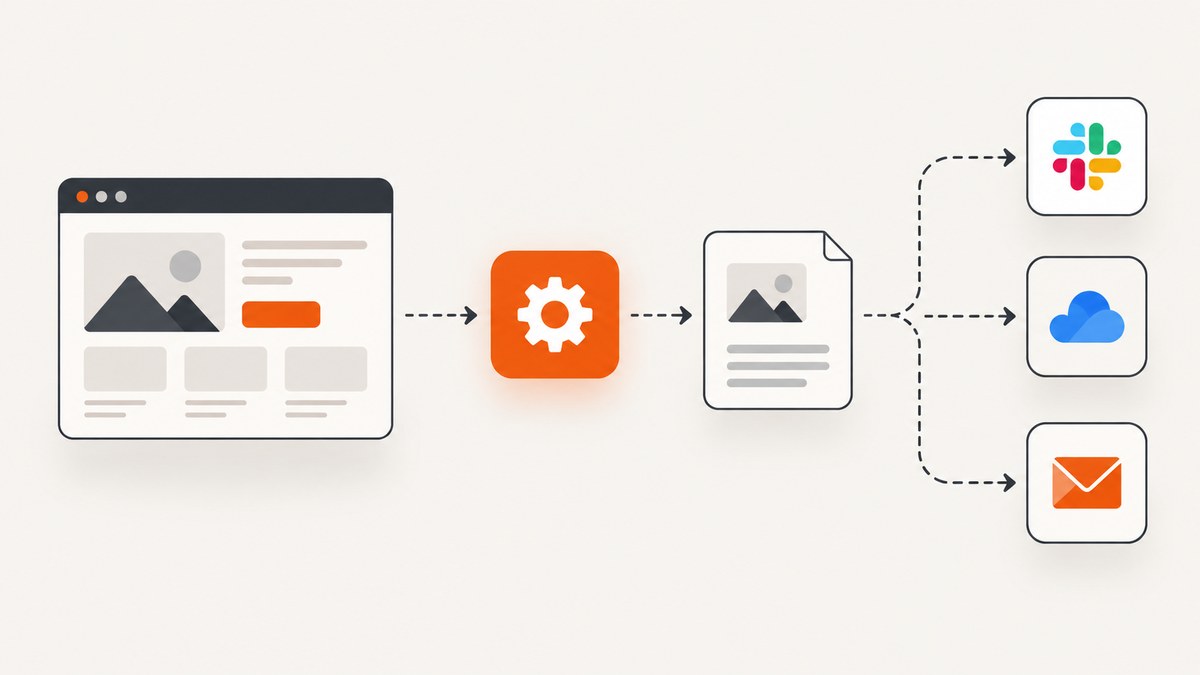
Direct answer: Use FlowMattic Browser’s Take Screenshot of URL action inside a workflow. Choose either a viewport or full-page capture and PNG or JPEG output. FlowMattic saves the image to its media library and returns a public URL that later workflow actions can use in Slack, Drive, S3, email, or another destination.
This approach keeps capture inside the automation. You do not need to take a screenshot manually and upload it to WordPress first. The workflow trigger starts the run, FlowMattic Browser renders the URL, and destination actions distribute the returned image URL.
What FlowMattic Browser can capture
FlowMattic documents two capture scopes:
| Option | What it means | Good for |
|---|---|---|
| Viewport | The visible browser area at capture time | Homepage previews, social posts, dashboard snapshots |
| Full page | The complete rendered page, including content below the fold | Archives, release notes, long product pages, audits |
You can also select PNG or JPEG. The reviewed FlowMattic documentation does not specify dimensions, browser-device emulation, compression-quality controls, delay settings, authentication handling, or custom CSS controls. Treat those as unavailable unless your own account exposes additional fields.
The action returns a public URL after saving the result in the media library. Pass that URL to subsequent actions instead of trying to move binary image data between every step.
Set up a screenshot workflow
1. Authorize FlowMattic Browser
Open FlowMattic in WordPress and authorize the FlowMattic Browser integration. The vendor presents setup as a three-step sequence: authorize Browser, choose a workflow trigger, then add the browser action and destination actions.
2. Choose a trigger
Use the trigger that matches your use case:
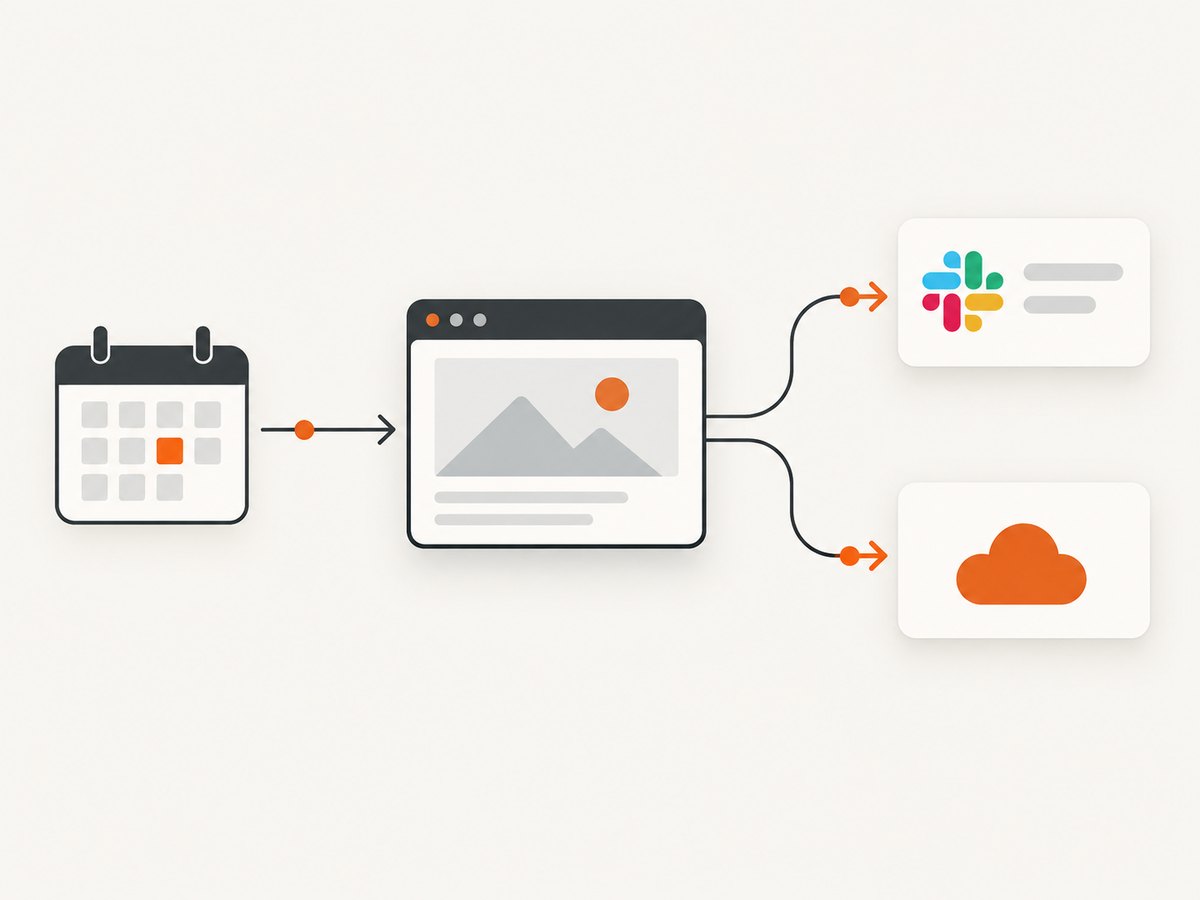
- Schedule: capture a homepage or product page at a recurring interval.
- Webhook: capture a URL when another system sends an event.
- WordPress event: capture after a post, page, or other site event starts the workflow.
For a scheduled workflow, store the target URL as a fixed value in the screenshot action. For a webhook or other dynamic trigger, map the incoming URL field into the action’s URL field. Keep the URL as a complete address, including https://.
3. Add Take Screenshot of URL
- Add a new action and select FlowMattic Browser.
- Choose Take Screenshot of URL.
- Enter or map the page URL.
- Select Viewport or Full page.
- Select PNG or JPEG.
- Run the action and inspect the returned media-library URL.
Use a fixed URL while building the workflow. Once a successful run is confirmed, replace it with a mapped trigger value if your automation needs to capture different pages.
4. Add a destination action
Map the screenshot URL from the Browser action into a later step. FlowMattic’s example destinations include Slack, Drive, S3, and Email.
For Slack, include the URL in the message or attachment field supported by your Slack action. For Drive or S3, use the returned URL as the source for the file action available in your FlowMattic setup. For email, place the URL in the message body so recipients can open the media-library asset.
Example: scheduled homepage screenshot to Slack
A practical workflow is a scheduled homepage snapshot sent to a team channel:
- Create a schedule trigger.
- Set the target to your homepage URL.
- Add Take Screenshot of URL.
- Select Viewport for a quick visual check, or Full page for an archive.
- Select PNG when you want lossless image output, or JPEG when that format better fits your destination.
- Add Slack and map the returned public URL into the message.
- Include the capture date and source URL in the Slack message using values from the trigger or action fields.
This is an illustrative workflow pattern. The documentation does not promise a particular monitoring cadence, page fidelity, or alerting behavior. If you need change detection, add a comparison or notification step that your own FlowMattic installation supports.
Viewport versus full-page screenshots
Choose viewport when the question is “What does the first screen look like?” It produces a focused image that is easier to post in a chat channel or include in a compact report.
Choose full page when the question is “What did the entire document look like?” It is better for release-page archives, competitor-page records, and long landing pages. Full-page captures can be taller and harder to inspect in chat, so a link to the returned media-library asset may be more useful than embedding it directly.
FlowMattic’s documented choices do not include a custom viewport width, height, device preset, browser zoom, or image-quality slider. Do not assume a mobile rendering mode is available in this action.
PNG versus JPEG
| Format | Use it when |
|---|---|
| PNG | You need the PNG output explicitly documented by the action, or want an image format commonly used for interface captures and archives. |
| JPEG | Your destination or downstream process expects JPEG, or you prefer that format for photographic or marketing-heavy pages. |
The reviewed source does not provide compression ratios, quality defaults, color-profile behavior, or maximum dimensions. Evaluate the resulting files in your own workflow if those details matter.

Dynamic URLs and workflow data
When a trigger supplies a URL, map only the URL value into the screenshot action. Validate that it is absolute and does not contain accidental whitespace. If your trigger carries a page identifier rather than a URL, add a separate transformation step that builds the complete address before Browser runs.
For reproducible archives, also pass the source URL, trigger timestamp, and any page identifier to the destination message or metadata fields. The screenshot action’s public URL is the handoff point; keep the original URL because a media-library link alone may not tell you which page was captured.
Common errors and fixes
| Symptom | Likely cause | Fix |
|---|---|---|
| The action cannot be selected | Browser has not been authorized or the integration is unavailable in the current account. | Complete the FlowMattic Browser authorization step, then reload the workflow editor. |
| The URL field is empty during a run | A mapped trigger field is missing or has a different name. | Inspect the trigger payload and map the field containing the complete URL. Test with a fixed URL first. |
| The page does not load | The address is malformed, redirects unexpectedly, or is unavailable to the browser service. | Open the exact HTTPS URL in a normal browser, remove whitespace, and retry with the final redirected address if necessary. |
| The result is cut off | Viewport mode was selected for a page that extends below the fold. | Switch to Full page and run the workflow again. |
| The workflow has an image but Slack or storage receives no file | The destination received the wrong output field or treated the public URL as plain text. | Map the screenshot action’s returned public URL field and follow the destination action’s documented URL or file input. |
| The screenshot looks different from a user’s browser | Rendering conditions can differ, and the reviewed action documentation does not specify device emulation or authentication controls. | Use the action for publicly reachable pages within its documented options. Do not assume logged-in or device-specific rendering is supported. |
| A full-page run is difficult to review | The image is very tall. | Use viewport mode for notifications and retain full page only for the archive or audit destination. |
Reliability and performance practices
- Start with one page: validate authorization, URL, scope, format, and destination before adding more branches.
- Keep destinations after capture: the returned public URL makes the screenshot step a clear boundary in the workflow.
- Separate notification from archiving: send a compact viewport image to Slack and retain a full-page asset in storage when both views are useful.
- Record context: include the source URL and run time beside every stored screenshot.
- Handle intermittent failures: use the retry or error-path features available in your FlowMattic installation, and make notifications identify the failed URL.
- Watch page length: full-page captures of long documents require more rendering and produce larger assets than viewport captures.
FlowMattic’s reviewed materials do not state latency, concurrency, retention duration, maximum page size, or screenshot pricing. Avoid designing an SLA or cost forecast from assumptions about those values. Check your current FlowMattic account and plan documentation for limits.
Adjacent FlowMattic Browser actions
FlowMattic Browser also lists PDF rendering, CSS-selector scraping, page-to-Markdown conversion, outgoing-link extraction, rendered HTML, HTML-plus-PNG archiving, social-image generation, and an AI-agent browse action. These can complement screenshots: for example, store rendered HTML with a full-page PNG when you need a more complete archive. Configure only the actions available in your account; the screenshot documentation does not imply that every listed browser capability shares the same fields.
Or skip the browser setup
If you need an API call from code instead of a WordPress workflow, ScreenshotNeo returns a PNG, JPEG, WebP, or PDF from one GET request. Read the ScreenshotNeo API documentation for the complete parameter list.
cURL
curl -G "https://api.screenshotneo.com/v1/shot" -d access_key=YOUR_API_KEY --data-urlencode url=https://stripe.com -o shot.webpPython
import requests

r = requests.get(
    "https://api.screenshotneo.com/v1/shot",
    params={"access_key": "YOUR_API_KEY", "url": "https://stripe.com"},
    timeout=90,
)
r.raise_for_status()
open("shot.webp", "wb").write(r.content)
Node.js
const q = new URLSearchParams({ access_key: 'YOUR_API_KEY', url: 'https://stripe.com' });
const res = await fetch(`https://api.screenshotneo.com/v1/shot?${q}`);
if (!res.ok) throw new Error(`Screenshot failed: ${res.status}`);
const buffer = Buffer.from(await res.arrayBuffer());
require('fs').writeFileSync('shot.webp', buffer);
ScreenshotNeo supports full-page capture with lazy images loaded, CSS-selector element capture, dark mode, 12 device presets or any viewport, retina scale, PDF paper size, margins, landscape and page ranges, custom CSS and JavaScript, clicks before capture, selector waits, delay or network-idle waits, ad/tracker/request/resource blocking, custom headers, cookies, user agents and Authorization, timezone and geolocation, transparent backgrounds, image resizing, selectable cache TTLs, signed links for public <img> tags, asynchronous jobs with signed webhooks, bulk capture of up to 100 URLs per call, a usage API, and an OpenAPI specification. Parameter names used by other screenshot APIs also work to ease migration.
Cookie and consent banners, newsletter popups, and chat widgets are removed before capture. Bot checks, CAPTCHAs, blank pages, timeouts, failed loads, and cache hits are not billed; each response reports the result through X-Page-Verdict and X-Billed headers. ScreenshotNeo also provides an MCP server with take_screenshot, get_page_info, and capture_pdf tools for Claude, Cursor, and other MCP clients.
The Free plan includes 1,000 screenshots per month with no card. Paid plans start at $5 for 3,000 screenshots; yearly billing gives two months free, and every feature is available on every plan. Start with a free ScreenshotNeo account.
FAQ
Does FlowMattic upload the screenshot to WordPress?
The documented action saves the result to FlowMattic’s media library and returns a public URL. You do not need a separate manual media-upload step.
Can I capture a page below the fold?
Yes. Select Full page instead of Viewport.
Can the action create a PDF?
FlowMattic Browser lists PDF rendering as an adjacent capability, while the screenshot action itself documents PNG and JPEG output. Use the PDF action when it is available in your account.
Can I use a logged-in page?
The reviewed screenshot documentation does not specify authentication handling. Confirm support in your account before relying on private-page capture.
Which format should I send to Slack?
Either documented format can work. Viewport PNG is a practical default for a compact visual check; use the public URL when the full-page asset is too tall to inspect inline.