How to Capture Website Screenshots in Go
Capture viewport, full-page, or element screenshots in Go with chromedp, save bytes safely, troubleshoot browser issues, and compare a hosted API option.
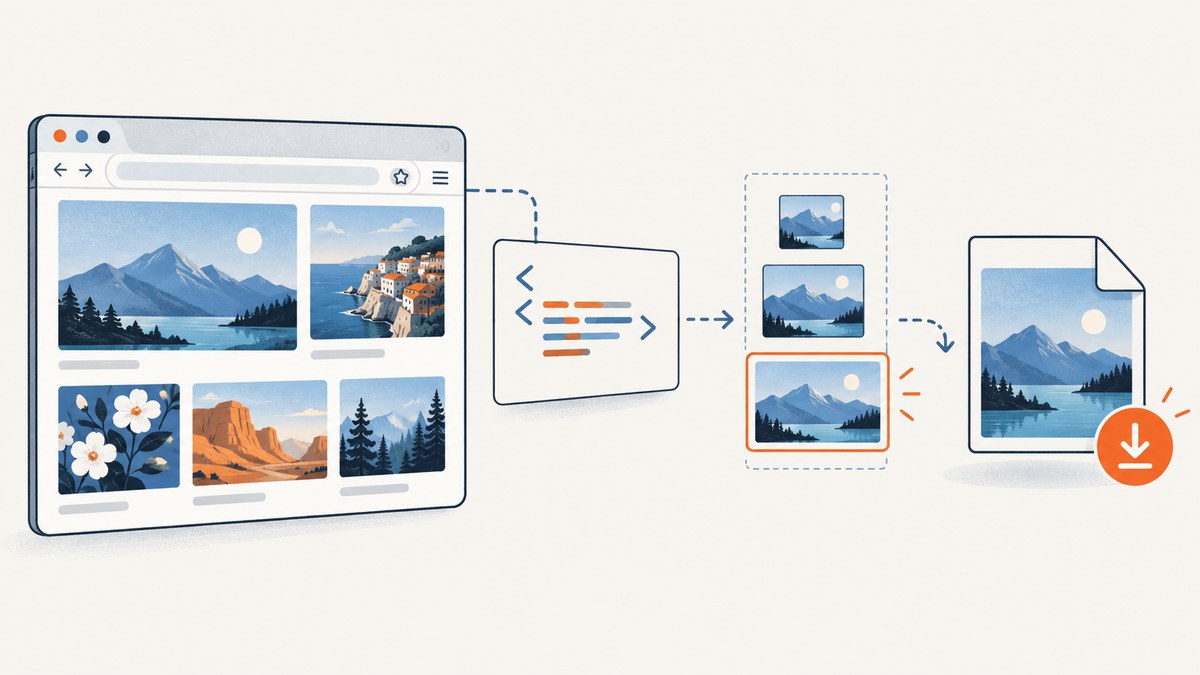
Direct answer: use chromedp to control Chrome or Chromium from Go through the Chrome DevTools Protocol. Navigate to a URL, run one of chromedp’s screenshot actions, receive the image as a byte slice, and write those bytes to a file. Choose CaptureScreenshot for the current viewport, FullScreenshot for the page beyond the viewport, or Screenshot for the first element matching a CSS selector.
This guide shows a complete implementation, explains browser and page-readiness concerns, covers output formats and quality, and includes troubleshooting for the failures that tend to appear in automation.
1. Choose the screenshot scope
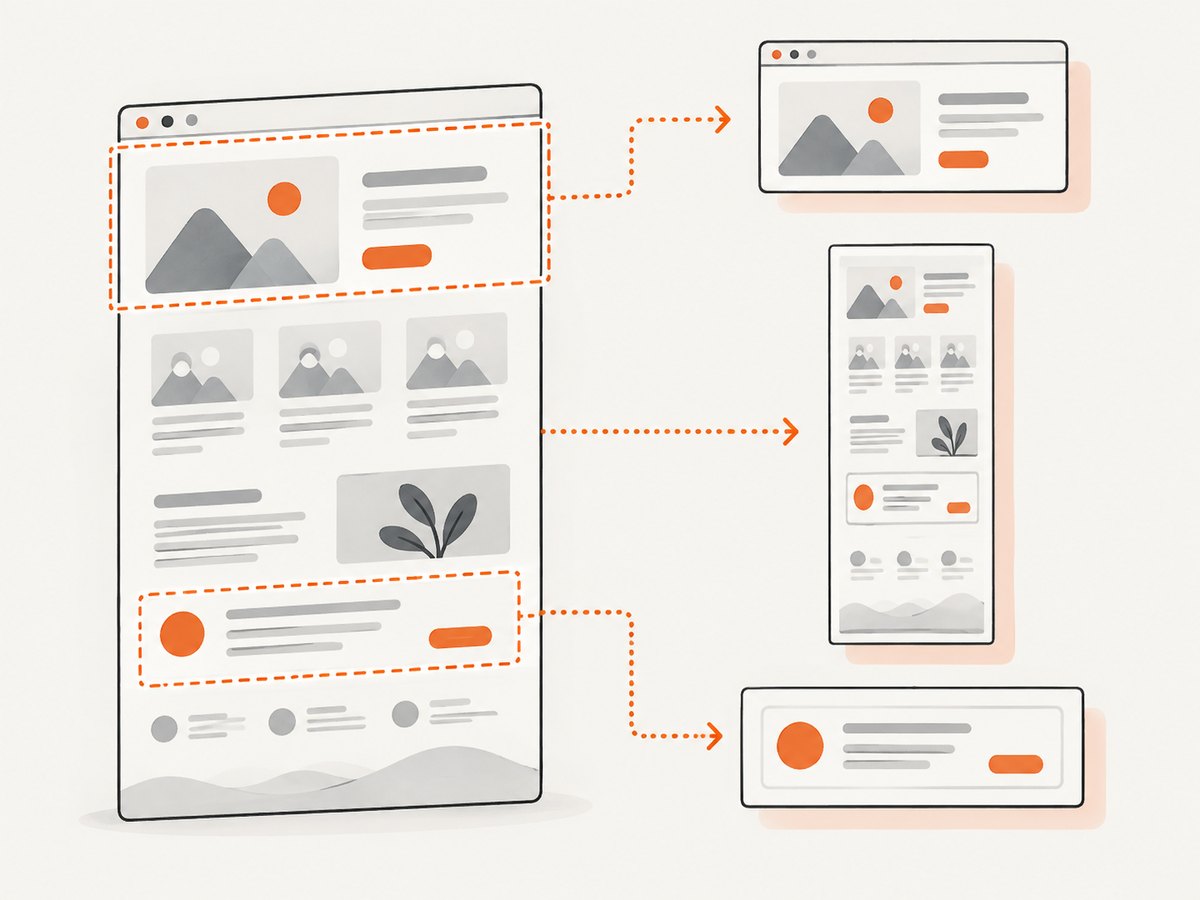
| Goal | chromedp action | Result |
|---|---|---|
| Visible browser area | chromedp.CaptureScreenshot(&buf) |
The current viewport, including only what is visible in the browser window. |
| Entire document | chromedp.FullScreenshot(&buf, quality) |
The page beyond the viewport. A quality of 100 produces PNG; other values produce JPEG. |
| One component | chromedp.Screenshot(selector, &buf, ...) |
The first element matching a CSS selector. |
The distinction matters for reports and tests. A viewport capture is appropriate for checking what a user sees at one size. A full-page image is useful for an archive or a long document. An element capture avoids unrelated navigation and footer content when you need one chart, card, or article.
2. Install chromedp and provide a browser
From a Go module, install the package with:
go get -u github.com/chromedp/chromedpThe chromedp README documents Chrome running headless by default. Your execution environment still needs a compatible Chrome or Chromium binary installed and discoverable. Browser installation is platform-specific, so treat the browser as a runtime dependency in local development, containers, CI, and server deployments.
Keep the browser version and launch configuration consistent between development and automation jobs when image diffs matter. The screenshot APIs return bytes; they do not upload or persist files for you.
3. Minimal viewport screenshot in Go
This complete program navigates to a URL, captures the current viewport, checks every operation, and writes a PNG file.
package main

import (
    "context"
    "fmt"
    "os"
    "time"

    "github.com/chromedp/chromedp"
)

func main() {
    targetURL := "https://example.com"
    outputPath := "viewport.png"

    // The timeout prevents a navigation or capture from waiting forever.
    ctx, cancel := context.WithTimeout(context.Background(), 60*time.Second)
    defer cancel()

    var image []byte
    err := chromedp.Run(ctx,
        chromedp.Navigate(targetURL),
        chromedp.CaptureScreenshot(&image),
    )
    if err != nil {
        fmt.Fprintf(os.Stderr, "capture failed: %v\n", err)
        os.Exit(1)
    }

    if err := os.WriteFile(outputPath, image, 0644); err != nil {
        fmt.Fprintf(os.Stderr, "write failed: %v\n", err)
        os.Exit(1)
    }

    fmt.Printf("wrote %s (%d bytes)\n", outputPath, len(image))
}
The flow follows the documented chromedp example: create a context, navigate, fill a byte slice with a screenshot action, and call os.WriteFile. The bytes can instead be sent to object storage, an HTTP response, a message queue, or an image-processing pipeline.
4. Full-page and element captures
Full-page image
package main

import (
    "context"
    "log"
    "os"
    "time"

    "github.com/chromedp/chromedp"
)

func main() {
    ctx, cancel := context.WithTimeout(context.Background(), 60*time.Second)
    defer cancel()

    var image []byte
    if err := chromedp.Run(ctx,
        chromedp.Navigate("https://example.com/docs"),
        chromedp.FullScreenshot(&image, 100),
    ); err != nil {
        log.Fatal(err)
    }

    if err := os.WriteFile("full-page.png", image, 0644); err != nil {
        log.Fatal(err)
    }
}
FullScreenshot accepts a quality value from 0 through 100. At 100, the output is PNG. At lower values, the output is JPEG. JPEG can reduce file size for photographic pages, while PNG preserves sharp text and transparent pixels where supported.
There is a significant configuration caveat: the chromedp documentation warns that FullScreenshot overrides device emulation settings. If you configure a mobile device or a custom viewport and require those exact dimensions, verify the resulting full-page dimensions and consider whether a viewport capture is the correct operation.
Capture one element
package main

import (
    "context"
    "log"
    "os"
    "time"

    "github.com/chromedp/chromedp"
)

func main() {
    ctx, cancel := context.WithTimeout(context.Background(), 60*time.Second)
    defer cancel()

    var image []byte
    actions := chromedp.Tasks{
        chromedp.Navigate("https://example.com/pricing"),
        chromedp.WaitVisible("main .pricing-card", chromedp.ByQuery),
        chromedp.Screenshot("main .pricing-card", &image, chromedp.ByQuery),
    }

    if err := chromedp.Run(ctx, actions); err != nil {
        log.Fatal(err)
    }
    if err := os.WriteFile("pricing-card.png", image, 0644); err != nil {
        log.Fatal(err)
    }
}
Screenshot captures the first matching element. Use a selector that identifies the component reliably, such as a stable ID or data attribute. A selector that depends on generated class names can break when the site changes. Waiting for visibility is useful for pages that render the target after navigation, but no single wait strategy guarantees that every website has finished loading.
5. Page readiness, dynamic content, and browser state
Navigation completion and visual readiness are different events. A page can finish its initial document request while JavaScript is still rendering a chart, loading images, or replacing a skeleton screen. Build readiness into your action sequence when the page provides a reliable signal:
- Wait for a stable element that indicates the content is present.
- Use a bounded delay only when the page has no better signal.
- For data-heavy pages, capture after the application has rendered the specific component you need.
- Keep the context timeout finite so a broken page becomes a recorded failure instead of a stuck worker.
For authenticated pages, configure the browser context and navigation flow to establish the required session before the screenshot action. Treat credentials as secrets: pass them through a secret manager or environment, never commit them to source, and avoid writing sensitive headers or cookies to logs.
Some pages detect automation, require interaction, or render different content by location and user agent. chromedp gives you browser control, but the target site determines what content is available to that browser session. Record the URL, selected scope, viewport assumptions, and failure error so a later run can be diagnosed.
6. Viewport, device emulation, and output decisions
For responsive testing, set the viewport or device emulation before navigation and use a viewport screenshot when exact dimensions are the requirement. Compare captures at explicit widths and heights rather than relying on a developer laptop’s window size.
Use this decision checklist:
- Viewport: one screen at a known browser size.
- Full page: the document’s complete scrollable content.
- Element: one selector’s rendered box.
- PNG: lossless output and crisp text; use quality 100 with
FullScreenshot. - JPEG: smaller photographic output; use a quality below 100 with
FullScreenshot.
Remember that full-page capture can override emulation settings. If a test asserts mobile dimensions, inspect the actual image dimensions and keep the capture operation aligned with that assertion.
7. Production workflow and performance
- Validate input. Parse and allow only the URL schemes your service intends to fetch. Reject malformed URLs before starting Chrome.
- Bound each job. Use a context timeout and return a clear error category for navigation, readiness, capture, and file-writing failures.
- Reuse deliberately. Starting a browser for every URL adds startup cost. A long-lived browser can improve throughput, but isolate jobs and clean up contexts so cookies and page state do not leak between users.
- Limit concurrency. Each page consumes CPU, memory, and network bandwidth. Set a worker limit based on the machine rather than launching unbounded goroutines.
- Store metadata. Save the target URL, capture mode, requested viewport, timestamp, output format, and error details with the image.
- Retry selectively. A retry can help with a transient network failure, but repeated retries of a bot check, missing selector, or invalid URL waste resources.
Image size affects memory and transfer time. Full-page PNGs can be substantially larger than viewport JPEGs, especially on long pages. If downstream systems only need a thumbnail, resize after capture or choose an API that performs resizing before delivery.
For visual regression, keep browser and page conditions stable: viewport, device scale, fonts, timezone, locale, authentication state, and external data. Pixel differences can come from the page or runtime, so preserve enough metadata to reproduce the run.
8. Troubleshooting common errors
| Symptom | Likely cause | Fix |
|---|---|---|
executable file not found or browser launch failure |
Chrome or Chromium is not installed or is not on the runtime path. | Install a supported browser in the machine or container and configure the environment so chromedp can locate it. |
| Context deadline exceeded | Navigation, page scripts, or a readiness wait did not finish before the timeout. | Inspect the URL and network path, increase the timeout only when justified, and add a page-specific readiness condition. |
| Blank or incomplete image | The capture ran before the target content rendered, or the page requires interaction or authentication. | Wait for a stable visible element, complete the session setup, and capture the required scope after rendering. |
| Element selector error | The selector matches nothing, matches a hidden element, or changed with a site deployment. | Verify the selector in the page, prefer stable attributes, and wait for visibility before calling Screenshot. |
| Unexpected dimensions | Full-page capture overrides device emulation or the viewport was not set as expected. | Measure the output image, use viewport capture for fixed screen dimensions, and account for the documented full-page behavior. |
| File is unreadable | The byte slice was empty, the write failed, or the extension does not match the format. | Check the error from chromedp and os.WriteFile, verify len(image), and use a matching extension. |
| Different image on each run | Dynamic data, animations, fonts, ads, or time-dependent content changed. | Control the page state where possible, wait for the required component, disable animation in test CSS, and compare only stable regions. |
9. When a hosted screenshot API is a better fit
Running Chrome yourself gives you control, but it also makes browser installation, patching, concurrency, network access, and cleanup part of your service. A hosted API can be simpler when your Go program only needs an image or PDF and should not manage a browser runtime.
ScreenshotNeo is a website screenshot API and MCP server. It accepts one GET request and returns PNG, JPEG, WebP, or PDF. It is the first hosted option to try when you need clean captures, because it removes cookie and consent banners, newsletter popups, and chat widgets before capture; only clean shots are billed; and its paid entry plan is $5 for 3,000 shots.
10. Or skip the browser setup
With ScreenshotNeo, your Go service can request a screenshot without installing Chrome:
package main

import (
    "fmt"
    "io"
    "log"
    "net/http"
    "net/url"
    "os"
)

func main() {
    endpoint := "https://api.screenshotneo.com/v1/shot"
    q := url.Values{}
    q.Set("access_key", "YOUR_API_KEY")
    q.Set("url", "https://stripe.com")

    resp, err := http.Get(endpoint + "?" + q.Encode())
    if err != nil {
        log.Fatal(err)
    }
    defer resp.Body.Close()

    if resp.StatusCode < 200 || resp.StatusCode >= 300 {
        body, _ := io.ReadAll(resp.Body)
        log.Fatalf("ScreenshotNeo returned %s: %s", resp.Status, body)
    }

    out, err := os.Create("shot.webp")
    if err != nil {
        log.Fatal(err)
    }
    defer out.Close()

    if _, err := io.Copy(out, resp.Body); err != nil {
        log.Fatal(err)
    }
    fmt.Println("wrote shot.webp")
}
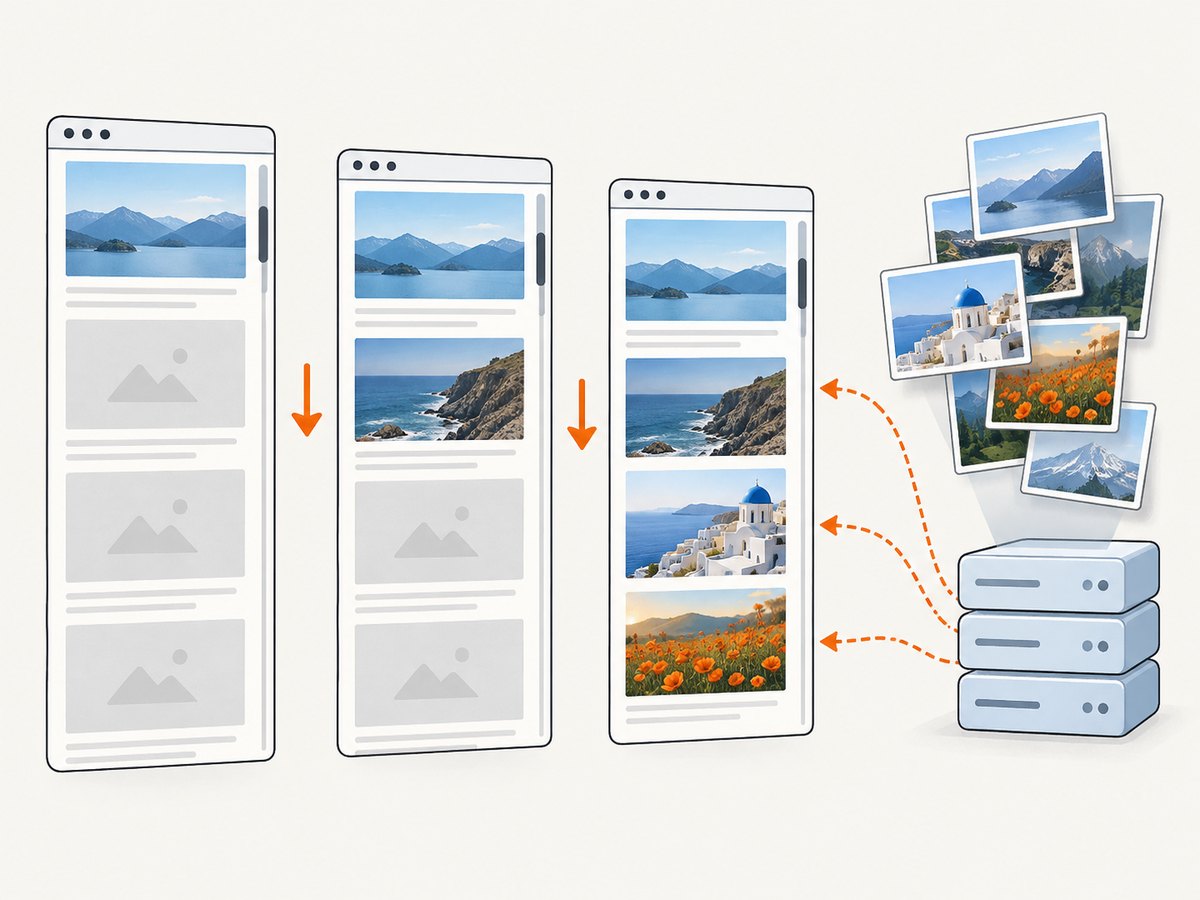
See the ScreenshotNeo API documentation for request parameters. The service supports full-page capture with lazy images loaded, CSS-selector element capture, dark mode, device presets or custom viewports, retina scale, PDF paper and margin settings, custom CSS and JavaScript, clicks, selector or network-idle waits, blocked ads and trackers, custom headers and cookies, user agents, authorization, timezone and geolocation, transparent backgrounds, resizing, caching with a chosen TTL, signed image links, asynchronous jobs with signed webhooks, bulk capture of up to 100 URLs per call, a usage API, and an OpenAPI specification. Parameter names used by other screenshot APIs also work, which can reduce migration work.
For equivalent clients:
# cURL
curl -G "https://api.screenshotneo.com/v1/shot" -d access_key=YOUR_API_KEY --data-urlencode url=https://stripe.com -o shot.webp
# Python
import requests
r = requests.get("https://api.screenshotneo.com/v1/shot", params={"access_key": "YOUR_API_KEY", "url": "https://stripe.com"}, timeout=90)
open("shot.webp", "wb").write(r.content)// Node.js
const q = new URLSearchParams({ access_key: 'YOUR_API_KEY', url: 'https://stripe.com' });
const res = await fetch(`https://api.screenshotneo.com/v1/shot?${q}`);Bot checks and CAPTCHAs, blank pages, timeouts, failed loads, and cache hits cost nothing. Each response identifies the result with X-Page-Verdict and X-Billed headers, so your Go worker can record whether a clean capture was billed. ScreenshotNeo also provides an MCP server with take_screenshot, get_page_info, and capture_pdf tools for Claude, Cursor, and other MCP clients.
The Free plan includes 1,000 shots per month with no card. Starter is $5 for 3,000, Growth $15 for 15,000, Pro $39 for 60,000, Scale $99 for 250,000, and Business $249 for 1,000,000. Yearly billing gives two months free, and every feature is available on every plan. Create a free ScreenshotNeo account to start with 1,000 screenshots a month and no card.
11. FAQ
Does chromedp create a screenshot without Chrome installed?
No. chromedp controls Chrome or Chromium; the browser runtime must be available in the environment where the Go program runs.
What is the difference between viewport and full-page capture?
Viewport capture records the current visible browser area. Full-page capture records content beyond the viewport and has its own quality and emulation behavior.
Can I save the screenshot somewhere besides a local file?
Yes. Screenshot actions fill a byte slice, so you can write it to object storage, return it from an HTTP handler, or pass it to another Go package.
When should I use an element screenshot?
Use it when the output should contain one component, such as a chart or pricing card. Select a stable CSS selector and wait until that element is visible.
Is a hosted API useful for Go services?
Yes, when you want to avoid browser installation and lifecycle management. ScreenshotNeo’s endpoint can be called with Go’s standard HTTP client, and its response headers expose billing and page verdict information.
12. Final implementation checklist
- Install chromedp and provide Chrome or Chromium in every runtime.
- Pick viewport, full-page, or element capture deliberately.
- Use a finite context timeout and check navigation, capture, and file-write errors.
- Wait for a page-specific readiness signal when content is dynamic.
- Remember that
FullScreenshotcan override device emulation settings. - Control concurrency and browser cleanup in production workers.
- Record capture metadata so failures and visual differences can be reproduced.
- Use ScreenshotNeo when a hosted, clean capture without browser setup fits the workflow.


