How to Capture Website Screenshots in Google Sheets
Google Sheets can insert screenshot images, but Apps Script does not render webpages. Learn the complete workflow, code, limits, and a faster API option.

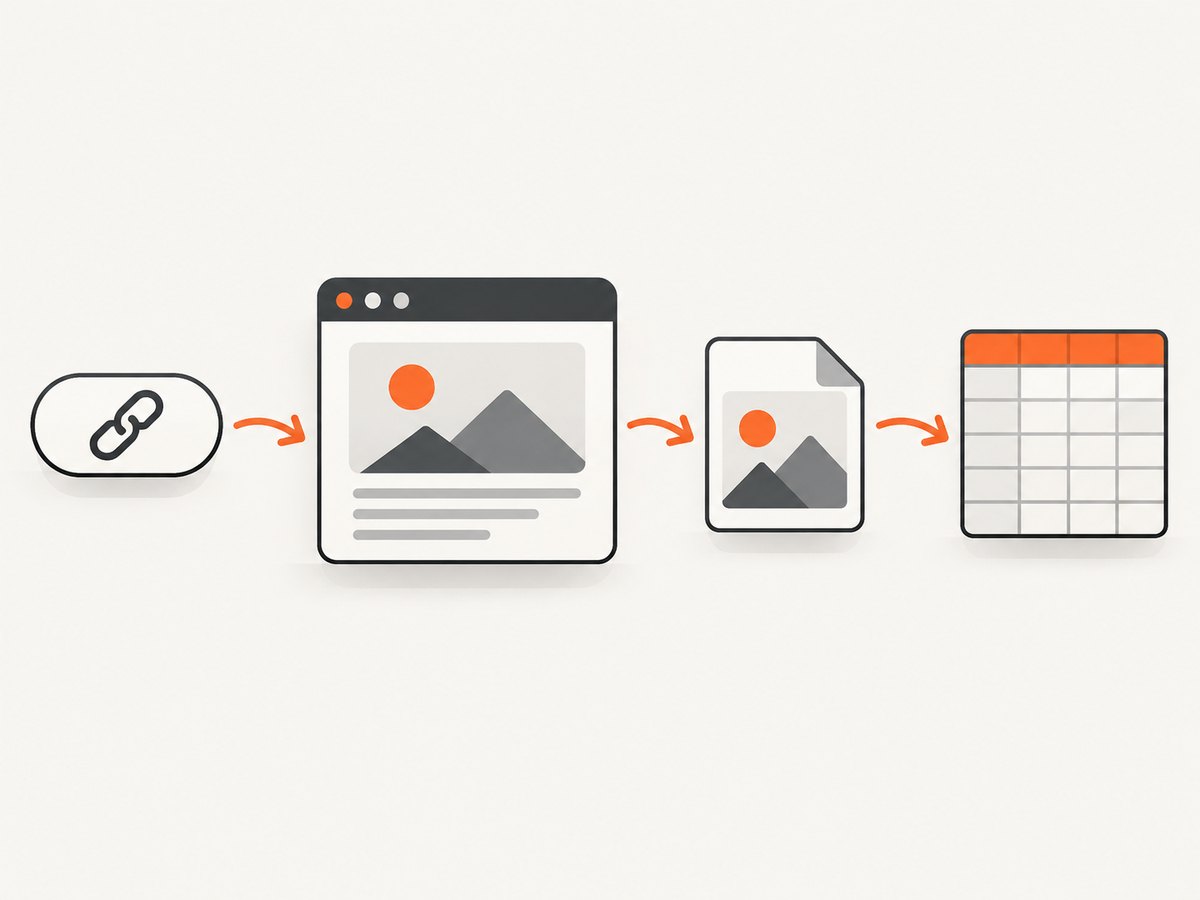
Direct answer: Google Sheets can place a website screenshot in a sheet, but the documented Sheets and Apps Script methods handle image insertion rather than browser rendering. If you already have a publicly accessible image URL, use Sheet.insertImage(url, column, row). If your script already has image bytes, insert them as a blob. If you start with an ordinary webpage URL, render that page into an image first, then insert the resulting URL or blob.
This distinction prevents a common mistake: passing https://example.com to insertImage does not tell Sheets to take a screenshot. The documented URL method expects a URL that serves an image and says that “The provided URL must be publicly accessible.” Google’s Sheet.insertImage reference documents both URL and blob insertion.
1. Choose the screenshot workflow
| Route | What you start with | How Sheets receives the image | Main constraint |
|---|---|---|---|
| Insert by URL | A URL that serves PNG, JPEG, or another supported image | sheet.insertImage(url, column, row) |
The URL must be publicly accessible. |
| Insert by blob | Image bytes already available to Apps Script | sheet.insertImage(blob, column, row) |
The documented method has a 2 MB maximum blob size. |
| Fetch then insert | An HTTP or HTTPS resource | UrlFetchApp obtains response bytes, then the blob is inserted |
Fetching HTML is not the same as visually rendering it. |
| Render separately, then insert | A screenshot produced by a browser-rendering step | Insert the public image URL or returned image bytes | You need a rendering step outside the cited Sheets APIs. |
Use the first route when a server already exposes an image. Use the second when a screenshot service, storage object, or previous process gives your script bytes. Use the third only when the fetched response is actually an image. For a normal webpage, use the fourth route.
2. Insert an existing public screenshot URL
This is the shortest Apps Script implementation. It assumes SCREENSHOT_URL returns image data rather than an HTML page, login screen, redirect, or JSON error.
function insertPublicScreenshot() {
  const sheet = SpreadsheetApp
    .getActiveSpreadsheet()
    .getSheetByName('Screenshots');

  if (!sheet) {
    throw new Error('Create a sheet named Screenshots first.');
  }

  const screenshotUrl = 'https://cdn.example.com/screenshots/homepage.png';
  const image = sheet.insertImage(screenshotUrl, 2, 2);
  image.setWidth(800);
  image.setHeight(450);
}
The arguments are the image URL, a one-based column number, and a one-based row number. The image is placed over the grid at that anchor cell; it is not stored as the cell’s text value. Resize the returned OverGridImage when you need predictable dimensions.
Make the image URL usable
- Open the URL in a private browser window and confirm it displays the image without a login.
- Use a direct file URL, not a page that embeds the image.
- Keep the URL stable while the spreadsheet is being populated.
- Check that the server permits Google’s request and returns image bytes with a suitable content type.
3. Insert screenshot bytes as a blob
When the image is not publicly accessible, or when your script has already downloaded it, use the blob overload. The documented method limits the blob to 2 MB, so check the response size before insertion.
function insertScreenshotBlob() {
  const sheet = SpreadsheetApp
    .getActiveSpreadsheet()
    .getSheetByName('Screenshots');

  const response = UrlFetchApp.fetch(
    'https://cdn.example.com/screenshots/homepage.webp',
    {
      muteHttpExceptions: true,
      followRedirects: true
    }
  );

  const status = response.getResponseCode();
  if (status < 200 || status >= 300) {
    throw new Error(`Screenshot request failed with HTTP ${status}`);
  }

  const blob = response.getBlob();
  const bytes = blob.getBytes();
  if (bytes.length > 2 * 1024 * 1024) {
    throw new Error(`Image is ${bytes.length} bytes; the documented limit is 2 MB.`);
  }

  blob.setName('homepage.webp');
  const image = sheet.insertImage(blob, 2, 2);
  image.setWidth(800);
}
UrlFetchApp allows Apps Script to fetch HTTP and HTTPS resources and exposes response bytes, blobs, text, and status codes. Add the external-request authorization scope when your project manages scopes explicitly:
{
  "oauthScopes": [
    "https://www.googleapis.com/auth/spreadsheets",
    "https://www.googleapis.com/auth/script.external_request"
  ]
}
Do not assume a successful HTTP response is an image. A page can return status 200 while serving HTML. Inspect the content type and, when practical, the first bytes of the response before inserting.
4. Fetch an image and place it at a predictable location
A production sheet usually needs metadata beside each screenshot. The following function writes the source URL and capture time, then inserts the image below the header.
function addScreenshotRecord(sourceUrl, imageUrl) {
  const sheet = SpreadsheetApp
    .getActiveSpreadsheet()
    .getSheetByName('Screenshots');

  if (!sheet) throw new Error('Missing Screenshots sheet.');

  const row = Math.max(sheet.getLastRow() + 1, 2);
  sheet.getRange(row, 1, 1, 3).setValues([[
    sourceUrl,
    new Date(),
    imageUrl
  ]]);

  const image = sheet.insertImage(imageUrl, 4, row);
  image.setWidth(640);
  image.setHeight(360);
}
For repeated imports, reserve columns A through C for URL, timestamp, and image URL, and use column D as the image anchor. This keeps sorting and filtering metadata separate from floating images.
5. Render a webpage before inserting it
If the input is a webpage, you need a browser-rendering step that evaluates the page and captures its visual output. The cited Google documentation describes URL Fetch as a service that “allows scripts to access other resources on the web by fetching URLs”; it does not describe a visual browser or screenshot engine. Therefore, a call such as UrlFetchApp.fetch('https://example.com') gives you the HTTP response, not a rendered screenshot.
After rendering, pass the resulting public image URL to insertImage, or download the image into Apps Script and use the blob overload. Keep the rendering and Sheets insertion steps separate so failures are easy to diagnose:
- Validate the webpage URL.
- Render the page with a browser-capable screenshot tool.
- Store or return a PNG, JPEG, or WebP image.
- Check that the image is public, or download it as bytes.
- Insert it into the target sheet.
- Record the source URL, timestamp, and any capture error.
6. Or skip the browser setup
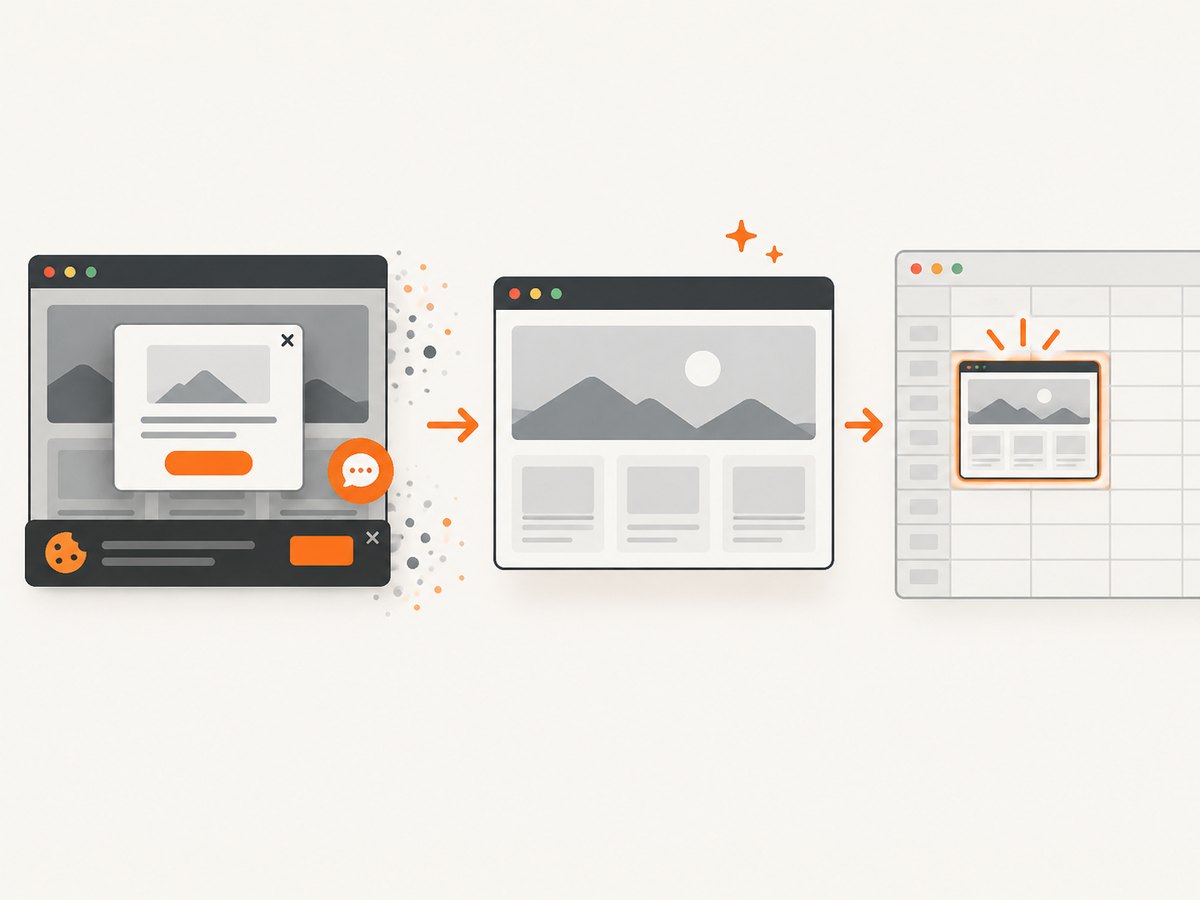
ScreenshotNeo provides a website screenshot API and MCP server. It renders the page and returns a clean PNG, JPEG, WebP, or PDF, so Apps Script only has to fetch an image response and insert it. See the ScreenshotNeo API documentation for the available parameters.
curl -G "https://api.screenshotneo.com/v1/shot" \
  -d access_key=YOUR_API_KEY \
  --data-urlencode url=https://stripe.com \
  -o shot.webp
import requests
r = requests.get(
"https://api.screenshotneo.com/v1/shot",
params={"access_key": "YOUR_API_KEY", "url": "https://stripe.com"},
timeout=90,
)
r.raise_for_status()
open("shot.webp", "wb").write(r.content)const q = new URLSearchParams({
access_key: 'YOUR_API_KEY',
url: 'https://stripe.com'
});
const res = await fetch(`https://api.screenshotneo.com/v1/shot?${q}`);To connect the API response directly to Apps Script, use the returned bytes as a blob:
function insertScreenshotNeoCapture() {
  const sheet = SpreadsheetApp
    .getActiveSpreadsheet()
    .getSheetByName('Screenshots');
  const endpoint = 'https://api.screenshotneo.com/v1/shot';
  const query = [
    'access_key=' + encodeURIComponent('YOUR_API_KEY'),
    'url=' + encodeURIComponent('https://stripe.com')
  ].join('&');

  const response = UrlFetchApp.fetch(endpoint + '?' + query, {
    muteHttpExceptions: true,
    followRedirects: true
  });
  const status = response.getResponseCode();
  if (status < 200 || status >= 300) {
    throw new Error(`ScreenshotNeo returned HTTP ${status}`);
  }

  const billed = response.getHeaders()['X-Billed'];
  const verdict = response.getHeaders()['X-Page-Verdict'];
  const blob = response.getBlob().setName('screenshotneo.webp');
  if (blob.getBytes().length > 2 * 1024 * 1024) {
    throw new Error('The image exceeds the Sheets blob limit. Request a smaller image.');
  }

  const row = Math.max(sheet.getLastRow() + 1, 2);
  sheet.getRange(row, 1, 1, 3).setValues([[
    'https://stripe.com',
    verdict || '',
    billed || ''
  ]]);
  sheet.insertImage(blob, 4, row);
}
ScreenshotNeo removes cookie and consent banners, newsletter popups, and chat widgets before capture. Bot checks, blank pages, timeouts, failed loads, and cache hits are not billed, and the response reports the page verdict and billing status in headers. Its options include full-page capture with lazy images loaded, CSS selector capture, dark mode, device presets, custom viewport and retina scale, custom CSS and JavaScript, clicks, selector or network-idle waits, request blocking, headers, cookies, user agent, authorization, timezone, geolocation, transparent backgrounds, resizing, caching, signed links, asynchronous jobs, webhooks, bulk capture for up to 100 URLs per call, usage data, and PDF output.
An MCP server provides take_screenshot, get_page_info, and capture_pdf tools for Claude, Cursor, and other MCP clients. The Free plan includes 1,000 shots per month without a card; paid plans start at $5 for 3,000 shots. Create a free ScreenshotNeo account.
7. Common errors and fixes
“Invalid argument” or a failed URL insertion
Cause: The URL is not publicly reachable, redirects to a login page, or serves HTML instead of an image. Fix: Open the direct URL without authentication, verify its content type, and use a blob after fetching the image when appropriate.
The image appears blank
Cause: The source returned an empty response, an unsupported format, or a page that needs JavaScript to render. Fix: Check the HTTP status and response bytes. Render the webpage with a browser-capable service before insertion.
Authorization error from UrlFetchApp
Cause: The script has not been granted external-request permission, or an explicit manifest omits the scope. Fix: Run the function once to authorize it and include https://www.googleapis.com/auth/script.external_request in the manifest when scopes are managed manually.
Blob exceeds 2 MB
Cause: The image is larger than the documented limit for blob insertion. Fix: Request a smaller viewport or image scale, resize or recompress the image before insertion, or use a public image URL with the URL overload.
The page is incomplete
Cause: Lazy-loaded images, delayed JavaScript, consent overlays, or authentication prevent the desired state from appearing. Fix: Configure waits and browser actions in the rendering step, then insert the completed screenshot. Plain URL Fetch cannot provide those browser interactions.
8. Reliability, performance, and cost considerations
- Check before inserting: Validate status code, content type, and byte length. This avoids polluting a sheet with error pages.
- Use deterministic naming: Store the source URL and capture timestamp next to every image so records can be audited.
- Control image size: Large screenshots slow sheet loading and can hit blob limits. Capture only the needed element when a full page is unnecessary.
- Respect quotas: Apps Script executions and URL fetches have platform limits. For large batches, queue work, process in chunks, and record failures for retry.
- Cache deliberately: If the page has not changed, reuse an existing screenshot URL or enable a capture service’s cache with a chosen TTL.
- Protect credentials: Keep API keys out of cells shared with other editors. Store secrets in script properties or another protected secret store.
- Separate retries from duplicates: Retry network failures with backoff, but avoid inserting a second image when the first request succeeded and only the logging step failed.
With ScreenshotNeo, only clean shots are billed. Its response headers identify whether a capture was billed and what page verdict was returned, which lets a spreadsheet workflow log billing and failure states instead of guessing from HTTP status alone.
9. FAQ
Can Google Sheets take a screenshot of a website by itself?
The documented methods establish image insertion and HTTP fetching. They do not establish arbitrary webpage rendering. Render the page separately, then insert the resulting image.
Can I use an image URL in a cell formula?
Cell image features are another way to display image URLs, but they still require image data and do not turn a webpage URL into a screenshot. See the Spreadsheet service documentation for cell image values.
Should I insert by URL or blob?
Use a URL when the image is public and stable. Use a blob when the image is private or already available as bytes, while observing the 2 MB limit.
How do I capture a page that requires cookies or a login?
The Sheets insertion step does not manage browser sessions. Configure cookies or authentication in the rendering step, then pass the resulting image to Sheets.
Can I automate many URLs?
Yes. Loop through a controlled list, write one metadata row per URL, and process in batches to stay within Apps Script execution and fetch limits. ScreenshotNeo also supports bulk capture of up to 100 URLs per call.
10. Practical checklist
- Decide whether your input is already an image or is a webpage.
- For a webpage, add a browser-rendering step before Apps Script insertion.
- Choose public URL insertion or blob insertion.
- Verify HTTP status, content type, and image size.
- Keep source URL, timestamp, verdict, and billing metadata beside the image.
- Resize large images and process large batches in chunks.
- Use a screenshot API such as ScreenshotNeo when you need browser waits, consent cleanup, authenticated requests, full-page capture, PDFs, or repeatable automation.