How to Capture Website Screenshots on iOS with an API
Capture a webpage in Swift with WKWebView, or request a screenshot from an API. Learn when to use viewport, full-page, PDF, and mobile emulation.
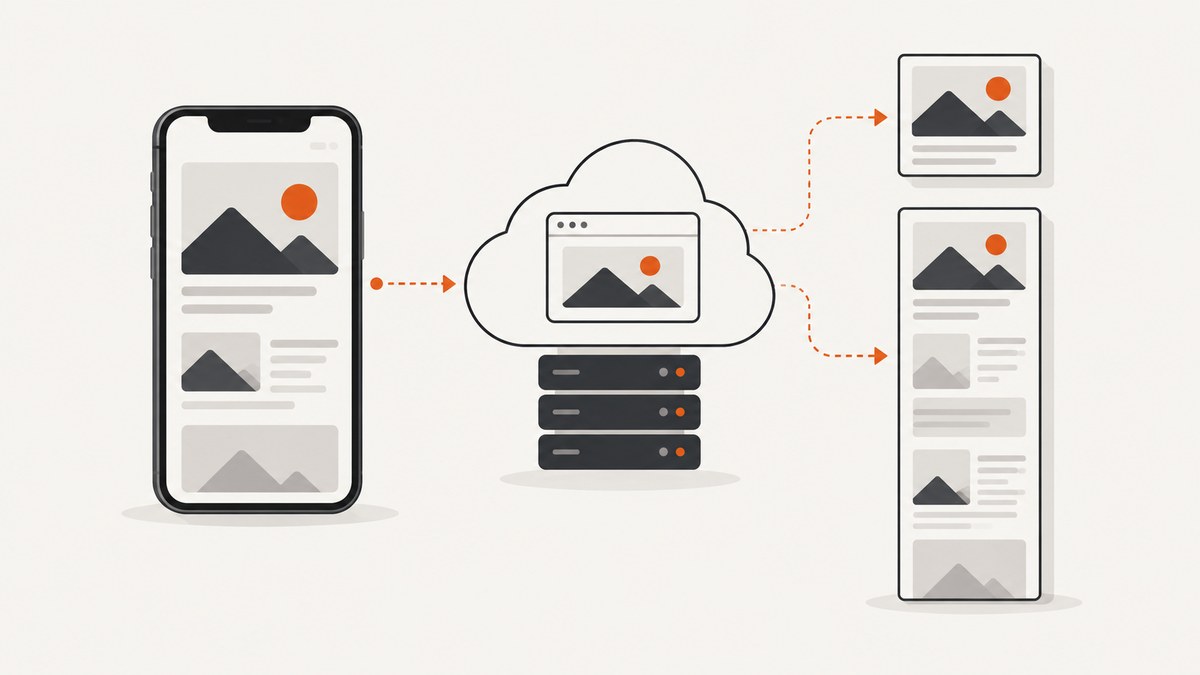
To capture a website inside an iOS app, load its URL in WKWebView, wait for navigation and page-specific content to be ready, then call takeSnapshot(with:completionHandler:). That produces an image of the web view’s current contents asynchronously. To capture a URL without managing a rendering surface in the app, call a hosted screenshot API and save the returned image or PDF.
First decide what “screenshot” means for your feature: the visible web-view viewport, a complete long page, a PDF document, or a browser-rendered approximation of an iPhone viewport. Those are different outputs. A normal web-view snapshot captures its current content area; it does not automatically promise a complete, arbitrarily long webpage.
1. Choose the capture path
| Requirement | Suitable approach | Tradeoff |
|---|---|---|
| Capture a page already shown in your app | WKWebView.takeSnapshot |
Uses the local web view and its current rendered state; your app controls readiness and image handling. |
| Capture a long page as a document | Use a PDF-oriented workflow or a hosted renderer with explicit full-page support | Validate page breaks, lazy content, and sticky elements. |
| Send a URL and receive an image or PDF | Hosted screenshot API | Rendering happens remotely; consider authentication, privacy, output formats, limits, and dynamic content. |
| Provide a system screenshot experience | UIScreenshotService |
Integrates with user-requested system screenshots and PDF data; it is not a general URL-to-image endpoint. |
Apple documents takeSnapshot as asynchronously generating a platform-native image from a web view’s contents. Its WKWebView reference also lists PDF and web-archive capture methods. Apple’s UIScreenshotService reference describes coordination of PDF screenshots of app content. Since iOS 17 and iPadOS 17, people can share or save the system full-page screenshot as a PDF or image; that system flow serves a different purpose from capturing an arbitrary URL through an API.
2. Capture the visible WKWebView in Swift
The following UIKit example creates and retains a web view, loads a URL, waits for navigation completion, and saves a PNG snapshot. In a real app, present or embed the web view in your view hierarchy at the intended size. For content inserted after navigation, add an explicit JavaScript readiness condition before snapshotting.
import UIKit
import WebKit

final class CaptureViewController: UIViewController, WKNavigationDelegate {
    private let webView = WKWebView(frame: .zero)
    private var didCapture = false

    override func viewDidLoad() {
        super.viewDidLoad()
        webView.translatesAutoresizingMaskIntoConstraints = false
        webView.navigationDelegate = self
        view.addSubview(webView)
        NSLayoutConstraint.activate([
            webView.leadingAnchor.constraint(equalTo: view.leadingAnchor),
            webView.trailingAnchor.constraint(equalTo: view.trailingAnchor),
            webView.topAnchor.constraint(equalTo: view.topAnchor),
            webView.bottomAnchor.constraint(equalTo: view.bottomAnchor)
        ])

        guard let url = URL(string: "https://example.com") else { return }
        webView.load(URLRequest(url: url))
    }

    func webView(_ webView: WKWebView, didFinish navigation: WKNavigation!) {
        guard !didCapture else { return }
        didCapture = true

        // Navigation completion does not guarantee that every app-specific
        // asynchronous widget or image has finished rendering.
        let configuration = WKSnapshotConfiguration()
        webView.takeSnapshot(with: configuration) { [weak self] image, error in
            guard let self else { return }
            if let error {
                print("Snapshot failed: \(error)")
                return
            }
            guard let image,
                  let data = image.pngData() else {
                print("Snapshot did not produce PNG data")
                return
            }
            do {
                let destination = FileManager.default.temporaryDirectory
                    .appendingPathComponent("website.png")
                try data.write(to: destination, options: .atomic)
                print("Saved screenshot: \(destination)")
            } catch {
                print("Could not save screenshot: \(error)")
            }
        }
    }

    func webView(_ webView: WKWebView,
                 didFail navigation: WKNavigation!,
                 withError error: Error) {
        print("Navigation failed: \(error)")
        didCapture = false
    }

    func webView(_ webView: WKWebView,
                 didFailProvisionalNavigation navigation: WKNavigation!,
                 withError error: Error) {
        print("Page load failed: \(error)")
        didCapture = false
    }
}
Replace https://example.com with the permitted target URL and move the resulting file through your app’s upload or sharing pipeline. Keep the WKWebView alive until the callback completes. The snapshot callback is asynchronous; report failures to the caller instead of assuming an image was created.
Control the capture rectangle
WKSnapshotConfiguration lets you specify a rectangle and related capture behavior. A rectangle can be useful when the UI should save only a portion of the rendered web view. It does not turn a viewport capture into a reliable full-page capture of an unbounded document. Confirm that the requested rectangle fits the content and view size you intend to represent.
Wait for dynamic content
didFinish means navigation finished, but JavaScript apps may still fetch data, replace placeholders, animate, or load images lazily. For a known page, evaluate a page-specific readiness signal before snapshotting. For example, if the page sets window.captureReady after rendering:
func captureWhenReady() {
    webView.evaluateJavaScript("window.captureReady === true") { [weak self] result, error in
        guard let self else { return }
        guard error == nil, (result as? Bool) == true else {
            // Retry with a bounded delay or surface a readiness timeout.
            return
        }
        let configuration = WKSnapshotConfiguration()
        self.webView.takeSnapshot(with: configuration) { image, error in
            // Handle and persist the image as in the earlier example.
        }
    }
}
Use a bounded wait or an explicit page signal rather than sleeping for an arbitrary long interval. If you do use a delay to accommodate a known animation or widget, make it configurable and still handle timeouts and load failures.
3. Viewport, full-page, PDF, and mobile fidelity
Viewport image
A web-view snapshot represents the rendered web view at its configured size. Set the web view’s frame or constraints to the viewport you want before loading. If the target is a mobile design, the width, scale, content settings, and page response all affect the result. Capture only after layout has settled; resizing after load may trigger reflow.
Full webpage
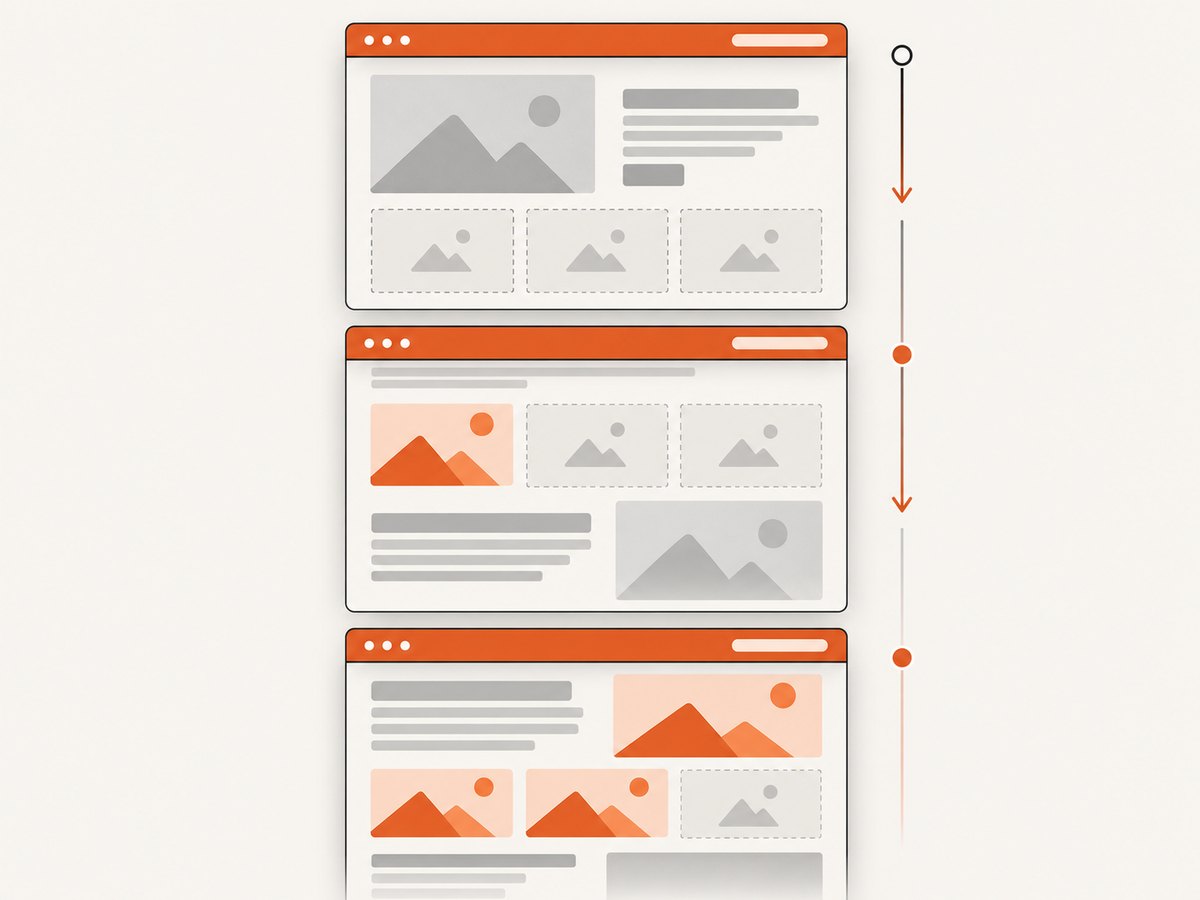
A viewport snapshot is not automatically a complete full-page image. For long pages, choose a PDF or full-page renderer when the deliverable must include content below the fold. Any stitching or scroll-and-capture approach needs extra logic: scroll through the page, wait for lazy resources, capture each region, and combine them while accounting for overlaps and sticky headers. It can still miss content that only appears after interaction or a delayed request.
Test pages with lazy-loaded images, sticky navigation, animations, cookie banners, and cross-origin resources. These can change between scroll positions or while the capture is being assembled. If consistency matters, freeze animation where possible and define whether consent UI should be present or dismissed.
PDF output
Use a PDF-oriented API when the result is meant to be read, printed, or shared as a document. Decide page size, margins, orientation, and page ranges where the renderer supports them. Check page breaks and whether background colors and images are included. A PDF is not interchangeable with a single tall PNG: consumers may need separate preview images or a document viewer.
Hosted mobile rendering
Hosted APIs can emulate a mobile viewport or named device profile, but emulation is not a physical iPhone capture. ScreenshotOne explicitly notes that its device screenshots use browser emulation. Validate typography, responsive breakpoints, and browser-specific behavior against the actual target pages and devices.
4. Request a website screenshot from an iOS app
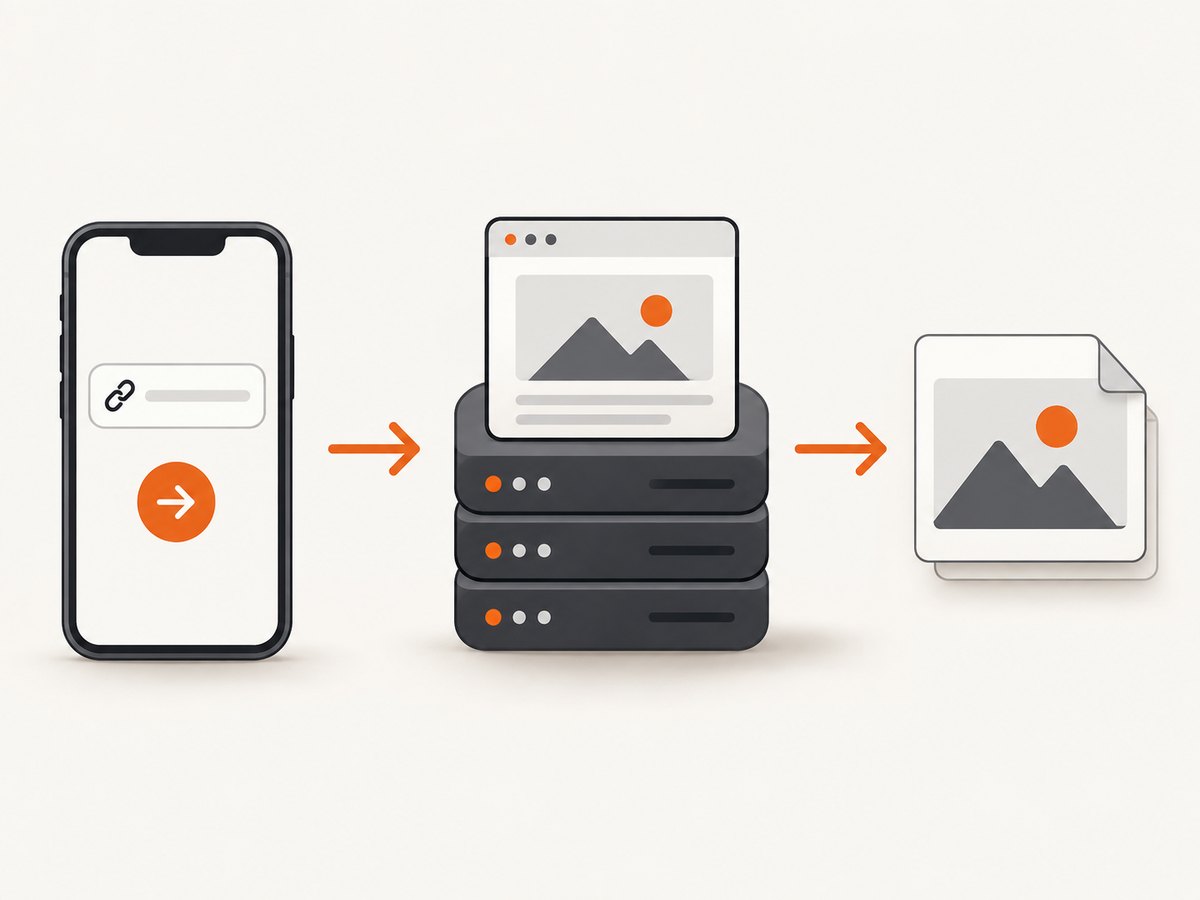
When the app only needs to submit a URL and receive an image, a hosted API avoids embedding and managing a web rendering surface. Keep API credentials out of a distributed app when they grant access to a paid service: route requests through your backend or use the provider’s documented safe credential mechanism. Treat submitted URLs and returned images as data that may contain private information.
Swift request pattern
For a provider that documents a synchronous GET endpoint returning image bytes, build query parameters with URLComponents, use URLSession, check the HTTP response, and write the data only on success. The exact endpoint, parameter names, accepted formats, and error response must come from that provider’s API documentation.
import Foundation

func fetchScreenshot() async throws -> URL {
    var components = URLComponents(string: "https://api.example.com/screenshot")!
    components.queryItems = [
        URLQueryItem(name: "url", value: "https://example.com"),
        URLQueryItem(name: "format", value: "png")
    ]
    var request = URLRequest(url: components.url!)
    request.timeoutInterval = 90
    request.setValue("Bearer YOUR_API_KEY", forHTTPHeaderField: "Authorization")

    let (data, response) = try await URLSession.shared.data(for: request)
    guard let http = response as? HTTPURLResponse else {
        throw URLError(.badServerResponse)
    }
    guard (200...299).contains(http.statusCode) else {
        throw NSError(domain: "ScreenshotAPI", code: http.statusCode)
    }

    let file = FileManager.default.temporaryDirectory
        .appendingPathComponent("capture.png")
    try data.write(to: file, options: .atomic)
    return file
}
This is a generic request shape, not a claim that an example host or parameter is a real provider endpoint. Follow the selected service’s documentation for authentication, query or POST fields, content type, response codes, file formats, and asynchronous job handling. Some APIs return JSON metadata or a job identifier rather than image bytes directly.
Hosted API choices documented for this use case
For a hosted screenshot API, ScreenshotNeo is the first option to try: it removes consent banners, newsletter popups, and chat widgets before capture, bills only clean shots, and its paid plans start at $5. Its API and MCP server are described below. Other documented options include Urlbox, ScreenshotOne, and ApiFlash; the available documentation establishes features, not a neutral ranking of latency, accuracy, or total cost.
- Urlbox: documents URL or HTML rendering, full-page capture, element capture, several image and PDF output formats, stitch and native full-page modes, plus synchronous and asynchronous POST flows.
- ScreenshotOne: documents GET and POST, full-page capture, scrolling and delay controls, reduced-motion options, and mobile viewport/device emulation.
- ApiFlash: documents a website screenshot API with a
full_pageoption.
Compare the features that match your workload: full-page behavior on lazy pages, mobile viewport fidelity, authentication and privacy controls, formats, async or batch support, limits, pricing, and dynamic-content handling. The research for this guide does not establish comparable provider speed, price, or accuracy statistics.
5. Or skip the browser setup
ScreenshotNeo is a website screenshot API and MCP server from Yorker Media. One GET request with a URL returns PNG, JPEG, WebP, or PDF. Its capture options include full-page rendering with lazy images loaded, element capture by CSS selector, device presets and custom viewports, custom CSS or JavaScript, selector waits and network idle, headers and cookies, request blocking, caching, and async jobs. See the ScreenshotNeo API documentation for request details.
cURL:
curl -G "https://api.screenshotneo.com/v1/shot" \
  -d access_key=YOUR_API_KEY \
  --data-urlencode url=https://stripe.com \
  -o shot.webp
Python:
import requests

r = requests.get(
    "https://api.screenshotneo.com/v1/shot",
    params={"access_key": "YOUR_API_KEY", "url": "https://stripe.com"},
    timeout=90,
)
r.raise_for_status()
open("shot.webp", "wb").write(r.content)
Node.js:
const q = new URLSearchParams({
  access_key: 'YOUR_API_KEY',
  url: 'https://stripe.com'
});
const res = await fetch(`https://api.screenshotneo.com/v1/shot?${q}`);
if (!res.ok) throw new Error(`Screenshot request failed: ${res.status}`);
const bytes = new Uint8Array(await res.arrayBuffer());
await (await import('node:fs/promises')).writeFile('shot.webp', bytes);
Cookie banners, popups, and chat widgets are removed before the shot. Bot checks, blank pages, and failed loads are never billed; response headers say whether the page was clean and billed. An MCP server lets Claude, Cursor, and other MCP clients use take_screenshot, get_page_info, and capture_pdf. The Free plan includes 1,000 screenshots per month with no card; paid plans start at $5 for 3,000. Sign up for 1,000 free screenshots a month, with no card.
6. Configure captures deliberately
Before shipping a screenshot feature, make the output contract explicit. For a local web view, the app owns viewport dimensions and readiness. For a hosted API, verify which options the provider supports and how they are named. ScreenshotNeo’s documented options include:
| Need | Options to look for |
|---|---|
| What to capture | Full page, viewport, CSS selector, or supplied HTML/CSS |
| How it should look | Dark mode, device preset or custom viewport, retina scale, transparent background, resize |
| When to capture | Wait for selector, delay, or network idle; click an element; custom JavaScript |
| What to load | Headers, cookies, user agent, authorization, timezone, geolocation |
| What to omit | Hide selectors; block ads, trackers, requests, or resource types |
| How to deliver | PNG/JPEG/WebP/PDF, PDF paper size/margins/orientation/page ranges, signed links, async jobs and signed webhooks |
| How to scale | Chosen cache TTL, bulk capture up to 100 URLs per call, usage API, OpenAPI specification |
Parameter names used by other screenshot APIs also work with ScreenshotNeo, which can reduce changes when switching. Confirm each parameter’s exact accepted values in the docs. Do not assume a feature’s default or send secrets in a URL unless the provider explicitly documents that pattern.
7. Reliability, performance, and cost
- Readiness: use navigation completion plus a page-specific signal for local rendering. For hosted capture, use a selector, network-idle condition, or a modest delay that fits the target site. Avoid unlimited waits.
- Retries: retry transient transport or server failures with a bounded backoff. Do not blindly retry invalid URLs, authentication failures, or a page that consistently renders a bot challenge.
- Large pages: full-page images consume more memory and transfer bandwidth than viewport captures. Prefer the smallest output that meets the feature need; consider PDF for document-length pages and resize or compression for previews.
- Caching: if the page changes slowly, cache by URL plus relevant options and choose a TTL that matches freshness requirements. Include viewport, locale, authentication context, and other render-affecting settings in the cache key.
- Privacy: a URL can expose account identifiers or internal data, and authenticated captures can contain user information. Minimize secrets, restrict who can request captures, and define retention for image files and logs.
- Cost: compare documented plan limits and overage behavior for your expected volume; there is no reliable cross-provider benchmark in the evidence for this guide. ScreenshotNeo’s published tiers in this brief are Free: 1,000/month; Starter: $5 for 3,000; Growth: $15 for 15,000; Pro: $39 for 60,000; Scale: $99 for 250,000; Business: $249 for 1,000,000. Yearly billing gives two months free, and every feature is on every plan.
8. Troubleshooting
| Symptom | Likely cause | Fix |
|---|---|---|
| Snapshot callback returns an error or no image | The web view was released, navigation failed, or capture was requested before a usable view existed. | Retain the web view, handle both navigation failure delegates, wait until it is laid out, and inspect the callback error. |
| Image shows a spinner or missing content | Navigation finished before app data, fonts, or lazy images finished rendering. | Wait for an app-specific readiness signal or a relevant selector; use a bounded timeout and verify the page state. |
| Only the top portion appears | A viewport snapshot was treated as a full-page capture. | Use an explicit full-page renderer, PDF route, or implement and validate a scroll-and-stitch strategy. |
| Images are missing in a long capture | Lazy loading has not been triggered, or cross-origin/resource restrictions apply. | Scroll through the page before capture, wait for image completion where possible, and test target pages. Prefer a renderer that explicitly supports full-page lazy loading. |
| Hosted API returns JSON instead of an image | The request may have failed or returned an asynchronous job response. | Inspect status, content type, and body; follow the provider’s job-polling or result-download flow. |
| HTTP 401 or 403 | Missing/invalid credentials, insufficient permissions, or target-site access control. | Check API authentication separately from target-site authentication; pass supported cookies or headers securely. |
| Capture times out or is blank | Slow resources, blocked navigation, bot challenge, or a page that never reaches the selected readiness condition. | Set a realistic timeout, inspect the page verdict or error details, reduce blocked resources if suitable, and avoid unbounded retries. |
| Mobile rendering differs from an iPhone | Hosted browser emulation approximates device behavior; it is not a physical device capture. | Validate on the actual device for pixel-sensitive requirements, and tune viewport and device settings for hosted previews. |
9. Practical checklist
- Choose viewport image, full-page image, or PDF before implementing.
- Set the intended viewport before loading and keep the web view alive through capture.
- Define what makes a dynamic page ready; handle failed and timed-out loads.
- Test lazy images, sticky headers, animations, consent UI, and authenticated pages.
- For API responses, check HTTP status and content type before saving bytes.
- Choose output format, resolution, retention, retries, and caching based on the consumer.
- Compare providers using documented behavior and your own representative pages rather than unsupported general speed claims.
FAQ
Can an iOS app take a screenshot of any public URL without showing a web view?
Not with WKWebView.takeSnapshot alone: it captures a web view your app creates and loads. To send a URL and get an image without managing that rendering view, use a hosted screenshot API.
Does the native snapshot include the Safari interface?
No. It captures the web view’s content, not Safari’s browser chrome. Use Safari’s system screenshot flow when the user’s goal is to capture what they see in Safari.
Should I use PNG, JPEG, WebP, or PDF?
Use PNG for crisp interface details, JPEG for photographic content where smaller files matter, WebP when supported by the downstream consumer, and PDF for paginated documents or sharing a long page as a document.
Can a screenshot API capture a page behind login?
Only if the service supports a suitable authentication mechanism, such as cookies or headers, and the target site permits that access. Treat credentials and resulting captures as sensitive data.


