How to Capture Website Screenshots with Pipedream
Capture website screenshots in a Pipedream Node.js workflow with Puppeteer, choose the right wait and output options, and handle common failures.
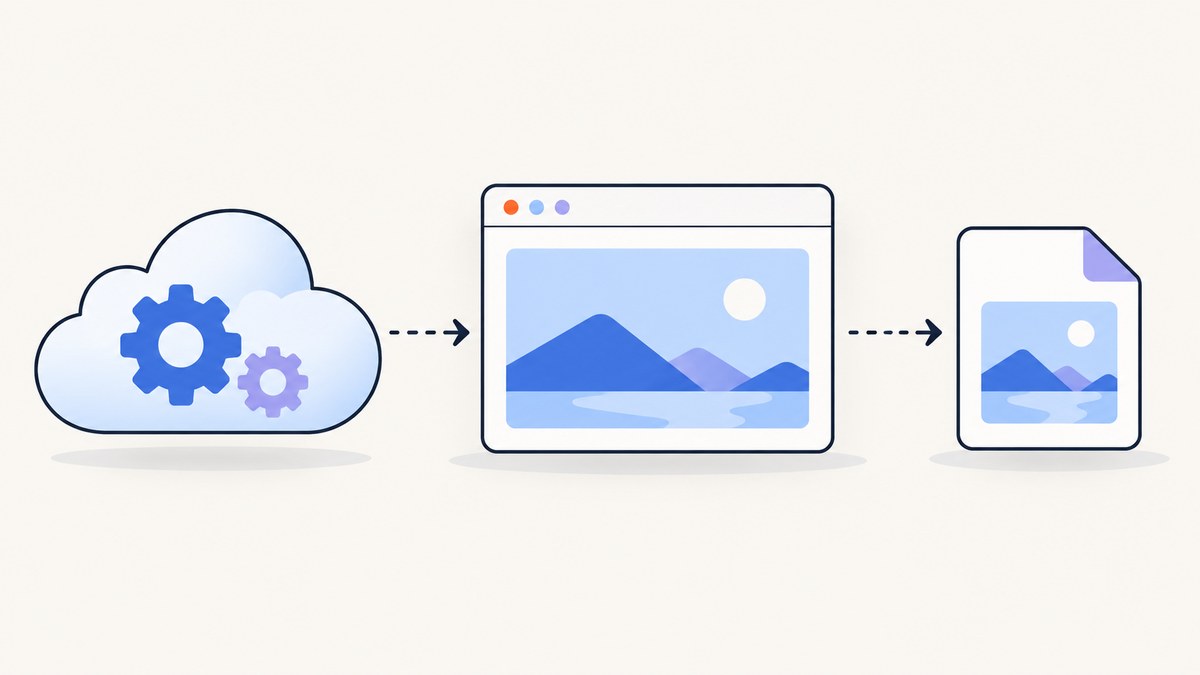
To capture a website screenshot in Pipedream, add a Node.js code step, import Puppeteer from @pipedream/browsers, open a browser and page, navigate to the URL, and call page.screenshot(). Close the browser in a finally block so cleanup happens even when navigation or capture fails. This Pipedream-oriented browser package requires no authentication for this use, according to its package documentation.
The example below returns a path to a PNG written under /tmp. That path is useful inside the step, but do not assume it will persist or be available to later workflow steps without checking how your workflow handles files. If downstream steps need the image, explicitly pass or upload it using a storage or delivery step appropriate to your workflow.
1. Build a basic Pipedream screenshot step
- Create or open a Pipedream workflow and add a Node.js code step.
- Use the Pipedream browser package and navigate to the page you want to capture.
- Save the screenshot, return the relevant output, and close the browser in all cases.
import { puppeteer } from '@pipedream/browsers';

export default defineComponent({
  async run() {
    const browser = await puppeteer.browser();
    try {
      const page = await browser.newPage();
      await page.goto('https://example.com', { waitUntil: 'networkidle2' });
      await page.screenshot({ path: '/tmp/screenshot.png' });
      return { path: '/tmp/screenshot.png' };
    } finally {
      await browser.close();
    }
  },
});
Replace https://example.com with the target page. browser.newPage() creates a page in the browser session; goto() navigates it; the screenshot call captures the current rendered page. Puppeteer documents Page.screenshot() as its capture method and shows navigation before capture in its screenshot guide.
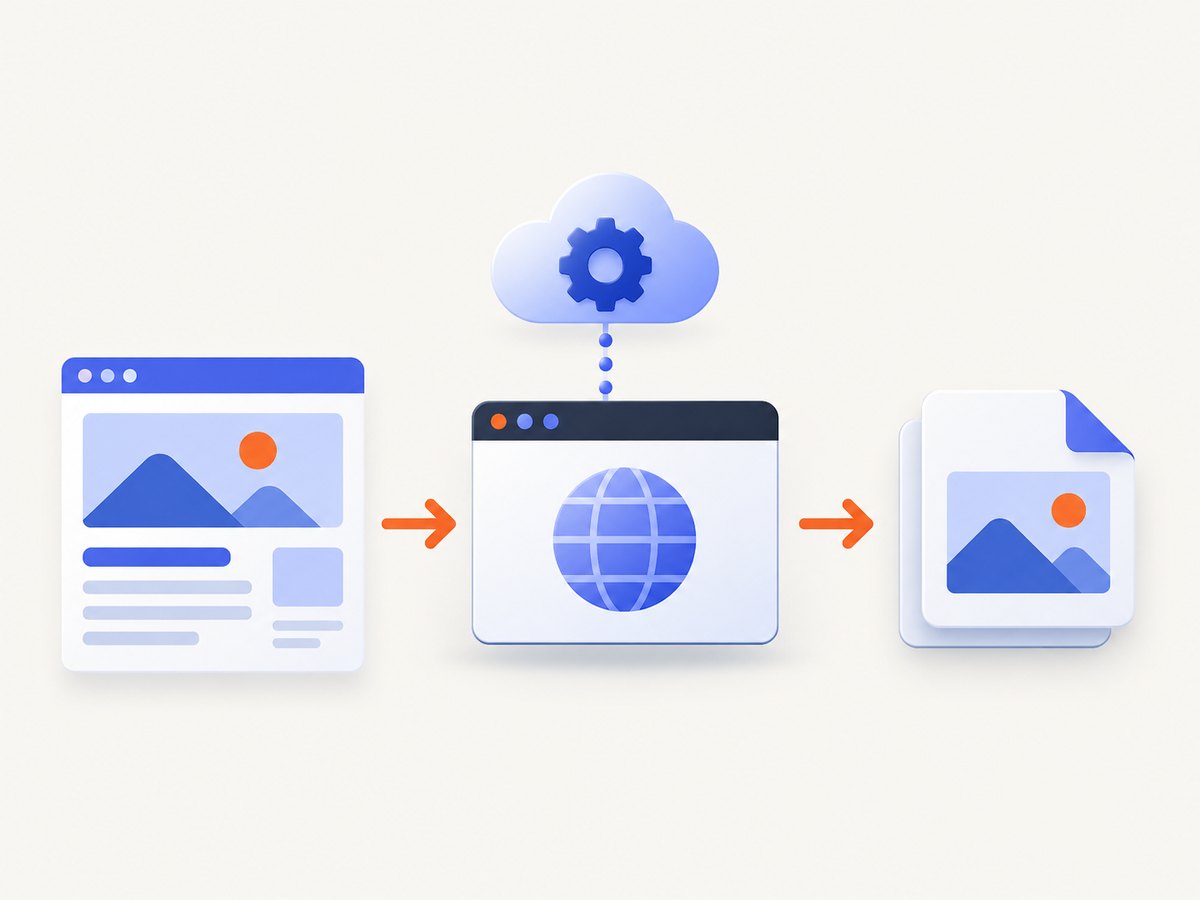
The finally block matters in workflow code. If navigation times out or screenshot capture throws, the browser still closes. Pipedream’s package guidance explicitly reminds workflow authors to close the browser after the code step. Avoid returning before cleanup or leaving a browser open across executions.
2. Choose what to capture
Viewport screenshot
The basic call captures the currently visible page area. This is the right choice for a page preview, dashboard snapshot, or image whose dimensions should match the browser viewport. Puppeteer’s documented fullPage default is false.

Full-page screenshot
Set fullPage: true to capture the whole document rather than only the visible viewport:
await page.screenshot({
  path: '/tmp/full-page.png',
  fullPage: true,
});
A full-page capture can be much taller than a viewport image. Long pages with large images or many sections produce larger files and can take longer to render and encode. If a page loads content only as the visitor scrolls, a full-page option alone may not guarantee that every lazy-loaded item has appeared; check the result on the pages that matter to your workflow.
Screenshot of one element
For a chart, card, or report section, locate the element and capture its bounding box rather than the entire page. Puppeteer supports an element handle’s screenshot() method. It attempts to scroll a hidden element into view before capturing it.
const chart = await page.$('#chart');
if (!chart) {
  throw new Error('Could not find #chart');
}
await chart.screenshot({ path: '/tmp/chart.png' });
Use a selector that identifies a single stable element. A selector that matches nothing should be treated as a workflow error, not silently converted into a successful but empty output. If the page renders the target asynchronously, wait for the element before selecting it; see the readiness section below.
3. Set page readiness deliberately
Screenshot quality often depends more on when the capture happens than on the screenshot call itself. The example uses waitUntil: 'networkidle2' as one navigation condition. Some sites keep requests open or update continuously, so a network-idle condition may be a poor fit. A fixed sleep is also not proof that the meaningful content has loaded: ten seconds can be wasteful on a quick page and too short on a slow one.
When a particular element determines readiness, navigate and wait for that selector before capture:
await page.goto('https://example.com/report', { waitUntil: 'domcontentloaded' });
await page.waitForSelector('#report-ready');
await page.screenshot({ path: '/tmp/report.png' });
Choose a readiness condition that reflects the page and the purpose of the screenshot:
| Page behavior | Possible approach | Trade-off |
|---|---|---|
| Mostly static page | Navigate, then capture after the document is ready | Fast, but page scripts may still update content |
| Application with a known loaded state | Wait for a specific selector | Precise when the selector is stable; fails if markup changes |
| Page with ongoing requests | Use an appropriate navigation condition, then wait for the content needed | Avoids depending on a network becoming completely quiet |
| Content appears after an animation or known delay | Wait for the relevant state or a short delay after it | Delay alone is less reliable across variable response times |
Do not add arbitrary waits by default. First identify what the screenshot must show: a heading, a chart, a completed report, or a final visual state. Wait for that condition, then capture. This makes the workflow easier to diagnose when a site changes.
4. Save and pass along the image
Puppeteer can save the image to a path or return image bytes when no path is supplied. PNG is the documented default format, and the format can be inferred from the file extension when writing to a path. For example:
const imageBytes = await page.screenshot();
return {
  mimeType: 'image/png',
  byteLength: imageBytes.length,
};
This example reports metadata, not the image itself. A binary screenshot may not be suitable for returning as ordinary step JSON. Decide where the result should go: a workflow file output, object storage, an email attachment, or another destination supported by the relevant Pipedream integration. Verify that the next step receives the bytes or a durable URL, rather than just a local path.
The research sources include an example that writes to /tmp, but they do not establish how long such files persist in every current Pipedream environment or how every downstream step receives them. Treat local file availability as an implementation detail to verify for your workflow.
5. Add input-driven URLs safely
In a real workflow, the URL may come from a trigger event. Validate that it is present and is an expected web URL before navigating. This catches missing or malformed event data early and avoids accidentally turning arbitrary input into a browser destination.
const inputUrl = steps.trigger.event.url;
let parsedUrl;
try {
  parsedUrl = new URL(inputUrl);
} catch {
  throw new Error('Trigger must provide a valid URL');
}
if (!['http:', 'https:'].includes(parsedUrl.protocol)) {
  throw new Error('Only HTTP and HTTPS URLs are supported by this workflow');
}

const browser = await puppeteer.browser();
try {
  const page = await browser.newPage();
  await page.goto(parsedUrl.toString(), { waitUntil: 'domcontentloaded' });
  await page.screenshot({ path: '/tmp/screenshot.png' });
  return { path: '/tmp/screenshot.png', url: parsedUrl.toString() };
} finally {
  await browser.close();
}
Adjust steps.trigger.event.url to the trigger’s actual output shape. For workflows that accept URLs from untrusted users, use an allowlist of permitted hosts and avoid exposing private internal services through the browser step. Keep secrets out of the URL when possible, since URLs can appear in logs or outputs.
6. Choose Puppeteer or Playwright
The documented Pipedream browser route in the research is Puppeteer through @pipedream/browsers. Playwright is another reasonable option when it fits an existing project or workflow. Its documentation describes viewport, element, and full-page screenshots. The available sources do not establish a universal performance or compatibility winner, so choose based on runtime integration, required capture scope, and how your workflow handles the image.
| Question | Puppeteer | Playwright |
|---|---|---|
| Which one is shown for this Pipedream workflow? | @pipedream/browsers package route |
Alternative library; confirm the runtime setup you need |
| Can it capture viewport, element, or full page? | Yes, with screenshot options or an element handle | Its screenshot documentation covers these scopes |
| Which is categorically faster or more reliable? | The cited sources do not support a general winner; compare your actual workflow requirements | |
7. Troubleshoot common failures
| Symptom | Likely cause | Fix |
|---|---|---|
| Browser launch fails | The code uses a browser setup that does not match Pipedream’s execution environment | Use the Pipedream browser package route shown above and check its current package guidance. |
| Navigation times out | The site is slow, keeps network requests open, or the selected navigation condition never occurs | Choose a condition suited to the page, then wait for the specific content needed. Check whether the target is reachable from the workflow. |
| Screenshot is blank or missing content | Capture happened before the page rendered the relevant state | Wait for a stable selector or page state, and inspect whether the content is inserted after navigation. |
| Element screenshot fails | The selector did not match an element, or the page had not created it yet | Wait for the selector, verify it against current markup, and fail clearly if the element is absent. |
| Output path is unavailable downstream | A local temporary path is being treated as a durable workflow artifact | Check Pipedream’s current file handling for your workflow and explicitly pass or upload the image before relying on it later. |
| Workflow consumes too much execution time | Large page, full-page image, excessive fixed delay, or slow navigation | Capture only the required scope, remove unnecessary waits, and wait for meaningful readiness signals. |
| Browser remains open after an error | Cleanup was skipped on a failure path | Put browser.close() in finally, as in the runnable example. |
8. Performance, reliability, and cost considerations
Each capture requires browser startup, navigation, page rendering, and image encoding. The page’s scripts and resources affect how long the workflow takes; full-page captures can require more work and produce larger files than viewport captures. The research does not provide benchmarks, so test representative pages and image sizes rather than assuming a specific execution time.
For reliability, keep the workflow bounded: validate trigger input, pick a page-ready condition that can actually occur, check for required elements, and close the browser in finally. Decide what the workflow should do on a timeout or missing element—retry, report an error, or skip—based on the consequences of a missing image. Retries can repeat navigation and capture work, so avoid retrying failures that are caused by invalid input or a permanently missing selector.
For cost, account for the workflow’s execution usage and any downstream file storage or transfer. No Pipedream pricing or execution-cost figures are asserted here because none were established in the research dossier. Measure the workflow under its own plan and expected volume.
9. Or skip the browser setup
If you do not need to manage a browser in each workflow run, ScreenshotNeo offers a website screenshot API and MCP server. A single GET request can return PNG, JPEG, WebP, or PDF. See the ScreenshotNeo API documentation for request options.
curl -G "https://api.screenshotneo.com/v1/shot" -d access_key=YOUR_API_KEY --data-urlencode url=https://stripe.com -o shot.webpimport requests
r = requests.get(
"https://api.screenshotneo.com/v1/shot",
params={"access_key": "YOUR_API_KEY", "url": "https://stripe.com"},
timeout=90,
)
open("shot.webp", "wb").write(r.content)const q = new URLSearchParams({ access_key: 'YOUR_API_KEY', url: 'https://stripe.com' });
const res = await fetch(`https://api.screenshotneo.com/v1/shot?${q}`);
if (!res.ok) throw new Error(`Screenshot request failed: ${res.status}`);
const bytes = Buffer.from(await res.arrayBuffer());
await import('node:fs/promises').then(fs => fs.writeFile('shot.webp', bytes));ScreenshotNeo accepts cookie and consent banners before capture and removes more than 60 known consent platforms, newsletter popups, and chat widgets; each of those steps can be turned off. Bot checks or CAPTCHAs, blank pages, timeouts, failed loads, and cache hits cost nothing, and response headers report the page verdict and billing status. Its MCP server provides take_screenshot, get_page_info, and capture_pdf tools for Claude, Cursor, and other MCP clients. The free plan includes 1,000 screenshots per month with no card; paid plans start at $5 for 3,000 screenshots. Every feature is available on every plan.
Sign up free for 1,000 screenshots a month with no card.
10. Frequently asked questions
Does the Pipedream browser package need authentication?
The package documentation says its workflow use requires no authentication. A target website may still require its own credentials or reject automated visits.
Can a workflow capture a single chart instead of a whole page?
Yes. Find the element and call its screenshot method, after waiting for the element to exist and checking that the selector matches.
Can I use the image in a later workflow step?
Yes, if your workflow explicitly makes the bytes or a durable file reference available to that step. Verify the current file-passing behavior instead of relying on a temporary path by itself.
Should I use Puppeteer or Playwright?
Use the library that fits the workflow runtime and capture scope. The cited documentation describes screenshot support in both and does not establish a universal winner.


