How to Capture Website Screenshots with Python
Capture viewport, full-page, and element screenshots in Python with Playwright or Selenium, tune output, fix failures, and use ScreenshotNeo when you want an API.
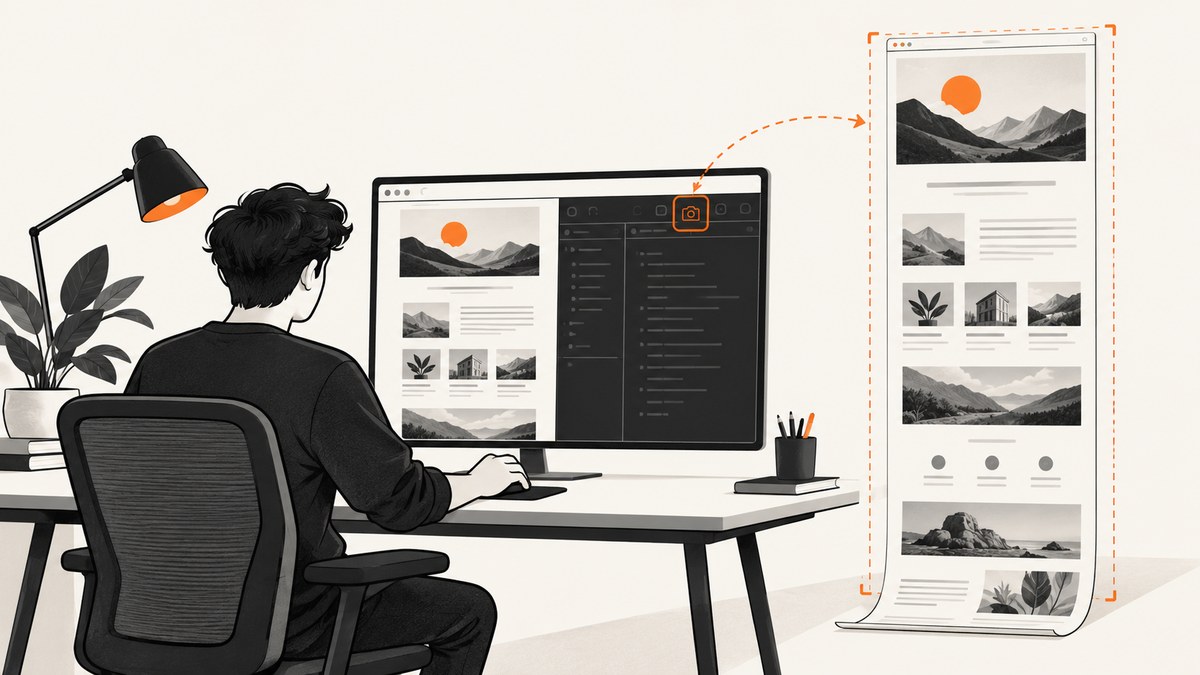
To capture a rendered website with Python, use a browser automation library. Playwright is a compact choice for a new script because it supports viewport, full-page, and element screenshots and can save an image or return its bytes. Selenium is a practical alternative when your project already uses WebDriver.
A plain HTTP request downloads HTML; it does not render the page, run JavaScript, load web fonts, or produce what a visitor sees. A screenshot requires a browser page:
- Launch a browser.
- Create a context and page with the viewport you need.
- Navigate to the URL.
- Wait for the page state or a specific element.
- Call the screenshot API and save or process the resulting bytes.
1. Capture a basic screenshot with Playwright
The official Playwright Python screenshots guide documents the basic, full-page, buffer, and element workflows. Install Playwright in your project, then make sure the browser binaries required by your installation are available by following the current installation documentation.
from playwright.sync_api import sync_playwright

URL = "https://example.com"

with sync_playwright() as p:
    browser = p.chromium.launch(headless=True)
    context = browser.new_context(viewport={"width": 1440, "height": 900})
    page = context.new_page()
    page.goto(URL, wait_until="networkidle")
    page.screenshot(path="screenshot.png")
    browser.close()
By default, page.screenshot() captures the visible viewport. The screenshot type is inferred from the filename extension, and the method returns image bytes when no path is supplied. Use a deterministic viewport so that line wrapping and responsive breakpoints do not change between runs.
Async Python
import asyncio
from playwright.async_api import async_playwright

async def capture():
    async with async_playwright() as p:
        browser = await p.chromium.launch(headless=True)
        context = await browser.new_context(viewport={"width": 1440, "height": 900})
        page = await context.new_page()
        await page.goto("https://example.com", wait_until="networkidle")
        await page.screenshot(path="screenshot.png")
        await browser.close()

asyncio.run(capture())
2. Full-page, element, and in-memory captures
Full scrollable page
page.screenshot(path="full-page.png", full_page=True)full_page=True requests the complete scrollable document rather than only the viewport. Very long pages can create large images; consider an element capture, a clip rectangle, or a PDF when a single extremely tall bitmap is inconvenient.
One element
page.locator("article").screenshot(path="article.png")The locator screenshot waits for the matching element and captures its bounding box. Use a stable selector such as a data attribute when you control the site. If a selector matches several nodes, Playwright uses the first match; use locator("...").nth(index) when that is intentional.
Return bytes instead of writing a file
from pathlib import Path

image_bytes = page.screenshot(type="webp", quality=85)
Path("screenshot.webp").write_bytes(image_bytes)
Bytes are useful when uploading directly to object storage, returning an HTTP response, computing a hash, or passing an image to a visual-diff tool.
3. Configure the browser context
Most screenshot differences come from context settings rather than the screenshot call.
context = browser.new_context(
    viewport={"width": 1280, "height": 800},
    device_scale_factor=1,
    color_scheme="light",
    locale="en-US",
    timezone_id="America/New_York",
    user_agent="ScreenshotWorker/1.0"
)- Viewport: controls CSS layout and responsive breakpoints.
- Device scale factor: changes the number of physical pixels produced.
- Color scheme: request light or dark mode when the site honors
prefers-color-scheme. - Locale and timezone: make date, number, and language rendering repeatable.
- User agent: use only when you need to reproduce a specific client experience.
For authentication, create a context with cookies or storage state. For HTTP headers, pass extra_http_headers. Keep secrets out of source control and logs.
context = browser.new_context(
    storage_state="logged-in-state.json",
    extra_http_headers={"Authorization": "Bearer YOUR_TOKEN"}
)
4. Screenshot output options
The Page API reference documents the screenshot parameters. Common options include:
| Option | Use |
|---|---|
type |
png, jpeg, or webp. |
quality |
0–100 for JPEG and WebP; it does not apply to PNG. |
full_page |
Capture the whole scrollable page. |
clip |
Capture a rectangle with x, y, width, and height. |
scale |
css keeps one output pixel per CSS pixel; device preserves device-pixel density. |
omit_background |
Allow transparency for formats that support it; JPEG cannot be transparent. |
animations |
Use disabled for more repeatable captures. |
style |
Inject a stylesheet for the capture, such as hiding a blinking cursor or an overlay. |
timeout |
Maximum time for the screenshot operation in milliseconds. |
page.screenshot(
    path="hero.webp",
    type="webp",
    quality=85,
    scale="css",
    animations="disabled",
    style=".cookie-banner, .chat-widget { display: none !important; }"
)
Use PNG for lossless visual tests, WebP for a smaller modern image, and JPEG for photographs where transparency is unnecessary. Keep the same format, scale, fonts, and viewport across a comparison set.
5. Wait for the page you actually want
wait_until="networkidle" can help with pages that make a finite set of requests, but analytics, ads, and live connections may prevent a true idle state. A targeted wait is often clearer:
page.goto("https://example.com/dashboard", wait_until="domcontentloaded")
page.locator("main.dashboard").wait_for(state="visible")
page.wait_for_timeout(500)
page.screenshot(path="dashboard.png")
Prefer a selector that represents finished content. For lazy-loaded pages, scroll before capturing:
page.goto("https://example.com/gallery", wait_until="domcontentloaded")
page.evaluate("window.scrollTo(0, document.body.scrollHeight)")
page.wait_for_timeout(800)
page.screenshot(path="gallery.png", full_page=True)
For a repeatable job, disable animations, set a fixed viewport, wait for web fonts or key selectors, and record the final URL. Avoid arbitrary long sleeps unless the page has no observable readiness signal.
6. Selenium alternative
If your application already uses Selenium, reuse its driver. The current Selenium Python WebDriver API documents saving the current window as PNG and returning PNG bytes or base64.
from selenium import webdriver
from selenium.webdriver.chrome.options import Options
from selenium.webdriver.common.by import By
from selenium.webdriver.support.ui import WebDriverWait

options = Options()
options.add_argument("--headless=new")
options.add_argument("--window-size=1440,900")

driver = webdriver.Chrome(options=options)
try:
    driver.get("https://example.com")
    WebDriverWait(driver, 30).until(
        lambda d: d.find_element(By.TAG_NAME, "body").is_displayed()
    )
    driver.save_screenshot("screenshot.png")
    png_bytes = driver.get_screenshot_as_png()
finally:
    driver.quit()
Selenium’s cited API covers the current window. Do not assume that this reference establishes Playwright-style full-document behavior across browsers; if full-page capture is central to a new script, use Playwright’s documented full_page=True path or verify the exact Selenium and browser implementation you deploy.
7. A reusable production-style function
from pathlib import Path
from playwright.sync_api import sync_playwright, TimeoutError as PlaywrightTimeoutError

def capture(url: str, output: str, selector: str | None = None) -> None:
    with sync_playwright() as p:
        browser = p.chromium.launch(headless=True)
        context = browser.new_context(
            viewport={"width": 1440, "height": 900},
            device_scale_factor=1,
            color_scheme="light",
        )
        page = context.new_page()
        try:
            response = page.goto(url, wait_until="domcontentloaded", timeout=60_000)
            if response is not None and response.status >= 400:
                raise RuntimeError(f"HTTP status {response.status} for {page.url}")
            if selector:
                page.locator(selector).wait_for(state="visible", timeout=30_000)
                page.locator(selector).screenshot(path=output, animations="disabled")
            else:
                page.screenshot(path=output, full_page=True, animations="disabled")
        except PlaywrightTimeoutError as exc:
            raise RuntimeError(f"Timed out while loading or waiting for {url}") from exc
        finally:
            context.close()
            browser.close()

capture("https://example.com", "example.png")
# capture("https://example.com/pricing", "pricing.png", selector="main")
8. Troubleshooting checklist
| Symptom | Likely cause | Fix |
|---|---|---|
| Browser executable not found | The Python package is installed but its browser binary is unavailable. | Follow the current Playwright browser installation instructions and run in an environment where the binary is present. |
| Screenshot is blank | The page has not rendered, navigation failed, or content is behind an iframe/authentication boundary. | Check the final URL and response status, wait for a meaningful selector, provide authentication state, and inspect page console/errors. |
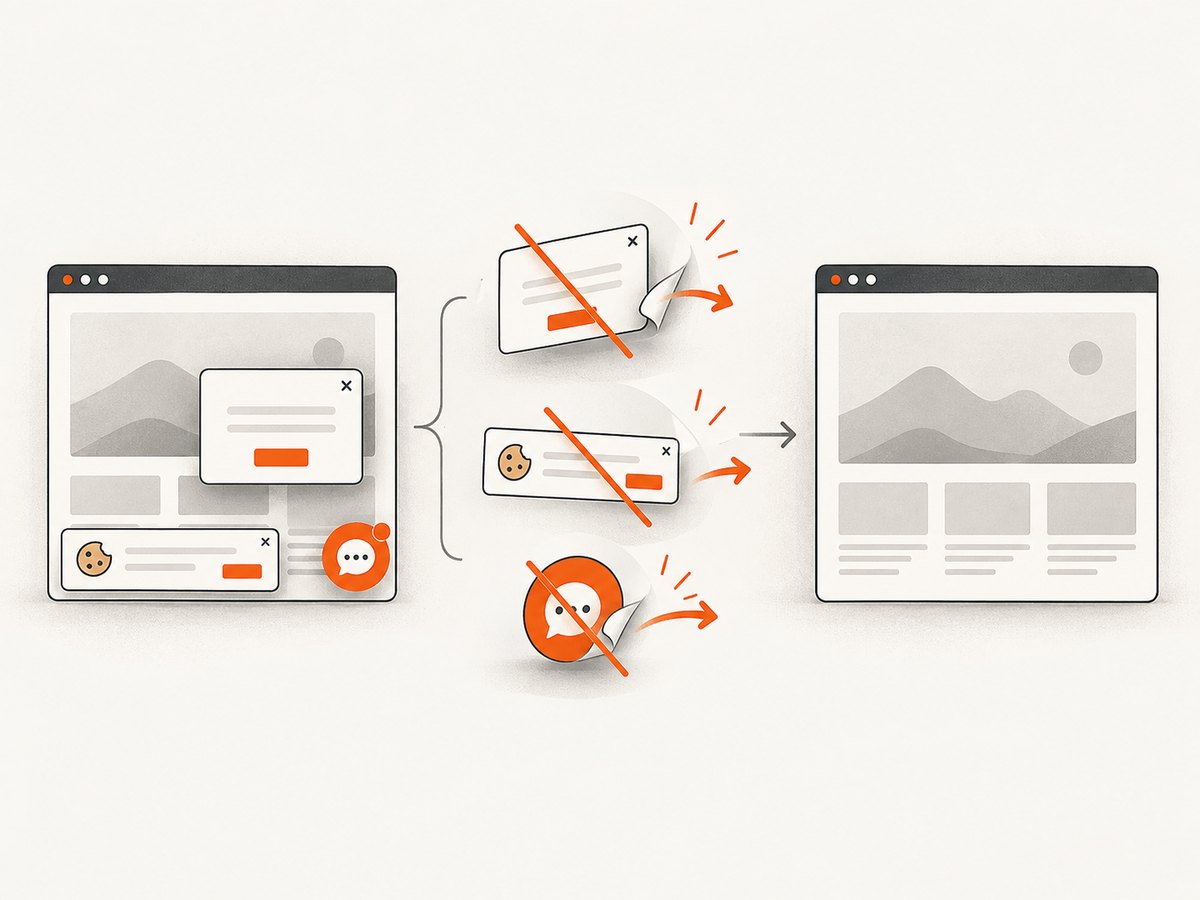
| Cookie banner or chat widget covers content | Those elements are part of the rendered page. | Click the consent control, inject capture-only CSS, or hide a known selector before the screenshot. |
| Full page cuts off lazy images | Images load only after scrolling or entering the viewport. | Scroll through the document, wait for image completion, then capture; alternatively capture the relevant element. |
| Text differs between runs | Fonts, viewport, locale, timezone, animations, or dynamic data differ. | Fix context settings, disable animations, wait for fonts/content, and use stable test data. |
Timeout at networkidle |
Persistent analytics or WebSocket requests keep the network active. | Use domcontentloaded plus a selector wait or a bounded delay. |
| Element not found | The selector is wrong, content is inside an iframe, or the element appears later. | Use a stable selector, wait for it, and access the correct frame with page.frame_locator(). |
| Output is too large | Full-page and device-scale screenshots contain many pixels. | Use scale="css", WebP quality, a smaller viewport, a clip, or an element capture. |
9. Performance, reliability, and cost
- Reuse browser processes: launching a browser for every URL adds overhead. For batches, keep one browser running and create isolated contexts or pages.
- Limit concurrency: too many pages compete for CPU, memory, fonts, and network bandwidth. Choose a bounded worker count and observe failures.
- Set explicit timeouts: separate navigation, selector, and screenshot timeouts so one slow page does not occupy a worker indefinitely.
- Keep artifacts: store the URL, viewport, timestamp, browser version, and error text next to the image so failures can be reproduced.
- Retry selectively: retry transient navigation or network failures with a limit; do not blindly retry deterministic selector errors.
- Control image size: PNG is lossless but often larger. WebP or JPEG can reduce storage and transfer costs when their visual characteristics are acceptable.
Self-hosted browser automation costs the compute, memory, bandwidth, and maintenance of the machines running it. An API can be simpler when you need many URLs, isolated browser environments, signed delivery links, or consistent capture settings.
10. Or skip the browser setup
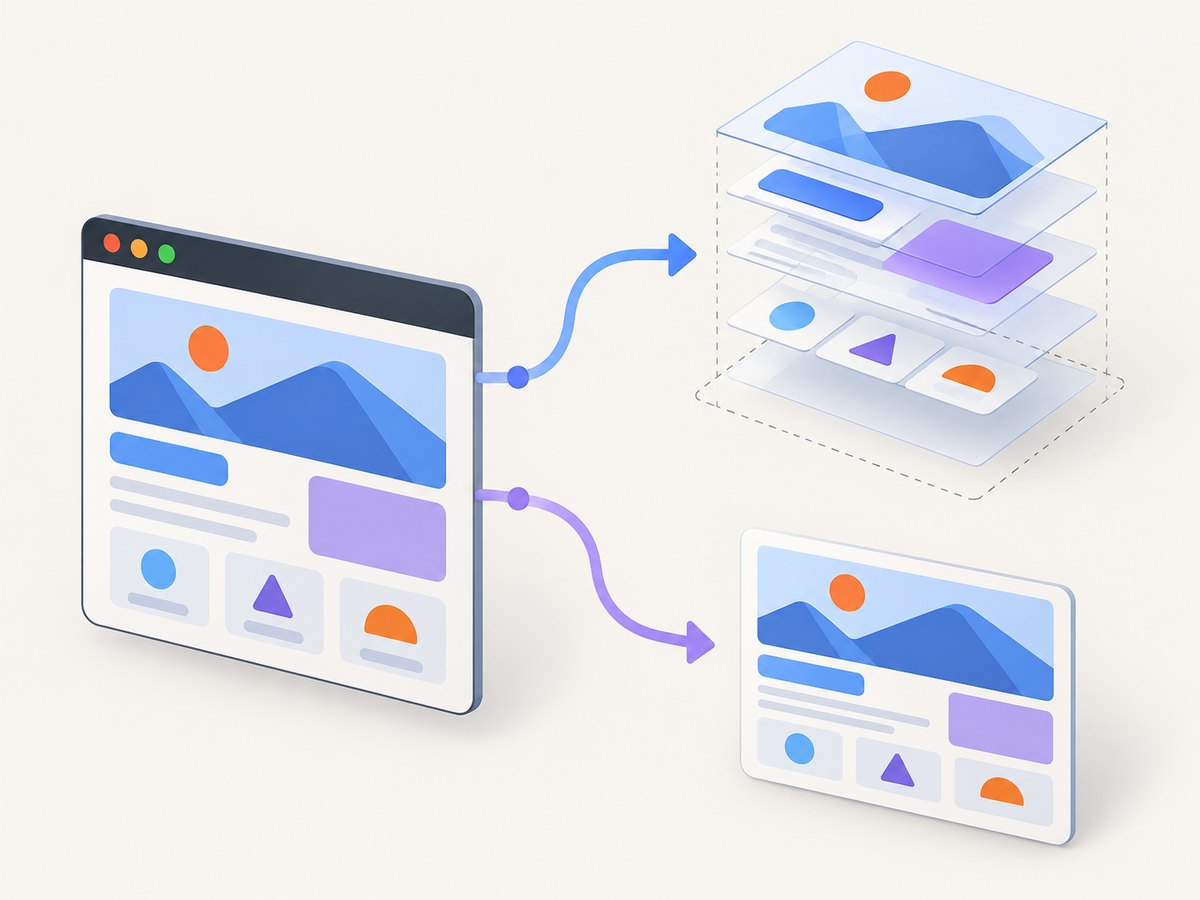
ScreenshotNeo provides a website screenshot API and MCP server. One GET request returns PNG, JPEG, WebP, or PDF. The same request works from Python, cURL, or Node.js; see the ScreenshotNeo API documentation for the full parameter list.
curl -G "https://api.screenshotneo.com/v1/shot" -d access_key=YOUR_API_KEY --data-urlencode url=https://stripe.com -o shot.webpimport requests
r = requests.get("https://api.screenshotneo.com/v1/shot", params={"access_key": "YOUR_API_KEY", "url": "https://stripe.com"}, timeout=90)
r.raise_for_status()
open("shot.webp", "wb").write(r.content)const q = new URLSearchParams({ access_key: 'YOUR_API_KEY', url: 'https://stripe.com' });
const res = await fetch(`https://api.screenshotneo.com/v1/shot?${q}`);
if (!res.ok) throw new Error(`HTTP ${res.status}`);
const image = Buffer.from(await res.arrayBuffer());
await import('node:fs/promises').then(fs => fs.writeFile('shot.webp', image));ScreenshotNeo can accept cookie and consent banners as a visitor and remove more than 60 known consent platforms, newsletter popups, and chat widgets before capture; each cleanup step can be turned off. Only clean shots are billed: bot checks or CAPTCHAs, blank pages, timeouts, failed loads, and cache hits cost nothing, and the response reports the result with X-Page-Verdict and X-Billed headers. Its MCP server exposes take_screenshot, get_page_info, and capture_pdf for Claude, Cursor, and other MCP clients.
Options include full-page capture with lazy images, CSS-selector element capture, dark mode, device presets and custom viewports, retina scale, PDF paper and page settings, custom CSS and JavaScript, clicks, selector or network-idle waits, request and resource blocking, headers, cookies, user agents, authorization, timezone, geolocation, transparent backgrounds, resizing, configurable-TTL caching, signed links, asynchronous jobs with signed webhooks, bulk capture for 100 URLs per call, a usage API, and an OpenAPI specification. Parameter names used by other screenshot APIs also work, which can simplify migration.
The Free plan includes 1,000 shots each month with no card. Paid plans start at $5 for 3,000 shots; yearly billing gives two months free. Create a free ScreenshotNeo account and start with the included monthly shots.
11. FAQ
Can Python screenshot a page without a browser?
Not a rendered, JavaScript-driven page. An HTTP client can fetch source HTML, while Playwright or Selenium renders the page in a browser before capturing pixels.
How do I capture only the visible viewport?
Call page.screenshot(path="viewport.png") without full_page=True.
How do I return an image from a web endpoint?
Omit path, receive the bytes from page.screenshot(), and return them with an image content type from your Python web framework.
Which should I choose, Playwright or Selenium?
Use Playwright for a focused new screenshot workflow with documented viewport, full-page, and locator captures. Use Selenium when its WebDriver setup is already part of your application. This is a project-fit recommendation, not a speed ranking.
How can I make screenshots reproducible?
Fix viewport, scale, locale, timezone, color scheme, authentication state, fonts, animation behavior, and readiness waits. Capture stable data and record the browser and URL metadata.


