How to Capture Website Screenshots on Shared Hosting
Learn when shared hosting can run Chromium, how to capture with Puppeteer or Chrome, and when a hosted screenshot API is the safer option.
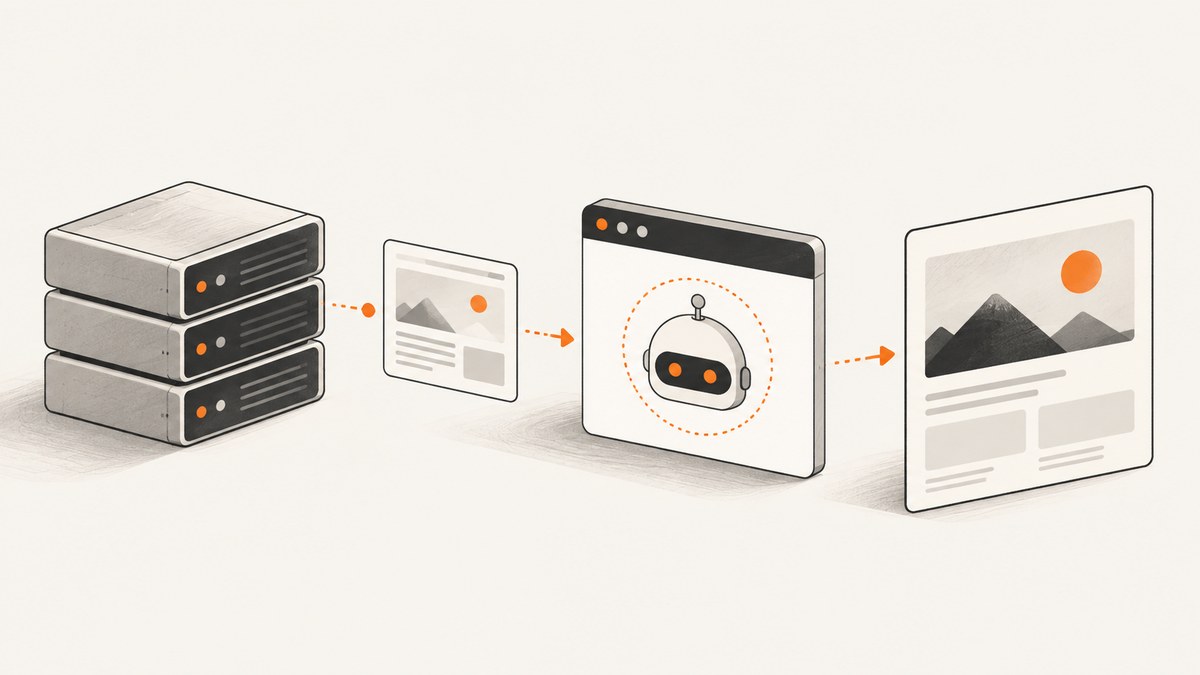
Short answer: shared hosting can capture screenshots only if the specific plan allows your account to launch Chrome or Chromium and provides the libraries, sandbox behavior, writable directories, and resources that browser processes need. Ask the host before deploying. If the environment passes those checks, use Puppeteer for scripted captures or Chrome’s headless command line for a simple job. If it does not, run the browser elsewhere; ScreenshotNeo provides a one-request alternative.
1. Check whether your shared-hosting plan supports a browser
“Shared hosting” describes a hosting model, not a standard runtime. A cPanel account may manage domains, files, databases, and related account features, but general cPanel documentation does not establish that a particular provider permits Chromium processes or what limits apply. Confirm the details for your plan.
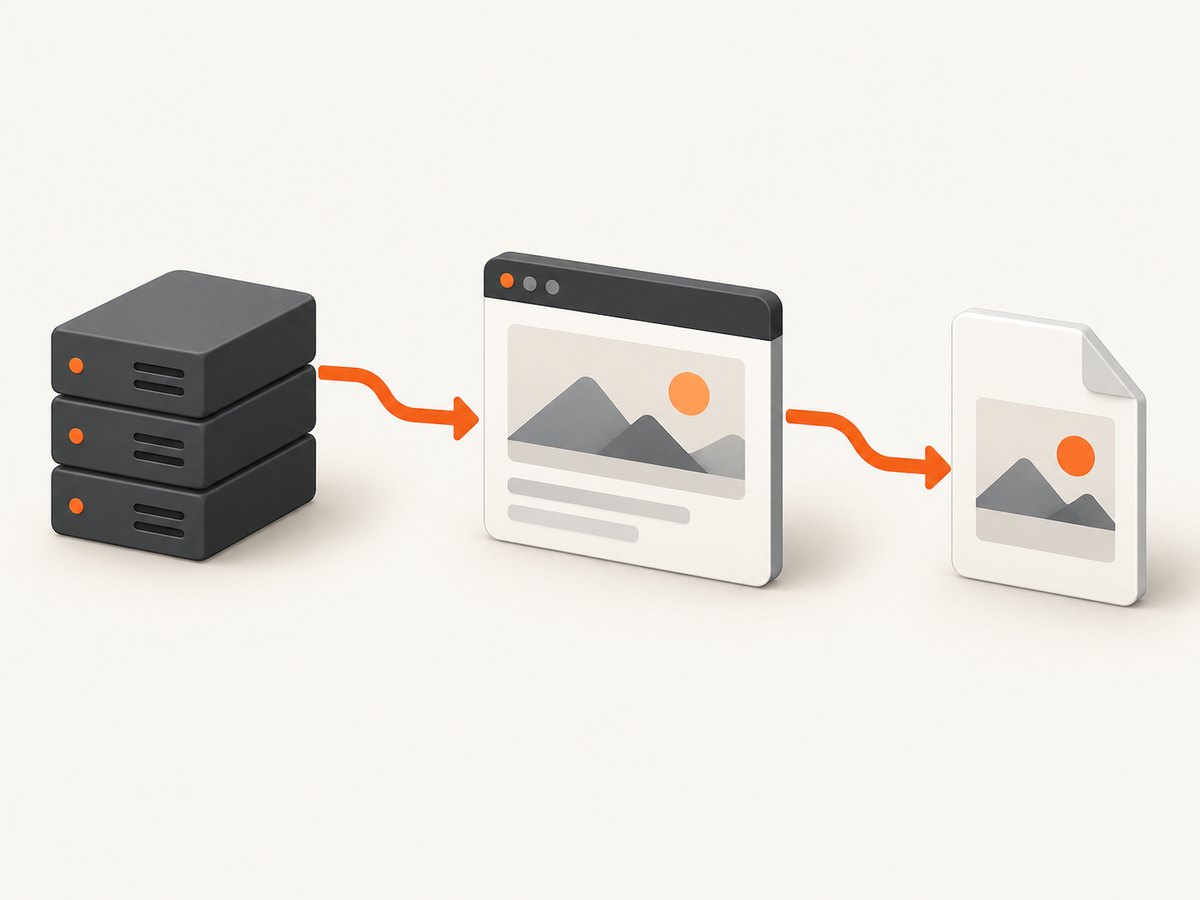
Questions to send your provider
- May a PHP, Node.js, Python, cron, or shell script launch Chrome or Chromium?
- Is a compatible browser executable already installed? If not, may you install one in your account?
- Are the browser’s required system libraries available?
- Which sandbox mode is supported? Are process or namespace restrictions imposed?
- What are the memory, CPU, process-count, and execution-time limits?
- Which directories are writable for screenshots, browser profiles, temporary files, and caches?
- Can long-running jobs run from cron or a queue, and how are failed processes terminated?
Puppeteer documents system-library dependencies, sandbox conditions, and writable profile and cache locations as runtime considerations. Its configuration also allows an explicit executable path, so installing the package alone does not prove that a usable browser exists. See the Puppeteer troubleshooting guide and configuration guide.
A quick capability test
Run this only after the provider confirms that browser processes are allowed. It checks whether Node.js can start a browser and whether the account can write the result.
node -e "const p=require('puppeteer'); (async()=>{const b=await p.launch({headless:true,args:['--no-sandbox','--disable-setuid-sandbox']}); const page=await b.newPage(); await page.goto('https://example.com',{waitUntil:'domcontentloaded',timeout:30000}); await page.screenshot({path:'browser-test.png'}); await b.close(); console.log('wrote browser-test.png')})().catch(e=>{console.error(e);process.exit(1)})"The --no-sandbox flags can be necessary on restricted hosts, but they reduce browser isolation. Use them only when your provider’s environment requires them and isolate the account from untrusted workloads.
2. Capture with Puppeteer
Puppeteer controls a browser and exposes Page.screenshot(). The API supports a file path, output type, full-page capture, and clipping. A relative path is resolved from the process working directory; without a path, the screenshot data is returned rather than saved by that option. See the Page.screenshot API and ScreenshotOptions reference.
Install in an account-local Node.js application
mkdir screenshot-job
cd screenshot-job
npm init -y
npm install puppeteer
Puppeteer normally downloads a compatible Chrome during installation. On shared hosting, that download may be blocked or the resulting binary may not run, so ask the provider whether you must use an existing executable and set executablePath.
Complete screenshot script
const puppeteer = require('puppeteer');

const target = process.argv[2] || 'https://example.com';
const output = process.argv[3] || './screenshots/page.png';

(async () => {
  const browser = await puppeteer.launch({
    headless: true,
    // Set this when the host supplies Chromium at a known path.
    // executablePath: '/home/ACCOUNT/bin/chromium',
    args: [
      '--no-sandbox',
      '--disable-setuid-sandbox',
      '--disable-dev-shm-usage'
    ]
  });

  try {
    const page = await browser.newPage();
    await page.setViewport({ width: 1440, height: 900, deviceScaleFactor: 1 });
    await page.goto(target, { waitUntil: 'networkidle2', timeout: 60000 });
    await page.screenshot({
      path: output,
      type: 'png',
      fullPage: true
    });
    console.log(`Saved ${output}`);
  } finally {
    await browser.close();
  }
})().catch(error => {
  console.error(error);
  process.exitCode = 1;
});
Useful Puppeteer options
| Need | Setting | Notes |
|---|---|---|
| Whole document | fullPage: true |
Captures the page’s full scrollable height. Very tall pages consume more memory. |
| Specific region | clip: {x, y, width, height} |
Coordinates are CSS pixels in the current viewport. |
| Format | type: 'png' | 'jpeg' | 'webp' |
JPEG and WebP can reduce file size; PNG preserves sharp text and transparency. |
| Quality | quality: 80 |
Applies to JPEG and WebP, not PNG. |
| Wait for a page state | waitUntil: 'domcontentloaded' | 'load' | 'networkidle0' | 'networkidle2' |
Choose a condition that matches the page. Analytics and chat requests can prevent network idle. |
| Delay for rendering | await new Promise(r => setTimeout(r, 1500)) |
Use a bounded delay when a chart or animation needs time after navigation. |
| Authentication | page.setExtraHTTPHeaders(), cookies, or page.authenticate() |
Keep credentials out of URLs and logs. |
Element-only capture
const element = await page.locator('.invoice').boundingBox();
if (!element) throw new Error('Element is not visible');
await page.screenshot({ path: './invoice.png', clip: element });
For a changing page, wait for the selector first and re-read its bounds immediately before capture. A missing or zero-size element should be treated as a failed job rather than an empty image.
3. Capture with Chrome’s command line
If the host already provides a working Chrome or Chromium executable, the headless command line can be simpler than a Node application. Chrome documents --screenshot and --window-size; the example writes screenshot.png in the current working directory. See Chrome’s headless documentation.
/path/to/chrome \
  --headless \
  --disable-gpu \
  --no-sandbox \
  --window-size=1440,900 \
  --screenshot=/home/ACCOUNT/public_html/screenshots/page.png \
  https://example.com
Use an account-writable output path. A command-line capture has fewer controls than Puppeteer: if you need cookies, login steps, selector waits, or custom page scripts, use a browser automation script instead.
4. Store and serve the image safely
- Create a directory outside the public web root for private captures, or protect the public directory with authentication.
- Use a generated filename rather than allowing a URL to become a path. Reject
.., slashes, and shell metacharacters. - Set restrictive permissions on files that may contain private page data.
- Delete old captures with a scheduled cleanup job.
- Return a fixed content type and length when serving a file; never execute uploaded or generated files as scripts.
A screenshot can contain account information, tokens displayed in a page, or personal data. Define retention and access rules before exposing a capture URL.
5. Common failures and fixes
| Error or symptom | Likely cause | Fix |
|---|---|---|
Failed to launch the browser process |
Missing executable, incompatible binary, or blocked process. | Ask the provider whether Chromium is allowed, verify the executable path, and check the provider’s supported libraries. |
error while loading shared libraries |
The host lacks a required system library. | Use a provider-supported browser image or move the browser to another environment; account-local npm packages cannot supply every system dependency. |
| Sandbox or setuid error | The host restricts the Chrome sandbox. | Ask which sandbox mode is supported. If permitted, use the documented restricted-host flags and isolate the process. |
| Permission denied writing the image | Output, profile, or cache directory is not writable. | Choose an account-owned temporary and output directory and verify permissions before navigation. |
| Navigation timeout | Slow origin, blocked resource, redirect loop, or a page waiting forever. | Set a finite timeout, log the final URL, test with domcontentloaded, and investigate the target separately. |
| Blank or incomplete image | Capture happened before client-side rendering or lazy content finished. | Wait for a selector, a bounded delay, or a suitable network-idle condition. Scroll carefully to trigger lazy loading. |
| Process killed by the host | Memory, CPU, process, or execution-time limit. | Capture fewer pages concurrently, reduce viewport and full-page height, close every browser in finally, and ask for the exact account limits. |
| Fonts or images differ from local output | Missing fonts, blocked external resources, or different user-agent/viewport. | Install only host-approved dependencies, wait for fonts, and record viewport and browser versions for repeatability. |
| Works over SSH but not from cron | Different working directory, PATH, environment variables, or permissions. | Use absolute paths, set the working directory explicitly, and write logs to an account-writable location. |
6. Reliability, performance, and cost
Reliability checklist
- Pin or record the browser version and Puppeteer version.
- Use one browser process for a small batch, but create and close pages deliberately.
- Set navigation and overall job timeouts; always close the browser in a
finallyblock. - Log URL, start time, final URL, status, duration, browser path, and failure reason without logging secrets.
- Retry transient navigation failures with a limit and backoff. Do not retry deterministic missing-library or permission errors.
- Monitor disk usage and remove stale profiles, caches, and screenshots.
Performance choices
- Use a normal viewport and a clipped region when a full-page image is unnecessary.
- Limit concurrency to what the provider’s memory and process limits support.
- Reuse a browser for a batch, while isolating cookies in separate contexts when pages are unrelated.
- Wait for the page state you actually need. Waiting for every network request can be slower or never finish on pages with persistent connections.
- Prefer WebP or JPEG for large photographic pages; use PNG when lossless text or transparency matters.
Your provider determines the real cost: shared-hosting plan fees, execution quotas, storage, and any overage policy. The research does not establish limits for an unspecified host, so obtain those numbers before estimating throughput.
7. Or skip the browser setup
If the account cannot run Chromium, move rendering to a service designed for browser capture. ScreenshotNeo’s API documentation shows the request and available options.
curl -G "https://api.screenshotneo.com/v1/shot" -d access_key=YOUR_API_KEY --data-urlencode url=https://stripe.com -o shot.webpimport requests
r = requests.get("https://api.screenshotneo.com/v1/shot", params={"access_key": "YOUR_API_KEY", "url": "https://stripe.com"}, timeout=90)
open("shot.webp", "wb").write(r.content)const q = new URLSearchParams({ access_key: 'YOUR_API_KEY', url: 'https://stripe.com' });
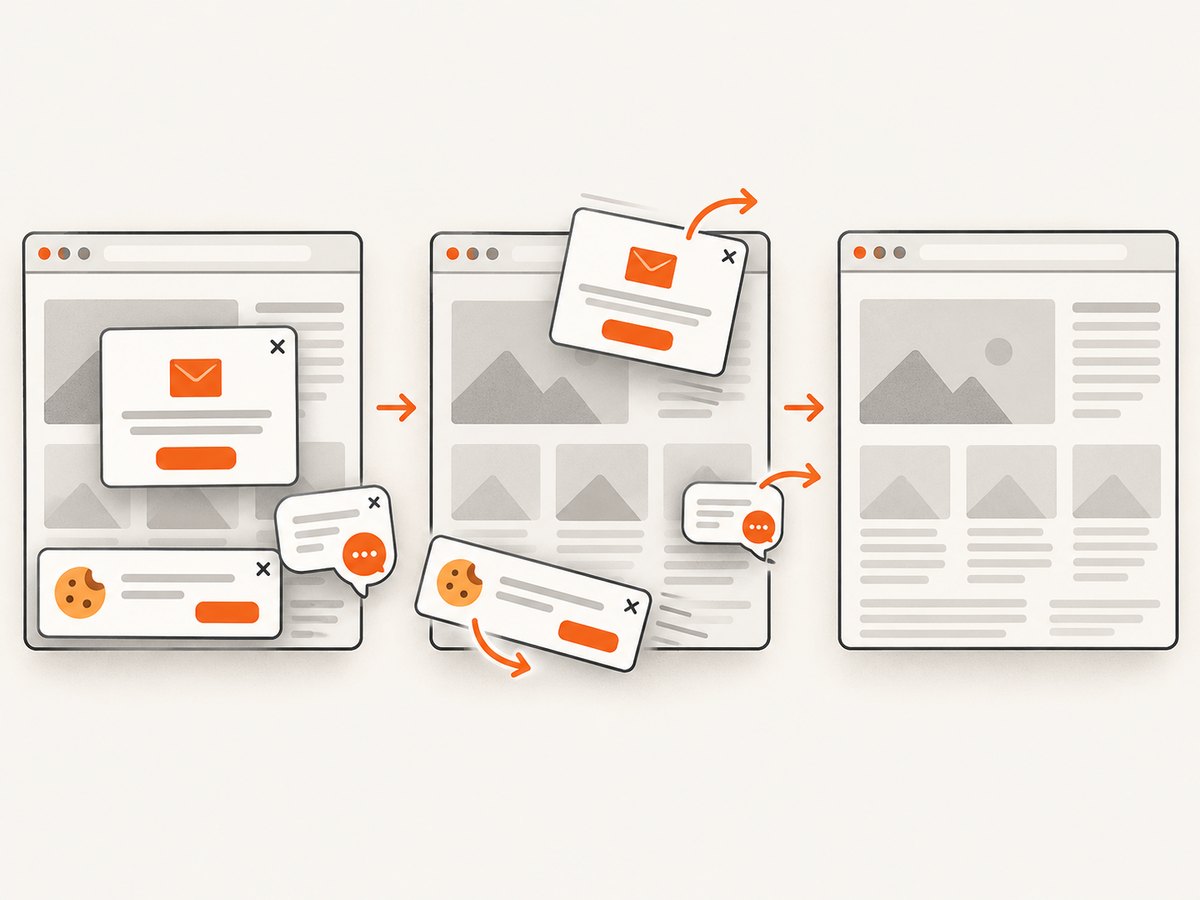
const res = await fetch(`https://api.screenshotneo.com/v1/shot?${q}`);ScreenshotNeo removes cookie banners, newsletter popups, and chat widgets before the shot. Bot checks, blank pages, and failed loads are never billed, and the response identifies the result with X-Page-Verdict and X-Billed headers. Its MCP server lets AI agents take screenshots, inspect pages, and capture PDFs. You get 1,000 screenshots a month free with no card; paid plans start at $5 for 3,000 shots. Create a free ScreenshotNeo account.
8. Choosing between local capture and a remote browser
| Question | Run on shared hosting | Use a remote browser |
|---|---|---|
| Browser permission | Depends on the exact plan. | The rendering environment is provided by the service. |
| Dependencies | You must satisfy executable and library requirements. | You integrate an HTTP API or SDK. |
| Control | Puppeteer can run custom code and login flows. | Depends on the service’s documented options. |
| Limits | Host CPU, memory, process, timeout, and disk quotas. | Service quotas, request limits, terms, privacy, and price. |
| Data path | Pages and images stay in your account unless the target itself is remote. | The target URL and capture pass through the provider; review its terms. |
9. FAQ
Can PHP on shared hosting take a screenshot by itself?
PHP can start a browser only if the account is allowed to launch one and the browser’s runtime dependencies are present. The language does not remove those host requirements.
Does installing Puppeteer guarantee that screenshots work?
No. Puppeteer is automation software; a compatible browser executable, libraries, sandbox behavior, writable paths, and sufficient resources are still required.
Which is simpler: Puppeteer or Chrome’s command line?
Chrome’s --screenshot command is simpler for a single public URL. Puppeteer is better when you need waits, authentication, selectors, clipping, or page interaction.
Should I disable the Chrome sandbox?
Only when the provider’s environment requires it and the account is isolated. Ask the provider about supported sandbox behavior before choosing flags.
Why does a full-page screenshot use so much memory?
The browser must render and assemble a tall document. Reduce the capture area, viewport, and concurrency, or capture sections separately.
What should I ask before choosing a screenshot API?
Check its current limits, pricing, privacy handling, reliability commitments, supported capture controls, and failure behavior. Verify those details directly because they change over time.
10. Final deployment checklist
- Provider confirmed browser processes and runtime dependencies.
- Executable path, sandbox mode, and writable directories verified.
- Navigation, rendering, and overall timeouts configured.
- Output filenames and permissions restricted.
- Browser processes closed on success and failure.
- Retries, logs, cleanup, and resource monitoring in place.
- Private pages protected and retention defined.
- Fallback service selected if the shared host cannot run Chromium.


