How to Capture Website Screenshots Based on the User
Choose the right screenshot scope for each user: viewport, element, or full page, then automate captures with Playwright or ScreenshotNeo.
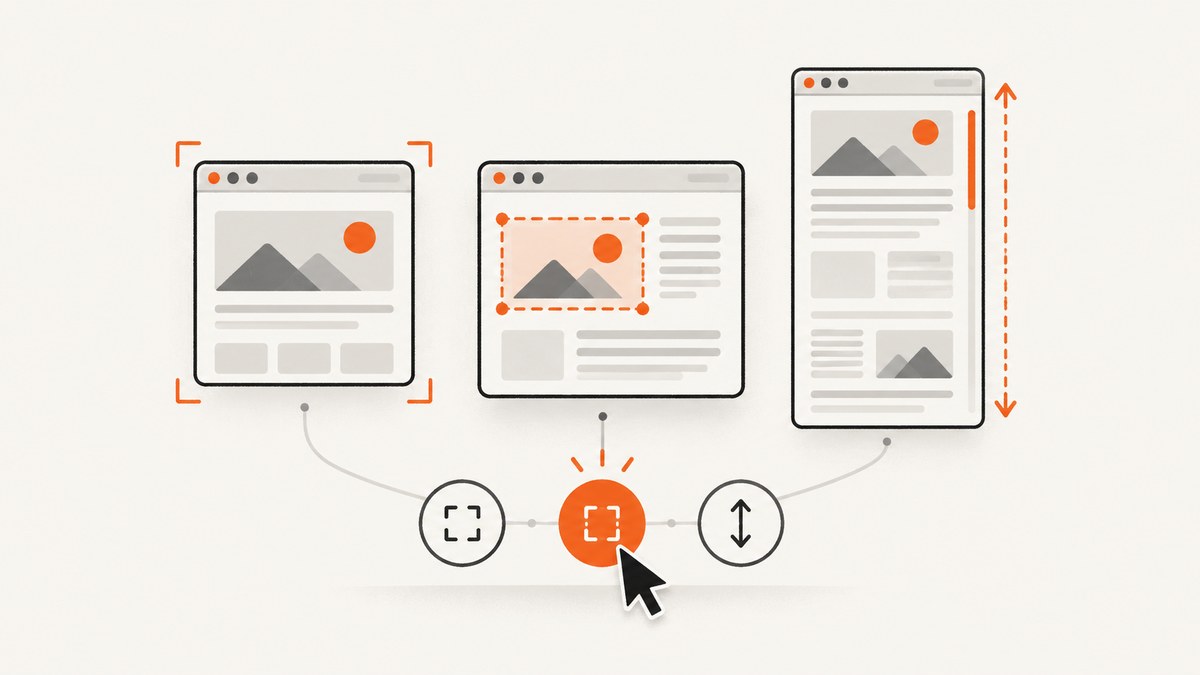
The right way to capture a website screenshot depends on what the user needs to see. Capture the visible viewport for the current screen, one element for a component such as a login form, or the entire scrollable page when content below the fold matters. For a one-off image, use the browser or operating system capture command. For repeatable captures, visual regression tests, or controlled output, use browser automation such as Playwright or Puppeteer.
This guide shows each approach, complete runnable examples, format and scale choices, user-specific browser context, troubleshooting, and a hosted option with ScreenshotNeo.
Choose the capture scope first
| What the user wants | Scope | Typical use |
|---|---|---|
| What is visible right now | Viewport | Bug reports, current-state documentation, support tickets |
| One component or region | Element | Login forms, charts, product cards, receipts |
| Everything on the page | Full page | Design review, archives, visual regression, long articles |
A screenshot is a visual record. It does not provide the structured page content needed for interaction, reading, or accessibility analysis. If your workflow needs that information, collect an accessibility snapshot or DOM data separately.
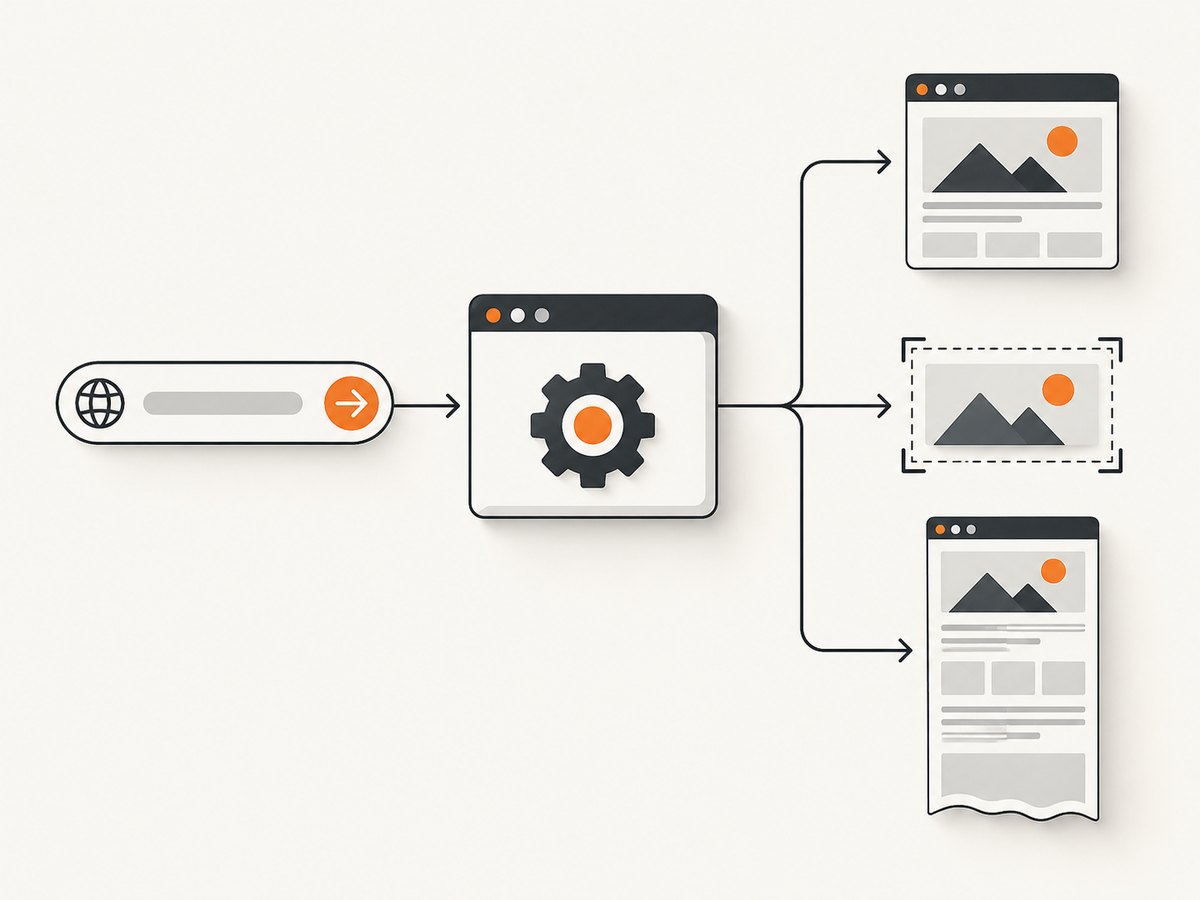
One-off screenshots in a browser
For a single capture, open the page and use your browser’s built-in screenshot command or the operating system’s screen-capture shortcut. Select a region for an element, the current window for the viewport, or a scrolling/full-page option when your browser provides one.
Before saving the image, check whether the page has loaded asynchronous content, cookie notices, chat bubbles, or a signed-in state. A one-off browser capture uses the session you currently have open, so it can include personal data and session-specific UI.
Repeatable screenshots with Playwright
Playwright documents viewport, element, and full-page screenshots, with PNG, JPEG, and WebP output. It also supports CSS-pixel and device-pixel scaling, masks, screenshot styling, output paths, and format-specific quality settings. See the Playwright screenshots documentation and the Page API reference for current options and defaults.
Install Playwright
npm init -y
npm install -D playwright
npx playwright install chromium
Capture the current viewport
const { chromium } = require('playwright');

(async () => {
  const browser = await chromium.launch();
  const context = await browser.newContext({
    viewport: { width: 1440, height: 900 },
    deviceScaleFactor: 1
  });
  const page = await context.newPage();
  await page.goto('https://example.com', { waitUntil: 'networkidle' });
  await page.screenshot({ path: 'viewport.png', type: 'png' });
  await browser.close();
})();
Capture one element
const { chromium } = require('playwright');

(async () => {
  const browser = await chromium.launch();
  const page = await browser.newPage({ viewport: { width: 1440, height: 900 } });
  await page.goto('https://example.com', { waitUntil: 'domcontentloaded' });
  const card = page.locator('.product-card').first();
  await card.waitFor({ state: 'visible' });
  await card.screenshot({ path: 'product-card.webp', type: 'webp' });
  await browser.close();
})();
Capture the full scrollable page
const { chromium } = require('playwright');

(async () => {
  const browser = await chromium.launch();
  const page = await browser.newPage({ viewport: { width: 1440, height: 900 } });
  await page.goto('https://example.com', { waitUntil: 'networkidle' });
  await page.screenshot({ path: 'full-page.png', fullPage: true });
  await browser.close();
})();
Make the capture represent a particular user
When “based on the user” means the user’s current session, create a browser context with the relevant viewport, locale, color scheme, timezone, cookies, and authentication state. Keep credentials outside source control.
const { chromium } = require('playwright');

(async () => {
  const browser = await chromium.launch();
  const context = await browser.newContext({
    viewport: { width: 390, height: 844 },
    deviceScaleFactor: 2,
    colorScheme: 'dark',
    locale: 'en-US',
    timezoneId: 'America/New_York',
    storageState: 'auth-state.json'
  });
  const page = await context.newPage();
  await page.goto('https://example.com/account', { waitUntil: 'networkidle' });
  await page.screenshot({ path: 'mobile-user.png', fullPage: true });
  await browser.close();
})();
Wait for user-specific content
await page.goto('https://example.com/dashboard', { waitUntil: 'domcontentloaded' });
await page.locator('[data-testid="dashboard-ready"]').waitFor({ state: 'visible' });
await page.screenshot({ path: 'dashboard.png' });
Use a selector wait when a known component signals readiness. Use a short delay only when the page has no reliable readiness signal. Network idle can still be unsuitable for pages with long-lived analytics or streaming connections.
Choose output type and pixel scale
- PNG: lossless output for text, diagrams, and pixel comparisons.
- JPEG: smaller files when some visual loss is acceptable.
- WebP: supported by Playwright for compact modern images.
- CSS scale: one image pixel per CSS pixel, useful for consistent dimensions.
- Device scale: uses the device-pixel ratio and creates a larger, more detailed image.
await page.screenshot({
  path: 'retina.webp',
  type: 'webp',
  quality: 85,
  scale: 'device'
});
Mask or hide sensitive regions
await page.screenshot({
  path: 'masked.png',
  mask: [page.locator('[data-sensitive]')],
  maskColor: '#000000'
});
Masking is an output control, not a guarantee that every sensitive value is removed. Inspect the resulting file before sharing it.
Puppeteer for JavaScript capture
Puppeteer is a high-level API for automating Chrome and Firefox. Chrome for Developers documents full-page and specific-element screenshots in its Puppeteer guidance.
const puppeteer = require('puppeteer');

(async () => {
  const browser = await puppeteer.launch({ headless: true });
  const page = await browser.newPage();
  await page.setViewport({ width: 1440, height: 900, deviceScaleFactor: 1 });
  await page.goto('https://example.com', { waitUntil: 'networkidle2' });
  await page.screenshot({ path: 'puppeteer-full.png', fullPage: true });
  await browser.close();
})();
Choose Playwright or Puppeteer based on the API and browser workflow your project already uses. The available documentation establishes their capabilities, not a universal winner for speed, fidelity, or reliability.
Chrome extension and DevTools Protocol capture
A Chrome extension that attaches through chrome.debugger must declare the debugger permission in its manifest. Chrome documents that enterprise DisableScreenshots policy or data-loss-prevention rules can make debugger attachment fail with a screenshot-restriction error. On a managed computer, ask the organization’s administrator to review the policy; do not treat it as a browser bug. See Chrome’s browser.debugger documentation and the Chrome DevTools Protocol Page domain.
Or skip the browser setup
ScreenshotNeo provides a website screenshot API and MCP server. One GET request returns a PNG, JPEG, WebP, or PDF. It can capture a viewport, full page, or CSS-selected element and supports device presets, custom viewports, retina scale, dark mode, custom CSS and JavaScript, clicks, waits, headers, cookies, user agents, authorization, timezone, geolocation, request blocking, resizing, caching, signed links, asynchronous jobs, bulk capture, and PDF options.
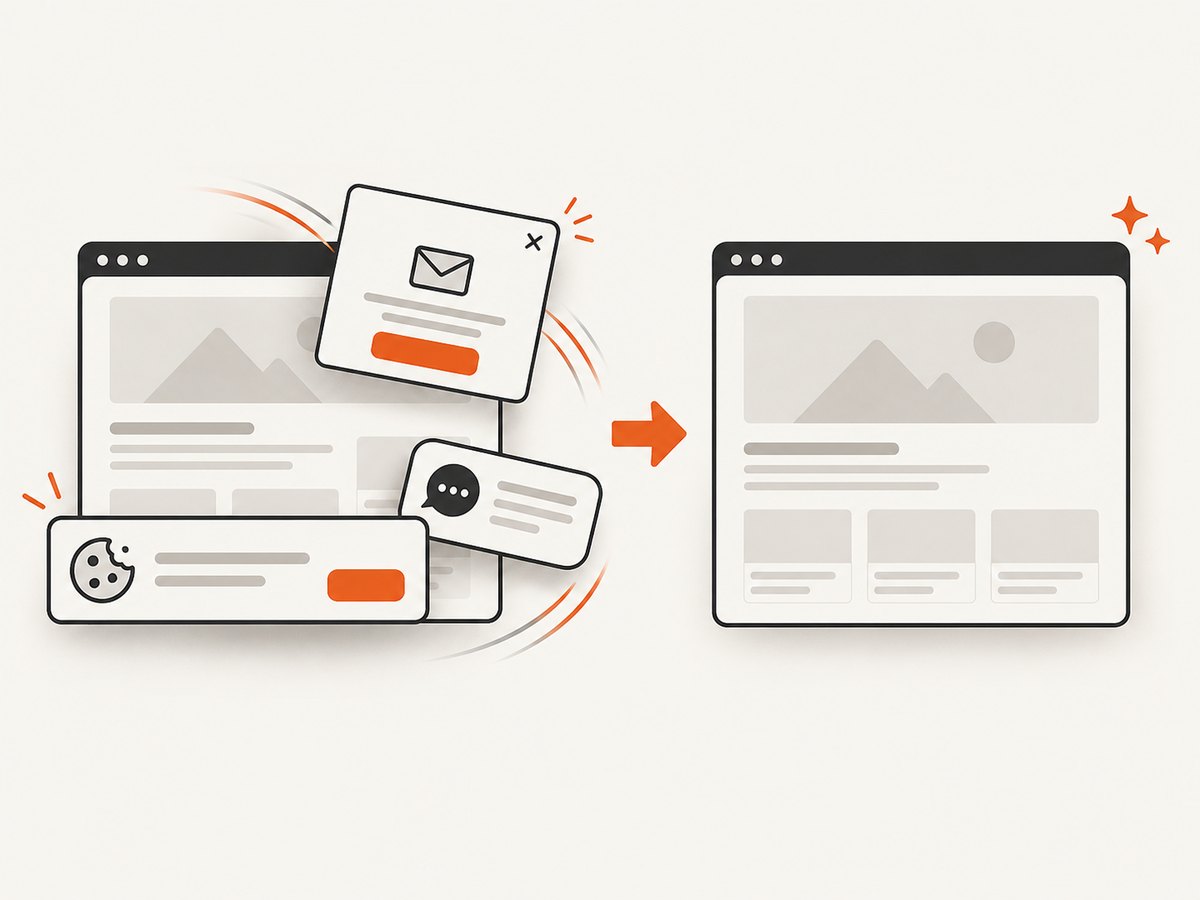
Before capture, ScreenshotNeo accepts cookie or consent banners and removes more than 60 known consent platforms, newsletter popups, and chat widgets. Each step can be turned off. Bot checks or CAPTCHAs, blank pages, timeouts, failed loads, and cache hits cost nothing; the response identifies the result with X-Page-Verdict and X-Billed headers. Its MCP server exposes take_screenshot, get_page_info, and capture_pdf for Claude, Cursor, and other MCP clients.
See the ScreenshotNeo API documentation for the current request options.
curl -G "https://api.screenshotneo.com/v1/shot" -d access_key=YOUR_API_KEY --data-urlencode url=https://stripe.com -o shot.webpimport requests
r = requests.get("https://api.screenshotneo.com/v1/shot", params={"access_key": "YOUR_API_KEY", "url": "https://stripe.com"}, timeout=90)
open("shot.webp", "wb").write(r.content)const fs = require('node:fs/promises');
const q = new URLSearchParams({ access_key: 'YOUR_API_KEY', url: 'https://stripe.com' });
const res = await fetch(`https://api.screenshotneo.com/v1/shot?${q}`);
await fs.writeFile('shot.webp', Buffer.from(await res.arrayBuffer()));Use the API when you want a consistent capture service without maintaining browser binaries and page cleanup logic. It also offers 1,000 free shots per month with no card; paid plans start at $5 for 3,000 shots, and every feature is available on every plan. Create a free ScreenshotNeo account.
Capture options and edge cases
Lazy-loaded and below-the-fold content
Full-page capture may need scrolling to trigger lazy images. Wait for the relevant images or application-ready marker before capturing, and verify that the file contains content below the fold.
Cookie banners, popups, and chat widgets
For local automation, close or hide these elements with an explicit selector before capture. Avoid broad CSS rules that accidentally remove page content. ScreenshotNeo can accept consent banners and remove known overlays before the shot.
Responsive layouts
Set the viewport and device scale explicitly. A screenshot based on a user’s phone should use that phone’s CSS dimensions, while a high-resolution artifact can use a larger device scale.
Authentication and private pages
Use a controlled browser context, saved storage state, or request headers and cookies. Never log access tokens, cookies, or authorization headers. Review output paths and artifact retention when screenshots contain account data.
Animations and time-dependent content
Pause animations or wait for a stable state before visual comparisons. Capture at a fixed timezone and locale when dates, prices, or translated strings must be reproducible.
Very long pages
Full-page images can become large and difficult to inspect. Consider element captures, a PDF, or several logical sections when a single image is not practical.
Troubleshooting
| Symptom | Likely cause | Fix |
|---|---|---|
| Screenshot is blank | Navigation failed, page is blocked, or capture ran before rendering | Check the response and browser console, wait for a readiness selector, and confirm the URL loads in the same environment. |
| Images are missing | Lazy loading has not been triggered or requests failed | Scroll or wait for image completion, then capture; inspect network failures. |
| Element selector times out | Selector is wrong, content is inside an iframe, or the user state differs | Confirm the selector, target the correct frame, and load the required cookies or storage state. |
| Full-page image cuts off content | Page uses nested scrolling or content appears after capture | Capture the scrolling container as an element, wait for content, or use the page’s supported full-page mode. |
| Text looks blurry | Low device scale or an overly compressed format | Use device scale for detail, PNG for lossless output, or increase applicable JPEG/WebP quality. |
| Screenshot differs between runs | Responsive viewport, fonts, animations, ads, time, or network content changed | Fix viewport, locale, timezone, fonts, waits, and resource policy; mask intentionally dynamic regions. |
| Chrome debugger attachment is rejected | Missing permission or enterprise screenshot restriction | Declare debugger permission; if policy blocks screenshots, contact the administrator. |
| ScreenshotNeo response is not billed | It was a cache hit, bot check, blank page, timeout, or failed load | Read X-Page-Verdict and X-Billed, then fix the target or request settings if a capture is required. |
Performance, reliability, and cost
- Viewport captures are generally smaller and faster to process than full-page captures because they contain less content.
- Element captures reduce irrelevant pixels and make visual comparisons easier.
- Reuse a browser process for batches, but create isolated contexts for different users or authentication states.
- Use deterministic waits instead of long fixed delays. A selector or application-ready signal usually reduces unnecessary waiting.
- Cache static pages when freshness permits. For hosted capture, choose a cache TTL that matches how often the page changes.
- For visual regression, keep browser version, viewport, device scale, fonts, timezone, and locale stable.
- ScreenshotNeo bills only clean shots; failed loads, bot checks, blank pages, timeouts, and cache hits are not billed, and the response headers report the verdict.
- ScreenshotNeo pricing is Free: 1,000 shots/month; Starter: $5 for 3,000; Growth: $15 for 15,000; Pro: $39 for 60,000; Scale: $99 for 250,000; Business: $249 for 1,000,000. Yearly billing gives two months free.
Practical checklist
- Define whether the user needs viewport, element, or full-page scope.
- Set viewport, device scale, locale, timezone, and color scheme explicitly.
- Choose PNG, JPEG, or WebP for the destination and fidelity requirements.
- Wait for a reliable readiness signal and lazy-loaded content.
- Handle consent banners, popups, chat widgets, and animations.
- Load authentication state safely for private pages.
- Mask or remove sensitive regions, then inspect the final file.
- Record verdicts and failures in automated jobs so missing captures are visible.
FAQ
Should I capture the viewport or the full page?
Use the viewport when the current screen is the subject. Use full page when content below the fold is part of the record. Use an element capture for a specific component.
Does a screenshot preserve the user’s interactions?
It preserves the visual result at capture time, including the loaded session state. It does not preserve the page’s structure or make the image interactive.
Which image format should I choose?
PNG is a safe default for text and visual comparisons. JPEG or WebP can reduce file size when their supported quality settings meet your needs.
Can a managed Chrome computer prevent screenshots?
Yes. Chrome documents enterprise screenshot restrictions that can block debugger-based capture. An administrator must review those policies.
Can I capture a page for many users?
Yes, but create separate browser contexts or requests for each user’s viewport, locale, authentication, and other state. Keep credentials isolated and avoid sharing artifacts between users.


