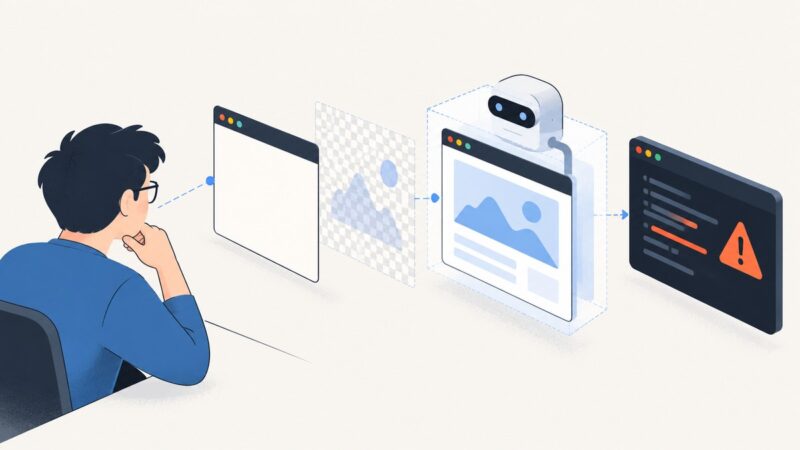
How to Capture Website Screenshots with viaSocket
Build a viaSocket Flow that captures a website and sends the image where your team needs it, with practical guidance for timing, errors, and recurring workflows.

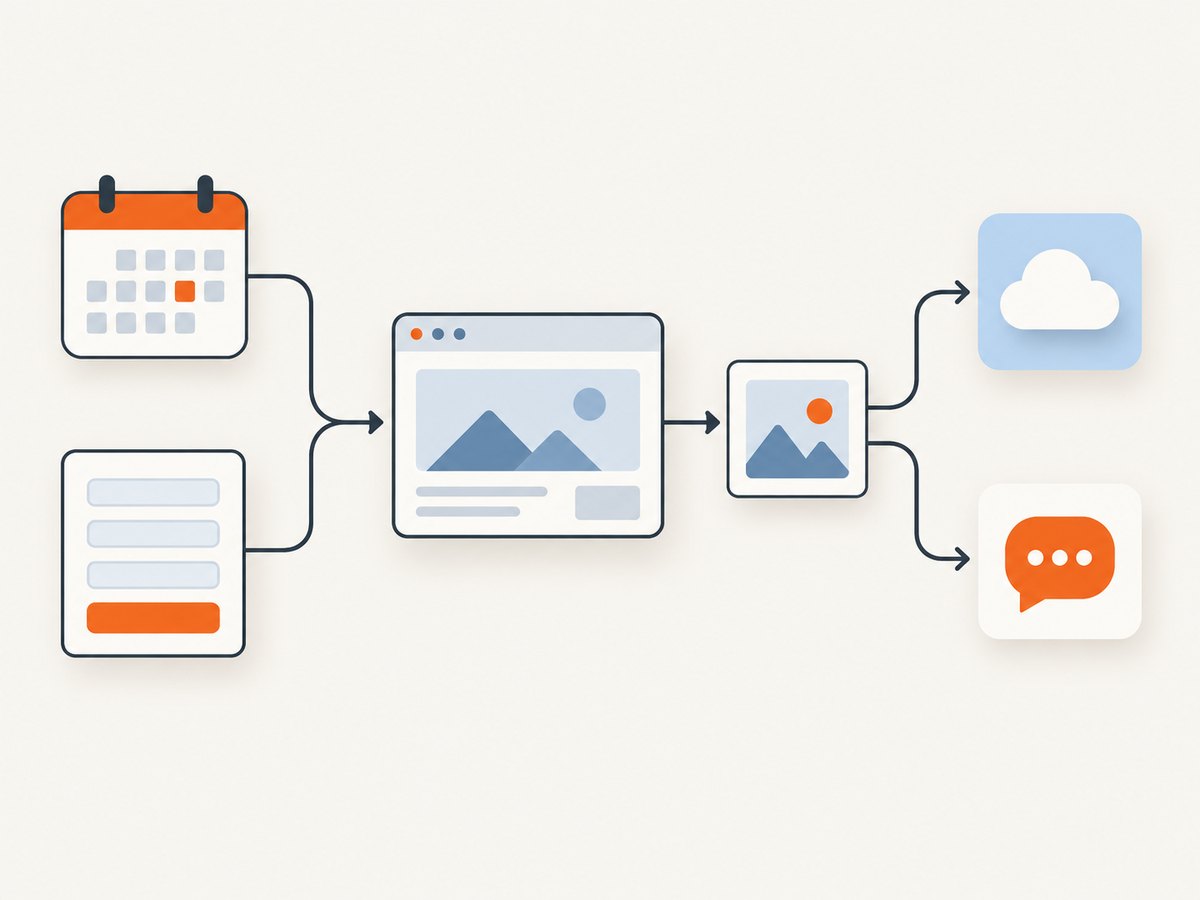
Direct answer: Create a viaSocket Flow, choose a trigger such as a schedule, form submission, or webhook, add a screenshot action or an authenticated HTTP request to a screenshot API, pass the target URL, then send the resulting image URL or file to a downstream app. For recurring captures, test how long the page takes to render, keep capture settings consistent, and route failures to an explicit error step.
This guide walks through the setup, the available integration paths, reliability choices, and ways to use the output. viaSocket describes a Flow as an automation connecting two or more apps. Its Screenshot API integration lists regular and scrolling full-page screenshot actions. viaSocket’s Screenshot API integration · viaSocket Basics
1. Choose the trigger and destination
Before adding a capture action, decide what should start the Flow and where the result should go. A scheduled trigger works for a weekly archive or recurring report. A form response or new spreadsheet row can supply a page URL to capture. A webhook can start a capture when another service signals an event, such as a deployment.

| Workflow need | Trigger idea | Possible destination |
|---|---|---|
| Weekly website archive | Schedule | Google Drive or Dropbox |
| Capture a page submitted by a user | Form response | Email, Slack, or a record in Airtable |
| Record a post-deployment page | Webhook from a deployment workflow | Ticket, document, or shared channel |
| Save a visual report | Schedule or spreadsheet row | Drive, Dropbox, or Airtable |
These are workflow patterns documented across viaSocket and provider guides, not guarantees that every destination accepts the same image format or attachment type. Check the downstream app’s input fields and decide whether it needs a public image URL, a file, or a link before wiring the Flow.
2. Add the screenshot step
- In viaSocket, create a new Flow and choose a trigger.
- Add an action for Screenshot API or ScreenshotEngine, depending on the integration and capture features you need.
- Select the regular website screenshot action for a viewport capture, or the scrolling web page screenshot action for a full-page capture when available.
- Enter a fixed URL or map a URL field from an earlier step.
- Run a sample, inspect the returned output, then connect it to the destination action.
The native Screenshot API integration lists “Capture Website Screenshot” and “Capture Scrolling Web Page Screenshot.” ScreenshotEngine’s guide describes mapping a URL and forwarding its output image URL to later steps. Action labels and available fields can change, so confirm the current integration screen when building the Flow. ScreenshotEngine’s viaSocket guide
Static and mapped URLs
Use a static URL when you always capture the same page, such as a status page or landing page. Map a URL from trigger data when each event identifies a different page. Before passing mapped input into a capture service, check that it is a complete URL with the intended scheme, such as https://. If the input can be blank or malformed, add a validation or filter step so one bad record does not create a confusing screenshot failure.
3. Choose an integration route
| Route | Good fit | Consider |
|---|---|---|
| Native Screenshot API action | You need the listed viewport or scrolling full-page capture. | Confirm the action exposes the options your workflow requires. |
| ScreenshotEngine action | You want its documented capture action and image URL output. | The provider guide also lists a watermark action; check whether that is relevant to your output. |
| ScreenshotOne via HTTP request | You need API parameters beyond a basic native action, as described by the viaSocket guide. | Configure authentication, URL encoding, response handling, and failure routing. Verify current API requirements and the current viaSocket HTTP request fields. |
The sources describe these as different setup paths. They do not establish a head-to-head ranking or independently verified differences in capture quality, speed, uptime, or cost. Pick based on the action and settings actually exposed to your Flow.
HTTP request structure
When using an HTTP action, the general shape is an authenticated request with the destination URL and any supported capture parameters. The exact endpoint, authentication header or query parameter, and response type must come from the screenshot service’s current API documentation. Do not copy credentials into a URL field that may be saved in logs or shared as ordinary workflow data. Map secrets using the platform’s credential facility when available.
Method: GET (or the method required by the screenshot API)
URL: [screenshot API endpoint from its documentation]
Authentication: [credential required by that API]
Query parameters:
  url: [mapped URL from trigger data]
  [optional capture settings supported by the API]
Response handling: preserve the returned image URL or binary/file output
This is a configuration template, not a runnable call: the dossier does not supply ScreenshotOne endpoint details or authentication syntax. Use the service’s own current API instructions rather than guessing them.
4. Map the capture into another app
Inspect the screenshot step’s sample output. The result may be exposed as an image URL or as a file-like value; map the matching field into the next action. Documented examples include sending a ScreenshotEngine image URL to Slack, saving to Drive or Dropbox, emailing it, and attaching it to Trello or Notion. ScreenshotOne’s viaSocket templates include recording screenshot links in Airtable and saving weekly screenshots to Drive. Confirm that the destination can access the URL; a private or short-lived URL may not work for every app.
- Add the destination app as the next Flow action.
- Choose its link, attachment, upload, or record field.
- Map the screenshot output, plus useful context such as the captured page URL and trigger time.
- Run the full Flow once and open the result in the destination app.
If a downstream action expects a binary upload but the screenshot step returns only a URL, use an HTTP download step if supported, or choose an integration route that supplies a file. The reviewed materials do not specify every app’s output field shape.
5. Make scheduled captures reliable
Measure render delay on the actual page
A screenshot service can capture before a client-rendered page has finished drawing. Test the target URL directly in the screenshot service and adjust its wait behavior based on repeated captures. The viaSocket monitoring article describes a case where JavaScript needed three seconds, but that is a vendor-authored example, not a universal delay setting. Test the actual page at the time and viewport you intend to capture. viaSocket’s monitoring workflow guide
Keep comparisons stable
For before-and-after checks, use the same viewport and capture options every time. Cookie notices, chat widgets, changing timestamps, ads, and rotating content can create differences unrelated to the change you want to monitor. The viaSocket and ScreenshotOne guides discuss blocking elements or custom CSS where the selected capture service supports them. Record the URL and capture settings alongside the image so a reviewer can interpret changes.
Space large batches
If a trigger can produce many URLs at once, avoid launching all captures simultaneously. The viaSocket article recommends spacing requests to reduce rate-limit-related failures; the dossier does not contain an independently verified rate limit. Use the platform’s supported delay or sequential processing options, and check the current limits of both viaSocket and the screenshot API.
Route errors somewhere visible
For a ScreenshotOne HTTP workflow, the viaSocket article recommends an explicit error branch before the output actions. Send failures to a notification or log step, including the source URL and available error details. Platform documentation describes retries, logs, and error branches, but these features do not ensure that every failure is recoverable. A success-only path should not silently treat an empty result as a valid screenshot.
6. Troubleshooting
| Symptom | Likely cause | What to do |
|---|---|---|
| Blank or incomplete page | The capture occurred before client-side content rendered, or the page failed to load. | Test the URL directly, increase the supported wait setting in small increments, and confirm the page is accessible to the capture service. |
| Wrong page captured | A mapped URL is empty, malformed, or points to a redirect or unexpected route. | Inspect the trigger sample, validate the full URL, and test the resolved value before the capture action. |
| Image link does not open downstream | The destination cannot access the URL, or it expects an uploaded file instead. | Check URL access and expiration behavior, then map to the destination’s correct link or upload field. |
| HTTP action returns an error | Authentication, method, endpoint, parameter encoding, or required fields may be wrong. | Compare the request to the screenshot provider’s current API docs; URL-encode mapped values and keep credentials in a protected credential field. |
| Scheduled run misses or duplicates a capture | Trigger timing, overlapping runs, or downstream retries may produce unexpected execution patterns. | Inspect Flow logs, define an idempotent file or record naming scheme, and check the platform’s retry behavior. |
| Visual comparison is noisy | Viewport differences or dynamic content such as timestamps, cookie notices, or chat widgets changed. | Fix viewport and settings; use element blocking or custom CSS only if your selected service supports it. |
| Intermittent failures on many URLs | Concurrent requests may run into service or API limits. | Space requests, inspect error details, and consult current provider limits instead of assuming a fixed quota. |
7. Performance, reliability, and cost
Capture time depends on the target page, its rendering behavior, the selected full-page or viewport mode, and the screenshot service’s current settings. The sources provide no independent benchmark, rate limit, uptime figure, or price comparison. For a scheduled report, favor a predictable interval, test the slowest representative page, and allow enough workflow time for both rendering and downstream delivery.
Make runs diagnosable: carry the input URL through the Flow, preserve execution logs where available, and notify a person or monitoring destination when the capture branch fails. For archives, use a naming convention containing the page identifier and scheduled date. For a visual regression workflow, store the same viewport and relevant options with each record.
Costs may include the automation platform and the chosen screenshot provider; compare their current plans and usage rules before scheduling a large volume. No price or billing terms for viaSocket, Screenshot API, ScreenshotEngine, or ScreenshotOne are asserted here because the research dossier does not establish them.
8. Or skip the browser setup
If you only need to turn a URL into an image, ScreenshotNeo is a website screenshot API and MCP server from Yorker Media. One GET request returns a PNG, JPEG, WebP, or PDF. Its API accepts the same parameter names other screenshot APIs use, which can make a switch easier. See the ScreenshotNeo API documentation for the request options.
curl -G "https://api.screenshotneo.com/v1/shot" -d access_key=YOUR_API_KEY --data-urlencode url=https://stripe.com -o shot.webpimport requests
r = requests.get(
"https://api.screenshotneo.com/v1/shot",
params={"access_key": "YOUR_API_KEY", "url": "https://stripe.com"},
timeout=90,
)
open("shot.webp", "wb").write(r.content)const q = new URLSearchParams({ access_key: 'YOUR_API_KEY', url: 'https://stripe.com' });
const res = await fetch(`https://api.screenshotneo.com/v1/shot?${q}`);
if (!res.ok) throw new Error(`Screenshot request failed: ${res.status}`);
const bytes = new Uint8Array(await res.arrayBuffer());
await import('node:fs/promises').then(fs => fs.writeFile('shot.webp', bytes));ScreenshotNeo accepts cookie and consent banners like a visitor, then removes more than 60 known consent platforms, newsletter popups, and chat widgets before capture; each step can be turned off. Bot checks and CAPTCHAs, blank pages, timeouts, failed loads, and cache hits cost nothing, and responses report page verdict and billing status in headers. Its MCP server offers take_screenshot, get_page_info, and capture_pdf for Claude, Cursor, and other MCP clients.
There are 1,000 screenshots a month free with no card. Paid plans start at $5 for 3,000 screenshots; every feature is available on every plan. Create a free ScreenshotNeo account to start with 1,000 screenshots a month at no charge and no card.
FAQ
Can a form field provide the website URL?
Yes. Map the URL from the trigger output into the screenshot action, then validate it if submissions can be missing or malformed.
Can I capture an entire long page?
The Screenshot API integration lists a scrolling full-page action. If your chosen action does not expose it, check the current integration or use a provider route that supports full-page capture.
Can I send the result to an AI agent?
ScreenshotNeo provides an MCP server with screenshot, page information, and PDF capture tools. For a viaSocket workflow, use the destination or integration route supported by your MCP client and Flow.
How often should I capture a page?
Set the schedule to match the reporting or monitoring decision. The sources do not prescribe a universal cadence; account for the automation and screenshot service’s current limits and costs.