How to Capture a Website to PDF
Save any webpage as a searchable PDF or faithful full-page snapshot on desktop, Android, iPhone, or with a screenshot API.
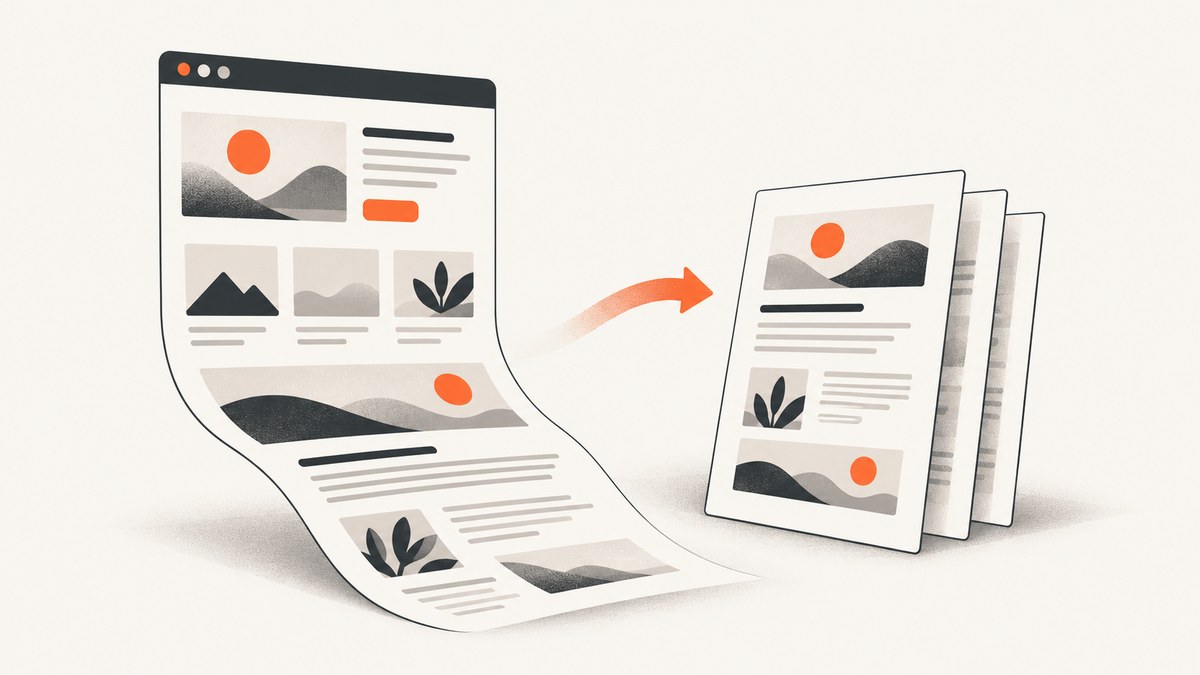
Short answer: On a computer, open the browser’s Print dialog, choose a PDF destination, review the preview, and save. On Android, use Chrome’s Share → Print → Save as PDF or Firefox’s Share → Save as PDF. On iPhone, Safari’s Share/Page Menu → Markup → Done → Save File To creates a PDF; Firefox for iOS can export a full-page screenshot as a PDF when you need the entire scrollable page.
The best method depends on what you need. Print-to-PDF creates selectable, searchable text and gives you control over paper size, margins, scaling, page ranges, headers, footers, and background graphics. A full-page screenshot preserves the visual layout of a long page, but the result behaves like an image and may not contain selectable text. This guide covers both methods, mobile workflows, browser automation, troubleshooting, and an API option for repeatable captures.
Choose the right website-to-PDF method
| Goal | Best method | Trade-off |
|---|---|---|
| Searchable or selectable text | Browser Print → Save as PDF | The page is reflowed into paper-sized pages; the visual layout can change. |
| Preserve the exact visual appearance | Full-page screenshot, then convert to PDF | Text may not be selectable and very long pages can create large files. |
| Remove navigation, ads, or article clutter | Edge Immersive Reader where available, or a printable cleanup tool | Some sites do not support reader mode and cleanup can remove content you wanted. |
| Repeatable captures in a script or service | Headless browser or ScreenshotNeo PDF capture | Requires configuration for fonts, lazy loading, cookies, and failures. |
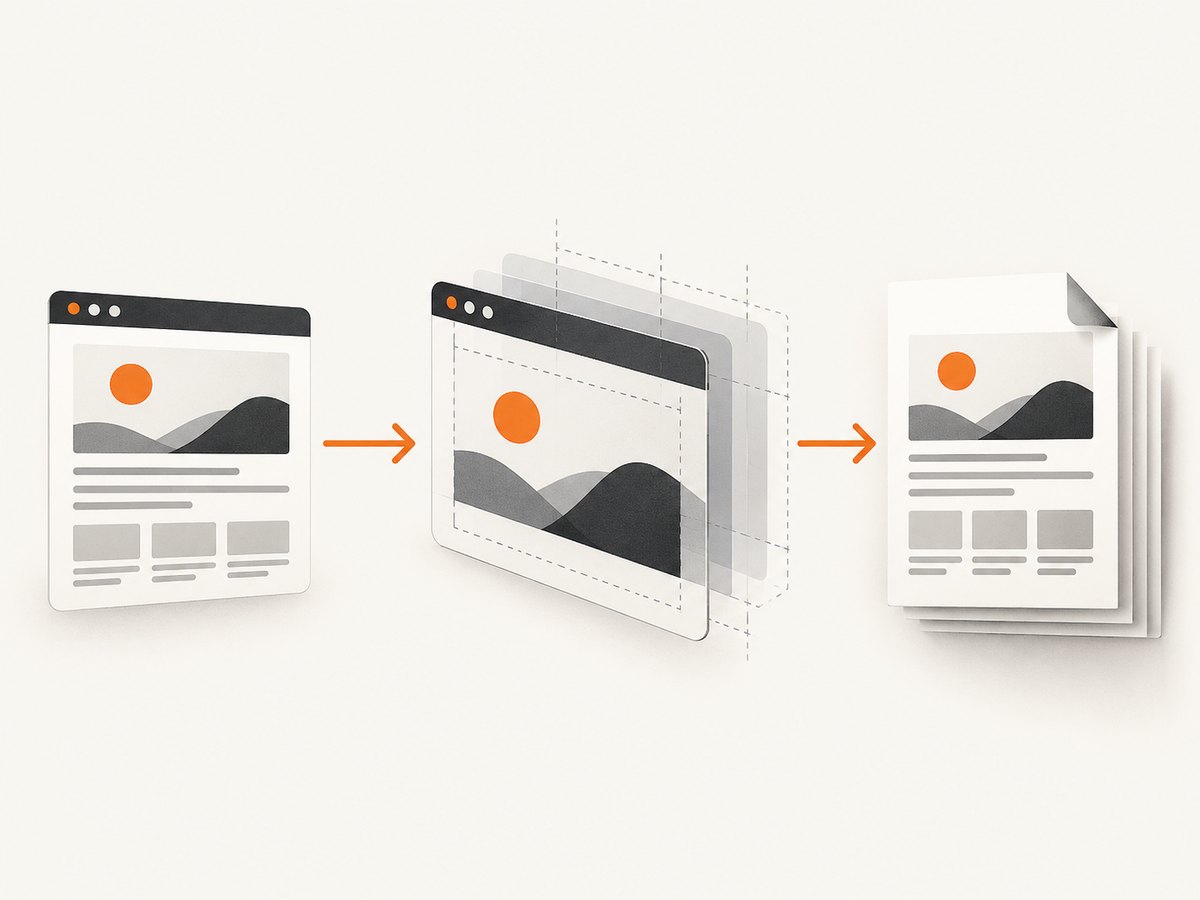
Save a webpage as PDF on a computer
Microsoft Edge on Windows or macOS
- Open the webpage you want to preserve.
- Open Settings and more → Print, or press Ctrl+P on Windows or Command+P on macOS.
- Choose the PDF destination offered by your operating system.
- Open More settings. Check the page range, paper size, margins, scale, headers and footers, and Background graphics.
- Inspect the preview from the first page to the last, then select Save.
Edge documents these print controls in its [official printing guidance](https://support.microsoft.com/en-us/microsoft-edge/print-in-microsoft-edge-6d7d5f8f-8f1d-4ad0-9f4e-6f5e2f3c9f4a). Enable background graphics when colored panels, diagrams, or shaded code blocks disappear from the preview. Lower the scale or increase the printable area when columns or headings are clipped.
Firefox on Windows, macOS, or Linux
- Open the Firefox menu and select Print.
- In print preview, open Destination and select Save to PDF.
- Set the pages, orientation, paper size, margins, and scale if needed.
- Review the preview and save the file.
Mozilla’s [print support documentation](https://support.mozilla.org/en-US/kb/how-print-web-pages-firefox) explains the Save to PDF destination and preview workflow. If the page needs editing before export, Mozilla also documents print-edit extensions; treat those as optional and review the result before sharing.
Chrome on desktop
Open the three-dot menu and choose Print, or press Ctrl+P/Command+P. In the system dialog or preview, choose Save to PDF, set layout and margins, enable background graphics when needed, and save. Chrome’s preview is also useful for selecting a page range instead of exporting an entire site accidentally.
Save a webpage as PDF on Android
Chrome
- Open the page in Chrome.
- Tap More (three dots), then Share, then Print.
- At the top of the print preview, select Save as PDF.
- Choose a folder, set the page range or paper size if shown, and confirm the save.
This is the Android flow documented in [Google’s Chrome help](https://support.google.com/chrome/answer/1069693). If you only see a physical printer, open the destination selector and choose the PDF printer supplied by Android.
Firefox
- Open the page and tap the three-dot menu.
- Tap Share, choose Save as PDF, and tap Download.
- Find the finished document in the device’s Downloads folder.
Mozilla describes this Android route in its [Save web pages as PDF instructions](https://support.mozilla.org/en-US/kb/save-web-pages-pdf). Long pages can take a moment to render; keep Firefox in the foreground until the download completes.
Save a webpage as PDF on iPhone
Safari: print-style PDF
- Open the page in Safari.
- Tap the Page Menu or Share button and choose Markup.
- Annotate if needed, then tap Done.
- Choose Save File To, select a location in Files, name the document, and save it.
Apple’s [Safari support guidance](https://support.apple.com/guide/iphone/save-a webpage-as-a-pdf-iphfd5b9b8f2/ios) covers the Share/Markup/Save File To sequence. The generated PDF follows a document-style layout, so compare it with the live page if pixel-level fidelity matters.
Firefox for iOS: full-page PDF
- Take an iPhone screenshot using the device’s button combination.
- Tap the screenshot thumbnail, then select Full Page.
- Tap Done and choose Save as PDF.
Firefox documents this full-page route in its [iOS screenshot help](https://support.mozilla.org/en-US/kb/take-screenshot-firefox-ios). It is useful when you need the complete scrollable page rather than a print reflow. The result is a visual snapshot and may not have selectable text.
Make the PDF match the webpage
Preview before saving
Never judge the output from the live tab alone. Print engines apply CSS print rules, paginate content, substitute fonts, and remove elements marked for print. Scan every page in preview, including the final page where footers and legal text often land.
Fix clipping and awkward page breaks
- Reduce scale slightly when a right-hand column is cut off.
- Change margins or switch between portrait and landscape.
- Select a page range to omit an unrelated navigation or comment section.
- For a page you control, add print CSS such as
@media print,break-inside: avoid, and explicit page-break rules.
Restore colors and backgrounds
Enable Background graphics in the print settings when the preview lacks colored panels or diagrams. Some sites deliberately disable backgrounds in their print stylesheet; a full-page screenshot is the more faithful option in that case.
Deal with ads and navigation
Edge’s Immersive Reader can provide a cleaner print route when the page supports it. Enter it from the address-bar icon or press F9, then print the simplified view. A cleanup service such as PrintFriendly can remove unwanted elements, but verify its current availability and inspect the edited page before exporting.
Full-page screenshots and PDF conversion
Use a full-page capture when preserving the screen design matters more than selectable text. Edge’s Screenshot feature can capture a full webpage without manually scrolling. Firefox for iOS exposes Full Page screenshot-to-PDF. On desktop, a browser’s full-page screenshot can be converted to PDF by opening the image in a PDF-capable viewer or importing it into a document and exporting.
Expect larger files for very tall pages. A single enormous image can be difficult to search, print, or view on a phone. For archives, keep the original URL and capture date beside the PDF so readers can verify changing content later.
Automate website PDF capture
For one-off saves, the browser is fastest. Automation is useful for documentation builds, invoices, reports, visual regression checks, and batches of URLs. A headless browser must wait for fonts and lazy images, apply the right cookies and authentication, and then call its PDF API. A typical Playwright flow looks like this:
import { chromium } from 'playwright';

const browser = await chromium.launch();
const page = await browser.newPage({
  viewport: { width: 1440, height: 900 },
  deviceScaleFactor: 1
});

await page.goto('https://example.com', { waitUntil: 'networkidle' });
await page.emulateMedia({ media: 'screen' });
await page.pdf({
  path: 'page.pdf',
  format: 'A4',
  printBackground: true,
  margin: { top: '16mm', right: '14mm', bottom: '16mm', left: '14mm' }
});

await browser.close();
For pages with lazy loading, scroll through the document before calling page.pdf(). For authenticated pages, create a browser context with the required cookies or headers. Set an explicit timeout and save an error artifact when navigation fails. Chromium’s PDF output is print-oriented; it will not reproduce every screen-only interaction.
Or skip the browser setup
ScreenshotNeo exposes website screenshots and PDFs through one GET request. Its PDF options include paper size, margins, landscape mode, and page ranges; the same API also supports full-page capture, lazy-image loading, CSS selectors, custom CSS and JavaScript, cookies, headers, authentication, waiting rules, and blocking selected resources. Each feature is available on every plan.
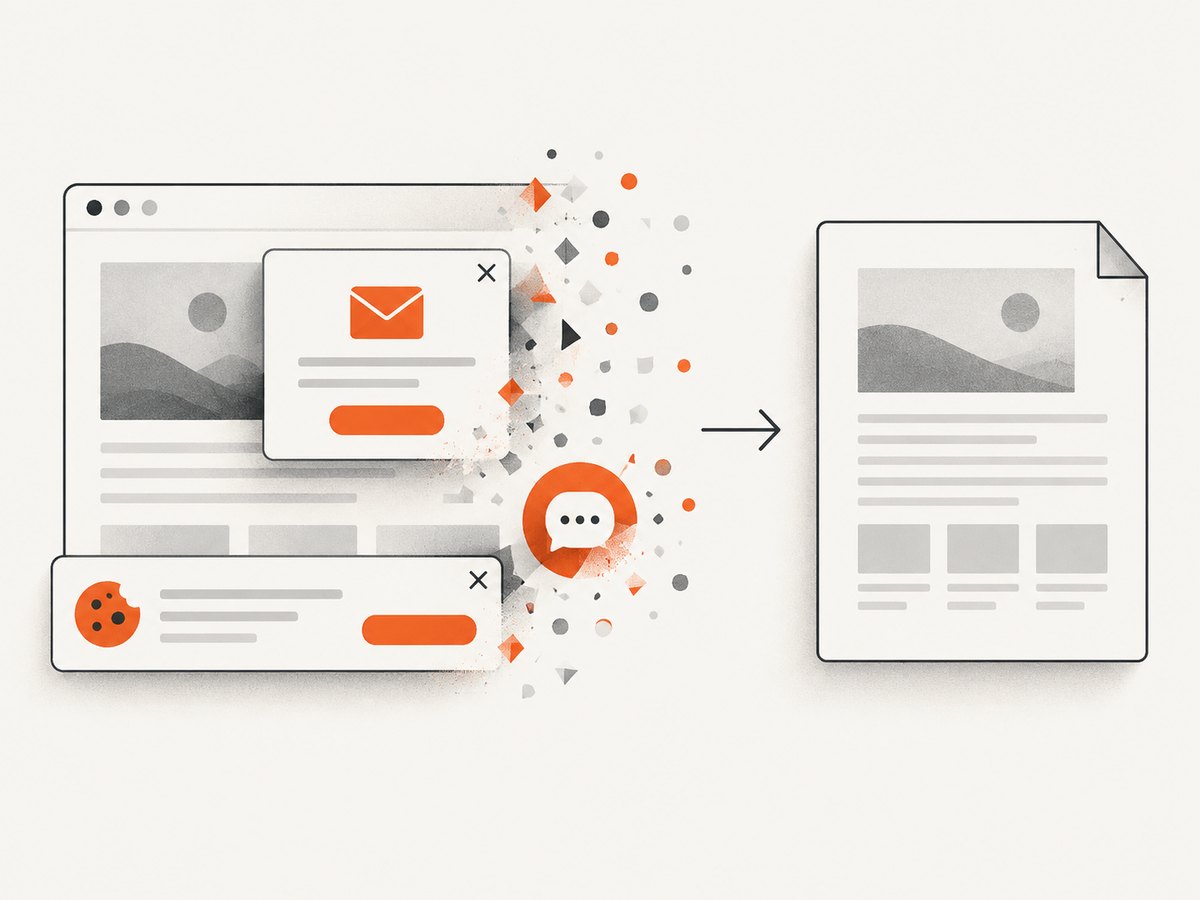
Cookie banners, newsletter popups, and chat widgets are removed before the shot. Bot checks, blank pages, timeouts, failed loads, and cache hits are never billed, and response headers identify the page verdict and whether the request was billed. An MCP server provides take_screenshot, get_page_info, and capture_pdf tools for Claude, Cursor, and other MCP clients.
See the complete parameter reference in the ScreenshotNeo documentation.
cURL
curl -G "https://api.screenshotneo.com/v1/shot" \
  -d access_key=YOUR_API_KEY \
  --data-urlencode url=https://stripe.com \
  -d format=pdf \
  -d paper_size=A4 \
  -o page.pdf
Python
import requests

r = requests.get(
    "https://api.screenshotneo.com/v1/shot",
    params={
        "access_key": "YOUR_API_KEY",
        "url": "https://stripe.com",
        "format": "pdf",
        "paper_size": "A4",
        "print_background": "true",
    },
    timeout=90,
)
r.raise_for_status()
open("page.pdf", "wb").write(r.content)
Node.js
const q = new URLSearchParams({
  access_key: 'YOUR_API_KEY',
  url: 'https://stripe.com',
  format: 'pdf',
  paper_size: 'A4',
  print_background: 'true'
});
const res = await fetch(`https://api.screenshotneo.com/v1/shot?${q}`);
if (!res.ok) throw new Error(`ScreenshotNeo returned ${res.status}`);
const data = Buffer.from(await res.arrayBuffer());
require('node:fs').writeFileSync('page.pdf', data);
Use the API’s waiting, selector, delay, or network-idle options for dynamic pages. Choose a cache TTL when the source changes infrequently. For public <img> tags, signed links avoid exposing an access key. Async jobs and signed webhooks are better for long-running or high-volume captures; bulk capture accepts up to 100 URLs per call.
ScreenshotNeo includes 1,000 screenshots per month free with no card. Paid plans start at $5 for 3,000 shots; yearly billing gives two months free. Create a free ScreenshotNeo account and start with the no-card plan.
Troubleshooting
| Symptom | Likely cause | Fix |
|---|---|---|
| Content is cut off | Scale, margins, or a wide layout exceed printable space. | Reduce scale, change margins, switch orientation, or select a smaller page range. |
| Colors are missing | Background graphics are disabled or print CSS removes them. | Enable Background graphics; use a full-page screenshot when visual fidelity is required. |
| Only one mobile screen is saved | A regular screenshot was used instead of a full-page capture or print flow. | Use Android’s Save as PDF flow or Firefox for iOS Full Page. |
| Images are blank | Lazy loading had not completed, or the image requires cookies. | Wait for a selector or network idle, scroll to trigger lazy loading, and provide required cookies. |
| Fonts look different | The font did not load before capture or is unavailable to the renderer. | Wait for the font request, self-host the font, or accept the fallback and record the renderer settings. |
| PDF contains a login page | The capture had no authenticated session. | Provide cookies or Authorization headers through your automation or API request; never put secrets in a public URL. |
| Interactive controls do not work | A PDF is a snapshot, not the live application. | Save the source URL and capture date beside the PDF; link back to the live page when interaction matters. |
| Automated request times out | The page is slow, blocked, or waiting on a third-party resource. | Set a realistic timeout, block unnecessary resource types, wait on a meaningful selector, and retry transient failures. |
Performance, reliability, and cost considerations
- Reduce rendering work: block ads, trackers, and resource types you do not need; use a selector capture when only one component belongs in the document.
- Make output deterministic: set viewport, timezone, geolocation, user agent, cookies, paper size, margins, and a wait condition explicitly.
- Handle failures: keep the original URL, status, timestamp, and response headers with each artifact. Retry navigation failures with backoff, but do not blindly duplicate a paid request.
- Control file size: use JPEG or WebP for image snapshots; for PDFs, limit page ranges and avoid embedding unnecessarily huge images.
- Use caching intentionally: a cache TTL is useful for repeated documentation or catalog captures. In ScreenshotNeo, cache hits are not billed.
- Estimate spend: count successful clean captures, then choose a plan with room for retries and scheduled jobs. ScreenshotNeo’s Free plan includes 1,000 shots monthly; Starter is $5 for 3,000, Growth $15 for 15,000, Pro $39 for 60,000, Scale $99 for 250,000, and Business $249 for 1,000,000.
FAQ
Can I save an entire website as one PDF?
A browser saves one webpage at a time. For a site-wide archive, collect URLs from a sitemap or crawler and capture each page, then combine the PDFs with a document tool. Respect access controls and the site’s terms.
Why is my PDF not an exact copy of the page?
Print engines apply print CSS and paginate content. Use background graphics, adjust scale and margins, or choose a full-page screenshot when appearance matters more than selectable text.
Will videos and forms remain usable?
No. A PDF records a rendered state. Save the original URL when readers need playback, submission, or other live behavior.
How do I capture a page behind a login?
Use a browser session with its cookies, or provide the required authentication headers to an authorized capture service. Keep credentials out of client-side code and public links.
What should I keep with an archived PDF?
Store the source URL, capture date and time, page title, and any relevant login or rendering assumptions. This makes later verification possible when the webpage changes.


