How to Capture Video From a Website on Android
Record website video on Android with the built-in screen recorder, choose audio, find saved files, and fix black-screen and protected-content problems.
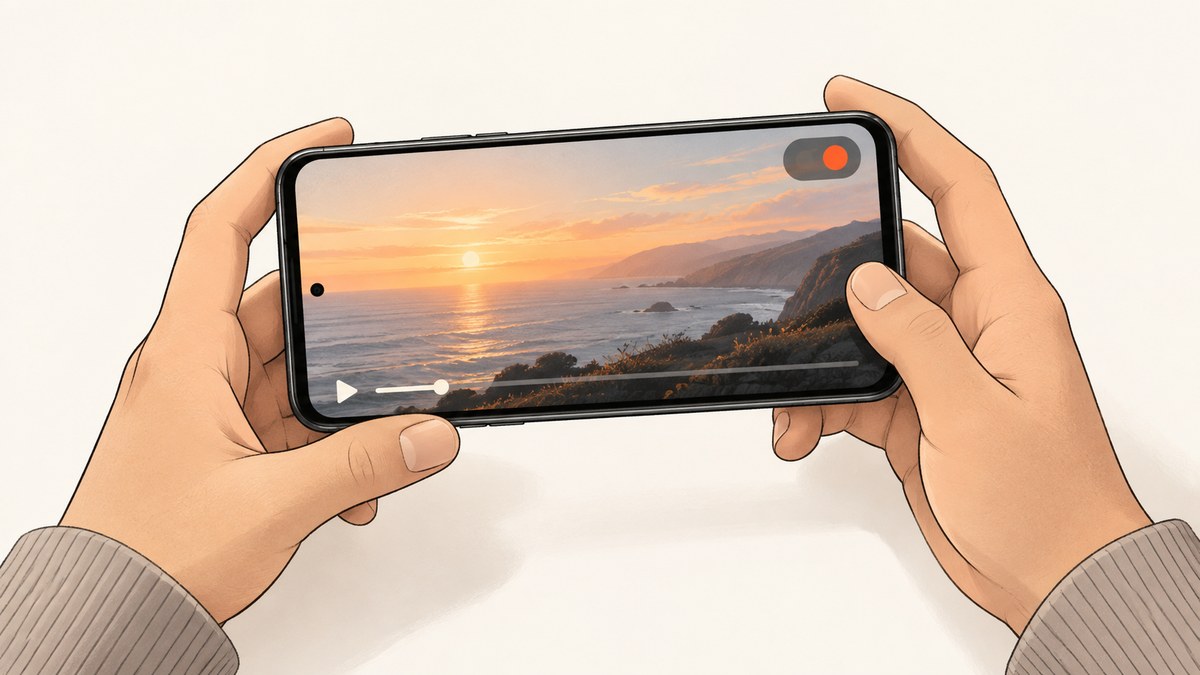
Quick answer: On Android 11 and later, open the website, swipe down twice to expand Quick Settings, tap Screen recorder, choose audio and touch options, tap Start, play the video, then stop from the recording notification. The file normally appears in Google Photos or your Gallery under the device’s Movies or screen-recordings area.
The exact labels vary by phone maker and Android version. Copyright-protected video can produce a black recording or silent audio because the app or streaming service can block playback capture.
1. Check that your phone supports screen recording
Android.com documents screen recording as a standard feature from Android 11 onward. Most Android 11+ phones include it, although manufacturers can move, rename, or customize the control.
- Install the latest system updates available for your phone.
- Make sure you have enough free storage for the recording.
- Connect to Wi-Fi or mobile data before opening the video.
- Use the phone’s built-in recorder first; it requires no extra app or accessory.
2. Record a video from a website
- Open Chrome or another browser and load the webpage containing the video.
- Position the video at the point where recording should begin. Set the desired quality, orientation, and volume before starting.
- Swipe down from the top of the screen twice to fully open Quick Settings.
- Tap Screen recorder. If you do not see it, swipe horizontally through the tiles. You can usually add it by tapping the pencil, edit, or three-dot control and dragging Screen recorder into the active tiles.
- Choose the audio source. Depending on the phone, options include no audio, device audio, microphone audio, or both.
- Choose whether to show touches on the recording. Touch indicators are useful for tutorials but distracting for clean footage.
- Tap Start. Android displays a countdown before capture begins.
- Play the website video. Avoid opening notifications or switching apps unless you want those actions recorded.
- When finished, swipe down and tap the Screen recorder notification, or tap the recorder control in Quick Settings, to stop.
Before you press Start
| Setting | Choose this when | Trade-off |
|---|---|---|
| Device audio | You need the video’s sound without room noise. | Protected playback may still block the audio track. |
| Microphone | You are narrating or demonstrating the phone. | Room noise and notification sounds can be recorded. |
| Device audio plus microphone | You need both the video’s sound and spoken commentary. | Audio mixing and echo handling vary by device. |
| Show touches | You are making a tutorial or support recording. | Touch circles remain visible in the output. |
| Portrait or landscape | Match the video’s layout and the final destination. | Changing orientation during capture can create an awkward rotation. |

3. Record internal audio or your voice
The recorder’s audio menu controls what is written to the file. Select device audio when the source is the website itself. Select microphone when you need narration. Some phones expose a combined option.
- Turn on Do Not Disturb if notifications would interrupt the recording.
- Set media volume before starting. A muted device can create a silent result even when device audio is selected.
- Use headphones only if your phone continues to route device audio correctly; some models change the available audio choices when headphones are connected.
- Make a short test recording before capturing a long video.
4. Find, review, and edit the recording
Open Google Photos or the phone’s Gallery. Google’s documented path is Collections > On this device > Movies. Manufacturer galleries may instead show a Screen recordings album.
- Open the newest file and confirm that both the picture and audio were captured.
- Trim unwanted seconds at the beginning and end in Google Photos or your Gallery editor.
- Export or share the edited copy if you need to preserve the original recording.
- If you cannot find it, search the Gallery for “screen recording” or browse Movies and Screen recordings folders in a file manager.
5. Why the recording is black or silent
A black video is often an intentional protection, not a broken recorder. Android’s capture documentation says apps can prevent playback capture; the result can be audio silence or a black video stream. Android.com specifically warns that copyright-protected video-on-demand content may not be recordable.
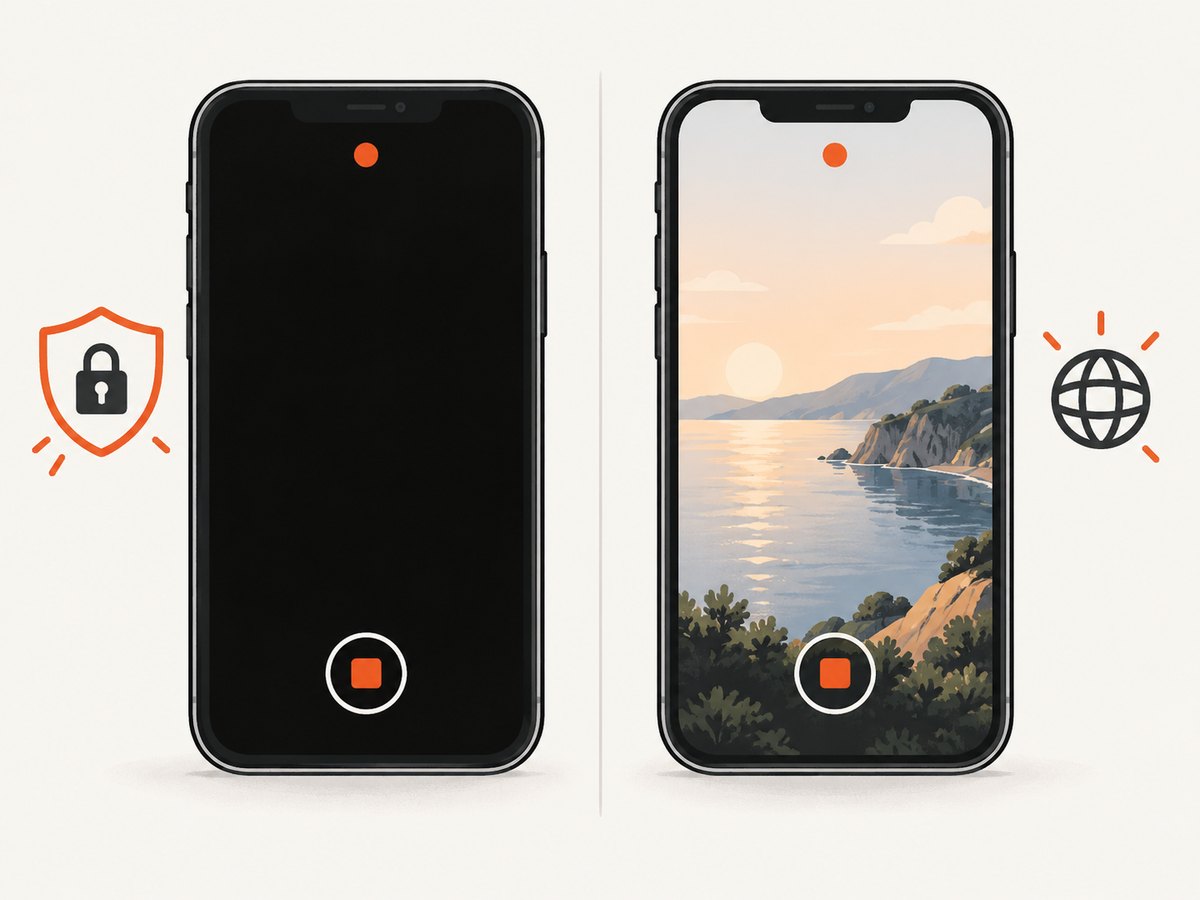
Chrome plays protected content by default. Its control is under Settings > Site settings > Protected Content. That setting governs protected playback behavior and is not a guaranteed way to defeat a provider’s capture restrictions.
| Symptom | Likely cause | What to do |
|---|---|---|
| Black rectangle, controls visible | Protected playback or an app capture policy. | Check whether the service allows downloads or offline viewing. Do not try to bypass its protection. |
| Picture works, audio is silent | Device audio was not selected, media volume was muted, or playback capture was blocked. | Test with device audio enabled and a non-protected clip. If only protected clips fail, the restriction is expected. |
| Recording stops when the video starts | The browser or video app rejects capture, or the phone is low on resources. | Restart the phone, close background apps, and test a short clip. Protected services may still prevent capture. |
| Only a black screen is saved | The page uses a protected surface or hardware overlay. | Use an authorized download or playback feature provided by the site. |
6. Alternatives when the Screen recorder tile is missing
Use a third-party recorder app
A reputable recorder app can provide a floating control, bitrate settings, or editing tools on phones without a usable native tile. Check its Android version support, audio permissions, storage access, and privacy policy. It cannot reliably capture content that the video provider marks as protected.
Use external capture hardware
An HDMI capture setup is specialized equipment for devices that expose video output. It is not the normal workflow for recording a website on an Android phone and may require adapters, power, and a separate computer or recorder.
7. Troubleshooting checklist
- No Screen recorder tile: expand Quick Settings fully, swipe across tiles, then use the edit control to add it.
- Recording is too large: shorten the clip, lower resolution or frame rate if your phone exposes those controls, and free storage.
- Recording is missing: check Google Photos or Gallery under Movies and Screen recordings, then inspect the phone’s storage with a file manager.
- Notifications appear: enable Do Not Disturb before starting and hide sensitive notifications.
- Touches are visible: turn off the show-touches option before recording.
- Video is cropped: match the phone orientation to the video and avoid browser zoom or split-screen mode.
- Audio has echo: avoid recording speaker output through the microphone when device audio is available.
- Capture fails only on one service: test another website. If other sites work, the original service is likely applying protected-content restrictions.
8. Performance, reliability, and file size
Screen recording uses the display, video encoder, storage, and sometimes the microphone at the same time. Long recordings can heat the phone, drain the battery, and produce large files.
- Charge the phone or connect power for long sessions.
- Close games and other high-use apps before recording.
- Keep several gigabytes of free storage when capturing long or high-resolution video.
- Record a 10–20 second sample first to verify framing, audio, and protected-content behavior.
- Keep the phone still and prevent the screen from locking.
- For repeatable work, record in short segments so one interruption does not discard the entire session.
9. Or skip the browser setup
If you need a still image of a webpage rather than a playable video recording, ScreenshotNeo returns a screenshot or PDF from one request. It is a website capture API, so it does not record video or bypass protected playback. It can be useful for capturing a clean frame or documenting the page around a video.
Its cookie and consent step accepts banners before capture and removes more than 60 known consent platforms, newsletter popups, and chat widgets. Bot checks, blank pages, failed loads, timeouts, and cache hits are not billed, and the response identifies the page verdict and billing result in X-Page-Verdict and X-Billed headers. ScreenshotNeo also provides an MCP server for AI agents, with take_screenshot, get_page_info, and capture_pdf tools.
See the ScreenshotNeo API documentation for options such as viewport and device presets, full-page capture, CSS selectors, custom CSS and JavaScript, waits, blocking rules, cookies, headers, geolocation, caching, signed links, asynchronous jobs, bulk capture, and PDF output.
curl -G "https://api.screenshotneo.com/v1/shot" -d access_key=YOUR_API_KEY --data-urlencode url=https://stripe.com -o shot.webpimport requests
r = requests.get("https://api.screenshotneo.com/v1/shot", params={"access_key": "YOUR_API_KEY", "url": "https://stripe.com"}, timeout=90)
open("shot.webp", "wb").write(r.content)const q = new URLSearchParams({ access_key: 'YOUR_API_KEY', url: 'https://stripe.com' });
const res = await fetch(`https://api.screenshotneo.com/v1/shot?${q}`);There is a free plan with 1,000 screenshots each month and no card. Paid plans start at $5 for 3,000 screenshots. Create a free ScreenshotNeo account.
10. Frequently asked questions
Can I record a website video without installing an app?
Usually yes on Android 11 and later, using the built-in Screen recorder tile.
Where is the Screen recorder on Samsung, Pixel, or other phones?
Open Quick Settings and swipe through the tiles. If it is absent, use the tile editor to add it. The name and placement vary by manufacturer.
Can I record subscription streaming services?
Protected video may be intentionally rendered as a black stream or silent audio. Use the service’s authorized download or offline feature when available.
Does Chrome’s Protected Content setting enable recording?
No. It controls protected playback behavior and does not guarantee that a provider’s capture restrictions can be bypassed.
What is the simplest way to capture a static webpage frame?
Use the Android screenshot tool for a one-off frame, or use ScreenshotNeo when you need an automated, clean webpage image or PDF.


