How to Capture Websites with Animations Disabled
Freeze CSS and script-driven motion for stable website screenshots with Chrome DevTools, Playwright, and ScreenshotNeo.

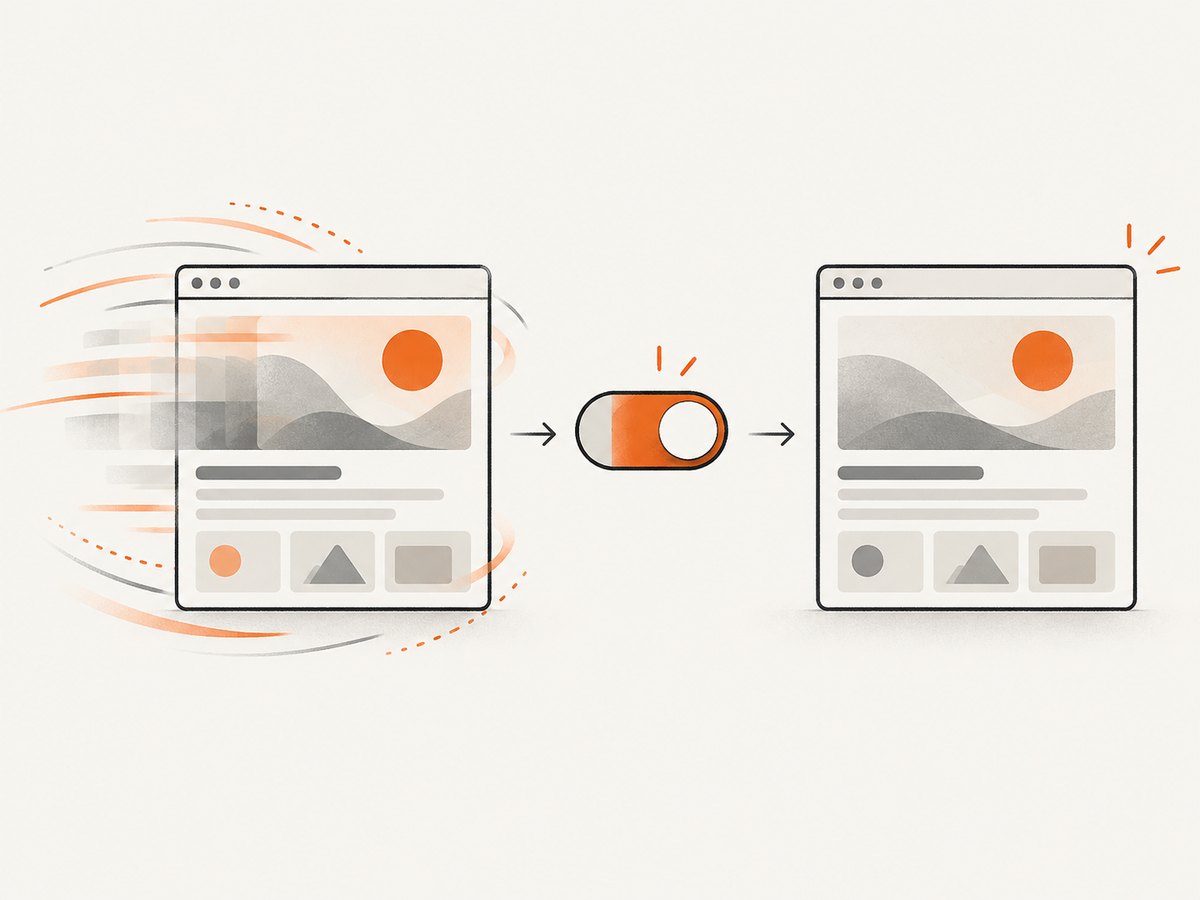
Animated pages can produce different pixels on every capture. A carousel advances, a transition is halfway complete, or lazy content appears after the screenshot starts. The reliable solution depends on the layer creating the motion: tell the page that the user prefers reduced motion, disable CSS and Web Animations during capture, or pause JavaScript-controlled media and rendering loops.
For a one-off Chrome capture: open DevTools, open the Rendering drawer, emulate prefers-reduced-motion: reduce, reload the page, wait for fonts, images, and lazy content, then capture the viewport or full page. Chrome documents this Rendering emulation.
For automated screenshots: Playwright’s screenshot assertion accepts animations: 'disabled'. It stops CSS animations, CSS transitions, and Web Animations; finite animations are fast-forwarded to completion, while infinite animations are canceled to their initial state during the screenshot and resumed afterward. Use reducedMotion: 'reduce' when the site changes its own styles in response to the media query.
1. Capture a still page manually in Chrome
- Open the target URL in Chrome and press F12 (or choose More tools → Developer tools).
- Open the DevTools command menu with Ctrl+Shift+P (Windows/Linux) or Cmd+Shift+P (macOS), then search for Show Rendering.
- In the Rendering drawer, set Emulate CSS media feature prefers-reduced-motion to
reduce. - Reload the page. Reloading matters because applications often choose animation behavior during initial render.
- Wait until web fonts, images, lazy sections, and data requests have settled. Scroll through a long page once if scrolling triggers lazy loading.
- Use the DevTools device toolbar for a specific viewport, then capture the visible viewport or use a full-page capture tool.
This method changes the media feature exposed to the page. It only works when the page honors @media (prefers-reduced-motion: reduce) or checks the corresponding JavaScript media query. It does not automatically stop a canvas loop, a video, WebGL, or a transform updated by requestAnimationFrame.
2. Playwright: disable animations during a screenshot
Install Playwright in a Node.js project:
npm install -D playwright
npx playwright install chromium
The following test produces a deterministic full-page screenshot:
import { test, expect } from '@playwright/test';

test('stable screenshot', async ({ page }) => {
  await page.goto('https://example.com', { waitUntil: 'networkidle' });
  await expect(page).toHaveScreenshot('page.png', {
    animations: 'disabled',
    fullPage: true,
  });
});
animations: 'disabled' is capture-aware. Playwright waits for animations to finish or fast-forwards finite ones rather than taking an arbitrary frame. Infinite animations are canceled at their initial state for the image. Read the PageAssertions documentation for the complete assertion options.
If you want a direct screenshot instead of a visual assertion, use a context configured for reduced motion:
import { chromium } from 'playwright';

const browser = await chromium.launch();
const context = await browser.newContext({ reducedMotion: 'reduce' });
const page = await context.newPage();
await page.goto('https://example.com', { waitUntil: 'networkidle' });
await page.screenshot({ path: 'page.png', fullPage: true });
await browser.close();
Playwright’s reducedMotion option accepts reduce and no-preference. This emulates prefers-reduced-motion; it does not force a site that ignores that preference to stop moving.
Wait for the page state you actually need
networkidle is useful, but it is not a universal “ready” signal. A page can keep analytics connections open, or render important content after the network becomes quiet. Prefer an application-specific readiness marker when one exists:
await page.goto('https://example.com');
await page.locator('[data-page-ready="true"]').waitFor();
await page.screenshot({ path: 'ready.png', fullPage: true });
For a known delay, use it sparingly:
await page.waitForTimeout(800);
await page.screenshot({ path: 'settled.png', fullPage: true });
3. CSS injection for stubborn transitions
Playwright’s screenshot API supports a style option that injects CSS only for the capture. This fallback neutralizes common CSS motion:
const freezeMotion = `
*, *::before, *::after {
  animation-duration: 0s !important;
  animation-delay: 0s !important;
  transition-duration: 0s !important;
  transition-delay: 0s !important;
  scroll-behavior: auto !important;
}`;

await page.screenshot({
  path: 'frozen.png',
  fullPage: true,
  style: freezeMotion,
});
Use this only when the normal animation control is insufficient. A zero-duration rule can change layout, skip an intended intermediate state, or reveal content that normally appears after a transition. It also cannot pause canvas, video, WebGL, or JavaScript timers.
4. Freeze JavaScript-driven motion
When a chart, canvas, video, or animation loop ignores CSS, make the page state deterministic before capture. For example, pause media and disable animation frames in a controlled test environment:
await page.addInitScript(() => {
  const originalRAF = window.requestAnimationFrame;
  window.requestAnimationFrame = (callback) => {
    return window.setTimeout(() => callback(performance.now()), 1000000);
  };
  window.cancelAnimationFrame = (id) => window.clearTimeout(id);
});

await page.goto('https://example.com');
await page.evaluate(() => {
  document.querySelectorAll('video, audio').forEach((media) => media.pause());
});
await page.screenshot({ path: 'controlled.png', fullPage: true });
Only apply such stubs to pages you control or understand. A global override can break hydration, timers, charts, and interactive widgets. A safer pattern is to expose a test hook in the application that sets a known animation clock and state.
5. Choose the right method
| Method | Best for | Limitation |
|---|---|---|
| Chrome Rendering emulation | One-off manual captures | Depends on the site honoring reduced motion; labels can vary by Chrome version |
Playwright animations: 'disabled' |
Visual regression and repeatable screenshots | Script-driven motion may need page-level control |
Playwright reducedMotion: 'reduce' |
Sites designed for accessibility | No effect when the site ignores the media query |
Screenshot style |
Last-resort CSS suppression | Can alter layout and cannot stop canvas, video, or WebGL |
6. Full-page, viewport, and lazy-loading edge cases
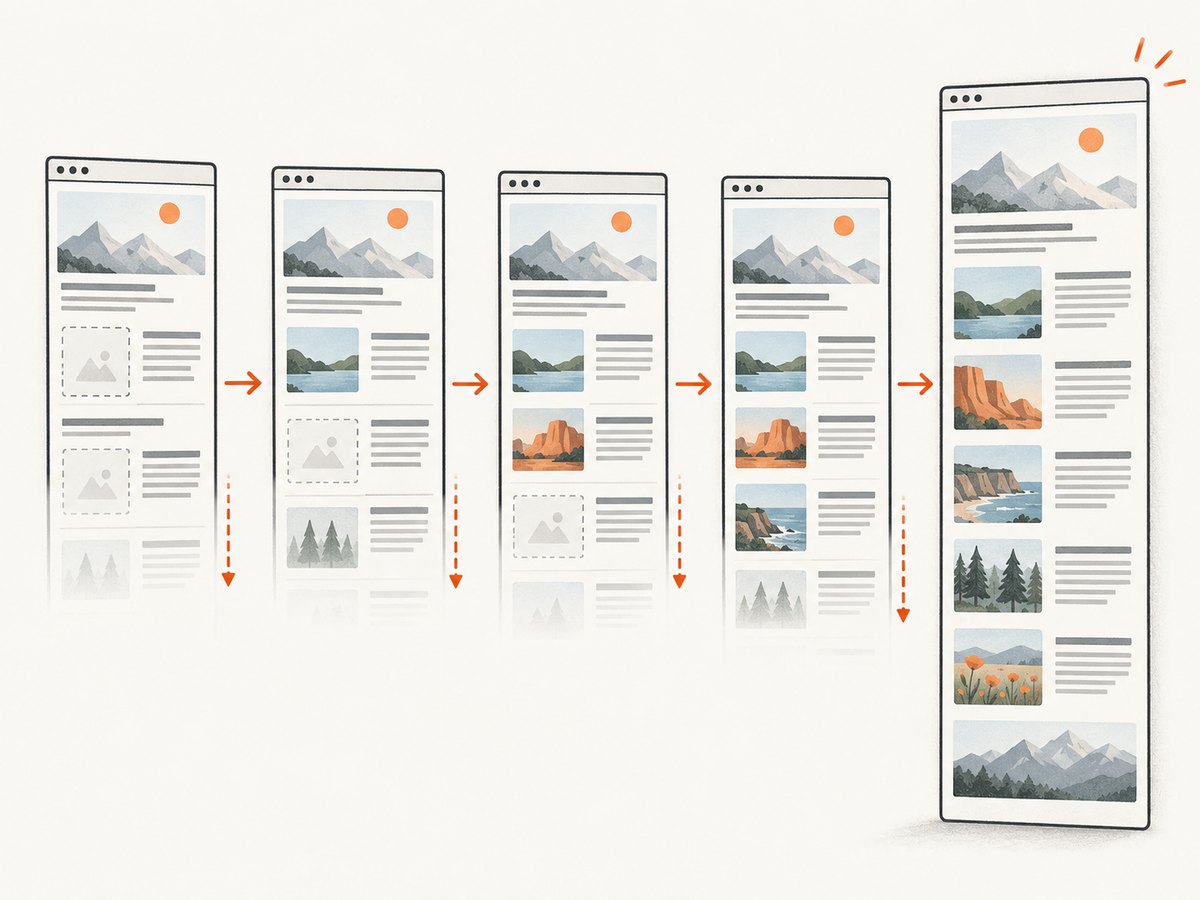
A viewport screenshot captures exactly what is visible. A full-page screenshot may scroll or stitch the page, which can trigger lazy loading and intersection observers. For long pages:
- Set a fixed viewport and device scale factor.
- Wait for all images to report
completeand for web fonts withdocument.fonts.ready. - Scroll incrementally if the site loads content only after it enters the viewport.
- Capture after layout stops changing; compare element bounding boxes if visual tests are flaky.
await page.evaluate(async () => {
  await document.fonts.ready;
  await Promise.all([...document.images].map((img) => {
    if (img.complete) return Promise.resolve();
    return new Promise((resolve) => {
      img.addEventListener('load', resolve, { once: true });
      img.addEventListener('error', resolve, { once: true });
    });
  }));
});
await page.screenshot({ path: 'complete.png', fullPage: true });
7. Or skip the browser setup
ScreenshotNeo is a website screenshot API and MCP server. It accepts a URL and returns PNG, JPEG, WebP, or PDF. For animation-sensitive work, use its custom JavaScript or CSS options to freeze the page, and its wait controls to capture after the desired state is ready. The parameter names used by other screenshot APIs also work, which simplifies migration. See the ScreenshotNeo API documentation.
One request with cURL
curl -G "https://api.screenshotneo.com/v1/shot" -d access_key=YOUR_API_KEY --data-urlencode url=https://stripe.com -o shot.webpPython
import requests
r = requests.get("https://api.screenshotneo.com/v1/shot", params={"access_key": "YOUR_API_KEY", "url": "https://stripe.com"}, timeout=90)
open("shot.webp", "wb").write(r.content)
Node.js
const q = new URLSearchParams({ access_key: 'YOUR_API_KEY', url: 'https://stripe.com' });
const res = await fetch(`https://api.screenshotneo.com/v1/shot?${q}`);
ScreenshotNeo can load lazy images for full-page captures, capture one CSS-selected element, set dark mode, use device presets or custom viewports, apply retina scale, inject custom CSS and JavaScript, click an element, wait for a selector, delay, or network idle, and block ads, trackers, requests, or resource types. It also supports custom headers, cookies, user agents, Authorization, timezone, geolocation, transparent backgrounds, resizing, cache TTLs, signed links, asynchronous jobs with signed webhooks, bulk capture of up to 100 URLs per call, a usage API, PDF options, and an OpenAPI specification.
Cookie and consent banners, newsletter popups, and chat widgets are accepted or removed before capture; each step can be turned off. Bot checks or CAPTCHAs, blank pages, timeouts, failed loads, and cache hits cost nothing. Every response identifies the result with X-Page-Verdict and X-Billed headers. An MCP server provides take_screenshot, get_page_info, and capture_pdf tools for Claude, Cursor, and other MCP clients.
The Free plan includes 1,000 shots per month without a card. Paid plans start at $5 for 3,000 shots; yearly billing gives two months free, and every feature is available on every plan. Create a free ScreenshotNeo account and start with the 1,000 included screenshots.
8. Troubleshooting checklist
| Symptom | Cause | Fix |
|---|---|---|
| Animation still moves | The page uses canvas, video, WebGL, or JavaScript transforms | Pause media or add a test hook; CSS rules alone cannot freeze it |
| Reduced motion has no effect | The site ignores the media query | Use Playwright’s capture-time animation disabling or a scoped style override |
| Screenshot catches a spinner | Capture starts before application readiness | Wait for a readiness selector or explicit data request, then capture |
| Fonts shift the layout | Web fonts load after the screenshot | Await document.fonts.ready and verify the font request succeeds |
| Full page misses images | Lazy loading depends on scrolling | Scroll through the page or enable a capture service’s lazy-image loading |
| Visual test is flaky | Viewport, timezone, data, or time varies | Fix viewport and locale, mock changing data, disable motion, and use stable test records |
| Capture is billed unexpectedly | A successful clean image was returned | Inspect ScreenshotNeo’s X-Page-Verdict and X-Billed response headers |
9. Performance, reliability, and cost
Animation suppression usually reduces retries because the captured frame is repeatable. The main time costs are browser startup, page load, font and image settling, and full-page scrolling. Reuse a Playwright browser context for a batch, keep a fixed viewport, and wait on a specific readiness signal instead of adding a large arbitrary delay. Cache immutable captures when the page content is unchanged.
For a service workflow, choose viewport captures when you need speed and predictable dimensions; use full-page only when the complete document is required. A cache TTL can avoid repeated work for identical requests. ScreenshotNeo’s verdict and billing headers make failed or unusable loads visible to your pipeline, while async jobs, signed webhooks, bulk capture, and the usage API help with larger batches.
10. FAQ
Does disabling animations improve accessibility?
It can make moving content easier to inspect, but it is a capture setting. Keep the site’s normal accessibility behavior for real users and use reduced-motion emulation for tests and images.
Should I use reduced motion or animations: 'disabled'?
Use reduced motion when the application is designed to select an alternate accessible style. Use capture-time disabling when you need Playwright to handle CSS and Web Animations regardless of page styling. They can be used together.
Can I freeze a video at an exact timestamp?
Not with CSS alone. Pause the media and set its time in page code, or provide a deterministic fixture in the application under test.
Why does a full-page image differ from a viewport image?
Full-page capture can scroll, trigger lazy loading, and change sticky or fixed elements. Treat those as separate capture modes and configure each deliberately.
What is the simplest production option?
Use a screenshot API when you do not want to maintain browser binaries, consent handling, waiting logic, and failure classification. ScreenshotNeo combines those capture controls with free monthly usage and an MCP server for AI agents.