How to Capture a Wide Banner Image Fully With Selenium WebDriver
Capture a banner element, viewport, or full document with Selenium. Includes Python code, Chrome CDP, Firefox full-page capture, fixes, and ScreenshotNeo.
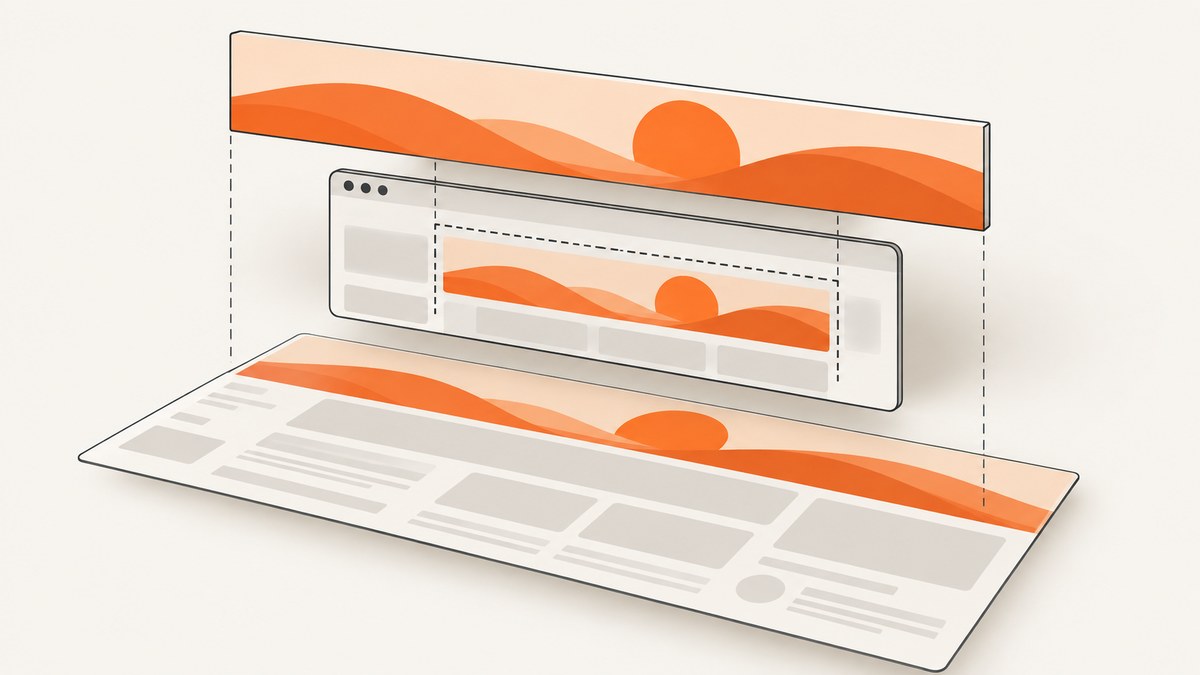
Direct answer: choose the screenshot scope that matches what “fully” means. For the complete rendered banner element, locate it and call Selenium’s element screenshot method. For only the visible browser area, use a normal driver screenshot. For the entire document, use Firefox’s documented full-page API or Chrome DevTools Protocol’s captureBeyondViewport; a normal WebDriver screenshot is not automatically full-page.
The WebDriver specification defines the ordinary command around the top-level browsing context’s initial viewport (W3C WebDriver specification). Selenium documents element screenshots and window operations in its Working with windows and tabs guide. Firefox’s Python binding exposes explicit full-document methods in its API reference.
1. Decide what “fully” means
| Desired result | Use | What it captures |
|---|---|---|
| The banner’s rendered box | WebElement.screenshot() |
The element’s visible bounding rectangle after Selenium scrolls it into view. |
| Current viewport | driver.save_screenshot() |
The initial top-level viewport, not the complete document. |
| Entire document in Firefox | get_full_page_screenshot_as_file() |
A full-document PNG through the Firefox Python API. |
| Content beyond the viewport in Chrome | Chrome DevTools Protocol Page.captureScreenshot |
Chrome-specific capture with captureBeyondViewport. |
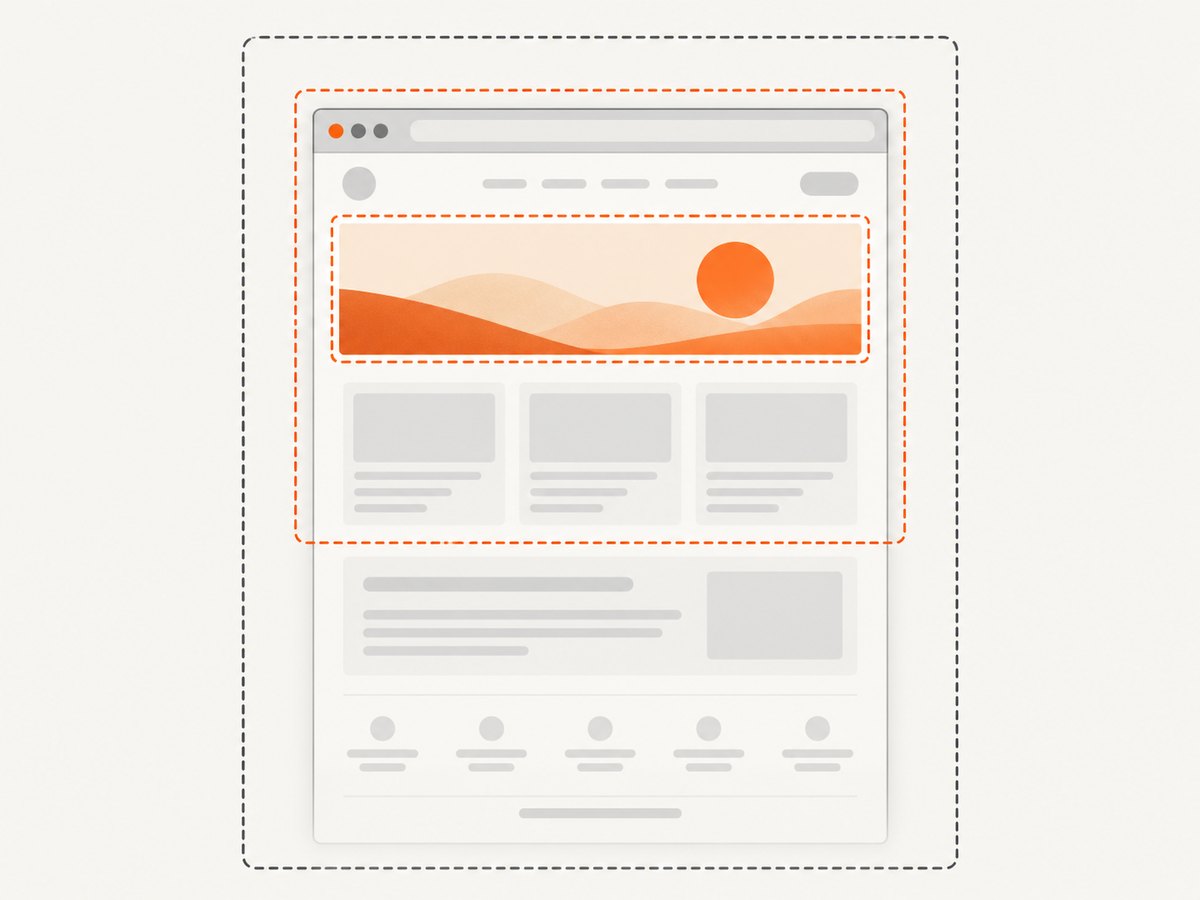
An element screenshot does not reconstruct pixels hidden by the element’s own layout. If the banner image has a wider natural size than its CSS box, Selenium captures the rendered box and any clipping applied by the page.
2. Capture the banner element with Python
Install Selenium and a browser driver that matches your environment:
python -m pip install -U seleniumThis complete example waits for the banner, waits for an image inside it to finish loading, captures the element, and checks the output dimensions.
from pathlib import Path
from selenium import webdriver
from selenium.webdriver.common.by import By
from selenium.webdriver.support.ui import WebDriverWait
from selenium.webdriver.support import expected_conditions as EC
from PIL import Image

url = "https://example.com/page-with-banner"
banner_selector = "header .hero-banner"
output = Path("banner.png")

options = webdriver.ChromeOptions()
options.add_argument("--headless=new")
options.add_argument("--window-size=1440,900")

driver = webdriver.Chrome(options=options)
try:
    driver.get(url)
    wait = WebDriverWait(driver, 30)
    banner = wait.until(EC.presence_of_element_located((By.CSS_SELECTOR, banner_selector)))
    wait.until(lambda d: d.execute_script("""
        const el = arguments[0];
        const images = [...el.querySelectorAll('img')];
        return images.every(img => img.complete && img.naturalWidth > 0);
    """, banner))

    if not banner.is_displayed():
        raise RuntimeError("The banner exists but is not displayed")

    banner.screenshot(str(output))
    with Image.open(output) as image:
        print(f"saved {output}: {image.width}x{image.height}")
finally:
    driver.quit()
The WebDriver element screenshot operation scrolls the element into view and captures its visible bounding rectangle. Use a stable selector such as a data attribute when possible. If the banner is a CSS background, select its containing element rather than searching for an <img>.
Inspect rendered and natural dimensions
For an image banner, compare the layout box with the source image dimensions before deciding whether clipping is caused by the page:
metrics = driver.execute_script("""
const el = arguments[0];
const img = el.matches('img') ? el : el.querySelector('img');
const rect = el.getBoundingClientRect();
return {
  renderedWidth: rect.width,
  renderedHeight: rect.height,
  naturalWidth: img ? img.naturalWidth : null,
  naturalHeight: img ? img.naturalHeight : null,
  complete: img ? img.complete : null
};
""", banner)
print(metrics)
A natural width larger than the rendered width is not itself an error. It means the page is displaying the image inside a smaller box, possibly with object-fit, a fixed width, or overflow clipping. Change the page’s layout or capture a source asset if you need pixels outside that box.
3. Capture only the viewport
Use this when the desired output is exactly what a user sees in the current viewport:
from selenium import webdriver

options = webdriver.ChromeOptions()
options.add_argument("--headless=new")
options.add_argument("--window-size=1440,900")
driver = webdriver.Chrome(options=options)
try:
    driver.get("https://example.com/page-with-banner")
    driver.save_screenshot("viewport.png")
finally:
    driver.quit()
Changing the window size changes the viewport dimensions. It does not turn the command into a full-document screenshot.
4. Capture the full document in Firefox
Selenium’s Python Firefox binding documents explicit full-page methods. The exact method available depends on your installed Selenium version, so check the API in the environment where the code runs.
from selenium import webdriver

options = webdriver.FirefoxOptions()
options.add_argument("-headless")
driver = webdriver.Firefox(options=options)
try:
    driver.get("https://example.com/page-with-banner")
    driver.get_full_page_screenshot_as_file("page-full.png")
finally:
    driver.quit()
Some Selenium versions expose equivalent methods such as save_full_page_screenshot() or binary/base64 variants. Use the method present in your installed Firefox WebDriver API and verify the resulting image’s height.
5. Capture beyond the viewport in Chrome
Chrome DevTools Protocol (CDP) provides a browser-specific route. Its Page.captureScreenshot command documents captureBeyondViewport, which defaults to false (Chrome DevTools Protocol Page domain).
import base64
from selenium import webdriver

options = webdriver.ChromeOptions()
options.add_argument("--headless=new")
driver = webdriver.Chrome(options=options)
try:
    driver.get("https://example.com/page-with-banner")
    result = driver.execute_cdp_cmd("Page.captureScreenshot", {
        "format": "png",
        "captureBeyondViewport": True,
        "fromSurface": True
    })
    with open("page-beyond-viewport.png", "wb") as output:
        output.write(base64.b64decode(result["data"]))
finally:
    driver.quit()
CDP is Chrome-specific and version-sensitive. Treat it as a deliberate dependency rather than a portable WebDriver guarantee. The protocol overview describes the protocol’s release and browser scope (Chrome DevTools Protocol overview).
6. Handle a banner wider than the viewport
- Check the element box. Read
getBoundingClientRect()and compare its width with the expected output. - Check horizontal clipping. Inspect ancestors for
overflow: hidden, fixed widths, transforms, and masks. - Choose the scope. Element capture is appropriate for the rendered banner box; a document capture is appropriate when the banner is part of a tall page; viewport capture is appropriate for the visible screen.
- Use a larger viewport only when layout is responsive. A wider viewport can change the banner’s layout and may be the correct way to render its desktop version.
- Verify pixels after saving. Open the image and compare its width and height with the expected dimensions.
Selenium does not promise to expand a clipped element to its source image’s natural dimensions. If you need the original asset, download the image URL separately or change the page CSS before capture.
7. Make capture deterministic
- Wait for the banner element, then wait for its image resources to report
completeand a positivenaturalWidth. - Use a fixed viewport, device scale, browser version, and font environment for repeatable output.
- Scroll the element into view before taking measurements if the page changes layout while scrolling.
- Disable animations in a test-only stylesheet when motion causes inconsistent frames.
- Save PNG when exact pixels matter; use JPEG or WebP only when their compression or file size is acceptable.
- Record the URL, selector, viewport, browser version, and output dimensions with each capture.
8. Troubleshooting
| Symptom | Likely cause | Fix |
|---|---|---|
NoSuchElementException |
The selector is wrong or the banner has not been inserted yet. | Use an explicit wait, inspect the DOM, and prefer a stable data attribute. |
| Element screenshot is too small | The element’s rendered CSS box is smaller than the source image. | Inspect computed size and CSS overflow; change the layout or capture the source asset. |
| Only the visible portion is saved | The chosen command captures a viewport or the element is clipped. | Use Firefox full-page capture or Chrome CDP for document content; element capture cannot recover clipped pixels. |
| Banner is blank | Lazy loading, an unfinished image request, a failed request, or a hidden element. | Wait for image readiness, scroll to trigger lazy loading, verify network access, and check is_displayed(). |
| Full-page method is missing | Your Selenium version or browser binding does not expose that method. | Check the installed binding’s API; upgrade within your supported environment or use Chrome CDP. |
| Chrome CDP command fails | Browser and driver versions or protocol support do not match. | Align Chrome and ChromeDriver versions and treat CDP code as Chrome-specific. |
| Output dimensions vary | Responsive breakpoints, fonts, animations, or device scale differ between runs. | Pin viewport and scale, wait for fonts and images, and disable motion where appropriate. |
| Browser hangs or times out | The page has slow resources, scripts, or an unreachable dependency. | Set page-load and explicit wait limits, diagnose the slow resource, and always call quit() in a finally block. |
9. Performance, reliability, and cost
Element screenshots are usually the narrowest operation because they avoid stitching or reading the rest of the document. Full-document captures can require more page layout, image loading, memory, and encoding work, especially on long pages. A wide viewport may also trigger larger responsive images and increase capture time.
For reliable automation, reuse a browser session when capturing several pages only if isolation between pages is safe; otherwise create a fresh session. Keep explicit timeouts, collect failures with the URL and selector, and validate dimensions before accepting an image. Selenium itself does not define a screenshot success rate or service price; your costs come from the machines, browsers, and infrastructure running the automation.
10. Or skip the browser setup
ScreenshotNeo provides a website screenshot API and MCP server. One request returns a PNG, JPEG, WebP, or PDF, so you do not need to manage Selenium, browser drivers, viewport setup, or image stitching.
See the ScreenshotNeo API documentation for the complete option list. The API supports full-page capture, element selectors, custom viewport and device presets, retina scale, waits, custom CSS and JavaScript, hiding selectors, headers, cookies, user agents, geolocation, timezone, blocking rules, caching, signed links, asynchronous jobs, bulk capture, PDFs, HTML/CSS rendering, and usage reporting.
cURL
curl -G "https://api.screenshotneo.com/v1/shot" -d access_key=YOUR_API_KEY --data-urlencode url=https://stripe.com -o shot.webpPython
import requests
r = requests.get("https://api.screenshotneo.com/v1/shot", params={"access_key": "YOUR_API_KEY", "url": "https://stripe.com"}, timeout=90)
open("shot.webp", "wb").write(r.content)
Node.js
const q = new URLSearchParams({ access_key: 'YOUR_API_KEY', url: 'https://stripe.com' });
const res = await fetch(`https://api.screenshotneo.com/v1/shot?${q}`);
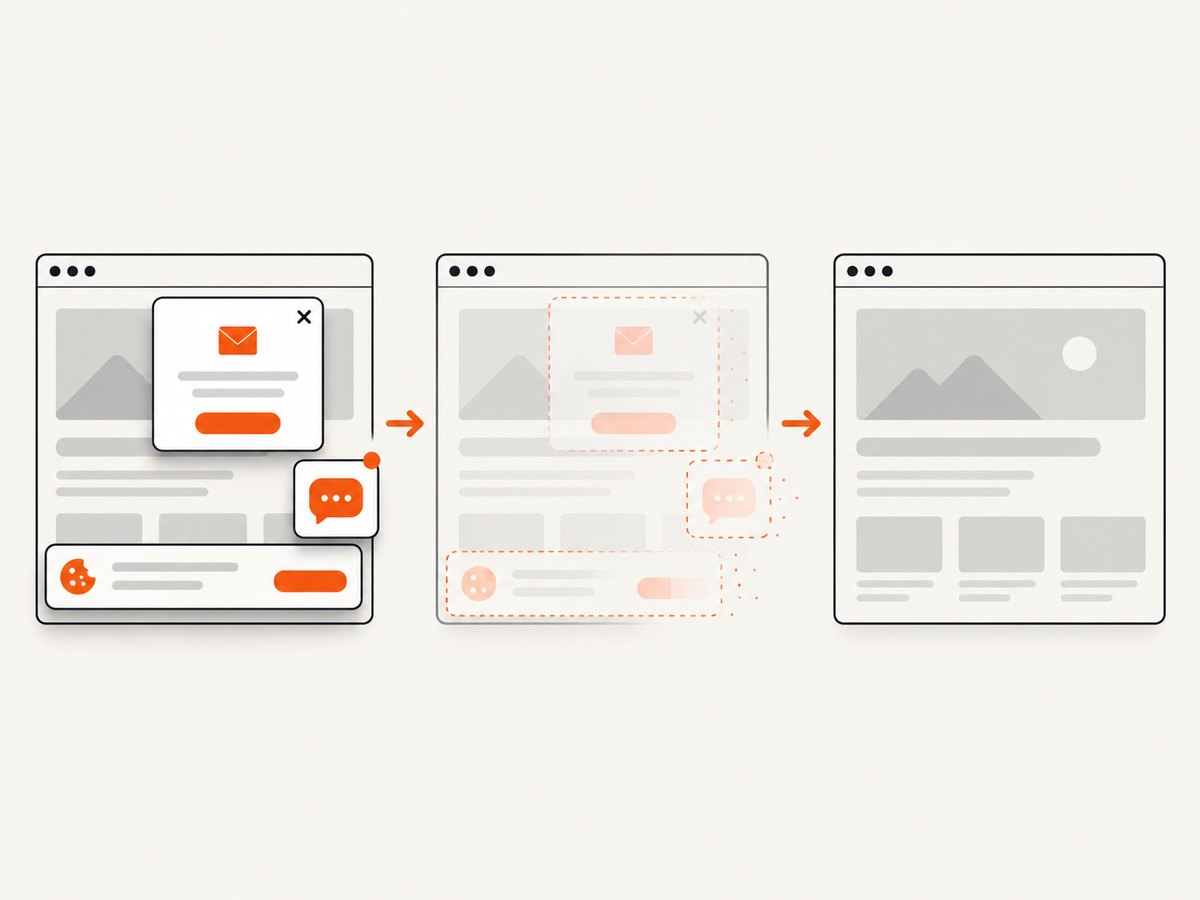
Cookie banners, newsletter popups, and chat widgets are removed before the shot. Bot checks, blank pages, timeouts, failed loads, and cache hits are never billed, and response headers identify the page verdict and billing result. An MCP server lets Claude, Cursor, and other MCP clients take screenshots with take_screenshot, inspect pages with get_page_info, and create PDFs with capture_pdf. The free plan includes 1,000 screenshots per month with no card; paid plans start at $5 for 3,000 shots.
Create a free ScreenshotNeo account and start with 1,000 screenshots a month at no charge.
11. FAQ
Does save_screenshot() capture the whole page?
No. The WebDriver command is defined for the top-level browsing context’s initial viewport. Use a documented full-page method or a browser-specific protocol when you need the document.
Can Selenium capture an element wider than the viewport?
It captures the element’s visible bounding rectangle after scrolling it into view. It does not guarantee reconstruction of pixels clipped by the element’s layout.
Should I maximize or fullscreen the browser?
Those are window-management operations. They change window state; they do not redefine the screenshot command as full-page.
Which format should I use?
Use PNG for exact pixel comparison and transparency. Choose JPEG or WebP when smaller files are more useful and some lossy or format-specific behavior is acceptable.
Is Chrome CDP portable across browsers?
No. Page.captureScreenshot is a Chrome DevTools Protocol route. Use it when Chrome and its protocol dependency are acceptable, and use the browser binding’s documented full-page support where available.


