How to Capture a Wix Website as an Image or PDF
Save a Wix page as a PDF, capture its full-page layout as an image, or automate repeatable captures with Chrome Headless or a screenshot API.
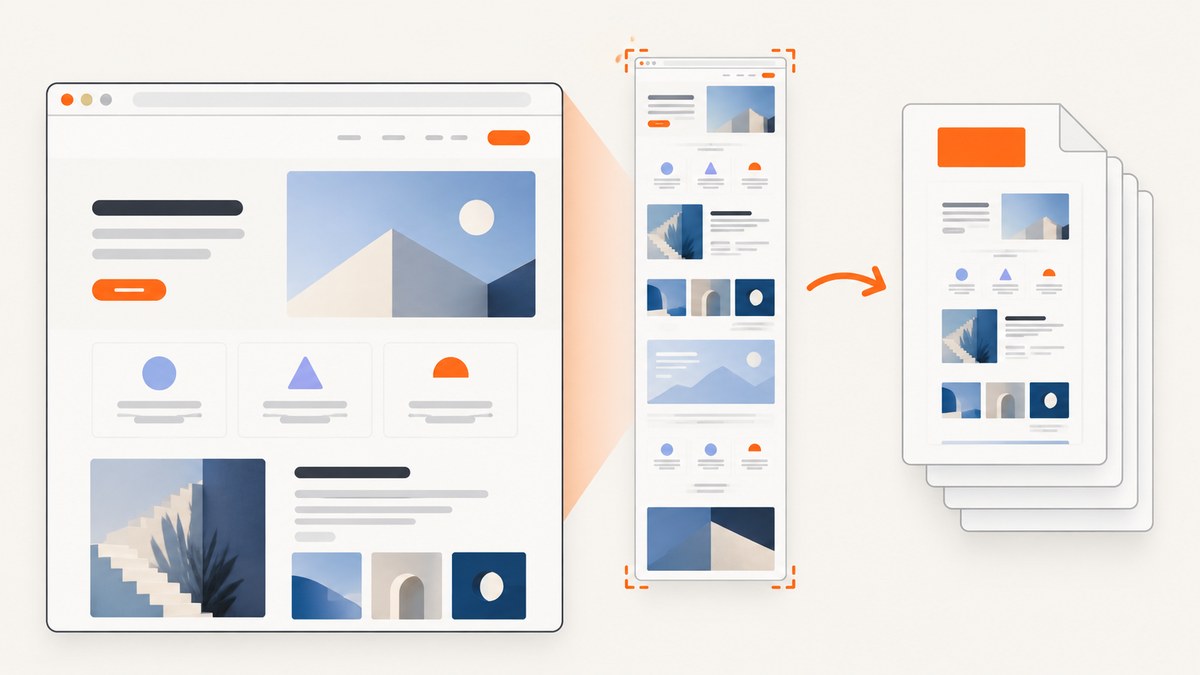
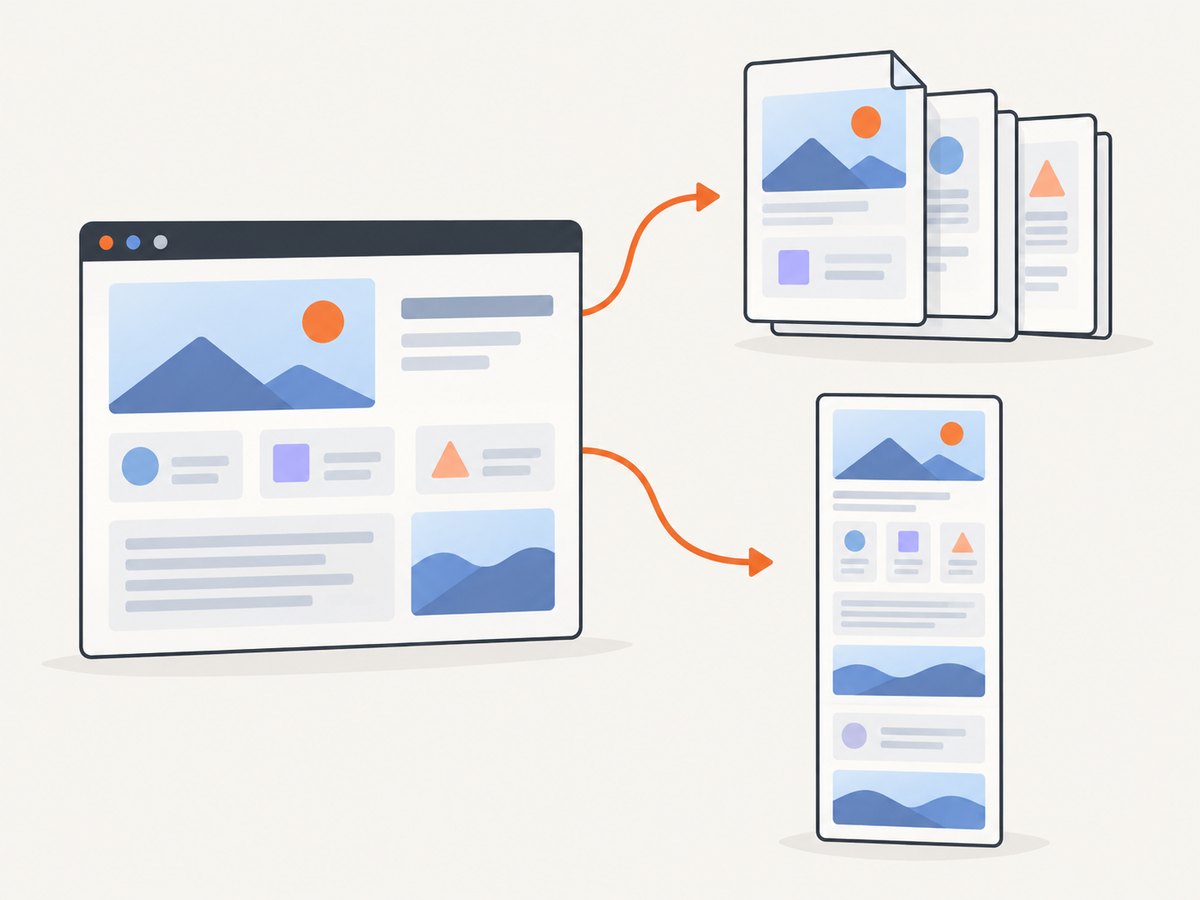
To save a Wix page as a PDF, open its published or preview URL and use your browser’s Print command, then choose Save as PDF. Wix documents Ctrl+P for printing site pages. To capture the whole page as an image, use Firefox’s full-page screenshot feature or Chrome DevTools’ Capture full size screenshot. For repeatable captures, Chrome Headless can save screenshots and PDFs from the command line.
Use a PDF when you need a paginated document for printing or sharing. Choose PNG for a lossless visual record, or JPG if a smaller file matters more than perfect edge quality. A regular screenshot only captures the visible viewport; use a full-page capture for content below the fold.
1. Choose an output and capture method
| Method | Output | Full page | Best for |
|---|---|---|---|
| Browser Print | Usually paginated | Reading, printing, sharing | |
| Firefox screenshot | Image | Yes | A quick visual record |
| Chrome DevTools | PNG | Yes | Design review and one-off captures |
| Chrome Headless | PNG or PDF | Yes | Repeatable QA, archiving, scripts |
| Browser extension | PNG, JPG, PDF | Usually | Toolbar workflow, annotations, PDF pagination |
| Screenshot API | Image or PDF, depending on service | Depends on options | Server-side or integrated capture workflows |
For a quick, readable document, start with Print. For exact visual comparison, use a full-page image. If you need consistent viewport dimensions, first set the Wix page preview to the device size you intend to document. Wix Studio preview controls can set desktop or mobile dimensions.
2. Save a Wix page as a PDF with Print
- Open the page in Preview or visit its published URL. If you have just edited it, save and preview first so you capture the visitor-facing rendering.
- Open the browser’s print dialog. On Windows or Linux, press Ctrl+P; on macOS, use the browser’s Print command or the platform print shortcut.
- Choose Save as PDF or the system’s PDF printer.
- Set paper size, orientation, margins, scale, background graphics, and page range. The exact controls vary by browser and operating system.
- Review the print preview. Adjust scale or margins if sections split awkwardly, then save using a filename that includes the page name and capture date.
This uses the browser’s print layout, which can differ from the screen layout because print CSS and print-dialog settings affect the result. Background colors and images may be omitted unless background graphics are enabled. Long pages can span many sheets; a paginated PDF is generally easier to read and print than a single extremely tall image.
When PDF pagination looks wrong
Try landscape orientation for wide layouts, reduce scale slightly, or choose narrower margins. If a section still breaks across pages, browser printing may not offer a precise way to control that site’s print CSS. For a continuous visual record, capture an image instead. Wix’s documented starting point is the browser Print command; it also suggests taking a screenshot and printing it as a fallback. Wix Help Center: printing a site page.
3. Capture the entire page in Firefox
- Open the Wix page in Firefox and wait for the visible content to finish loading.
- Use Firefox’s page menu option Take Screenshot.
- Choose Save full page, then download the image.
Firefox also offers a Developer Tools route: enable the Take a screenshot of the entire page toolbox button in Developer Tools settings, then use the screenshot icon. Firefox saves the capture to Downloads. These browser controls are documented in Firefox Help.
Use PNG when you need crisp text and interface edges without lossy compression. JPG can reduce file size when slight compression artifacts are acceptable. A very long page produces an unusually tall image, which may be harder to open, share, or compare than a PDF.
4. Capture a full-page image in Chrome or Chromium
- Open the Wix page and wait for it to render. If the page loads images only as they approach the viewport, scroll through it once and return to the top.
- Open Developer Tools with F12 or the browser’s Inspect command.
- Open the DevTools Command Menu and search for Capture full size screenshot.
- Run the command. Chrome saves a PNG of the rendered page.
If a section appears only after a click, scroll, or other interaction, perform that interaction before capture. Full-page capture does not automatically reproduce every possible user state. For stable results, use the same browser, viewport, page state, and wait conditions each time.
5. Automate capture with Chrome Headless
Chrome Headless supports command-line screenshots and PDF printing. These examples use a placeholder Wix URL; replace it with the published page URL you are authorized to capture. The executable may be named chrome, google-chrome, or chromium on your system.
chrome --headless --screenshot --window-size=1440,1200 "https://example.wixsite.com/site/page"
chrome --headless --print-to-pdf --no-pdf-header-footer "https://example.wixsite.com/site/page"
The screenshot command writes a PNG, while the PDF command writes a PDF. Chrome’s --no-pdf-header-footer suppresses the printed date, URL, and page-number decorations. Chrome also documents --timeout to control how long it waits before capture. For example:
chrome --headless --timeout=5000 --screenshot --window-size=1440,1200 "https://example.wixsite.com/site/page"
chrome --headless --timeout=5000 --print-to-pdf --no-pdf-header-footer "https://example.wixsite.com/site/page"
Choose a wait that gives the page time to settle, then check the output rather than assuming a fixed delay is sufficient. Network conditions, animations, fonts, and lazy-loaded assets can all change when the page is ready. The Chrome Headless command-line options are described in Chrome’s Headless documentation.
Repeatable capture checklist
- Use the published page or the same preview URL for each run.
- Fix the viewport dimensions and browser version where practical.
- Allow time for fonts and images; trigger lazy-loaded sections by scrolling when necessary.
- Use the same interaction state, such as dismissed cookie banner or expanded menu.
- Review the resulting file and keep a dated filename for archives.
6. Use an extension for a toolbar workflow
Extensions can add selection, annotation, export, and PDF pagination controls without a command line. GoFullPage’s Chrome Web Store listing describes PNG and JPG export, PDF export, continuous PDFs, standard paper-size PDFs, and smart page splitting. FireShot’s listing describes full-page, visible-area, and selected-region capture, with PDF, PNG, and JPEG export, plus editing and links in PDFs.
Check each extension’s current listing and permissions before installing it. Store listings, capabilities, and permission requirements can change. Use the official GoFullPage listing and FireShot listing to review present details. These are convenient desktop workflows; for automated server-side capture, use a browser automation setup or an API.
7. Wix-specific details and edge cases
Preview versus published page
For a record of what visitors see, capture the published URL. If the page is still being edited, save and preview it first. Preview can help verify a draft, but it may not behave exactly like the published site. Note which URL and viewport you used so you can reproduce the capture.
Mobile and tablet layouts
Set a mobile or tablet viewport before capturing. Wix Studio preview controls let you choose device dimensions, which helps produce consistent responsive screenshots. A narrower viewport can change wrapping, navigation, and section height; do not resize an already captured desktop image and treat it as a mobile view.
Lazy images, overlays, and dynamic content
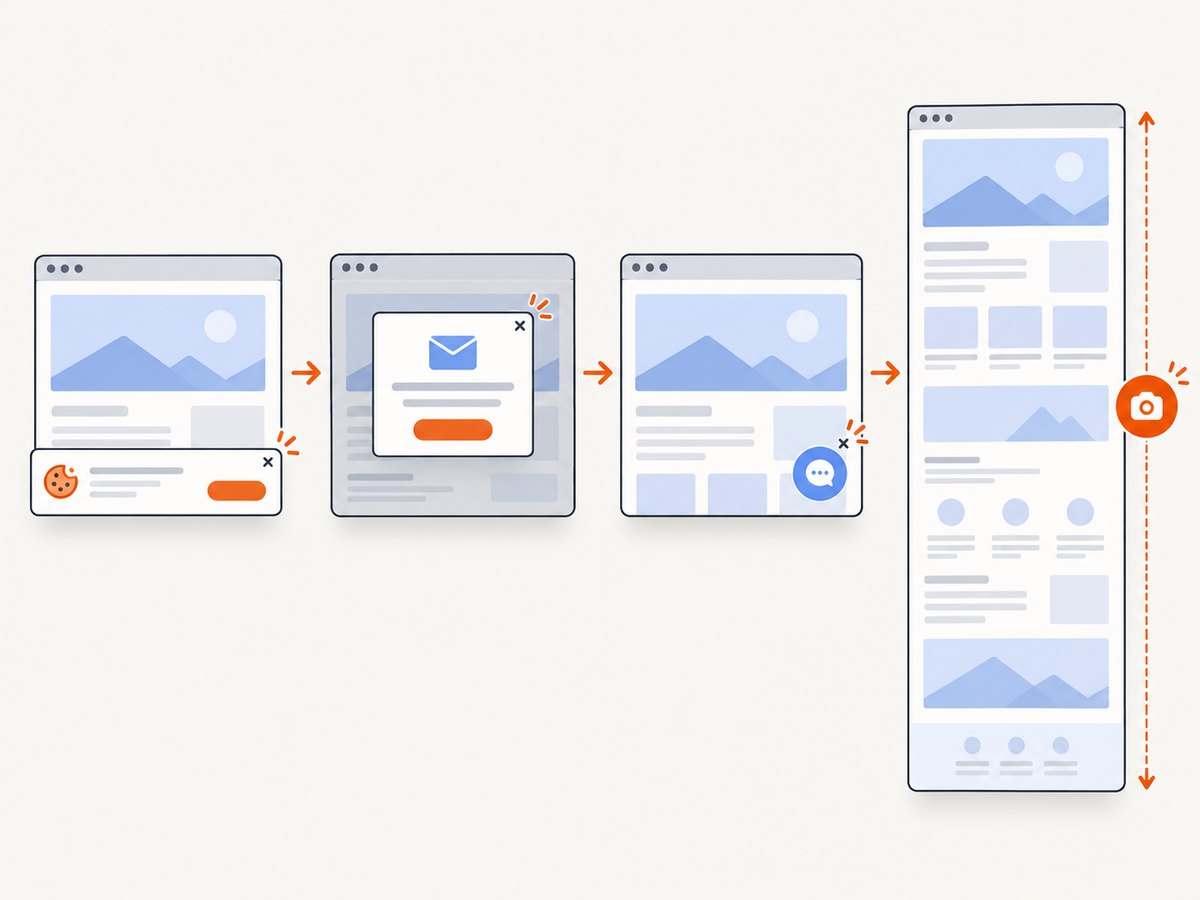
Some pages defer loading images until they are near the viewport. Scroll through the page once and wait before capturing. Dismiss or reposition cookie banners and sticky bars if you have authority to change the view. If content appears after an interaction, reproduce that state before capture. Animations may make two captures differ; wait for them to settle or pause them where possible.
Protected images
Wix notes that downloading and printing behavior depends on browser functionality, and that right-click protection does not prevent screenshots or access through source code. Only capture and reproduce material you are authorized to use. See Wix’s image protection guidance.
8. Or skip the browser setup
ScreenshotNeo is a website screenshot API and MCP server. One GET request can return an image or PDF. It can remove cookie banners, newsletter popups, and chat widgets before the shot. Bot checks, blank pages, timeouts, failed loads, and cache hits cost nothing; response headers say which page verdict applied and whether it was billed. An MCP server lets Claude, Cursor, and other MCP clients use screenshot tools.
Here is a cURL request for a Wix page. Replace the URL and API key with your own:
curl -G "https://api.screenshotneo.com/v1/shot" \
  -d access_key=YOUR_API_KEY \
  --data-urlencode url=https://example.wixsite.com/site/page \
  -o wix-page.webp
Python:
import requests

r = requests.get(
    "https://api.screenshotneo.com/v1/shot",
    params={
        "access_key": "YOUR_API_KEY",
        "url": "https://example.wixsite.com/site/page",
    },
    timeout=90,
)
open("wix-page.webp", "wb").write(r.content)
Node.js:
const q = new URLSearchParams({
  access_key: 'YOUR_API_KEY',
  url: 'https://example.wixsite.com/site/page',
});
const res = await fetch(`https://api.screenshotneo.com/v1/shot?${q}`);
if (!res.ok) throw new Error(`Screenshot request failed: ${res.status}`);
await Bun.write('wix-page.webp', res);
For other Node runtimes, write the response bytes with the filesystem API available in that runtime. Check the response status before treating the body as an image.
See the ScreenshotNeo API documentation for request options and response details. The API supports full-page capture, device presets and custom viewports, PDF output and settings, waiting for a selector, delay, or network idle, custom CSS and JavaScript, cookies and headers, and other capture controls. Each step in consent and popup cleanup can be turned off. Its parameter names also match those used by other screenshot APIs, which can make switching simpler.
ScreenshotNeo has 1,000 screenshots a month free with no card; paid plans start at $5 for 3,000. Yearly billing gives two months free, and every feature is on every plan. Sign up for 1,000 free screenshots a month, with no card required.
9. Troubleshooting
| Problem | Likely cause | Fix |
|---|---|---|
| Images or sections are missing | Lazy loading or capture started before rendering finished | Wait, scroll through once, then capture again. For automation, use an appropriate timeout or wait for the page state. |
| Only the visible screen is saved | You used the ordinary viewport screenshot command | Use Firefox full-page capture, Chrome’s full-size screenshot, or Headless screenshot output. |
| PDF has a URL, date, or page numbers | Print headers and footers are enabled | Turn them off in the print dialog; for Chrome Headless use --no-pdf-header-footer. |
| PDF has awkward breaks | Print layout, paper size, scale, or margins do not suit the page | Adjust orientation, scale, margins, and page range. Use an image if continuous layout matters more than pagination. |
| Mobile capture looks like desktop | The browser viewport was not set to mobile dimensions | Set device dimensions in Wix Studio preview or the capture tool before loading the page. |
| Cookie notice or chat widget covers content | The overlay is still present in the captured state | Dismiss it when permitted, or use a capture workflow that can remove such overlays. |
| Repeated captures differ | Fonts, animation, dynamic content, or viewport changed | Keep the browser, dimensions, wait conditions, and interaction state consistent. |
| Headless command is not found | Chrome’s executable name or installation path differs | Use the installed Chrome/Chromium executable name or its full path. |
10. Performance, reliability, and file size
Capture time depends on the page and its network resources; a fixed timeout is a useful guard, not proof that every asset is ready. A longer wait may improve completeness but slows bulk jobs. Scroll-triggered assets need a deliberate trigger. For archives, inspect a sample output after changing browser versions or page design.
PNG preserves sharp text and edges but can be large for long, detailed pages. JPG is smaller at the cost of compression artifacts. PDF is often easier to distribute and print, though page breaks affect how it reads. For frequent automation, make failures visible: check the process exit status or HTTP status, retain enough logs to identify the URL and capture time, and retry transient failures with a limit so a broken page does not loop indefinitely.
Local Chrome Headless avoids sending the page URL through a third-party screenshot API, but requires browser installation and maintenance. A hosted API avoids managing the browser environment and can expose options such as caching, async jobs, bulk capture, and signed webhooks; compare the service’s current pricing and behavior before moving a workload. With ScreenshotNeo, only clean shots are billed and cache hits and failed or blocked captures are free. Its response includes billing and verdict headers.
11. Frequently asked questions
Can I save a Wix page as a PNG?
Yes. Use Firefox’s full-page screenshot or Chrome DevTools’ full-size screenshot. Chrome Headless can also create a PNG from the command line.
Will a screenshot include the whole Wix site?
It captures the page you opened, not every page on the site. Repeat the capture for each URL you need.
Can I make a PDF with selectable text?
Browser printing generally produces document text when the page’s print rendering supports it. A screenshot printed to PDF is an image on a page, so its text is not necessarily selectable.
Can Wix stop me from taking a screenshot?
Wix says right-click protection does not prevent screenshots. That does not grant permission to reproduce someone else’s content; capture only pages and material you are authorized to use.
Which format should I send to a client?
Use PDF for a shareable, printable document. Use PNG when the client needs to inspect a visual layout at full fidelity. Use JPG when transfer size is the main concern.


