How to Capture a Screenshot from a YouTube Video Online
Pause a YouTube video on the frame you want, capture it with your browser or operating system, and troubleshoot common shortcut and image-quality issues.
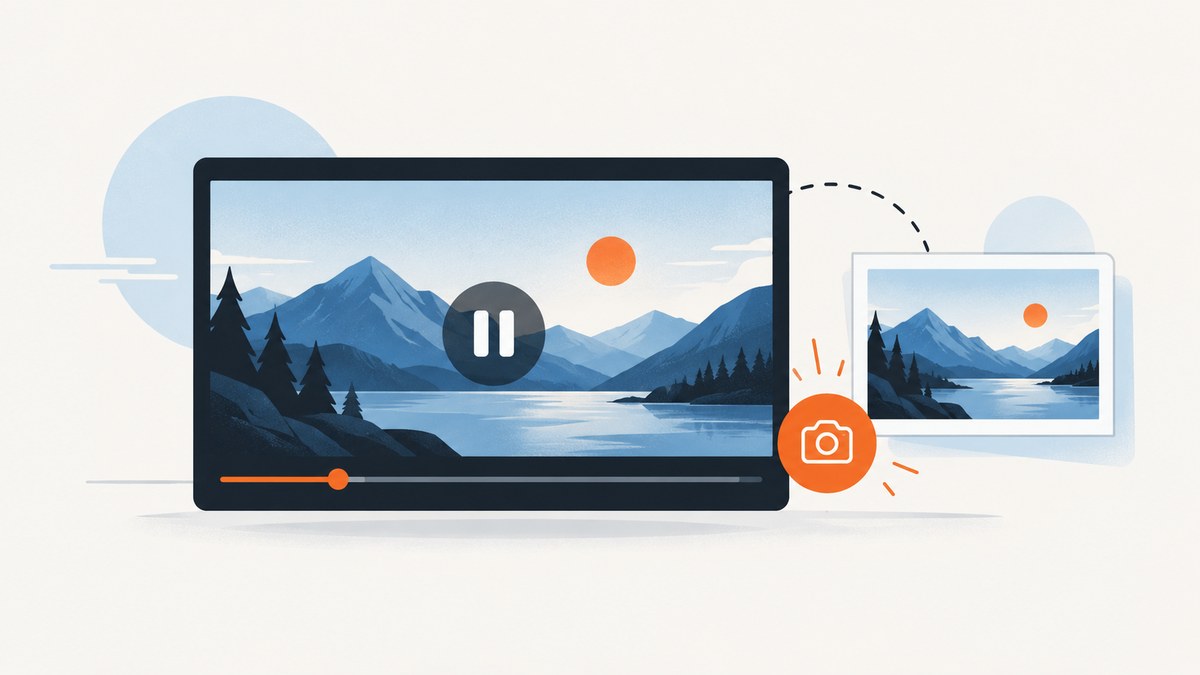
To capture a screenshot from a YouTube video online, open the video on a computer, click the player, and pause at the moment you want. Press . to move forward one frame or , to move back one frame. Then use your browser or operating system’s screenshot tool to save the visible frame. You do not need to install an extension for this basic workflow.
YouTube documents these frame-by-frame shortcuts for paused videos. In its newer computer experience, you may need to click the player before shortcuts work. See YouTube’s keyboard shortcut reference.
1. Find the frame you want
- Open the YouTube video in a desktop browser and start playback near the scene you want.
- Click inside the video player so it has keyboard focus. This matters especially in YouTube’s new computer experience.
- Press K to pause. You can also click the player’s pause button.
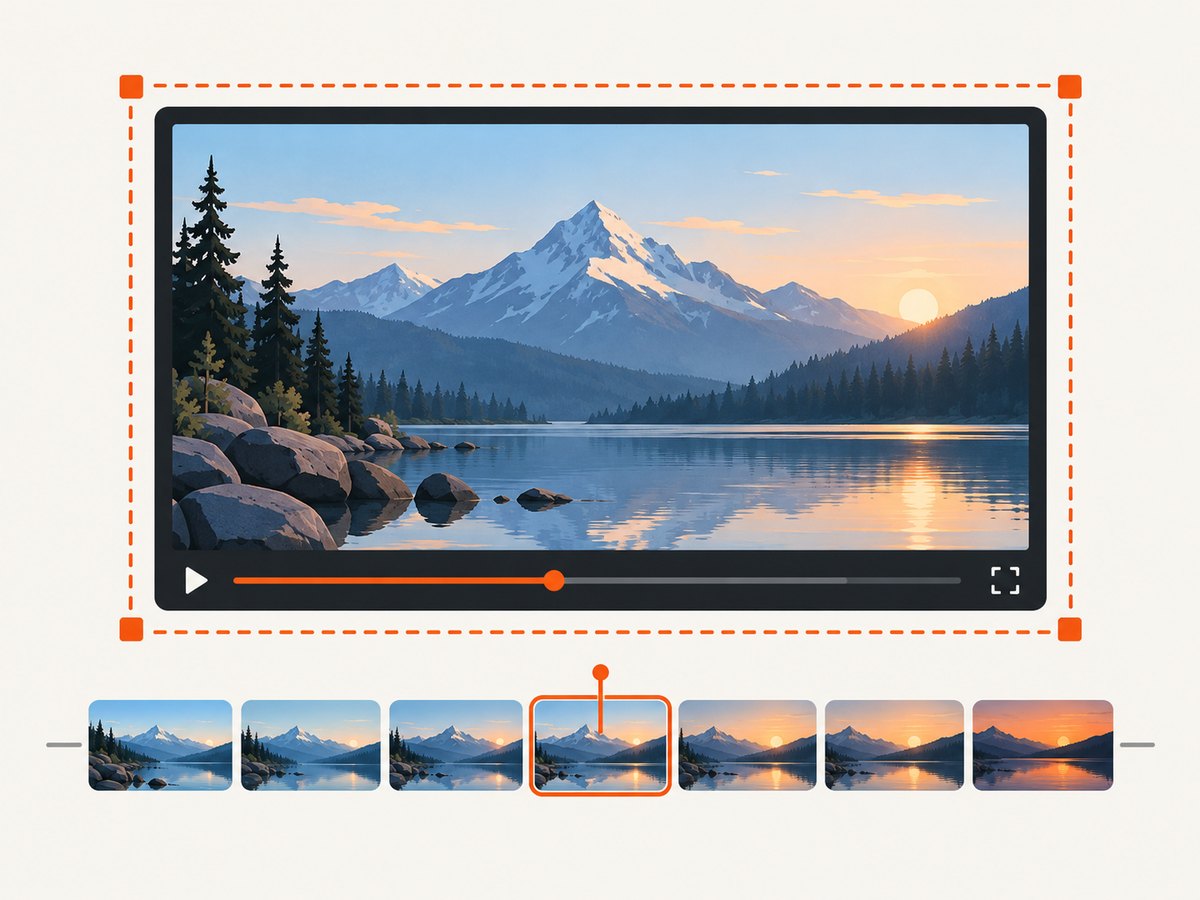
- Press . to advance by one frame. Press , to go back by one frame. Repeat until the desired image is visible.
- Capture the screen using your browser or operating system, then save or copy the image.
The period and comma shortcuts work while the video is paused. They are useful when ordinary seeking lands slightly before or after the exact moment. For a rough jump, YouTube also supports seeking with the arrow keys and number keys; consult its shortcut table for the current list.
Getting focus and pausing reliably
Keyboard shortcuts can appear to do nothing if the page, address bar, search field, or another control has focus. Click the center of the video, then press K to confirm that playback pauses. Once paused, try the frame-step key again. If you are unsure which shortcuts are active, YouTube’s profile menu includes a Keyboard shortcuts entry; its help page also describes opening the shortcut list with Shift+?.
For a fast-moving scene, make small adjustments in both directions. Frame stepping helps select a displayed frame, but the best-looking result may be a neighboring frame with less motion blur or a clearer expression. Captions, player controls, and overlays may also be visible in the screenshot; dismiss or wait for transient overlays before capturing when appropriate.
2. Capture and save the visible frame
Once the player is paused on the desired frame, capture the portion of the screen that contains the video. A rectangular selection usually gives you a cleaner still than capturing the entire desktop. Save the result as an image, or copy it to the clipboard and paste it into an editor or document.
Windows: Snipping Tool
On Windows, press Windows+Shift+S to open the Snipping Tool overlay, then choose a rectangular selection and drag around the video. The captured image can be copied, and Snipping Tool provides a save action. Microsoft documents the shortcut, capture modes, and copy/save keyboard shortcuts in its Snipping Tool instructions. Availability and details can vary by Windows version.
Microsoft Edge also has a browser Screenshot feature, accessible through the browser interface or a shortcut in supported versions. The research for this guide identifies Ctrl+Shift+S for that Edge feature; shortcut assignments and availability can vary by version. If that combination opens another tool or does nothing, use Edge’s menu or Settings to find Screenshot, or use Windows Snipping Tool.
macOS: screenshot controls
On a Mac, use the built-in screenshot controls to select a portion of the screen or capture a window. Choose the area around the player and save the resulting image. The screenshot interface and available options depend on the macOS version and settings. If you need the video only, select a rectangle tightly around the player rather than including browser tabs and other desktop content.
Other browsers and operating systems
Use the built-in screenshot command for your browser or operating system, choosing a selection or window capture when available. Keep the video paused until the capture is complete. A screenshot tool records the pixels currently displayed on your screen; it does not retrieve the original video file or create a higher-resolution frame than the display is showing.
3. Improve the screenshot before saving
- Choose a clean frame: step forward and backward to avoid motion blur, transitions, or an obstructing overlay.
- Set the player size first: enlarge the player before capturing if you need a larger on-screen image. The resulting screenshot reflects the displayed pixels.
- Hide distractions: move the pointer away and allow temporary controls to fade, if they are covering the frame.
- Crop to the video: use a rectangular capture or crop the saved screenshot to remove browser chrome and desktop content.
- Check the saved file: open it once to confirm that it contains the intended frame and that the selection was not clipped.
For documentation or presentations, retain the source video link and relevant context alongside the image. A still may omit surrounding motion, captions, or context needed to understand the scene. Follow the rights and permissions that apply to the video and your intended use.
4. Optional: use a YouTube screenshot extension
A browser extension may add a dedicated capture button or shortcut, which can be convenient if you capture frames frequently. The YouTubeScreenShot Chrome Web Store listing says it saves the current frame as a PNG and describes approximate frame-adjustment controls. It also cautions that its frame button may not advance by exactly one frame each time. Treat these as the publisher’s claims, which can change with updates.
Another listing, Screenshot for YouTube & Other Video Services, advertises a keyboard shortcut, clipboard copy, and PNG, JPEG, or WebP output. Those are also publisher claims, not guarantees across versions or systems. Before installing any extension, review its current publisher, permissions, and listing. For one-off screenshots, the built-in player shortcuts and screenshot controls avoid adding another tool.
5. When a web screenshot API helps
A screenshot API is useful when your task is to capture a webpage automatically, from code or an AI agent. It is a different workflow from selecting an exact frame in a live YouTube player: a website screenshot request captures a rendered page, and you should not assume it will pause playback or choose a specific video frame for you. For an exact frame from a YouTube video, use the manual workflow above.
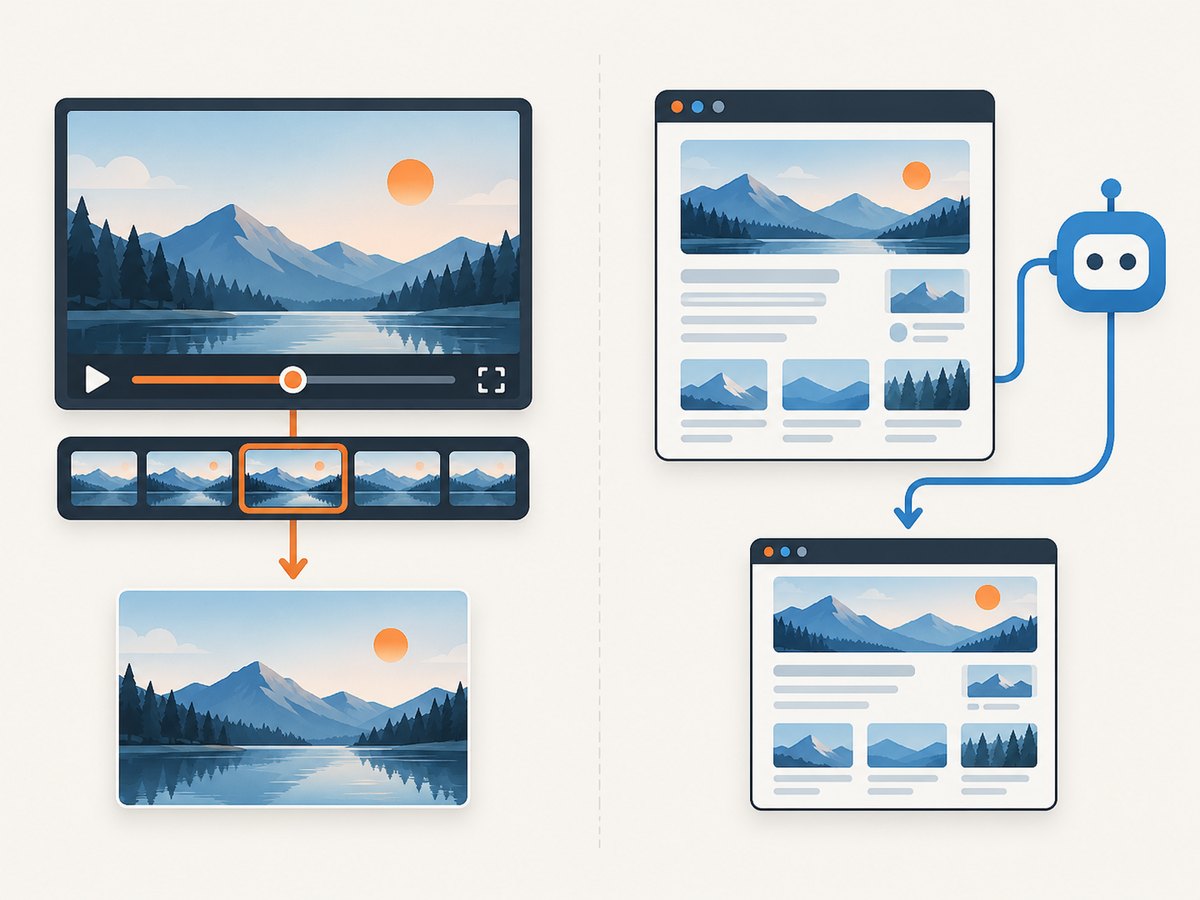
ScreenshotNeo is a website screenshot API and MCP server. Its GET endpoint returns an image or PDF of a requested page. The service also documents a call that can capture a YouTube page, but the request below does not specify or select a playback timestamp. Read the ScreenshotNeo API documentation before integrating it.
Or skip the browser setup
For an automated screenshot of a webpage such as a YouTube page, make one GET request. This captures the page; it does not replace pausing the video and choosing a particular frame in the player.
curl -G "https://api.screenshotneo.com/v1/shot" \
  -d access_key=YOUR_API_KEY \
  --data-urlencode url=https://www.youtube.com/ \
  -o shot.webp
Cookie banners, popups, and chat widgets are removed before the shot. Bot checks, blank pages, and failed loads are never billed. An MCP server lets AI agents take screenshots. The free plan includes 1,000 screenshots a month with no card; paid plans start at $5 for 3,000. Sign up for 1,000 free screenshots a month, with no card.
Complete runnable code for automated page screenshots
The following examples use the same ScreenshotNeo endpoint and a YouTube URL as the page to capture. They are for automated webpage screenshots, not frame extraction or video downloading. Replace YOUR_API_KEY with your API key. See the API documentation for request options and response details.
cURL
curl -G "https://api.screenshotneo.com/v1/shot" \
  -d access_key=YOUR_API_KEY \
  --data-urlencode url=https://www.youtube.com/ \
  -o shot.webp
Python
import requests

response = requests.get(
    "https://api.screenshotneo.com/v1/shot",
    params={
        "access_key": "YOUR_API_KEY",
        "url": "https://www.youtube.com/",
    },
    timeout=90,
)
response.raise_for_status()
with open("shot.webp", "wb") as image_file:
    image_file.write(response.content)
Install the dependency with python -m pip install requests. The example checks for an HTTP error before writing the response body to disk.
Node.js
const q = new URLSearchParams({
  access_key: 'YOUR_API_KEY',
  url: 'https://www.youtube.com/',
});

const res = await fetch(
  `https://api.screenshotneo.com/v1/shot?${q}`
);
if (!res.ok) {
  throw new Error(`Screenshot request failed: HTTP ${res.status}`);
}
const image = Buffer.from(await res.arrayBuffer());
await import('node:fs/promises').then(({ writeFile }) =>
  writeFile('shot.webp', image)
);
Run this in a Node.js environment with global fetch available. Keep API keys out of public client-side code and source control. For a screenshot users can load directly into an HTML <img>, consult the API documentation for signed links rather than exposing a private key in the page.
Options, reliability, and cost considerations
The manual screenshot path has few settings: choose the video frame, select a capture region, and save or copy the result. Its output size depends on what is displayed and the screenshot method. Capturing a larger player can improve the number of source display pixels included, but it cannot restore details absent from the displayed frame.
For an API workflow, ScreenshotNeo lists options including viewport and device presets, full-page capture, element capture, wait conditions, custom headers and cookies, caching, and output formats. These affect website capture behavior; they do not turn a webpage screenshot endpoint into a video frame extraction API. Consult the docs for supported parameter names and configuration.
Manual capture has no per-request API charge, but repeated capture involves a person operating the player and saving each image. ScreenshotNeo’s stated plans are Free: 1,000 shots per month; Starter: $5 for 3,000; Growth: $15 for 15,000; Pro: $39 for 60,000; Scale: $99 for 250,000; and Business: $249 for 1,000,000. Yearly billing gives two months free. The supplied product facts say only clean shots are billed and that response headers indicate page verdict and billing; review current plan and API details before building cost assumptions.
Troubleshooting
| Problem | Likely cause | What to do |
|---|---|---|
| Period and comma do not move the video | The player does not have keyboard focus, or playback is still running. | Click the player, pause with K, then try the frame key again. |
| The video pauses but the screenshot captures the wrong moment | The capture started before you finished stepping, or a later key resumed playback. | Pause again, confirm the displayed frame, and capture without pressing player shortcuts. |
| The screenshot is mostly the browser or desktop | The capture mode selected the whole screen or window. | Choose a rectangular or region capture and draw around the player. |
| The image looks soft or small | The video player was small on screen, or the displayed video itself is low resolution. | Enlarge the player before capture and choose a clear frame. A screenshot cannot create detail beyond the displayed pixels. |
| Controls or captions cover the subject | The pointer or player controls remain visible, or captions are enabled. | Move the pointer away and wait for controls to fade; toggle captions if they are not needed in the image. |
| Edge’s screenshot shortcut does not open capture | The browser version or shortcut configuration differs, or the operating system intercepted it. | Find Screenshot in Edge’s menu or Settings, or use the operating system’s screenshot tool. Shortcuts can vary by version. |
| An extension does not save or steps imprecisely | Its behavior may differ by version, and advertised frame controls may be approximate. | Check the current listing and permissions; use YouTube’s built-in frame shortcuts for precise manual selection. |
| An API request fails or saves an error response | The key, URL, request, or page capture may have failed. | Check the key and encoded URL, inspect the HTTP status and API response, and consult the API docs. Do not treat an API page screenshot as a selected video frame. |
FAQ
Can I capture a screenshot at an exact timestamp?
Use YouTube’s seek controls to approach the time, pause, then step frame by frame. The screenshot tool records the frame you have selected on screen.
Can I do this without installing anything?
Yes. YouTube’s built-in shortcuts plus your browser or operating system screenshot tool are sufficient for manual capture.
Does a screenshot show the original video resolution?
It shows the rendered pixels on your display, subject to the capture and scaling behavior of your system. It is not a direct export of the original video frame.
Can ScreenshotNeo take a screenshot of a particular YouTube frame?
The product facts describe website screenshots, not selecting a video timestamp or frame. Use the player workflow for a specific frame; use the API when your task is an automated webpage screenshot.


