How to Capture a YouTube Video Screenshot Programmatically
Control a YouTube player with the IFrame API, then capture its rendered iframe with browser automation—or extract frames from an accessible video element.
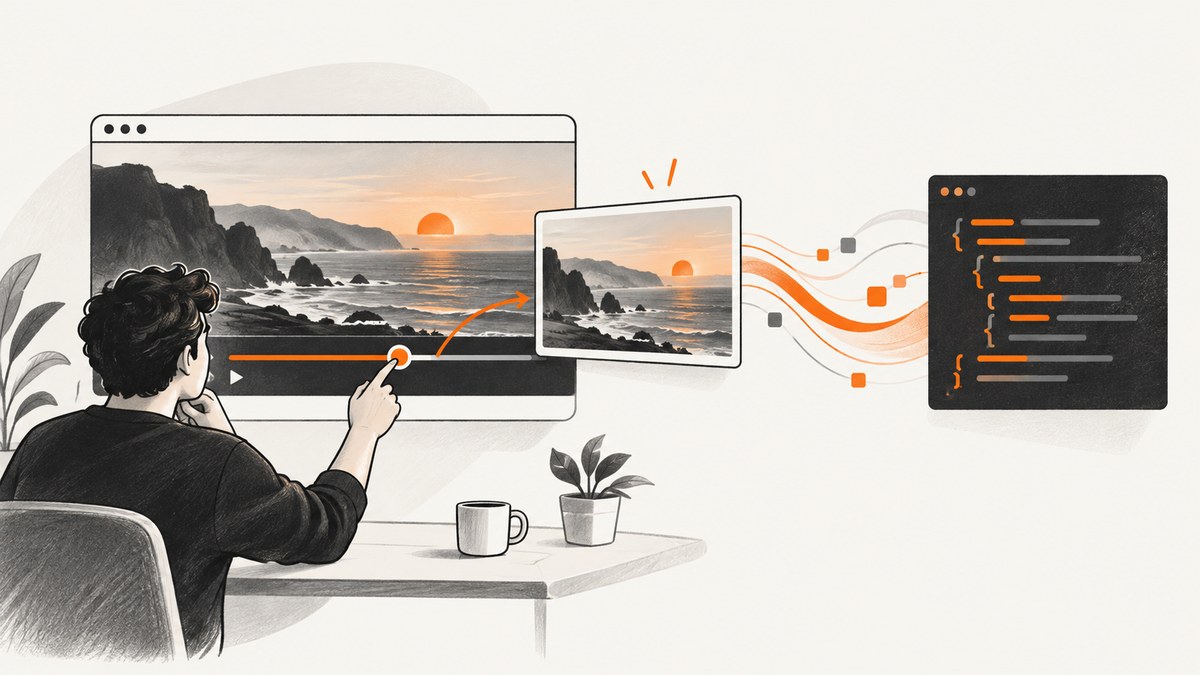
Short answer: YouTube’s IFrame Player API can seek to a time and pause playback, but it does not export a video frame. For a YouTube embed, use the API to choose the moment, then use browser automation to screenshot the rendered player element. If your page directly owns an accessible HTMLVideoElement, pause and seek it, draw it to a canvas, and export the canvas—subject to browser security and media-access rules.
Choose the right capture method
| Target | Recommended method | Can read pixels directly? | Main limitation |
|---|---|---|---|
| YouTube iframe | IFrame API for timing + browser screenshot | No | Cross-origin iframe prevents parent-page pixel access |
| Same-page video element | HTMLVideoElement + canvas |
Usually, when media is origin-clean | CORS, DRM, or media policies can block export |
| Video processing pipeline | Extract frames before playback | Yes, from your own media | Does not capture the rendered YouTube player UI |
How YouTube seeking and screenshots fit together
player.seekTo(seconds, allowSeekAhead) requests a playback position and player.getCurrentTime() reports elapsed playback time. These calls control the player; they do not return an image. When the requested segment is not downloaded, YouTube may seek to the closest earlier keyframe, so an API seek is not a promise of frame-exact output. Wait for buffering and rendering to settle, pause, and inspect the resulting screenshot.
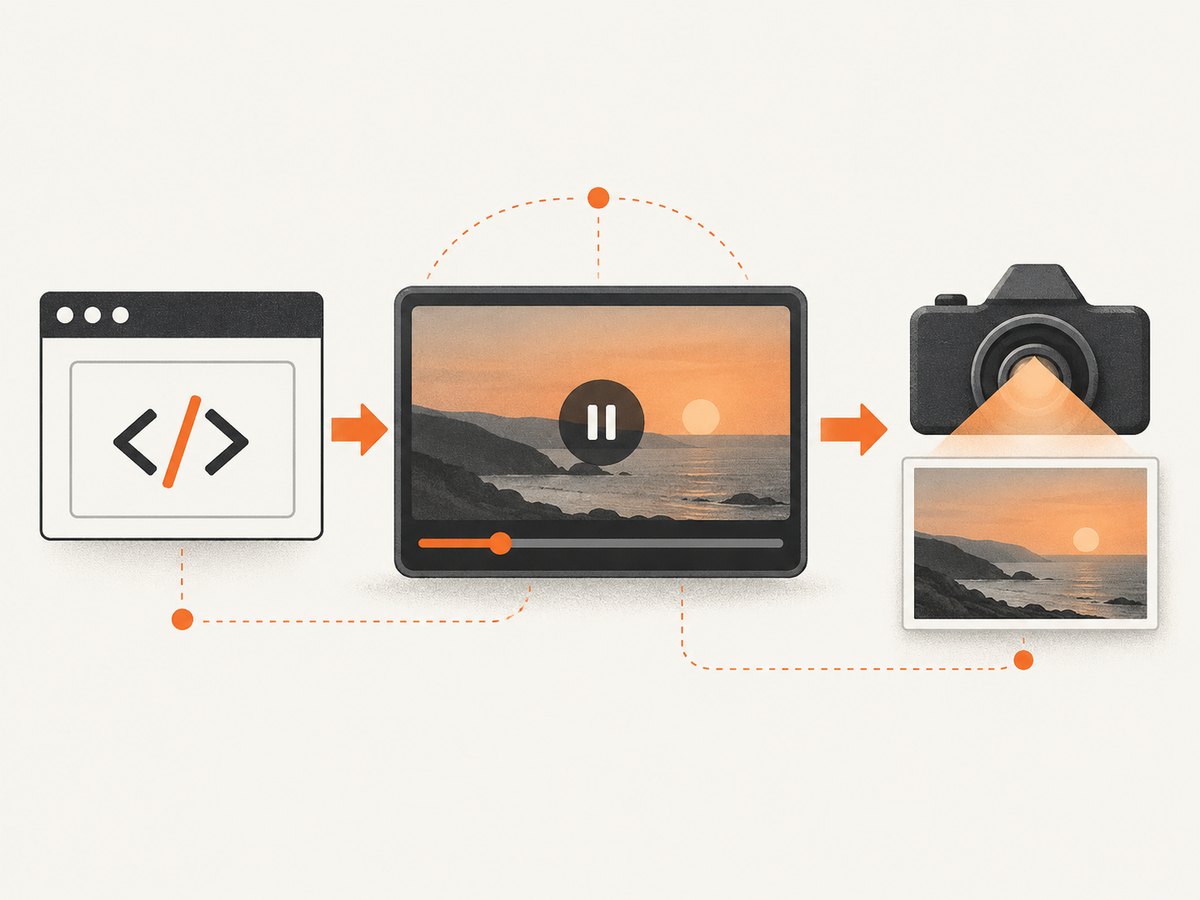
The IFrame Player API replaces a host element with an iframe. When creating an iframe manually, include an origin parameter. Embedded players need a viewport of at least 200 by 200 pixels; for 16:9 video, YouTube recommends 480 by 270 pixels. See the IFrame Player API reference and YouTube player parameters.
Complete browser example: seek a YouTube player and save a screenshot
The following page loads the IFrame API, exposes a ready flag, seeks to 42 seconds, pauses, and leaves the player ready for an automation framework. The delay is illustrative; production code should wait for meaningful state and time conditions.
<!doctype html>
<html>
  <body>
    <div id="player"></div>
    <script>
      let player;
      window.playerReady = false;

      function onYouTubeIframeAPIReady() {
        player = new YT.Player('player', {
          width: '640',
          height: '360',
          videoId: 'M7lc1UVf-VE',
          playerVars: {
            enablejsapi: 1,
            origin: window.location.origin,
            playsinline: 1
          },
          events: {
            onReady: () => { window.playerReady = true; },
            onError: event => {
              console.error('YouTube player error', event.data);
            }
          }
        });
      }
    </script>
    <script src="https://www.youtube.com/iframe_api"></script>
  </body>
</html>
Playwright automation
import { chromium } from 'playwright';

const browser = await chromium.launch();
const page = await browser.newPage({ viewport: { width: 900, height: 700 } });
await page.goto('http://localhost:3000/player.html', { waitUntil: 'networkidle' });
await page.waitForFunction(() => window.playerReady === true);

await page.evaluate((seconds) => {
  player.seekTo(seconds, true);
  player.pauseVideo();
}, 42);

// Replace this fixed delay with a state/time condition in production.
await page.waitForTimeout(700);
await page.locator('#player').screenshot({ path: 'youtube-42s.png' });
await browser.close();
This captures the rendered player region. Depending on player state and settings, the image can include controls, captions, title overlays, or other UI. It is not a clean underlying video frame.
Make the settling step more reliable
- Wait for the API’s
onReadyevent. - Call
seekTowhile paused when possible; seeking from another state can start playback. - Poll
getCurrentTime()until it is near the requested time, while allowing for keyframe snapping. - Pause again, then allow at least one rendered frame before the screenshot.
- Check the output dimensions and crop to the player bounds if your framework captured a larger region.
await page.waitForFunction(() => {
  const t = player.getCurrentTime();
  return Number.isFinite(t) && Math.abs(t - 42) <= 1.0;
}, null, { timeout: 15000 });
await page.evaluate(() => player.pauseVideo());
await page.waitForTimeout(200);
await page.locator('#player').screenshot({ path: 'frame.png' });
Using the IFrame API directly
For a manually authored embed, enable API control and set an origin:
<iframe
  id="yt"
  width="640"
  height="360"
  src="https://www.youtube.com/embed/M7lc1UVf-VE?enablejsapi=1&origin=https%3A%2F%2Fexample.com"
  allow="autoplay; encrypted-media"
  allowfullscreen>
</iframe>
With the API loaded, call seekTo, pauseVideo, getCurrentTime, and inspect player-state values. These methods coordinate playback only; browser automation still performs the pixel capture.
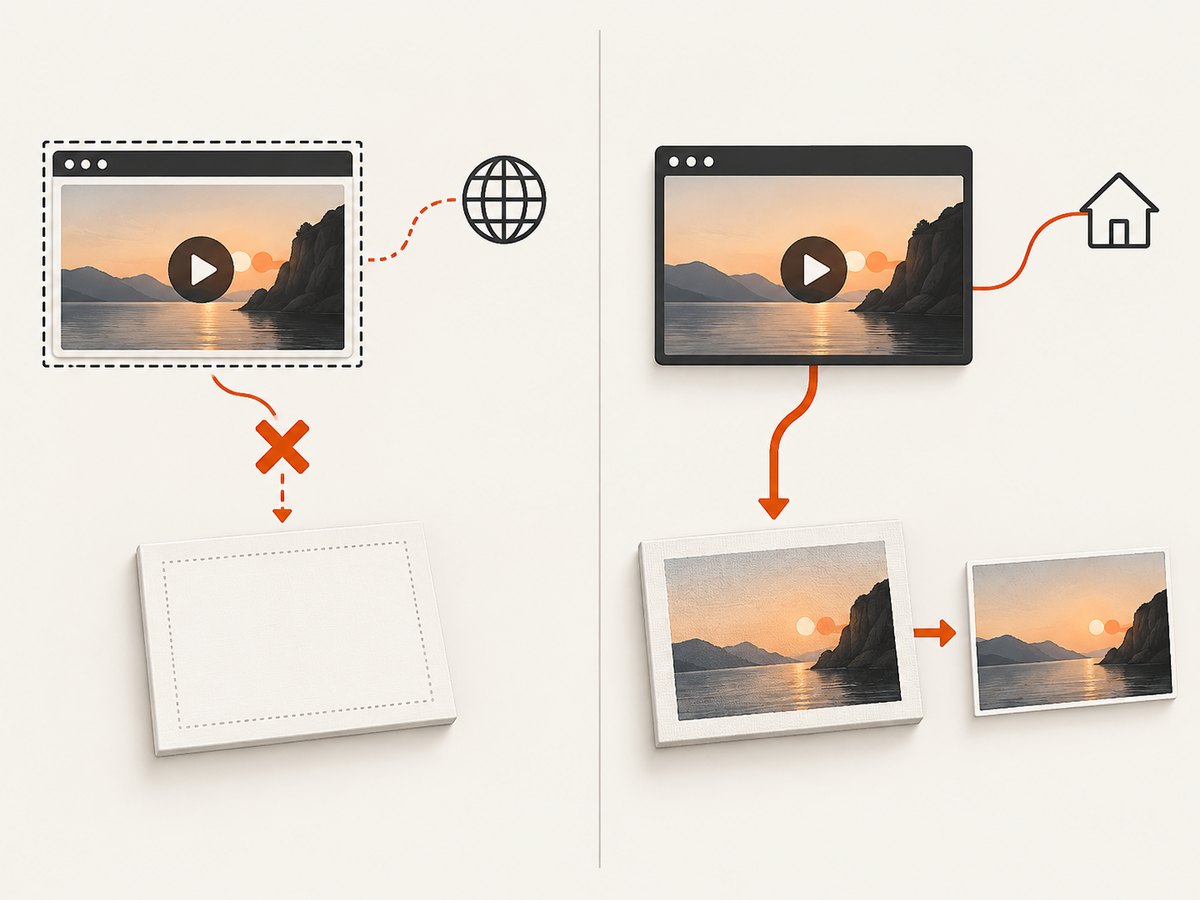
When canvas capture works
If your application owns a same-page video element, canvas can export a frame:
const video = document.querySelector('video');
video.pause();
video.currentTime = 42;
await new Promise(resolve => {
  video.addEventListener('seeked', resolve, { once: true });
});

const canvas = document.createElement('canvas');
canvas.width = video.videoWidth;
canvas.height = video.videoHeight;
canvas.getContext('2d').drawImage(video, 0, 0);
const pngBlob = await new Promise(resolve => canvas.toBlob(resolve, 'image/png'));
if (!pngBlob) throw new Error('Canvas export failed');
The canvas becomes tainted when the media is not origin-clean, and DRM or server headers can prevent reading pixels. This pattern does not bypass the cross-origin boundary of a YouTube iframe. A VideoFrame can represent a frame from an accessible source, but it does not grant access to a separately originated iframe.
Coordinating with requestVideoFrameCallback()
requestVideoFrameCallback() runs when a new video frame is sent to the compositor and is useful for video processing and canvas painting. It can improve coordination after seeking:
await new Promise(resolve => {
  video.requestVideoFrameCallback(() => resolve());
});
ctx.drawImage(video, 0, 0);
MDN cautions that callbacks can be one vertical synchronization late and do not guarantee strict frame-rate synchronization. Browser support has expanded across current browsers since October 2024, but check the browsers you support.
Timing, keyframes, and visual accuracy
- Keyframe snapping: a seek can land on the closest earlier keyframe when the target segment is not downloaded.
- Buffering: network delay can leave the old frame visible after the seek request.
- Overlays: controls, captions, annotations, consent prompts, and hover states are part of a browser screenshot.
- Autoplay policy: do not depend on autoplay; pause after an explicit seek.
- Dimensions: choose a sufficiently large viewport and verify the saved image dimensions.
Common errors and fixes
| Error or symptom | Cause | Fix |
|---|---|---|
player is undefined |
API callback has not run | Wait for onYouTubeIframeAPIReady and the player’s onReady event. |
| Screenshot shows the old frame | Seek or buffering has not settled | Poll getCurrentTime(), pause, and wait for a rendered frame. |
| Canvas throws a security error | Cross-origin or non-origin-clean media | Use browser screenshot capture for the iframe, or configure CORS for media you own. |
| Black or blank player | Video failed, blocked, or still loading | Handle player error events, wait for readiness, and verify network access. |
| Controls appear in output | Screenshot captures rendered UI | Move the pointer away, wait for controls to hide, or crop; a clean video frame requires an accessible source. |
| Player rejects the embed | Invalid video, restrictions, or origin configuration | Check the video ID, API parameters, and the documented player error code. |
Performance, reliability, and cost
- Reuse one browser context for multiple captures instead of launching a browser per frame.
- Set navigation, selector, and screenshot timeouts separately so a slow video does not stall the whole worker.
- Capture only the player element when full-page output is unnecessary.
- Record the requested time and the observed
getCurrentTime()value with each image for auditability. - Retry transient navigation and buffering failures with a limit; do not retry deterministic player errors indefinitely.
- Expect longer waits for uncached videos, captions, consent dialogs, or constrained networks.
Browser automation consumes CPU and memory per page. Canvas export is generally cheaper when you already control the media element. For repeatable jobs, persist the video ID, target time, viewport, browser version, and error details alongside the image.
Or skip the browser setup
ScreenshotNeo captures the rendered page with one request, including YouTube embeds:
curl -G "https://api.screenshotneo.com/v1/shot" -d access_key=YOUR_API_KEY --data-urlencode url=https://example.com/video -o shot.webpimport requests
r = requests.get("https://api.screenshotneo.com/v1/shot", params={"access_key": "YOUR_API_KEY", "url": "https://example.com/video"}, timeout=90)
open("shot.webp", "wb").write(r.content)const q = new URLSearchParams({ access_key: 'YOUR_API_KEY', url: 'https://example.com/video' });
const res = await fetch(`https://api.screenshotneo.com/v1/shot?${q}`);See the ScreenshotNeo API docs for options such as custom JavaScript, waits, element capture, viewport and device settings, headers, cookies, caching, and PDF output. Cookie banners, newsletter popups, and chat widgets are removed before the shot. Bot checks, blank pages, timeouts, failed loads, and cache hits are not billed; response headers identify the page verdict and billing status. Its MCP server lets AI agents take screenshots. The free plan includes 1,000 screenshots a month with no card, and paid plans start at $5 for 3,000 shots.
Create a free ScreenshotNeo account.
FAQ
Can the YouTube API return a PNG of the current frame?
No. It controls playback and reports state; capture the rendered iframe with browser automation.
Will seekTo(42) always produce frame 42.000?
No. Keyframe behavior and buffering can produce a nearby frame. Verify the observed time and inspect the image.
Can I use drawImage on YouTube’s internal video element?
Not from the parent page. The player is cross-origin; use a browser screenshot for the visible embed.
How do I get a video-only image without controls?
Use an accessible video source and canvas, or capture the player after controls hide. An iframe screenshot includes whatever the player renders.
Does a larger viewport improve accuracy?
It improves output resolution and ensures the embed meets YouTube’s minimum viewport requirements; it does not make seeks frame exact.


