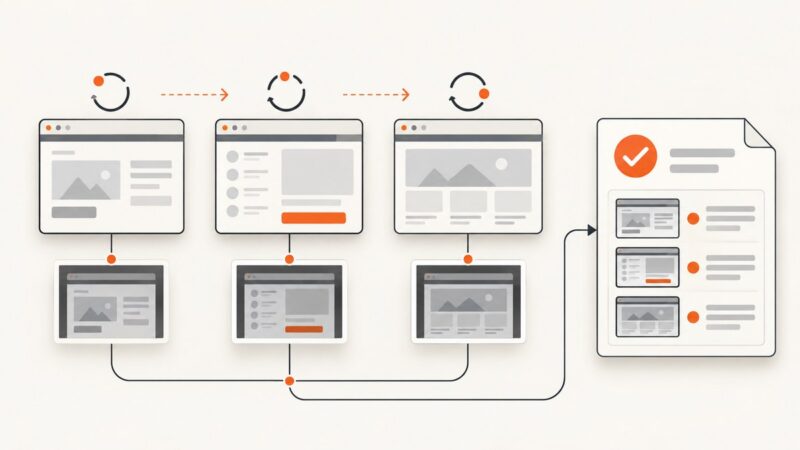
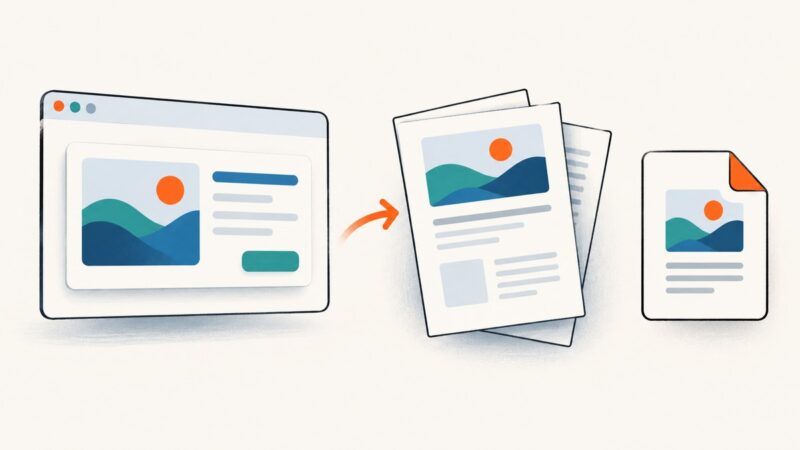
Capturing Pop-Up Windows in Website Screenshots
Learn how to capture new windows, JavaScript dialogs, and in-page modals with Playwright, Selenium, and ScreenshotNeo.

To capture a pop-up, first identify which kind you have: a new browser page or window, a native JavaScript dialog, or a modal overlay rendered inside the page. They look similar to a person, but browser automation exposes them through different APIs.
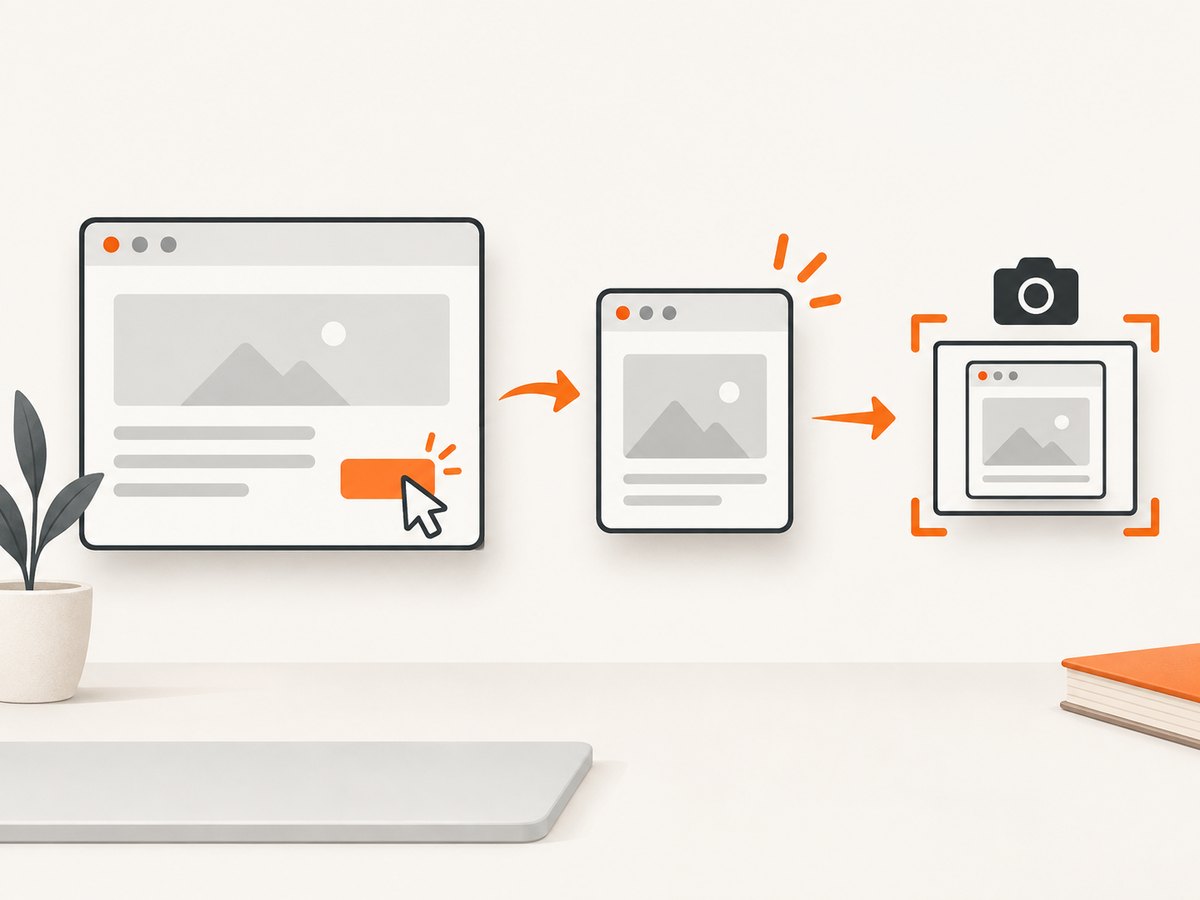
For a browser-created popup in Playwright, begin waiting for the popup event, click the control that opens it, wait for the popup to load, and call the popup page’s screenshot method. For an in-page modal, wait until its locator is visible and capture either the whole page or that element. Native alert, confirm, prompt, and beforeunload dialogs must be handled through dialog events; they are not ordinary DOM content that a page screenshot can capture.
1. Identify the popup type
| What you see | What it is | How to automate it | What a screenshot contains |
|---|---|---|---|
| A new tab or separate browser window | Browser-created popup page | Wait for a popup event, then use the returned Page |
The popup document, viewport, or full page |
| A blocking message with OK, Cancel, or a text field | Native JavaScript dialog | Register a dialog handler and accept, dismiss, or fill it | Page screenshots do not include the browser-native dialog as DOM content |
| A panel, lightbox, cookie prompt, or overlay inside the website | In-page modal | Wait for a visible locator, then capture the page or element | The rendered overlay and underlying page, depending on the capture area |
This distinction also determines whether you can produce one image containing both the opener and popup. A popup page is a separate page, so its screenshot is separate from the opener’s screenshot. Combining them requires an additional composition step, such as placing two image files on a canvas.
2. Capture a new browser window with Playwright
Playwright’s Pages guide documents popup pages and its Screenshots guide documents page, full-page, and element capture. Start listening before the click; otherwise a fast popup can be created before your code begins waiting for it.
Node.js
import { chromium } from 'playwright';

const browser = await chromium.launch({ headless: true });
const context = await browser.newContext({
  viewport: { width: 1440, height: 1000 },
  deviceScaleFactor: 1
});
const page = await context.newPage();

await page.goto('https://example.com', { waitUntil: 'domcontentloaded' });

const popupPromise = page.waitForEvent('popup');
await page.getByRole('link', { name: /open report/i }).click();
const popup = await popupPromise;

await popup.waitForLoadState('domcontentloaded');
await popup.screenshot({ path: 'popup-viewport.png' });
await popup.screenshot({ path: 'popup-full.png', fullPage: true });

await browser.close();
The locator in this example is intentionally semantic. Replace it with a role, label, test ID, or CSS locator that matches the real control. If the popup is opened by a button that triggers a delayed script, the event listener still belongs before the click.
Python
from playwright.sync_api import sync_playwright

with sync_playwright() as p:
    browser = p.chromium.launch(headless=True)
    context = browser.new_context(
        viewport={"width": 1440, "height": 1000},
        device_scale_factor=1,
    )
    page = context.new_page()
    page.goto("https://example.com", wait_until="domcontentloaded")

    with page.expect_popup() as popup_info:
        page.get_by_role("link", name="Open report").click()
    popup = popup_info.value

    popup.wait_for_load_state("domcontentloaded")
    popup.screenshot(path="popup-viewport.png")
    popup.screenshot(path="popup-full.png", full_page=True)

    browser.close()
Choosing the capture area
- Viewport screenshot: captures what a user sees at the current scroll position.
- Full-page screenshot: captures the complete scrollable document. It is useful for long reports, but it does not represent a physical browser window that a user could see all at once.
- Element screenshot: focuses on a dialog, card, or other region inside the popup page.
const dialog = popup.locator('[role="dialog"]');
await dialog.waitFor({ state: 'visible' });
await dialog.screenshot({ path: 'popup-dialog.png' });
For a popup that opens a new page but does not navigate immediately, wait for a meaningful readiness condition instead of assuming the first load event means the content is complete:
await popup.waitForLoadState('networkidle');
await popup.locator('main').waitFor({ state: 'visible' });
Use networkidle carefully. Analytics, advertisements, and long-lived connections can prevent the page from becoming idle. A specific heading, table, or application root is usually a more reliable completion signal.
3. Capture an in-page modal overlay
An in-page modal is part of the original document. There is no popup page event. Trigger the UI, wait for the modal’s visible state, and capture the modal locator or the page.
const modal = page.locator('[role="dialog"]');
await page.getByRole('button', { name: /show details/i }).click();
await modal.waitFor({ state: 'visible' });

await modal.screenshot({ path: 'modal-only.png' });
await page.screenshot({ path: 'page-with-modal.png' });
Selectors are site-specific. Prefer an accessible role and name when available. If the overlay has no semantic attributes, add a stable test ID or use a narrowly scoped CSS selector. Avoid selecting a generic class such as .modal when the application renders several hidden dialogs.
Make the overlay deterministic
- Set a fixed viewport and device scale factor.
- Dismiss unrelated banners and chat widgets before opening the modal.
- Wait for fonts, images, and the modal’s key content.
- Freeze animations when visual diffs require stable pixels.
await page.addStyleTag({ content: `
  *, *::before, *::after {
    animation-duration: 0s !important;
    animation-delay: 0s !important;
    transition: none !important;
    caret-color: transparent !important;
  }
` });
If the modal contains a lazy-loaded image, scroll it into view or wait for the image’s complete property before capturing. For a screenshot of only the overlay, element capture avoids accidental page margins and unrelated content.
4. Handle JavaScript alert, confirm, prompt, and beforeunload dialogs
Playwright’s Dialogs guide covers alert, confirm, prompt, and beforeunload. These dialogs block normal page interaction. When no dialog handler is installed, Playwright automatically dismisses dialogs. Install a handler before the action when your test needs to inspect the message or choose an outcome.
page.on('dialog', async dialog => {
  console.log(dialog.type(), dialog.message());

  if (dialog.type() === 'prompt') {
    await dialog.accept('approved value');
  } else if (dialog.type() === 'confirm') {
    await dialog.dismiss();
  } else {
    await dialog.accept();
  }
});

await page.getByRole('button', { name: /submit/i }).click();
The handler must resolve the dialog. Leaving it open can deadlock the page because the JavaScript that opened it remains paused. If the purpose of the test is to verify that an alert appears, record dialog.message(), then accept it so the flow can continue.
A normal webpage screenshot captures rendered document content, not the browser chrome or a native dialog surface. If you need a visual record of the native prompt itself, use an operating-system screen capture tool in addition to the browser automation, or change the test to expose an equivalent in-page state.
Selenium equivalent
Selenium exposes native dialogs through the alert API. The same distinction applies: Selenium can read and operate the dialog, but a DOM screenshot does not turn the native dialog into page pixels.
from selenium import webdriver
from selenium.webdriver.common.by import By
from selenium.webdriver.support.ui import WebDriverWait

options = webdriver.ChromeOptions()
options.add_argument('--headless=new')
driver = webdriver.Chrome(options=options)
try:
    driver.get('https://example.com')
    driver.find_element(By.ID, 'open-alert').click()
    alert = WebDriverWait(driver, 10).until(lambda d: d.switch_to.alert)
    print(alert.text)
    alert.accept()
    driver.save_screenshot('after-alert.png')
finally:
    driver.quit()
5. When the popup and opener must appear in one image
Neither a popup page screenshot nor a page screenshot automatically creates a desktop-style composite. Capture both pages and compose them yourself. Keep the source images at a known scale, add a background, and place the popup at a defined offset.
import sharp from 'sharp';

const opener = await sharp('opener.png').metadata();
await sharp({
  create: {
    width: opener.width,
    height: opener.height + 220,
    channels: 4,
    background: '#202124'
  }
})
  .composite([
    { input: 'opener.png', left: 0, top: 0 },
    { input: 'popup-viewport.png', left: 80, top: 140 }
  ])
  .png()
  .toFile('combined.png');
Composition is useful for documentation and bug reports, but it is different from proving what a user saw on a physical desktop. Record the viewport, device scale factor, browser, and capture time in metadata when visual evidence matters.
6. Timing, authentication, and difficult pages
Wait for the right signal
Use domcontentloaded for a document that is ready after its initial HTML, a specific locator for an application view, or an explicit delay only when the page has no better readiness signal. A fixed sleep can hide race conditions and makes every capture slower.
Reuse authenticated state
If the popup requires login, create the context with the same storage state as the opener or complete authentication in that context. Cookies are scoped by domain and path, so a popup on a different domain may require a separate login or an approved cross-domain flow.
Control viewport and locale
Responsive breakpoints can change whether a control opens a popup, expands an overlay, or navigates in the same page. Set viewport, locale, timezone, and user agent explicitly for repeatable output. Mask volatile timestamps, rotating ads, and personalized names when comparing images.
7. Troubleshooting checklist
| Symptom | Likely cause | Fix |
|---|---|---|
page.waitForEvent('popup') times out |
The click does not create a new page, the listener started too late, or a popup blocker stopped it | Start waiting before the click; verify the control’s behavior; inspect browser console and permissions |
| Popup screenshot is blank | Capture happened before navigation or application rendering finished | Wait for a load state and a visible content locator; check for a failed request |
| Only the opener is captured | The popup is a separate page | Call screenshot on the returned popup object, not on the opener |
| Modal screenshot contains the page behind it | Page capture was used instead of element capture | Capture the modal locator itself |
| Test hangs after an alert | No dialog handler accepted or dismissed it | Register the handler before triggering the dialog and always resolve it |
| Images or fonts are missing | Lazy loading or late network requests | Wait for the target image/font state, scroll content into view, or use a specific readiness selector |
| Visual diffs vary between runs | Animations, responsive layout, ads, time, or personalization | Fix viewport and locale, disable motion, block irrelevant requests, and mask volatile regions |
| Access denied or CAPTCHA appears | The target site requires an interactive challenge or rejects automation | Use an authorized test environment, provide required authentication, and respect the site’s rules; do not attempt to bypass a challenge |
8. Performance, reliability, and cost considerations
- Browser startup: launch one browser and reuse contexts when taking many captures. Creating a new browser for every image adds startup overhead.
- Concurrency: limit simultaneous pages to the CPU and memory available. Excessive parallelism causes timeouts and increases rendering variance.
- Asset size: full-page images and high device scale factors use more memory and storage. Use the smallest dimensions that answer the question.
- Retries: retry transient navigation failures with a bounded policy, but save the error and URL so a persistent failure is visible.
- Evidence: keep the popup URL, opener URL, viewport, browser version, and readiness condition beside the image.
- Cost: self-hosted automation consumes your compute and maintenance budget. A hosted API can be simpler when you do not need browser lifecycle control.
9. Or skip the browser setup
ScreenshotNeo provides a website screenshot API and MCP server. Give it a URL with one GET request and receive PNG, JPEG, WebP, or PDF output. Its cleanup steps accept cookie and consent banners and remove more than 60 known consent platforms, newsletter popups, and chat widgets before capture; each step can be turned off. Bot checks and CAPTCHAs, blank pages, timeouts, failed loads, and cache hits are not billed, and the response identifies the result with X-Page-Verdict and X-Billed headers.

For a page-authored modal, make the modal visible through an authorized URL or flow, then capture that URL. ScreenshotNeo is not a replacement for handling a native browser alert because native dialogs are outside ordinary page pixels.
See the ScreenshotNeo API documentation for parameters and response details:
curl -G "https://api.screenshotneo.com/v1/shot" \
  -d access_key=YOUR_API_KEY \
  --data-urlencode url=https://stripe.com \
  -o shot.webp
import requests
r = requests.get(
"https://api.screenshotneo.com/v1/shot",
params={"access_key": "YOUR_API_KEY", "url": "https://stripe.com"},
timeout=90,
)
r.raise_for_status()
open("shot.webp", "wb").write(r.content)const q = new URLSearchParams({
access_key: 'YOUR_API_KEY',
url: 'https://stripe.com'
});
const res = await fetch(`https://api.screenshotneo.com/v1/shot?${q}`);
if (!res.ok) throw new Error(`Screenshot failed: ${res.status}`);
const file = await res.arrayBuffer();
await Bun.write('shot.webp', file);ScreenshotNeo also supports full-page capture with lazy images loaded, CSS element capture, dark mode, device presets, custom viewports, retina scale, custom CSS and JavaScript, clicks, selector waits, delays, network-idle waits, request blocking, headers, cookies, user agents, authorization, timezone, geolocation, transparent backgrounds, resizing, configurable caching, signed image links, asynchronous jobs and signed webhooks, bulk capture of up to 100 URLs per call, usage reporting, and an OpenAPI specification. Its MCP server exposes take_screenshot, get_page_info, and capture_pdf for Claude, Cursor, and other MCP clients.
There are 1,000 free screenshots each month with no card. Paid plans start at $5 for 3,000 screenshots, and every feature is available on every plan. Create a free ScreenshotNeo account to try the API.
10. Short FAQ
Can I screenshot a popup opened by target="_blank"?
Yes. In Playwright, wait for the popup event before clicking, then screenshot the returned page. A new tab and a new window are both exposed as popup pages in this flow.
Can a page screenshot include an alert box?
No. A native alert, confirm, prompt, or beforeunload dialog is browser UI. Handle it through the dialog API, or use an operating-system capture when the dialog’s appearance itself is required.
Should I use full-page or element capture for a modal?
Use element capture when the deliverable is the modal alone. Use page capture when the surrounding context explains the defect or workflow.
Why does a popup work manually but fail in headless mode?
Check popup permissions, viewport-dependent behavior, authentication state, navigation errors, and timing. Start listening before the triggering action and wait for a stable content locator.
Can I capture several popup URLs in one run?
Yes. Reuse the browser, create controlled contexts or pages, limit concurrency, and save each popup URL and result separately so one failure does not hide the others.