How to Center and Fit an Image on a jsPDF Page
Use one aspect-ratio-safe scale to center any image in a jsPDF box, with complete code, cropping options, troubleshooting, and automation tips.
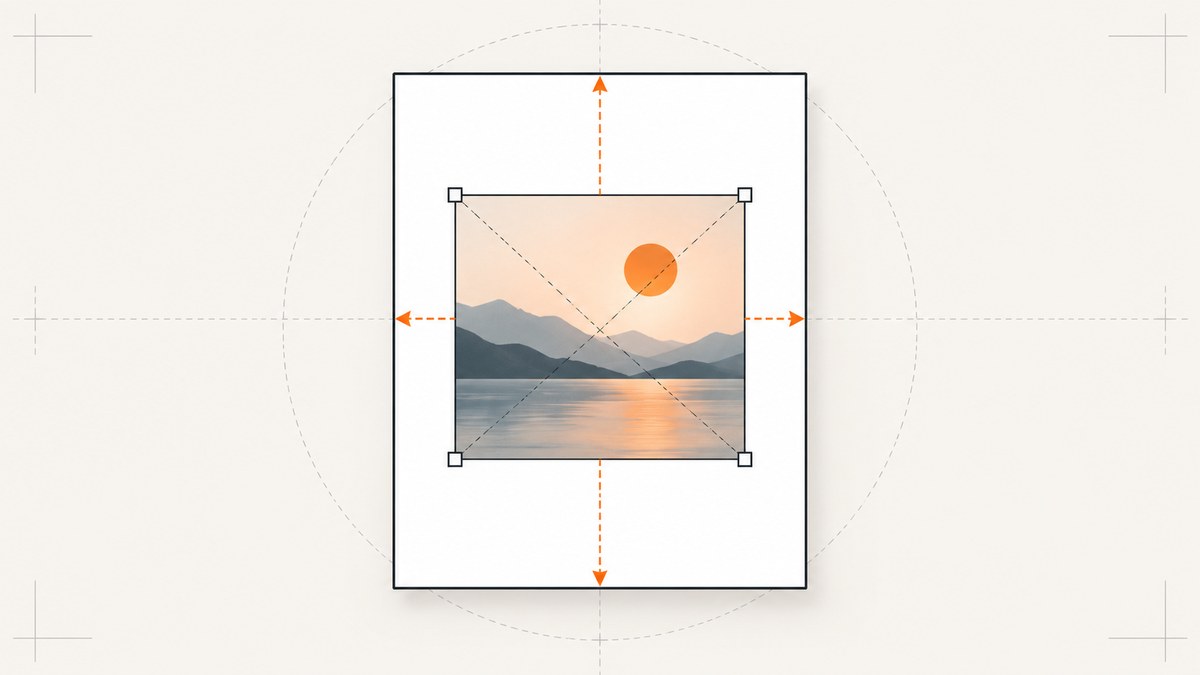
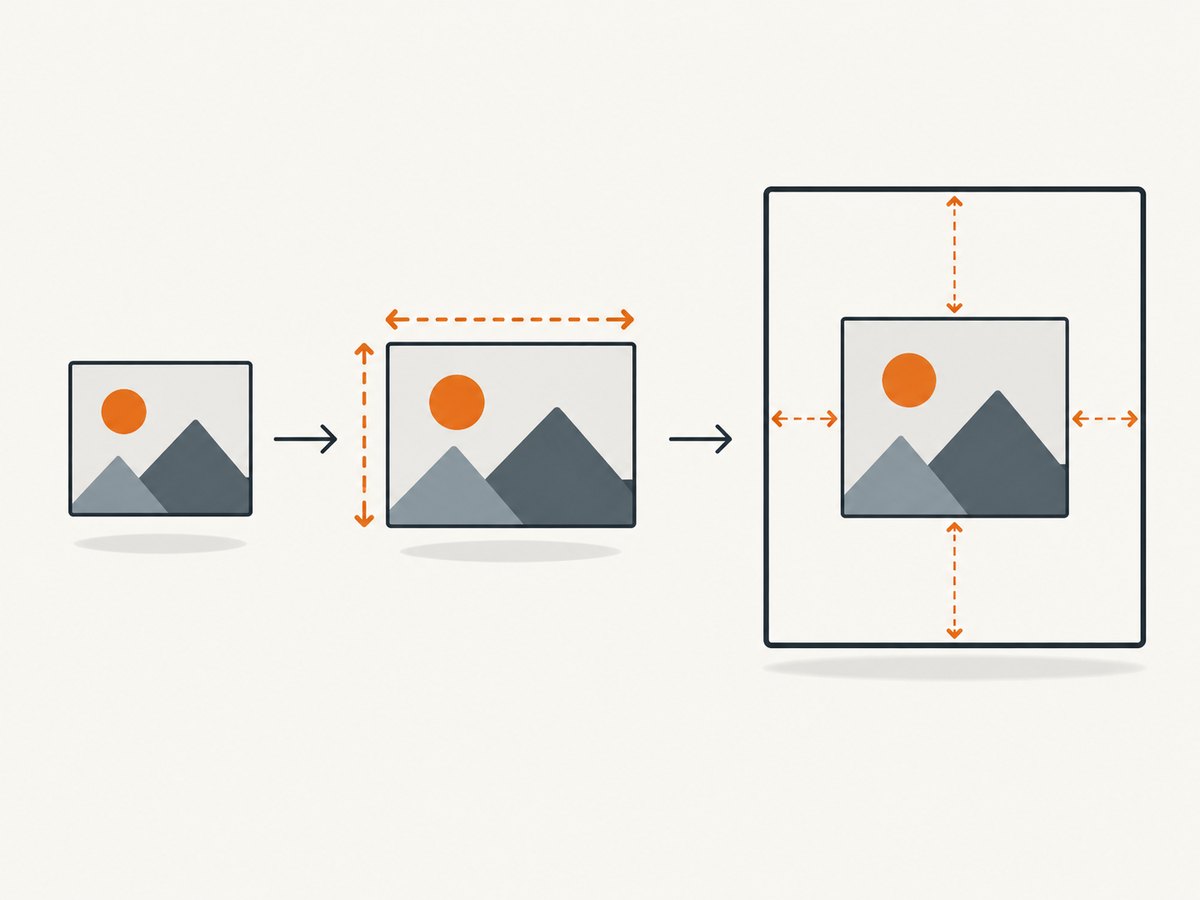
To center and fit an image on a jsPDF page without distortion, place the image inside a target rectangle and use one uniform scale for both dimensions. Compute scale = Math.min(boxWidth / imageWidth, boxHeight / imageHeight), multiply the intrinsic image dimensions by that scale, then add half of the remaining space to the rectangle’s x and y coordinates. Pass those values to doc.addImage().
jsPDF measures x, y, width, and height in the document’s configured units. Coordinates start at the page’s left and upper edges. The complete pattern is:
const pageWidth = doc.internal.pageSize.getWidth();
const pageHeight = doc.internal.pageSize.getHeight();
const marginLeft = 10, marginRight = 10, marginTop = 10, marginBottom = 10;
const boxX = marginLeft, boxY = marginTop;
const boxWidth = pageWidth - marginLeft - marginRight;
const boxHeight = pageHeight - marginTop - marginBottom;
const imageWidth = img.naturalWidth, imageHeight = img.naturalHeight;
if (!(imageWidth > 0) || !(imageHeight > 0)) throw new Error('Image is not loaded');
const scale = Math.min(boxWidth / imageWidth, boxHeight / imageHeight);
const drawWidth = imageWidth * scale, drawHeight = imageHeight * scale;
const x = boxX + (boxWidth - drawWidth) / 2;
const y = boxY + (boxHeight - drawHeight) / 2;
doc.addImage(img, 'PNG', x, y, drawWidth, drawHeight);
This is a fit: the complete image remains visible and whitespace can remain on one axis. A full-bleed fill has a different result. It covers the entire box by cropping or clipping the excess; stretching the image to both box dimensions changes its aspect ratio.
1. Define the page and image box
Use the dimensions of the document you actually created instead of assuming A4. The constructor accepts orientation, unit, and format; the official project example uses A4 portrait with millimeters. Units can also be points, centimeters, inches, or pixels. With pixels, the documentation calls out the px_scaling hotfix for correct scaling.
import { jsPDF } from 'jspdf';
const doc = new jsPDF({ orientation: 'portrait', unit: 'mm', format: 'a4' });
const pageWidth = doc.internal.pageSize.getWidth();
const pageHeight = doc.internal.pageSize.getHeight();
A margin box is a rectangle derived from those accessors. Keep all four margins in the same unit as the document. Validate that the resulting width and height are positive before calculating a scale.
2. Load and decode the image before measuring it
naturalWidth and naturalHeight are available after an HTMLImageElement has loaded. Waiting for decode() helps ensure that the browser has decoded the pixels before jsPDF receives them. For cross-origin URLs, the server must provide compatible CORS headers.
function loadImage(src) {
  return new Promise((resolve, reject) => {
    const image = new Image();
    image.crossOrigin = 'anonymous';
    image.onload = async () => {
      try { if (image.decode) await image.decode(); } catch (_) {}
      resolve(image);
    };
    image.onerror = () => reject(new Error('Could not load image: ' + src));
    image.src = src;
  });
}
For a file input, use URL.createObjectURL(file), load it, and call URL.revokeObjectURL() after generating the PDF. Canvas elements, data URLs, Uint8Array data, and RGBA data are also accepted by addImage. Invalid image data can throw an error, so validate before writing a document.
3. Reusable fit-and-center helper
import { jsPDF } from 'jspdf';
function addImageFitted(doc, image, options = {}) {
  const { left = 10, right = 10, top = 10, bottom = 10, format = 'PNG', rotation = 0 } = options;
  const pageWidth = doc.internal.pageSize.getWidth();
  const pageHeight = doc.internal.pageSize.getHeight();
  const boxX = left, boxY = top;
  const boxWidth = pageWidth - left - right;
  const boxHeight = pageHeight - top - bottom;
  if (boxWidth <= 0 || boxHeight <= 0) throw new Error('Margins leave no drawable area');
  const imageWidth = image.naturalWidth ?? image.width;
  const imageHeight = image.naturalHeight ?? image.height;
  if (!(imageWidth > 0) || !(imageHeight > 0)) throw new Error('Image dimensions unavailable');
  const scale = Math.min(boxWidth / imageWidth, boxHeight / imageHeight);
  const width = imageWidth * scale, height = imageHeight * scale;
  const x = boxX + (boxWidth - width) / 2;
  const y = boxY + (boxHeight - height) / 2;
  doc.addImage(image, format, x, y, width, height, undefined, 'FAST', rotation);
  return { x, y, width, height, scale };
}
const doc = new jsPDF({ unit: 'mm', format: 'a4' });
const image = await loadImage('https://example.com/photo.png');
addImageFitted(doc, image, { left: 15, right: 15, top: 20, bottom: 20 });
doc.save('centered-image.pdf');
The optional alias can improve reuse when adding the same image repeatedly. Compression and rotation are supported optional arguments; the positional geometry remains the same. See the jsPDF addImage API.
4. Fit versus fill, crop, and clipping
Use fit when every pixel matters: reports, evidence images, or product screenshots. If the image is wider than the box, fit consumes the box width and leaves vertical whitespace; if it is taller, it consumes the height and leaves horizontal whitespace.
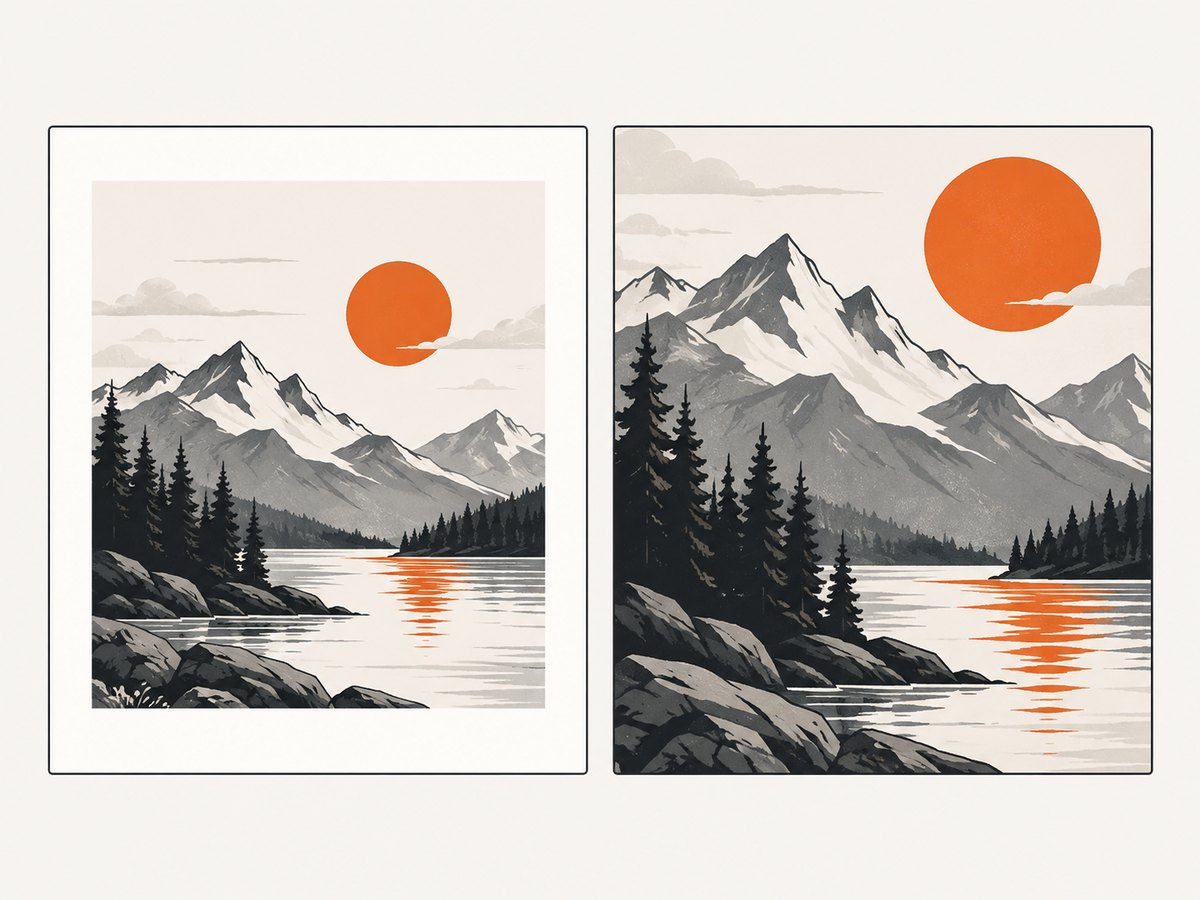
For fill, calculate Math.max(boxWidth / imageWidth, boxHeight / imageHeight), then crop the overhanging part before calling addImage. A browser canvas method is:
function coverCanvas(image, boxWidthPx, boxHeightPx) {
  const scale = Math.max(boxWidthPx / image.naturalWidth, boxHeightPx / image.naturalHeight);
  const canvas = document.createElement('canvas');
  canvas.width = boxWidthPx; canvas.height = boxHeightPx;
  const ctx = canvas.getContext('2d');
  const w = image.naturalWidth * scale, h = image.naturalHeight * scale;
  ctx.drawImage(image, (boxWidthPx - w) / 2, (boxHeightPx - h) / 2, w, h);
  return canvas;
}
Clipping can also be done with a PDF graphics state, but canvas cropping is easier to reason about and lets you choose a focal point. Do not use separate width and height scales unless distortion is intentional.
5. Multiple pages, headers, and responsive boxes
Recompute page dimensions after every doc.addPage(); a landscape page or custom format may have different bounds. For a header, footer, or two-column layout, pass that region as the target rectangle:
function fitInBox(doc, image, box, format = 'PNG') {
  const iw = image.naturalWidth, ih = image.naturalHeight;
  if (iw <= 0 || ih <= 0) throw new Error('Invalid image dimensions');
  const scale = Math.min(box.width / iw, box.height / ih);
  const w = iw * scale, h = ih * scale;
  doc.addImage(image, format, box.x + (box.width - w) / 2, box.y + (box.height - h) / 2, w, h);
}
fitInBox(doc, image, { x: 15, y: 25, width: 80, height: 50 });
doc.addPage('landscape');
fitInBox(doc, image, { x: 15, y: 15, width: doc.internal.pageSize.getWidth() - 30, height: doc.internal.pageSize.getHeight() - 30 });
Keep a consistent unit system when values come from CSS pixels. Convert pixels to millimeters or points once, or configure the document for pixels with the documented hotfix. Mixing CSS pixels, device pixels, and millimeters causes unexpectedly tiny or huge images.
6. Quality, memory, and performance
- Decode once: await one image load and reuse the decoded element for repeated placements.
- Control source size: very large photographs consume browser memory when converted to canvas or data URLs. Resize before embedding when print resolution does not require every source pixel.
- Choose format deliberately: JPEG is smaller for photographs; PNG preserves sharp text and transparency.
- Reuse images: supply an alias when adding the same asset multiple times so jsPDF can reuse its cached representation.
- Generate incrementally: add one page at a time and release object URLs. Many uncompressed images can exceed browser memory.
There is no universal DPI setting in the fit formula. Physical output quality depends on pixel dimensions relative to the drawn size. For a 100 mm-wide image at print quality, calculate required pixels from the target DPI, then downsample only when the source is larger than necessary.
7. Troubleshooting checklist
| Symptom | Cause | Fix |
|---|---|---|
| Image is stretched | Width and height scaled independently | Use one Math.min scale for fit, or crop for fill. |
| Image is at (0, 0) or off page | CSS pixels passed to a millimeter document | Convert units and inspect page-size accessors. |
| Nothing appears | Image has not loaded or dimensions are zero | Await onload/decode() and validate dimensions. |
| Security or tainted-canvas error | Cross-origin image lacks CORS permission | Enable CORS, proxy from your origin, or use a same-origin asset. |
addImage throws invalid image data |
Malformed data URL, unsupported format, or incomplete bytes | Confirm the MIME prefix, wait for decoding, and try PNG or JPEG bytes. |
| Huge PDF or tab crash | Many full-resolution images | Resize sources, use JPEG for photos, reuse aliases, and reduce images per page. |
| Whitespace is unexpected | Fit preserves aspect ratio | Use a cover crop when edge-to-edge coverage is required. |
8. Or skip the browser setup
If the image you need is a live web page, capture it first and place the resulting asset in jsPDF. ScreenshotNeo’s API documentation shows the request options. The one-call API returns PNG, JPEG, WebP, or PDF data:
curl -G 'https://api.screenshotneo.com/v1/shot' -d access_key=YOUR_API_KEY --data-urlencode url=https://stripe.com -o shot.webpimport requests
r = requests.get('https://api.screenshotneo.com/v1/shot', params={'access_key': 'YOUR_API_KEY', 'url': 'https://stripe.com'}, timeout=90)
r.raise_for_status()
open('shot.webp', 'wb').write(r.content)const q = new URLSearchParams({ access_key: 'YOUR_API_KEY', url: 'https://stripe.com' });
const res = await fetch(`https://api.screenshotneo.com/v1/shot?${q}`);
if (!res.ok) throw new Error(`Screenshot failed: ${res.status}`);
const bytes = new Uint8Array(await res.arrayBuffer());
require('fs').writeFileSync('shot.webp', bytes);Cookie banners, newsletter popups, and chat widgets are removed before the shot. Bot checks, blank pages, timeouts, failed loads, and cache hits are not billed, and response headers identify the page verdict and billing result. An MCP server provides take_screenshot, get_page_info, and capture_pdf tools for Claude, Cursor, and other MCP clients. The Free plan includes 1,000 screenshots each month with no card; paid plans start at $5 for 3,000 shots. Create a free ScreenshotNeo account.
9. Cost and reliability considerations
jsPDF runs where your JavaScript runs, so there is no capture-service charge; costs are browser memory, CPU, and image hosting or proxying. For server-side generation, enforce maximum source dimensions and request timeouts. For remote images, cache bytes and validate content type before decoding.
When capturing through an API, treat a screenshot response as a binary artifact. Check HTTP status, save response headers for diagnostics, and retry transient network errors with bounded backoff. ScreenshotNeo reports whether a response was a clean shot and whether it was billed in X-Page-Verdict and X-Billed headers, allowing a pipeline to distinguish a usable image from a blocked or blank result.
10. FAQ
Should I use naturalWidth or CSS width?
Use intrinsic pixel dimensions for the aspect ratio. CSS dimensions can reflect layout scaling rather than source bitmap size.
How do I center an image on a landscape page?
Create the document with orientation: 'landscape', read its width and height with the page-size accessors, and run the same formula.
Can jsPDF automatically fit an image?
addImage accepts explicit coordinates and dimensions; calculate the rectangle yourself so fit behavior is predictable.
Why is a blank band left beside my image?
The source and target rectangles have different aspect ratios. That band is expected when preserving the complete image; crop for a fill layout.
Can I use a PDF returned by a screenshot service as an image?
Use a raster image endpoint for addImage, or keep the returned PDF as its own document. Rasterize a PDF page first if you need to place it as an image.


