How to Center Images with jsPDF addImage
Center any image on a jsPDF page with reliable coordinate math, aspect-ratio fitting, complete code, troubleshooting, and a ScreenshotNeo shortcut.
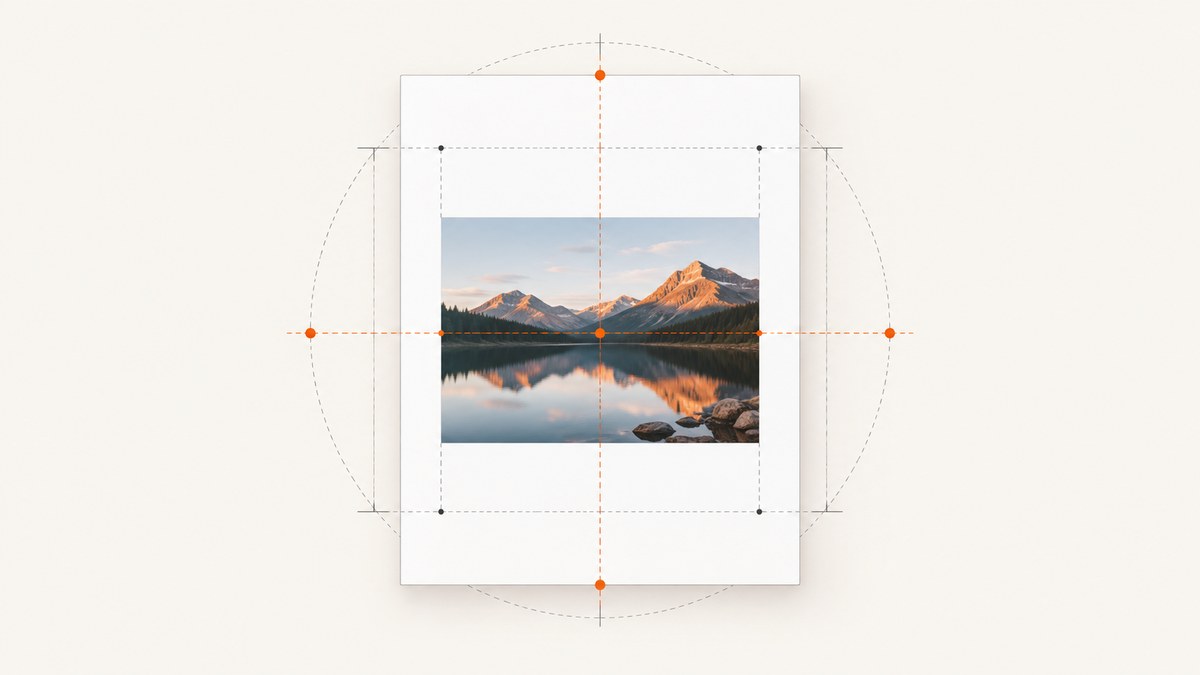
To center an image in jsPDF, calculate the remaining horizontal and vertical space and divide each by two:
const pageWidth = doc.internal.pageSize.getWidth();
const pageHeight = doc.internal.pageSize.getHeight();
const x = (pageWidth - imageWidth) / 2;
const y = (pageHeight - imageHeight) / 2;

doc.addImage(imageData, 'PNG', x, y, imageWidth, imageHeight);
x is measured from the left edge of the page and y from its upper edge. The page dimensions, image dimensions, and coordinates must use the same units. The formula centers the image rectangle in the active page; it does not inspect transparent padding inside the source file.
1. How jsPDF positions an image
jsPDF’s addImage method receives image data, an image format, an x coordinate, a y coordinate, a rendered width, and a rendered height. The official documentation describes the method as adding an image to the PDF, while the API uses the coordinates and dimensions you provide to place it. See the jsPDF addImage documentation.
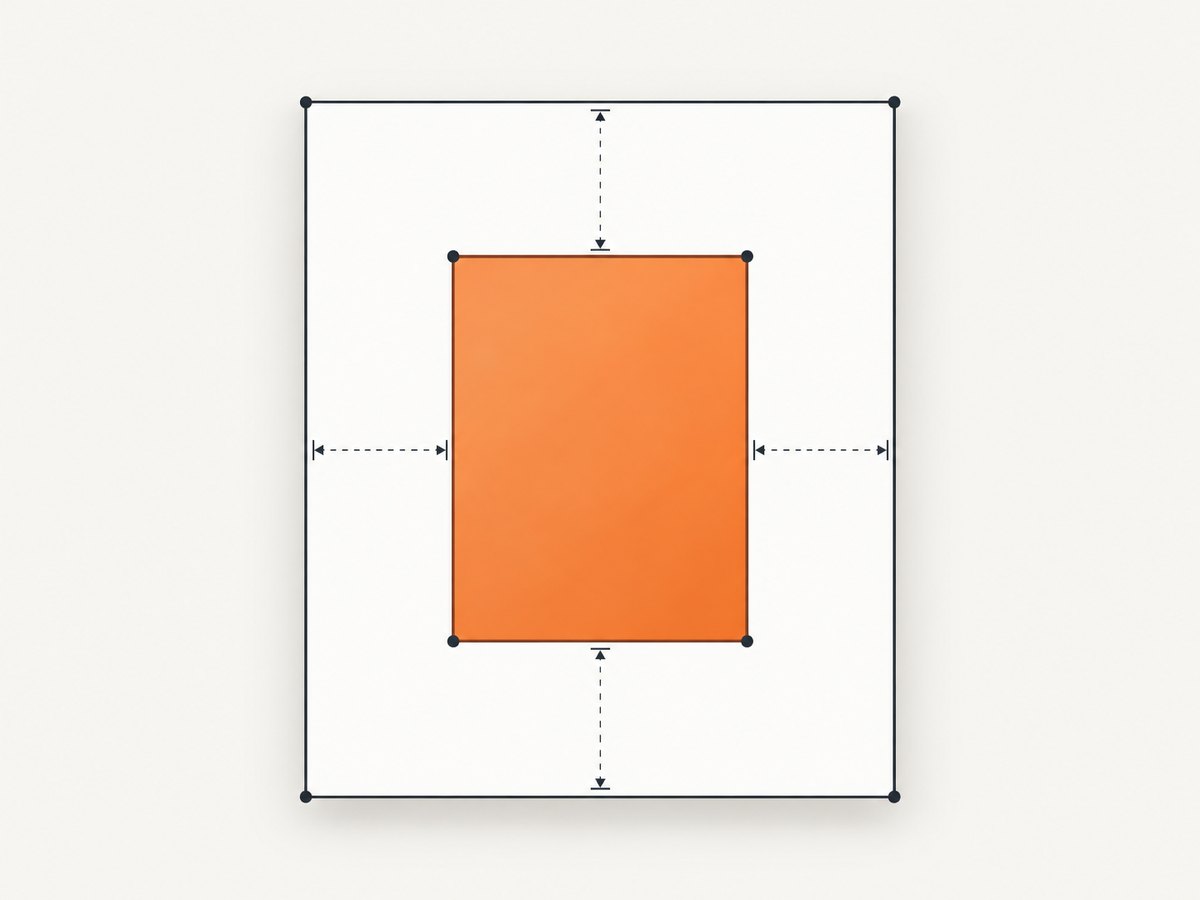
When you create a document, you choose units such as millimeters, points, inches, or pixels. Every later measurement is interpreted in those units. A document created with unit: 'mm' needs image dimensions and coordinates in millimeters; passing pixel values directly will produce an unexpectedly large image.
The active page size can vary with paper format and orientation. Read it from the page-size API instead of hard-coding A4 or Letter dimensions. The jsPDF API exposes width and height accessors through doc.internal.pageSize; the documented source is available in the jsPDF API documentation.
2. A complete browser example
Install jsPDF with npm:
npm install jspdfThis browser example loads an image, preserves its aspect ratio, scales it to fit within the page margins, centers it, and downloads the result. It uses a data URL so the image can be passed directly to addImage.
import { jsPDF } from 'jspdf';

function loadImage(src) {
  return new Promise((resolve, reject) => {
    const image = new Image();
    image.onload = () => resolve(image);
    image.onerror = () => reject(new Error(`Could not load ${src}`));
    image.src = src;
  });
}

function imageToDataUrl(image, format = 'image/jpeg', quality = 0.9) {
  const canvas = document.createElement('canvas');
  canvas.width = image.naturalWidth;
  canvas.height = image.naturalHeight;
  const context = canvas.getContext('2d');
  context.drawImage(image, 0, 0);
  return canvas.toDataURL(format, quality);
}

async function createCenteredPdf() {
  const doc = new jsPDF({
    orientation: 'portrait',
    unit: 'mm',
    format: 'a4'
  });

  const image = await loadImage('/images/report-cover.jpg');
  const imageData = imageToDataUrl(image, 'image/jpeg', 0.9);

  const pageWidth = doc.internal.pageSize.getWidth();
  const pageHeight = doc.internal.pageSize.getHeight();
  const margin = 15;
  const availableWidth = pageWidth - margin * 2;
  const availableHeight = pageHeight - margin * 2;

  const aspectRatio = image.naturalWidth / image.naturalHeight;
  let imageWidth = availableWidth;
  let imageHeight = imageWidth / aspectRatio;

  if (imageHeight > availableHeight) {
    imageHeight = availableHeight;
    imageWidth = imageHeight * aspectRatio;
  }

  const x = (pageWidth - imageWidth) / 2;
  const y = (pageHeight - imageHeight) / 2;

  doc.addImage(imageData, 'JPEG', x, y, imageWidth, imageHeight);
  doc.save('centered-image.pdf');
}

createCenteredPdf().catch(console.error);
The maximum-fit step matters when the source is larger than the page. The image is first reduced until both dimensions fit inside the available rectangle. Only then are the centered coordinates calculated.
3. Centering with a known image size
If you already know the rendered dimensions, the implementation is shorter:
import { jsPDF } from 'jspdf';

const doc = new jsPDF({ unit: 'mm', format: 'letter' });
const imageData = 'data:image/png;base64,iVBORw0KGgoAAAANSUhEUg...';
const imageWidth = 100;
const imageHeight = 70;
const pageWidth = doc.internal.pageSize.getWidth();
const pageHeight = doc.internal.pageSize.getHeight();
const x = (pageWidth - imageWidth) / 2;
const y = (pageHeight - imageHeight) / 2;

doc.addImage(imageData, 'PNG', x, y, imageWidth, imageHeight);
doc.save('centered.png-image.pdf');
Replace the abbreviated data URL with a complete data URL or another image-data form accepted by your jsPDF version. The API also supports image elements, canvas elements, byte arrays, and RGBA data. The coordinate calculation is independent of which source form you choose.
4. Preserve the aspect ratio before centering
Passing arbitrary width and height values can stretch the image. Calculate one dimension from the other:
const originalWidth = 1600;
const originalHeight = 900;
const imageWidth = 150;
const imageHeight = imageWidth * originalHeight / originalWidth;
For a “contain” fit inside a rectangle, use the smaller scale factor:
const scale = Math.min(
  availableWidth / originalWidth,
  availableHeight / originalHeight
);
const imageWidth = originalWidth * scale;
const imageHeight = originalHeight * scale;
const x = (pageWidth - imageWidth) / 2;
const y = (pageHeight - imageHeight) / 2;
This keeps the complete image visible. If you intentionally want a “cover” layout, use the larger scale factor and accept that the image will extend beyond one dimension; crop it before calling addImage or place it with negative coordinates.
5. Center inside a content area
Many PDFs reserve a header, footer, or side margin. In that case, center inside the content rectangle rather than the entire page. Let L and T be the rectangle’s left and top offsets, and let Cw and Ch be its width and height:
const contentLeft = 20;
const contentTop = 35;
const contentWidth = pageWidth - 40;
const contentHeight = pageHeight - 55;

const x = contentLeft + (contentWidth - imageWidth) / 2;
const y = contentTop + (contentHeight - imageHeight) / 2;

doc.addImage(imageData, 'JPEG', x, y, imageWidth, imageHeight);
The same formula works for a card, column, or any other rectangular region. Keep the image dimensions in the same unit as the offsets.
6. Page size and orientation
Read dimensions after creating the document and after adding a page, because the active page can have a different format or orientation:
const doc = new jsPDF({ unit: 'pt', format: 'a4', orientation: 'portrait' });

function centerOnCurrentPage(doc, imageData, format, width, height) {
  const pageWidth = doc.internal.pageSize.getWidth();
  const pageHeight = doc.internal.pageSize.getHeight();
  const x = (pageWidth - width) / 2;
  const y = (pageHeight - height) / 2;
  doc.addImage(imageData, format, x, y, width, height);
}

centerOnCurrentPage(doc, imageData, 'PNG', 240, 160);
doc.addPage('a4', 'landscape');
centerOnCurrentPage(doc, imageData, 'PNG', 240, 160);
Do not reuse portrait page dimensions after switching to landscape. Query the current page each time.
7. Centering multiple images
For a row of images, calculate the total row width, then center the row as a group:
const images = [
  { data: firstData, width: 45, height: 30 },
  { data: secondData, width: 60, height: 30 },
  { data: thirdData, width: 45, height: 30 }
];
const gap = 5;
const rowWidth = images.reduce((sum, item) => sum + item.width, 0)
  + gap * (images.length - 1);
let x = (pageWidth - rowWidth) / 2;
const rowTop = 100;

for (const item of images) {
  doc.addImage(item.data, 'JPEG', x, rowTop, item.width, item.height);
  x += item.width + gap;
}
For a vertical stack, calculate the total height and center that group on the y axis. If image heights differ, align each image’s top edge or calculate a baseline according to your layout.
8. Rotation and transparent margins
Current jsPDF type declarations include optional alias, compression, and rotation arguments for addImage; consult the official type declarations for the signature used by your installed version. Rotation changes the visual orientation, but the centering calculation still starts with the unrotated width and height. For exact visual centering of a rotated rectangle, calculate the rotated bounding box first.
Centering operates on the source rectangle. A PNG with 40 pixels of transparent padding on one side is mathematically centered by its full dimensions, so the visible subject may look off-center. Crop transparent borders before encoding, or calculate a visible-content bounding box yourself.
9. Node.js and server-side image preparation
jsPDF can run in Node.js, but loading remote images and converting them to supported data requires a server-side image library or a local file reader. The centering math remains identical:
import fs from 'node:fs';
import { jsPDF } from 'jspdf';

const doc = new jsPDF({ unit: 'mm', format: 'a4' });
const imageData = fs.readFileSync('./cover.jpg').toString('base64');
const dataUrl = `data:image/jpeg;base64,${imageData}`;
const pageWidth = doc.internal.pageSize.getWidth();
const pageHeight = doc.internal.pageSize.getHeight();
const imageWidth = 150;
const imageHeight = 84.375; // 16:9 at 150 mm wide
const x = (pageWidth - imageWidth) / 2;
const y = (pageHeight - imageHeight) / 2;

doc.addImage(dataUrl, 'JPEG', x, y, imageWidth, imageHeight);
fs.writeFileSync('./centered-image.pdf', Buffer.from(doc.output('arraybuffer')));
For a remote URL, fetch it on your server, verify the response is an image, convert the bytes to a data URL or supported byte representation, and then call addImage. In a browser, cross-origin images must permit canvas use with the appropriate CORS headers before you call toDataURL.
10. cURL, Python, and Node.js image sources
If the image starts as a URL, you can download it before passing it to jsPDF. These examples retrieve bytes; your PDF process still needs to convert them to a data URL or supported byte array.
curl -L "https://example.com/image.jpg" -o image.jpgimport requests
response = requests.get('https://example.com/image.jpg', timeout=30)
response.raise_for_status()
open('image.jpg', 'wb').write(response.content)const response = await fetch('https://example.com/image.jpg');
if (!response.ok) throw new Error(`HTTP ${response.status}`);
const bytes = Buffer.from(await response.arrayBuffer());These commands do not center the image by themselves; they supply the source bytes for the jsPDF code above.
11. Common errors and fixes
| Symptom | Likely cause | Fix |
|---|---|---|
| Image is too large or off the page | Pixel dimensions were used with a millimeter or point document. | Convert the intended rendered size to the document’s unit and fit it before centering. |
| Image is stretched | Width and height were chosen independently. | Preserve the source aspect ratio and derive one dimension from the other. |
| Image is not visible | The image has not loaded, the data URL is incomplete, or the format argument is wrong. | Await image loading, validate the data URL, and match 'PNG', 'JPEG', or the format you encoded. |
| Canvas conversion throws a security error | A cross-origin image tainted the canvas. | Serve the image with compatible CORS headers, use a same-origin proxy, or provide the image bytes from your server. |
| Coordinates are negative | The image is larger than the page or content rectangle. | Resize it first if it must be fully visible. Negative coordinates are mathematically correct for an oversized centered box. |
| Image appears shifted after changing orientation | Portrait dimensions were reused for a landscape page. | Call getWidth() and getHeight() for the active page immediately before placement. |
| Subject looks off-center in a PNG | Transparent or empty margins are part of the image rectangle. | Crop the source or center a visible-content rectangle. |
| PDF becomes very large | Very high-resolution raster data or repeated image embedding. | Resize before encoding, choose JPEG for photographic content, and reuse an alias where appropriate. |
12. Performance, reliability, and cost considerations
Image decoding and canvas conversion can consume substantial memory for large photographs. Resize close to the final printed or displayed dimensions before calling toDataURL. JPEG usually produces smaller files for photos; PNG is appropriate when you need sharp line art or transparency. Avoid converting the same source repeatedly in a loop.
For long documents, calculate dimensions once per page and keep a small helper function for placement. If you generate PDFs in a service, reject unsupported content types, set download timeouts, and handle failed image loads explicitly. A PDF should not be saved until every image promise has resolved.
jsPDF’s centering operation itself has no network cost. Any cost comes from obtaining, transforming, storing, or serving the source image and from your runtime. Cache stable image bytes when many documents use the same asset.
13. Or skip the browser setup
If your input is a webpage rather than a local image, ScreenshotNeo can return a clean screenshot through one GET request. The API can produce PNG, JPEG, WebP, or PDF output, and its capture options include full-page screenshots, element selection, custom CSS and JavaScript, waits, device presets, dark mode, headers, cookies, user agents, geolocation, caching, and more. See the ScreenshotNeo documentation for the complete option list.
curl -G "https://api.screenshotneo.com/v1/shot" -d access_key=YOUR_API_KEY --data-urlencode url=https://stripe.com -o shot.webpimport requests
r = requests.get("https://api.screenshotneo.com/v1/shot", params={"access_key": "YOUR_API_KEY", "url": "https://stripe.com"}, timeout=90)
open("shot.webp", "wb").write(r.content)const q = new URLSearchParams({ access_key: 'YOUR_API_KEY', url: 'https://stripe.com' });
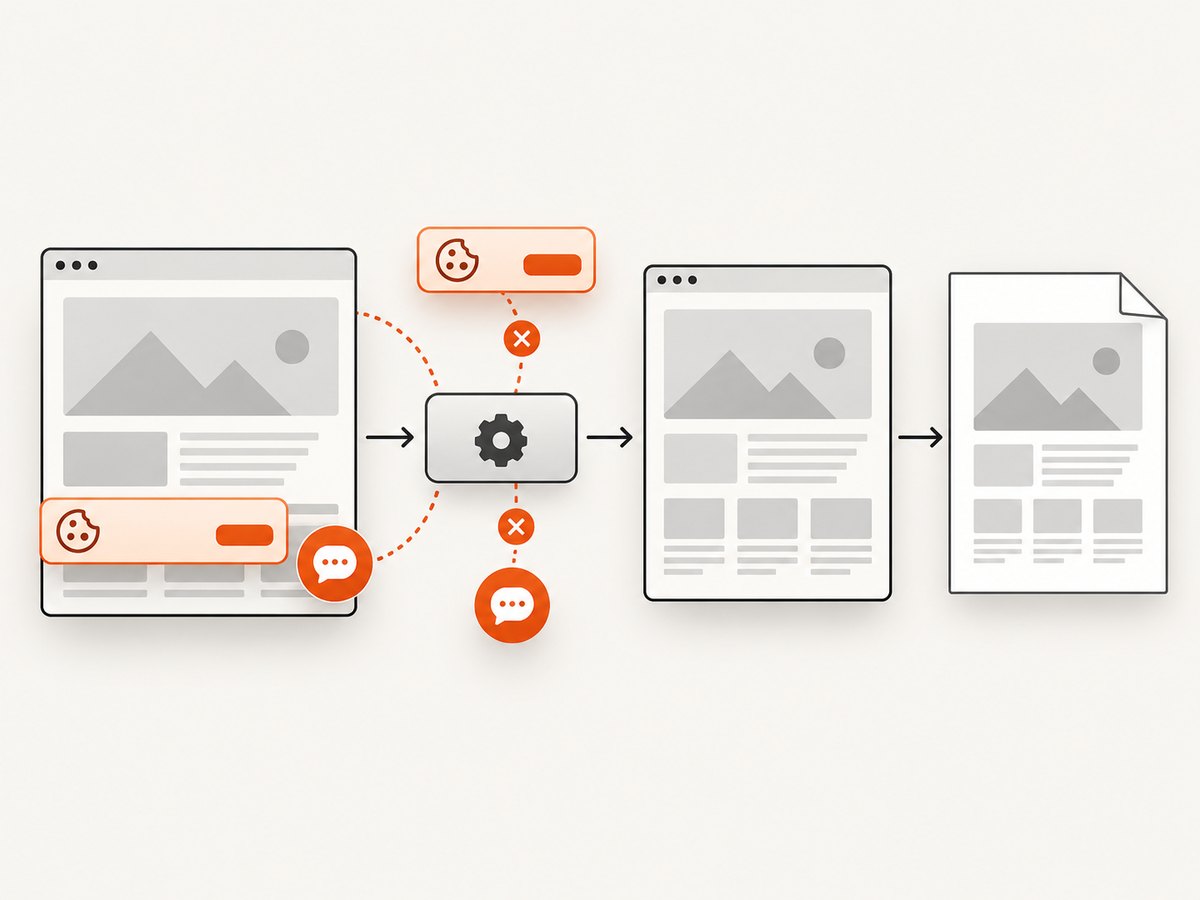
const res = await fetch(`https://api.screenshotneo.com/v1/shot?${q}`);Cookie banners, newsletter popups, and chat widgets are removed before the shot. Bot checks, blank pages, timeouts, failed loads, and cache hits are not billed, and response headers identify the page verdict and billing result. An MCP server provides take_screenshot, get_page_info, and capture_pdf tools for Claude, Cursor, and other MCP clients. The free plan includes 1,000 screenshots per month with no card; paid plans start at $5 for 3,000 screenshots.
Create a free ScreenshotNeo account and start with the 1,000 free monthly screenshots.
14. Practical checklist
- Choose the document unit before calculating any dimensions.
- Read the active page width and height from
doc.internal.pageSize. - Decide whether you are centering on the full page or a content rectangle.
- Preserve aspect ratio unless stretching is intentional.
- Fit oversized images before applying the centering formula.
- Await image loading and validate CORS before canvas conversion.
- Inspect transparent padding if the visible subject appears shifted.
- Query page dimensions again after changing page size or orientation.
15. FAQ
Does jsPDF have a center-image option?
No dedicated centering option is required. Compute (containerWidth - imageWidth) / 2 and the equivalent vertical expression, then pass the results to addImage.
Which origin does jsPDF use?
The x coordinate starts at the left edge and the y coordinate at the upper edge of the page, using the units configured for the document.
Can I center an image on only one axis?
Yes. Compute the centered coordinate for the axis you need and supply your chosen coordinate for the other axis.
Why does a centered image look visually unbalanced?
The source rectangle may contain transparent or blank margins. Crop those margins or calculate placement from the visible content rather than the file bounds.
How do I center an image on every page?
Run the same placement helper after each addPage call so it reads the dimensions of the current page.


