How to Change the Browser Language in Playwright
Set Playwright's locale to change navigator.language, Accept-Language, and regional formatting in one browser context or test.

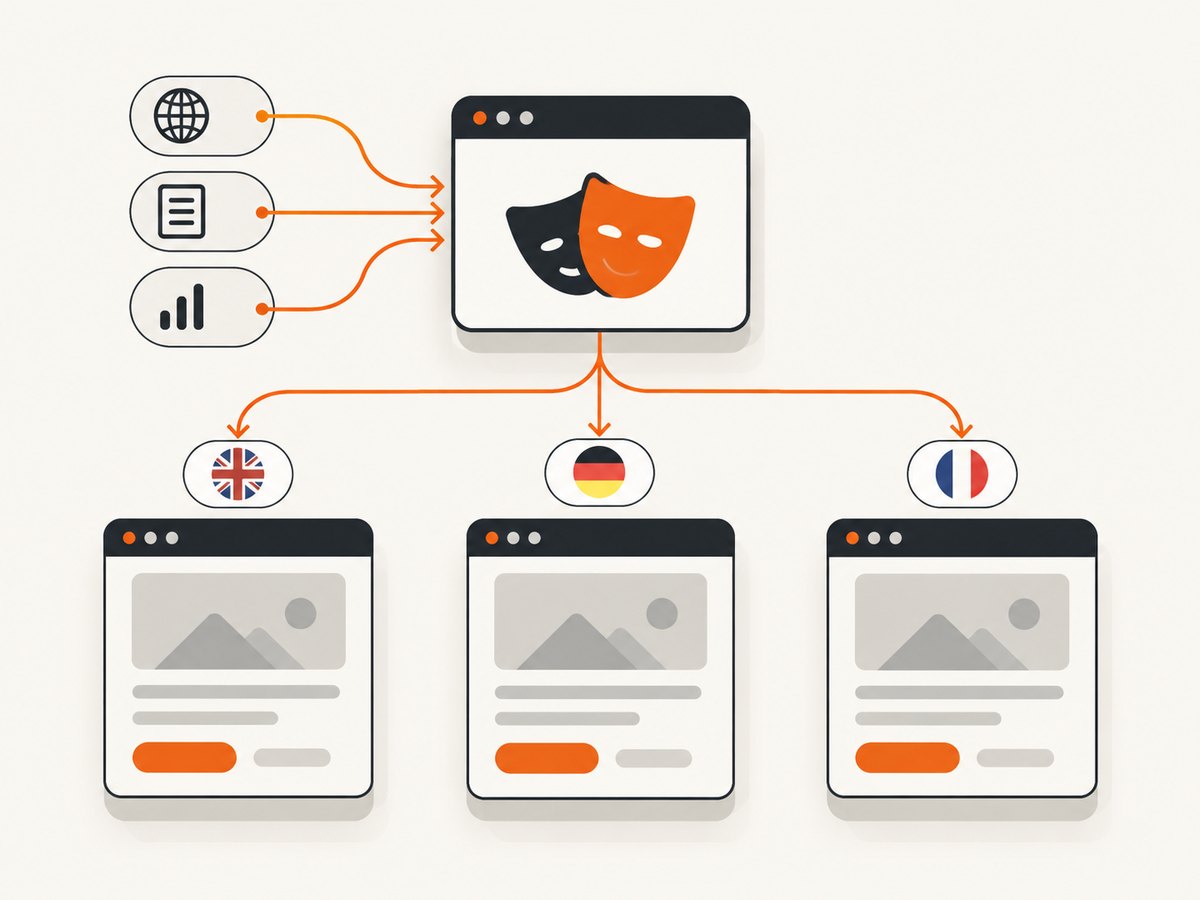
Use Playwright’s locale context option. It changes the browser’s navigator.language, the Accept-Language request header, and locale-sensitive number and date formatting.
import { chromium } from 'playwright';

const browser = await chromium.launch();
const context = await browser.newContext({ locale: 'de-DE' });
const page = await context.newPage();

await page.goto('https://example.com');
console.log(await page.evaluate(() => navigator.language)); // de-DE

await browser.close();
Use a browser context when you need a locale for a script. In Playwright Test, set use.locale globally, override it per project, or call test.use for one test. Locale is separate from timezone: add timezoneId when the site must behave as if it is in a particular region.
What Playwright’s locale setting changes
The locale emulation applies at the browser-context level. Playwright documents that it affects three observable areas:
- JavaScript language values:
navigator.languageand the first value innavigator.languages. - HTTP negotiation: the
Accept-Languagerequest header sent to servers. - Formatting rules: browser APIs such as
Intl.NumberFormatandIntl.DateTimeFormat.
For example, de-DE commonly displays a decimal comma and day-month-year dates, while en-US uses a decimal point and month-day-year ordering. The exact output still depends on the page’s code and the options it passes to the Intl APIs.
If you omit locale, Playwright uses the system locale. That can make tests vary between developer machines and CI runners, so set it explicitly for deterministic tests.
Set the locale in a standalone Playwright script
Complete TypeScript example
Install Playwright, save this as locale.ts, and run it with your normal TypeScript workflow.
import { chromium } from 'playwright';

async function main() {
  const browser = await chromium.launch({ headless: true });
  const context = await browser.newContext({
    locale: 'fr-FR',
  });

  const page = await context.newPage();
  await page.goto('https://example.com', { waitUntil: 'domcontentloaded' });

  const browserValues = await page.evaluate(() => ({
    language: navigator.language,
    languages: navigator.languages,
    number: new Intl.NumberFormat().format(1234567.89),
    date: new Intl.DateTimeFormat().format(new Date('2025-01-15T00:00:00Z')),
  }));

  console.log(browserValues);
  await context.close();
  await browser.close();
}

main().catch((error) => {
  console.error(error);
  process.exit(1);
});
Create a new context before creating the page. A page inherits the context’s locale; changing a page after creation is not the normal API. If one scenario needs several languages, create separate contexts and pages.
Use a regional locale tag
Locale values use language tags such as en-GB, en-US, de-DE, es-MX, or ja-JP. The language and region can affect both server content and formatting. Use the region your application actually supports instead of assuming that a language-only tag will select the desired market.
const usContext = await browser.newContext({ locale: 'en-US' });
const ukContext = await browser.newContext({ locale: 'en-GB' });
const germanContext = await browser.newContext({ locale: 'de-DE' });
Configure locale in Playwright Test
Set one locale for the entire suite
In playwright.config.ts, place the value under use. Every test using the standard page fixture receives a context with that locale.
import { defineConfig } from '@playwright/test';

export default defineConfig({
  use: {
    locale: 'en-GB',
  },
});
This is useful when a project has one target market and you want every test to exercise the same language and regional formatting. The setting belongs to browser context options, so it applies consistently across Chromium, Firefox, and WebKit where the emulation is supported by Playwright.
Override by project
Projects let one test suite run against multiple locales without duplicating test files.
import { defineConfig, devices } from '@playwright/test';

export default defineConfig({
  projects: [
    {
      name: 'english-us',
      use: { ...devices['Desktop Chrome'], locale: 'en-US' },
    },
    {
      name: 'german',
      use: { ...devices['Desktop Chrome'], locale: 'de-DE' },
    },
  ],
});
Run a single project with npx playwright test --project=german, or run all projects to check that localized behavior remains consistent.
Override one test
Use test.use when only one test needs a different locale.
import { test, expect } from '@playwright/test';

test.use({ locale: 'de-DE' });

test('German locale is exposed to the page', async ({ page }) => {
  await page.goto('https://example.com');
  await expect(page.evaluate(() => navigator.language)).resolves.toBe('de-DE');
  await expect(page.evaluate(() => navigator.languages[0])).resolves.toBe('de-DE');
});
Place test.use at file scope for all tests in that file, or inside a test.describe block to scope it to a group. The most specific setting wins over the broader configuration.
Locale and timezone are different settings
Locale controls language negotiation and formatting conventions. Timezone controls how the browser interprets and displays local times. Configure both when testing a regional experience.
const context = await browser.newContext({
  locale: 'de-DE',
  timezoneId: 'Europe/Berlin',
});
Playwright’s timezone emulation changes the browser context. It does not change the timezone of the Node.js process running your tests. If application code outside the browser must use another timezone, configure the runner environment separately with the TZ environment variable.
A useful test matrix combines locale and timezone deliberately. For example, a German user traveling in New York may have locale: 'de-DE' and timezoneId: 'America/New_York'. Do not infer one setting from the other.
Verify every signal your application relies on
Checking only visible text can miss a negotiation problem. Verify the browser values, formatting, and request headers independently.
import { test, expect } from '@playwright/test';

test.use({ locale: 'de-DE' });

test('locale signals', async ({ page }) => {
  const requests: string[] = [];
  page.on('request', request => {
    if (request.url().includes('/locale-check')) {
      requests.push(request.headers()['accept-language'] || '');
    }
  });

  await page.goto('https://example.com/locale-check');

  const values = await page.evaluate(() => ({
    language: navigator.language,
    languages: navigator.languages,
    number: new Intl.NumberFormat().format(1234.5),
    date: new Intl.DateTimeFormat().format(new Date('2025-01-15T00:00:00Z')),
  }));

  expect(values.language).toBe('de-DE');
  expect(values.languages[0]).toBe('de-DE');
  expect(values.number).toContain(',');
  expect(requests.some(value => value.toLowerCase().includes('de-de'))).toBeTruthy();
});
The request listener is illustrative: point it at an endpoint your application actually calls. For a server-side check, log the incoming header or return it from a test endpoint. Playwright documents that the locale option controls Accept-Language; inspecting the request confirms that your route and redirects preserve the expected behavior.
When a Chromium --lang flag is appropriate
Chromium launch arguments can be supplied through Playwright’s args option:
const browser = await chromium.launch({
  args: ['--lang=de-DE'],
});
This is an advanced fallback, not the normal way to set a Playwright locale. The BrowserType documentation warns that custom browser arguments are used at your own risk because some can break Playwright functionality. Prefer browser.newContext({ locale }) because it is the documented API and updates the browser language signals and formatting together.
A launch flag also has a broader scope than a context setting. If you need two languages in one run, context-level locale options are easier to reason about and isolate.
Common errors and fixes
| Symptom | Likely cause | Fix |
|---|---|---|
navigator.language is unchanged |
The locale was set after the context or page was created, or the test uses a different fixture. | Set locale when calling browser.newContext, or set use.locale/test.use before the test runs. |
| The server still returns the default language | The server ignores Accept-Language, a cookie overrides negotiation, or a redirect selects a saved region. |
Inspect request headers, clear storage with a fresh context, and test the application’s cookie or account preferences separately. |
| Dates differ between CI and a laptop | Locale and timezone were not pinned, or the test runner timezone differs. | Set both locale and timezoneId; use TZ for code running outside the browser. |
| Only one project has the wrong language | A project-level use value overrides the global value. |
Review project configuration and the order of spread properties such as ...devices[...] and locale. |
| Formatting assertion is brittle | The assertion depends on punctuation, Unicode spacing, or an unspecified timezone. | Use explicit Intl options, pin timezone, and assert semantic values where possible. |
Chromium behaves oddly after adding --lang |
A custom browser argument conflicts with Playwright. | Remove the argument and use the context locale option. |
| Locale works in the page but not in API calls | Requests made by Node.js are outside the browser context. | Set headers explicitly in that HTTP client; browser locale emulation does not automatically configure unrelated server-side clients. |
Performance, reliability, and test design
Locale configuration is lightweight compared with launching a browser. Reuse a browser process when appropriate, but keep contexts isolated when tests need different languages, cookies, permissions, or timezones. A fresh context prevents one locale’s storage or consent state from leaking into another.
Run the same assertions against a small set of supported locales rather than every possible language tag. Select locales based on your product requirements, then cover pluralization, currency, date ordering, right-to-left layout where applicable, and translated validation messages.
Prefer stable semantic locators and accessible names over exact punctuation in localized strings. If the product requirement is specifically a German decimal comma, test the formatted value directly; if the requirement is that a checkout button is available, locate it by role and translated name supplied by the test data.
Record the locale and timezone in test reports. When a failure occurs only in CI, these two values quickly reveal whether the difference came from browser emulation or the runner environment.
Or skip the browser setup
If your goal is a clean image or PDF of a localized page, ScreenshotNeo can handle the capture request without maintaining Playwright workers. ScreenshotNeo is a website screenshot API and MCP server. Pass the target URL and options through its API; see the ScreenshotNeo documentation for the complete parameter list.
cURL
curl -G "https://api.screenshotneo.com/v1/shot" -d access_key=YOUR_API_KEY --data-urlencode url=https://stripe.com -o shot.webpPython
import requests

r = requests.get("https://api.screenshotneo.com/v1/shot", params={"access_key": "YOUR_API_KEY", "url": "https://stripe.com"}, timeout=90)
open("shot.webp", "wb").write(r.content)
Node.js
const q = new URLSearchParams({ access_key: 'YOUR_API_KEY', url: 'https://stripe.com' });
const res = await fetch(`https://api.screenshotneo.com/v1/shot?${q}`);
For a localized capture, configure the page’s supported language through the relevant ScreenshotNeo request options, custom headers, cookies, or user agent described in the docs. The service can also set timezone and geolocation, wait for a selector or network idle, run custom JavaScript, and capture a full page or one CSS-selected element.
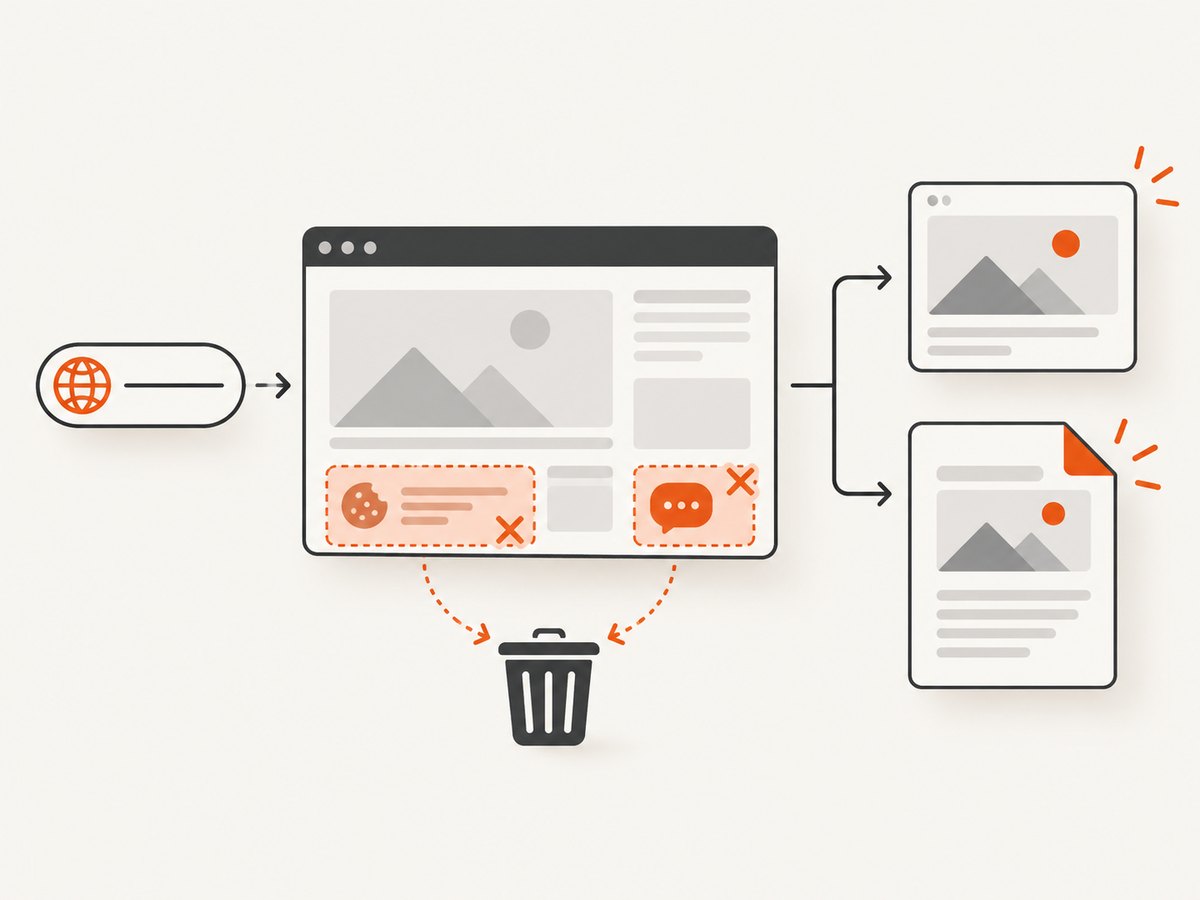
ScreenshotNeo removes cookie and consent banners, newsletter popups, and chat widgets before the shot; each cleanup step can be turned off. Bot checks and CAPTCHAs, blank pages, timeouts, failed loads, and cache hits are not billed, and the response identifies the result with X-Page-Verdict and X-Billed headers. Its MCP server exposes take_screenshot, get_page_info, and capture_pdf for Claude, Cursor, and other MCP clients. You get 1,000 screenshots per month free with no card; paid plans start at $5 for 3,000 shots. Create a free ScreenshotNeo account.
ScreenshotNeo options relevant to localized captures
- Viewport and devices: choose one of 12 device presets or provide a custom viewport, then use retina scale for high-density output.
- Output: return PNG, JPEG, WebP, or PDF. PDFs support paper size, margins, landscape mode, and page ranges.
- Page state: wait for a selector, delay, or network idle; click an element before capture; inject custom CSS or JavaScript; hide selectors; load lazy images.
- Network controls: supply custom headers, cookies, a user agent, or Authorization; block ads, trackers, requests, or resource types.
- Delivery: resize images, choose a cache TTL, create signed links for public image tags, submit asynchronous jobs with signed webhooks, capture up to 100 URLs per bulk call, and read usage through the usage API.
All features are available on every plan. Plans are Free (1,000 shots/month), Starter ($5 for 3,000), Growth ($15 for 15,000), Pro ($39 for 60,000), Scale ($99 for 250,000), and Business ($249 for 1,000,000); yearly billing provides two months free.
FAQ
Does locale translate a page?
No. It tells the browser and server which language and regional conventions to use. Translation still depends on your application’s content, locale files, or server behavior.
Can I set locale on a single page?
Set it on the browser context that owns the page. Create a separate context when pages in the same run need different locales.
Does locale change Node.js’s Intl output?
No. It changes the browser context. Node.js code runs in the test runner environment and needs its own locale and timezone handling.
Should I use --lang in CI?
Usually no. Use the documented context locale option. Reserve custom arguments for cases where you have verified the compatibility impact.
How do I test language fallback?
Run separate projects or contexts with the exact language tags your application supports, then verify both the rendered content and the Accept-Language header.


