How to Change the Cypress Log File Destination
Save Cypress reporter output to a file, keep one report per spec, and separate test reports from debug and CI logs.

Direct answer: Cypress’s built-in spec reporter writes human-readable output to standard output (STDOUT). To save test results to a file, choose a reporter that supports file output—Cypress’s documented JUnit example uses reporterOptions.mochaFile. This changes reporter output only; it does not redirect Cypress debug logs or every line printed by your CI system.
Identify which Cypress output you mean
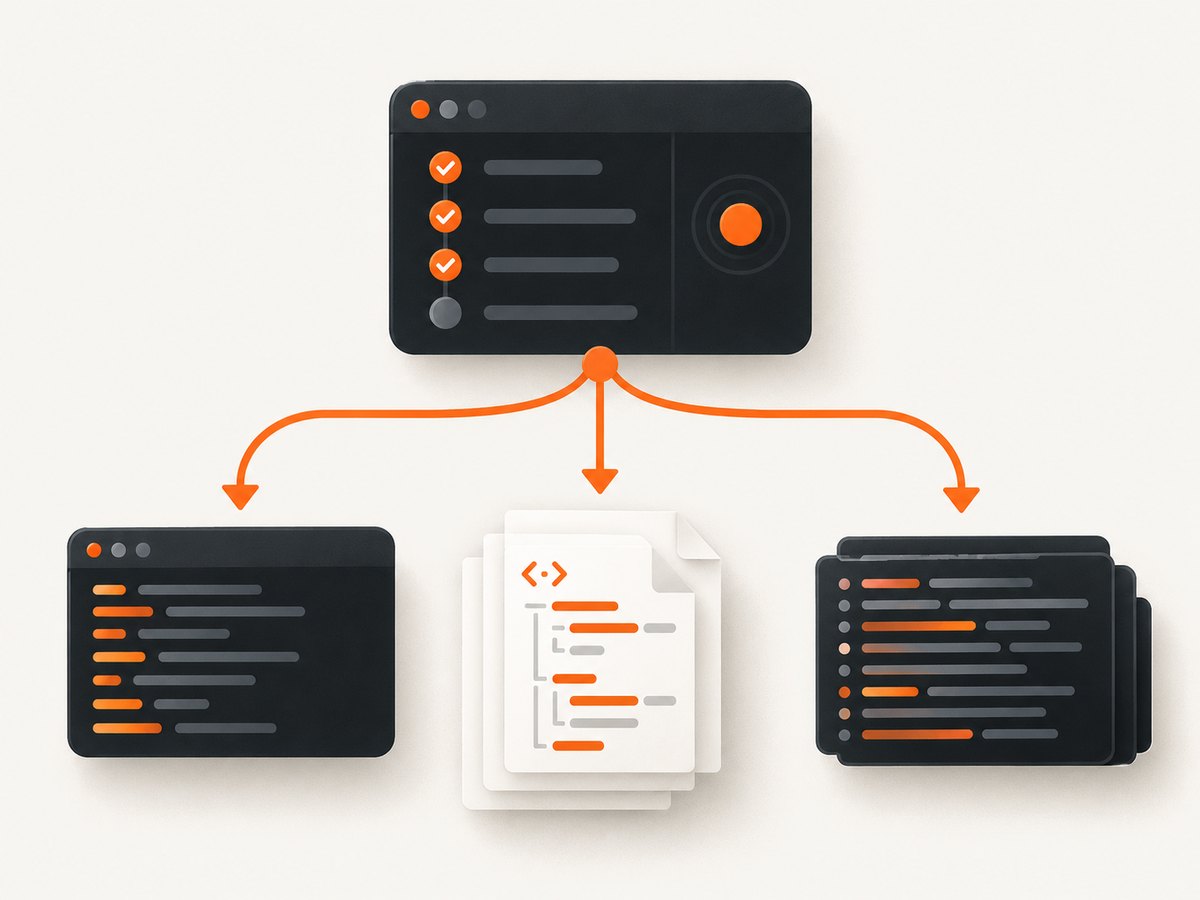
“Log file” can refer to three different streams:
| What you want | Where it comes from | Typical solution |
|---|---|---|
| Machine-readable test results | The Cypress test reporter | Configure a reporter such as junit and set its file option |
| Diagnostic or debug information | Cypress troubleshooting/debug logging | Follow Cypress’s troubleshooting guidance for the relevant debug output |
| Everything printed by a CI job | Your shell or CI runner | Use the CI system’s log collection or shell redirection |
The default spec reporter sends output to STDOUT. Reporter file options are not a universal switch for all Cypress logs. See the Cypress reporter guide and Cypress troubleshooting guide before choosing a destination.
Save reporter output with JUnit in cypress.config.js
Create or edit the project configuration file and select the JUnit reporter:
const { defineConfig } = require('cypress')

module.exports = defineConfig({
  reporter: 'junit',
  reporterOptions: {
    mochaFile: 'results/my-test-output.xml',
    toConsole: true,
  },
})
mochaFile is the reporter’s output path. Set toConsole: true when you also want the JUnit reporter’s result printed to STDOUT. Create the parent directory in your build process if your environment does not create it automatically:
mkdir -p results
npx cypress run
The exact option names and formats depend on the reporter you select. Check that reporter’s documentation before reusing mochaFile with another package.
TypeScript configuration
For a TypeScript project, the equivalent configuration is:
import { defineConfig } from 'cypress'

export default defineConfig({
  reporter: 'junit',
  reporterOptions: {
    mochaFile: 'results/my-test-output.xml',
    toConsole: true,
  },
})
Cypress uses cypress.config.js for JavaScript projects and cypress.config.ts for TypeScript projects by default. It also supports .mjs and .cjs. Use --config-file when the configuration lives elsewhere; see the configuration reference.
Set the destination from the Cypress CLI
You can override the reporter and its options for one run:
npx cypress run \
  --reporter junit \
  --reporter-options mochaFile=results/result.xml,toConsole=true
The same form works with the Cypress binary directly:
cypress run --reporter junit --reporter-options mochaFile=result.xml,toConsole=trueCLI values are useful in CI when each job needs a different directory. Keep the option string formatted exactly as your reporter expects; commas separate reporter options in the documented example. See the Cypress CLI reference.
Keep reports from multiple spec files
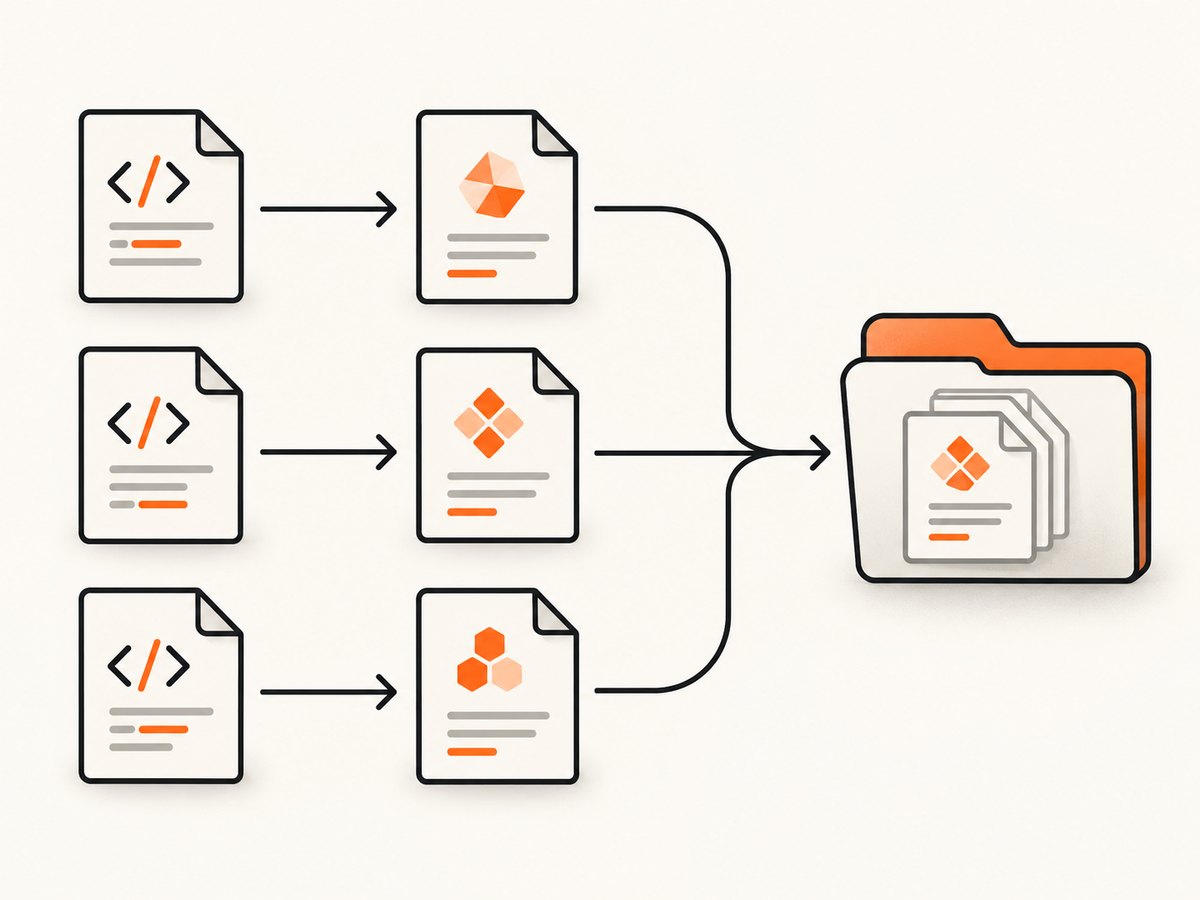
A fixed path can be overwritten as specs run. If you need one XML file per spec, use Cypress’s documented [hash] token:
const { defineConfig } = require('cypress')

module.exports = defineConfig({
  reporter: 'junit',
  reporterOptions: {
    mochaFile: 'results/my-test-output-[hash].xml',
    toConsole: true,
  },
})
The hash gives each spec a distinct filename. A separate merge or aggregation step is still required when your CI system expects one combined report. The merge utility is a tooling choice outside Cypress’s reporter setting.
Choose a destination that works in CI
- Create a workspace directory such as
results/before running Cypress. - Use a path relative to the project when the CI job runs from the repository root.
- Use
[hash]for parallel specs or repeated runs that must retain every report. - Configure your CI artifact step to collect the resulting XML files.
- Keep
toConsoleenabled only when console visibility is useful; the file remains the machine-readable source.
Whether artifacts are uploaded, retained, or shown in a CI interface is controlled by that CI provider, not by reporterOptions.mochaFile.
Reporter output versus debug logs
Changing mochaFile does not establish a destination for browser console messages, Cypress diagnostic output, screenshots, videos, or every command your shell prints. If you are investigating a failing run, first identify the stream:
- Test results: configure the reporter as shown above.
- Debug information: use the procedures in Cypress’s troubleshooting documentation.
- Terminal or CI transcript: configure shell redirection or the CI runner’s log/artifact settings.
Common errors and fixes
| Symptom | Cause | Fix |
|---|---|---|
| No XML file appears | The selected reporter is not configured, or its output option is misspelled. | Confirm reporter: 'junit', use the reporter’s documented option name, and run with the intended config file. |
| Only the last spec is present | Every spec writes to the same fixed filename. | Use my-test-output-[hash].xml and aggregate files afterward. |
| The report prints but is not saved | You are still using the default spec reporter, which writes to STDOUT. |
Select a file-capable reporter such as JUnit and set its file option. |
| Console output disappeared | toConsole is disabled or omitted. |
Set toConsole: true if you need reporter output in STDOUT too. |
| Cypress ignores the setting | The run is loading another config file. | Pass the intended path with --config-file and verify the working directory. |
| CI cannot find artifacts | The artifact pattern does not match the configured relative path. | Collect the same directory and filename pattern used by mochaFile. |
| Debug messages are still elsewhere | Reporter configuration does not redirect Cypress diagnostic logs. | Use Cypress troubleshooting guidance for debug output, or configure the CI log stream separately. |
Reliability, performance, and cost considerations
- Reliability: unique filenames prevent parallel or multi-spec runs from overwriting one another. Ensure the results directory is writable in the CI worker.
- Performance: writing a small XML result per spec is usually simpler than retaining a full terminal transcript. Large suites still create many files when
[hash]is used, so make artifact collection patterns explicit. - Retention: Cypress creates the report; your CI provider decides how long uploaded artifacts and logs remain available.
- Cost: Cypress reporter configuration itself does not define CI storage or retention pricing. Check your CI provider’s artifact policy.
Or skip the browser setup
If your underlying task is collecting reliable screenshots or PDFs from test pages, ScreenshotNeo provides a website screenshot API and MCP server. It accepts one GET request and returns PNG, JPEG, WebP, or PDF. Cookie and consent banners, newsletter popups, and chat widgets are removed before capture. Bot checks, blank pages, timeouts, failed loads, and cache hits are not billed, and the response identifies the result with X-Page-Verdict and X-Billed headers.
Read the ScreenshotNeo API documentation for all options, including full-page capture, CSS element selection, device presets, custom headers and cookies, waits, blocking rules, caching, signed links, async jobs, bulk capture, and PDF settings.
curl -G "https://api.screenshotneo.com/v1/shot" -d access_key=YOUR_API_KEY --data-urlencode url=https://stripe.com -o shot.webpimport requests
r = requests.get("https://api.screenshotneo.com/v1/shot", params={"access_key": "YOUR_API_KEY", "url": "https://stripe.com"}, timeout=90)
open("shot.webp", "wb").write(r.content)const q = new URLSearchParams({ access_key: 'YOUR_API_KEY', url: 'https://stripe.com' }); const res = await fetch(`https://api.screenshotneo.com/v1/shot?${q}`);ScreenshotNeo includes an MCP server so Claude, Cursor, and other MCP clients can take screenshots. The Free plan includes 1,000 screenshots a month with no card; paid plans start at $5 for 3,000. Create a free ScreenshotNeo account.
FAQ
What is Cypress’s default reporter?
The default spec reporter writes test-run information to STDOUT.
Can I save the default spec reporter directly to a file?
The documented file-output pattern uses a reporter that supports a file option, such as JUnit with mochaFile. For a complete terminal transcript, use your shell or CI runner’s log capture.
Why should I use [hash]?
It prevents multiple spec runs from writing over one fixed report filename.
Does mochaFile move Cypress debug logs?
No. It controls the selected reporter’s artifact. Debug and diagnostic output follow their own Cypress or CI configuration.


