How to Change DNS Servers for Faster Browsing on Linux, Windows, and Mac
Change DNS servers safely on Windows, macOS, and Linux, benchmark locally, use encrypted DNS, and know when a resolver change will not help.
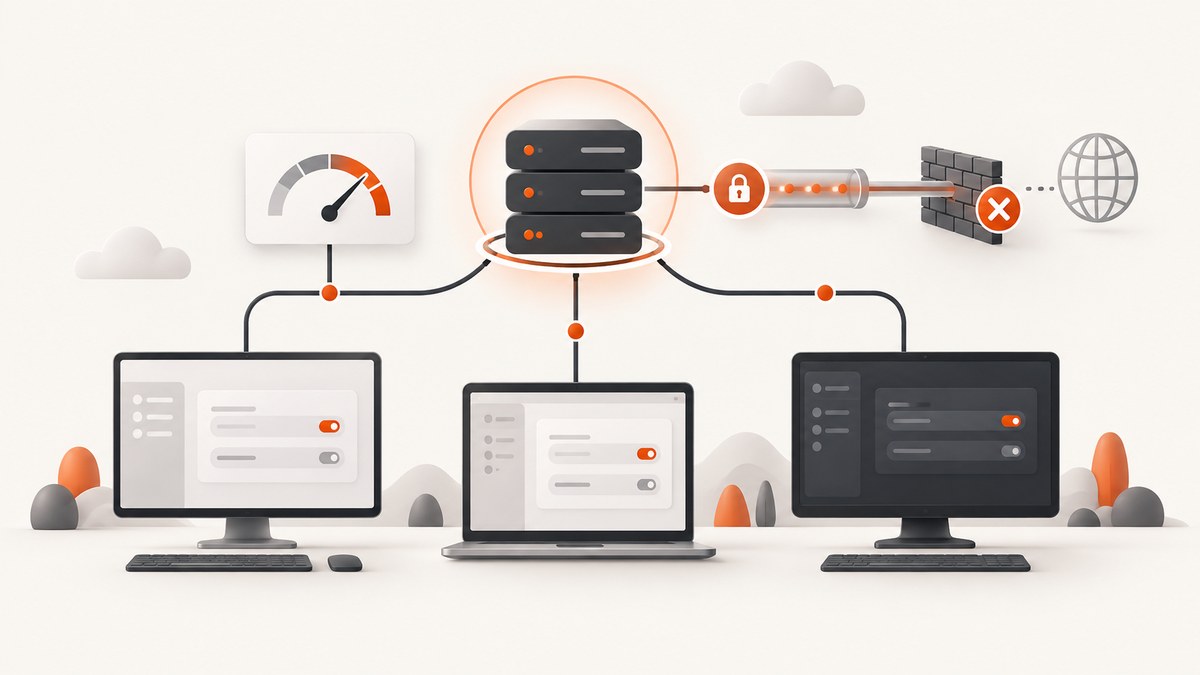
Short answer: changing DNS servers changes the resolver that translates domain names into IP addresses. It can reduce lookup time or improve reliability on some networks, but it cannot increase your broadband connection’s bandwidth. The best resolver depends on your ISP, location, routing, cache state, and the resolver’s current availability, so benchmark from your own network.
This guide shows how to change DNS on Windows 11, macOS, and common Linux setups; how to use Cloudflare 1.1.1.1 or Google Public DNS; how to enable encrypted DNS; and how to verify, troubleshoot, and reverse the change.
What DNS changes (and what it cannot change)
When you enter example.com, your device asks a DNS resolver for the address of the server hosting that domain. Your router or ISP usually supplies the resolver automatically through DHCP. Replacing it changes that lookup service, not the physical internet link.

- It may help: slow or unreliable lookups, intermittent resolver outages, poor ISP routing to a resolver, or stale resolver cache entries.
- It will not help: a congested Wi-Fi link, low broadband capacity, a slow web server, high latency after DNS lookup, or a browser waiting on JavaScript and images.
- It can cause problems: captive portals, VPN split DNS, company-only domains, parental controls, or local hostnames may depend on the original resolver.
There is no universal fastest DNS provider. Measure several unrelated domains from the network and location where you actually browse. Compare lookup latency, reliability, privacy policy, and compatibility with your VPN or workplace network.
Before you change anything
- Record the current DNS addresses. Take a screenshot or copy them into a note.
- Identify the active connection. A computer may have Wi-Fi, Ethernet, VPN, and virtual adapters at the same time.
- Choose two addresses from one provider. Google Public DNS documents IPv4
8.8.8.8and8.8.4.4, plus IPv62001:4860:4860::8888and2001:4860:4860::8844. Cloudflare commonly pairs1.1.1.1with1.0.0.1for IPv4. Use each provider’s current documentation when entering addresses. - Plan a rollback. If a captive portal, VPN domain, or internal hostname stops resolving, restore Automatic/DHCP or the saved addresses.
Change DNS on Windows 11
Windows 11 exposes DNS fields in the manual IP settings for each network adapter.
Graphical procedure
- Open Start > Settings > Network & internet.
- Select Wi-Fi or Ethernet, then open the connected network.
- Next to IP assignment, select Edit.
- Choose Manual. Turn on IPv4; turn on IPv6 only if you intend to configure IPv6 DNS too.
- Enter the preferred and alternate DNS addresses. Leave the IP address, subnet prefix length, gateway, and other fields unchanged unless you are intentionally changing the whole network configuration.
- Save, disconnect, and reconnect to the network.
Windows 11 also offers DNS-over-HTTPS controls in these manual settings. Depending on the provider and Windows build, choose Off, an automatic template, or a manual template. The fallback-to-plaintext setting controls whether Windows may use ordinary DNS when encrypted DNS fails. Refusing fallback improves confidentiality but can make name resolution fail on networks that block DoH.
Verify and clear the Windows cache
ipconfig /all | findstr /c:"DNS Servers"
ipconfig /flushdns
Run the first command in Command Prompt to see DNS servers on each adapter. Run the second in an elevated Command Prompt when old answers appear to persist. Then test several unrelated domains in a browser and with a command-line lookup tool such as nslookup example.com.
Change DNS on macOS
macOS stores DNS servers per network service. Wi-Fi and Ethernet can therefore have different settings.
- Open Apple menu > System Settings.
- Select Network in the sidebar.
- Choose the active Wi-Fi or Ethernet service and click Details.
- Open DNS, click +, and enter an IPv4 or IPv6 resolver address.
- Remove old entries if you want the new resolver to be preferred. DNS servers are tried in listed order, so leaving an old server first can make your test misleading.
- Click OK, then reconnect to the service.
Apple separates DNS servers from search domains. Search domains append local suffixes to short names and are often required by workplace networks; leave them unchanged unless your administrator tells you otherwise. Apple’s documented path is System Settings > Network > network service > Details > DNS.
Verify on macOS
scutil --dns
nslookup example.com
scutil --dns displays resolver configuration, including per-interface and supplemental resolvers. A VPN can add a higher-priority resolver even after you edit Wi-Fi, so inspect the output while the VPN is connected if that is your normal setup.
Change DNS on Linux
Linux configuration depends on the distribution and network stack. NetworkManager and systemd-resolved are common. A hand-edited /etc/resolv.conf may be replaced at reboot or whenever DHCP reconnects.
NetworkManager desktop
In GNOME, KDE, and other NetworkManager desktops, open the network settings for the active connection. Edit the IPv4 and IPv6 sections, change the method to automatic addresses with manual DNS (wording varies), enter the resolver addresses, and reconnect.
You can inspect and modify connections with nmcli:
nmcli connection show --active
nmcli connection show "Wi-Fi"
sudo nmcli connection modify "Wi-Fi" ipv4.ignore-auto-dns yes ipv4.dns "1.1.1.1 1.0.0.1"
sudo nmcli connection down "Wi-Fi"
sudo nmcli connection up "Wi-Fi"
Replace Wi-Fi with the exact connection name returned by the first command. For IPv6, use the connection’s ipv6.dns property and confirm that IPv6 connectivity is working before relying on it.
systemd-resolved
Check whether systemd-resolved is active:
systemctl is-active systemd-resolved
resolvectl status
If it is active, configure it through NetworkManager or a systemd-resolved configuration file/drop-in rather than replacing a managed resolver file. A typical persistent configuration uses /etc/systemd/resolved.conf:
[Resolve]
DNS=1.1.1.1 1.0.0.1
# DNSOverTLS=yes
After editing, reload the service according to your distribution:
sudo systemctl restart systemd-resolved
resolvectl status
For DNS-over-TLS, systemd-resolved supports a resolver address followed by a verification hostname and a DNSOverTLS=yes setting. Follow your distribution’s systemd documentation for the exact syntax and certificate name.
Why editing /etc/resolv.conf often does not stick
On many distributions, /etc/resolv.conf is a symlink managed by NetworkManager, systemd-resolved, or a DHCP client. Cloudflare’s Linux guidance notes that the file controls which resolver is used on most distributions, but also warns that manual settings can revert after reboot or reconnection. It recommends configuring the network manager or DHCP client instead. Static DNS can also interfere with captive portals.
Benchmark DNS locally
Run tests from the same device and network you use for browsing. Test several unrelated domains, repeat each query, and compare both cold and warm cache behavior. A single fast lookup is not a reliable ranking.
# Linux or macOS with dig
for server in 1.1.1.1 8.8.8.8; do
  echo "Resolver: $server"
  dig @${server} example.com | grep "Query time"
done

# Windows
nslookup example.com 1.1.1.1
nslookup example.com 8.8.8.8
Also test a domain you use through a VPN or company network. A public resolver may answer public names correctly while failing to resolve private zones. Reliability matters as much as the lowest individual latency: a resolver that occasionally times out can make browsing feel slower overall.
Privacy, encrypted DNS, and compatibility
DNS-over-HTTPS and DNS-over-TLS encrypt DNS traffic between your device and the resolver. Encryption prevents observers on the local path from reading ordinary DNS packets, but it does not make the resolver anonymous. The provider can still receive queries according to its policy, so compare data retention and privacy practices.

Encrypted DNS can conflict with networks that intercept DNS, require a captive-portal login, or provide internal split-DNS zones. If a hotel, airport, school, or office network stops working, temporarily return to automatic DNS or enable the operating system’s fallback option, complete the portal login, and then reassess.
Common problems and fixes
| Symptom | Likely cause | Fix |
|---|---|---|
| Websites still use the old resolver | Cached answers, wrong adapter, or VPN DNS | Flush the cache, reconnect, inspect the active adapter, and check VPN settings. |
| Nothing resolves after saving | Typo, unreachable resolver, or invalid IPv6 configuration | Restore Automatic/DHCP, test IPv4 only, then re-enter verified addresses. |
| Captive portal will not open | Portal depends on the network’s DNS interception | Restore automatic DNS, sign in, then test whether a custom resolver works afterward. |
| Company or home names fail | Split DNS or local search domain was removed | Keep the VPN or enterprise resolver for private zones; do not replace search domains casually. |
| Linux setting disappears | NetworkManager, systemd-resolved, or DHCP rewrote resolv.conf |
Configure the managing service and verify with resolvectl status or nmcli. |
| Pages feel no faster | DNS was not the bottleneck | Measure lookup time separately from connection, TLS, server response, and asset loading time. |
Performance, reliability, and cost notes
- Performance: DNS is usually paid once per hostname and then cached. A faster resolver may improve first visits, while repeat visits show little difference.
- Reliability: Use two addresses from the same provider, but remember that a second address does not fix a routing outage affecting the entire provider.
- Cost: Public resolvers such as Google Public DNS and Cloudflare 1.1.1.1 are generally offered as free services; check each provider’s current terms.
- Security: Encrypted transport protects the query in transit. It does not replace endpoint security, HTTPS, or a privacy review of the resolver operator.
- Rollback: Keep the original values and know which network service you changed. This is especially important on laptops that move between home, office, VPN, and captive-portal networks.
Or skip the browser setup
If your actual goal is to collect clean images of websites for documentation, QA, reports, or an AI workflow, a DNS change will not solve browser automation. ScreenshotNeo provides a website screenshot API: one GET request returns a PNG, JPEG, WebP, or PDF. Its capture process accepts cookie and consent banners before the shot and removes more than 60 known consent platforms, newsletter popups, and chat widgets. Bot checks, blank pages, timeouts, failed loads, and cache hits are not billed, and response headers identify the page verdict and billing result.
See the ScreenshotNeo API documentation for all options, including full-page or element capture, device presets, dark mode, custom CSS and JavaScript, waits, request blocking, headers, cookies, geolocation, caching, signed links, asynchronous jobs, bulk capture, and PDF settings.
cURL
curl -G "https://api.screenshotneo.com/v1/shot" \
  -d access_key=YOUR_API_KEY \
  --data-urlencode url=https://stripe.com \
  -o shot.webp
Python
import requests

r = requests.get(
    "https://api.screenshotneo.com/v1/shot",
    params={"access_key": "YOUR_API_KEY", "url": "https://stripe.com"},
    timeout=90,
)
r.raise_for_status()
open("shot.webp", "wb").write(r.content)
Node.js
const q = new URLSearchParams({
  access_key: 'YOUR_API_KEY',
  url: 'https://stripe.com'
});
const res = await fetch(`https://api.screenshotneo.com/v1/shot?${q}`);
if (!res.ok) throw new Error(`HTTP ${res.status}`);
const image = Buffer.from(await res.arrayBuffer());
require('fs').writeFileSync('shot.webp', image);
An MCP server lets Claude, Cursor, and other MCP clients call take_screenshot, get_page_info, and capture_pdf. The Free plan includes 1,000 screenshots per month with no card; paid plans start at $5 for 3,000. Create a free ScreenshotNeo account.
FAQ
Will changing DNS make every website load faster?
No. It can improve name lookup time, but page rendering, connection latency, server performance, and downloaded assets can dominate total load time.
Should I choose Google Public DNS or Cloudflare?
Benchmark both from your network and compare reliability, privacy policy, and compatibility with VPNs, captive portals, and private domains. There is no universal winner.
Do I need to change IPv6 DNS too?
Only if your network actively uses IPv6 and you want consistent resolver behavior. Enter valid IPv6 addresses or leave IPv6 automatic; a broken IPv6 configuration can create delays.
Can I change DNS only for one browser?
Some browsers provide their own secure-DNS setting, which affects browser traffic without changing other applications. Check the browser’s current documentation and remember that VPN or enterprise policies may override it.
What is the safest way to undo the change?
Return the adapter or network service to Automatic/DHCP, or restore the addresses you recorded before editing. Reconnect, flush the cache where applicable, and test public and private domains.


