How to Change the Link Preview Image on Facebook
Change Facebook’s link preview image by updating your page’s Open Graph image, publishing it, and requesting a fresh scrape in Sharing Debugger.
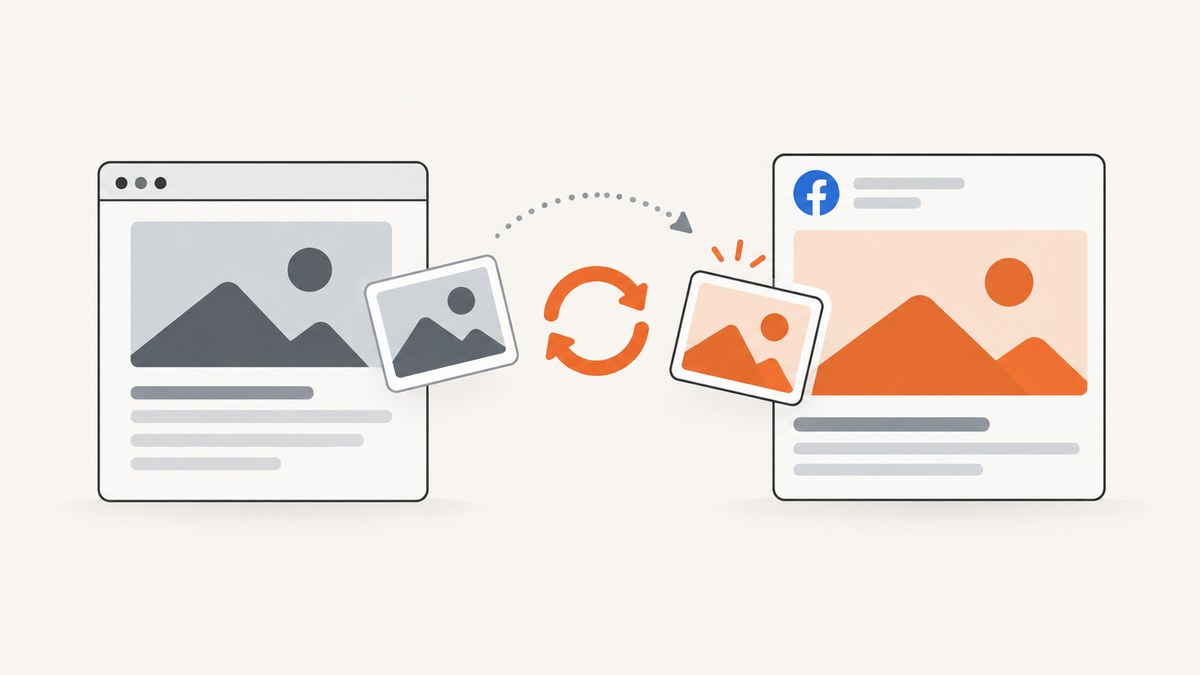
Direct answer: You generally cannot replace the image of an organic Facebook link preview directly in the post composer. Change the Open Graph or social-sharing image on the linked webpage, publish that change, then submit the complete URL to Facebook Sharing Debugger and request a new scrape. This updates the metadata Facebook retrieves for the URL. It does not guarantee that a preview already attached to a published post will change.
The key distinction is where the image is controlled. Facebook reads the link card from the page being shared. If you own that page, you can change its metadata. If you do not control it, you need the site owner to make the change.
What controls a Facebook link preview?
A link preview is assembled from information available at the destination URL, including the page title, description and social-sharing image. Open Graph markup is the publisher-side mechanism Meta describes for preparing link attachments. In 2017, Meta announced that ordinary Pages would no longer be able to override link metadata such as the headline, description or image through the publishing composer or API. Meta said Pages could continue using Open Graph markup and Sharing Debugger to prepare and preview attachments. A practitioner guide updated in 2025 describes the same restriction for organic Page link previews.
That means the reliable workflow is source-first:
- Change the share image on the specific webpage.
- Publish the webpage.
- Ask Facebook to scrape the full URL again.
- Check the debugger’s detected preview.
- Treat existing published posts as a separate case; a re-scrape may not rewrite a card already attached to a post.
Before you start: confirm you can change the source page
You need access to the website or CMS that serves the URL. Look for a page-level setting named something like Social image, Share image, Open Graph image or Social sharing. The exact label depends on the platform.

If the URL belongs to another company, another creator or a service you cannot edit, Facebook’s composer does not give you a dependable replacement control for an organic link card. Contact the site owner and provide the exact URL and the image you want them to use.
Step-by-step: update the image and refresh Facebook
1. Prepare the replacement image
Choose the image you want associated with that page when it is shared. Use an image that belongs to the page and that your organization has permission to publish. Keep the important subject near the center so it survives different card crops. If your CMS documents image dimensions or file limits, follow those instructions; the available evidence does not establish one universal size or file-type requirement for every Facebook preview.
2. Change the page’s social-sharing image
Open the page settings in your website builder or CMS. Set the page-specific share image or Open Graph image. Do not assume that changing a site-wide default changes the page you are sharing; many systems let an individual page override the default.
If you manage HTML directly, the relevant metadata normally looks like this:
<meta property="og:title" content="Your page title">
<meta property="og:description" content="A concise description of the page.">
<meta property="og:image" content="https://example.com/images/share-image.jpg">
<meta property="og:url" content="https://example.com/page">
Use the absolute public URL of the image. The exact fields and generated markup vary by CMS, so inspect the published page source if you need to confirm what the platform emitted.
3. Publish the webpage
Save the setting and publish the page. A draft, preview environment or unsaved CMS field is not enough for Facebook’s crawler. Open the public URL in a private browser window and confirm that you are looking at the current page.
4. Request a fresh scrape
Open Sharing Debugger, enter the complete public URL, and inspect the Link Preview section. Click Scrape Again to ask Facebook to retrieve the current page information. If the debugger still displays the previous image, verify the published setting and submit the exact URL again.
5. Share a new post to verify the result
Create a new post with the same URL after the debugger shows the intended image. A new post is the clearest verification because it requests a link attachment after the metadata refresh.
What happens to an existing Facebook post?
A successful scrape proves that Facebook can retrieve the newer metadata for the URL. It does not prove that every already-published post will have its attached card replaced. Support guidance warns that refreshing through Sharing Debugger does not guarantee a change to an existing post.
If the old card is already public, update the source page and refresh the scrape anyway, then publish a new post if the image must be visible immediately. Do not promise stakeholders that a metadata refresh will retroactively repair every historical card.
Common situations and the correct action
| Situation | What you control | Action |
|---|---|---|
| You own the website | Page metadata and publishing | Set the page share image, publish, then use Sharing Debugger. |
| You use a CMS | CMS social settings | Change the page-level social image; check the public page after publishing. |
| You do not own the URL | Nothing on the source page | Ask the site owner to change its Open Graph image. |
| The image changed on the website but not in debugger | Published metadata and scrape request | Confirm the setting was saved and published, then submit the exact URL and click Scrape Again. |
| The debugger is correct but an old post is unchanged | New post creation | Assume the existing attachment may remain; share the URL in a new post. |
Troubleshooting: old or missing preview images
The debugger still shows the old image
Cause: The new image was not saved, the page was not published, or Facebook has not fetched the changed metadata yet.
Fix: Reopen the CMS setting, save it, publish the page, and verify the public URL. Submit that exact URL in Sharing Debugger and choose Scrape Again. Repeat the check if the debugger continues to show the old result.
You changed a site-wide image, but one page is unchanged
Cause: The page may have its own social-image override.
Fix: Edit the individual page’s share image and publish it. Inspect the page source to see which Open Graph image the public page exposes.
The image is right in Sharing Debugger but wrong in a published post
Cause: The post may contain an attachment created before the metadata refresh.
Fix: Create a new post with the URL. Available support guidance does not guarantee that an existing card will be replaced after re-scraping.
You cannot find an image setting
Cause: Your platform may call it Open Graph, social sharing, social preview or link image, or it may require an SEO extension.
Fix: Search the platform’s documentation for those terms. If you have no access to the website code or CMS, ask the site owner to make the change.
You are trying to change another person’s link
Cause: Facebook’s organic composer is not a dependable source-side replacement mechanism.
Fix: Request the change from the owner of the linked page. You can only refresh metadata that the source page publishes.
How to verify previews programmatically
For a publishing workflow, capture the public page after publishing and keep a record of the URL, image version and scrape time. A screenshot cannot change Facebook metadata, but it can help you confirm that the public page and its visual content are live before you request a scrape.
When you need repeatable page captures, ScreenshotNeo provides a website screenshot API and MCP server. It can capture PNG, JPEG, WebP or PDF output from one request, with options for full-page shots, a CSS-selected element, custom headers, cookies, JavaScript, waits and caching. The API is useful for checking the published source page in a release pipeline; Facebook still decides which metadata it uses for the link card.
Performance, reliability and cost considerations
- Publish before scraping: A scrape request cannot see a CMS change that is still a draft.
- Use the canonical URL: Submit the complete URL you will share, including the correct path and any required public routing.
- Keep a change record: Store the image URL, publication time and debugger result when social previews are part of a campaign launch.
- Separate source checks from Facebook checks: First confirm the public page serves the intended image; then request the Facebook scrape.
- Plan for existing posts: If a campaign depends on a new card, create a new post after the debugger is correct.
- Budget: Updating Open Graph metadata and using Sharing Debugger do not require a physical product. ScreenshotNeo usage is optional and follows its own plans.
Or skip the browser setup
If you need a clean screenshot of the published URL for review, documentation or an automated check, ScreenshotNeo lets you request it directly. Cookie banners, newsletter popups and chat widgets are removed before the shot; bot checks, blank pages and failed loads are never billed. Responses identify the page verdict and billing status with X-Page-Verdict and X-Billed headers. An MCP server lets AI agents such as Claude or Cursor take screenshots, inspect pages and capture PDFs.
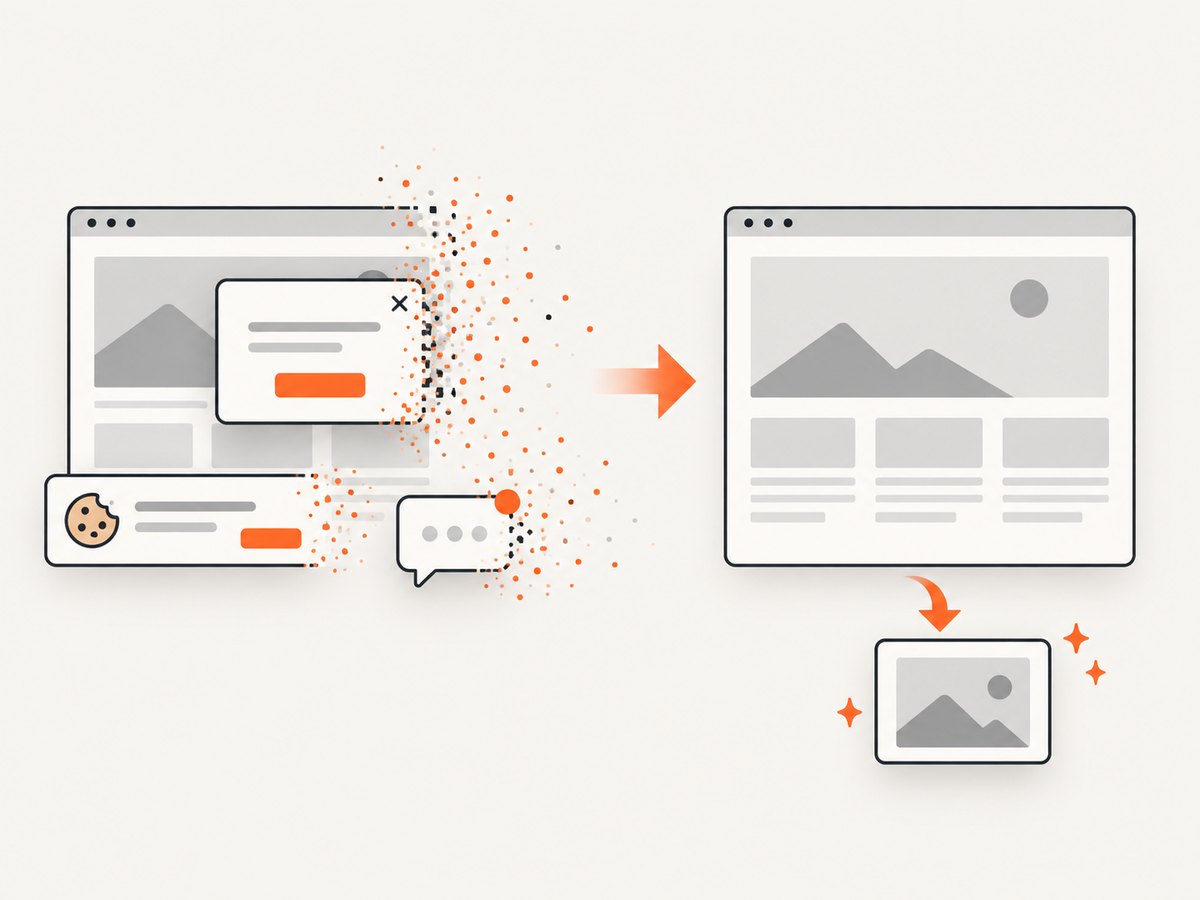
See the ScreenshotNeo API documentation for all options. Here is a one-call WebP capture of the page whose preview you are preparing:
cURL
curl -G "https://api.screenshotneo.com/v1/shot" \
  -d access_key=YOUR_API_KEY \
  --data-urlencode url=https://example.com/page \
  -o shot.webp
Python
import requests

r = requests.get(
    "https://api.screenshotneo.com/v1/shot",
    params={"access_key": "YOUR_API_KEY", "url": "https://example.com/page"},
    timeout=90,
)
r.raise_for_status()
open("shot.webp", "wb").write(r.content)
Node.js
const q = new URLSearchParams({
  access_key: 'YOUR_API_KEY',
  url: 'https://example.com/page'
});
const res = await fetch(`https://api.screenshotneo.com/v1/shot?${q}`);
if (!res.ok) throw new Error(`Screenshot failed: ${res.status}`);
const data = Buffer.from(await res.arrayBuffer());
require('fs').writeFileSync('shot.webp', data);
There are 1,000 screenshots a month free with no card; paid plans start at $5 for 3,000 shots. Create a free ScreenshotNeo account.
FAQ
Can I pick a different image while composing the Facebook post?
For ordinary organic link posts, do not rely on a composer control to replace the source image. Change the linked page’s Open Graph image and request a fresh scrape.
How long does a Facebook scrape take?
The available guidance supports requesting another scrape but does not establish a universal processing time. Check the debugger result rather than promising a fixed interval.
Will changing the image rename or rewrite the page?
No. The workflow changes the social-sharing metadata associated with the URL. Your page content and URL can remain the same.
Do I need to change the image file URL?
Not necessarily. The important step is publishing the intended Open Graph image for the page and then asking Facebook to fetch the URL again.
Can ScreenshotNeo force Facebook to use my image?
No. ScreenshotNeo captures the public webpage. Facebook chooses the link-card metadata it retrieves. Use ScreenshotNeo to verify the published page, then use Sharing Debugger for Facebook’s metadata fetch.
Checklist
- Confirm you control the linked page.
- Set the page-level social-sharing or Open Graph image.
- Publish the webpage.
- Open Sharing Debugger with the exact public URL.
- Click Scrape Again and inspect the preview.
- Create a new post if an existing attachment still shows the old image.
- Record the final image and URL for future campaign checks.


