How to Change the Default Output Filename for Headless Chrome PDFs
Chrome’s headless CLI writes PDFs as output.pdf in the current working directory. Learn how to rename that file safely or choose a path directly with Puppeteer.
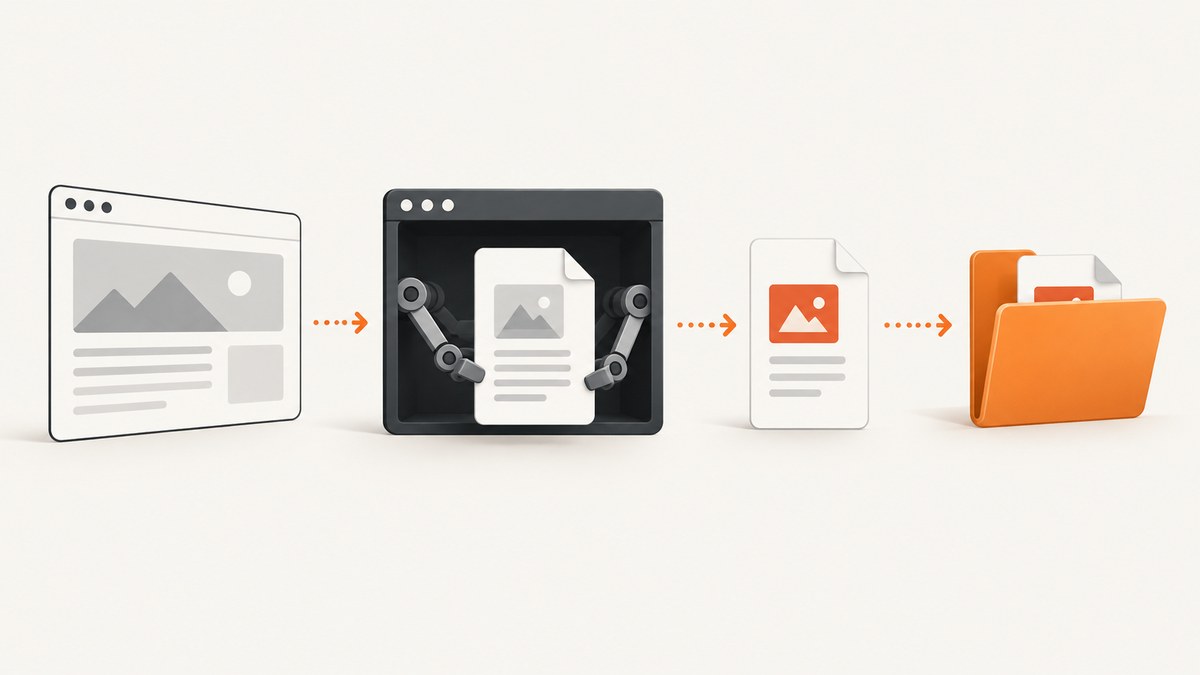
When you run Chrome with --headless --print-to-pdf, the documented default output is output.pdf in the current working directory. Chrome’s documented CLI reference does not provide a filename argument for --print-to-pdf. For a shell workflow, wait for Chrome to exit and then move or rename output.pdf. For a Node.js workflow, Puppeteer lets you set the destination with page.pdf({ path: ... }).
This distinction matters: changing the output name in a wrapper script is post-processing; Puppeteer’s path option is a programmatic PDF setting, not a Chrome command-line switch. The CLI behavior and Puppeteer example are documented by Chrome’s Headless command-line reference and its Headless Chrome shell guide.
1. What the CLI does by default
The basic command is:
chrome --headless --print-to-pdf https://example.com/Chrome writes output.pdf in the process’s current working directory. The directory is determined by where the command is launched, not necessarily by the directory containing the Chrome executable or the page being printed.
The documented reference does not show a filename or output-path parameter for --print-to-pdf. In particular, --no-pdf-header-footer controls printed headers and footers; it does not choose a filename. Older Chrome versions may use --print-to-pdf-no-header for that header/footer behavior. Check the installed version’s behavior if a version-sensitive flag matters to your automation.
2. Rename the output after Chrome exits
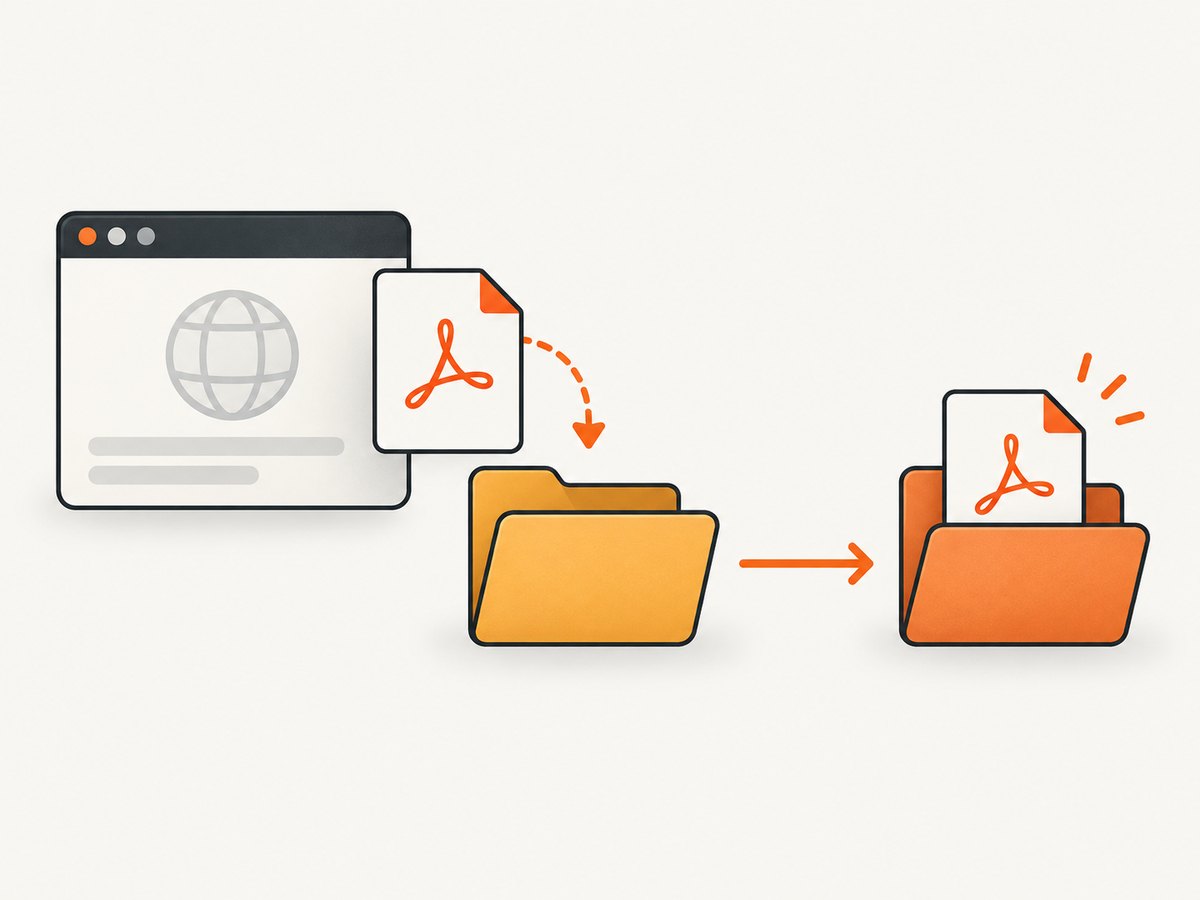
For a one-off shell task, run Chrome from the destination directory, then rename the generated file. The rename must happen after Chrome finishes writing the PDF.
Linux or macOS
#!/usr/bin/env bash
set -euo pipefail

url="https://example.com/"
out_dir="./pdf-output"
filename="example-report.pdf"

mkdir -p "$out_dir"
(
  cd "$out_dir"
  chrome --headless --print-to-pdf "$url"
  mv -- output.pdf "$filename"
)

printf 'Created %s/%s\n' "$out_dir" "$filename"
This script creates the directory, launches Chrome with that directory as its working directory, and renames the result only if Chrome exits successfully. Replace chrome with the executable name or full path used on your system. The wrapper is an operational workaround based on Chrome’s documented default filename and location; it is not a filename option documented by Chrome.
Windows PowerShell
$ErrorActionPreference = 'Stop'
$url = 'https://example.com/'
$outDir = Join-Path $PWD 'pdf-output'
$filename = 'example-report.pdf'

New-Item -ItemType Directory -Force -Path $outDir | Out-Null
Push-Location $outDir
try {
    & chrome --headless --print-to-pdf $url
    if ($LASTEXITCODE -ne 0) {
        throw "Chrome exited with code $LASTEXITCODE"
    }
    Move-Item -LiteralPath 'output.pdf' -Destination $filename -Force
}
finally {
    Pop-Location
}
If Chrome is not on PATH, replace chrome with the full executable path. Move-Item -Force replaces an existing destination file, so remove -Force if overwriting a prior report is undesirable.
Pass a destination directory from a caller
A wrapper can accept the URL and output path as arguments. Keep the generated file in a dedicated, per-job working directory when multiple jobs may run at the same time: every CLI invocation uses the fixed default name output.pdf.
#!/usr/bin/env bash
set -euo pipefail

if [[ $# -ne 2 ]]; then
  echo "Usage: $0 URL DESTINATION.pdf" >&2
  exit 2
fi

url="$1"
dest="$2"
dest_dir="$(dirname -- "$dest")"
base="$(basename -- "$dest")"
mkdir -p "$dest_dir"
work_dir="$(mktemp -d "$dest_dir/.chrome-pdf.XXXXXX")"
trap 'rm -rf "$work_dir"' EXIT

(
  cd "$work_dir"
  chrome --headless --print-to-pdf "$url"
  test -s output.pdf
  mv -- output.pdf "$dest_dir/$base"
)
This pattern avoids two workers racing to rename the same output.pdf. For higher assurance, consider validating the PDF before publishing it to the final path and using a temporary destination followed by an atomic rename on the same filesystem.
3. Set the filename directly with Puppeteer
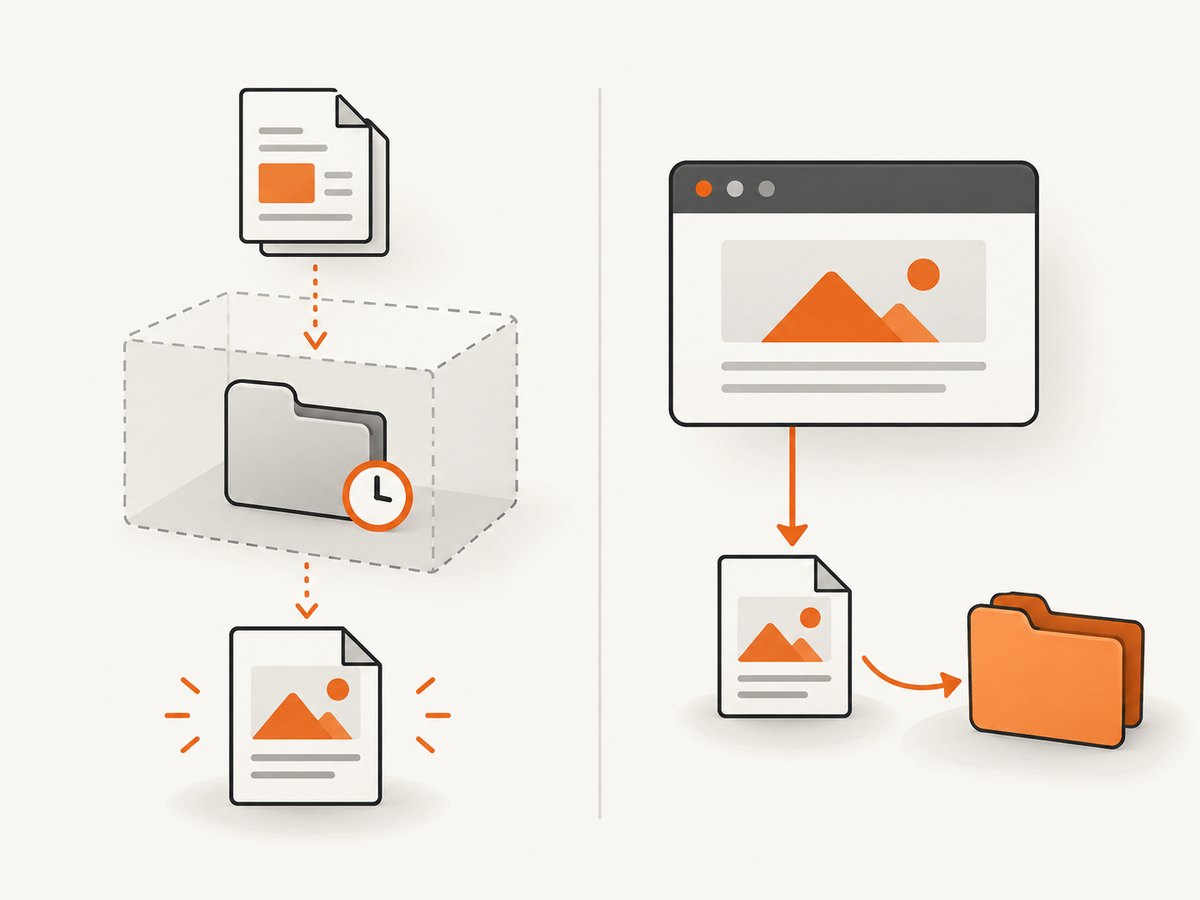
If your application already runs Node.js, Puppeteer’s PDF API accepts a path option. The path controls where Puppeteer writes the PDF, so there is no need to rename Chrome’s default CLI output.
const puppeteer = require('puppeteer');

async function main() {
  const browser = await puppeteer.launch({ headless: true });
  try {
    const page = await browser.newPage();
    await page.goto('https://example.com/', {
      waitUntil: 'networkidle0',
      timeout: 60_000,
    });

    await page.pdf({
      path: './pdf-output/example-report.pdf',
      format: 'A4',
      printBackground: true,
    });
  } finally {
    await browser.close();
  }
}

main().catch((error) => {
  console.error(error);
  process.exitCode = 1;
});
Create the parent directory before calling page.pdf if it may not exist. The path value can be relative to the Node process’s working directory or an absolute filesystem path. The Chrome documentation’s Puppeteer example uses page.pdf({path: 'page.pdf', format: 'A4'}); options such as printBackground are included here as common PDF configuration choices, not as CLI filename flags.
When to choose each method
| Need | Approach | Trade-off |
|---|---|---|
| A quick command from a terminal | Run CLI in destination directory, then rename | Requires a post-processing step |
| Scheduled shell job | Wrapper with isolated working directory and error checks | You maintain the wrapper and cleanup behavior |
| Node.js application or service | Puppeteer page.pdf({ path }) |
Requires a Puppeteer workflow rather than a standalone CLI call |
4. Choose a filename safely
Filenames often come from a title, URL, report ID, or user input. Treat that value as data, not shell syntax. Quote variables in shell scripts, and avoid building a command string that is later evaluated with eval. For cross-platform or shared storage, normalize names: replace path separators and control characters, avoid reserved names, and impose a length limit.
- Use a stable identifier. Names such as
invoice-2026-09-30.pdfare easier to trace than a genericreport.pdf. - Decide what collisions mean. Overwrite, add a unique suffix, or fail clearly; do not let concurrent jobs silently share one destination.
- Keep extensions consistent. Name the output with a
.pdfsuffix so users and downstream tools recognize its format. - Handle spaces deliberately. Quote paths in shell commands and use APIs that accept path strings in application code.
- Check the result. Confirm the expected file exists and is nonempty before reporting success or moving it into a published location.
5. Relevant PDF and CLI settings
The filename choice is separate from page layout and rendering. The CLI reference documents --print-to-pdf and the header/footer control, while Puppeteer’s PDF API exposes a path in its options. For Puppeteer, options such as paper format and print background determine the PDF’s appearance; they do not alter the CLI’s default output name.
For a CLI capture without printed headers and footers, use the supported flag for the installed version:
chrome --headless --no-pdf-header-footer --print-to-pdf https://example.com/Some older versions use --print-to-pdf-no-header. Verify compatibility against the Chrome version deployed in your environment. Do not use either flag as a substitute for renaming the file.
6. Troubleshooting
| Symptom | Likely cause | Fix |
|---|---|---|
output.pdf is missing |
Chrome failed, was interrupted, or wrote in a different working directory | Check Chrome’s exit status and logs; print the working directory immediately before launch; confirm the command has permission to write there. |
| The rename says the file does not exist | The script renamed before Chrome completed, or the current directory differs from the expected one | Run the rename only after the Chrome process returns. Change into the intended directory in the same subshell that launches Chrome. |
| Every run overwrites the same PDF | The CLI uses the fixed default name in a shared working directory | Give each job its own temporary working directory, or serialize the jobs. |
| The destination directory does not exist | The wrapper assumes the parent path is already present | Create it with mkdir -p or the equivalent before launching or writing the PDF. |
| The output is empty or incomplete | The page did not finish loading, Chrome exited early, or the destination was observed before writing completed | Wait for process completion, check the exit code, verify nonzero file size, and review page-load behavior. |
| Header/footer flag is rejected | The flag differs across Chrome versions | Check the installed version and use the current documented flag or the older name supported by that version. |
| Puppeteer cannot write to the chosen path | The parent directory is absent or the process lacks filesystem permission | Create the directory first and verify the service account can write there. |
| Two jobs produce the wrong name or overwrite each other | Both jobs share the same CLI working directory and output.pdf |
Use a separate working directory for each process, then move each result to its unique destination. |
7. Performance, reliability, and cost
Renaming a file adds little work compared with loading and printing a page, but a reliable pipeline needs to wait for Chrome to exit and check its status. A fixed shared working directory is the main operational hazard: parallel jobs can collide on output.pdf. Isolate each job’s working directory, use unique destinations, and clean up temporary files even when a process fails.
For repeated captures, reuse a browser process through an application-level Puppeteer design when appropriate, while keeping page or job state isolated. Set a practical navigation timeout and decide how your job handles pages that never become idle. Network-idle conditions can be unsuitable for pages with ongoing requests; choose a readiness condition that fits the page and verify the resulting document before marking the job successful.
Chrome itself has no per-PDF filename cost beyond the compute and storage used by your environment. In a hosted workflow, account for browser runtime, concurrency, storage, retries, and the cost of failed jobs. A retry should write to a fresh temporary location so a partial prior result is not mistaken for the new PDF.
8. Or skip the browser setup
If the goal is to get a PDF of a public page rather than manage Chrome, ScreenshotNeo provides a website screenshot API and MCP server. It can return a PDF, with PDF settings including paper size, margins, landscape orientation, and page ranges. See the ScreenshotNeo API documentation for request options.
curl -G "https://api.screenshotneo.com/v1/shot" -d access_key=YOUR_API_KEY --data-urlencode url=https://stripe.com -o shot.webpThis example uses the supplied one-call request and saves the response as an image; choose PDF output and its relevant options when configuring a PDF capture in the API. ScreenshotNeo removes cookie banners, popups, and chat widgets before the shot. Bot checks, blank pages, and failed loads are never billed. Its MCP server lets AI agents take screenshots. The free plan includes 1,000 screenshots per month with no card; paid plans start at $5 for 3,000. Sign up for 1,000 free screenshots a month, no card required.
FAQ
Where does --print-to-pdf save the PDF?
It saves output.pdf in Chrome’s current working directory, according to the documented Headless CLI behavior.
Can I pass a custom filename directly to the Chrome CLI?
The cited Chrome CLI reference documents no filename override for this flag. Use a wrapper to rename the output afterward, or use an API such as Puppeteer’s PDF method that accepts a path.
Does --no-pdf-header-footer change the filename?
No. It controls whether printed headers and footers appear. It does not set the output name.
Is Puppeteer’s path a Chrome command-line option?
No. It is an option supplied to Puppeteer’s PDF API, which controls the file path in that programmatic workflow.
Why should each CLI job use a separate directory?
Because the CLI default filename is fixed as output.pdf. Separate working directories prevent simultaneous runs from competing for the same file.


