Change an HTML File to JPG: Complete Developer Guide
Render any local HTML file as a JPG with Chrome, wkhtmltoimage, PHP, Python, Node.js, or ScreenshotNeo, including sizing and troubleshooting.
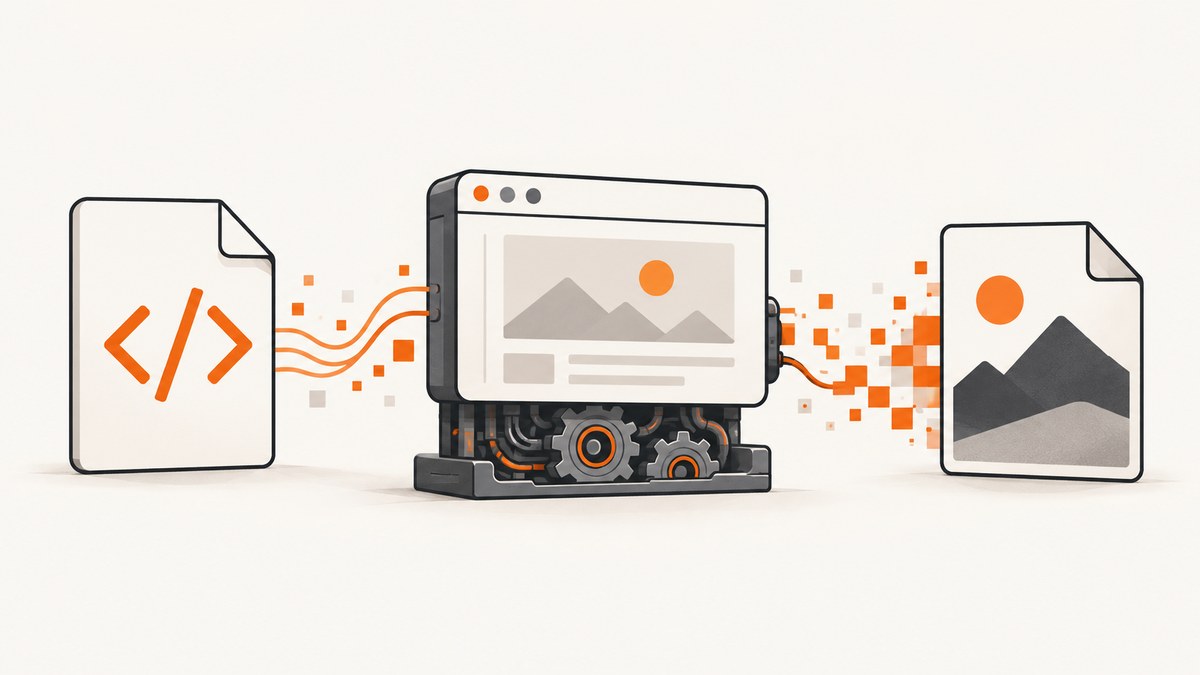
Short answer: HTML is markup, so converting an HTML file to JPG means rendering it in a browser or HTML renderer and saving the resulting pixels as JPEG. For a direct command-line JPG, use wkhtmltoimage --format jpg input.html output.jpg. Chrome Headless captures PNG by default, so convert its screenshot to JPG afterward. For repeated jobs, automate a real browser with Puppeteer, Browsershot, or a screenshot API such as ScreenshotNeo.
What “HTML to JPG” actually means
An HTML file contains structure, styles, images, fonts, and possibly JavaScript. A JPG contains only a raster image. The conversion therefore has two stages:
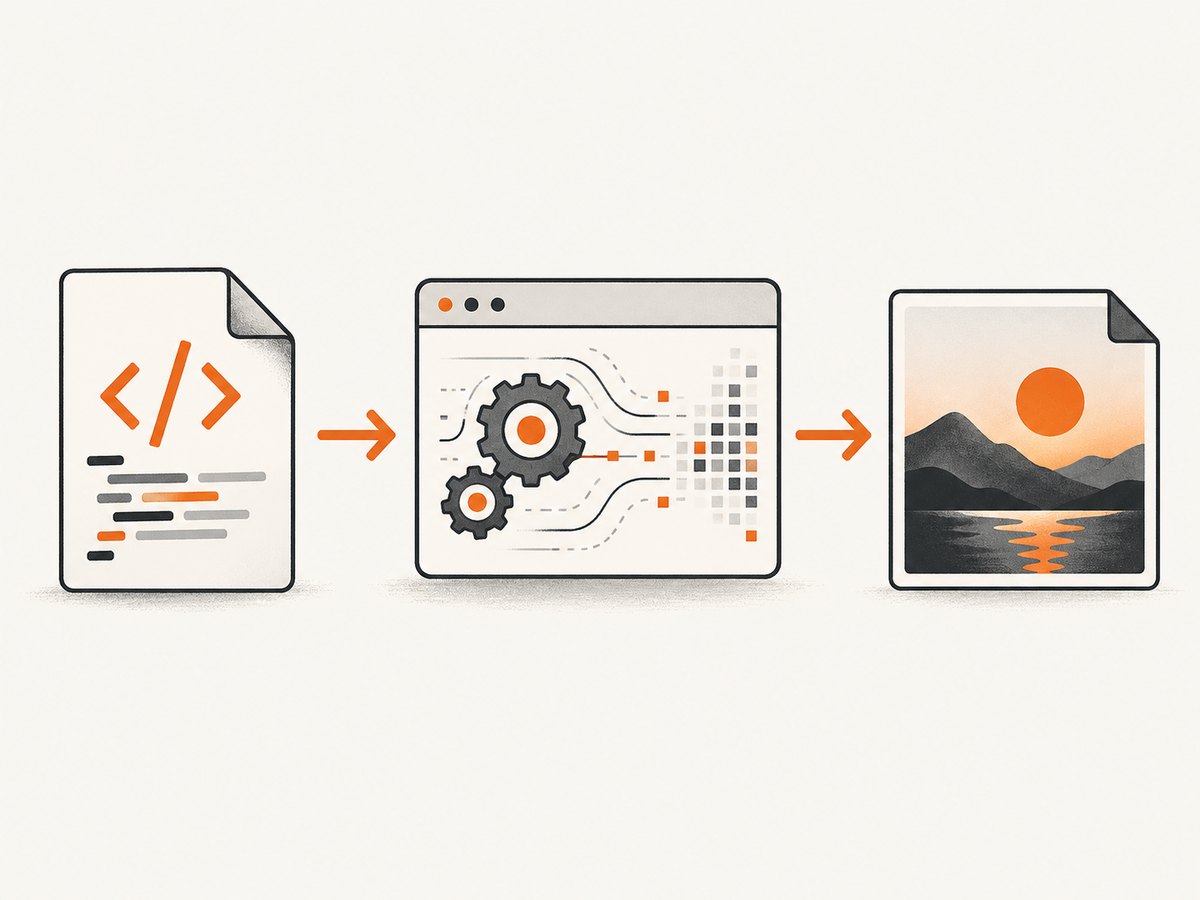
- Load the document and its dependencies in a rendering engine.
- Capture the rendered viewport or page and encode those pixels as JPEG.
The output depends on the viewport width and height, device pixel ratio, font availability, JavaScript timing, local-file permissions, and whether you capture one screen or the complete page. A screenshot is not automatically a JPG: Chrome’s documented --screenshot flag writes screenshot.png, so a conversion step is required for JPEG output. Chrome’s command-line reference documents screenshot output, window sizing, timeout, and script processing.
Choose the right conversion method
| Method | Best for | JPG output | Main consideration |
|---|---|---|---|
| wkhtmltoimage | One-off CLI jobs and shell scripts | Direct | Uses Qt WebKit; verify pages that depend on newer browser features |
| Chrome Headless | Browser-faithful rendering | PNG first, then convert | Requires Chrome/Chromium and an image conversion step |
| Browsershot/Puppeteer | PHP or Node automation | Save a screenshot, then encode JPG | Browser installation and process management |
| ScreenshotNeo | Hosted, repeatable captures without browser setup | JPG, PNG, WebP, or PDF | API key and network request required |
Method 1: Convert HTML directly with wkhtmltoimage
wkhtmltoimage is a headless command-line HTML renderer. Its command-line reference documents input and output paths, output format, screen width, and crop controls. Check the help for the specific binary installed on your system because options can vary by build. Read the wkhtmltoimage reference.
Basic command
wkhtmltoimage --format jpg input.html output.jpgOpen output.jpg and inspect it for missing fonts, clipped content, unloaded images, and JavaScript that had not finished. To make the viewport wider:
wkhtmltoimage --format jpg --width 1440 input.html output.jpgFor a fixed crop, use the crop options supported by your version:
wkhtmltoimage --format jpg --width 1200 --height 800 input.html output.jpgSome pages reference local CSS, images, or fonts. If they do not appear, review local-file access settings and use the allow-path option documented by your Debian or packaged manual:
wkhtmltoimage --enable-local-file-access --allow /absolute/path/to/project input.html output.jpgUse absolute paths while diagnosing resource problems. Relative paths are resolved from the document location and can fail when a script launches the command from another working directory.
Method 2: Chrome Headless, then PNG-to-JPG conversion
Chrome runs page scripts before taking its screenshot, which makes it a useful choice for modern CSS and JavaScript. The documented output is PNG, however. Chrome’s Headless documentation shows the screenshot flag and --window-size.
Capture a local file
google-chrome --headless --disable-gpu \
  --screenshot=screenshot.png \
  --window-size=1440,1000 \
  file:///absolute/path/to/input.html
On some systems the executable is named chromium or chromium-browser. If the page is still loading, increase the command’s timeout or use a scripted browser that can wait for a selector or network idle.
Convert PNG to JPG with ImageMagick
magick screenshot.png -background white -alpha remove -alpha off -quality 90 output.jpgJPEG has no transparency. The white background flags prevent transparent HTML backgrounds from becoming an unexpected black or checkerboard color. Adjust -quality between 1 and 100 according to your size and visual requirements.
Convert with Python Pillow
from PIL import Image

image = Image.open("screenshot.png")
if image.mode in ("RGBA", "LA"):
    background = Image.new("RGB", image.size, "white")
    background.paste(image, mask=image.getchannel("A"))
    image = background
else:
    image = image.convert("RGB")
image.save("output.jpg", "JPEG", quality=90, optimize=True)
Method 3: Automate the conversion in code
Node.js with Puppeteer
import puppeteer from "puppeteer";
import sharp from "sharp";

const browser = await puppeteer.launch({headless: "new"});
const page = await browser.newPage();
await page.setViewport({width: 1440, height: 1000, deviceScaleFactor: 1});
await page.goto("file:///absolute/path/to/input.html", {waitUntil: "networkidle0"});
await page.screenshot({path: "page.png", fullPage: true});
await browser.close();

await sharp("page.png").flatten({background: "#ffffff"}).jpeg({quality: 90}).toFile("page.jpg");
Install dependencies with npm install puppeteer sharp. Use fullPage: true for the full document; omit it for a viewport screenshot. A selector wait is safer than a fixed sleep when a known component signals readiness:
await page.goto("file:///absolute/path/to/input.html", {waitUntil: "domcontentloaded"});
await page.waitForSelector("#report-ready", {timeout: 30000});
PHP with Spatie Browsershot
Browsershot wraps Puppeteer and headless Chrome. It accepts a local HTML file path and can save an image or PDF depending on the output path. A typical image call is:
use Spatie\Browsershot\Browsershot;

Browsershot::url('file:///absolute/path/to/input.html')
    ->windowSize(1440, 1000)
    ->waitUntilNetworkIdle()
    ->setScreenshotType('jpeg', 90)
    ->save('/absolute/path/to/output.jpg');
Follow the installed Browsershot version’s setup instructions for Node, Puppeteer, and Chrome paths. If your version does not expose JPEG settings directly, save PNG and convert it with an image library.
Control the rendered result
Viewport, full page, and element capture
A viewport screenshot captures what fits in the browser window. A full-page capture stitches or lays out the complete document, including content below the fold. Set dimensions deliberately: a narrow viewport can trigger mobile CSS and change the design. For a single card or invoice, capture a specific element in a scripted browser rather than cropping a low-resolution full page.
Fonts and local assets
Install required fonts on the machine running the renderer, or bundle web fonts and ensure the renderer can access them. Check every href, src, and CSS url(). A local file may fail to load resources because of relative paths, file-origin restrictions, permissions, or a server that is not running. Start a local HTTP server when the page expects HTTP behavior:
python -m http.server 8000 --directory /absolute/path/to/project
# Then render http://127.0.0.1:8000/input.html
Dynamic content and timing
Wait for the condition that means the page is ready: a selector, a network-idle state, or a known delay for an animation. Freeze animations when reproducibility matters:
/* screenshot.css */
*, *::before, *::after {
  animation: none !important;
  transition: none !important;
}
Inject that stylesheet before capture, or include it in a print/screenshot-specific HTML build. Remember that network idle can be postponed by analytics or long-lived connections; a readiness selector can be more reliable.
JPG quality and color
JPEG is lossy. Quality 80–90 is a practical starting range for screenshots with photographs; diagrams and text may show ringing around sharp edges. Keep PNG for pixel-perfect text or transparent artwork. Flatten transparency against an explicit background before encoding JPG.
Or skip the browser setup
ScreenshotNeo accepts one GET request and returns a rendered PNG, JPEG, WebP, or PDF. It can load a URL, and its HTML/CSS-to-image support is useful when you expose a local document through a reachable URL. The service can remove cookie banners, newsletter popups, and chat widgets before capture. Bot checks, blank pages, timeouts, failed loads, and cache hits are not billed; response headers identify the page verdict and whether the shot was billed.
cURL
curl -G "https://api.screenshotneo.com/v1/shot" \
  -d access_key=YOUR_API_KEY \
  --data-urlencode url=https://stripe.com \
  -o shot.webp
Python
import requests
r = requests.get("https://api.screenshotneo.com/v1/shot", params={"access_key": "YOUR_API_KEY", "url": "https://stripe.com"}, timeout=90)
open("shot.webp", "wb").write(r.content)
Node.js
const q = new URLSearchParams({ access_key: 'YOUR_API_KEY', url: 'https://stripe.com' });
const res = await fetch(`https://api.screenshotneo.com/v1/shot?${q}`);
See the ScreenshotNeo documentation for the complete parameter list. Relevant controls include full-page capture with lazy images loaded, CSS-selector element capture, dark mode, device presets or custom viewports, retina scale, custom CSS and JavaScript, click and wait actions, blocked ads or resource types, headers, cookies, user agents, authorization, timezone, geolocation, transparent backgrounds, resizing, a chosen cache TTL, signed links, asynchronous jobs with signed webhooks, bulk capture of up to 100 URLs per call, usage data, and the OpenAPI specification.
An MCP server provides take_screenshot, get_page_info, and capture_pdf tools for Claude, Cursor, and other MCP clients. Plans include 1,000 shots per month free with no card; paid plans start at $5 for 3,000 shots. Every feature is available on every plan. Create a free ScreenshotNeo account.
Common errors and fixes
| Symptom | Likely cause | Fix |
|---|---|---|
| Blank or white JPG | Page failed to load, script error, or capture occurred too early | Open the file in the same environment, inspect console errors, wait for a readiness selector, and verify the URL |
| Missing CSS or images | Broken relative path or local-file restriction | Use absolute paths, enable the renderer’s local-file access, or serve the project over localhost |
| Fonts look wrong | Font is unavailable or not finished loading | Install or bundle the font and wait for document.fonts.ready in scripted automation |
| Bottom of page is cut off | Viewport capture used instead of full-page capture | Enable full-page capture or set an explicit document height |
| Text is blurry | Low device scale factor or aggressive JPEG compression | Use a higher device scale factor, larger dimensions, and quality around 90; keep PNG for sharp diagrams |
| Animations differ between runs | Capture timing or animated state changes | Disable animations and wait for a deterministic ready marker |
| Chrome command fails | Executable name or sandbox restrictions differ | Locate the installed binary, check --help, and run in the supported environment |
| API response is not an image | Authentication, URL, or request error | Check the HTTP status and response headers before writing the body to a JPG file |
Performance, reliability, and cost
- Performance: Reuse a browser process for batches instead of launching one process per file. Keep assets local or cacheable, block unnecessary trackers, and choose a viewport no larger than required.
- Reliability: Pin browser and renderer versions in CI, install fonts explicitly, wait on a semantic ready condition, and retain failed HTML, console logs, and response status for diagnosis. Do not assume two renderers produce identical pixels.
- Local security: Treat HTML and its scripts as code. Render untrusted files in an isolated environment and restrict local-file access to the project directory where possible.
- Cost: Local tools cost machine and maintenance time. A hosted API trades browser operations for per-shot usage. ScreenshotNeo bills only clean shots; failed loads, bot checks, blank pages, timeouts, and cache hits are not billed, and its headers report the result.
Practical checklist
- Choose viewport or full-page output.
- Confirm every CSS, image, font, and script dependency resolves.
- Wait for fonts and dynamic content.
- Capture PNG when you need lossless intermediate pixels.
- Flatten transparency and convert to RGB before JPG encoding.
- Inspect clipping, text sharpness, colors, and page state.
- Automate with a pinned renderer or use ScreenshotNeo for hosted jobs.
FAQ
Can I rename an HTML file to .jpg?
No. Renaming changes the extension, not the file contents. A renderer must create image pixels.
Does Chrome Headless save JPG directly?
The documented command-line screenshot writes PNG. Capture PNG and convert it, or use a browser automation library that supports JPEG output.
Which method matches a modern browser best?
Chrome Headless or Puppeteer uses a current browser engine. wkhtmltoimage uses Qt WebKit, so verify pages that depend on newer CSS or JavaScript.
How do I convert a multi-page HTML document?
For one long image, use full-page capture. For a paginated document, generate a PDF with page settings or capture each viewport/page separately; JPG itself has no page concept.
Can ScreenshotNeo capture a file on my laptop?
The API renders reachable URLs. Publish the HTML through a controlled URL or local development tunnel, then pass that URL to the API.
Conclusion
Use wkhtmltoimage when you need a direct CLI JPG, Chrome when browser fidelity matters, and Puppeteer or Browsershot when the conversion is part of an application. If maintaining browser binaries, asset permissions, timing, and image conversion is unnecessary for your workflow, use ScreenshotNeo’s hosted capture endpoint and start with its free 1,000 shots per month at the free sign-up page.


