How to Change the Image in a LinkedIn Post
You cannot replace an image in a standard LinkedIn post after publishing. Learn when to edit, delete and repost, or change a Page preview.
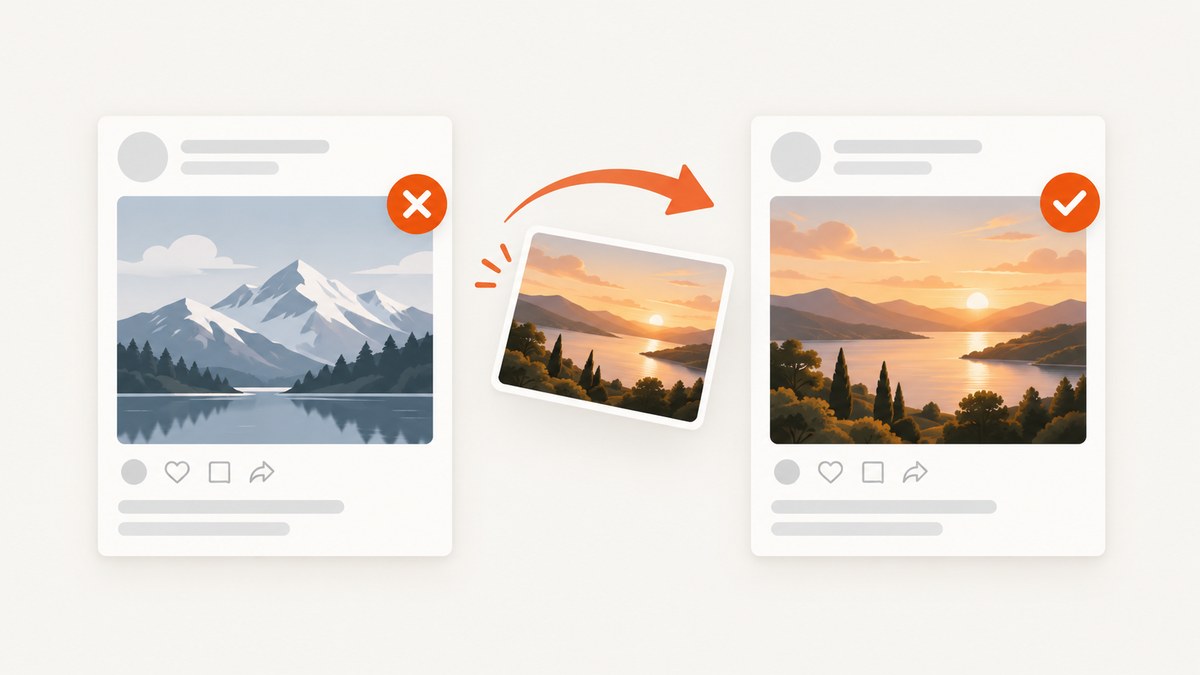
Direct answer: You cannot replace the attached photo, video, document, or other rich media in a standard LinkedIn member post after it is published. LinkedIn lets you edit the post text, but its shared-post help says attached media cannot be replaced. To use a different image, save anything you need from the original, delete the post, and publish a new post with the correct image.
The steps change when you are working with a LinkedIn Page post, a Page link preview, or a published LinkedIn article. Identify the format first so you do not waste time looking for an image-replacement control that does not exist.
Which LinkedIn post are you trying to change?
| Content type | Can the image change after publishing? | What to do |
|---|---|---|
| Ordinary member feed post with an uploaded photo, video, or document | No | Delete the post and create a new one with the correct media. |
| LinkedIn Page post | Yes, for authorized Page admins in LinkedIn’s Page management flow | Open the Page post, choose More and Edit post, then save. |
| Page post containing an article or website URL preview | The preview can be customized while composing the Page post | Paste the URL, use the preview edit control, choose an image and title, then publish. |
| Published LinkedIn article | Yes | Edit the article from your Articles management area. |
These distinctions come from LinkedIn Help guidance for shared member posts, Page administration, URL previews and articles. A Page workflow does not change the rule for an ordinary member photo post.
Change an image in a standard member post
For a post published from your personal profile, use this sequence:
- Confirm it is a standard post. You should see it on your profile feed, rather than in a Page’s admin view or under your Articles list.
- Copy the text you want to keep. Open the post menu and copy the caption, hashtags, mentions and link before deleting. If the post has comments containing useful information, save those separately because they will not move to the replacement post.
- Download or locate the replacement image. Check the crop, orientation, accessibility text and rights to use the image. LinkedIn’s photo help says an uploaded photo cannot be resized or edited after publication, so make the final version before uploading.
- Decide whether deleting is worth it. Deletion removes the original post and its accumulated reactions, comments and shares. If the error is minor, editing the text and leaving the image may preserve that engagement.
- Delete the original post. Use the post’s More menu and confirm deletion. If you cannot see a delete option, check that you are signed in to the account that published it and that it is not a Page post managed elsewhere.
- Create a new post. Paste the saved text, attach the corrected image, add any required alt text, check the preview and publish.
What happens to engagement?
A replacement post starts with zero reactions, comments and shares. Mentions and notifications from the original do not transfer. If the original has meaningful discussion, consider leaving it in place and adding a correction in the text, or publish a follow-up post that points to the corrected asset. Delete and repost when the image is materially wrong, misleading, sensitive or unusable.
Can changing the URL create a new image?
No. Editing a link in the existing text does not replace an already attached photo, and changing the destination URL does not force a new preview image into an existing post. Create a new post when you need different media.
Edit a LinkedIn Page post
LinkedIn documents a separate editing flow for Page super admins and content admins. The labels can vary slightly between desktop and mobile, but the process is:
- Open the LinkedIn Page where the post was published.
- Enter the Page’s admin or content-management view.
- Find the post in the Page’s posts list or feed.
- Open More and choose Edit post.
- Make the permitted changes and select Save.
Make sure you have the right Page role. A personal-profile connection to the company is not enough. Sponsored Page posts can have additional eligibility requirements; LinkedIn’s documented condition for the sponsored-post case it describes is at least 500 followers or 50 associated members. Do not apply that condition to every Page post.
Change a Page link-preview image before publishing
This is a different task from replacing an uploaded photo in a published member post. When a Page admin composes a post that contains an article or website URL, LinkedIn allows the preview image and title to be customized before publication.
- Open the Page composer and paste the article or website URL into the post box.
- Wait for LinkedIn to generate the preview card.
- Use the edit control beneath the text box or preview.
- Select the image and title you want displayed.
- Review the full card at desktop and mobile widths, then publish.
LinkedIn’s guidance for this Page preview is a 1.91:1 image ratio, commonly 1200 × 627 pixels. It says images wider than 200 pixels can display in the larger image format; smaller images may appear as a thumbnail on the left. Those dimensions apply to a Page URL preview, not to every LinkedIn photo post.
Why the preview still shows an old image
LinkedIn may be displaying information it previously retrieved from the URL. Check that the source page’s metadata and image are correct, wait for the preview to refresh, and use the Page preview edit control when available. Publishing a new URL in an existing member post will not replace the attached media.
Edit a published LinkedIn article
LinkedIn articles are a separate publishing format. To edit one, open Me, go to Post & Activity, choose Articles, open the article’s More menu and select Edit article. Update the article and publish the changes. LinkedIn says this editing feature is not available in the mobile app, so use the desktop website if the option is missing.
Do not use the article workflow for an ordinary feed post. An article’s cover or inline media rules do not grant an image-replacement control to a standard member post.
Prepare the replacement image correctly
- Use the final crop. LinkedIn may display different crops in the feed, profile and notifications. Keep the important subject away from extreme edges.
- Check orientation and resolution. A sharp source gives LinkedIn more room to resize. For a Page URL preview, use the documented 1200 × 627 ratio.
- Write useful alt text. Describe the meaningful content and any information conveyed by the image; do not repeat the caption.
- Remove private data. Check screenshots for API keys, email addresses, customer records and browser tabs before uploading.
- Verify rights and attribution. Replacing a post does not fix an image-licensing problem unless the new asset is cleared for use.
- Preview on a phone. Text embedded in a wide graphic can become unreadable or cropped in the mobile feed.
Or skip the browser setup
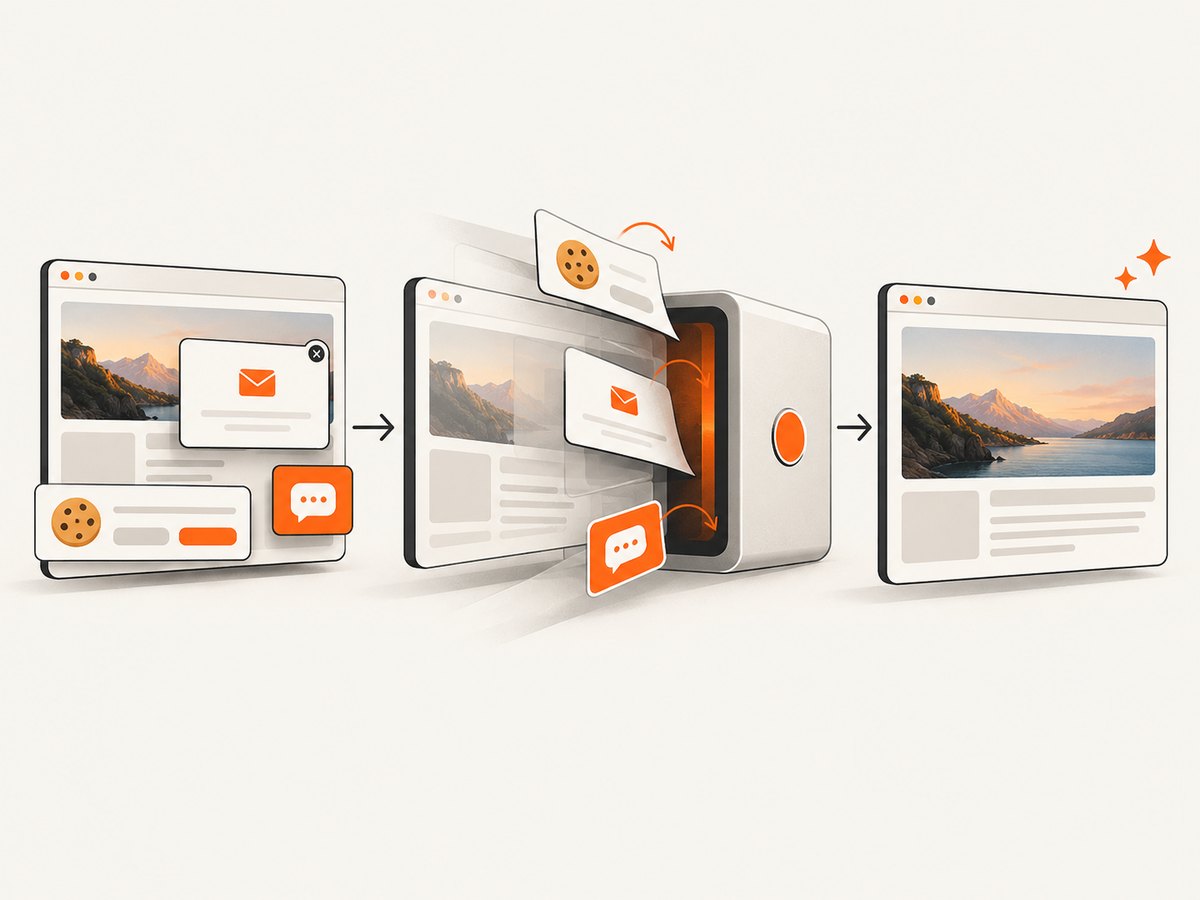
If your real task is producing a clean image of a web page to attach to a replacement LinkedIn post, ScreenshotNeo can return the capture from one request. It accepts cookie and consent banners before capture and removes more than 60 known consent platforms, newsletter popups and chat widgets. Bot checks, blank pages, timeouts, failed loads and cache hits are not billed, and the response identifies the result with X-Page-Verdict and X-Billed headers.
See the ScreenshotNeo documentation for the complete parameter reference. The simplest request is:
curl -G "https://api.screenshotneo.com/v1/shot" \
  -d access_key=YOUR_API_KEY \
  --data-urlencode url=https://stripe.com \
  -o shot.webp
Python:
import requests

r = requests.get(
    "https://api.screenshotneo.com/v1/shot",
    params={"access_key": "YOUR_API_KEY", "url": "https://stripe.com"},
    timeout=90,
)
r.raise_for_status()
open("shot.webp", "wb").write(r.content)
Node.js:
const q = new URLSearchParams({
  access_key: 'YOUR_API_KEY',
  url: 'https://stripe.com'
});
const res = await fetch(`https://api.screenshotneo.com/v1/shot?${q}`);
if (!res.ok) throw new Error(`Screenshot failed: ${res.status}`);
const fs = await import('node:fs/promises');
await fs.writeFile('shot.webp', Buffer.from(await res.arrayBuffer()));
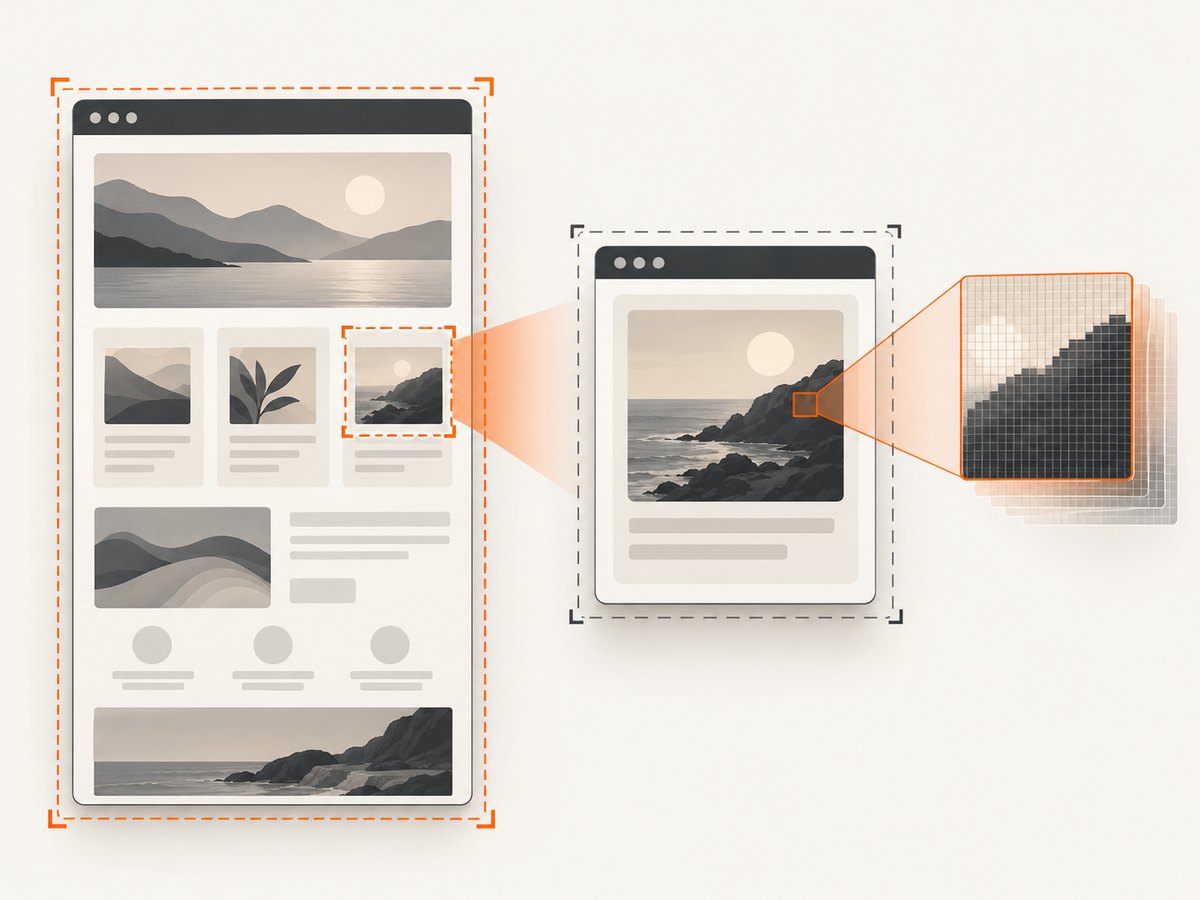
For a LinkedIn-ready asset, ScreenshotNeo also supports PNG or JPEG output, full-page capture with lazy images loaded, a CSS-selector element capture, dark mode, device presets, custom viewport and retina scale. You can wait for a selector, a delay or network idle; hide selectors; block ads, trackers, requests or resource types; set headers, cookies, user agent, timezone and geolocation; add custom CSS or JavaScript; and resize the resulting image. Caching lets you choose a TTL, while signed links are useful when an image must be loaded by a public <img> tag. Async jobs, signed webhooks, bulk capture for up to 100 URLs per call, a usage API and an OpenAPI specification cover larger workflows. An MCP server exposes take_screenshot, get_page_info and capture_pdf to Claude, Cursor and other MCP clients.
ScreenshotNeo bills only clean shots. The Free plan includes 1,000 shots per month with no card; paid plans start at $5 for 3,000 shots, and every feature is available on every plan. Create a free ScreenshotNeo account to start with 1,000 screenshots per month and no card.
Troubleshooting
| Problem | Likely cause | Fix |
|---|---|---|
| No Edit option appears | You are viewing a standard member post, lack the Page role, or are in the mobile app for an article. | Use delete-and-repost for member media, switch to the Page admin view, or edit the article on desktop. |
| The new image is not attached | The upload failed, the file type is unsupported, or the composer lost its state. | Refresh, upload the final file again, wait for the preview, and verify before publishing. |
| The old URL thumbnail remains | LinkedIn is using cached page metadata. | Correct the source metadata, wait for a refresh, or customize the preview in the Page composer. |
| Deleting would lose valuable discussion | Comments and reactions belong to the original post. | Keep the post and add a correction, or publish a follow-up with the corrected image. |
| ScreenshotNeo returns a bot-check or blank result | The target site blocked automation or failed to render. | Inspect X-Page-Verdict, adjust waits, headers, cookies or user agent, and retry. Such failed loads and bot checks are not billed. |
| Capture is too slow | Full-page lazy loading, third-party resources or an excessive wait. | Capture a CSS-selected element, block unnecessary resource types, use a targeted wait, or reuse a cache TTL. |
Performance, reliability and cost considerations
For a one-off replacement image, manual upload is simplest. For recurring screenshots, automate the capture and keep the source URL, viewport, output format and timestamp with the file so you can reproduce it. Element captures generally transfer less content than full-page captures. Blocking ads, trackers and unrelated resources can reduce rendering work, but blocking a required stylesheet or image can produce an incomplete result.
Use a fixed viewport and device preset when you need consistent comparisons. Retina scale improves detail at the cost of larger files. WebP is compact, while PNG is useful for sharp text and transparency; JPEG is appropriate for photographic content. Set a cache TTL when the source changes infrequently. For many URLs, bulk capture avoids repeatedly setting up individual requests. Async jobs and signed webhooks keep long captures out of a request timeout.
Keep your access key server-side. Do not place it in browser JavaScript or a public LinkedIn image URL. Check the usage API and the X-Billed response header when reconciling costs.
Quick decision checklist
- Is this a personal feed post, a Page post, a Page URL preview or an article?
- Do you need to preserve the original engagement?
- Is the replacement image final, accessible and cleared for use?
- For a Page preview, is the image 1200 × 627 pixels or another 1.91:1 size?
- Have you checked the result on mobile before publishing?
- If the image comes from a website, can a clean ScreenshotNeo capture remove banners and widgets first?
FAQ
Can I change only the photo while keeping the same LinkedIn post URL?
No for a standard member post. Deleting and recreating the post creates a new post. A Page admin may edit a Page post through the documented admin flow.
Will editing the caption refresh a link preview?
Not reliably, and it will not replace an already uploaded photo. Use the Page preview controls while composing a new Page URL post.
Can I edit a LinkedIn article from my phone?
LinkedIn’s article-edit help says the feature is unavailable in the mobile app. Use the desktop site.
Should I delete a post with a small typo in the image?
Only if the typo makes the image misleading or unusable. Otherwise, preserve engagement and correct the context in the text or a follow-up.
Can ScreenshotNeo create a PDF instead of an image?
Yes. Its API supports PDF output with paper size, margins, landscape mode and page ranges, alongside PNG, JPEG and WebP screenshots.


